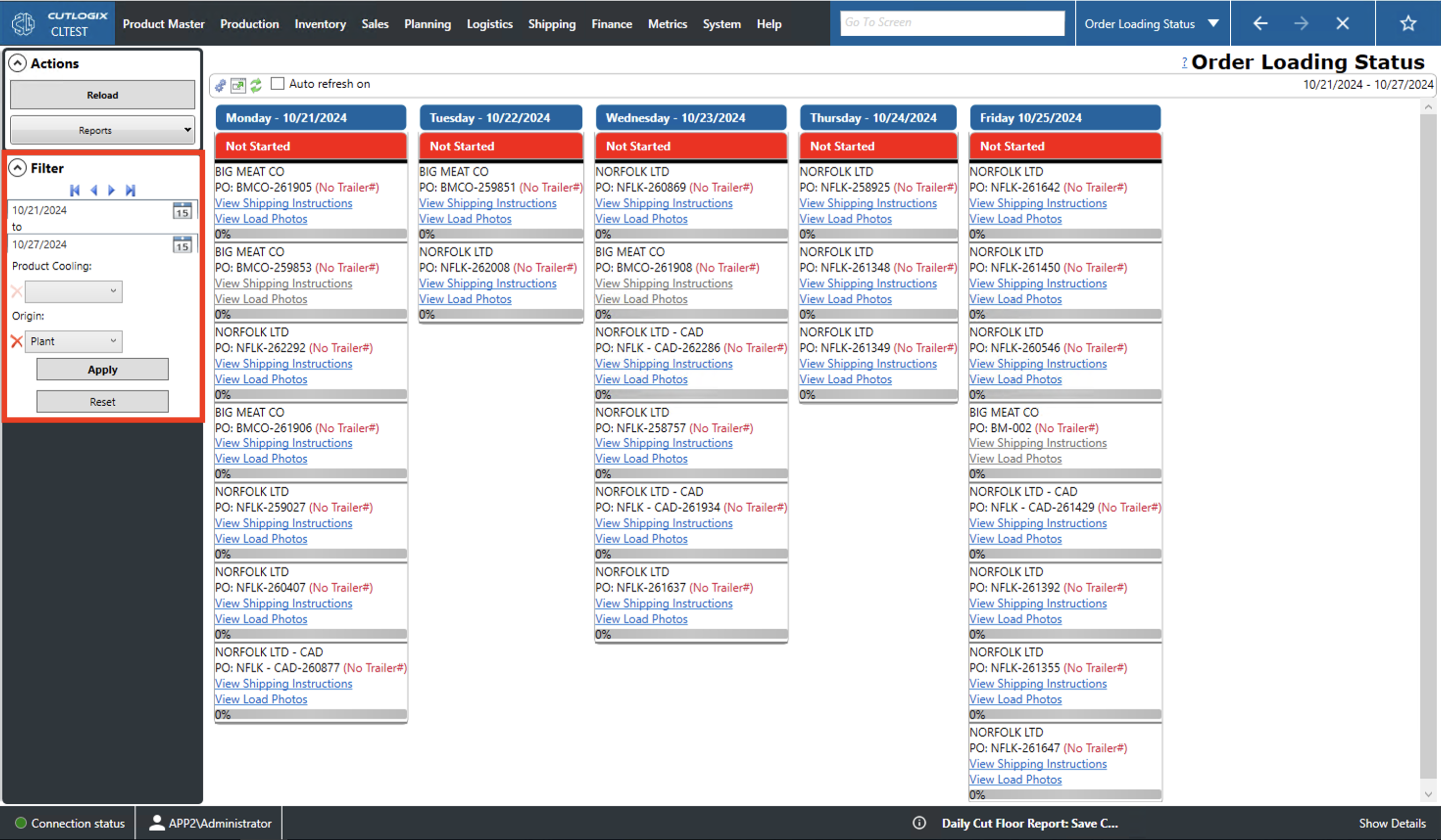
Order Loading Status Overview
How to Navigate: Click on Shipping > Order Loading Status
Summary
This page allows users to see the status of the week's orders at a glance. Each entry shows an order for a particular customer, some details and a bar at the bottom that shows how complete that load is as a percentage. Users can also double-click specific entries to get a pop-up that shows more detailed information about that entry.
-
Top bar actions
- Configure Order Load Days: Action icon is two gears. Allows the user to select which days are visible in the list.
- Open in New Window: Action icon is a display window. Opens the list in the new window.
- Reload Order Status: Action icon is two green rotating arrows. Reloads the list with the most up to date information from the data base.
- Auto refresh on: Check this if you want the list to refresh at regular intervals.
- Date Range: Indicates the date range to be displayed in the list in the month/day/year format.
- Day: In blue, this field indicates the day (i.e. Monday, Tuesday, etc.) and the date (i.e. 09/09/2024).
- Status: Beneath the date is the overall status of the orders to be completed that day.
- Red/Not Started: None of the days loads have begun being scanned and loaded yet.
- Yellow/In Progress: The day's loads are currently being scanned/loaded.
- Green/Completed: All of the loads for the day have been scanned and loaded.
- Customer: The customer to which the load will be shipped.
- PO#: The purchase order number (PO#) associated with the load.
- View Shipping Instructions: This will allow the user to view any special shipping instructions attached to this load record.
- View Load Photos: Allows users to view any photos attached to the loading status record.
- Status Bar: This shows a percent that indicates how much of that particular load has been loaded onto a truck.
List Information
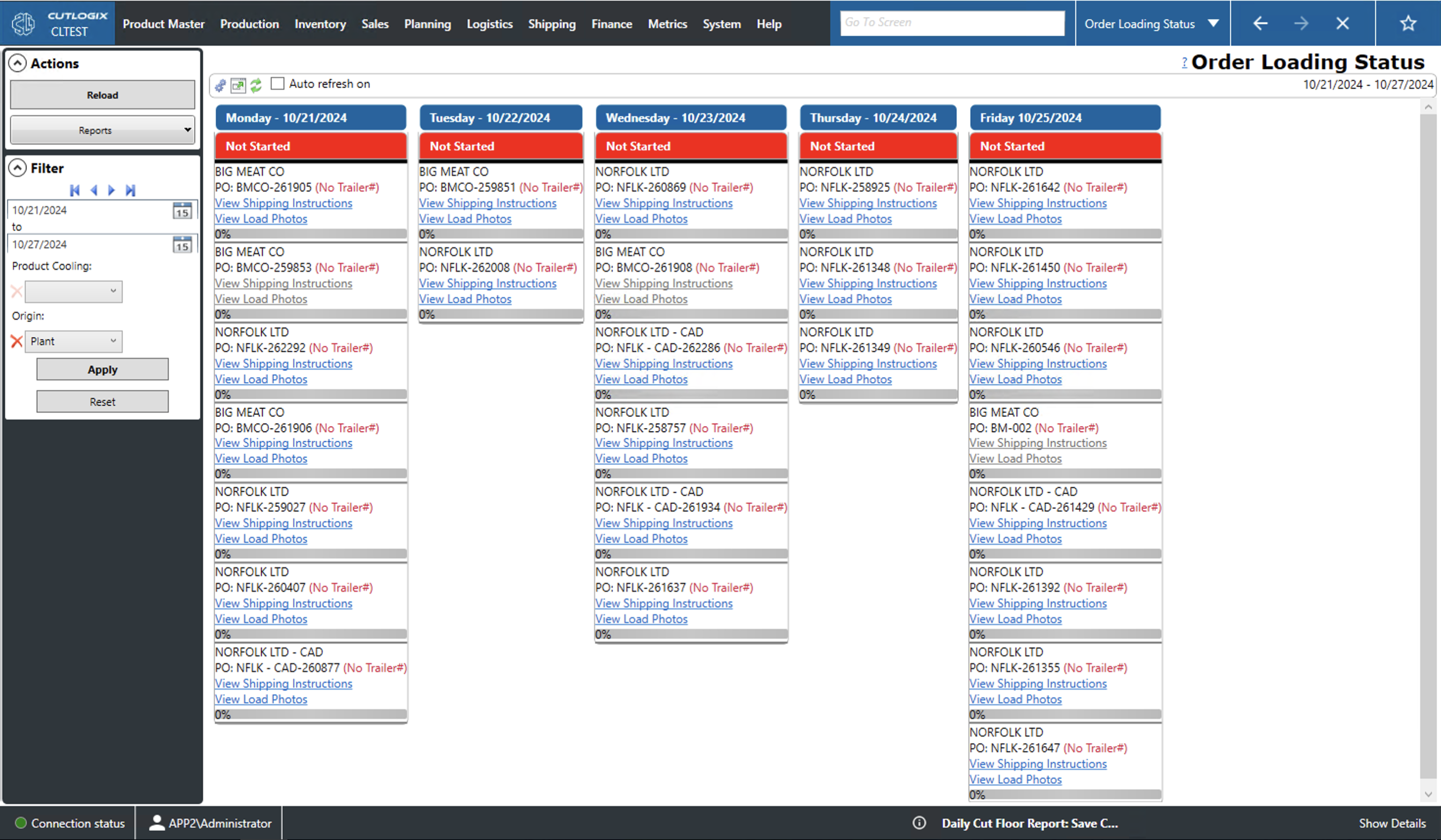
Actions
- Reload: Reloads the list displaying the most up to date information from the data base.
- Reports: This dropdown will give the user access to a number of relevant reports on the order load status list. These reports are customizable via customer request.
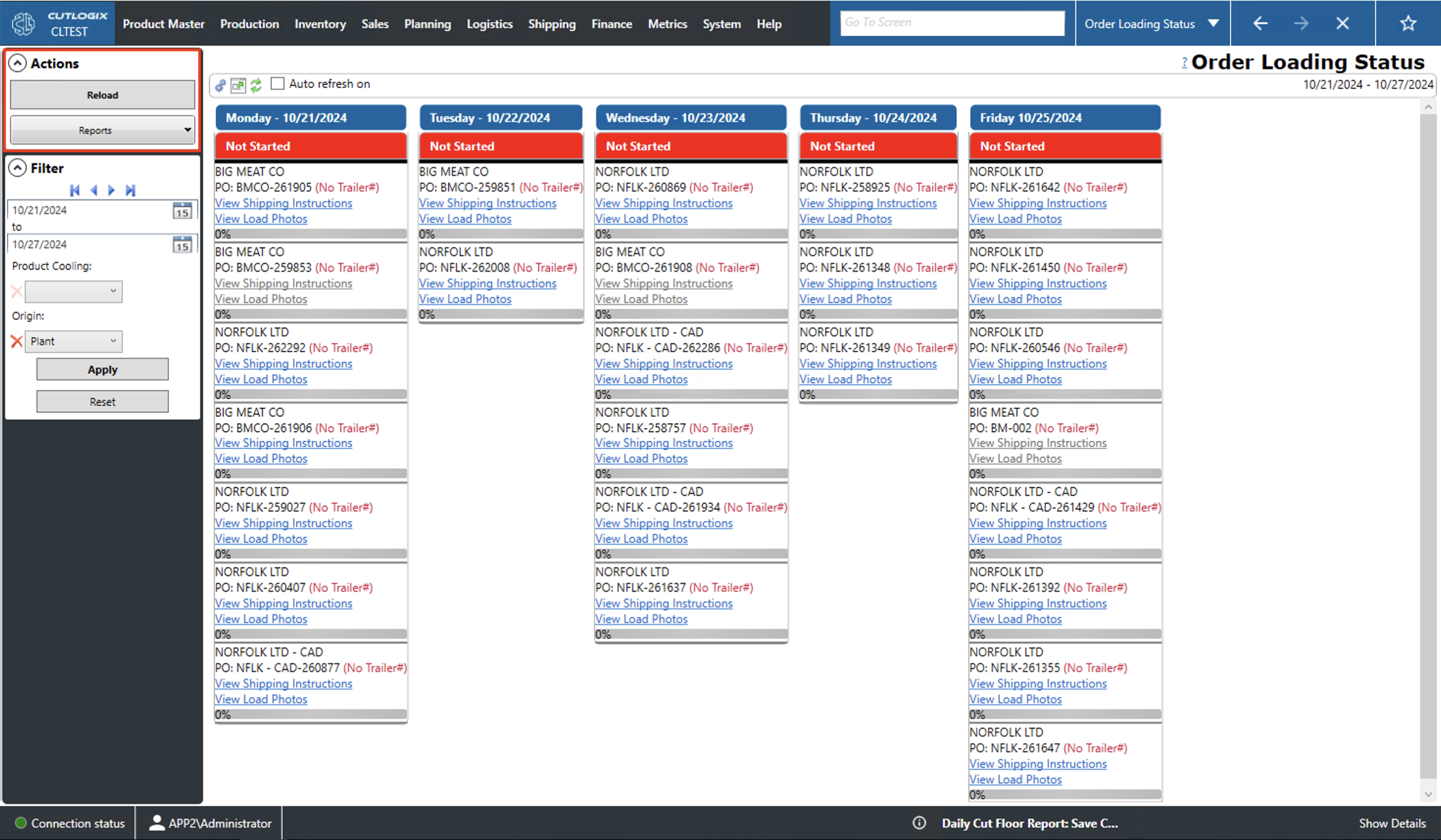
Filter
- Start/End Date: Set a custom start/end date for the list's date range.
- Product Cooling: Filter the list by the load's product cooling (fresh, chilled or frozen).
- Origin: Filter by the location from which this load will be shipped.
- Apply: This will reload the list with the current filters applied.
- Reset: This will reset the filters and reload the list to an unfiltered state.