Customer Tasks
Note: Customers and contacts are not interchangeable. A customer is who will get added to a customer order. They are configured with an official address, payment terms and are who get invoiced for orders but are not necessarily where orders will be shipped to. Contacts can be linked to customers (customers can have multiple contacts), they often represent different locations within a company where orders would be shipped to or contact people for the company. Contacts are often set as consignees on orders.
How to Add Customers
Demo
Customers are an important part of the sales process in Cutlogix. Customers must be entered in Cutlogix before customer orders can be created.
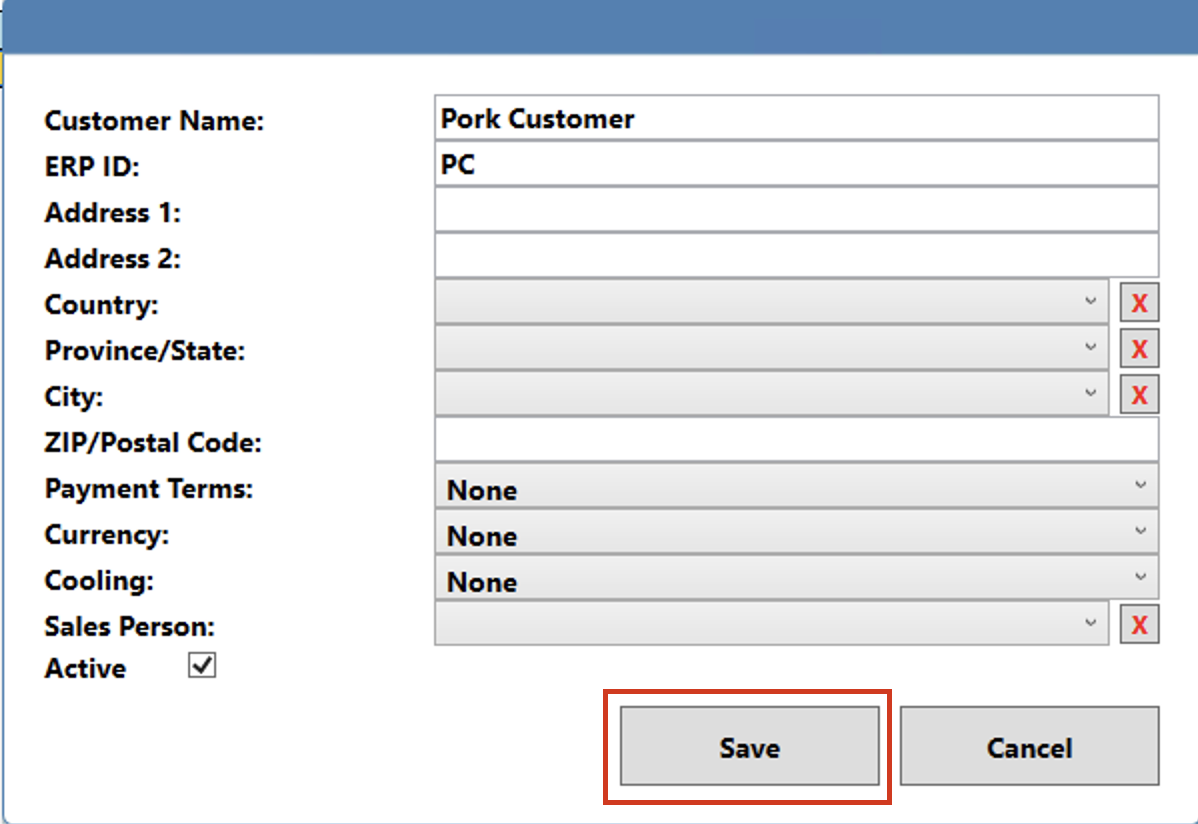
Step 1: Navigate to the "Customers" page. (Located under the "Sales" menu option)
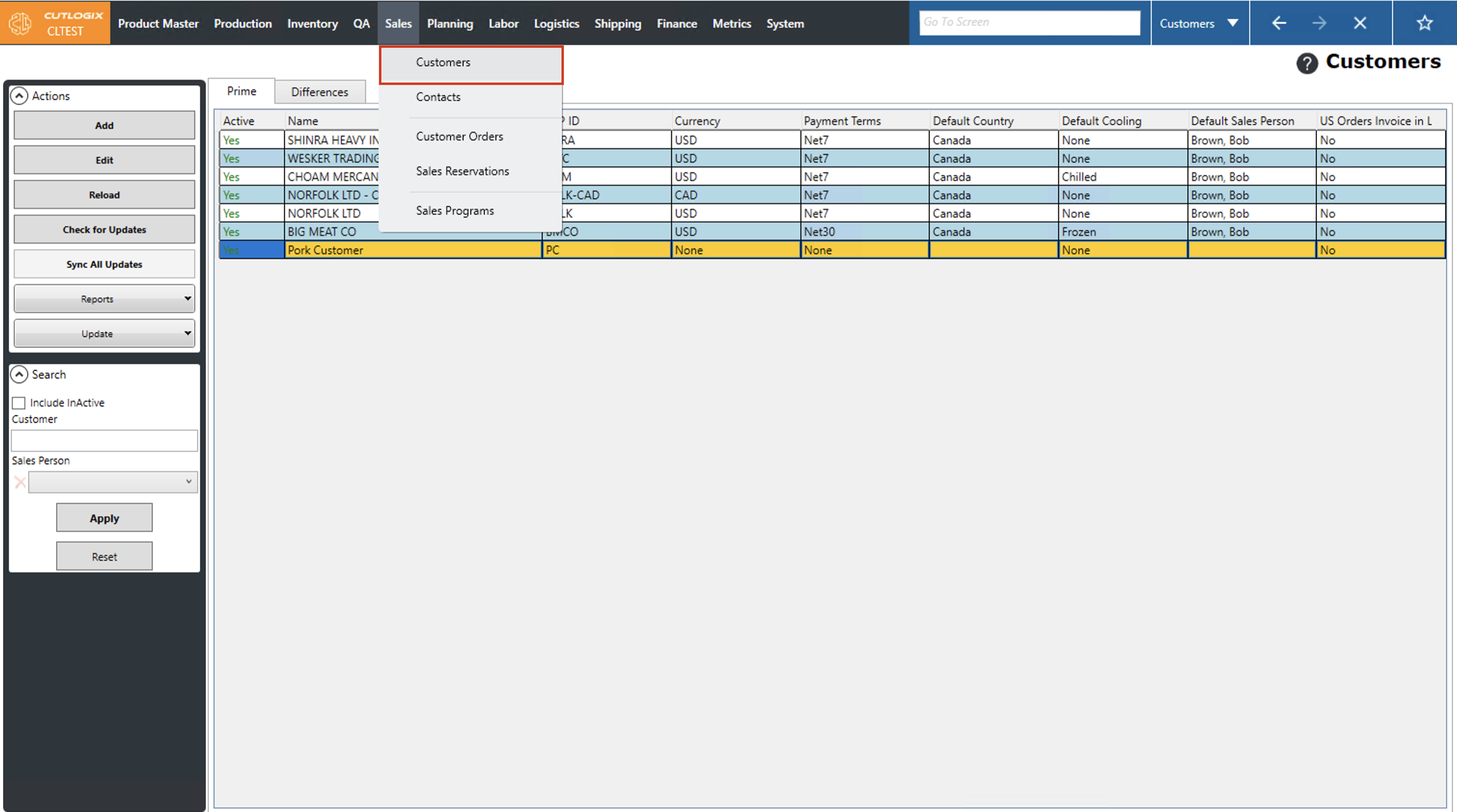
Step 2: Click the "Add" button in the Actions panel.
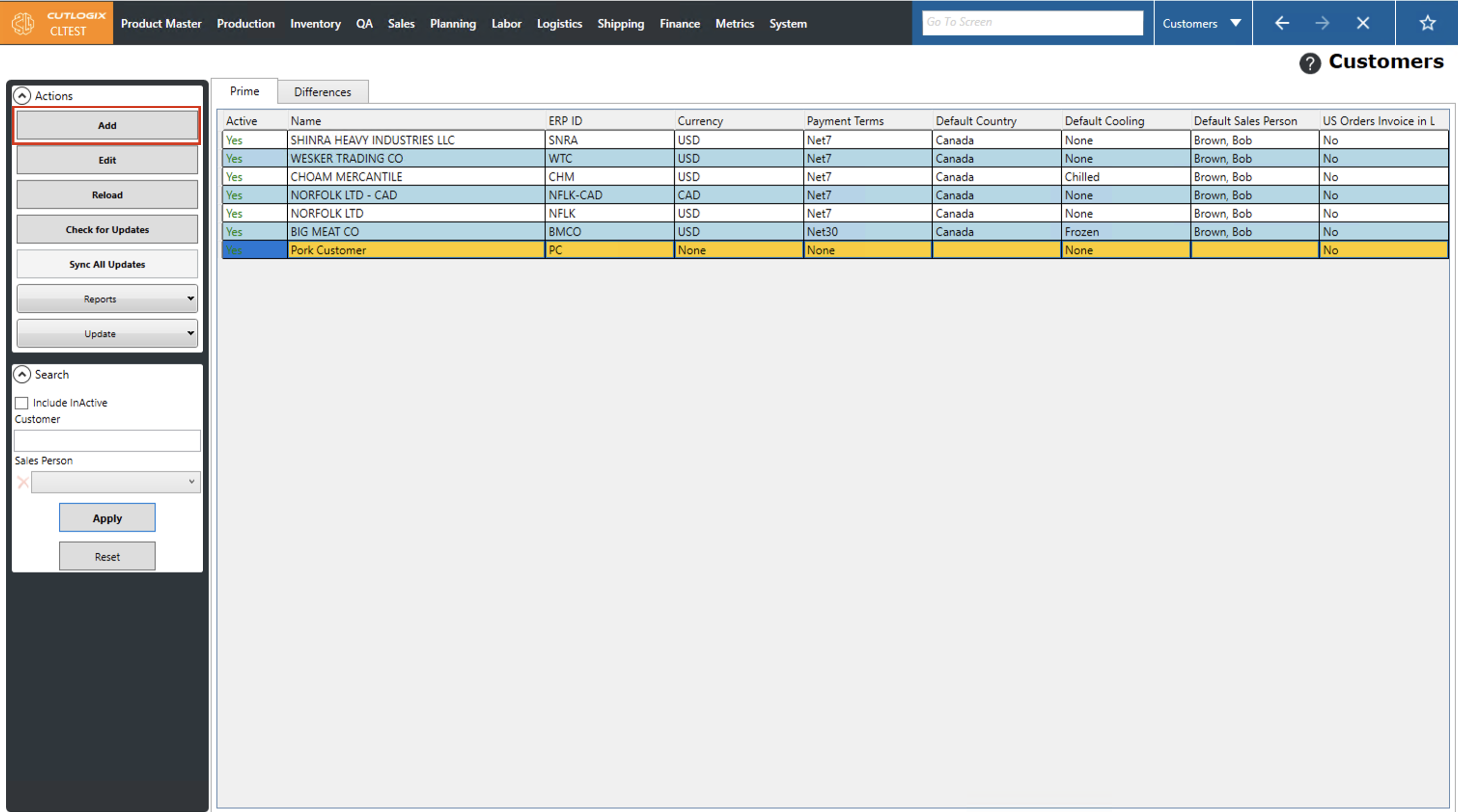
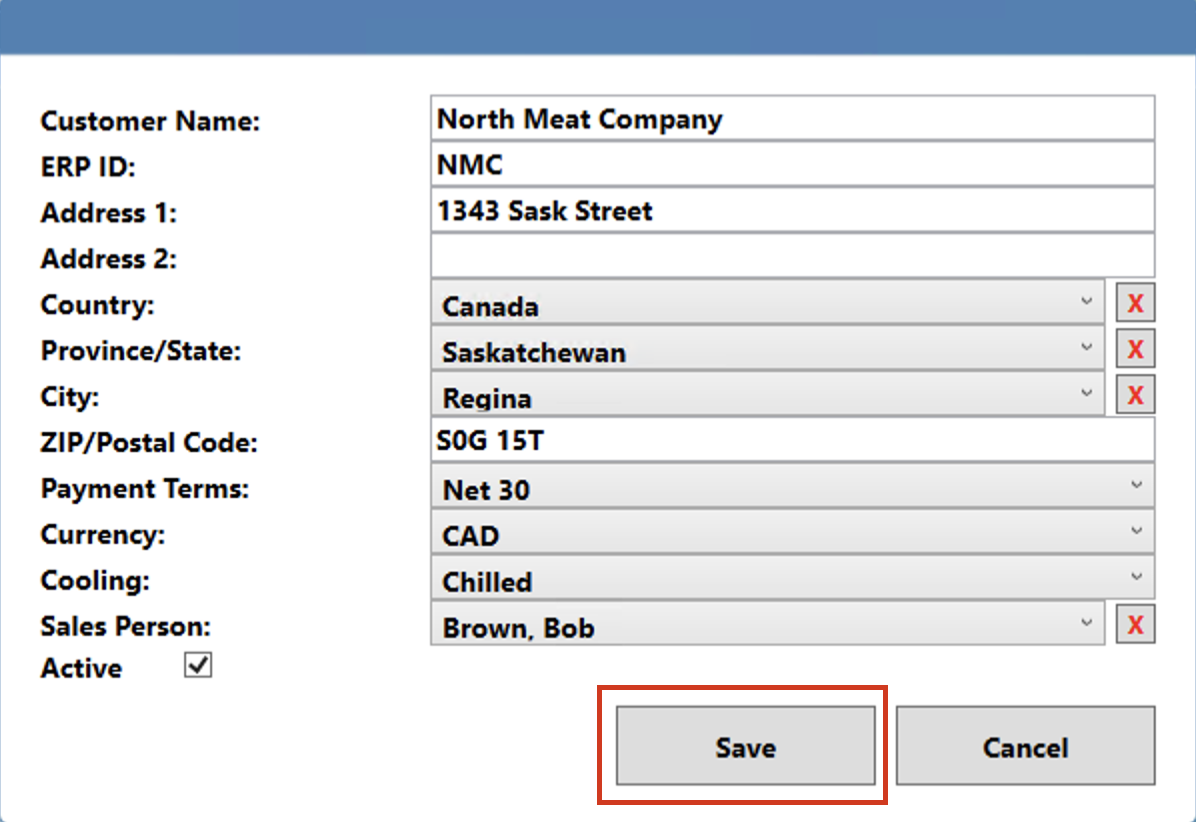
Step 3: A dialog will appear on the page where you can enter information about the customer to be added. Fields highlighted in red are required and must be entered in order to create the new customer. These required fields are "Customer Name" and "ERP ID" (Enterprise Resource Planning ID)
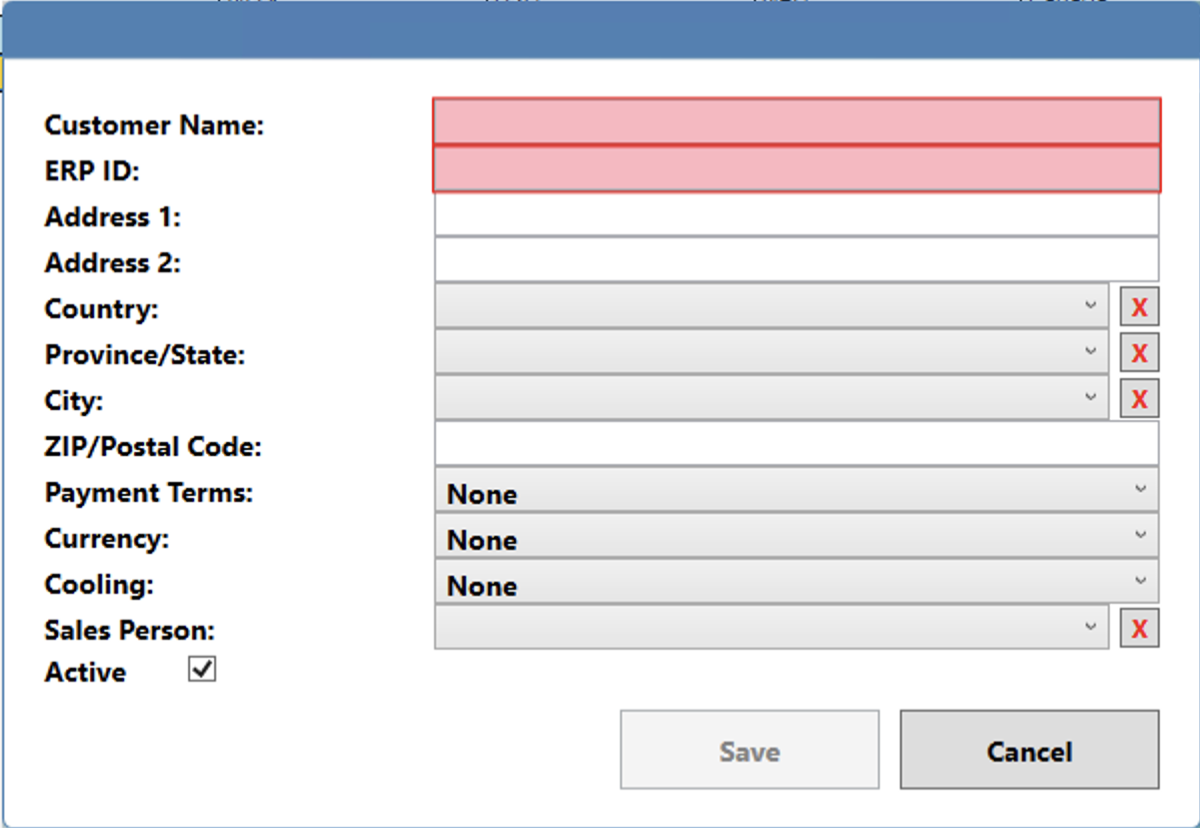
Step 4: Once you're ready to save the new customer, click the "Save" button at the bottom of the dialog. The new customer will then be available in your customers list.
How to Edit Customers
Demo
Step 1: Navigate to the "Customers" page. (Located under the "Sales" menu option)
Step 2: Click on the customer in the list that you want to edit. (They will be highlighted in orange once they're selected.)
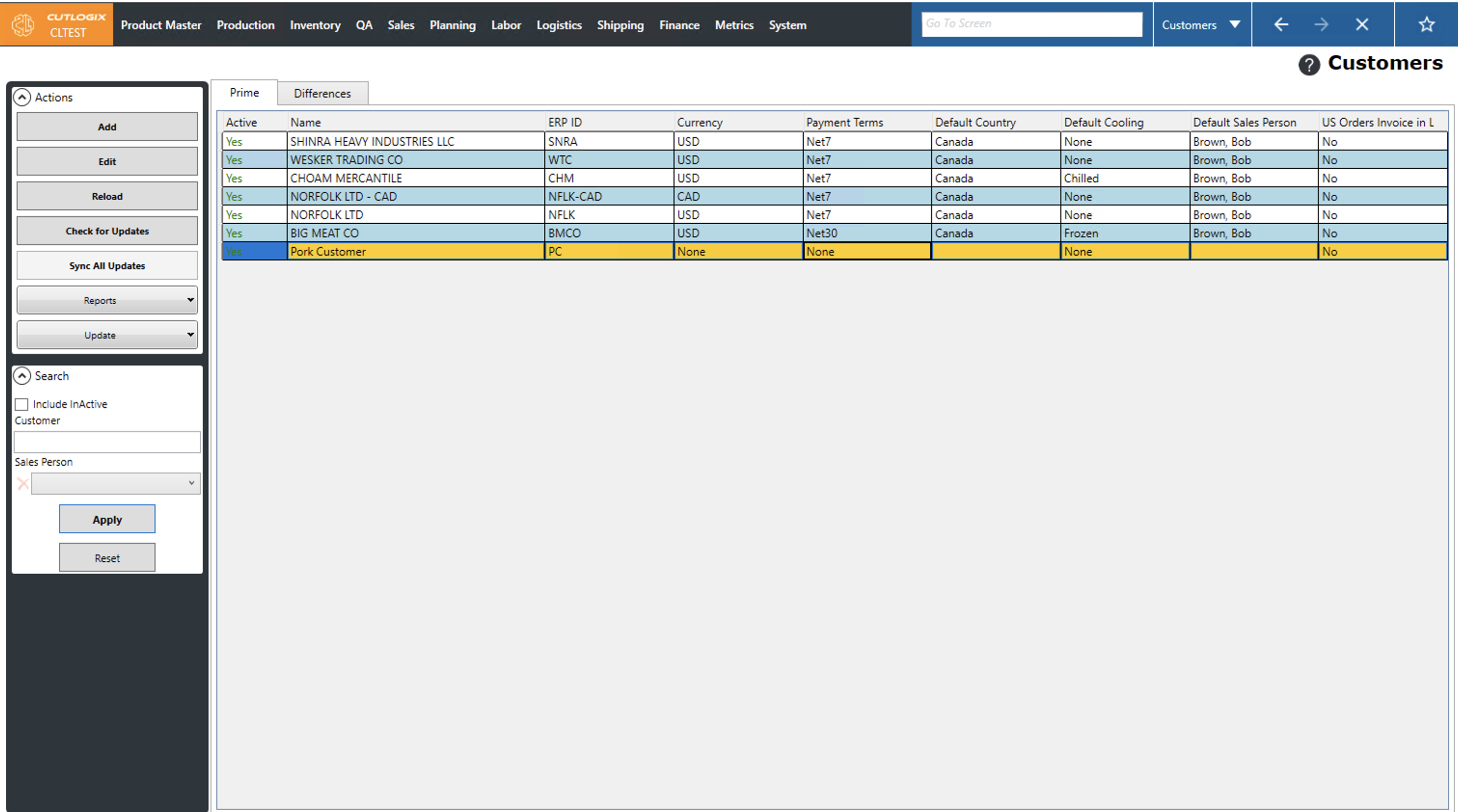
Step 3: The dialog to add/edit customers will appear. Here you can make any necessary changes to the customer.
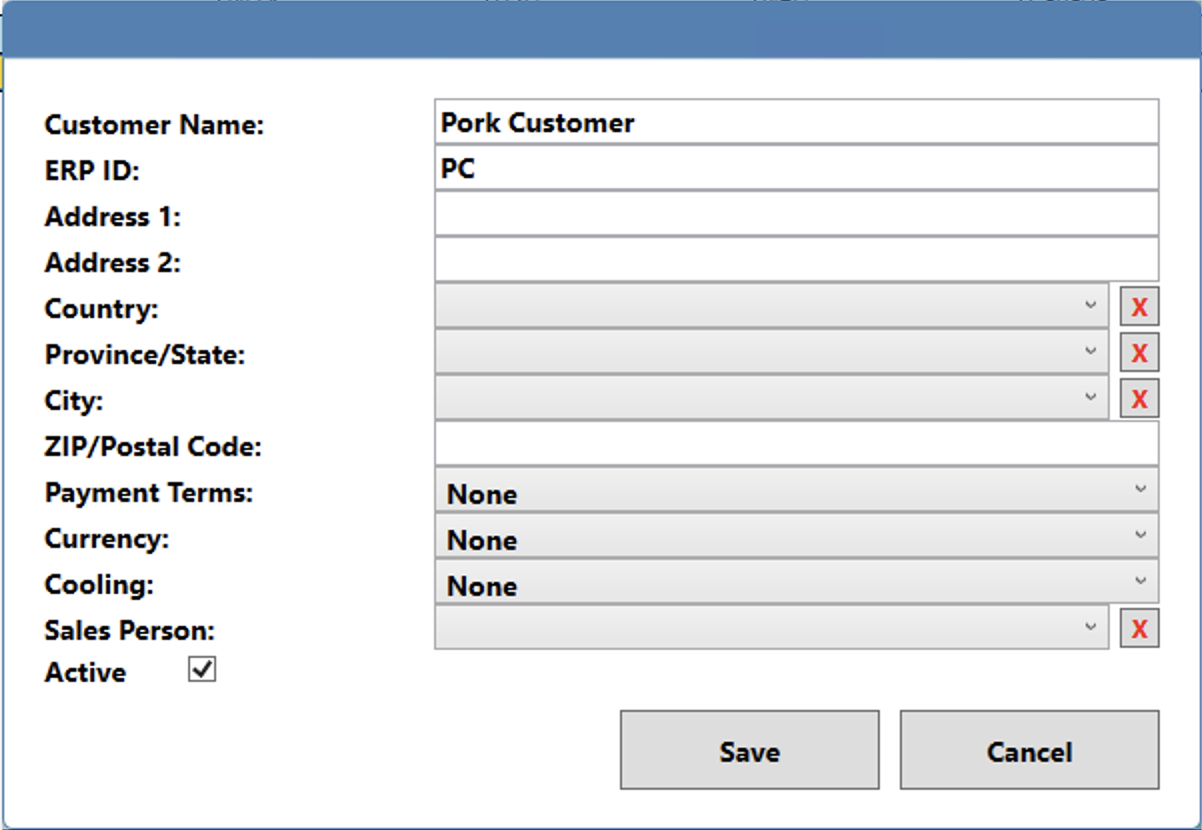
Step 4: Once you're ready to save the changes to the customer, click the "Save" button at the bottom of the dialog. Note: If you make changes that you don't want to save, clicking the "Cancel" button will discard these changes and close the dialog, leaving the customer unmodified.