Freezer Planning Override Tasks
How to Add Freezer Planning Overrides
Demo
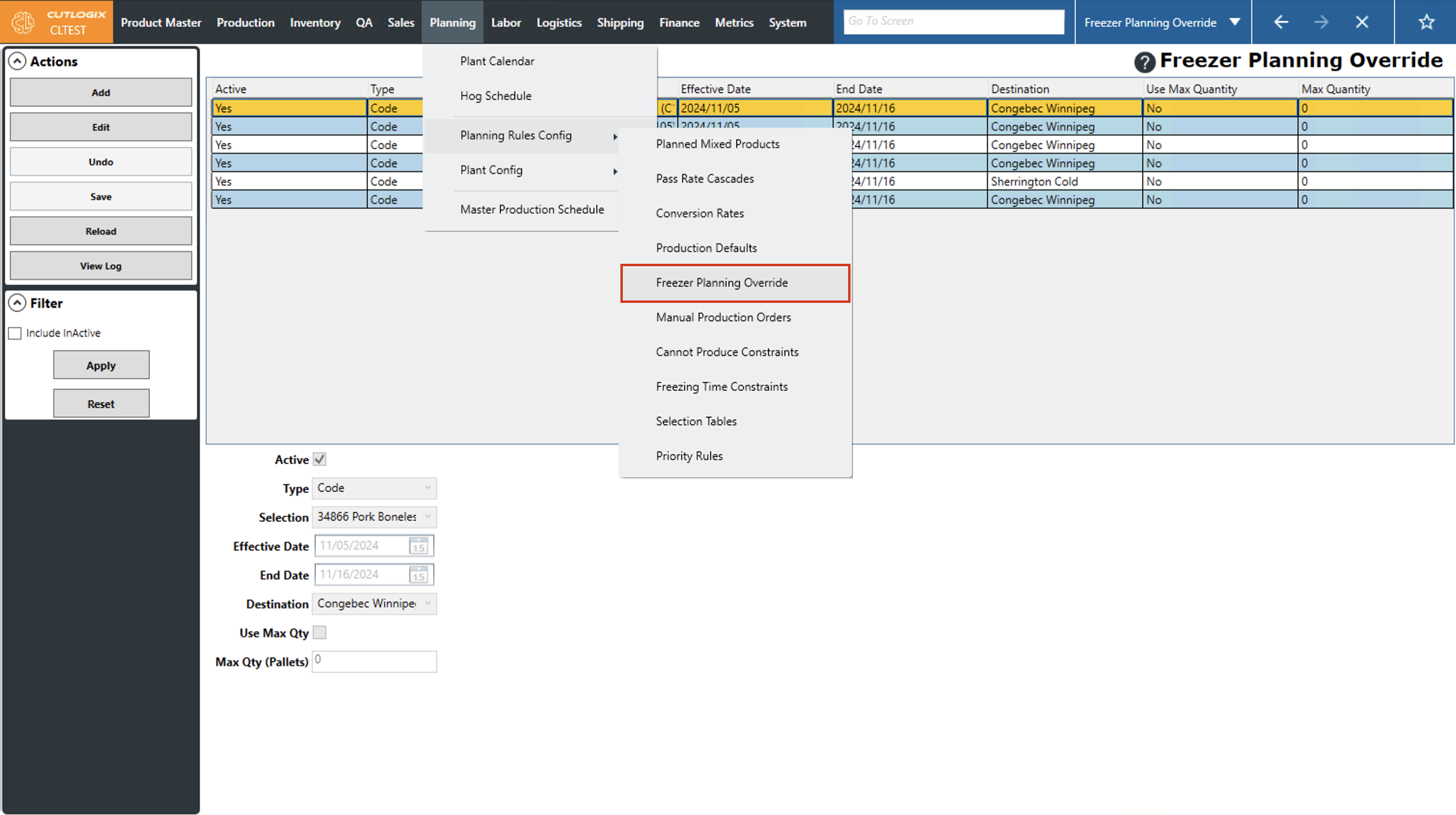
Step 1: Navigate to the "Freezer Planning Override" page (Under the Planning menu → Planning Rules Config → Freezer Planning Override).
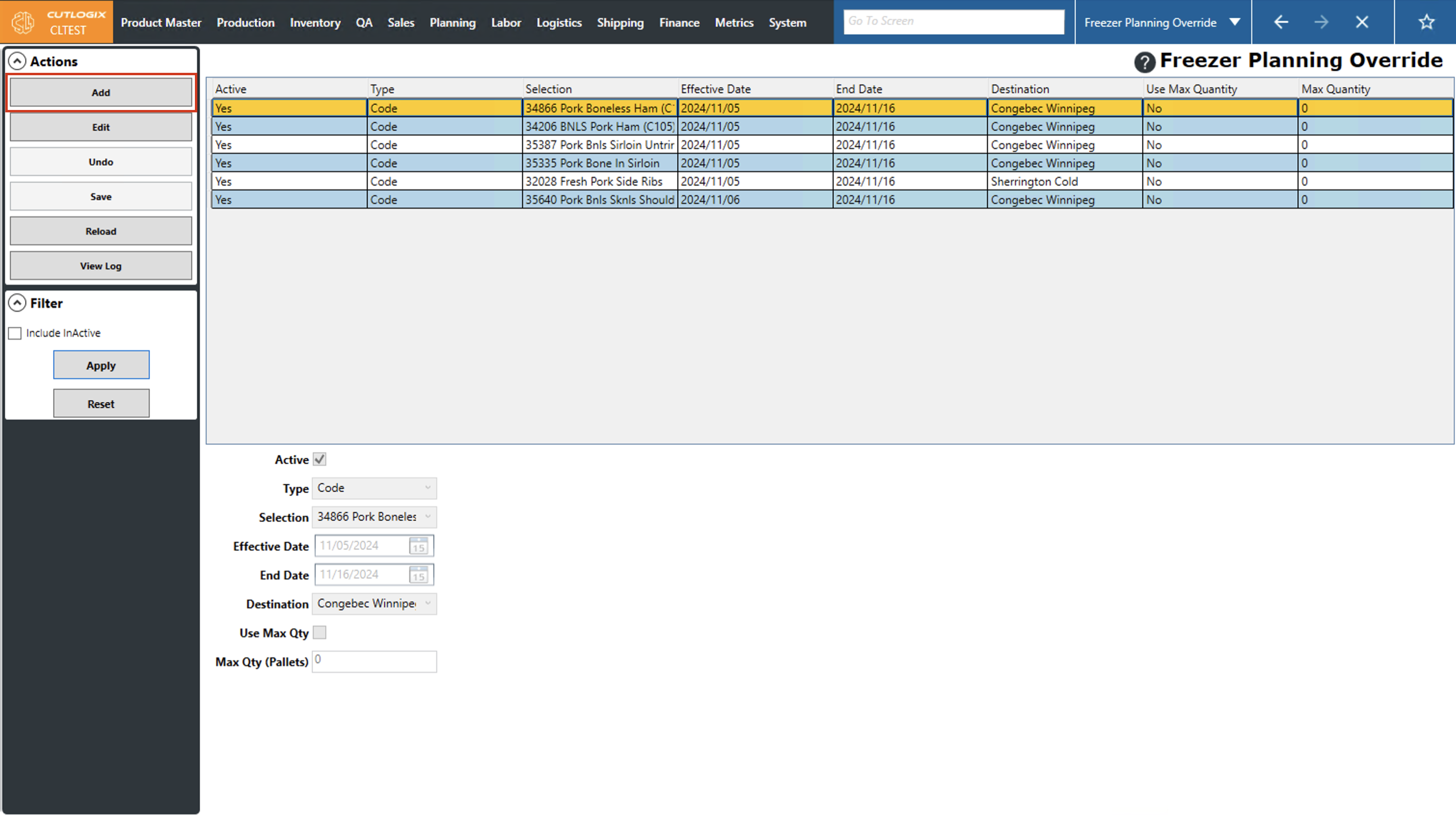
Step 2: Click the "Add" button in the Actions Panel.
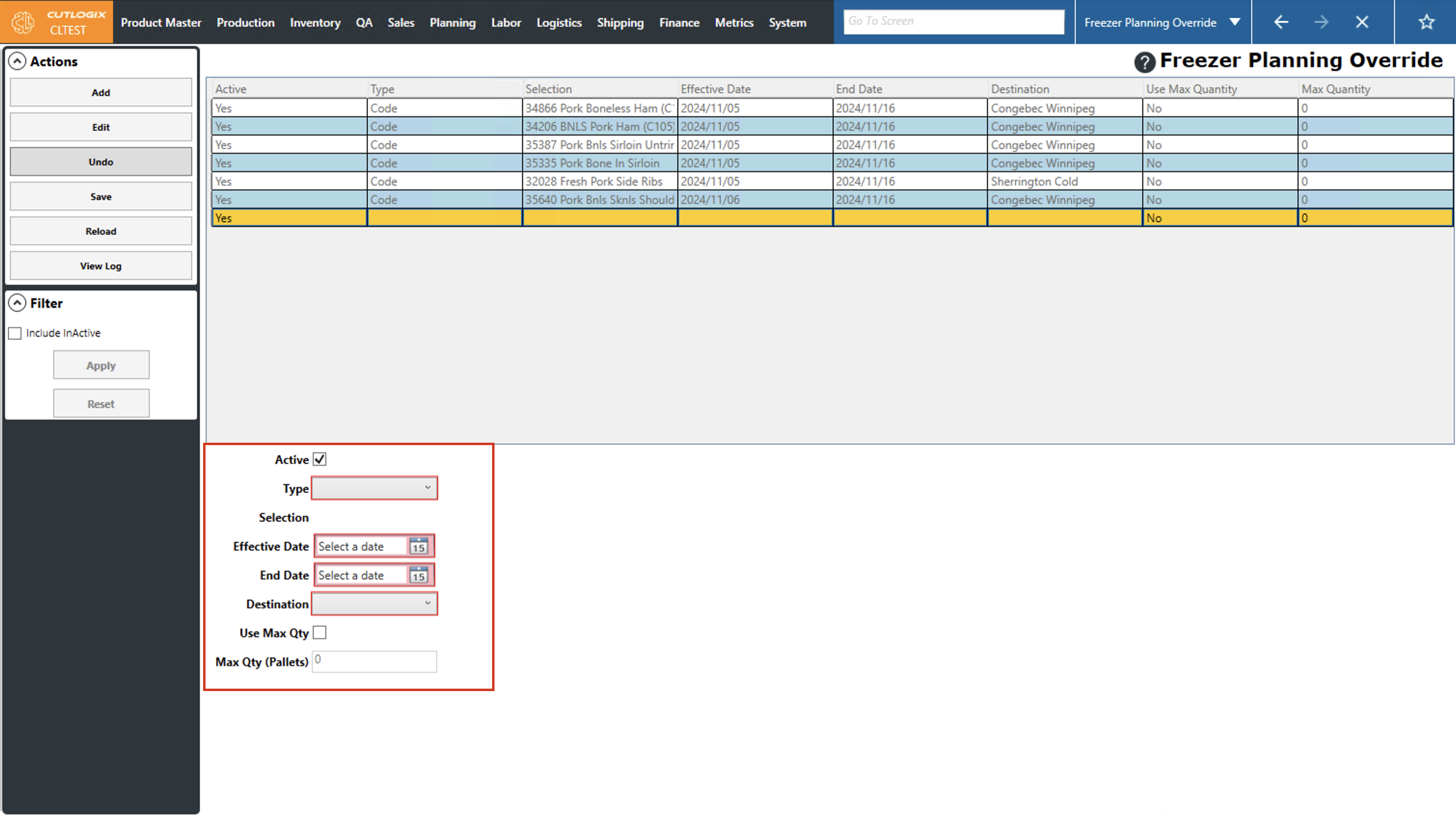
Step 3: Several fields will appear near the bottom of the screen for you to enter the details for the override. The fields that are highlighted in red are required and must be entered before the override can be saved, these fields are as follows:
• Type: Select the type of override from the drop-down list. (Currently, the only option for type is "Code", which will allow you to specify overrides by product code)
• Selection: The product that the default freezer is being overridden on, chosen from the drop-down list.
• Effective Data: The date that the override is going into effect, chosen by clicking on the calendar icon.
• End Date: The date that the override is done on, chosen by clicking on the calendar icon.
• Destination: The destination freezer that the product will be shipped to for the duration of the override.
• Type: Select the type of override from the drop-down list. (Currently, the only option for type is "Code", which will allow you to specify overrides by product code)
• Selection: The product that the default freezer is being overridden on, chosen from the drop-down list.
• Effective Data: The date that the override is going into effect, chosen by clicking on the calendar icon.
• End Date: The date that the override is done on, chosen by clicking on the calendar icon.
• Destination: The destination freezer that the product will be shipped to for the duration of the override.
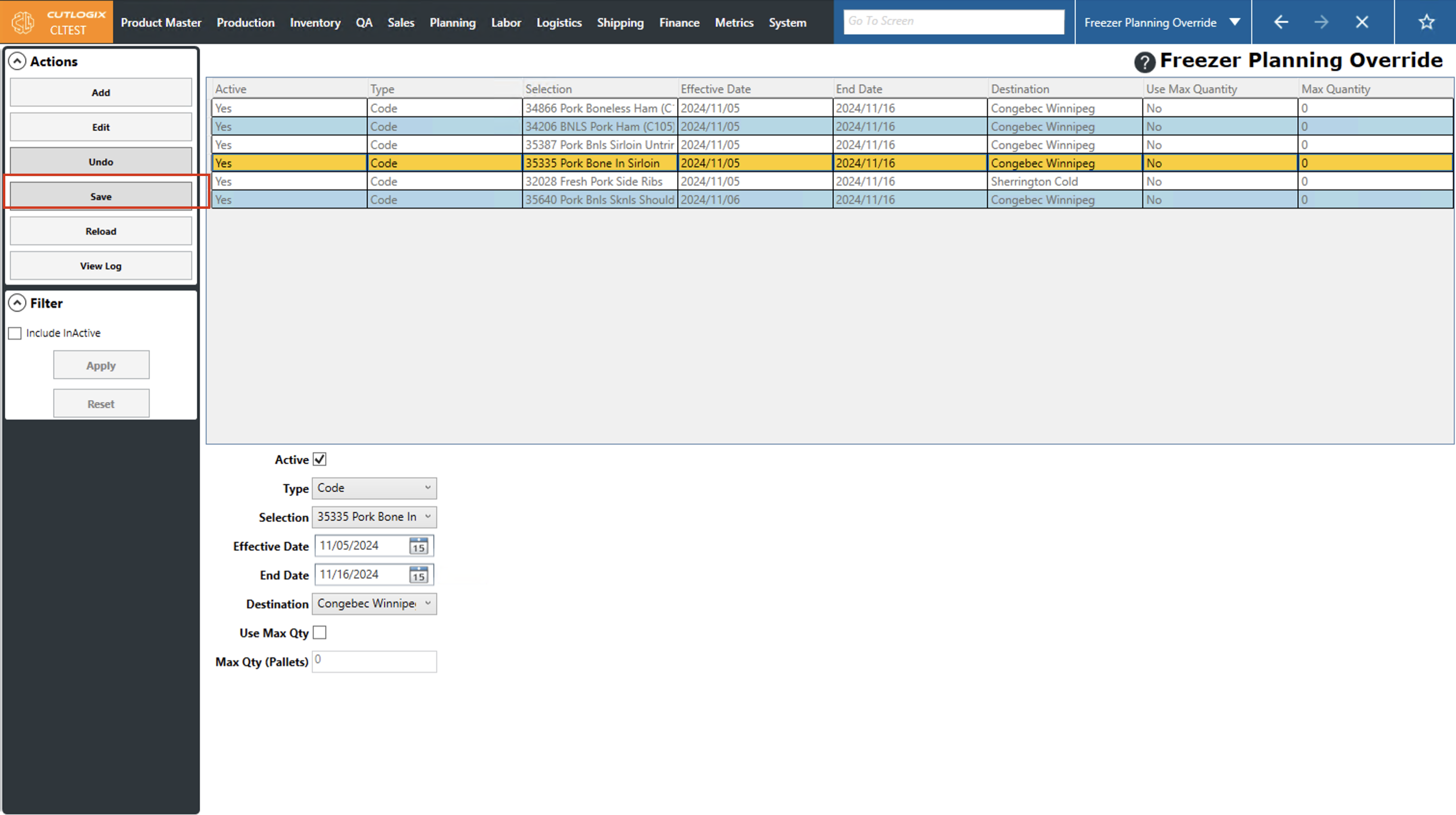
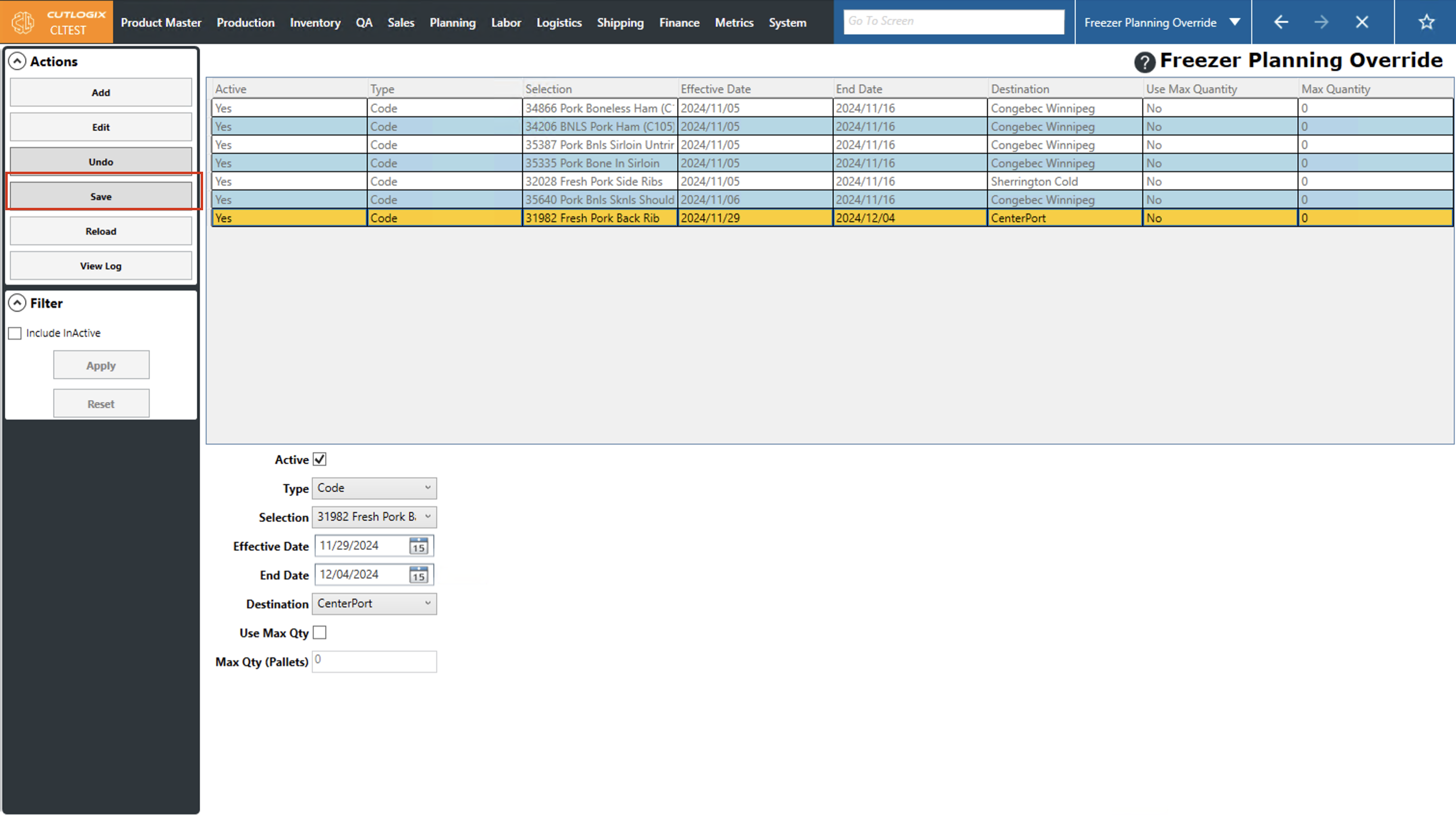
Step 4: Once you've entered all the required information, click the "Save" button in the Actions Panel, this will save the freezer planning override into the list at the top of the screen. If you don't want to save the override, clicking "Undo" in the Actions Panel will discard the override and it will not be saved.
How to Edit Freezer Planning Overrides
Demo
Step 1: Navigate to the "Freezer Planning Override" page (Under the Planning menu → Planning Rules Config → Freezer Planning Override).
Step 2: Click on the freezer planning override that you want to modify (it will be highlighted in orange once selected), then click the "Edit" button in the Actions Panel.
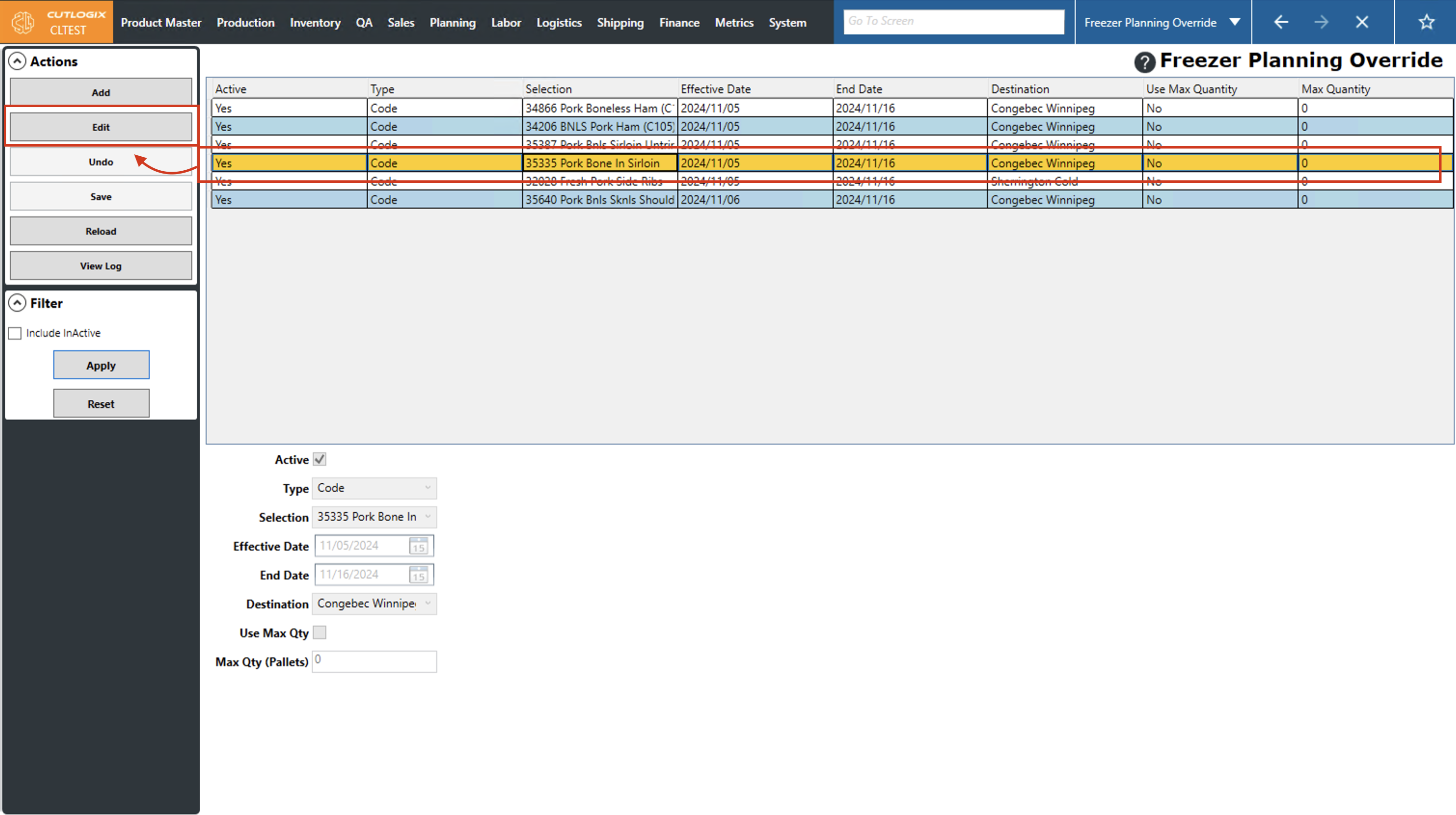
Step 3: The details about the freezer planning override will appear on the lower part of the screen and will be editable. Make any necessary changes to the freezer planning override here.
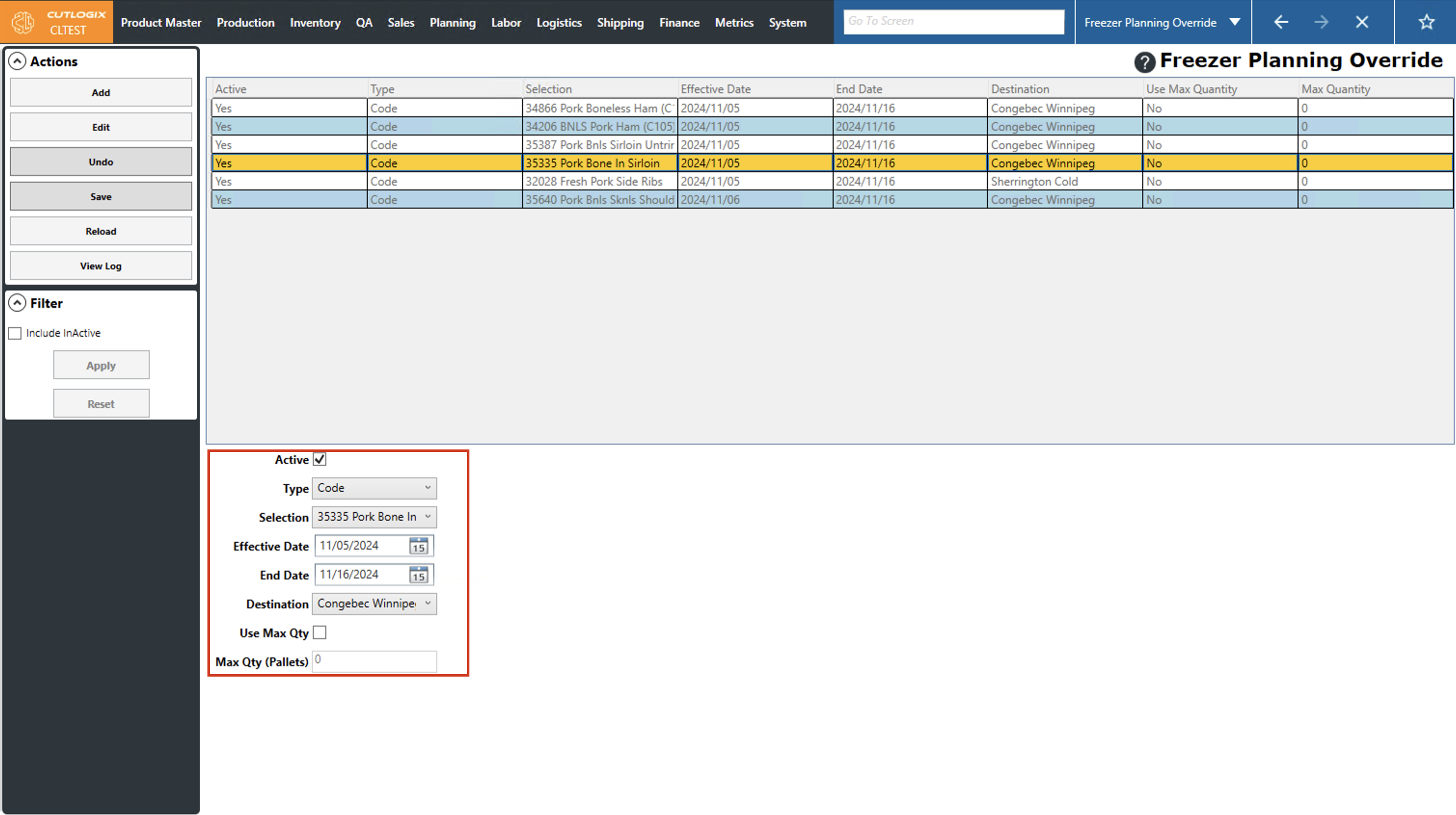
Step 4: Once you're done making changes, click "Save" in the Actions Panel to save the changes and update the freezer planning override. If you don't want to save your changes, clicking "Undo" will discard your changes.