Inventory Explorer Tasks
How to View Historical Data in the Inventory Explorer
Demo
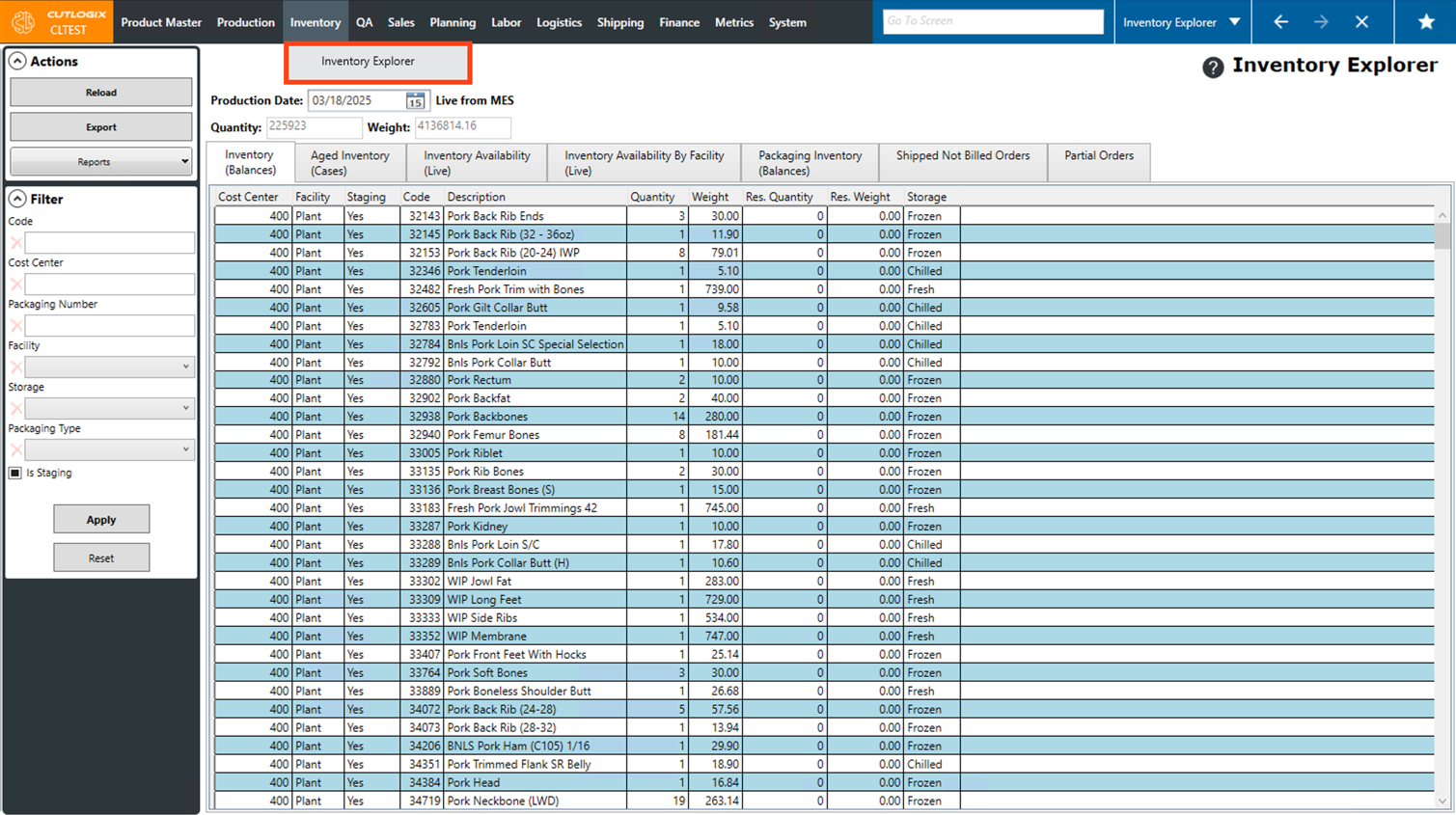
Step 1: Navigate to the "Inventory Explorer" page (Under the Inventory menu → Explorer).
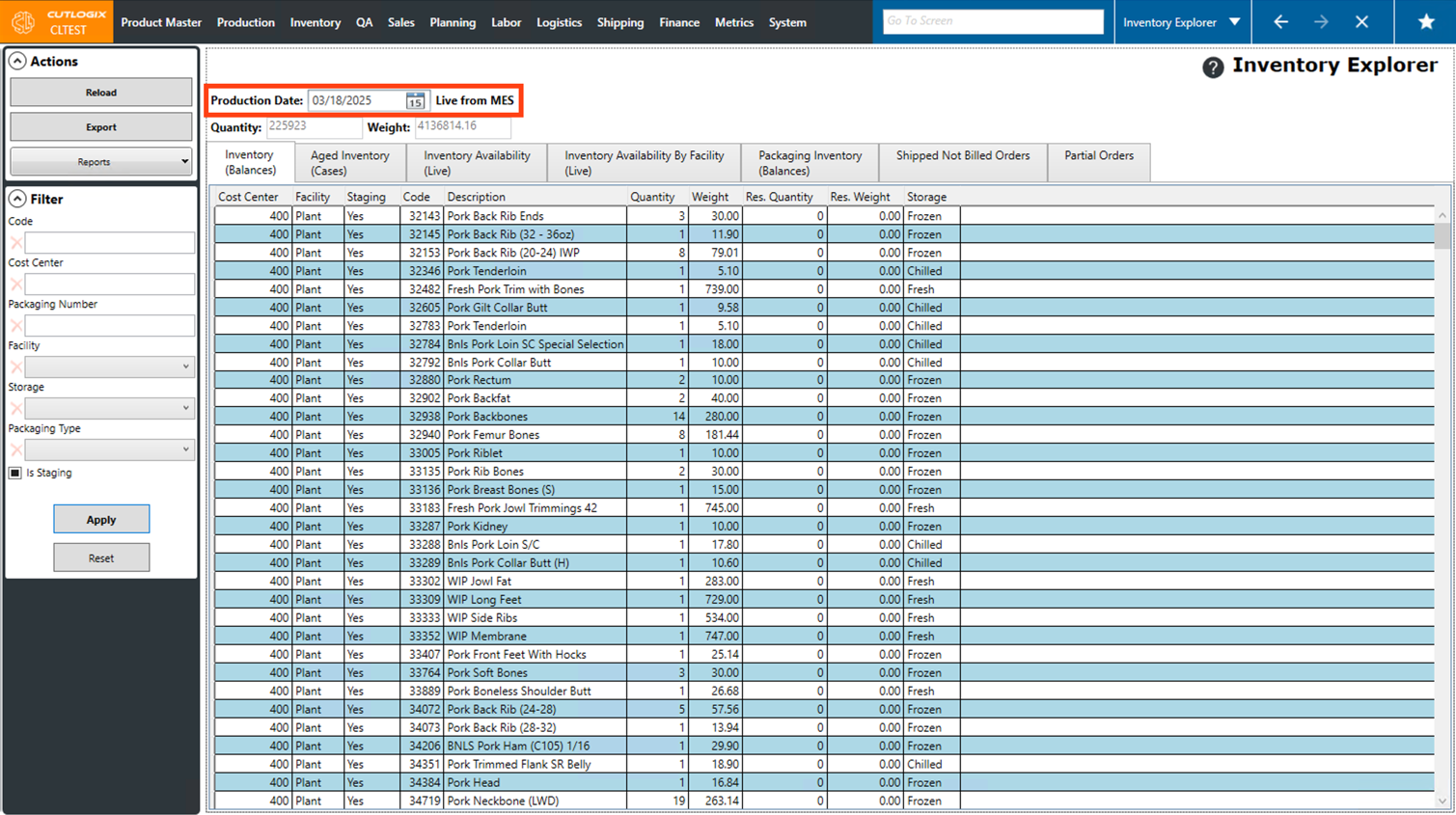
Step 2: The "Production Date" will default to the current day which shows live inventory data from the MES. You'll notice that there is a title saying "Live from MES" to indicate this.
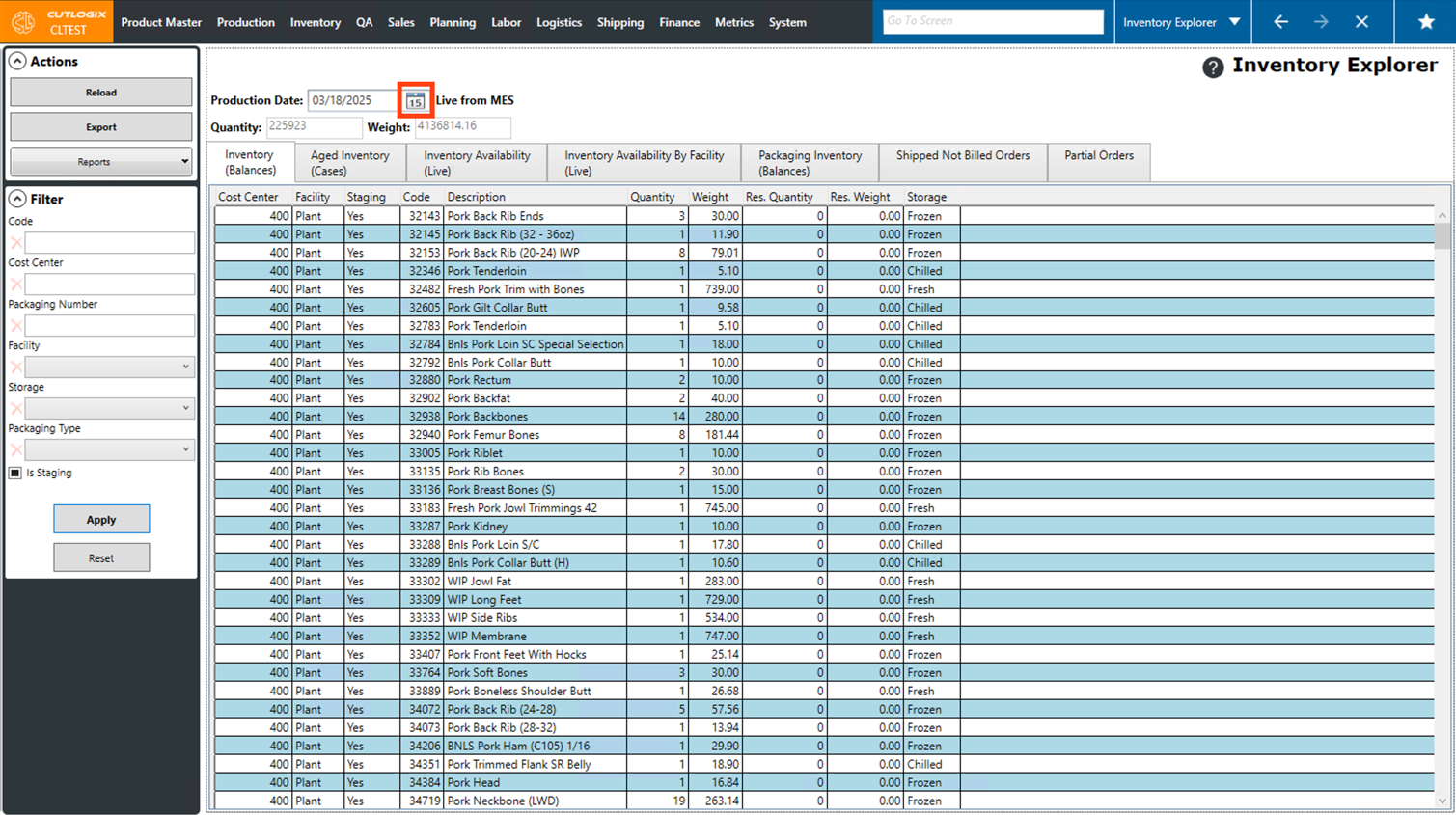
Step 3: Click on the calendar icon beside the "Production Date" and choose a date in the past.
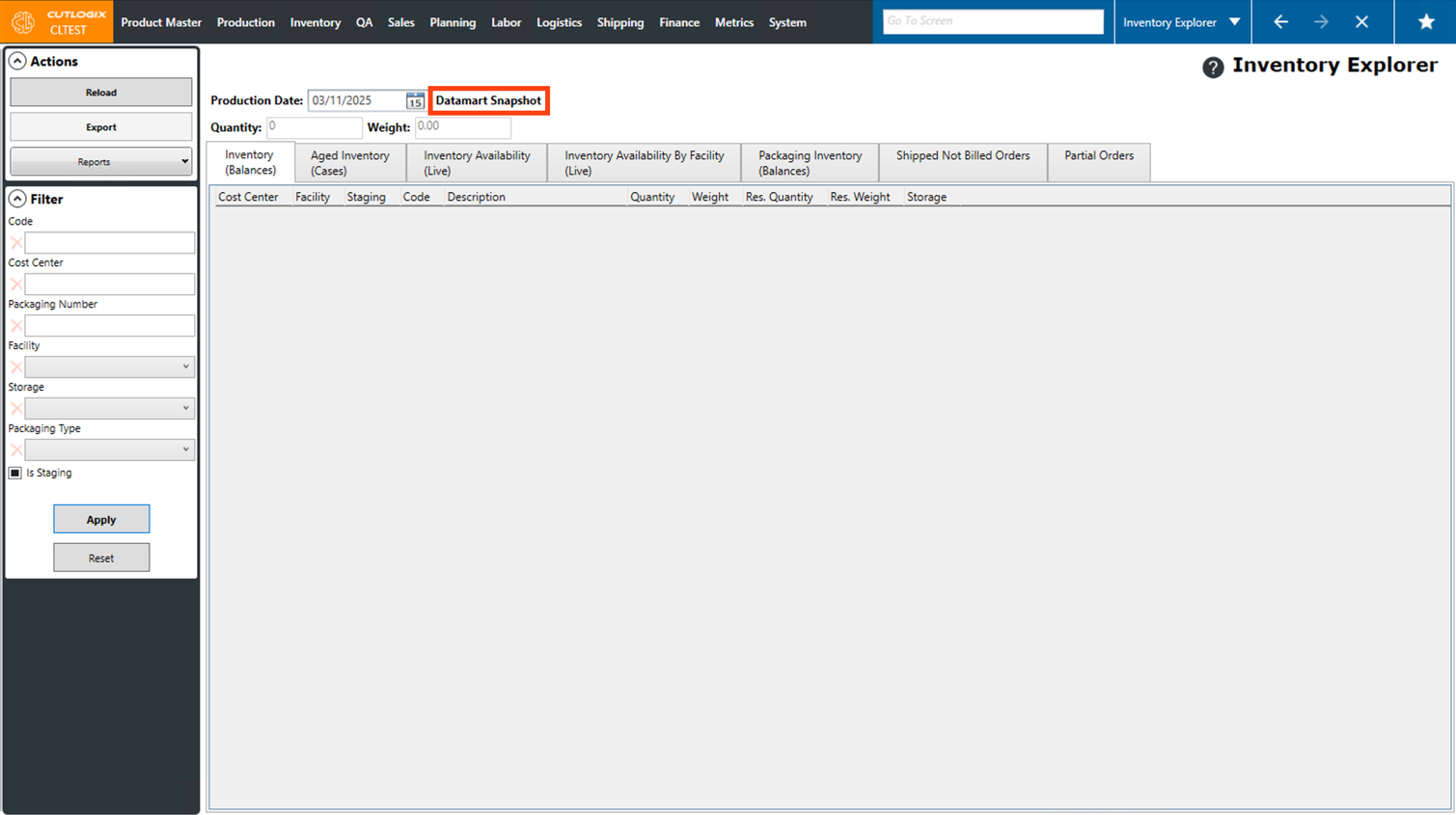
Step 4: The page will reload, and you'll notice that the "Live from MES" title is now gone and has been replaced with the title called "Datamart Snapshot." This indicates that the inventory being displayed on this page is from a snapshot in the past, on the selected production date.
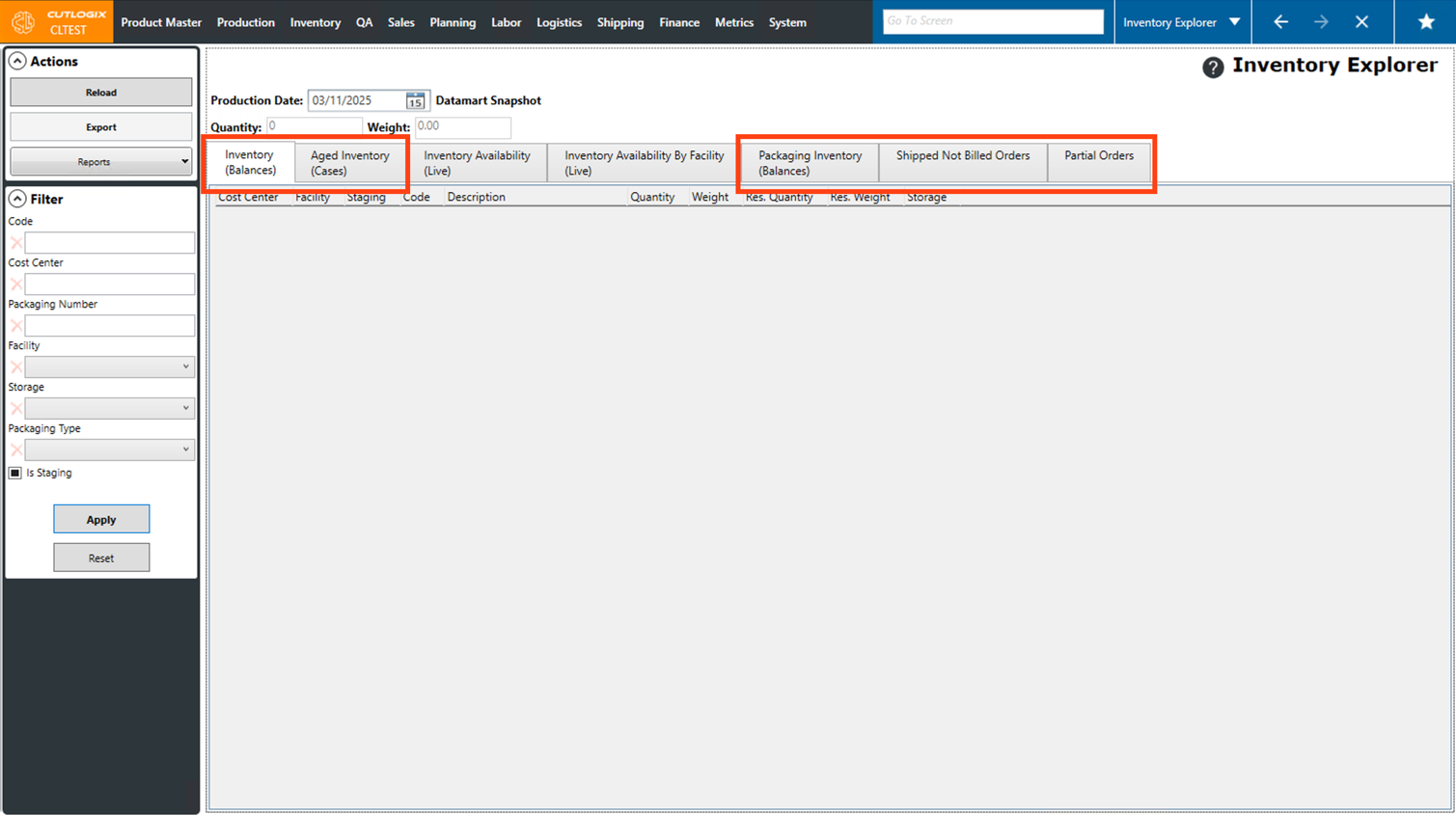
Step 4: You can now navigate through the following tabs and view the historical data for the selected day: Inventory (Balances), Aged Inventory (Cases), Packaging Inventory (Balances), Shipped Not Billed Orders, Partial Orders.
How to View Live Inventory Availability
Demo
Step 1: Navigate to the "Inventory Explorer" page (Under the Inventory menu → Explorer).
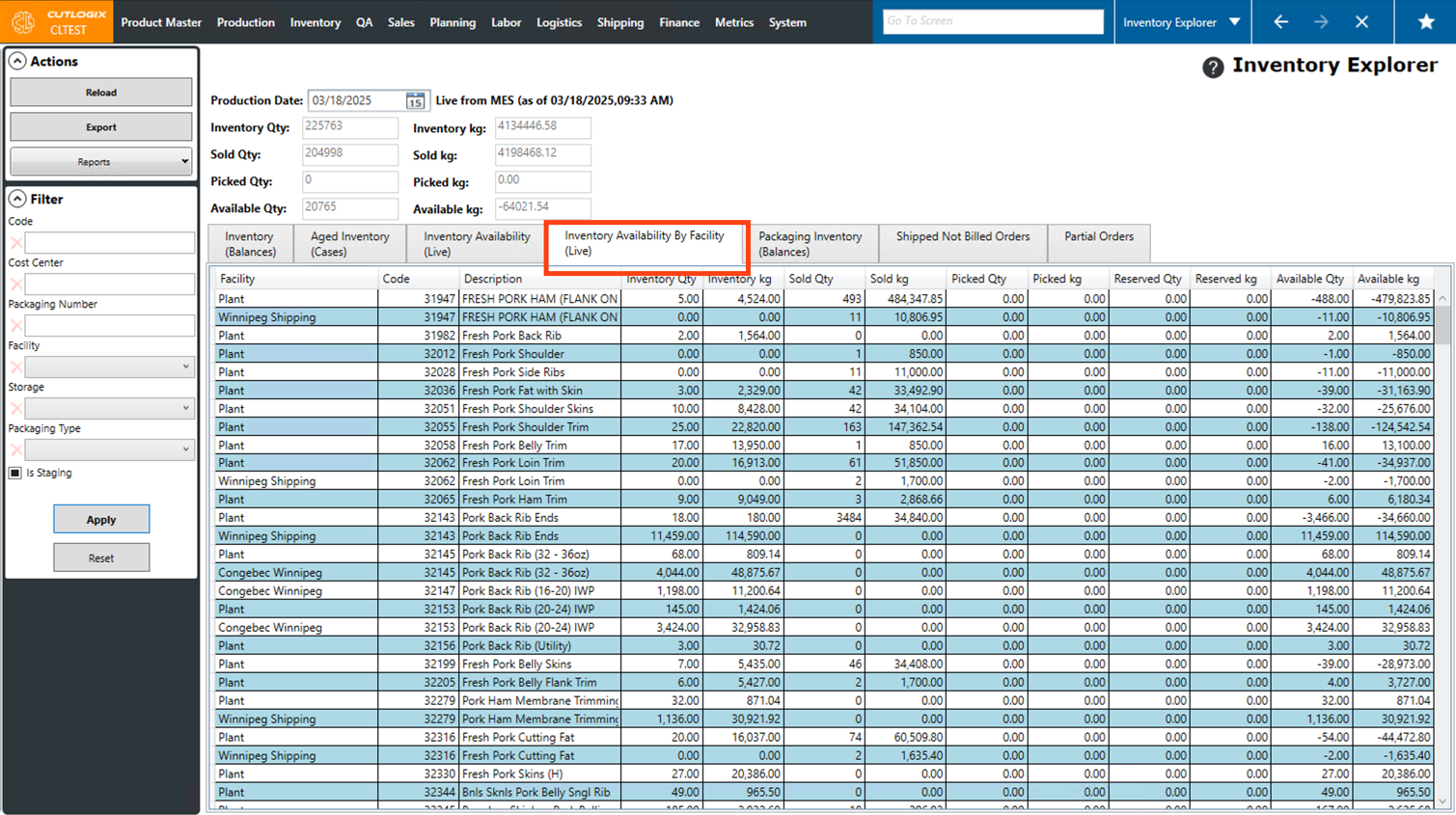
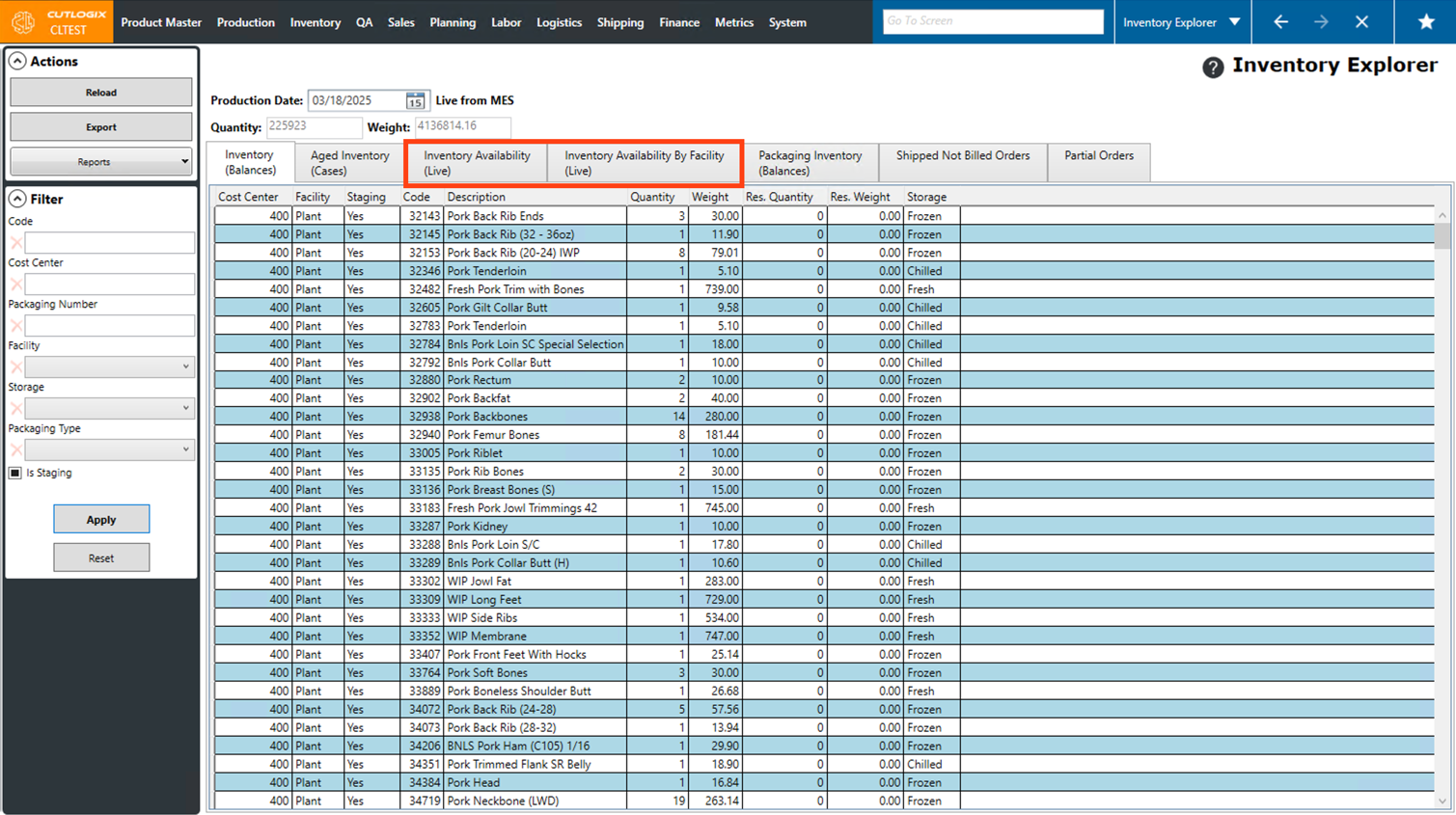
Step 2: Click on either the "Inventory Availability" tab or the "Inventory Availability By Facility" tab.
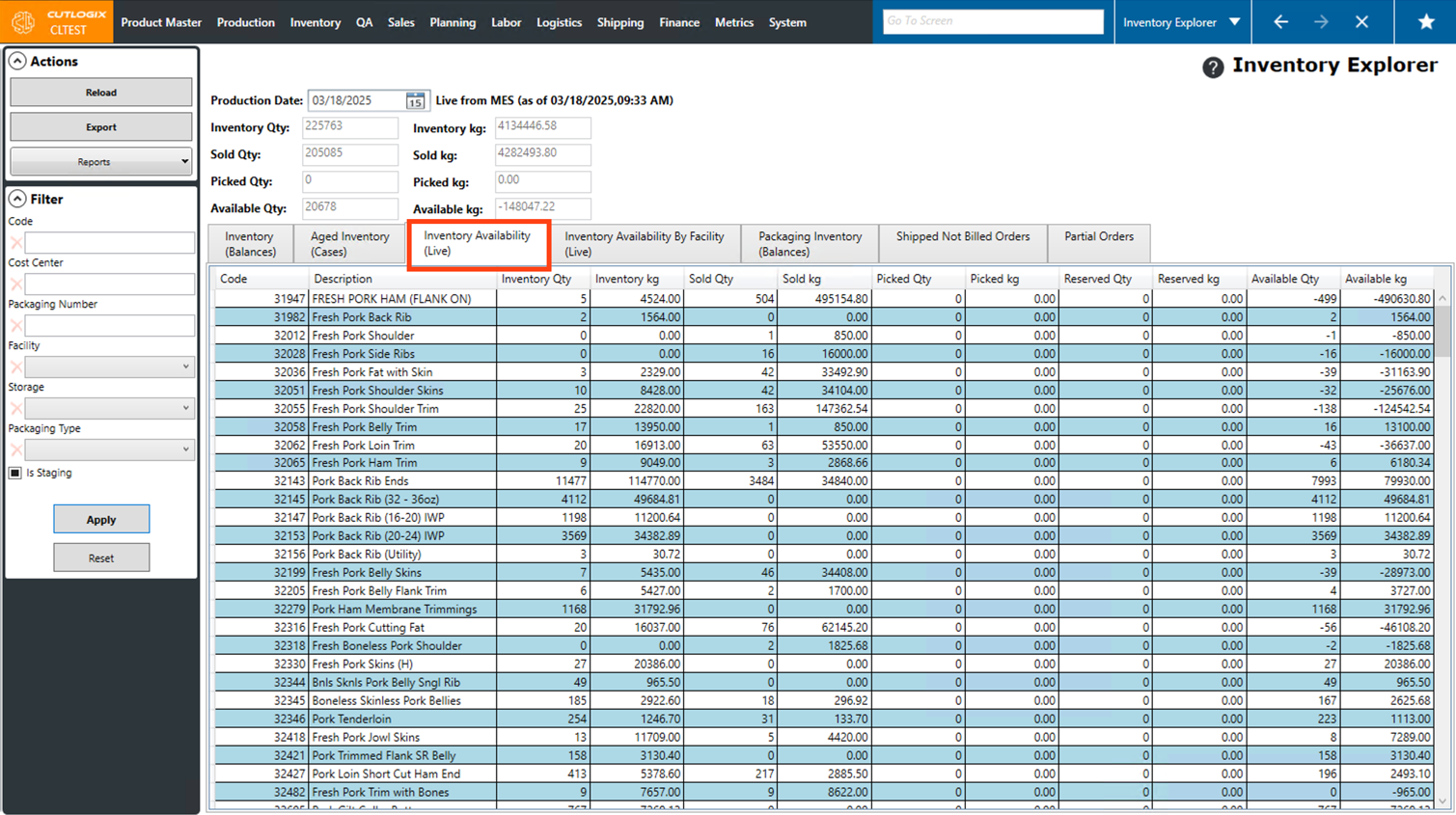
Step 3: The "Inventory Availability" tab displays live inventory information from the MES to display by product, the amount of product in inventory, amount sold, amount picked, reserved quantity and available quantities.
Step 4: The "Inventory Availability By Facility" tab organizes the inventory availability by the locations where they are located.