Master Production Schedule Tabs
How to Navigate: Click on Planning > Master Production Schedule > Tabs
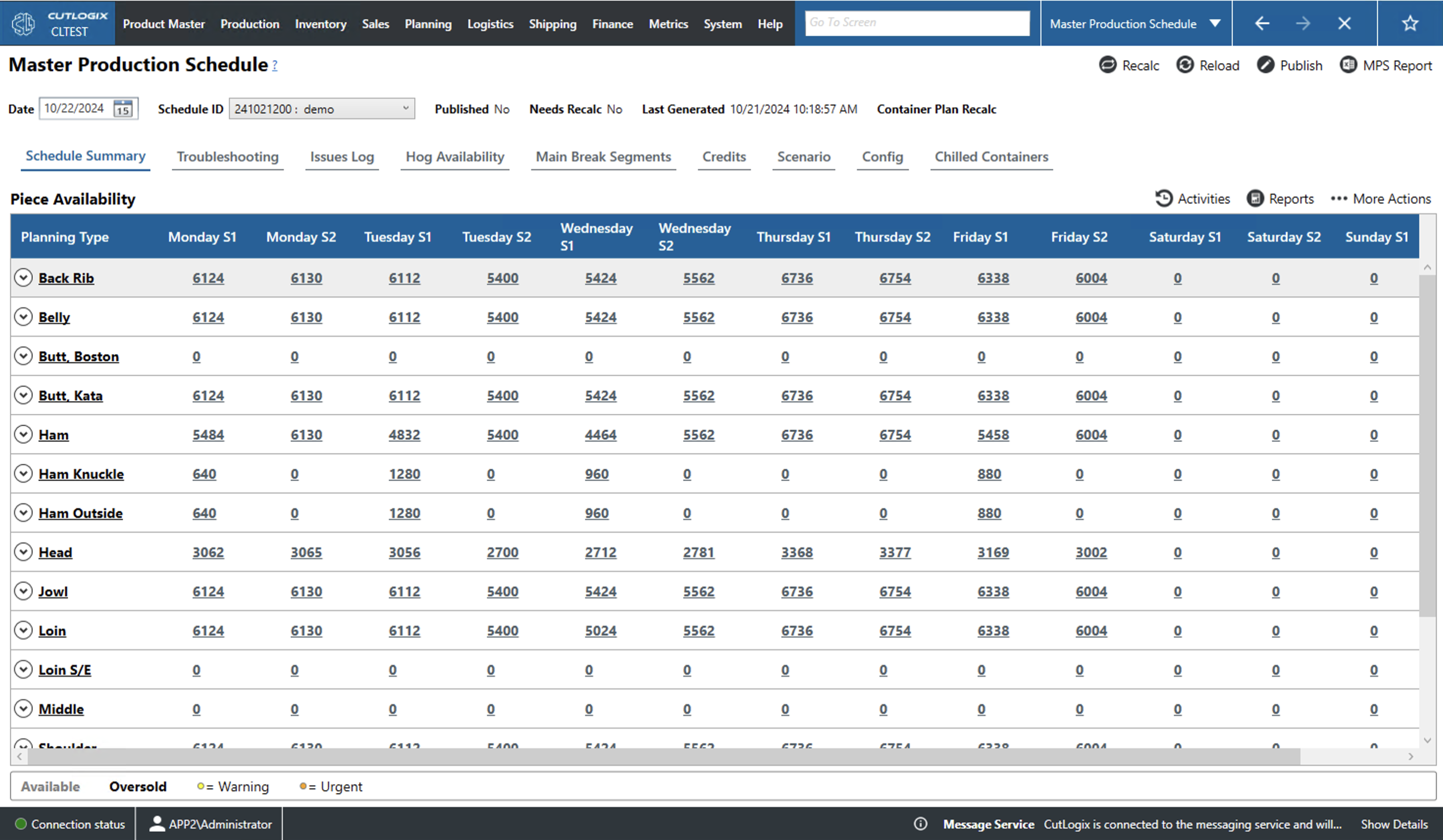
Schedule Summary Tab
-
Piece Availability Columns: This table displays information about how many products of each planning type are available to sold. Clicking the dropdown arrow next to the row's planning type will allow users to see a break down of the number of each hog type that was used on each day and shift to produce products of this planning type.
- Planning Type: The umbrella type assigned to products in the planning system. Clicking this will open another tab that gives a breakdown of the production for that planning type for the current week. This is discussed in more detail on the Planning Type Production Demand page.
- Day, S1/S2: Lists product availability for shift 1,2 of the relevant day.
- Available: Entries with greyed text indicate that there are that many units of that planning type available for sale.
- Oversold: Entries that are bolded have more sold than there is stock available. The number will also appear as negative.
- Coloured Dots: Entries with a coloured dot have an attached warning or some extra information available that can be viewed by clicking the dot.
- Critical: A red dot indicates an unresolved critical issue.
- Urgent: An orange dot indicates an unresolved urgent issue.
- Warning: A yellow dot indicates a warning.
- Information: A green dot indicates extra information.
- Debug: A grey dot indicates the product is in the master planning system for debug purposes.
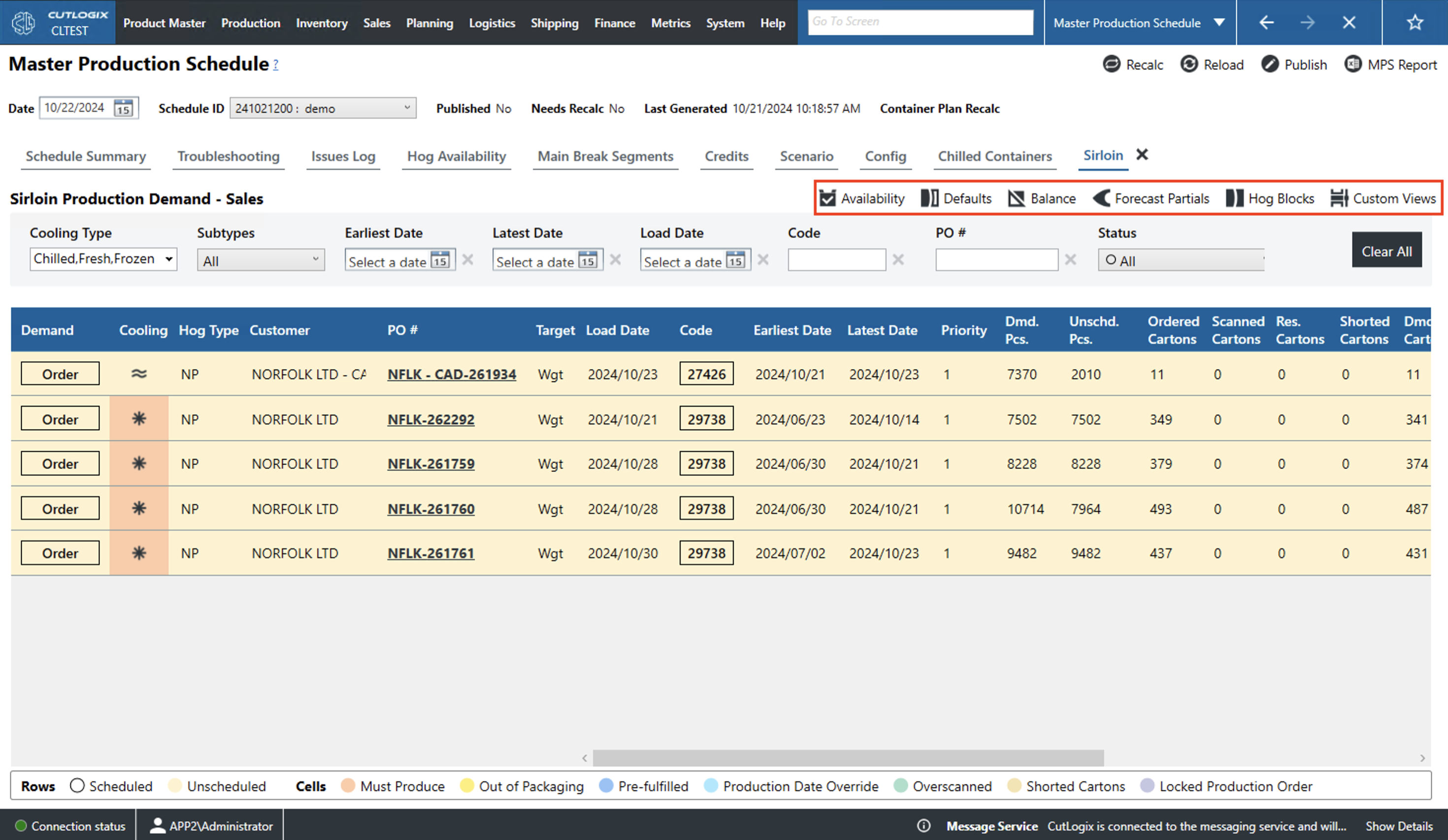
Schedule Summary Tab: Actions
- Availability: Displays a table that indicates the hog level, shift and day of the selected production record (highlighted in beige).
- Defaults: Displays a table that shows the production defaults (product code, hog level, piece count, cartons, day and shift) for this product's planning type.
- Balance: Displays a table that shows the planning type's demand balance (number pieces per cooling type per shift and day).
- Forecast Partials: Displays a table that shows forecasted partial orders for particular products (indicated by code). Partial orders are those that are incomplete (all product not produced, load partially loaded, etc.).
- Hog Blocks: Displays a table that shows the weeks production plan by hog block. A hog block is a block production of production time where a particular type of hog is being processed.
- Custom Views: Allows the user to choose between different UI layouts.
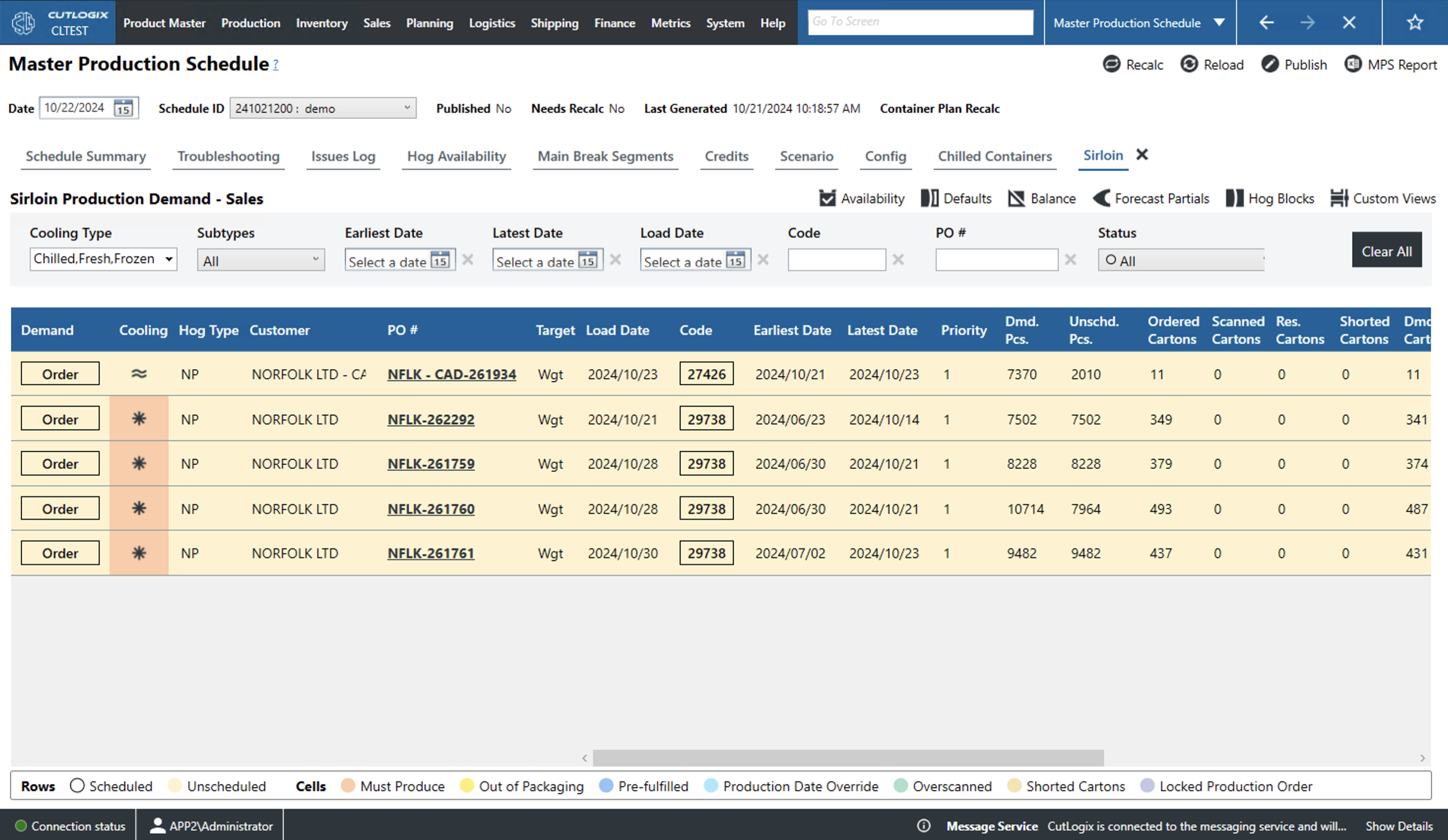
Schedule Summary Tab: Demand
- Demand: This indicates the source of the production. The following describes the different types of demand:
- Reservation: A reservation is reserved production for an order that the customer has not finalized yet.
- Order: A customer order.
- Manual: A manual production entry.
- Proxy: This is demanded generated when there is an order for a cut that cannot be produced without producing other cuts. For example, orders for shoulders will also generate picnics and feet because these are generated from the same primal. The planning system will first try to assign these extra cuts to existing orders. If there are not enough existing orders to absorb the extra production then the planning system schedules the extra product as proxy demand that will be made and shipped to a freezer.
- Cooling: The type of cooling the production needs (fresh, frozen or chilled).
- Customer: The customer that ordered the product.
- PO #: The purchase order number (PO #) of the customer order of this production. This is a unique identifier for the customer order.
- Target: Indicates whether the production of a specified weight or a number of cartons is the target of the planning system.
- Load Date: The date on which the product must be produced and loaded.
- Code: A unique identifier for the product being produced.
- Earliest/Latest Date: This indicates the earliest/latest date on which the product can/must be shipped on. This takes into account any constraints that indicate minimum or maximum freezer/cooler time.
- Priority: A number indicating the priority of the production. A lower number tells the planning system that this is a higher priority.
- Dmd. Pcs.: The number of pieces required to be produced.
- Unschd. Pcs.: The number of pieces of which there is demand but that have been scheduled in the production plan.
- Cartons: These columns indicate various states of cartons relevant to the production record.
- Ordered: Cartons on a customer order.
- Scanned: Cartons that have been scanned into the MES system as part of a load.
- Shorted: Ordered cartons that will intentionally not be shipped for this order.
- Dmd.: Number of cartons in demand.
- Schd.: Number of cartons that have been scheduled by the planning system.
- Staged: Number of cartons that have been staged to be loaded onto a truck.
- Unschd.: Number of cartons for which there is demand but that have not been scheduled.
- Day S1/S2: Indicates the day and shift on which this will be produced. Table Key
- **Rows** - The following explains what it means when an entire row is a colour:
- Scheduled: White represents scheduled demand.
- Unscheduled: Yellow represents unscheduled demand.
- **Cells** - The following explains what it means when a particular cell is coloured:
- Must Produce: Orange must be produced that day.
- Out of Packaging: Yellow is out of packaging materials.
- Pre-fulfilled: Dark blue means that the demand was pre-fulfilled.
- Production Date Override: Light blue means that the production date has been overridden.
- Overscanned: Green means that too many cartons have been scanned onto the load.
- Shorted Cartons: Darker yellow indicates cartons that have been shorted.
- Locked Production Order: Purple means a production order that cannot be changed.
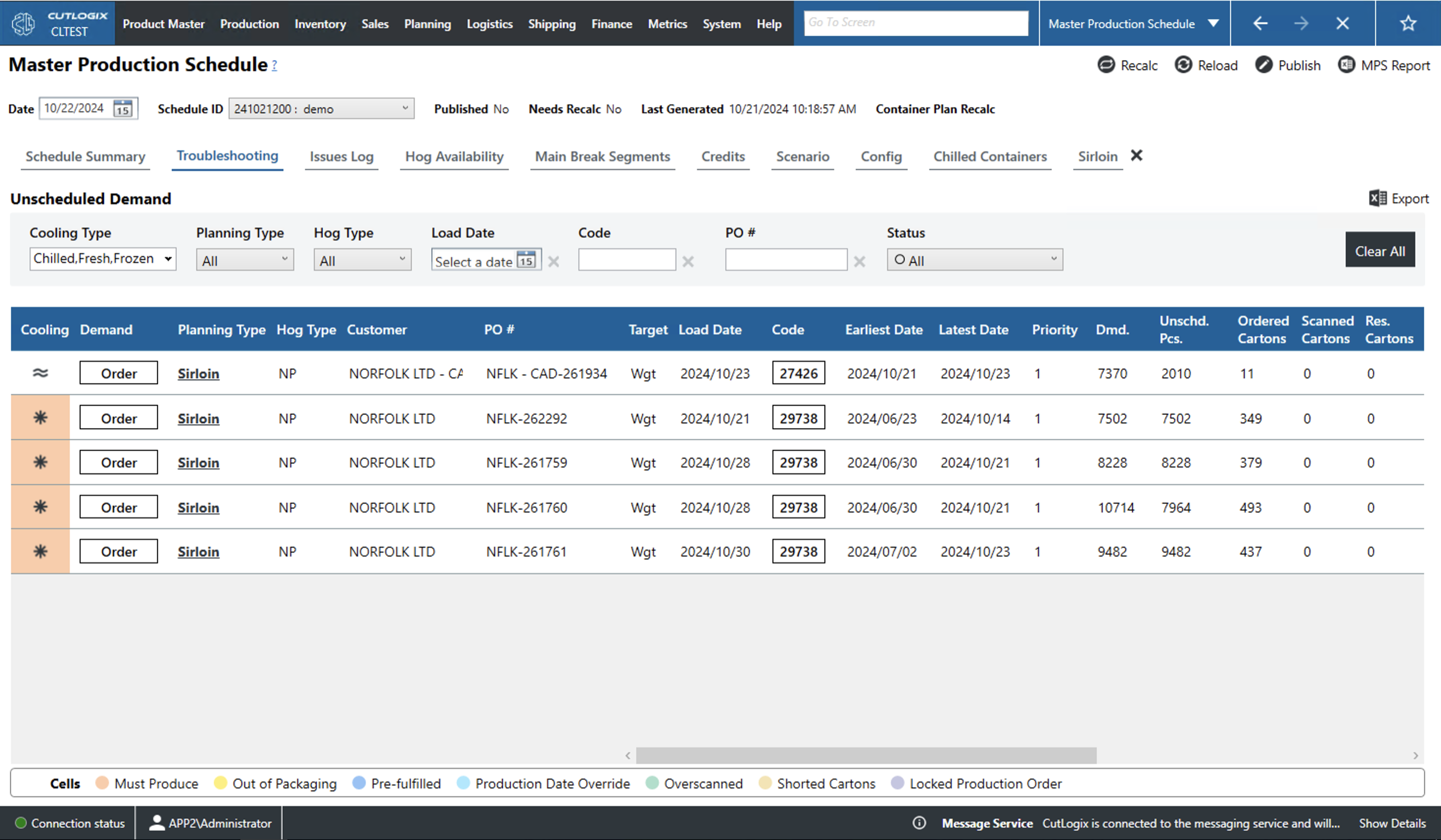
Troubleshooting Tab
- Cooling: The type of cooling the production needs (fresh, frozen or chilled).
- Demand: This indicates the source of the production. The following describes the different types of demand:
- Reservation: A reservation is reserved production for an order that the customer has not finalized yet.
- Order: A customer order.
- Manual: A manual production entry.
- Proxy: This is demanded generated when there is an order for a cut that cannot be produced without producing other cuts. For example, orders for shoulders will also generate picnics and feet because these are generated from the same primal. The planning system will first try to assign these extra cuts to existing orders. If there are not enough existing orders to absorb the extra production then the planning system schedules the extra product as proxy demand that will be made and shipped to a freezer.
- Planning Type: The type category of the production in the planning system.
- Hog Type: They type of hog used to produce this product.
- Customer: The customer that ordered the product.
- PO #: The purchase order number (PO #) of the customer order of this production. This is a unique identifier for the customer order.
- Target: Indicates whether the production of a specified weight or a number of cartons is the target of the planning system.
- Load Date: The date on which the product must be produced and loaded.
- Code: A unique identifier for the product being produced.
- Earliest/Latest Date: This indicates the earliest/latest date on which the product can/must be shipped on. This takes into account any constraints that indicate minimum or maximum freezer/cooler time.
- Priority: A number indicating the priority of the production. A lower number tells the planning system that this is a higher priority.
- Dmd. Pcs.: The number of pieces required to be produced.
- Unschd. Pcs.: The number of pieces of which there is demand but that have been scheduled in the production plan.
- Cartons: These columns indicate various states of cartons relevant to the production record.
- Ordered: Cartons on a customer order.
- Scanned: Cartons that have been scanned into the MES system as part of a load.
- Shorted: Ordered cartons that will intentionally not be shipped for this order.
- Dmd.: Number of cartons in demand.
- Schd.: Number of cartons that have been scheduled by the planning system.
- Staged: Number of cartons that have been staged to be loaded onto a truck.
- Unschd.: Number of cartons for which there is demand but that have not been scheduled.
- Day S1/S2: Indicates the day and shift on which this will be produced. Table Key
- Cells: The following explains what it means when a particular cell is coloured:
- Must Produce: Orange must be produced that day.
- Out of Packaging: Yellow is out of packaging materials.
- Pre-fulfilled: Dark blue means that the demand was pre-fulfilled.
- Production Date Override: Light blue means that the production date has been overridden.
- Overscanned: Green means that too many cartons have been scanned onto the load.
- Shorted Cartons: Darker yellow indicates cartons that have been shorted.
- Locked Production Order: Purple means a production order that cannot be changed.
Issues Log Tab
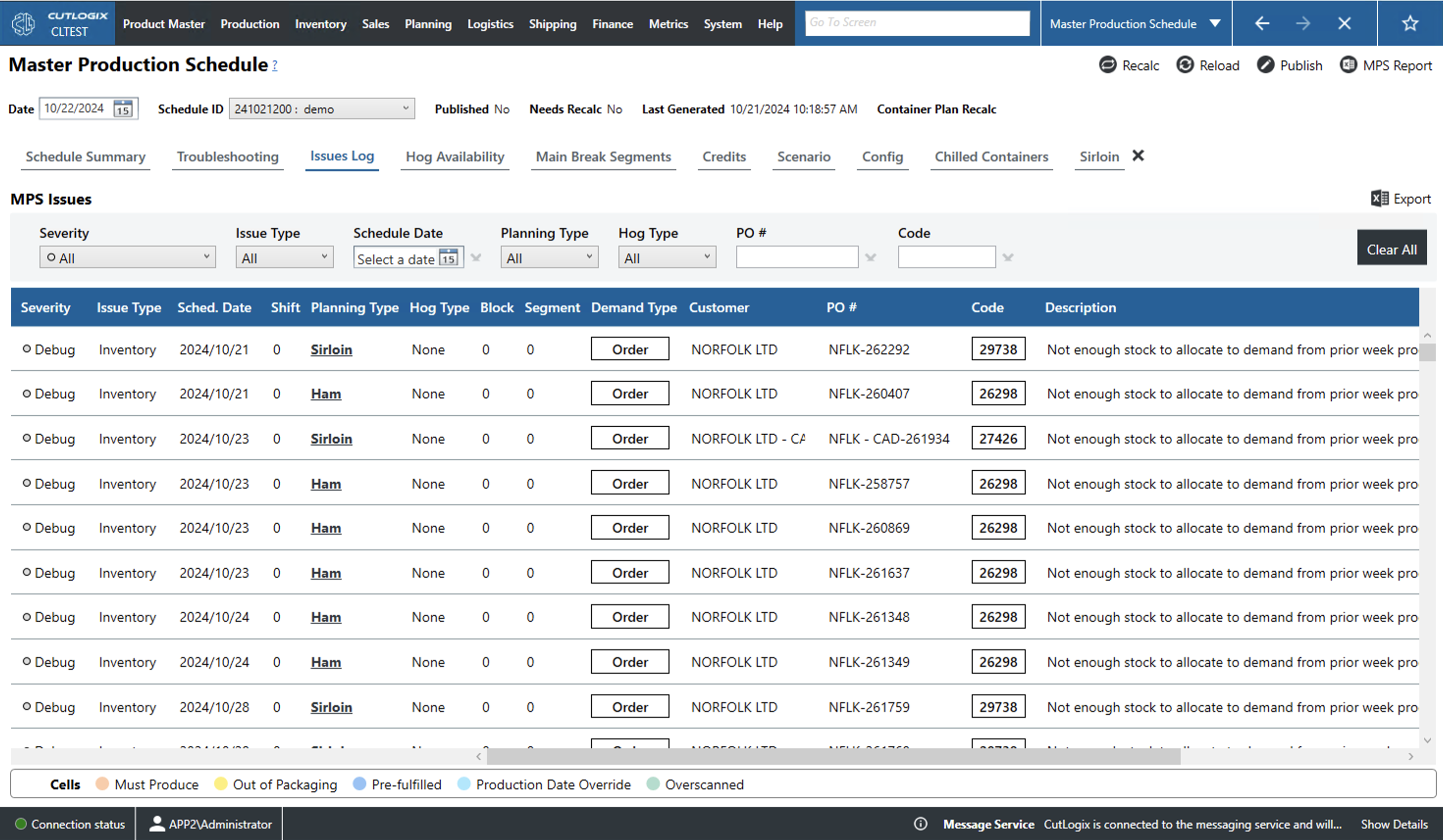
- Severity: Indicates the severity of the issue. The following describes the various severities:
- Critical: A red dot indicates an unresolved critical issue.
- Urgent: An orange dot indicates an unresolved urgent issue.
- Warning: A yellow dot indicates a warning.
- Information: A green dot indicates extra information.
- Debug: A grey dot indicates the product is in the master planning system for debug purposes.
- Issue Type: Indicates the type of issue that occurred.
- Sched. Date: The date of the schedule on which the issue occurred.
- Shift: The shift on which the issue occurred.
- Planning Type: The planning type of the production record that caused the issue.
- Hog Type: Indicates the type/level of hog used to produced this product.
- Block/Segment: The block/segment of the schedule on which the issue occurred.
- Demand Type: The type of demand of the production record that caused the issue.
- Customer: Customer the product was for.
- PO #: Purchase order number (PO #) of the production.
- Code: Code of the product being produced.
- Description: Brief description of the issue.
Hog Availability Tab
-
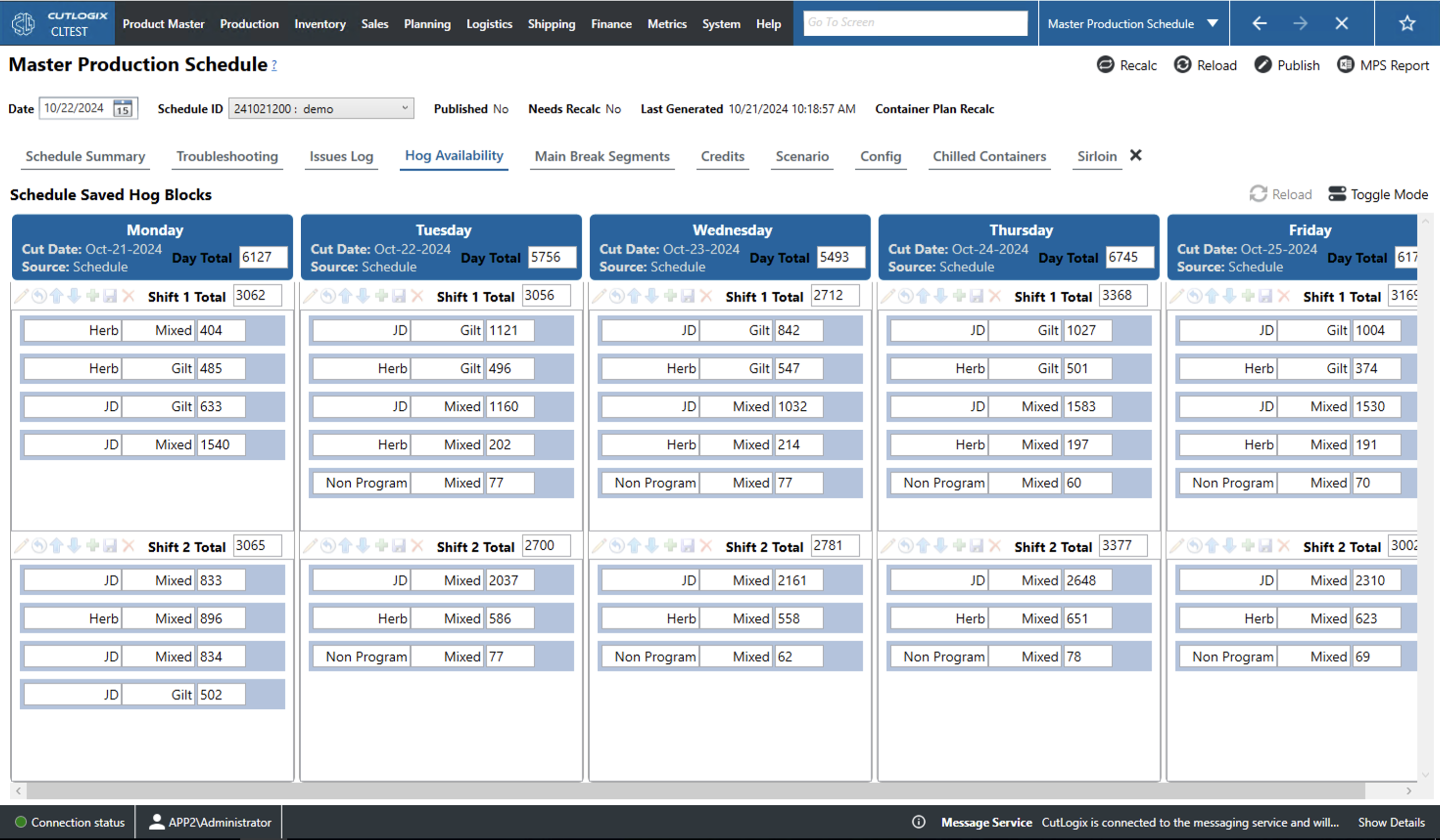
Schedule Saved Hog Blocks: This tab shows a table that breaks the week up into days and breaks each day up into shifts. Each shift shows users how many hogs will be processed of each type on that shift.
- Cut Date: The calendar date of Monday, Tuesday, etc. on the tab's table.
- Source: The data source used to determine the hog blocks for that production day and shift.
- Day Total: The total number of hogs that will be processed that day.
- Shift 1,2 Total: The total number of hogs that will be processed on each shift.
- Icon Buttons: These icons are next to the shift total on each shift on each day. The descriptions of the icons are given from left to right;:
- Pencil: Edit the currently selected hog block.
- Undo Arrow: Undo any changes made to the hog blocks in this shift.
- Up/Down Arrow: Move the hog block record up/down a space.
- Plus Sign: Add a hog block to the shift.
- Save Icon: Saves all changes made to the hog blocks in this shift.
- Red 'X': Deletes the hog blocks in this shift.
Main Break Segments Tab
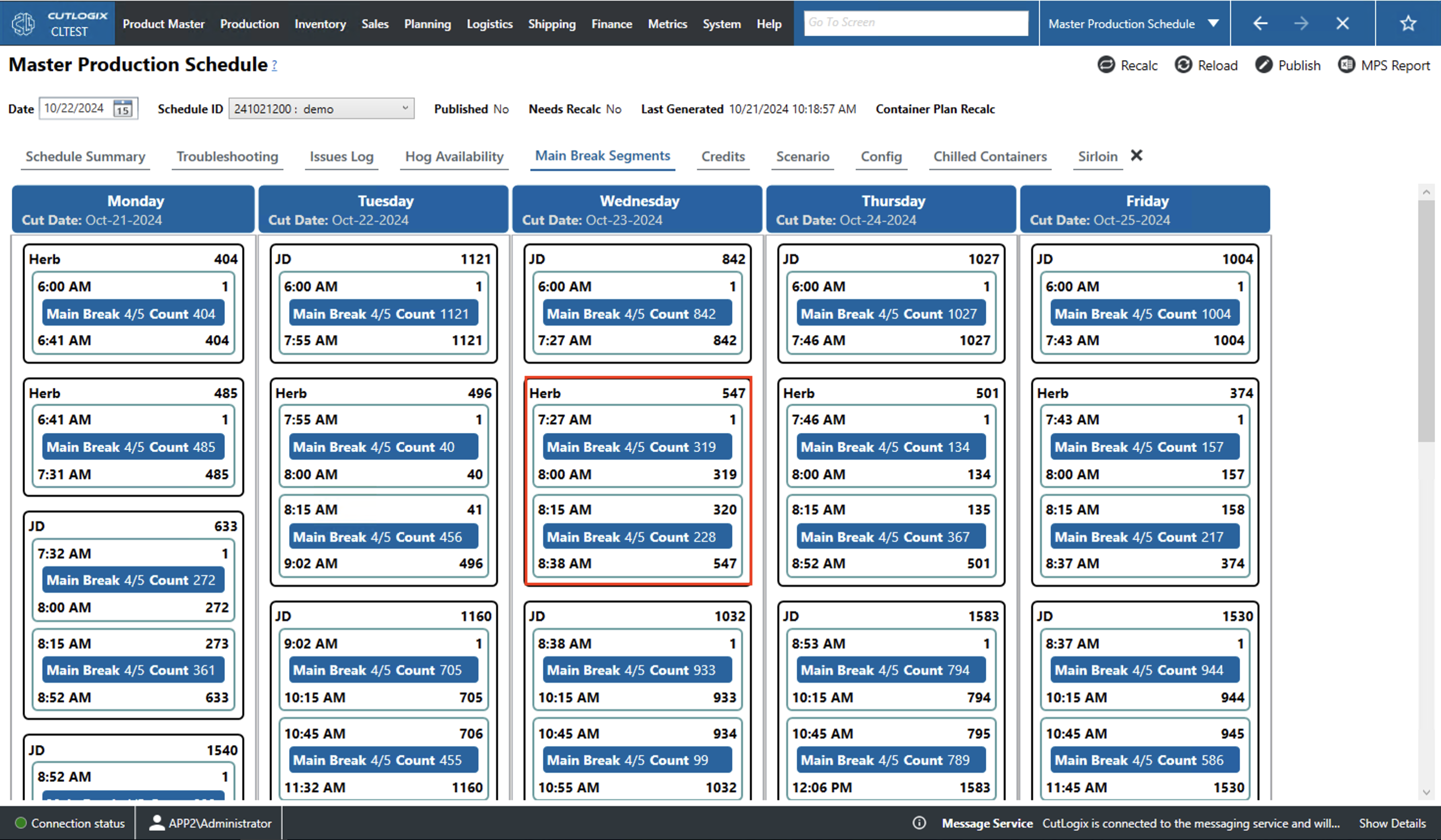
This tab gives a break down of the week's production into time segments that show the main break used and the hogs processed.
- Hog Block: Each black square is a hog block which is a span of time in which a single type of hog is processed
- Total Hogs: In the top right corner of the hog block is an indicator of the hog type and in the top left is the total number of hogs to be processed.
- Segments: Inside each block are grey boxes that indicate time segments within the hog block. Each time segment has a start time given above the blue box on the left and the end time is given below.
- Processed Hogs: Above the blue block on the right is the number of hogs that have been processed coming into the segment and the number below is the number of hogs that will have been processed by the time the segment ends.
- Main Break: Inside the blue block is an indication of what main break was used to process the hogs in that hog block and a count of the total number of hogs that will be processed in that time segment.
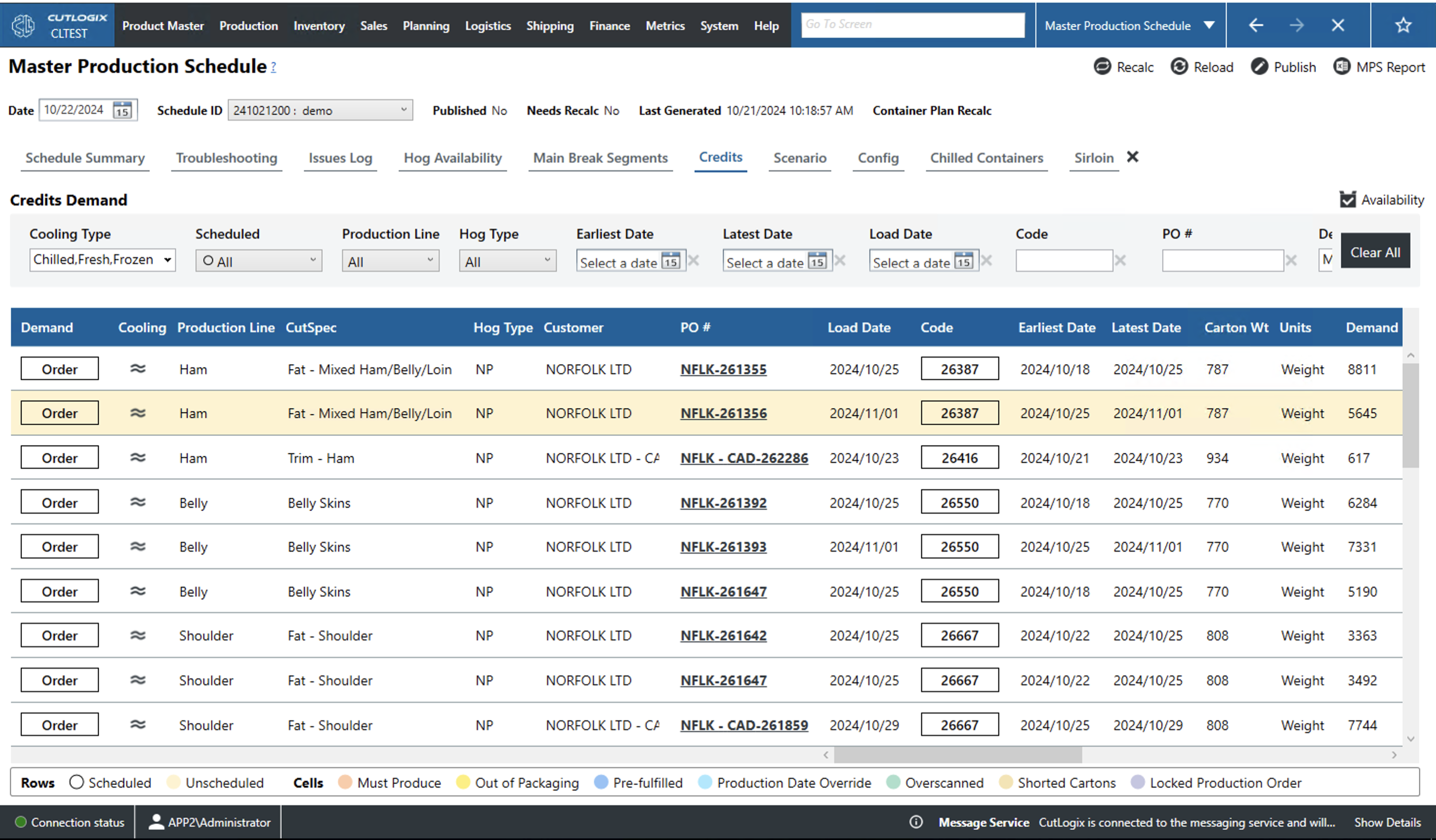
Credits Tab
- Demand: This indicates the source of the demand for the credit. The following describes the different types of demand:
- Reservation: A reservation is reserved production for an order that the customer has not finalized yet.
- Order: A customer order.
- Manual: A manual production entry.
- Proxy: This is demanded generated when there is an order for a cut that cannot be produced without producing other cuts. For example, orders for shoulders will also generate picnics and feet because these are generated from the same primal. The planning system will first try to assign these extra cuts to existing orders. If there are not enough existing orders to absorb the extra production then the planning system schedules the extra product as proxy demand that will be made and shipped to a freezer.
- Cooling: The type of cooling the production needs (fresh, frozen or chilled).
- Production Line: The production line that generates the credit/sundry.
- Cut Spec: The cut spec from which the credit/sundry was generated.
- Hog Type: The type of hog used to create the product.
- Customer: The customer that ordered the credit.
- PO #: The purchase order number (PO #) of the customer order of this credit. This is a unique identifier for the customer order.
- Target: Indicates whether the production of a specified weight or a number of cartons is the target of the planning system.
- Load Date: The date on which the credit must be produced and loaded.
- Code: A unique identifier for the product from which the credit is produced.
- Earliest/Latest Date: This indicates the earliest/latest date on which the credit can/must be shipped on. This takes into account any constraints that indicate minimum or maximum freezer/cooler time.
- Priority: A number indicating the priority of the production. A lower number tells the planning system that this is a higher priority.
- Dmd. Pcs.: The number of pieces required to be produced.
- Unschd. Pcs.: The number of pieces of which there is demand but that have been scheduled in the production plan.
- Cartons: These columns indicate various states of cartons relevant to the production record.
- Ordered: Cartons on a customer order.
- Scanned: Cartons that have been scanned into the MES system as part of a load.
- Shorted: Ordered cartons that will intentionally not be shipped for this order.
- Dmd.: Number of cartons in demand.
- Schd.: Number of cartons that have been scheduled by the planning system.
- Staged: Number of cartons that have been staged to be loaded onto a truck.
- Unschd.: Number of cartons for which there is demand but that have not been scheduled.
- Day S1/S2: Indicates the day and shift on which this will be produced. Table Key
- Rows: The following explains what it means when an entire row is a colour:
- Scheduled: White represents scheduled demand.
- Unscheduled: Yellow represents unscheduled demand.
- Cells: The following explains what it means when a particular cell is coloured:
- Must Produce: Orange must be produced that day.
- Out of Packaging: Yellow is out of packaging materials.
- Pre-fulfilled: Dark blue means that the demand was pre-fulfilled.
- Production Date Override: Light blue means that the production date has been overridden.
- Overscanned: Green means that too many cartons have been scanned onto the load.
- Shorted Cartons: Darker yellow indicates cartons that have been shorted.
- Locked Production Order: Purple means a production order that cannot be changed.
Scenario Tab
-
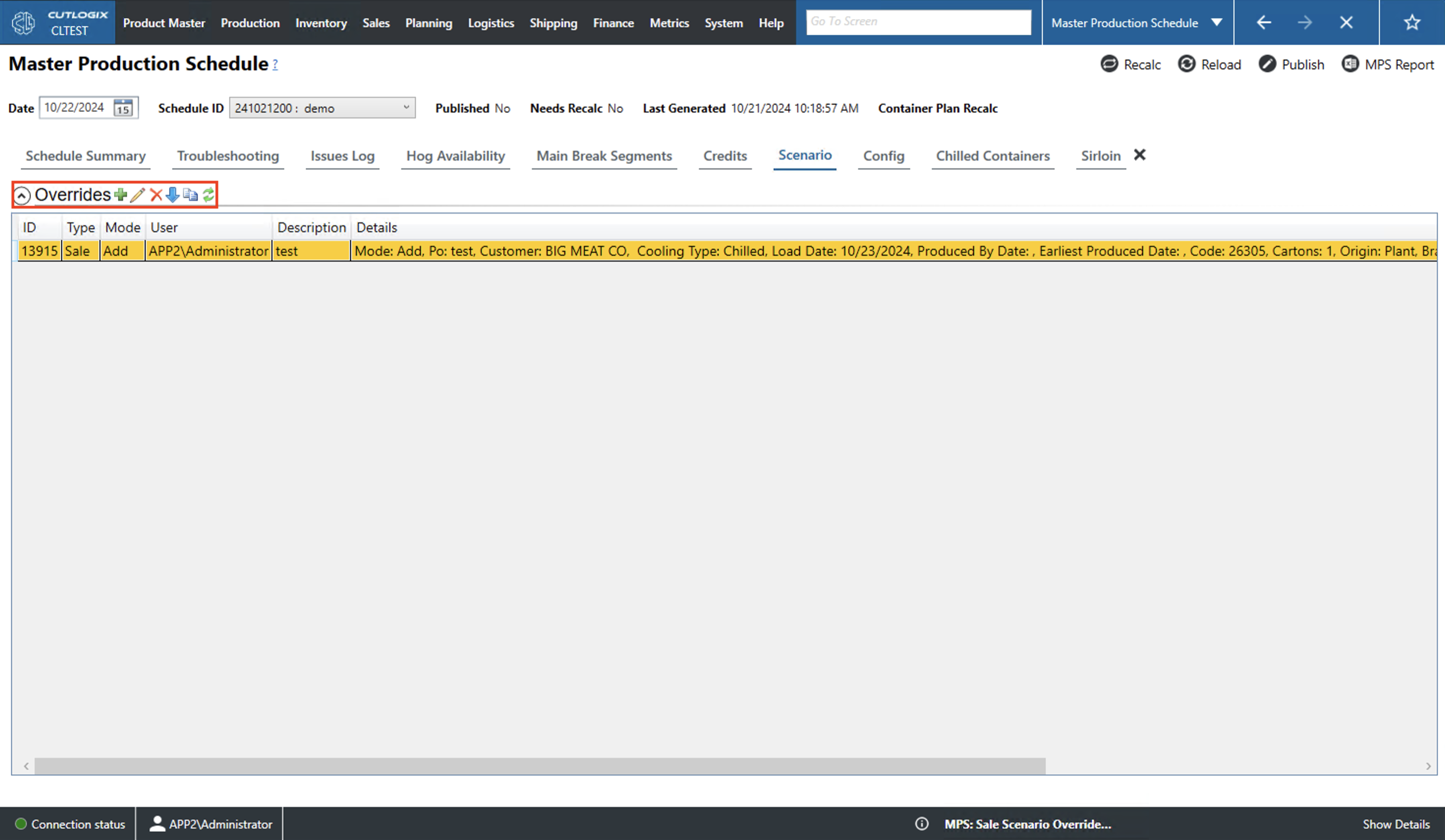
Overrides
- Action Icons: The action icons for this page are described from left to right.
- Add Override: The plus icon allows a user to add an override to the list.
- Edit Override: The pencil icon allows a user to edit the currently selected icon (highlighted in yellow).
- Delete Override: The red 'X' deletes the currently selected override.
- Bulk Load Overrides: The down arrow allows users to upload overrides in bulk by pre-loading them into an excel file.
- Copy Override: The two papers icon will create a new override that is a copy the currently selected override.
- Reload Overrides: The two green arrows icon will reload the list of overrides from the database displaying the most up to date information.
- ID: A unique identifier for the override record.
- Type: Indicates the type of override (Sales, Product, Manual Production Order, etc.).
- Mode: The override's mode (add, edit, etc.).
- User: The user that created the override.
- Description: A brief description of the override.
- Details: The planning overrides details (such as product code, shift cooling type, cartons, etc.).
Config Tab
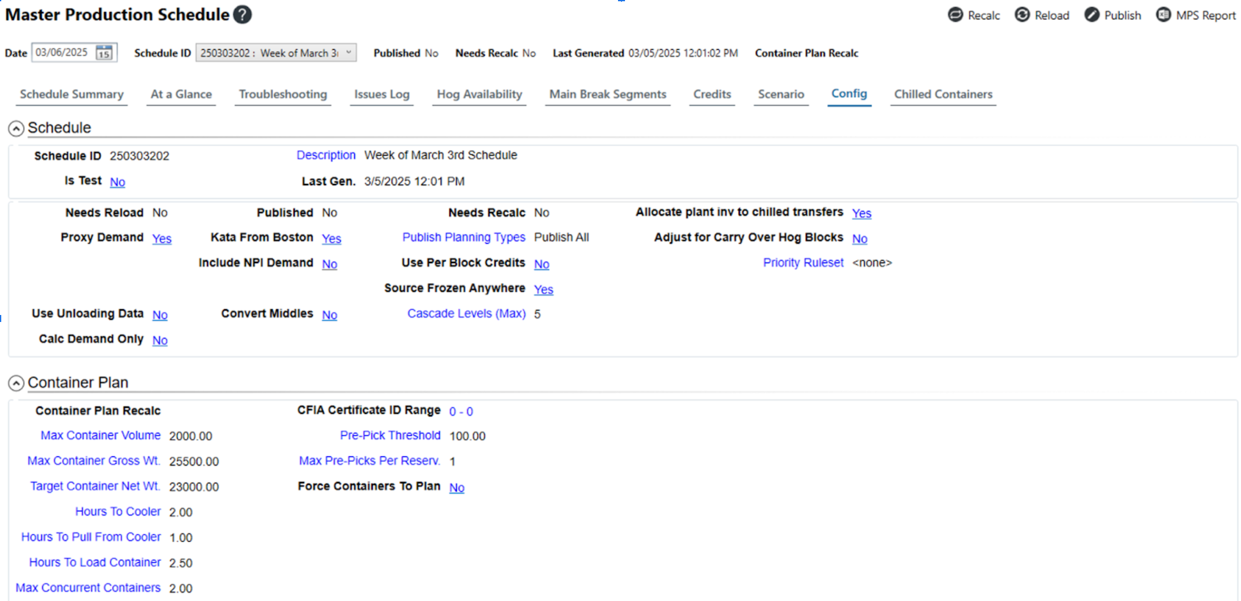
The config tab provides a control panel in which users can configure a number of options for the currently selected schedule. In what follows, the options are defined and the definitions are organized by section.
-
Schedule
- Schedule ID: This is a unique identifier given to the schedule by CutLogix. These numbers are automatically generated when the schedule is created.
- Description: This is the name of the schedule that appears in the schedule ID dropdown. Clicking this option will open an editing window that will allow the user to specify the description. Users can hit ‘OK’ to save the description and hit ‘Cancel’ to revert any changes.
- Is Test: This option marks the current schedule as a test schedule, i.e. something that is made for the purposes of experimentation. Clicking this option will toggle it between Yes and No. If the schedule is marked as a test then it cannot be published, i.e. it cannot be set as the active schedule for that week.
- Last Gen: This gives the date and time that this schedule was calculated or recalculated (recalced). If the most recent recalc date in your instance of CutLogix is prior to the most recent recalc date on the server, CutLogix will generate a warning telling you that your version of the schedule is out of date and in need of a recalc.
- Needs Reload: This flag indicates whether or not changes have been made to the schedule that are not necessarily reflected in the UI.
- Proxy Demand: Proxy demand occurs when a product has been ordered that is only yielded by the creation of a different product. If there is more demand for the yielded product than the yielding product, CutLogix can be configured to automatically schedule enough production of the yielding product to ensure that the demand for the yielded product is met. Clicking on this option allows users to choose which types of proxy demand CutLogix is allowed to automatically schedule. Unchecking all of the options will set Proxy Demand to No in the Config tab.
- Use Unloading Data: When this value is Yes, it tells the planning system to consider forecasted hog blocks based on what has been unloaded from the cooler at the end of the shift.
- Calc Demand Only: The planning system performs the task of creating a production schedule in two parts. First, it collects all of the demand records for the current week. Then, it schedules those records. Checking this option allows users to calculate a schedule by only performing the first step. This allows users to get a schedule from which they can produce reports on what demand there is in the current week but they do not have to wait for the planning system to finish scheduling the demand.
- Published: This indicates whether or not the schedule is published, i.e. is it currently the active schedule for the selected week.
- Kata From Boston: Kata refers to a specific shoulder cut. Setting this to Yes tells the planning system that it is allowed to derive a Kata shoulder from a Boston butt style shoulder cut to meet the current demand if necessary.
- Include NPI Demand: Setting the option to Yes tells the planning system that it can include in the production plan any orders for products still going through the New Product Introduction process.
- Convert Middles: Setting this option to Yes tells the planning system to allow for the production of middles. A middle is a combination of the loin and belly primals.
- Needs Recalc: This flag indicates whether or not the schedule is up to date based on the current configuration. If you or other users change the constraints or modify other configuration options that affect how the planning system makes decisions, then the schedule will need to be recalculated to reflect those changes.
- Publish Planning Types: This option allows users to customize which planning types will be included in the published plan for the current week. Clicking this option will bring up a window where users can use the checkboxes to make their specifications.
- Use Per Block Credits: By default, the planning system uses yield specs to calculate running totals of which credits are being produced that day. After scheduling the whole day, it compares those totals to that day’s demand for credits and schedules the credit production based solely on those totals. Setting the Use Per Block Credits option to Yes tells the planning system to schedule in sequence as the day is being planned, i.e. to schedule credit production based on the times that the raw materials become available rather than as a single group based on the day’s totals.
- Source Frozen Anywhere: When this option is set to Yes, this tells the planning system to check all freezer locations for inventory that could meet the week’s frozen demand. If it finds available inventory at one of those locations, then this option means that the planning system will not schedule any more and will instead assume that the appropriate transfers will be put in place to move the product to where it needs to go. Setting this option to No instead tells the planning system to check for inventory availability at the location the order will ship from. If there is not enough inventory at that location, then the planning system will schedule enough production to meet the demand and have it shipped to the appropriate location.
- Allocate plant inv to chilled transfers: Typically, chilled product is produced, chilled, and shipped from the plant in which it was processed to minimize consuming the product’s valuable shelf life. However, setting this option to Yes allows the planning system to automatically schedule shipping chilled inventory to locations that require a chilled transfer for the purpose of loading the inventory and shipping it from there.
- Adjust for Carry Over Hog Blocks: On the Daily Cut Floor Report, users can navigate to the Carry Over Hog Blocks screen by clicking the Cut Out Hogs option. On this screen, users can enter a number and type of hogs that did not end up getting processed on that day despite the fact that the production was scheduled. Setting the Adjust for Carry Over Hog Blocks option to Yes tells the planning system to consider any carry-over hog block entries when calculating the production schedule, i.e. ensure that those hogs are processed before the new stock.
- Priority Ruleset: Users can click this option to set the priority rule set the planning system should use to plan the currently selected schedule. These rule sets can be defined on the Planning > Planning Rules Config > Priority Rules screen.
- Container Plan Recalc: Users have the option to calculate how reservations are split into separate containers on the Chilled Containers tab. This field displays the date and time on which the most recent chilled container calculation was completed.
- Max Container Volume: Tells CutLogix how much space it can assume is available in a chilled container.
- Max Container Gross Wt.: Tells CutLogix the maximum weight that can be loaded on a chilled container. Because this is the gross weight, it refers to the weight of the actual product plus the weight of its packaging materials.
- Target Container Net Wt.: Tells CutLogix what weight of just the actual product, not including the packaging materials, it should shoot for when planning chilled containers.
- Hours to Cooler: Tells CutLogix how long it should expect it to take to move product into the cooler after it is finished being produced.
- Hours To Pull From Cooler: Tells CutLogix how long it should expect it to take to pull chilled product from the cooler.
- Hours To Load Container: Specifies how long the planning system should expect it to take to fully load a chilled container.
- Max Concurrent Containers: Specifies how many chilled containers can be loaded at once.
- CFIA Certificate ID Range: The Canadian Food Inspection Agency (CFIA) issues certificates to food processing plants that signify their production process meets Canadian food safety standards. This number range allows users to specify the certificate ID number range that should be pulled from when applying CFIA certificates to chilled containers produced in the current week.
- Pre-Pick Threshold: Sales Reservations for chilled product will be small enough that they do not require a split across multiple containers. In that case, a pre-pick ticket can be issued for that chilled order prior to the planning system finalizing the container plan. This is possible because regardless of the plan’s outcome, there is a small enough amount of that product that it is guaranteed not to split across multiple containers. This setting determines the percentage of the product on that reservation that must be produced before the planning system will issue a pre-pick ticket.
- Max Pre-Picks Per Reserv.: This setting tells the planning system how many pre-pick tickets can be issued per sales reservation of chilled product.
- Force Containers To Plan: When this option is set to Yes, it forces the planning system to assume that it will be able to finish all of the chilled production necessary to plan all of that week’s containers. This allows the planning system to forecast all of the week’s chilled containers regardless of where chilled production is in reality.
Chilled Container Tab
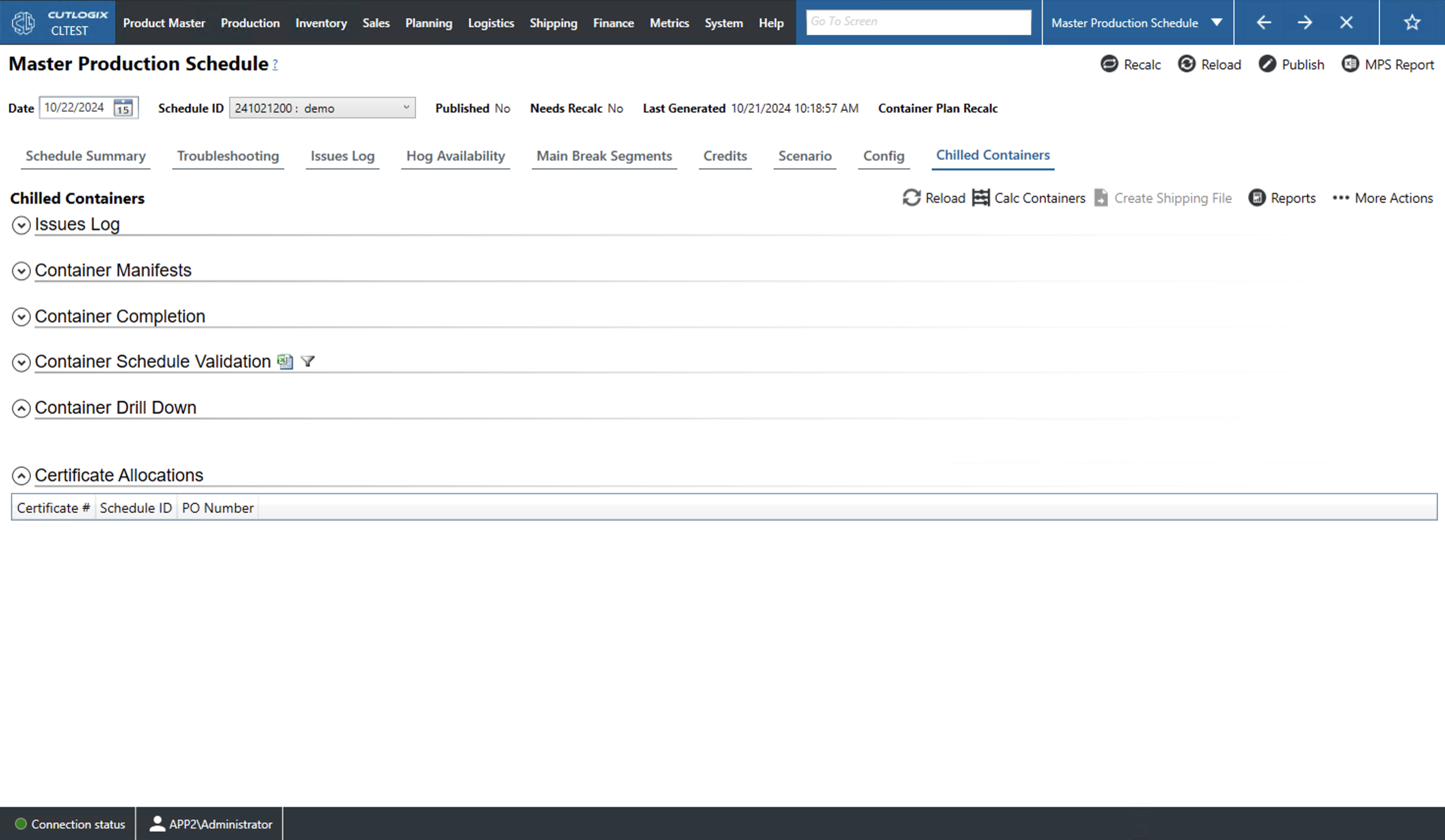
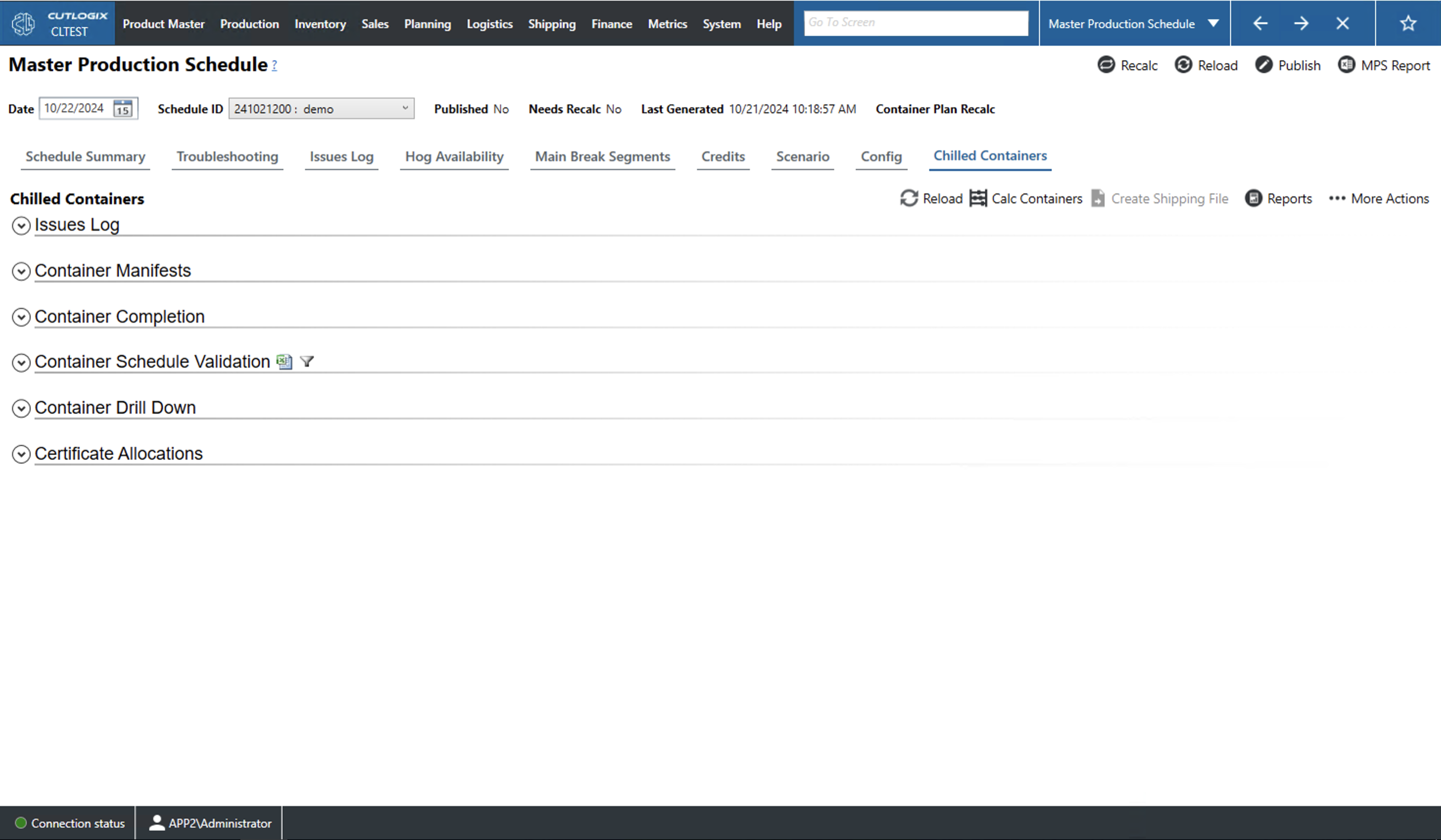
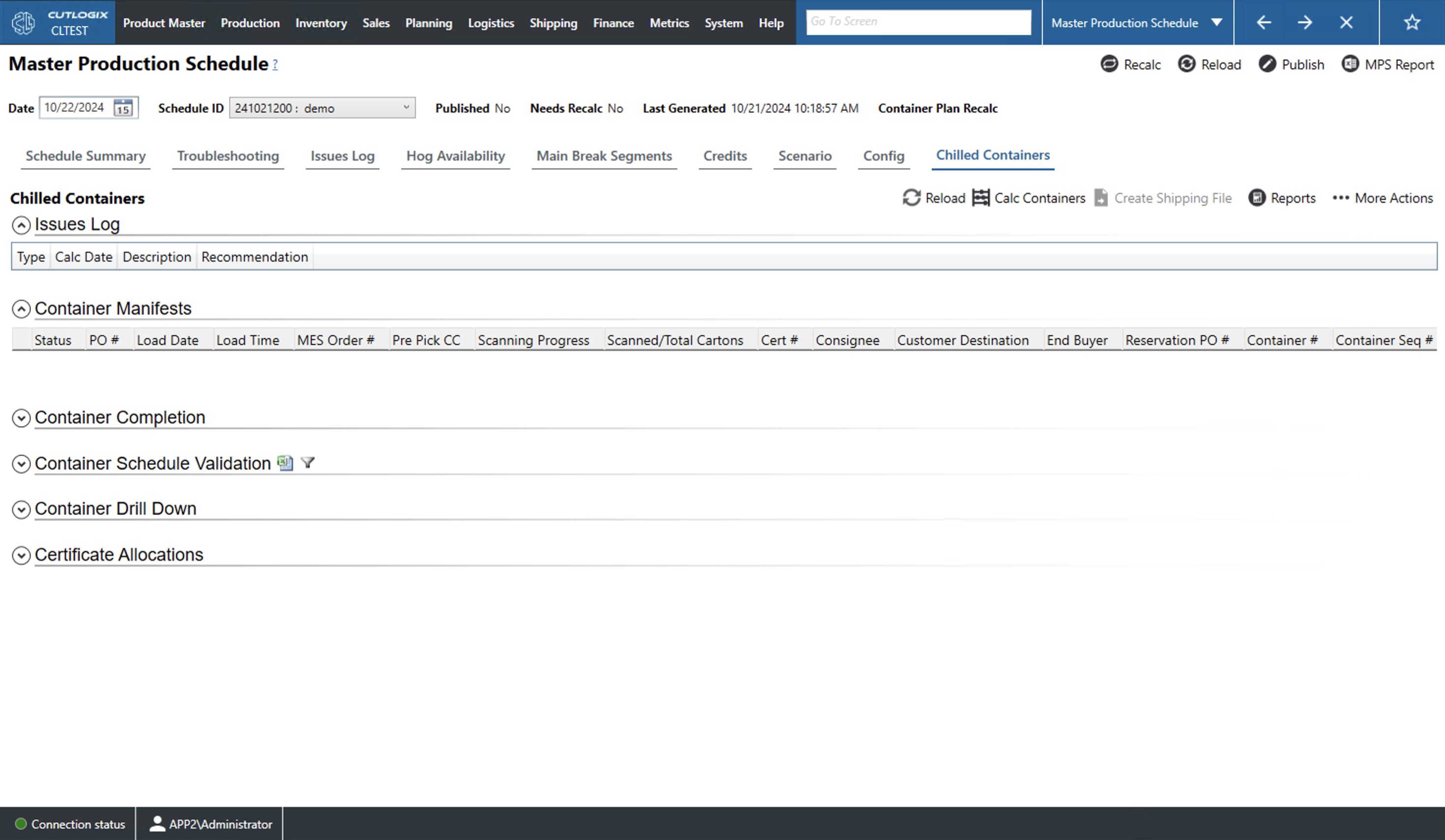
This tab displays information on the status of the chilled containers that are being loaded on the current schedule. This tab is broken down into four dropdowns with different information. The first is the 'Issues Log' which gives a rundown of the issues that occurred when processing and loaded this schedule's chilled containers. The 'Container Manifests' dropdown shows the scanning progress the current schedules chilled containers. 'Container completion' shows how many chilled containers are scheduled to be loaded on each day of the current schedule's week. 'Container Schedule Validation' gives a breakdown of what product is on each chilled order. 'Container Drill Down' gives a breakdown of the loads that are shipping the contents of the particular customer order. 'Certificate Allocations' shows which certificates have been allocated to this schedule.
Chilled Container Tab: Issues Log/Container Manifests Dropdowns
-
Issues Log
- Type: An ID number automatically generated for the schedule.
- None: No issue type set.
- ProductionSchedule: An issue related to the scheduled calculated by the planning system.
- ContainerConfig: An issue relating to how containers are configured (i.e. what product is on them, how they are loaded, etc.).
- Certificates: An issue relating to Canadian Food Inspection Agency (CFIA) certificates.
- Calc Date: The date that the planning system was calculating the schedule and flagged an issue.
- Description: A brief description of the issue. Container Manifests
- Status: The current status of the container.
- Forecast: Container is being planned.
- PrePick: Product for the container is being scanned to the order but the order has not been produced yet.
- Unscheduled: The production for this order has not been planned.
- ProductAvailable: The product for this container is already produced.
- Loading: This container is currently being loaded.
- Shipped: This container has been shipped.
- PO #: The product order number (PO #) for the container.
- Load Date: The date that the container will be loaded.
- Load Time: The time by which the container will be loaded.
- MES Order #: The order number of the container in the manufacturing execution system (MES).
- Pre Pick CC: This is the cost center (CC), or location, where the pre-picked inventory will be kept.
- Scanning Progress: This is a bar that indicates how close to being scanned and loaded the order is by the displayed percentage as well as how full the bar is.
- Scanned/Total Cartons: The number on the left is the number of cartons scanned onto the order and the number on the right is the total number of cartons.
- Cert #: The CFIA number associated with this container.
- Consignee: The company responsible for receiving the freight (may not be the same as the final customer).
- Customer Destination: The end destination of the container.
- End Buyer: The customer that will ultimately receive the product.
- Reservation PO#: The reservation purchase order number (PO #). Large orders for chilled product, orders that require more than one load to transport, are placed on a reservation by the planning system that then divided into specific orders that can be assigned to specific containers or trailers.
- Container #: The number of the container in the overall over (i.e. the reservation made by the planning system to track the large order).
- Container Seq #: Indicates the container's place in the order of containers that will be loaded on this schedule.
- Reservation High Value Ratio: The percentage of the entire large order that is considered high value product.
- Container High Value Ratio: Percentage of the product on the particular container that is considered high value product.
- Total Net/Gross kg: Total weight of the product on the order including/excluding the weight of the packaging materials.
- Total Volume: Volume of the order in cubic feet.
- Density: The weight of the product, in kg, per cubic foot.
- Wtd. Avg Price: The weighted average of the price per kilogram. In this context, weighted average of the price takes into account how much of something was sold at a particular price rather than just how many price entries there are.
Chilled Containers: Container Completion/Container Schedule Validation Dropdowns
-
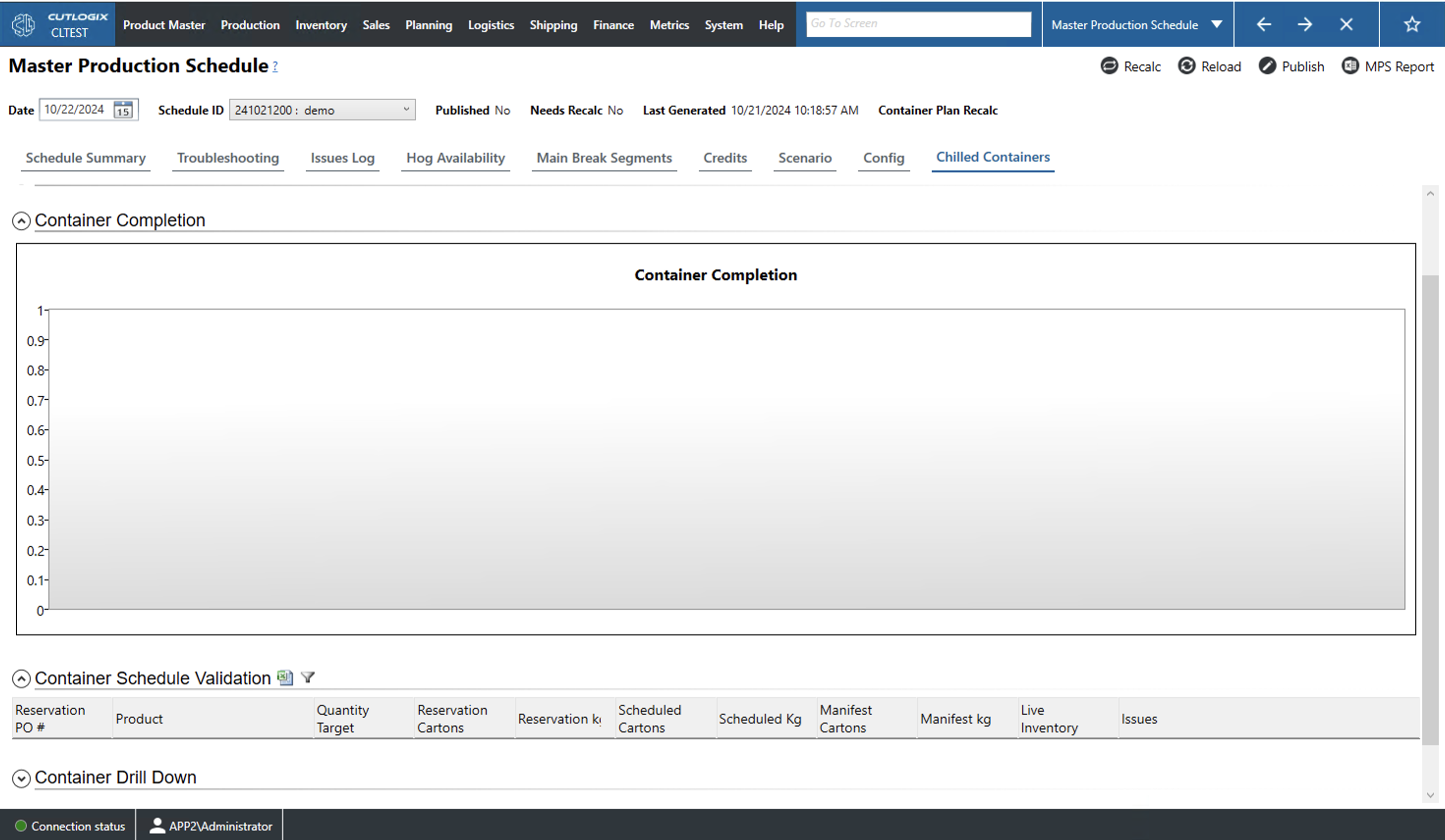
Container Completion
This dropdown displays a bar graph that shows how many chilled containers are planned to be completed (produced, scanned and loaded) on each day of the week for this schedule.
Container Schedule Validation
- Icons: After the title of this dropdown are three icons that perform actions/give information particular to this dropdown list. From left to right:
- Red '!' Icon: Indicates that there are products on this schedule with issues.
- Export to Spreadsheet Icon: Allows users to save this data table locally as a .xlsx file (excel format).
- Filter Icon: Displays a small pop up window that allows you to modify the filters currently applied to the list.
- Reservation PO#: The reservation purchase order number (PO #). Large orders for chilled product, orders that require more than one load to transport, are placed on a reservation by the planning system that then divided into specific orders that can be assigned to specific containers or trailers.
- Product: The product code and name of the product.
- Quantity Target: This indicates whether a specific number of cartons or a specific weight is the target to hit for this product.
- Reservation Cartons/kg: Total cartons/kilograms on the reservation (i.e. cartons/kg on the overall order used to track large chilled orders that require more than a single container for transport).
- Scheduled Cartons/kg: Total cartons/kilograms from the reservation that have been scheduled.
- Manifest Cartons/kg: Total cartons/kilograms from the reservation that have been loaded.
- Live Inventory: Clicking the link will take you to the inventory explorer page where you can browse information about this product's current inventory.
- Issues: If this product has issues then this space gives a brief description of the issues.
Container Drill Down Dropdown
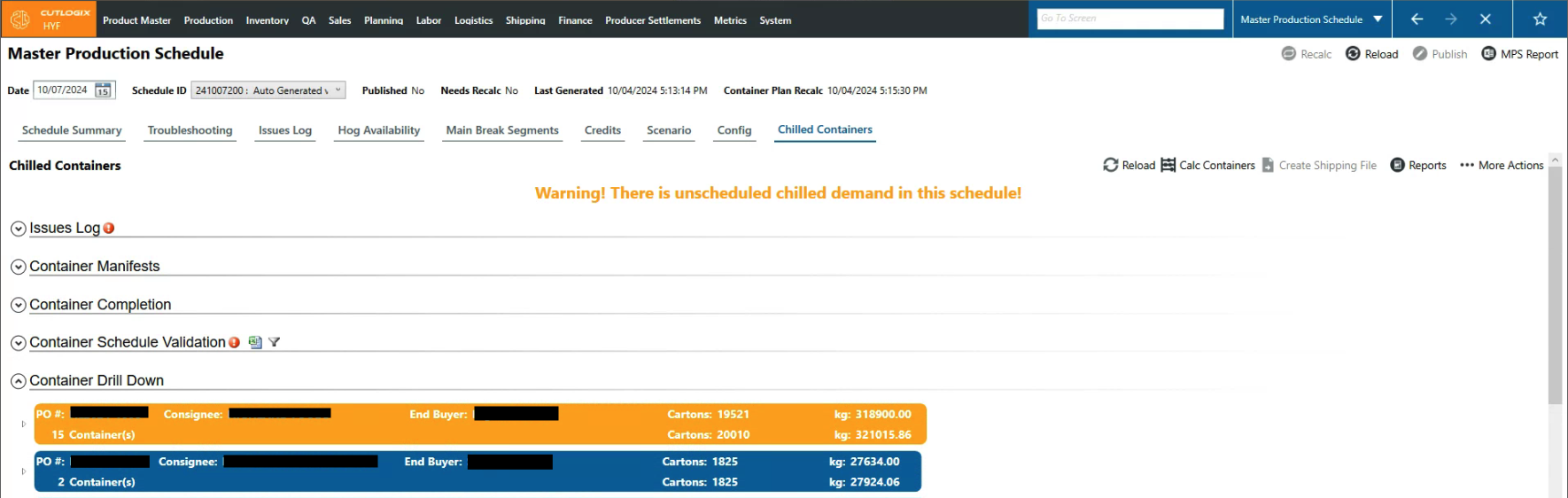
- PO #: Purchase Order number (PO #) of the product assigned to the container.
- # of Containers: Indicates the number of containers assigned to this order. Clicking the dropdown arrow to the left of the entry or double-clicking the entry will open up a dropdown that shows information on each of the containers associated with this order.
- Load Date: The date that the container will be loaded.
- Load Time: The time that the container will be finished loading.
- Total Cartons: Total number of cartons that will be loaded on this container.
- Total Net kg: Total weight of product on the order minus the weight of the packaging materials.
- Load Dropdown: Clicking the arrow to the left of a particular load entry or double-clicking the entry will display a dropdown with more detailed information about that particular container.
- Code: A unique idenifier for a particular product on this container.
- Cartons/kg: The number of cartons/kilograms of this product on this container.
- Consignee: The company responsible for receiving the freight.
- End Buyer: The customer that ordered the product.
- Total/Loaded Cartons: Cartons number on top are the cartons required while the cartons below are the cartons either scanned or planned for the chilled reservation. When the number of planned and scanned cartons match the ordered number of cartons then the container entry is shown in blue. When there the scanned and planned cartons fall short of the ordered cartons the entry is shown in orange.
- Order Dropdown: Whether ot nor this schedule has been published yet.
- Scanned/Total Cartons: Allows the planning system to allocate the plant's chilled inventory to requested transfers of chilled product.
Certificate Allocations Dropdown
- Certificate #: The number of a Canadian Food Inspection Agency (CFIA) certificate that has been assigned to a load on this schedule.
- Schedule ID: An autogenerated unique identifier of the schedule on which a particular CFIA certificate has been assigned.
- PO Number: Purchase Order number (PO #) of the product assigned to the container.