Certificate Tasks
How to Add Certificates
Demo
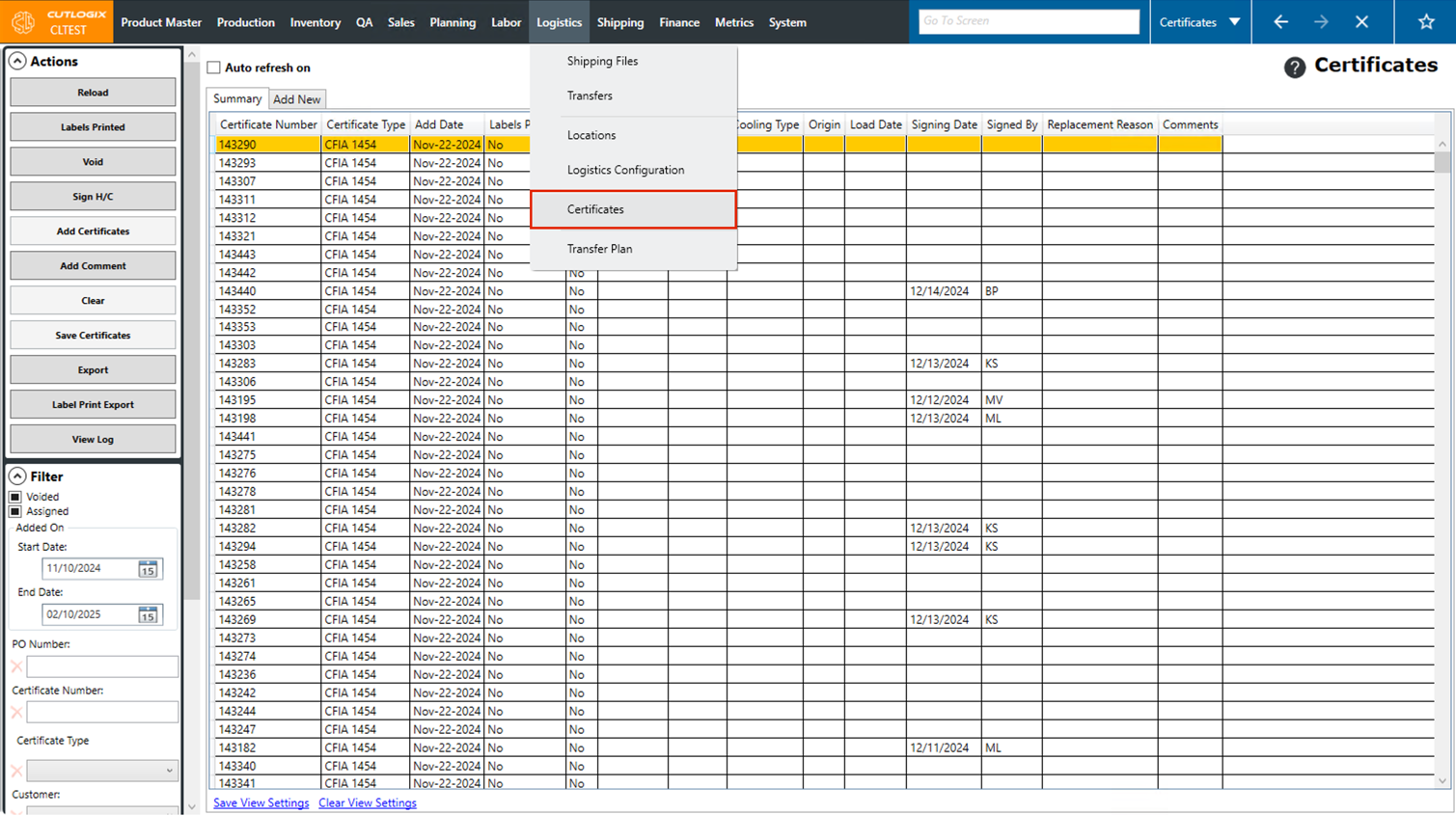
Step 1: Navigate to the "Certificates" page (Under the Logistics menu → Certificates).
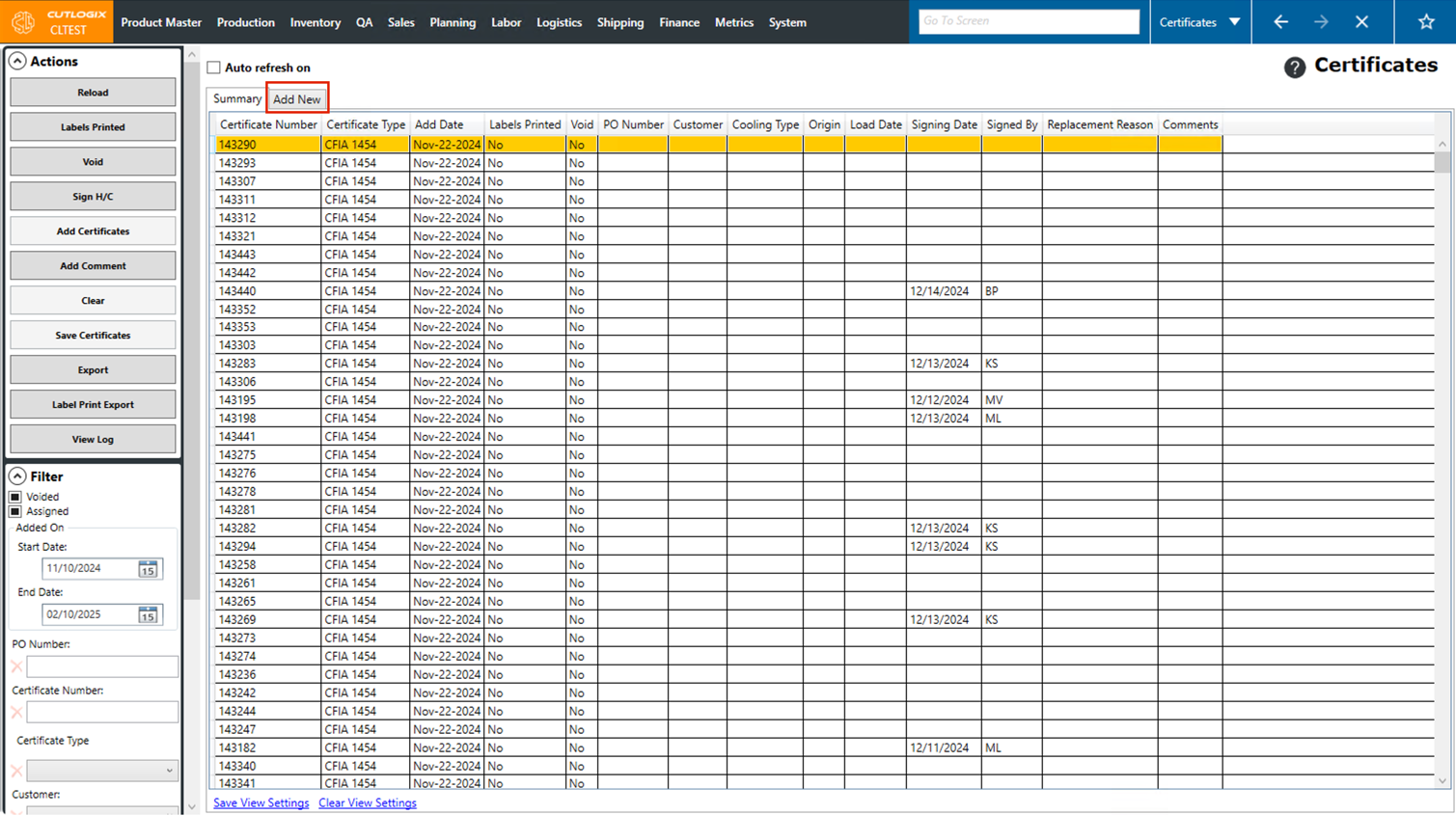
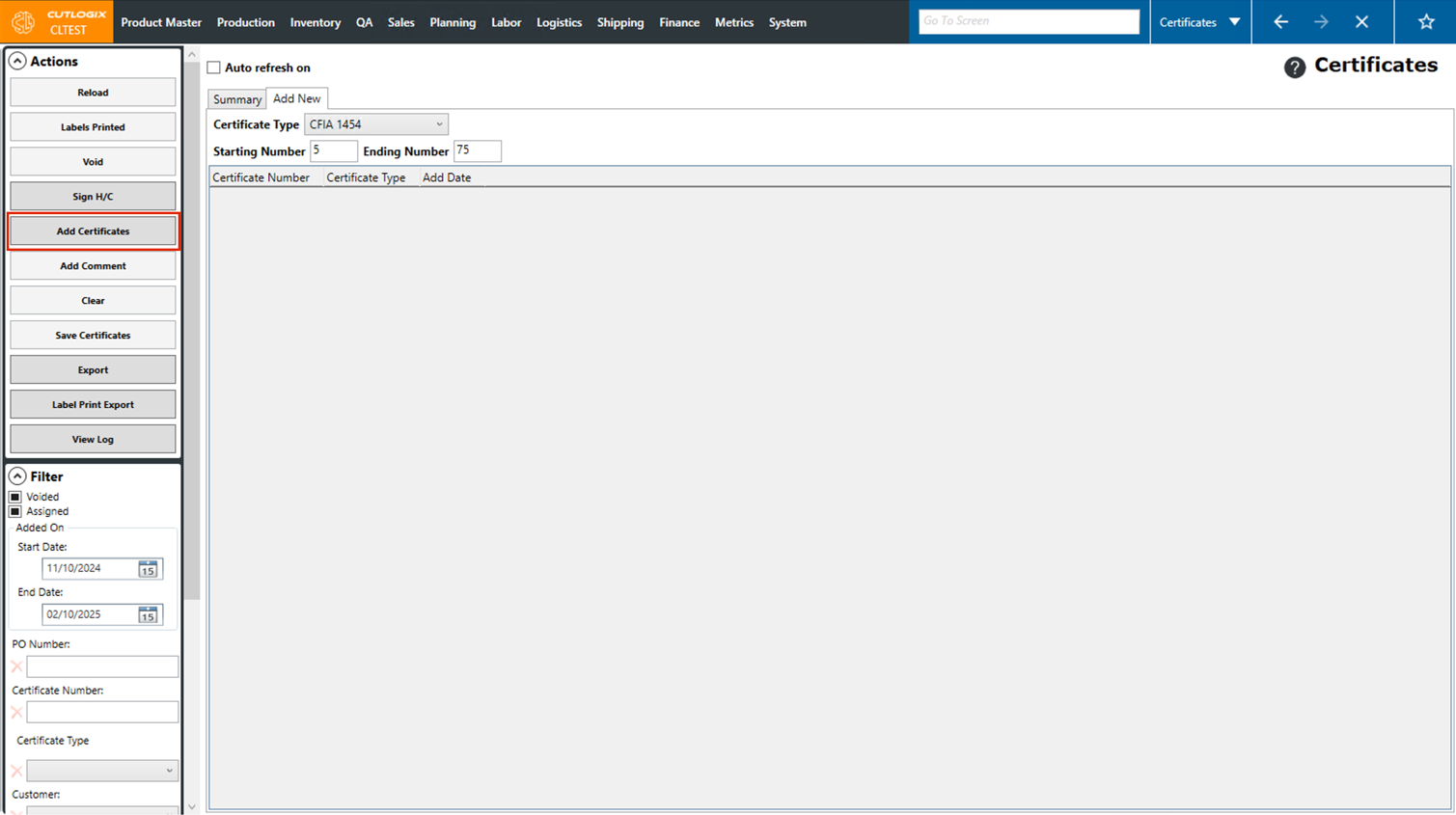
Step 2: Click the "Add New" tab near the top of the page.
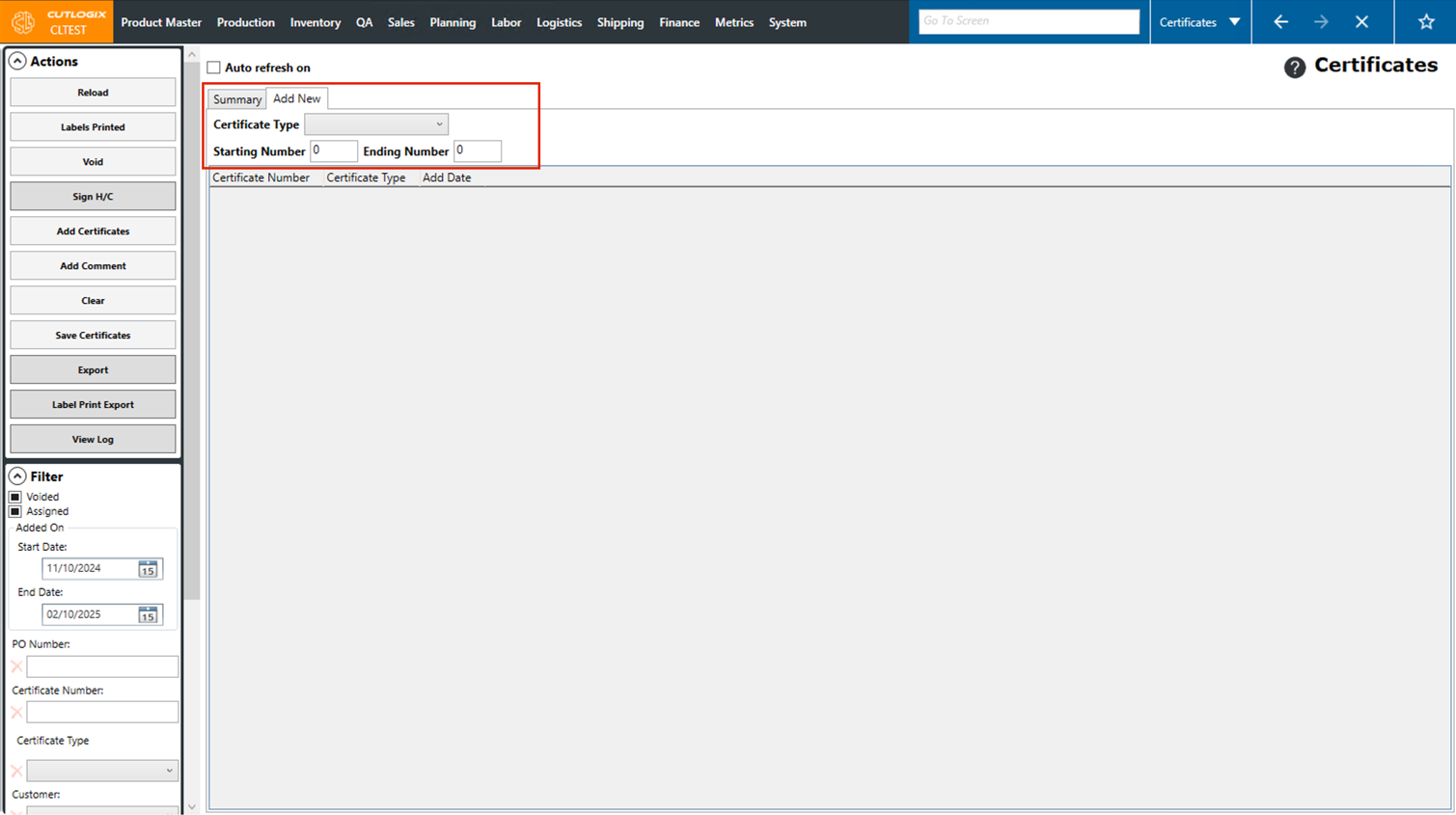
Step 3: This tab is where you can enter the information about the certificates you're adding. You'll need to enter the following information:
• Certificate Type: Choose the type of certificate from the dropdown list.
• Starting Number: Enter the starting number of the certificates that you're adding.
• Ending Number: Enter the ending number of the certificates that you're adding.
• Certificate Type: Choose the type of certificate from the dropdown list.
• Starting Number: Enter the starting number of the certificates that you're adding.
• Ending Number: Enter the ending number of the certificates that you're adding.
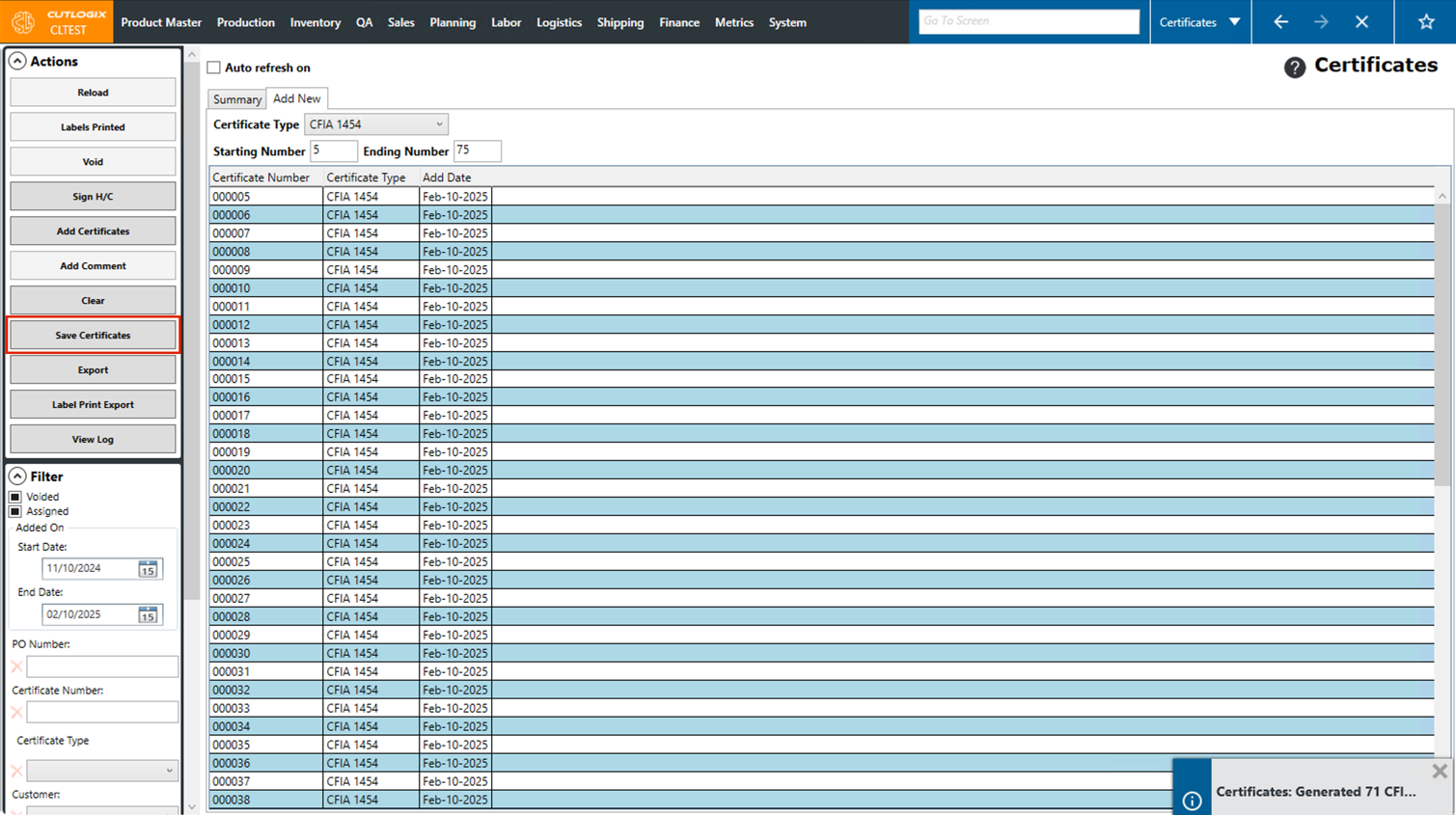
Step 4: Once the certificate type and start/end numbers have been filled out, click the "Add Certificates" button in the Actions Panel. the certificates to be added will appear on the screen.
Step 5: Click "Save Certificates" to save the certificates, if you don't want to save them, click "Clear". Once saved, they will appear in the Summary tab.
How to Update Certificates
Demo
Step 1: Navigate to the "Certificates" page (Under the Logistics menu → Certificates), then click on the certificate that you want to update (it will be highlighted in orange once it's selected).
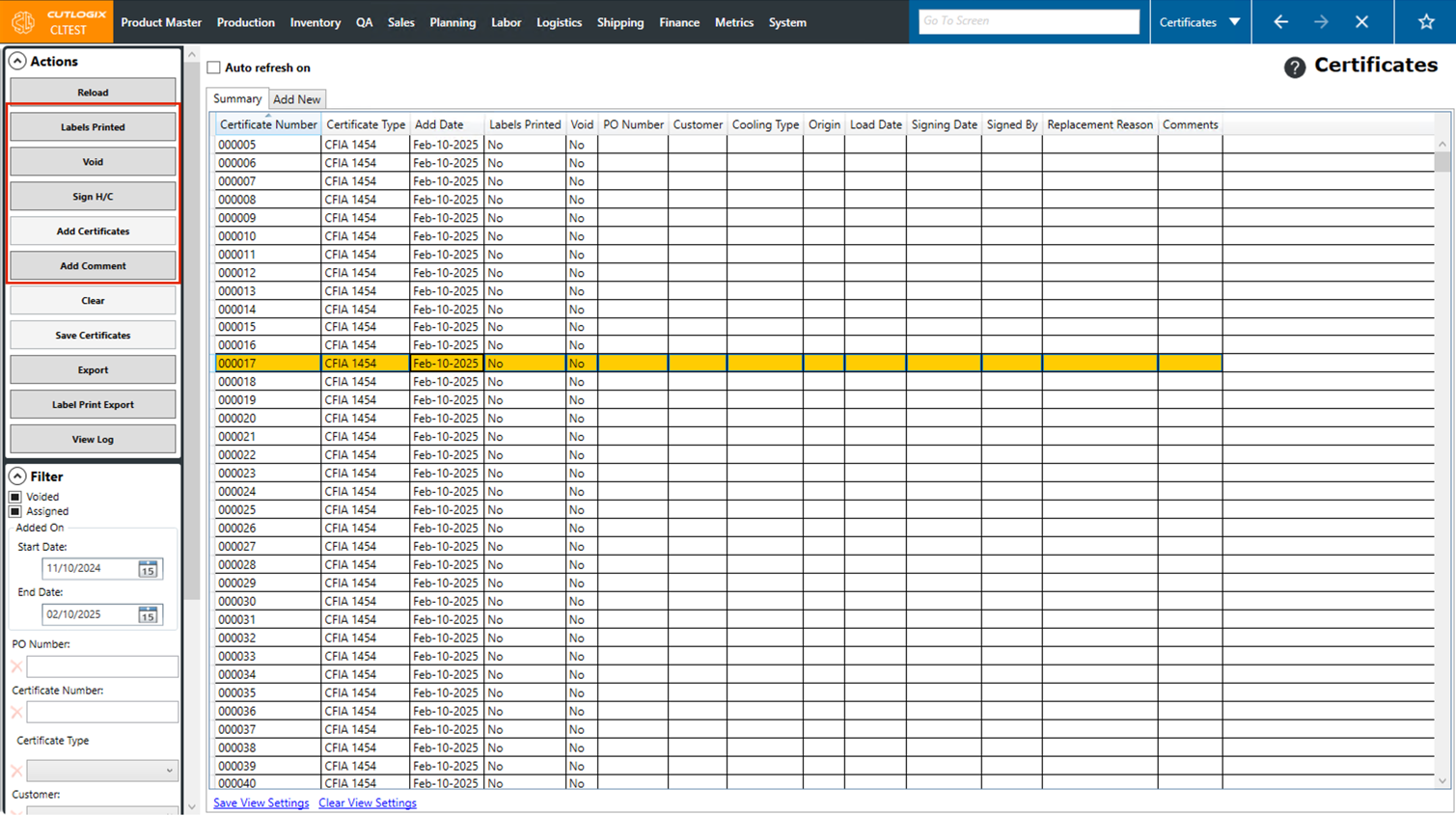
Step 2: There are several actions in the Actions Panel that you can use to update certificates that are selected. They are as follows:
• Labels Printed: This marks the certificate as having labels printed for it. You'll notice the "Labels Printed" column will show "Yes" once this is set.
• Void: This voids the selected certificate. Once voided the certificate will be highlighted in pink in the list of certificates. Certificates can be un-voided by clicking on them, then clicking "Revert Void" in the Actions Panel.
• Sign H/C: This marks the certificate as being digitally signed and records the signing date as well as the person it was signed by.
• Add Comment: This enables you to add a comment to the currently selected certificate.
Changes are applied as they are made, there's no need to click a save button after the above actions.
• Labels Printed: This marks the certificate as having labels printed for it. You'll notice the "Labels Printed" column will show "Yes" once this is set.
• Void: This voids the selected certificate. Once voided the certificate will be highlighted in pink in the list of certificates. Certificates can be un-voided by clicking on them, then clicking "Revert Void" in the Actions Panel.
• Sign H/C: This marks the certificate as being digitally signed and records the signing date as well as the person it was signed by.
• Add Comment: This enables you to add a comment to the currently selected certificate.
Changes are applied as they are made, there's no need to click a save button after the above actions.