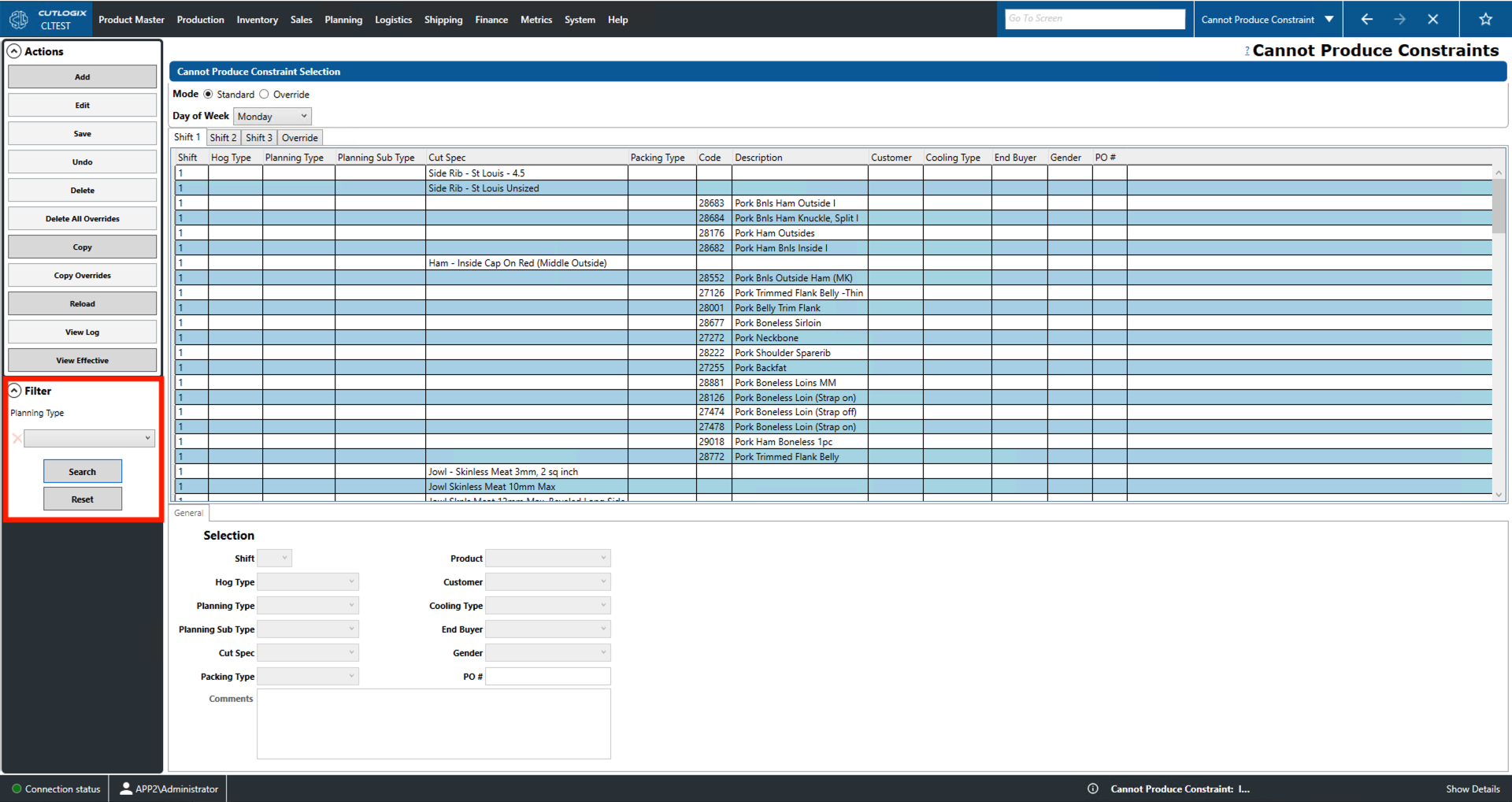
Cannot Produce Constraints Overview
How to Navigate: Click on Planning > Planning Rules Config > Cannot Produce Constraints
Summary
This page is used to create either default production constraints for specific days of the week. It also allows you users to create override production constraints that apply to a specific date. These constraints will be taken into account by the planning system when calculating the production schedule by telling it what not to schedule. The dropdowns and fields on the bottom portion of the screen become active when adding/editing and are used for data entry when performing those tasks.
- Mode: Choose whether to view the list of default cannot produce constraints (CPC) for a particular day of the week or the list of overrides for a specific date.
- Day of Week/Production Day: Select the day of the week/production day for the default/override CPC.
- Shift 1, 2, 3: Select which shift you'd like to view CPC for.
- Shift: The shift to which the constraint applies.
- Hog Type: The type (genetics, diet) of hog in the constraint.
- Planning Type/Sub Typ: The type/sub type assigned to the product in the planning system.
- Cut Spec: The cut specification in the CPC.
- Packing Type: How the product in the constraint is packaged (cryovac, etc.).
- Code: A unique identifier for the product in the constraint.
- Description: A name/description of the product.
- Product: This drop down (on the bottom of the screen) is used to select a product for the constraint and its associated code.
- Customer: A customer associated with the constraint.
- Cooling Type: The constraint's cooling type: fresh, frozen or chilled.
- End Buyer: The end buyer for the constraint, not necessarily the consignee (entity contractually obligated to receive the product).
- Gender: Gender of the hog that is to be used to produce the product for this constraint.
- PO #: The purchase order number (PO#) for the constraint.
- Comments: A section for further comments about the constraint.
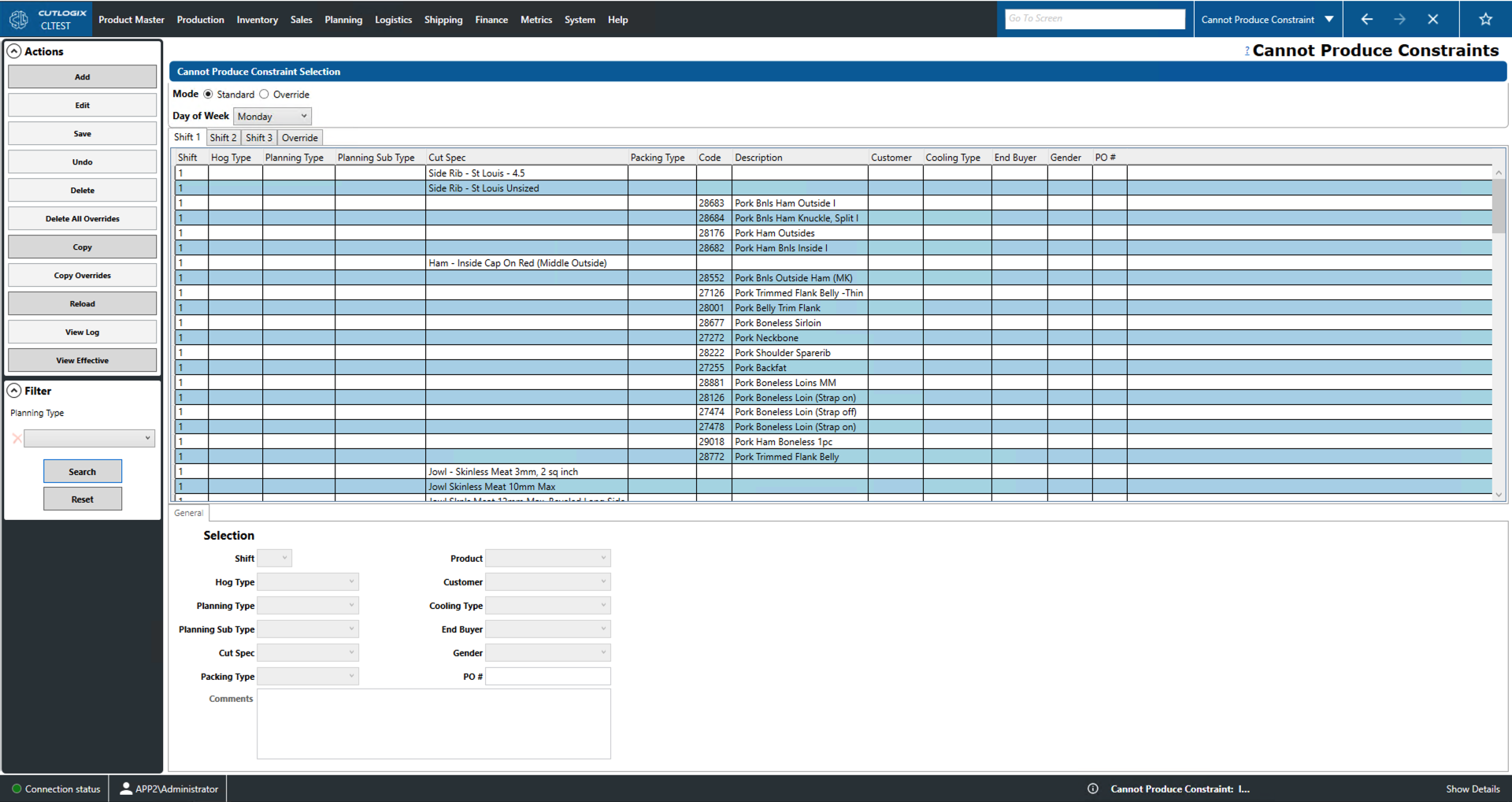
Actions
- Add: Add a new constraint to the list.
- Edit: Edit the currently selected (highlighted in yellow) constraint in the list.
- **Required fields for adding/editing**:
- Planning Type, Cut Spec, Packing Type, Product, Comments
- Save/Undo: Saves/undoes all changes made in the current add/edit session.
- Delete: Deletes the currently selected constraint record.
- Delete All Overrides: When in override mode, users can use this option to delete all CPC overrides on the chosen date.
- Copy: Copy the currently selected selected constraint and add it to another day.
- Copy Overrides: Copy selected overrides from one date to another.
- Reload: Reloads the list displaying the most up to date information from the database.
- View Log: View the change log for the currently selected constraint record. This will include what changes were made, by whom and when.
- View Effective: Allows you to save the constraint records for the selected time period locally as a .xlsx file (excel format).
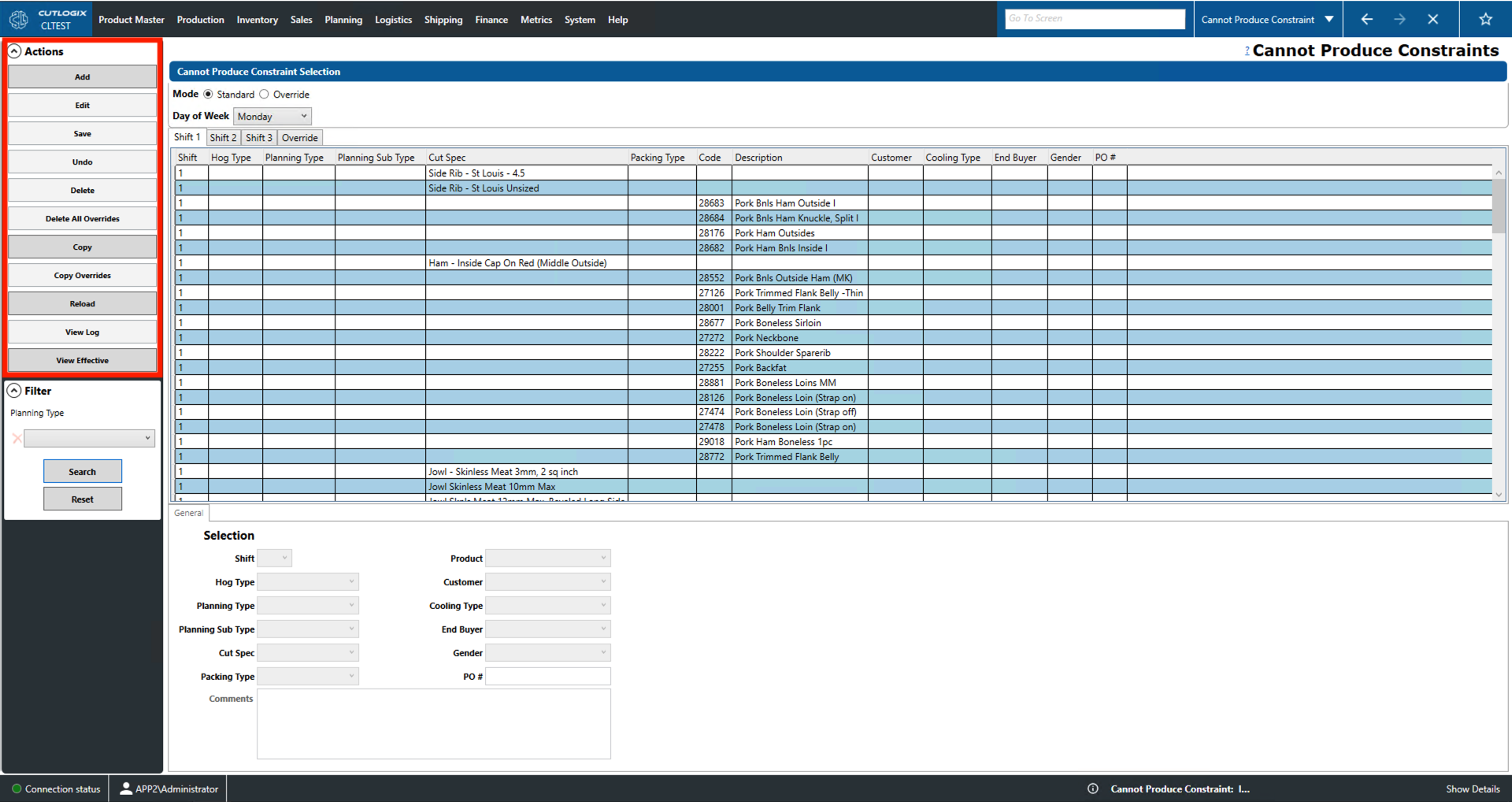
Filter
- Planning Type: Filter the list by the planning type field.
- Search: This will reload the list with the relevant filters applied.
- Reset: This will reset the filters and reload the list to an unfiltered state.