Pass Rate Tables Overview
How to Navigate: Click on Product Master > Product Master List > Click on the Packaging Tab
Summary
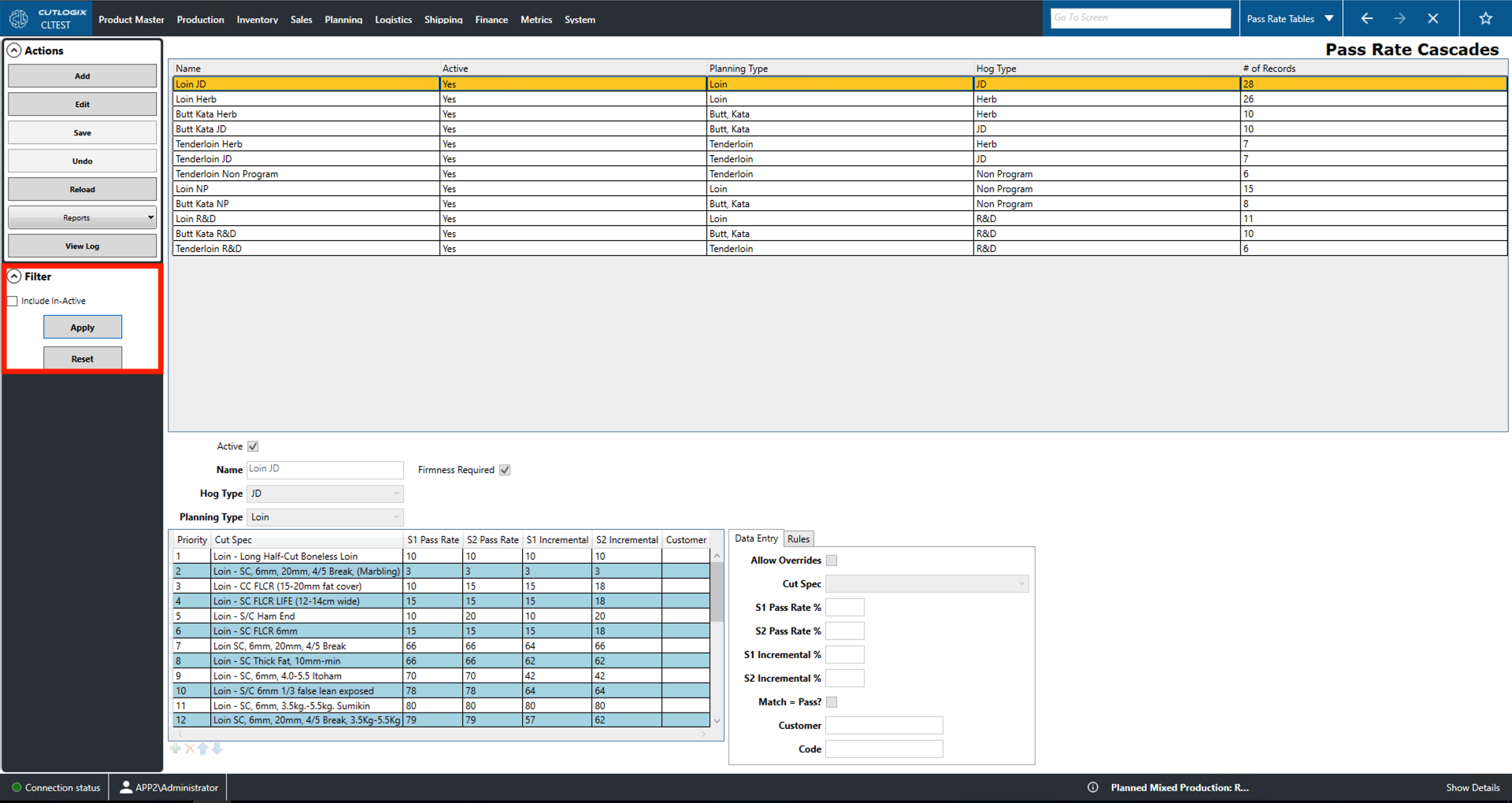
Users can use this page to create pass rate cascading tables. A pass rate indicates how often a cut of meat meets the standards to be sold as a specific product. Typically, the lower the pass rate on a product the higher the profit margin. This is why tables will often show products with a lower pass rate sitting at a higher position in the table (i.e. at a higher priority). A pass rate cascade is a series of levels with similar but cheaper products that products can be downgraded into if they do not pass at higher levels. In other words, products that do not pass as a specific product do not necessarily need to be discarded as they may still be re-purposed toward the production of the next product in the table. The 'Data Entry' tab is used to both view data and to enter new data when adding or editing. The 'Rules' tab can be used to set a series of rules for a product by checking/unchecking the appropriate check boxes.
- Name: Name of the currently selected cascade record.
- Active: Indicates whether the cascade record is active.
- Planning Type: Indicates the category assigned to this product in the planning system.
- Hog Type: Indicates the type (genetics, diet, etc.) of hog used to produce this product.
- # of Records: Indicates the number of product cascades on this cascade record.
Pass Rate Tables
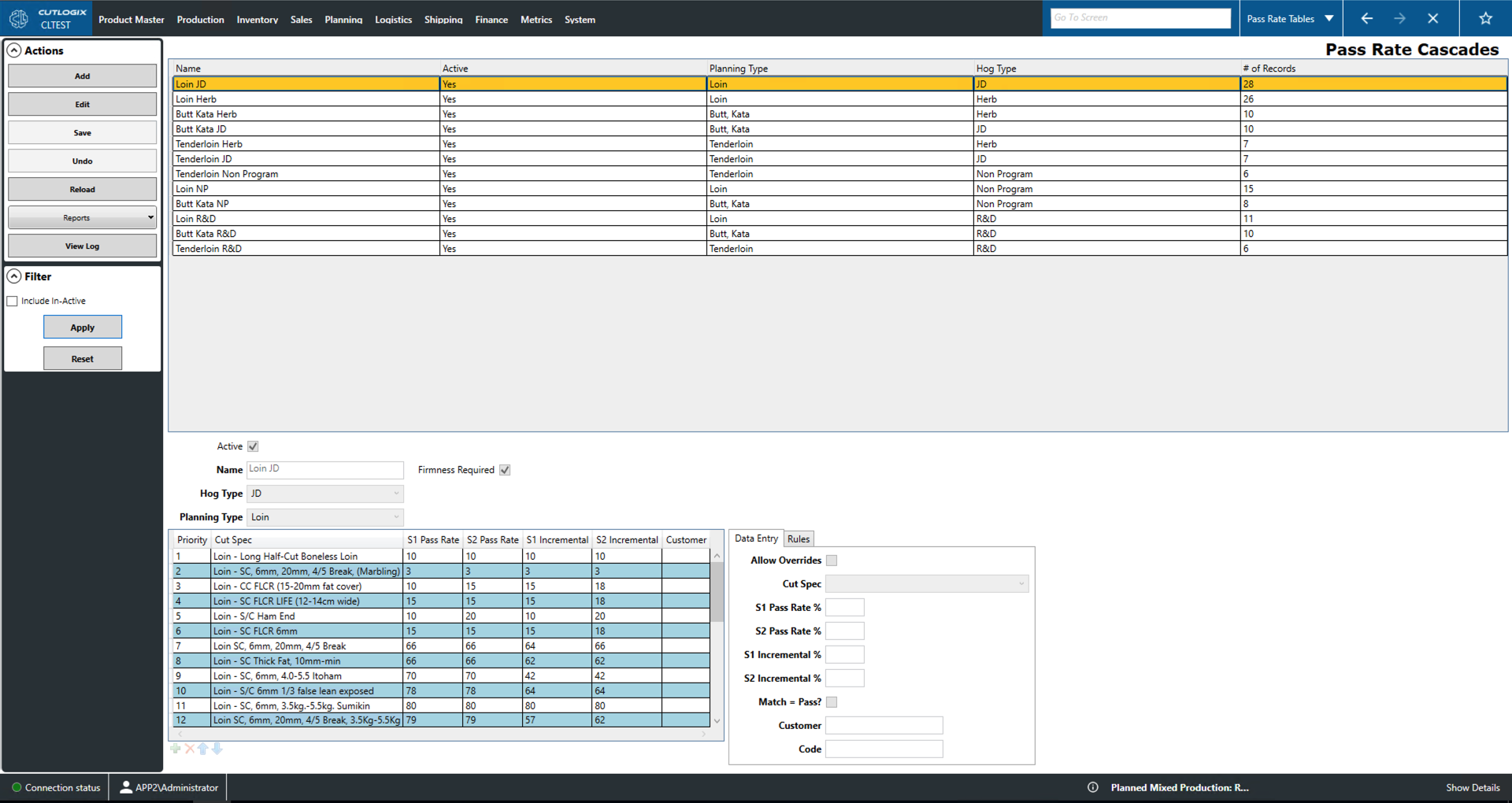
- Add: Add a new pass rate record to the top table.
- Edit: Edit the currently selected pass rate record in the top table.
- Save/Undo: Save/undo any changes made to a pass rate record in the current adding/editing session.
- Reload: Reload the list of pass rate records to display the most up to date information from the data base.
- Reports: This dropdown will contain a number of reports about the pass rate records. These reports are customizable by customer request.
- View Log: View the change log for the currently selected pass rate record. This will include what was changed, by whom and when.
Filter
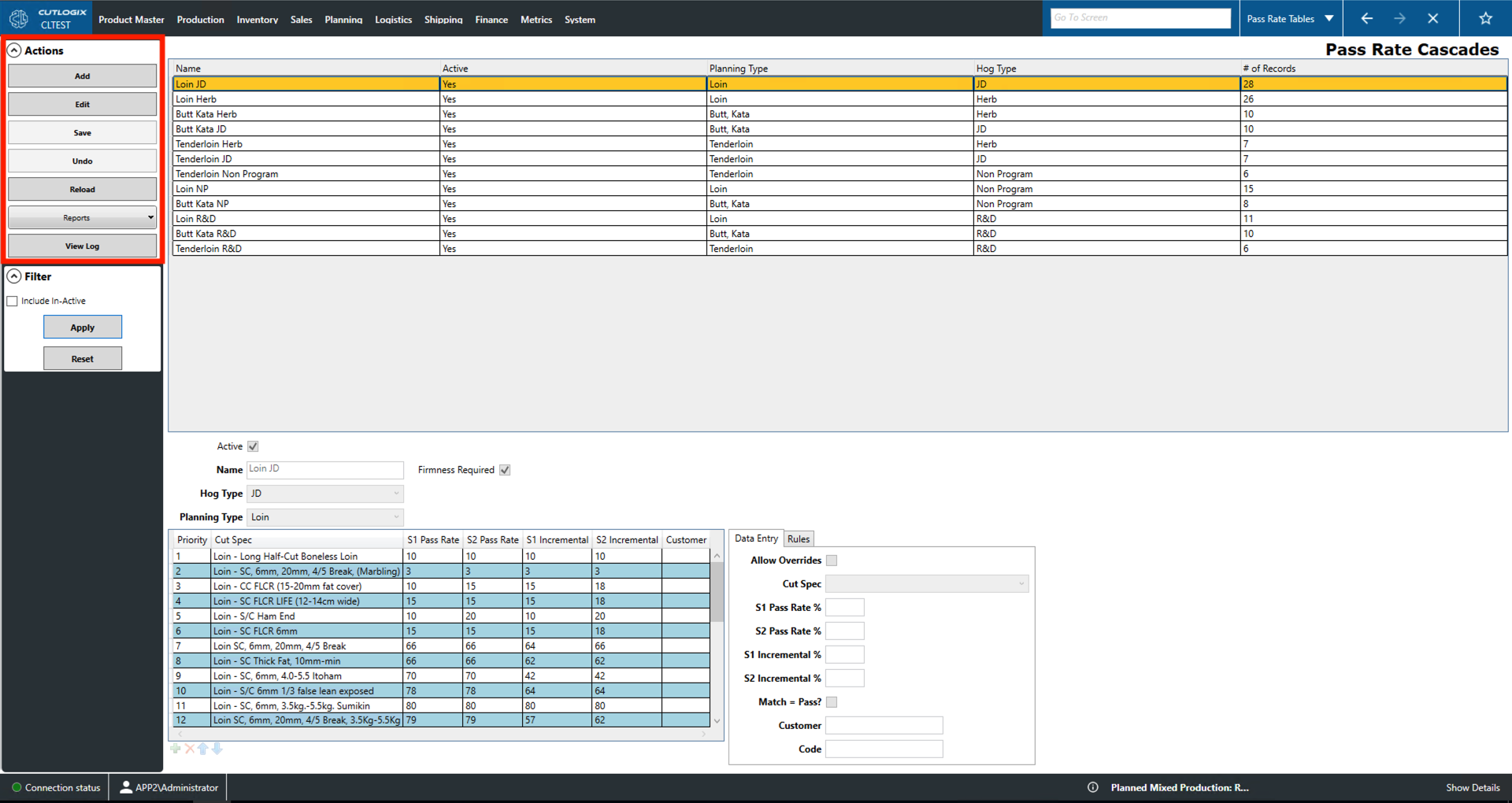
- Include In-Active: Checking this will include inactive pass rate records in the list.
- Apply: This will reload the list applying the current setting of the check box.
- Reset: This will reset the check box to empty and reload the list to an unfiltered state.