Product Master List Overview
How to Navigate: Click on Product Master > Product Master List
Summary
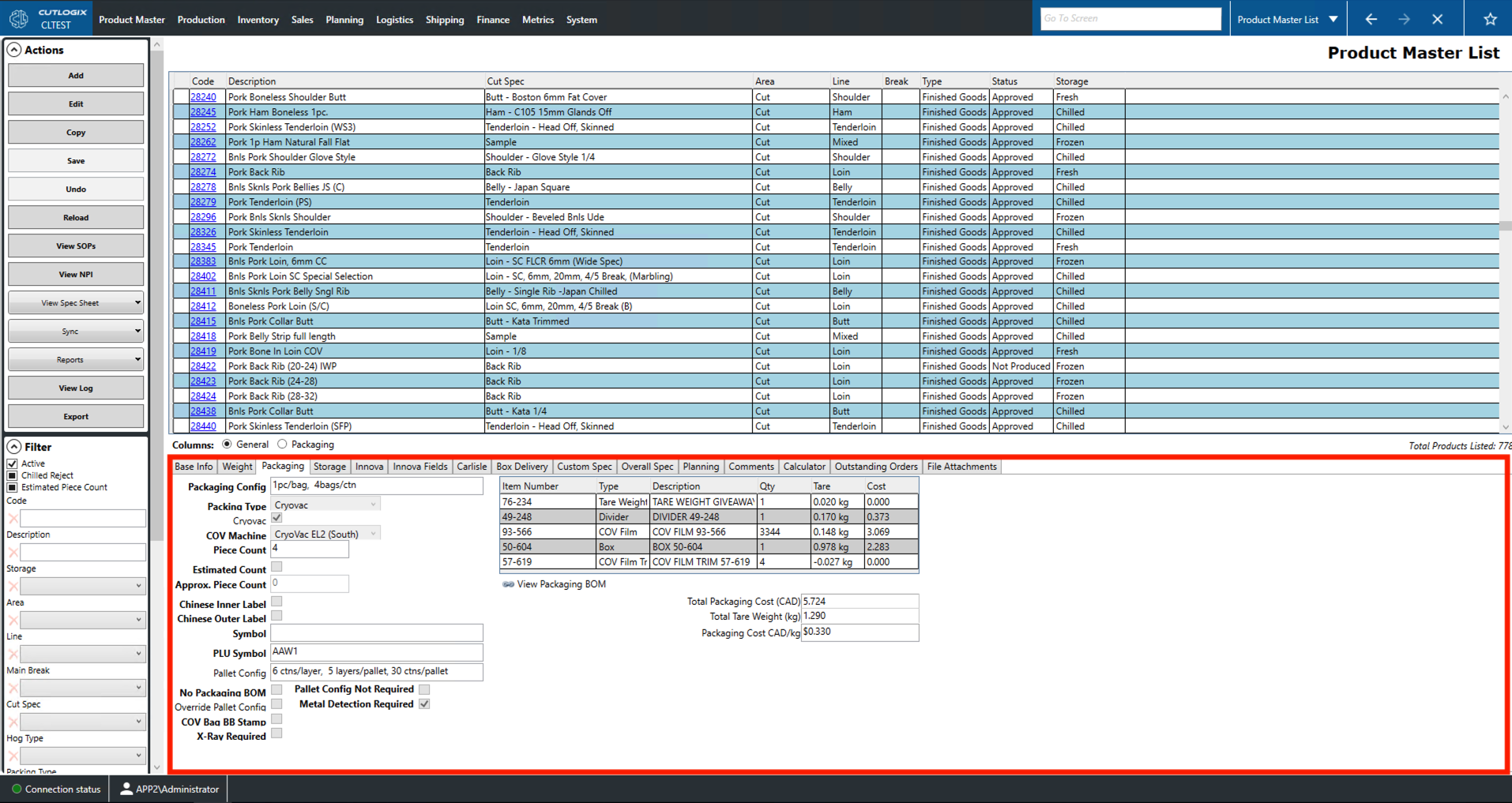
The product master list contains the overall specifications of each product. Products combine a cut specification, a packaging bill of materials (BOM) and a set of storage requirements (fresh, frozen or chilled). This page allows you to view, modify and search your products. The tabs on this page are used to display information about the currently selected product. As users click on different products, its information will be dynamically populated in each of the tabs. These tabs are also used to enter data when adding, editing or copying a product. The information in these tabs will be read-only until one of these three actions is clicked.
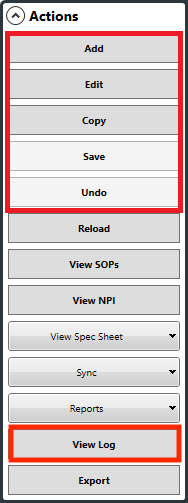
Product Modification Actions
- Add: Adds a new product to the list.
- Edit: Edits the currently selected product (highlighted in yellow).
- Copy: Copy the currently selected product. This will create a new product with the same details as the selected product. The user is required to enter a new product code.
- Save: Saves all changes made in the current add/edit/copy session to the database and reverts the page to browsing mode.
- Undo: Undoes all changes made in the current add/edit/copy reverting the product back to the state it was in prior. This also resets the page to browsing mode.
- View Log: View all the change(s) made to the selected product. This includes what was changed, by whom and when.
- Required Fields when adding/editing/copying:
- Base Info Tab: Code (this will be empty on Copy), Cut Spec (cut specification)
- Weight Tab: Std. Weight (Standard Weight)
- Packaging Tab: Packaging Config, Piece Count
- MES Tab: Description1
- Overall Spec Tab: Minimum Hog Type
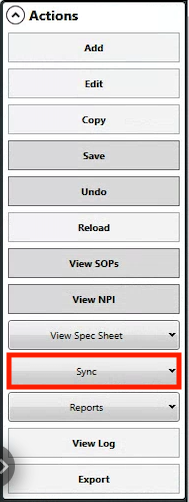
Sync to the MES
-
Sync: This dropdown includes several options for sending product details to your Manufacturing Execution System (MES), for example Innova, to ensure that production will reflect the latest product specifications:
- Sync Product: This will sync the currently selected product to the MES.
- Sync List: This will sync the filtered product list to the MES. This is only clickable if the list is filtered by a packaging item.
- Sync All Active Products: This will sync all active products. An active product is one with a status of 'Admin', 'Draft', 'Approved' or 'Not Produced'. In other words, all products that do not have the 'Obsolete' status.
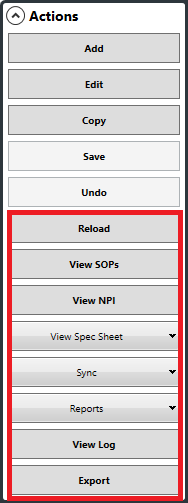
Product Data Exporting and Reporting Actions
- Reload: Re-populate the Product Master List with the most up-to-date data from the database.
- View SOPs: View the Standard Operating Procedures (SOPs) for the selected product.
- View Spec Sheet: This dropdown allows you to select a type of spec sheet to view. A spec sheet is a document that gives the overall specification of the product. An overall specification contains all the information necessary to make a product. It will include the cut specification, the hog type, the packaging bill of materials, the major defects, special instructions, etc.
- Internal Spec Sheet: This is a more detailed spec sheet intended for internal stakeholders.
- External Spec Sheet: This is a spec sheet intended for external stakeholders or customers that omits details specific to your organization.
- Reports: This dropdown contains a list of product reports. These reports are customizable as per customer request.
- Export: This allows the user to save the Product Master List as a .xlsx file (Excel format).
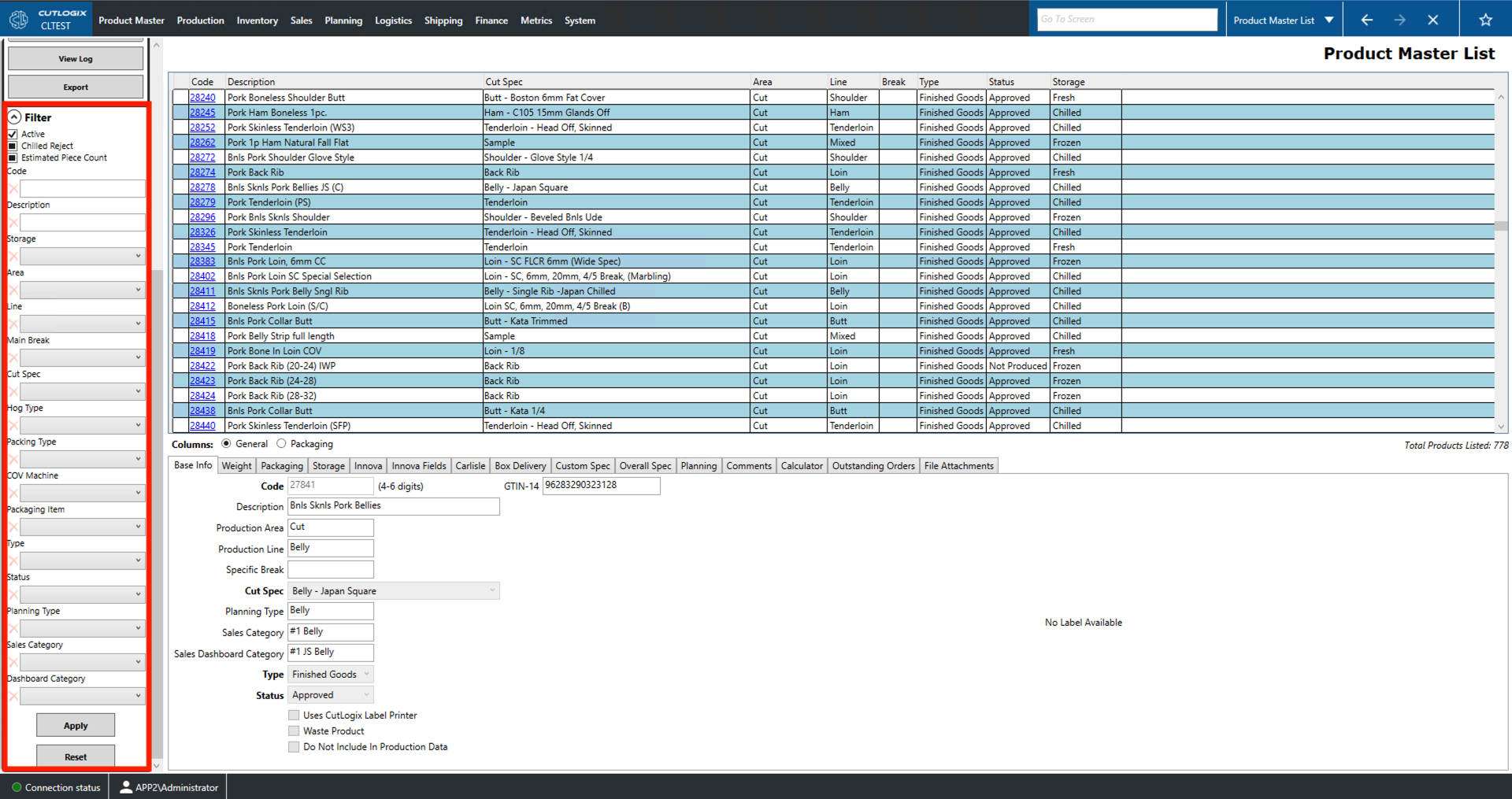
Filter
- Active: Filter by whether or not the product is considered active. Checked means include only active products, empty means exclude them and the black square means do not filter by the active state.
- Estimated Piece Count: Filter by whether or not the product uses an estimated piece count over an exact count. Checked means include only products with an estimated piece count, empty means exclude estimated piece counts and the black square means do not filter by piece count type.
- Code: Filter by a product's unique identifier. This field allows the use of wild card matching using the * character. Placing the * at the start of the number will search for anything ending in your search term (ex. *123 would find both 4123 and 5123 but not 5122). Placing the * at the end will search for anything that begins with your search term (ex. 345* would find both 3456 and 3457 but not 2456).
- Description: This field searches for products that have a description that contains your search terms (ex. 'bone' would find 'WIP Bone In Primal Shoulder' and 'WIP Neck Bones' but not 'WIP Back Skins').
- Storage: Filter by the product's cooling type (fresh, frozen or chilled).
- Area: Filter the area of the plant the product is made in (kill or cut).
- Line: Filter by the specific production line on which the product is made (loin, belly, ham, etc.).
- Main Break: Filter by the type of main break used to make the product.
- Cut Spec: Filter by the cut spec used to process the product.
- Hog Type: Filter by the level of hog that must be used when making the product.
- Packing Type: Filter by how the product is packaged (individually wrapped (IWP), cryovac, bulk, etc.).
- COV Machine: Filter by the default cryovac machine used to package the product.
- Packaging Item: Filter to products that use the selected packaging item (i.e. contain the selected packaging item in their packaging bill of materials).
- Type: Filter by the product's type (a work in progress (WIP), finished product, etc.).
- Status: Filter by the product's status.
- Planning Type: Filter by the type given to this product in the planning system.
- Dashboard Category: Filter by the dashboard category. The entries in this category will reflect the sales strategy of the particular customer.
- Apply: Reload the list with the current filters applied.
- Reset: This will reset the filters and reload the list to an unfiltered state.