Scheduled BOM Changes Overview
How to Navigate: Click on Product Master > Scheduled BOM Changes
Summary
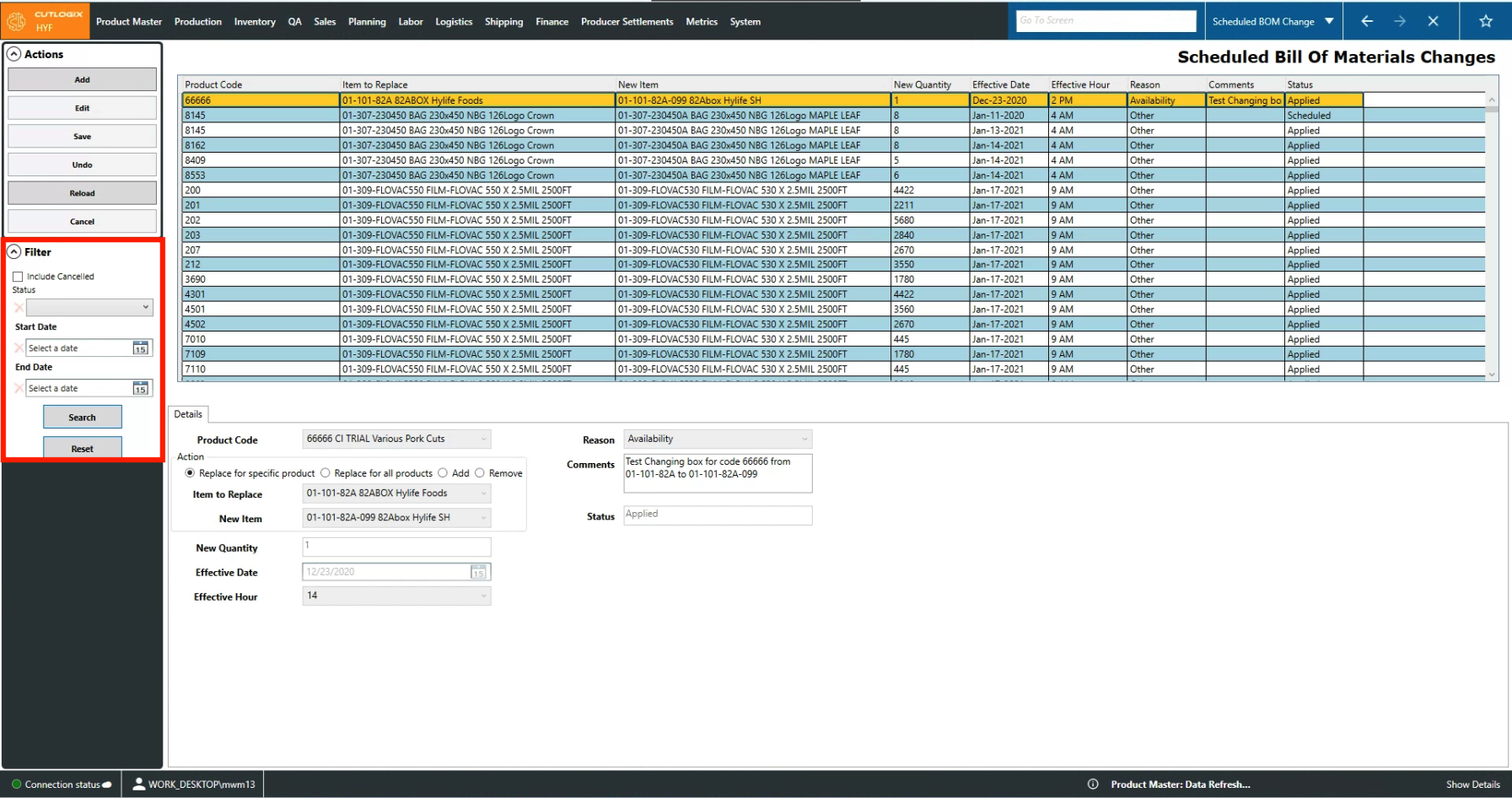
This screen allows users to schedule changes to a product's packaging bill of materials (BOM) to automatically take place at the specified date and time. Users can review the list of changes on the top half of the screen. The information in the 'Details' tab will be read only until a user actions 'Add' or 'Edit' in the 'Actions' bar. This will allow the user to user the fields in 'Details' for data entry.
Actions
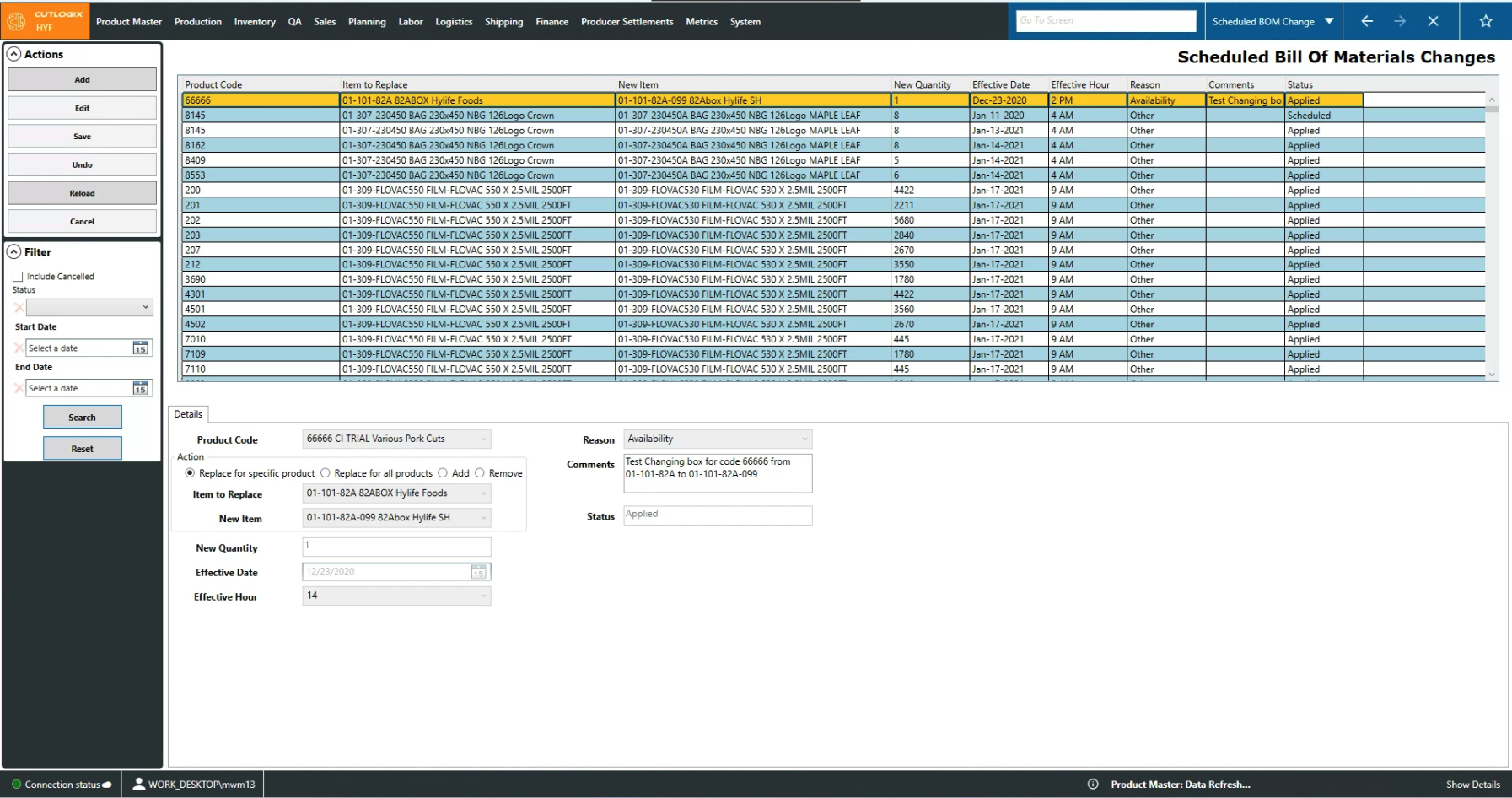
- Add: This will allow the user to schedule a new bill of materials (BOM) change.
- Edit: This allows users to modify the details of a scheduled change. Only changes that have a status of scheduled can be edited.
- Required Fields for Add/Edit:
- Product Code
- Item to Replace
- New Item
- New Quantity
- Save/Undo: This will save/undo all of the changes made in the current add/edit session.
- Reload: This will re-populate the list of scheduled changes with the most up-to-date info from the data base.
- Cancel: This will manually set the selected change's status to 'Cancelled'. The record will remain in the list but will no long take effect at its scheduled time.
Filter
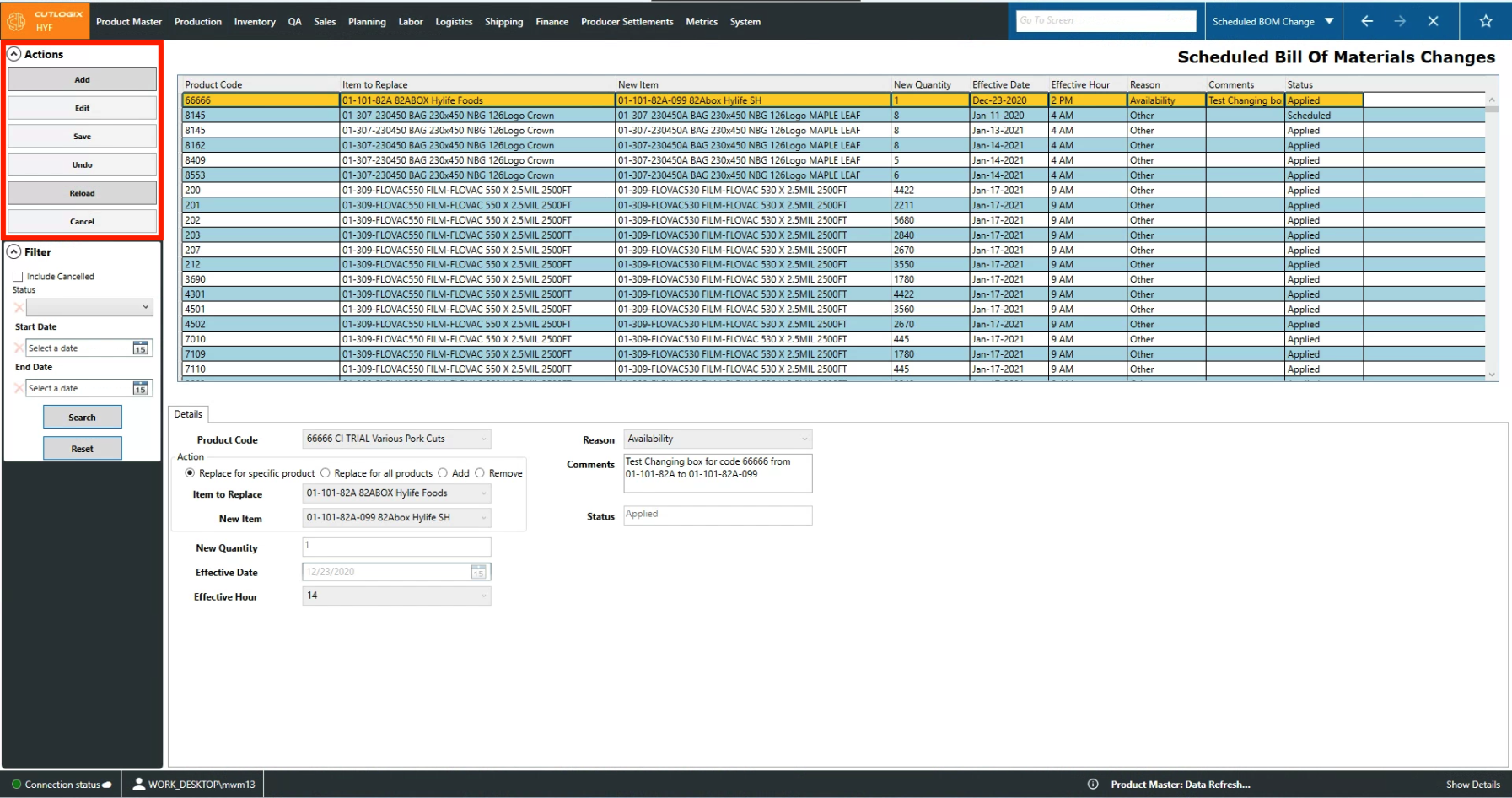
- Include Cancelled: Checking this will include in the list changes with a status of 'Cancelled'.
- Status: Allow users to filter the list to entries with the selected status.
- Start and End Date: These options allow the user to filter the list based on the 'Effective Date' column. Setting only the Start Date will filter the list to entries on or after that date. Setting the End Date will filter the list to entries on or before that date. Setting both will filter the list to all entries within that range.
- Search: This button will reload the list with the current filters applied.
- Reset: This button will remove all filters and reload the list to an unfiltered state.