Selection Tables Tasks
How to Add Selection Tables
Demo
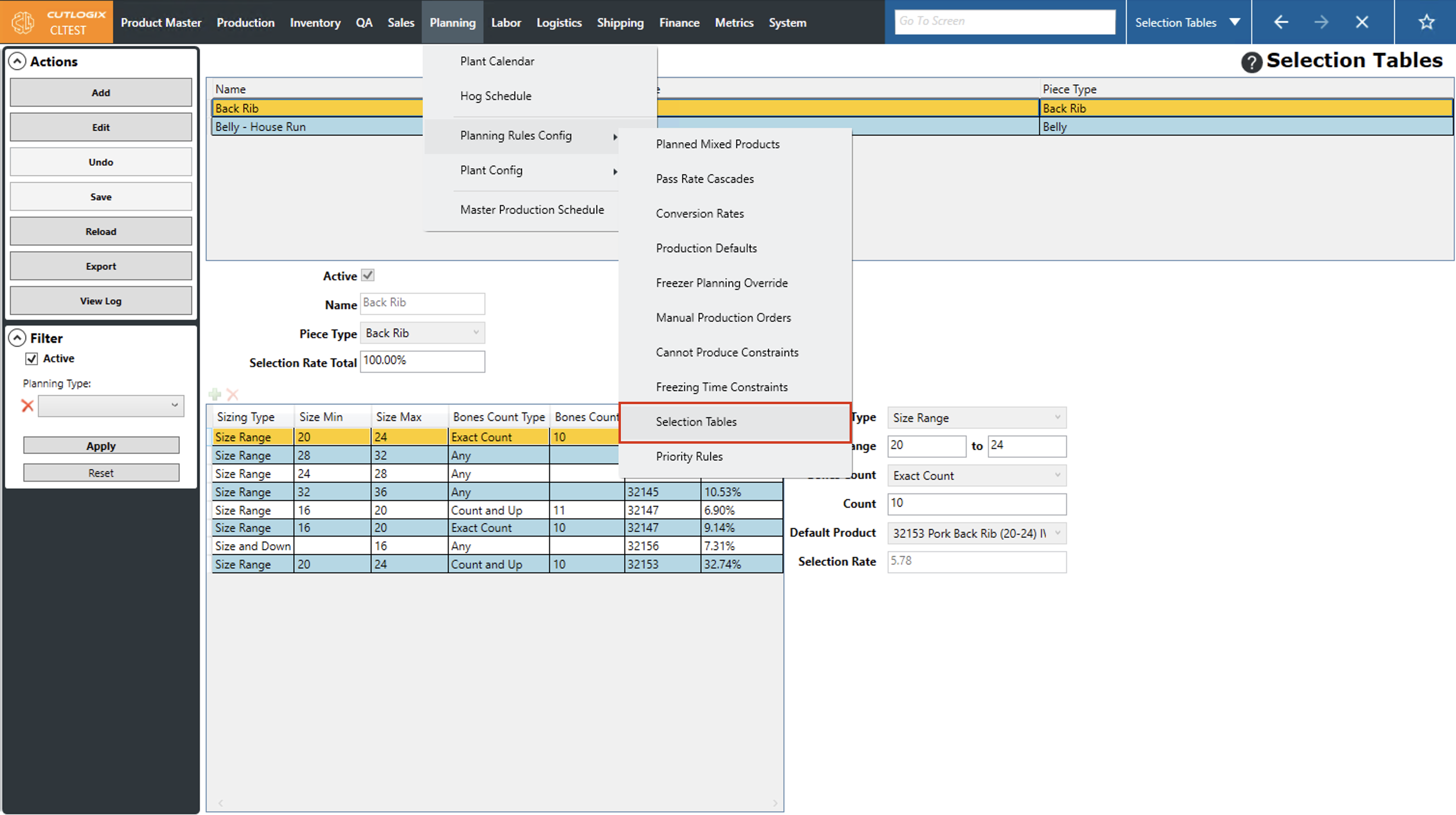
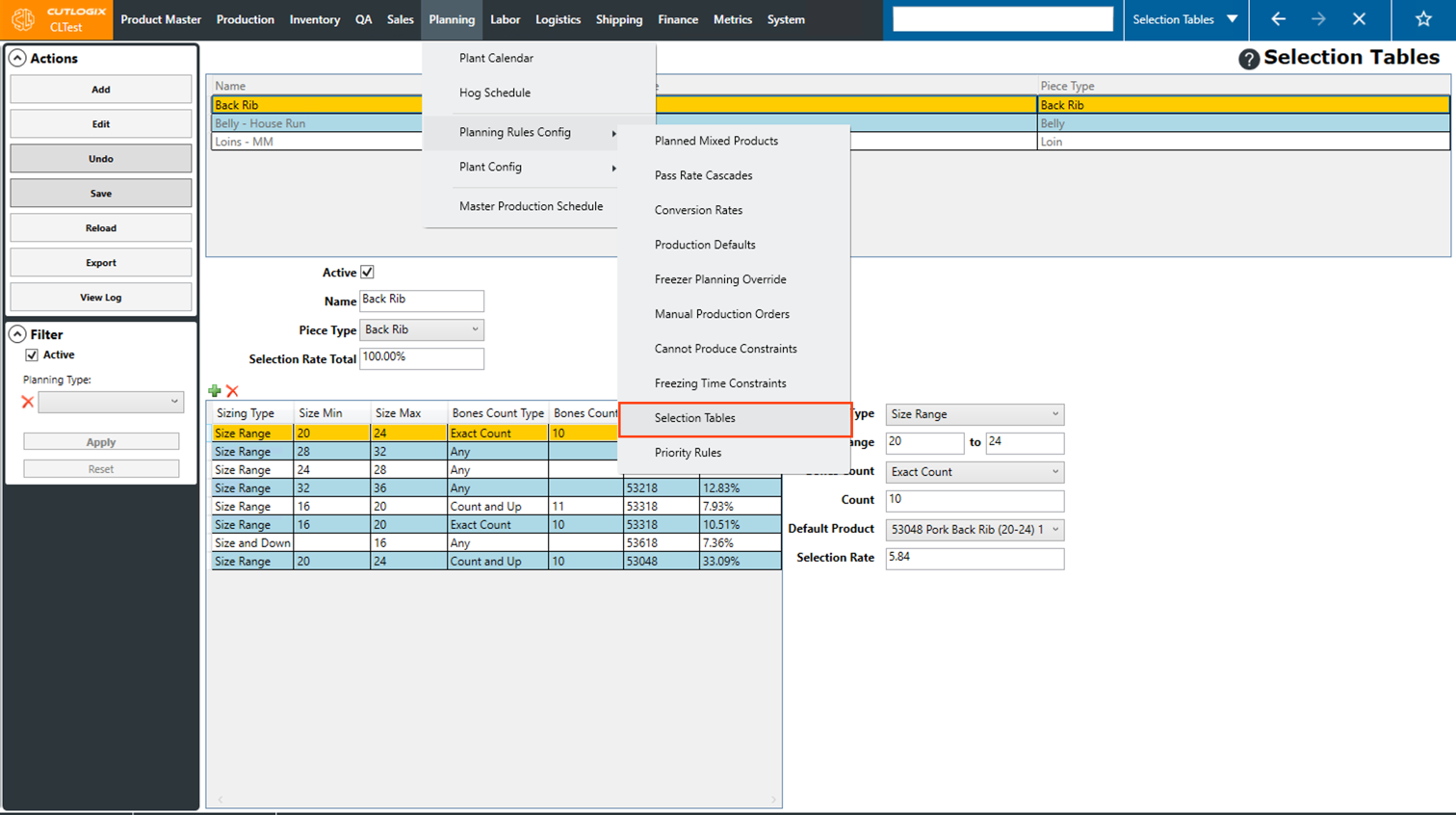
Step 1: Navigate to the "Selection Tables" page (Under the Planning menu → Planning Rules Config → Selection Tables).
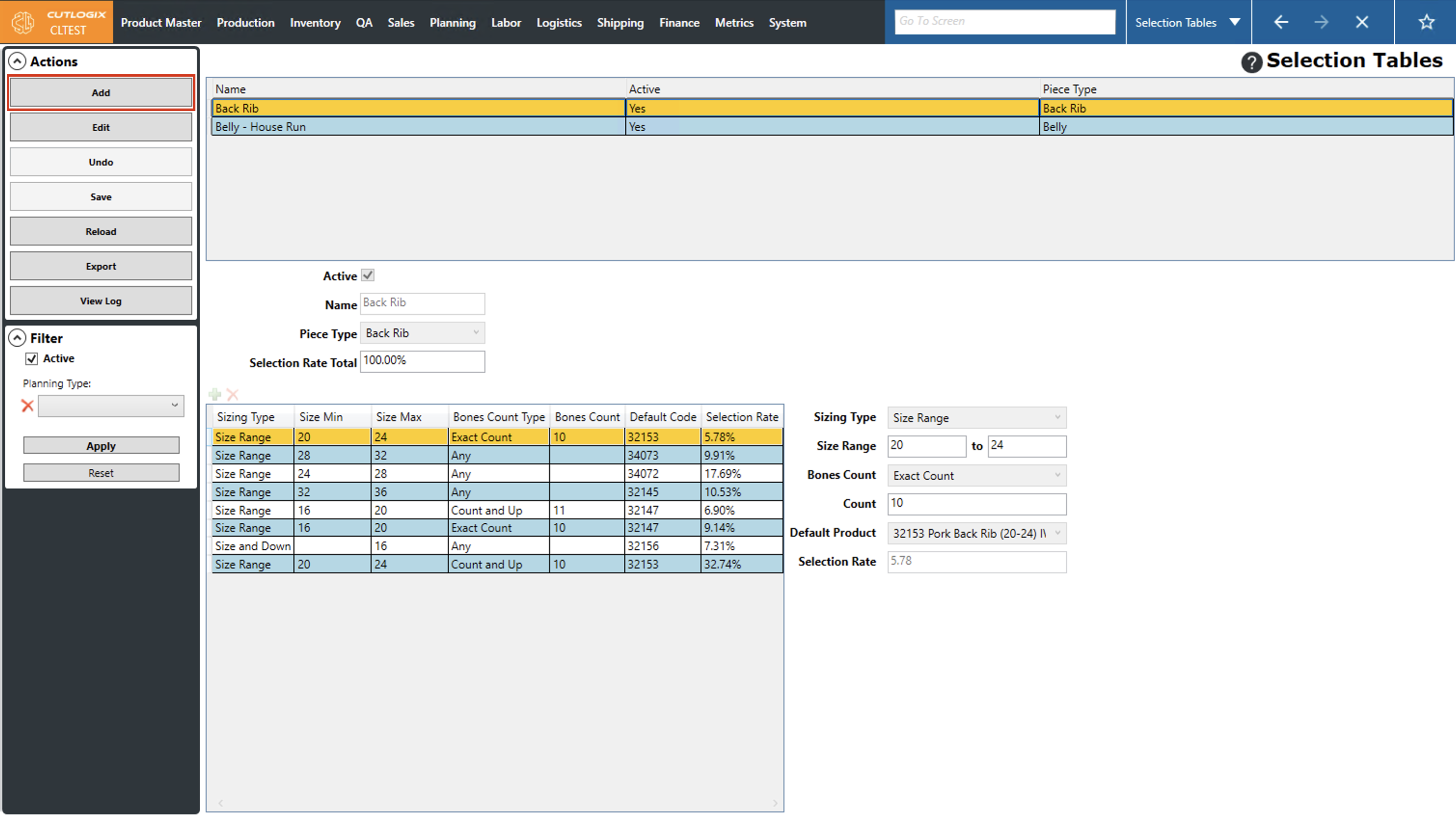
Step 2: Click the "Add" button located in the Actions Panel.
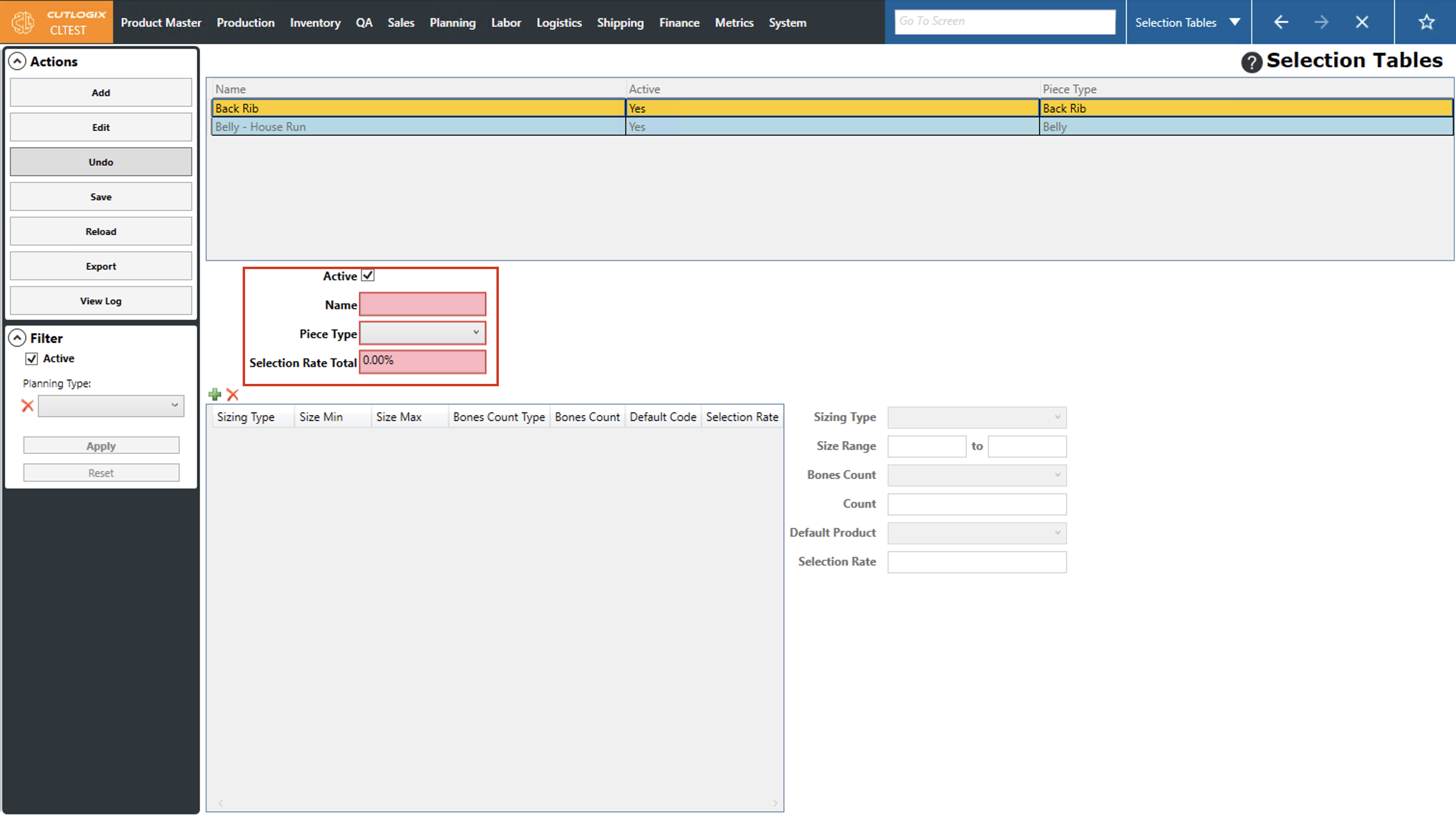
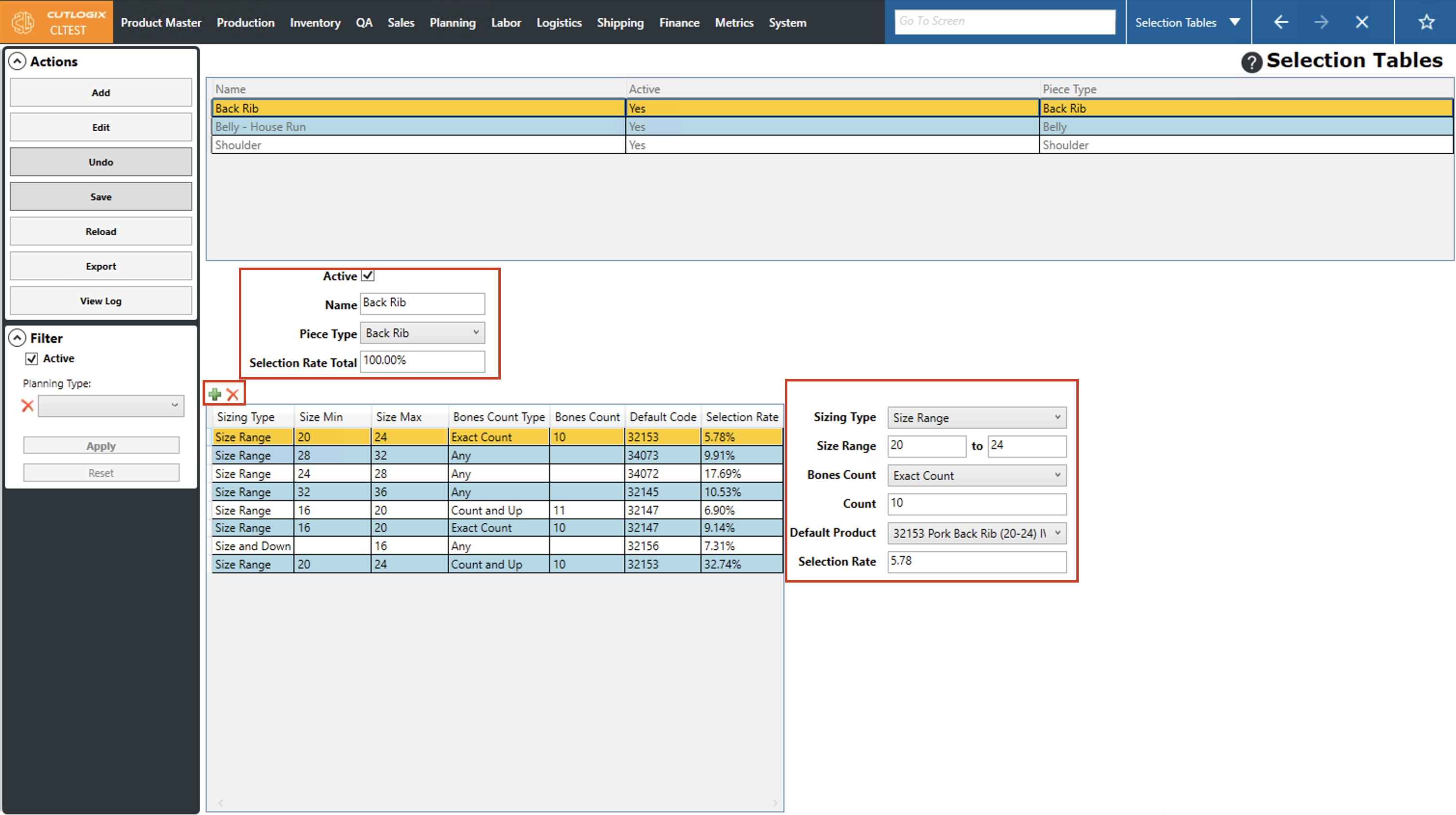
Step 3: Several fields will appear below the selection tables list where you can enter information about the new selection table. Fields that are highlighted in red are required and must be entered, these fields are as follows:
• Name: Enter the name of the new selection table.
• Piece Type: The piece type the selection table is for.
• Selection Rate Total: This must total 100% before the selection table can be saved, see below how to update this by adding sizing records.
• Name: Enter the name of the new selection table.
• Piece Type: The piece type the selection table is for.
• Selection Rate Total: This must total 100% before the selection table can be saved, see below how to update this by adding sizing records.
Step 4: Click the green "+" button to add a sizing record to the table.
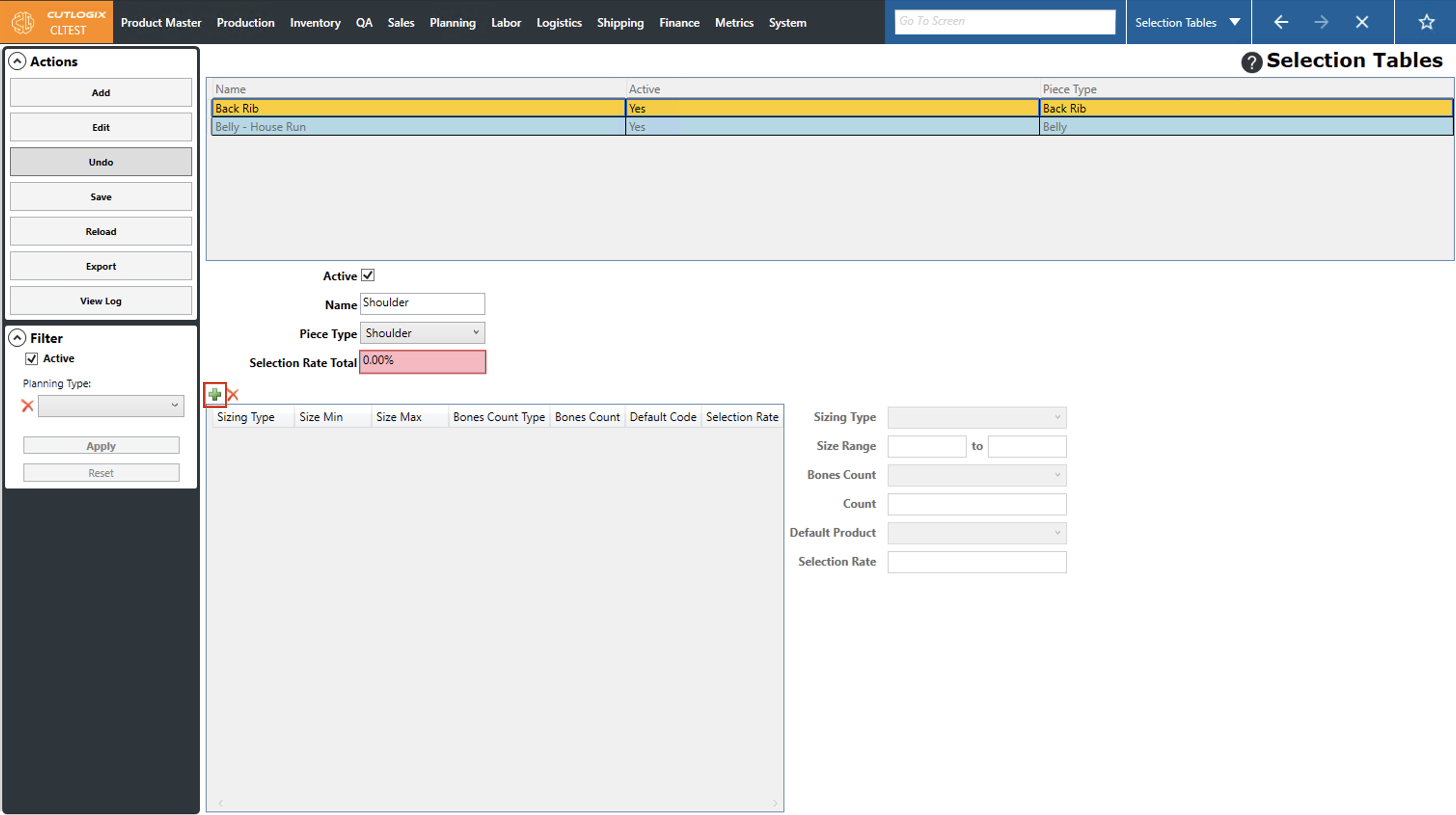
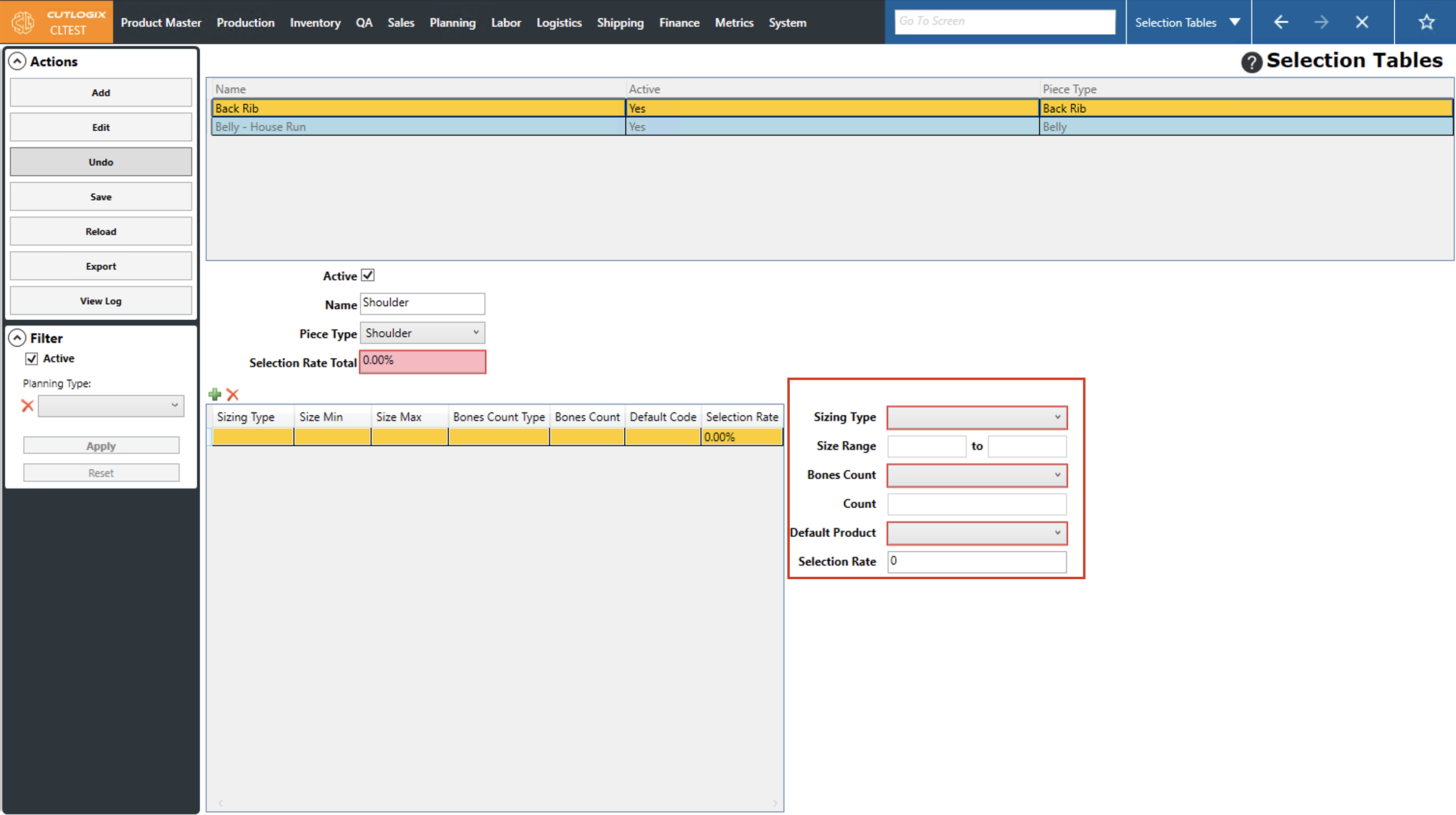
Step 5: On the right side of the screen, several fields will appear for you to enter information about the sizing record. Fields highlighted in red are required and must be entered, some fields don't appear as required until a drop-down selection is chosen. The required fields are as follows:
• Sizing Type: Choose the sizing type from the drop-down list.
• Size Range: Enter the size range according to the type selected above.
• Bones Count: Choose the bone count type.
• Count: Enter the bones count according to the bone count type selected above.
• Default Product: Choose the product that requires the selection criteria outlined in this sizing record.
• Selection Rate: The rate at which a relevant cut of meat falls into this sizing record.
• Sizing Type: Choose the sizing type from the drop-down list.
• Size Range: Enter the size range according to the type selected above.
• Bones Count: Choose the bone count type.
• Count: Enter the bones count according to the bone count type selected above.
• Default Product: Choose the product that requires the selection criteria outlined in this sizing record.
• Selection Rate: The rate at which a relevant cut of meat falls into this sizing record.
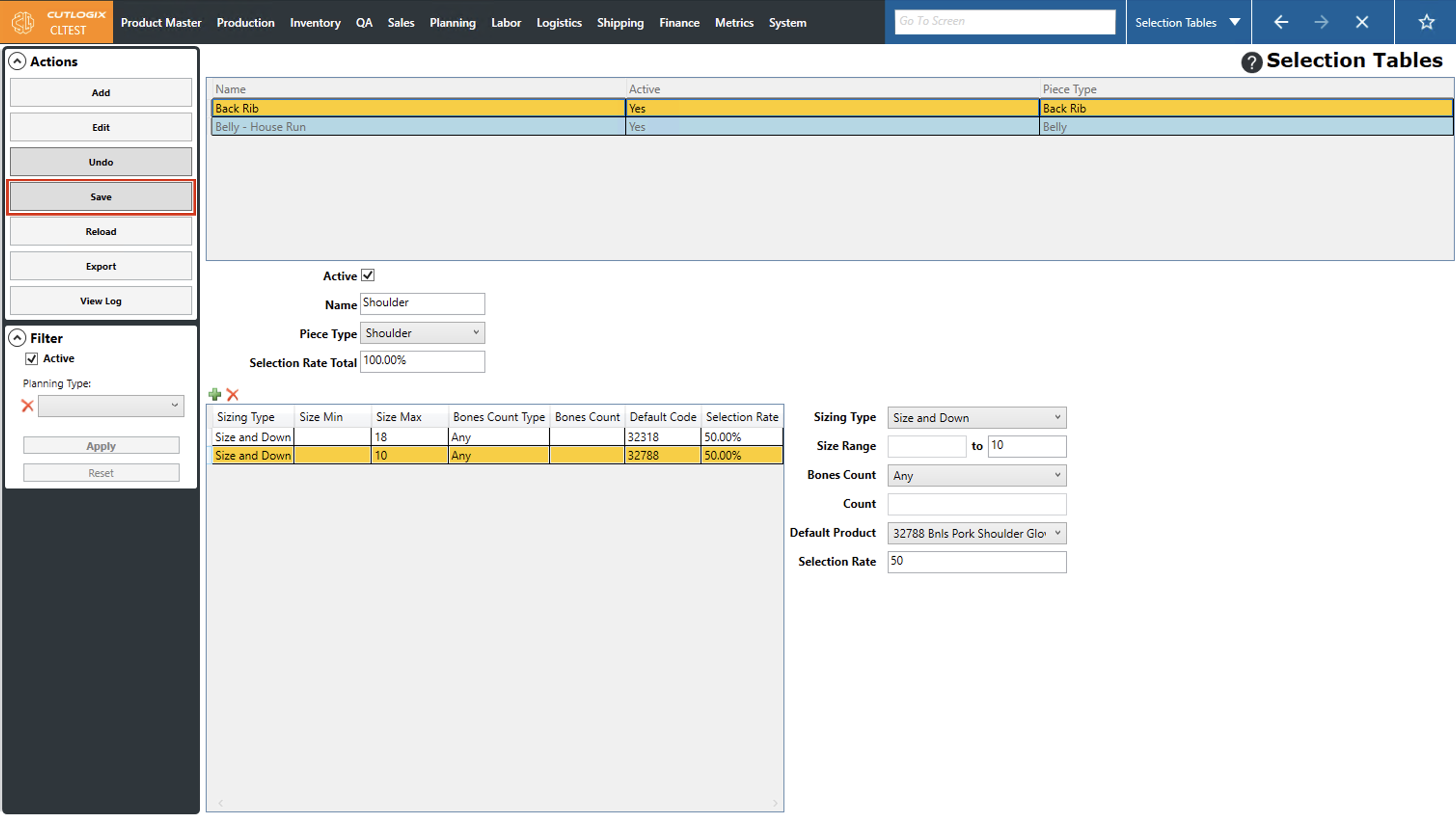
Step 6: Repeat Step 5 above until the selection rate total on the selection table totals 100%. Once it's at 100%, click "Save" in the actions panel to save the selection table. Once saved, it will appear in the selection tables list.
How to Edit Selection Tables
Demo
Step 1: Navigate to the "Selection Tables" page (Under the Planning menu → Planning Rules Config → Selection Tables).
Step 2: Click on the selection table that you want to modify (once selected it will be highlighted in orange), then click "Edit" in the Actions Panel.
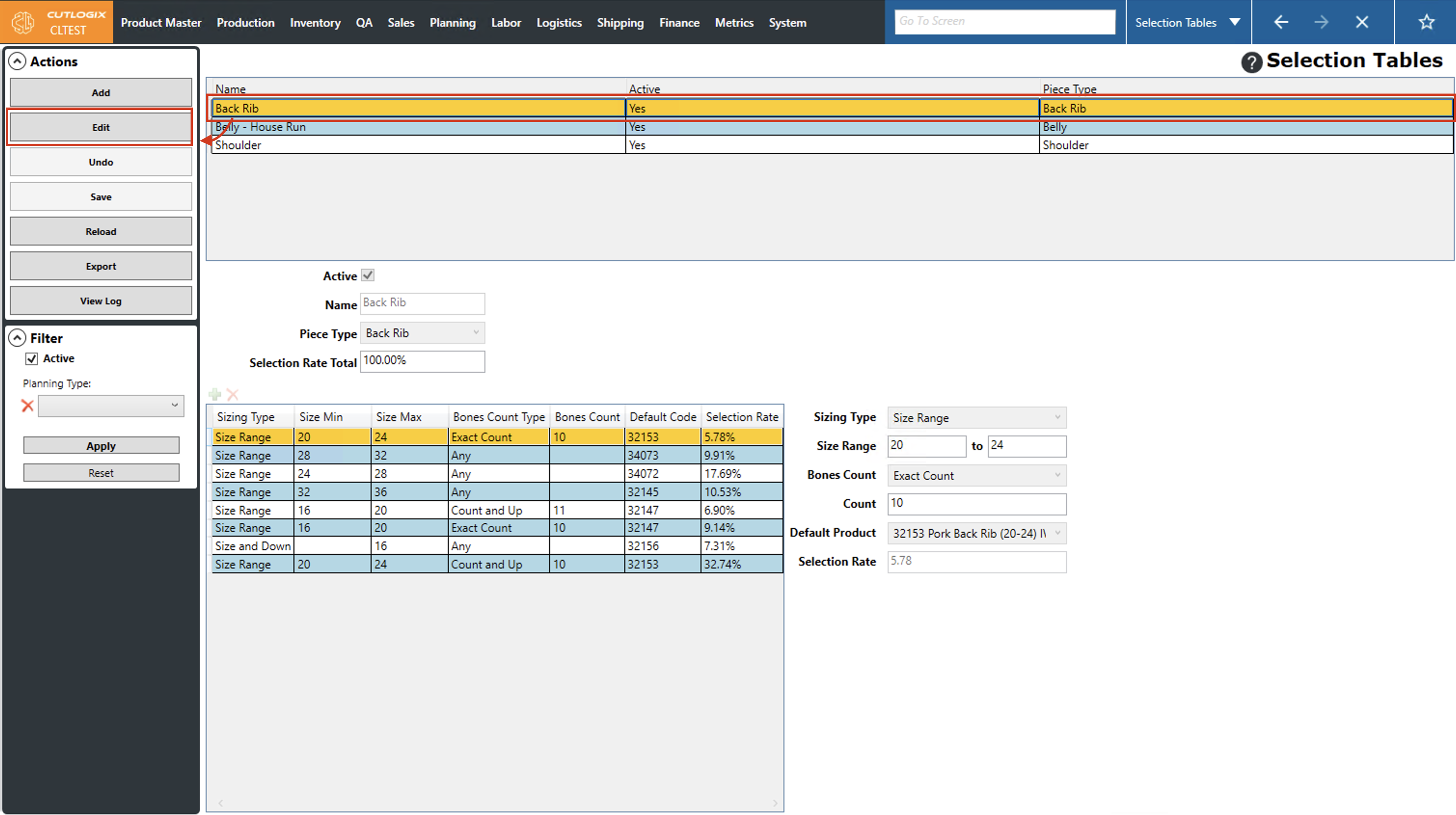
Step 3: Below the selection tables several fields will appear that are editable. You can make changes to the selection table itself or to the sizing records within the selection table. You can also remove sizing records from the table by clicking on them, then clicking on the red "X" button.
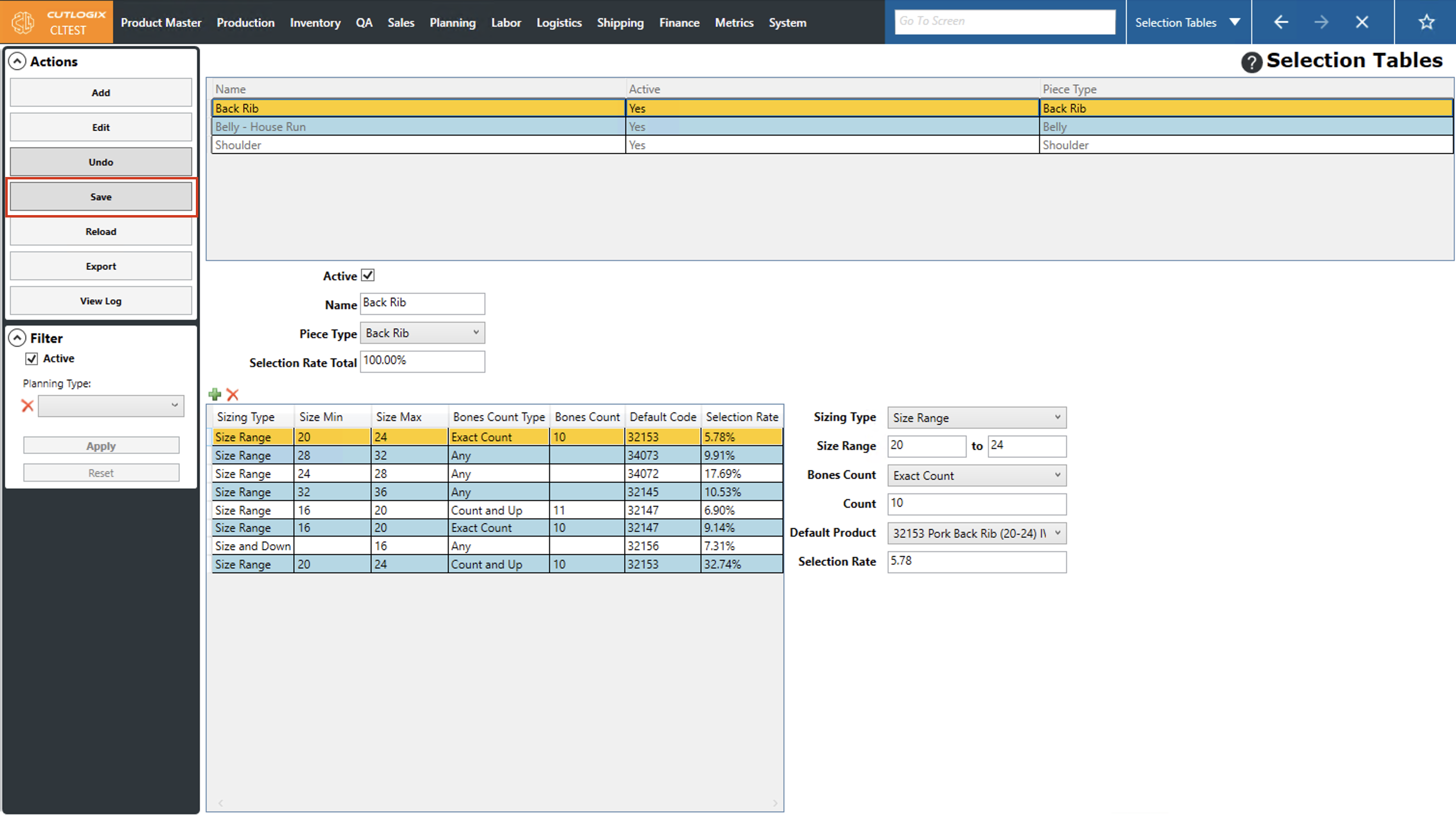
Step 4: After all the necessary changes have been made, click "Save" in the actions panel to save them. Note: If you made changes to selection rates, ensure that the selection rate total on the table is still 100% or the save button will not be enabled.
How to Export Selection Table Reports
Demo
Step 1: Navigate to the "Selection Tables" page (Under the Planning menu → Planning Rules Config → Selection Tables).
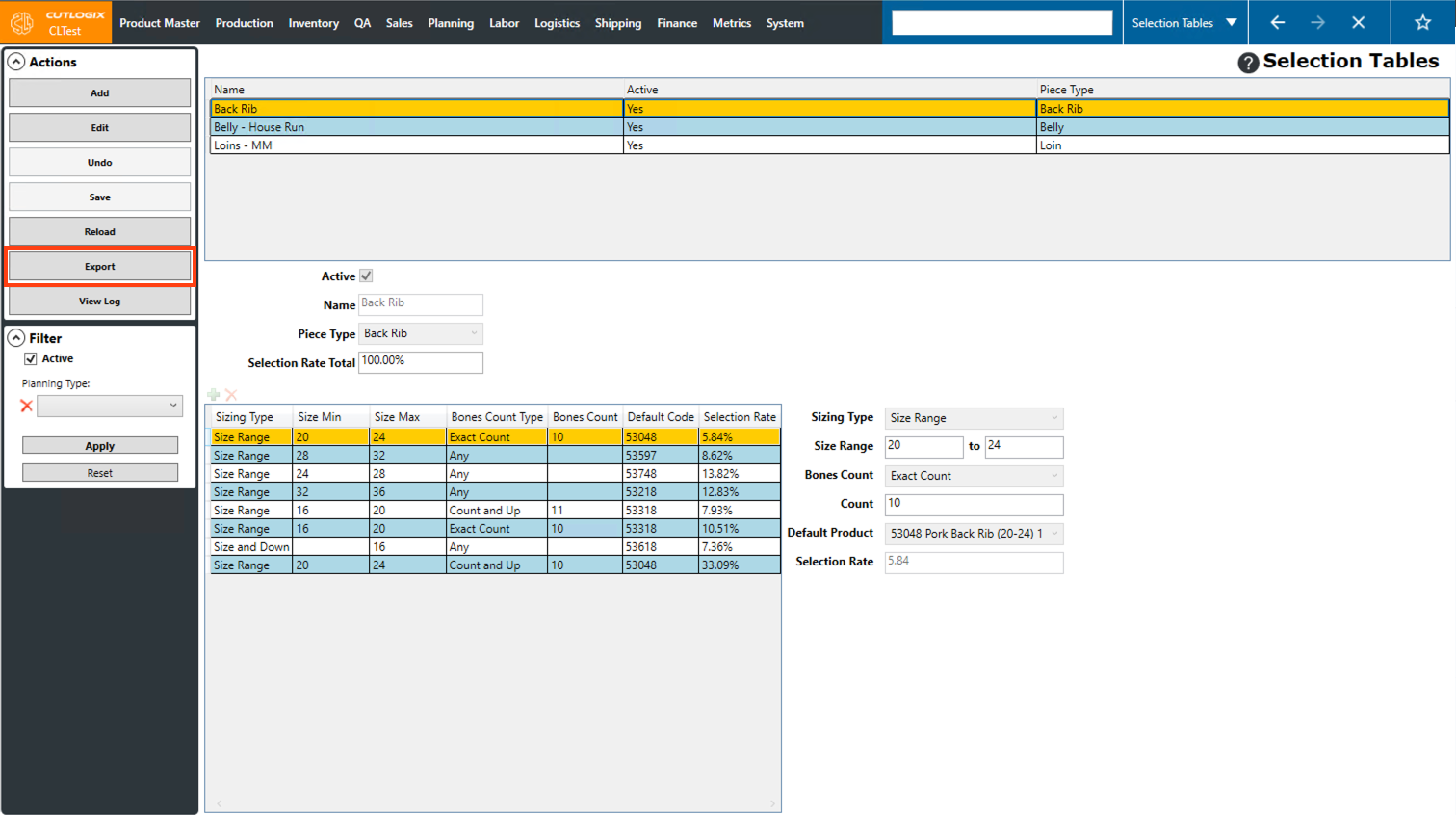
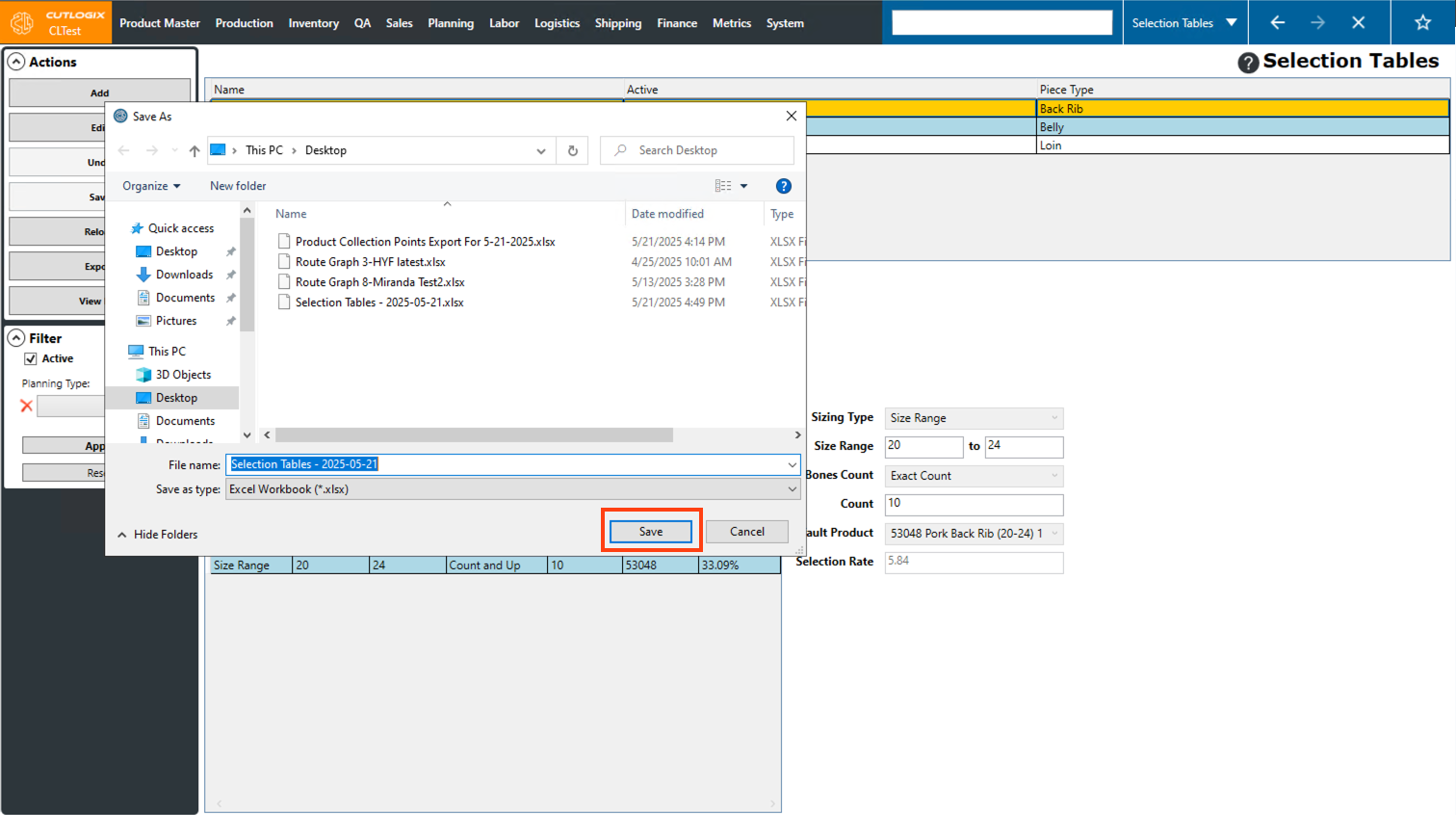
Step 2: Click on the “Export” button in the Actions Panel.
Step 3: A dialog will appear where you can specify where on your computer that you want to save the export. You can also modify the filename that the export will have, by using the “File Name” field. Once you’ve specified where it should save and what name it should have, click the “Save” button.
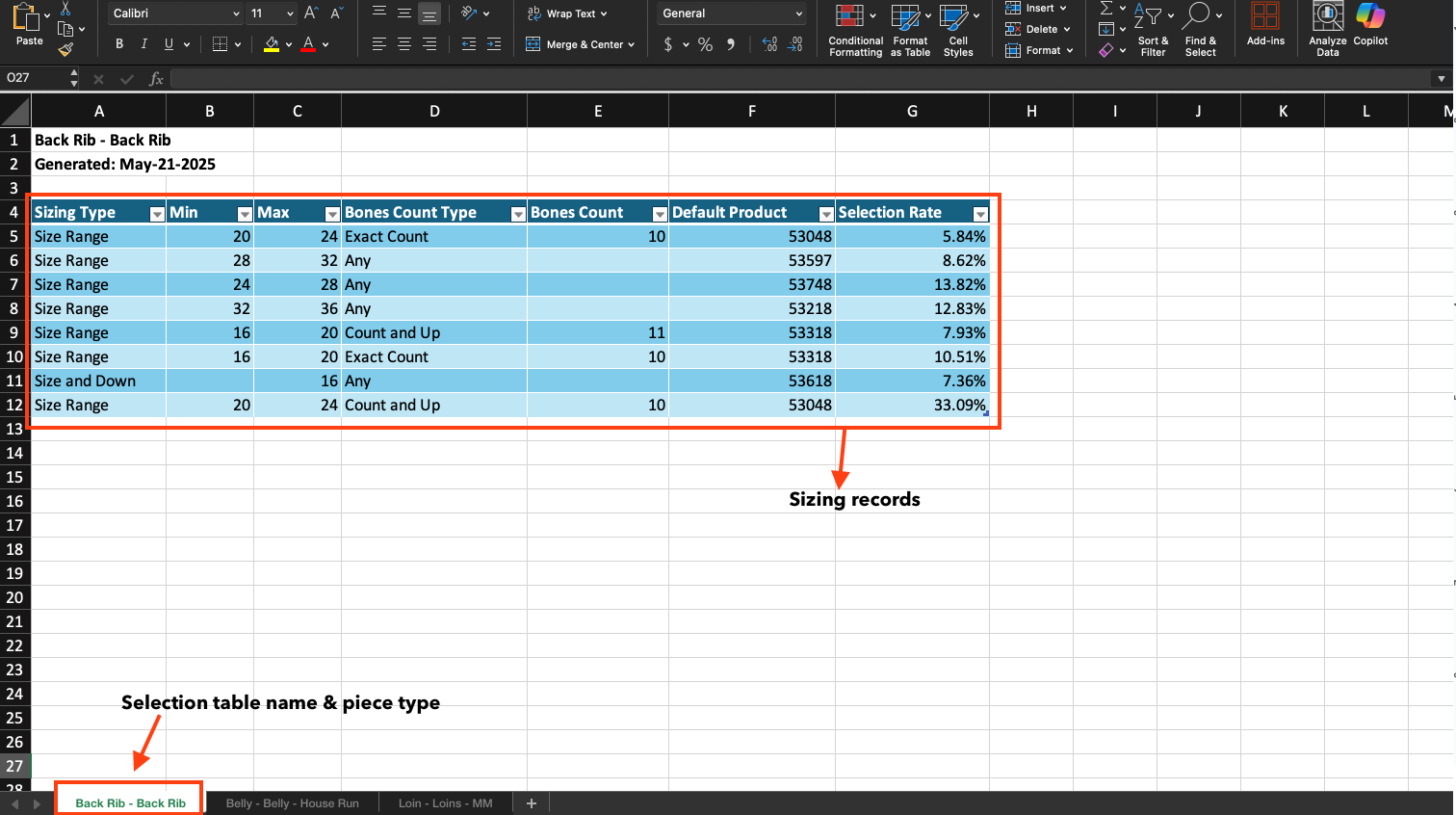
Step 4: Navigate to the location where you saved the file (specified in the previous step) and open it. The excel file will have tabs at the bottom, representing each selection table and the associated piece type. Within each tab, you can view the sizing records associated with the table.