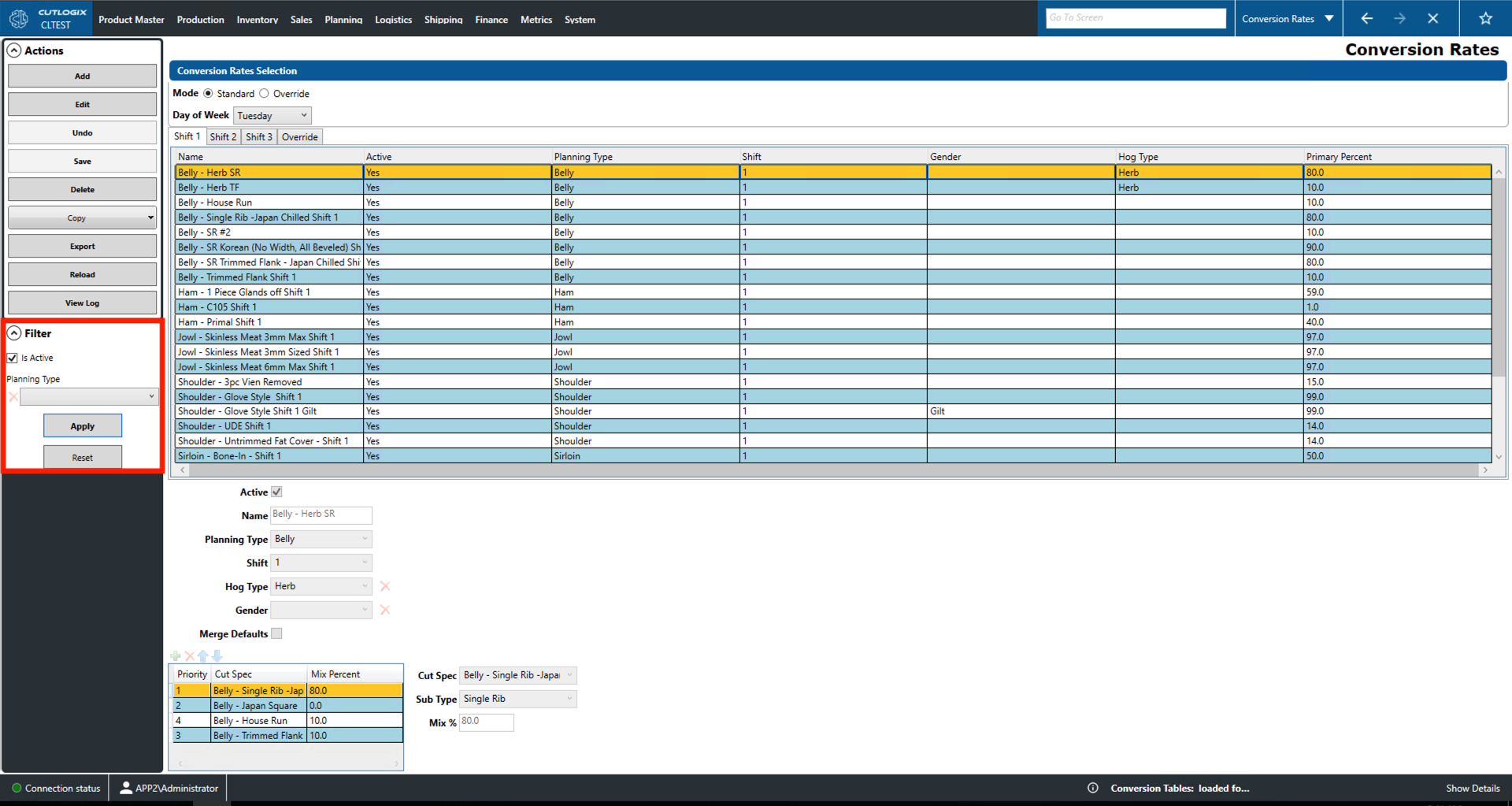
Conversion Rates Overview
How to Navigate: Click on Planning > Planning Rules Config > Conversion Rates
Summary
This page can be used to handle the situation where the plant does not have the capacity to keep up with the line speed when producing certain products. This is accomplished by adding default conversion rates to particular days of the week. A conversion rate specifies what percentage of the line speed the current production capacity can keep up with and what products to product from the percentage that workers cannot get to. The planning system can use these numbers to plan for the primary product and the extra product that necessarily accompanies it. Users can also specify overrides for specific dates in order to handle special circumstances.
- Mode: Indicates whether the list will display the standard set of conversion rates for the selected day of the week or the set of override conversion rates for the production day selected.
- Day of the Week/Production Day: Indicates the day of the week/specific production date that the conversion rates/overrides are being displayed for.
- Shifts 1, 2, 3, Override: Use to select which shift's conversion rates/overrides will be displayed.
- Name: Name/description of the conversion rate record.
- Active: Indicates whether the record is actively being used by the system when making production plans.
- Planning Type: Indicates the general cut type assigned to it in the planning system.
- Shift: The shift on which the product is produced.
- Gender: Gender of the hog used to make this product.
- Hog Type: Type (genetics, diet, etc.) of hog used to make this product.
- Primary Percent: The is the percentage of the line speed can the current production capacity can convert into the target product. For example, 80% here would mean that capacity can convert 80% of the meat coming down the line into the desired product and so the remaining 20% will be converted into other products according to the conversion table at the bottom of the screen.
- Action Icons: These icon buttons can be used to perform actions on the conversion rate table. They become active when performing the 'Add' or 'Edit' action.
- Priority: Tells the planning system what order to prioritize scheduling the entries in the conversion table.
- Merge Defaults: Whether or not to merge default settings.
- Cut Spec: Cut specification to made at that priority.
- Sub Type: Indicate a planning sub-type to the planning system.
- Mix %: This is the percent of mainline speed that is expected to be converted into this row's cut spec.
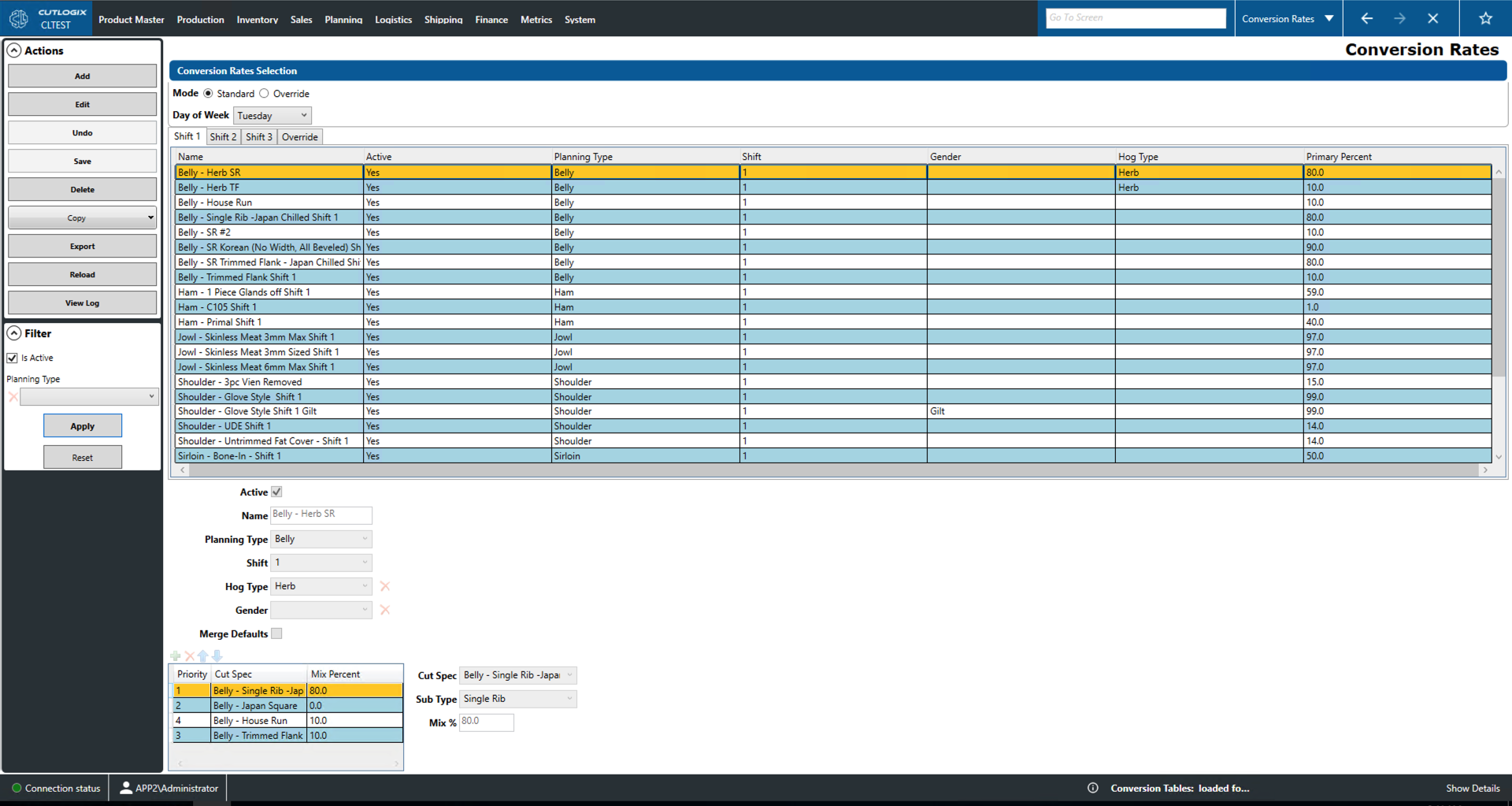
Actions
- Add: Add a new conversion rate record to the list.
- Edit: Edit the currently selected record.
- Save/Undo: Saves/undoes all changes made in the current editing session.
- Delete: Delete the currently selected conversion table.
- Copy
- Copy All Standard Conversion Rates: Copy all conversion rates in the table.
- Copy Single Conversion Rate: Copy the currently selected conversion rate.
- Export: This will prompt the user to select a date range. After, it will allow the user to save a conversion table report locally with entries from the selected range. It will be saved as a .xlsx file (excel format).
- Reload: This will reload the list of conversion tables displaying the most up to date list from the database.
- View Log: View the change log for the currently selected conversion table. This will show what was changed, by whom and when.
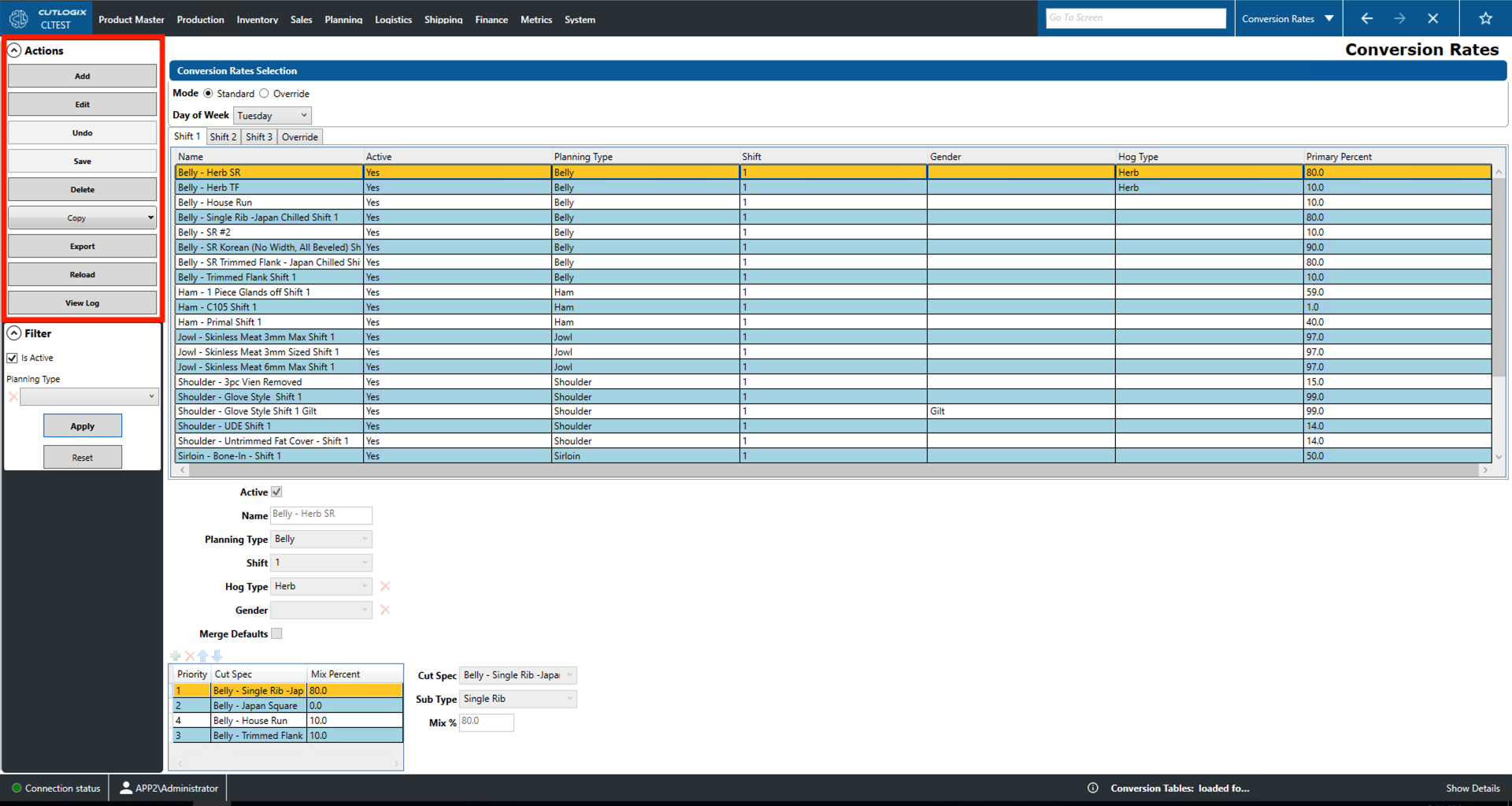
Filter
- Is Active: Filter the list to only show active conversion tables.
- Planning Type: Filter the list to the selected planning type.
- Apply: Reload the list and apply the relevant filters.
- Reset: Reset the filters and reload the list to an unfiltered state.