Order Loading Status Tasks
How to View Order Loading Status
Demo
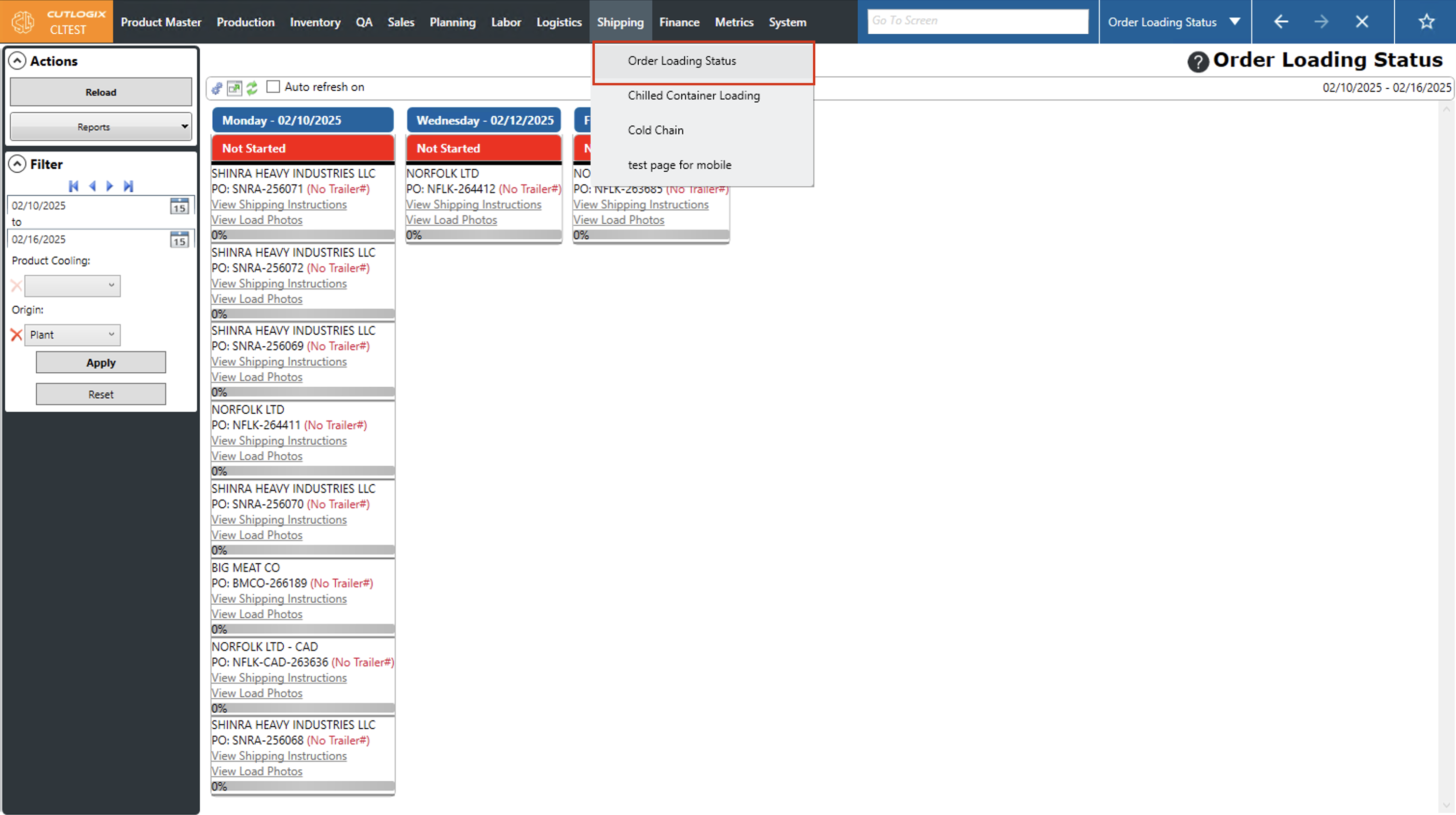
Step 1: Navigate to the "Order Loading Status" page (Under the Shipping menu → Order Loading Status).
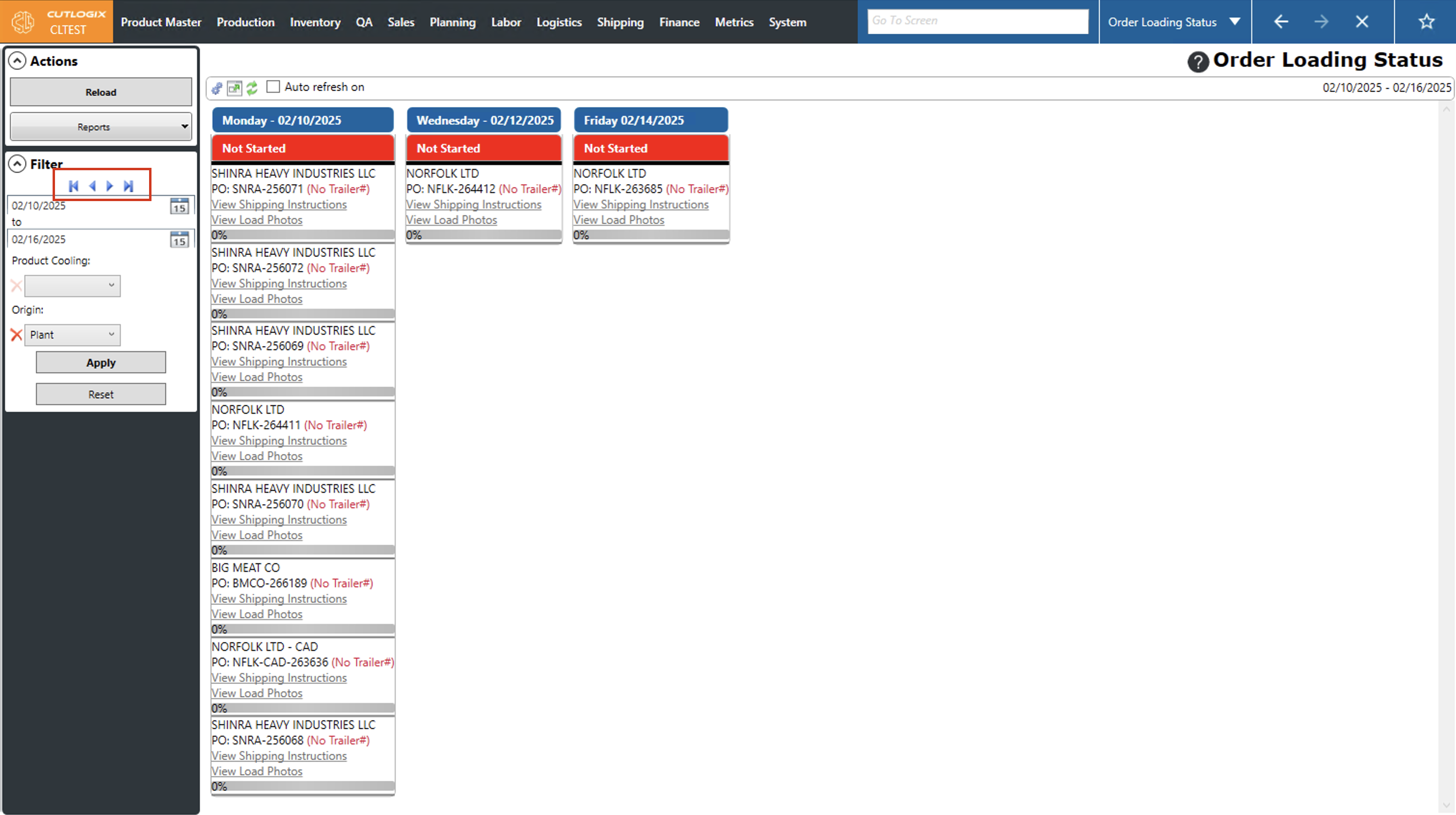
Step 2: By default this page displays orders for the current week. To change which week is shown, use the arrows in the "Filter" section. To move both the start date and end date forward by one day, click the "▶" button, to move both dates back by one day, click the "◀" button. To move the entire range forward by one week, click the "▶|" button, to move the entire range back by one week, click the "|◀" button. After changing the date range using any of these methods, you must click "Apply" for the orders shown on the screen to update for the newly selected date range.
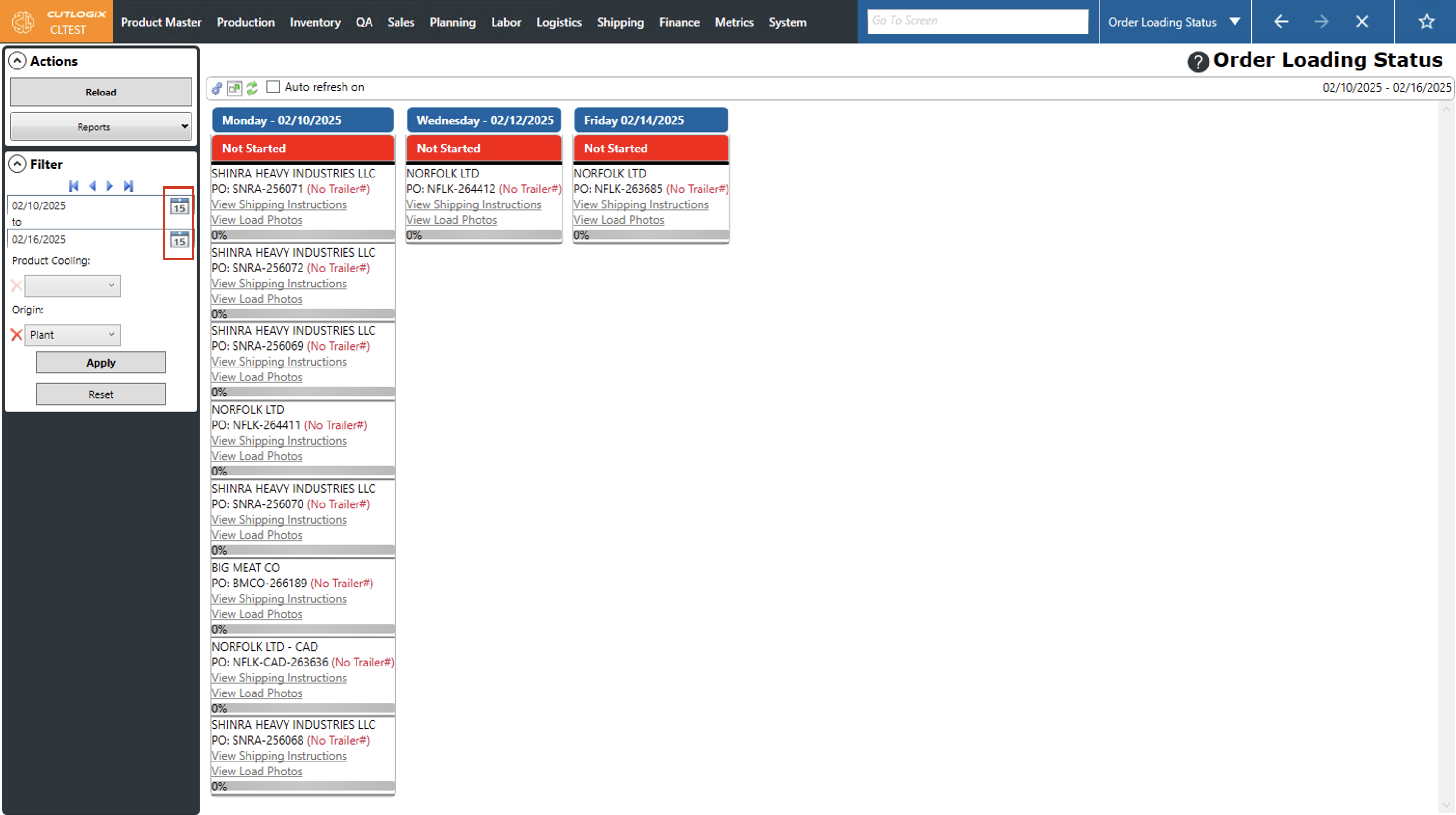
Step 3: The date range can also be changed manually, by clicking the calendar icon beside the start or end date and choosing a date from the calendar, or by clicking the selected date, backspacing and re-entering a new date. Same as the above steps, you must click "Apply" for the orders on the screen to update to the newly set date range.
How to View Shipping Instructions
Demo
Step 1: On the Shipping → Order Loading Status screen, each order will show ‘View Shipping Instructions” beneath the PO#. When this action is available it will appear as hyperlinked blue text and when disabled it will appear as grey text. When a customer order has been added to the MES, it will enable this action.


Step 2: Clicking this action will open a system dialogue that allows you to choose where you will save a PDF copy of that order’s shipping instructions.
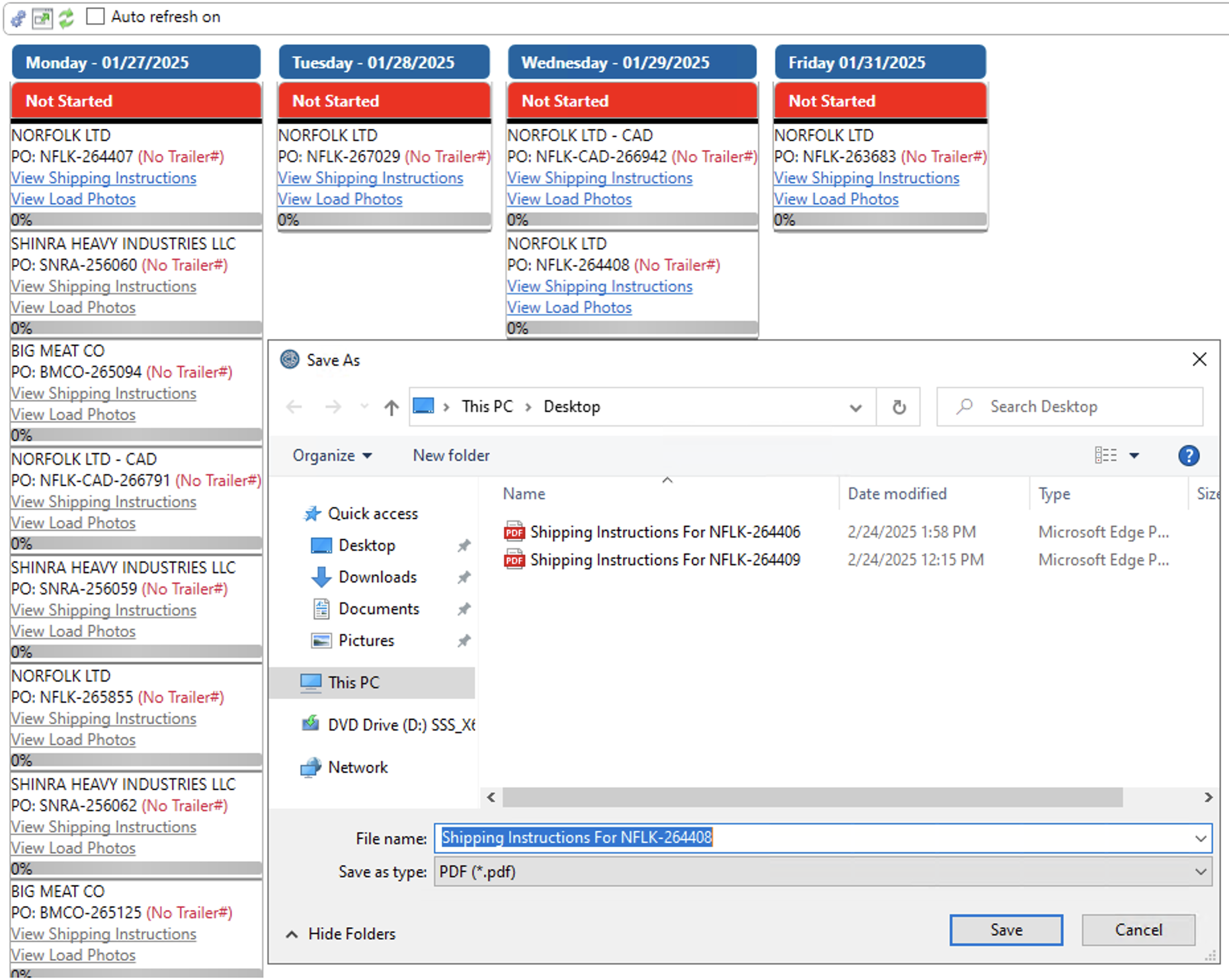
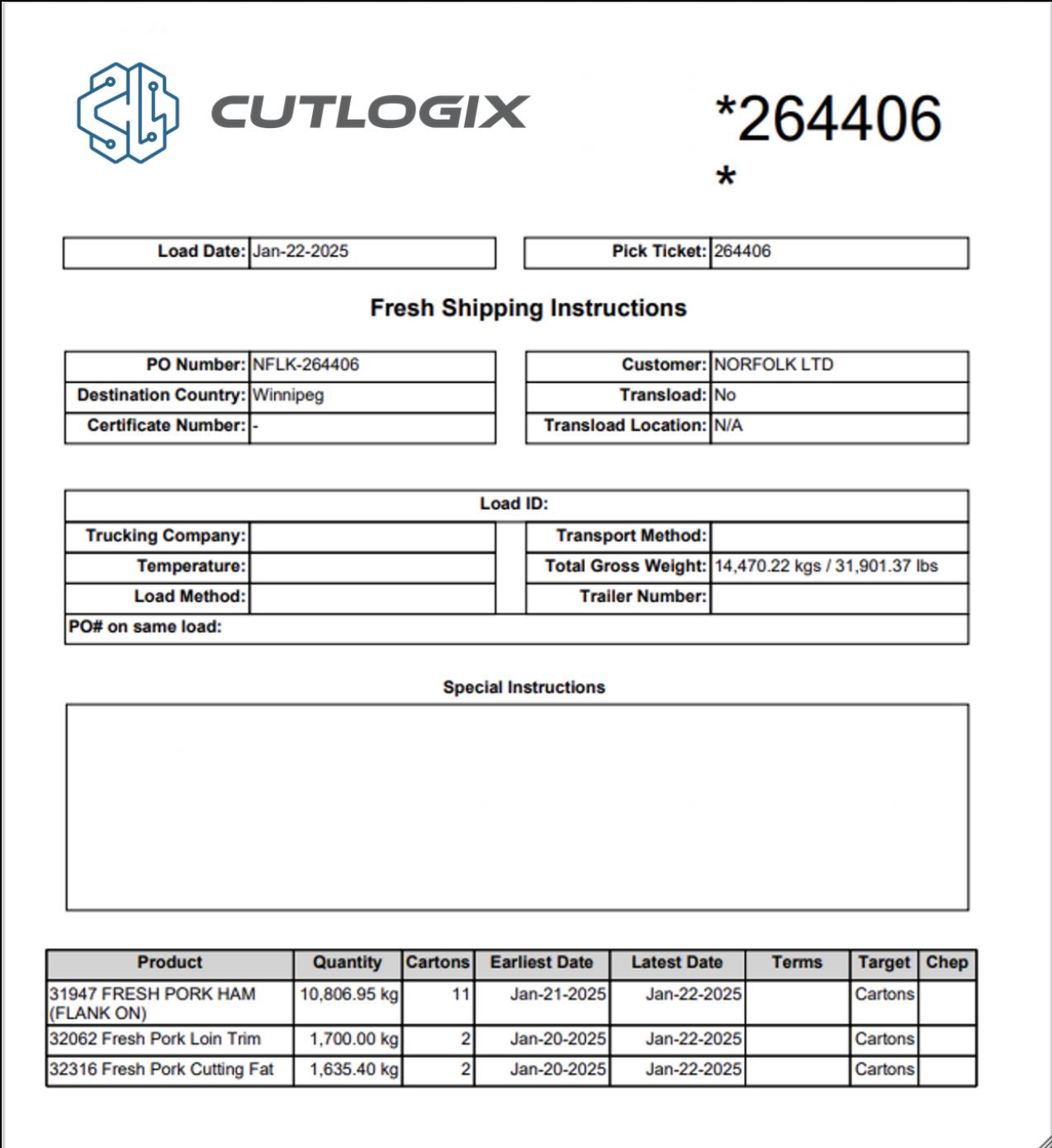
Step 3: After downloading the PDF, double-clicking it should present users with a form, like the one below, that gives the detailed shipping instructions for that order.
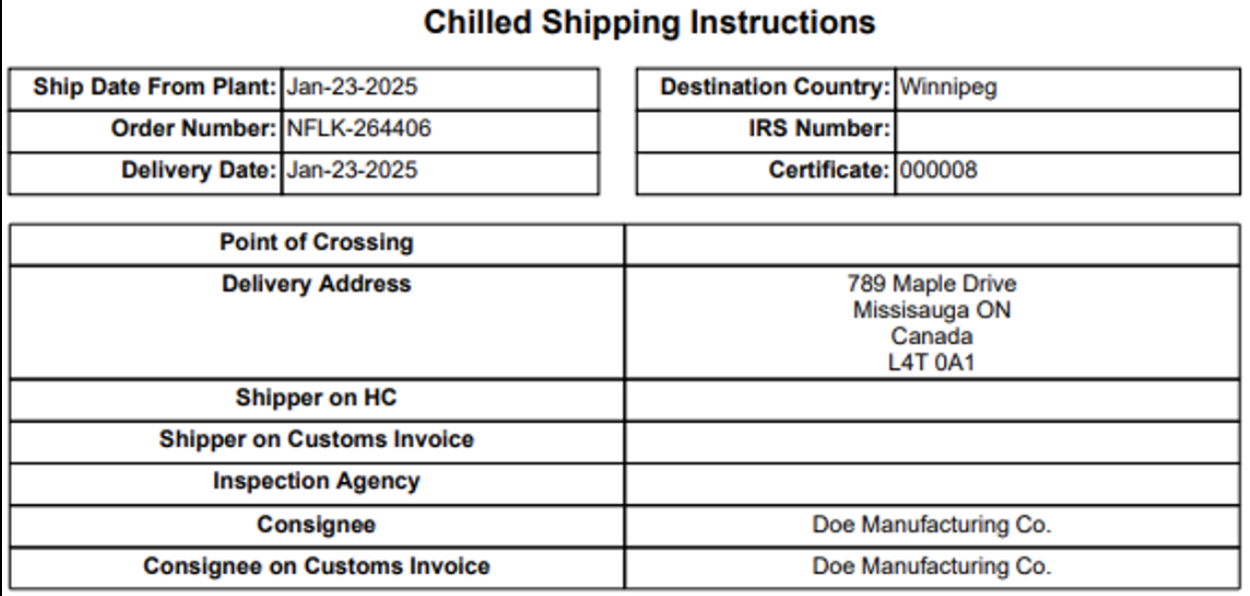
When an order’s cooling type is frozen or chilled the fields in the shipping instructions will have different fields such as the Point of Crossing, Inspection Agency, Consignee, etc. This reflects the fact that frozen and chilled orders are often shipped much longer distances than fresh orders and are often shipped internationally.
How to Configure Shipping Instructions
Demo
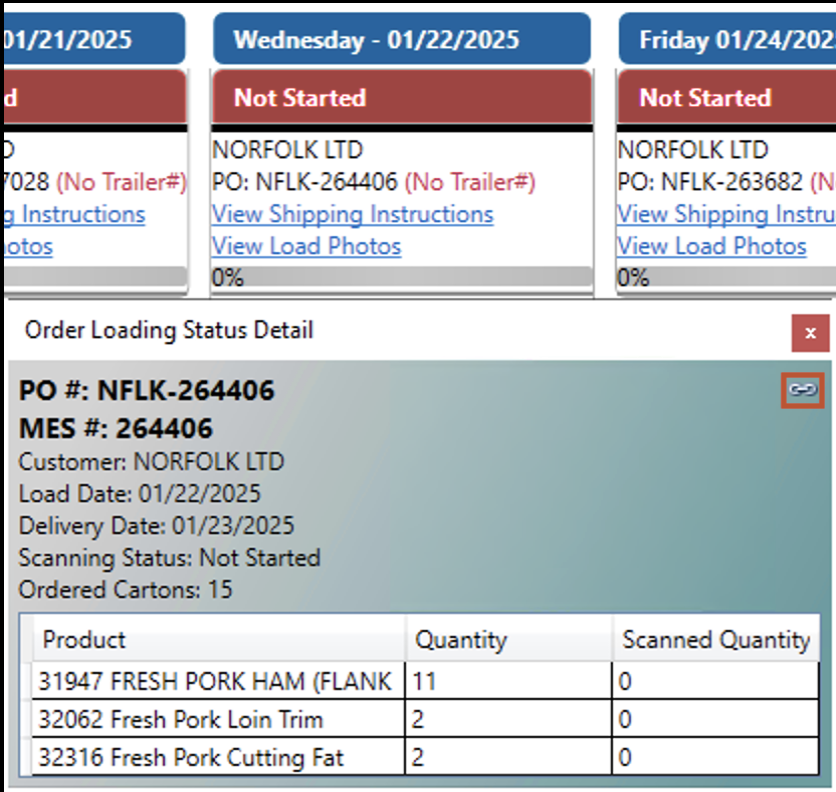
Step 1: This information is configured on the corresponding Customer Order details tab in the Sales module. The most efficient way to navigate to the correct details tab is to double-click the text inside the order’s section on the main screen. This will bring up the Order Loading Status Detail window for that order which contains a link to the details tab.
Step 2: All the fields on the form are pulled from a corresponding field in either the Order Details or the Shipping Instructions section of the Customer Order’s details tab.
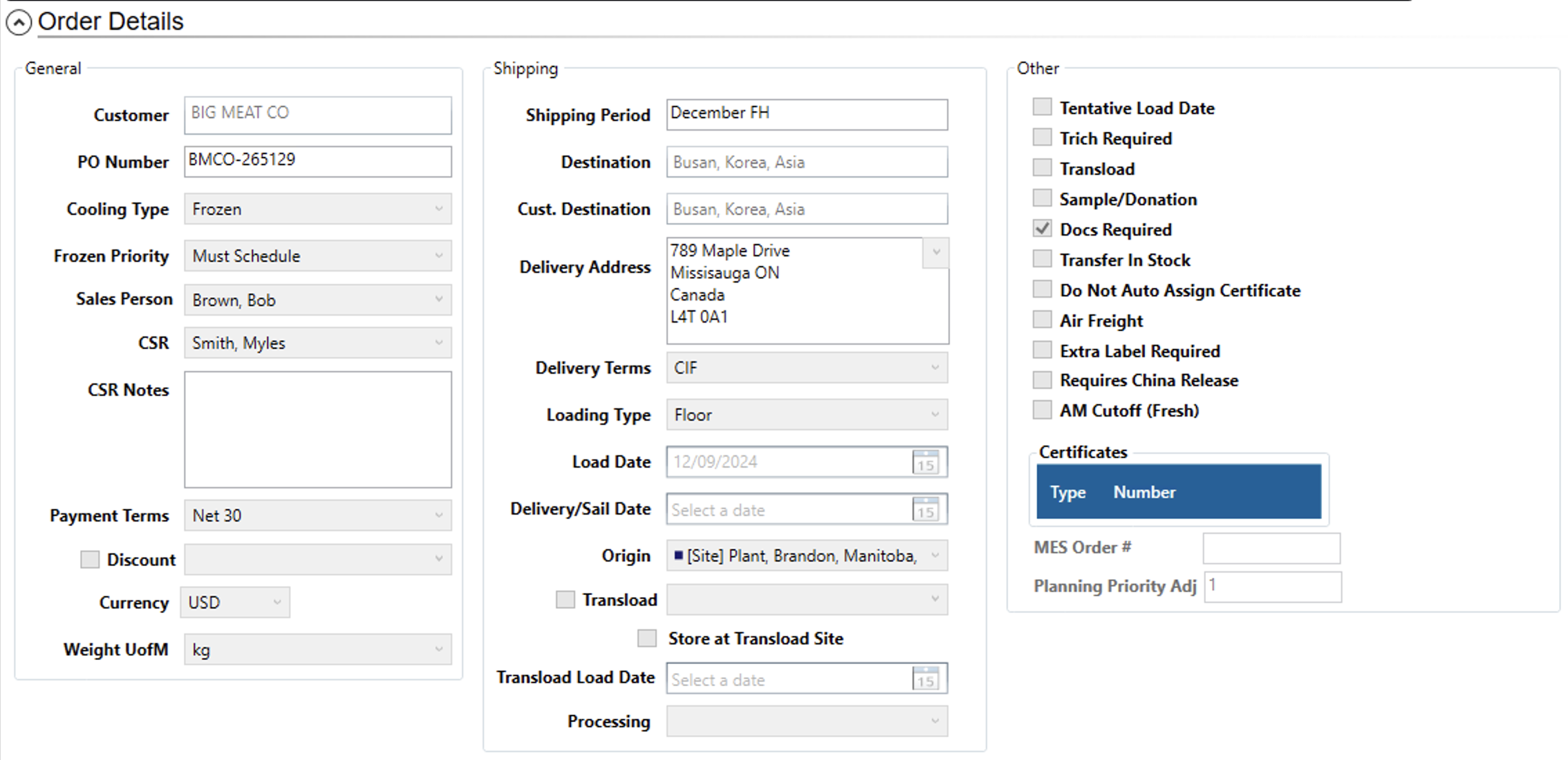
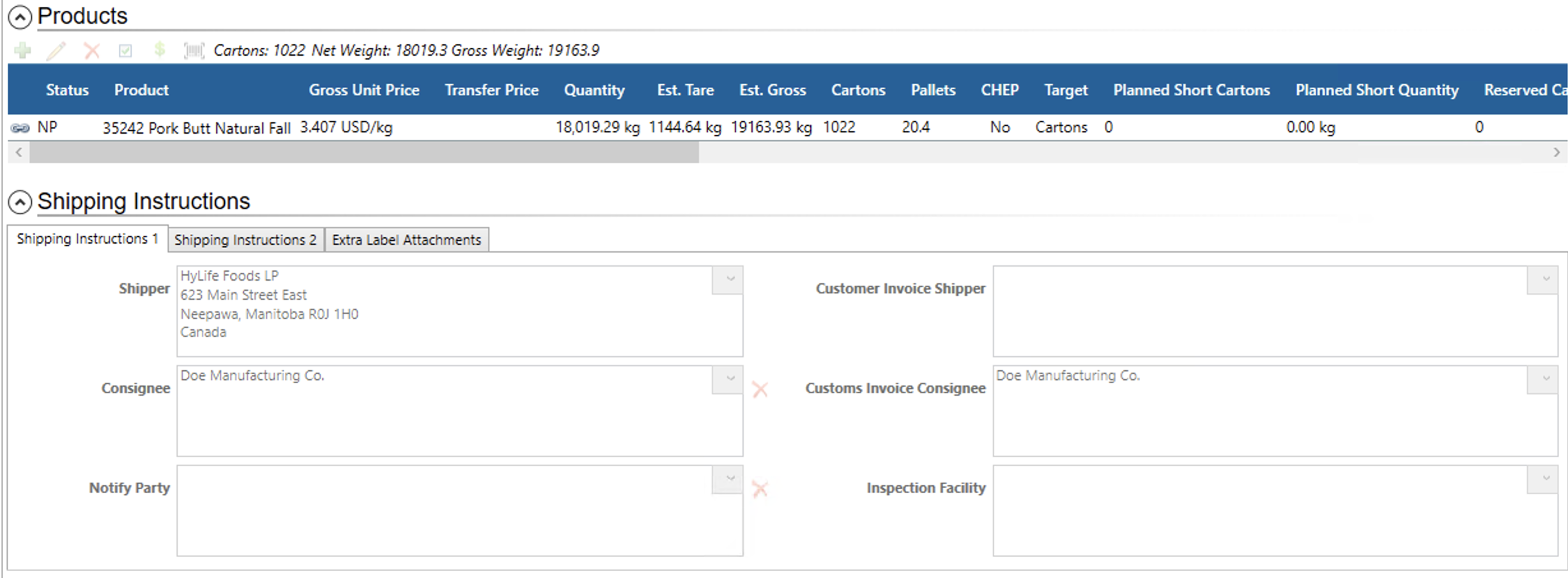
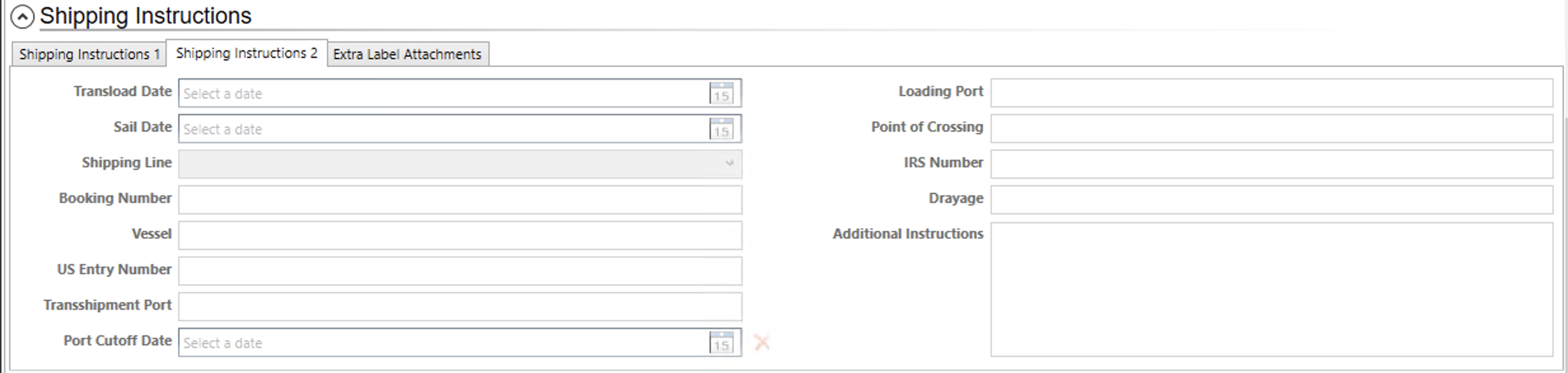
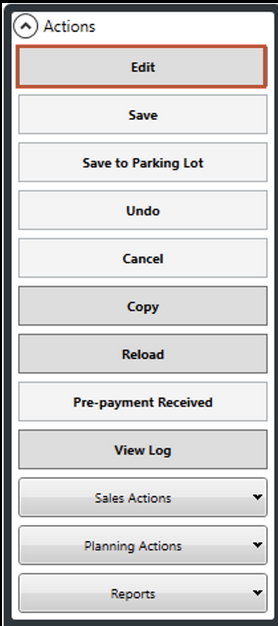
Step 3: Clicking the ‘Edit’ button in the actions side pod on the left allows users to make changes to this customer order.