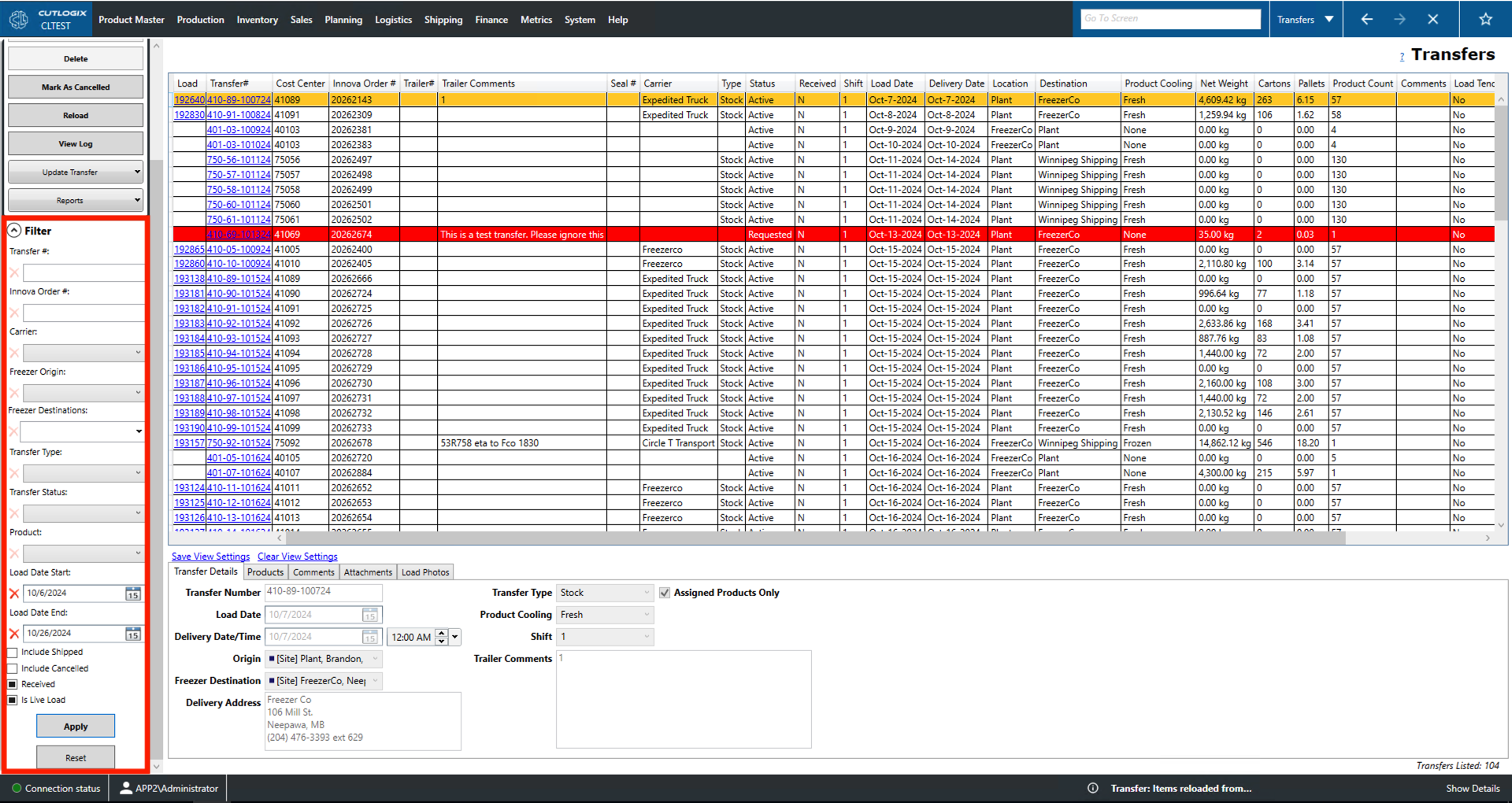
Transfers Overview
How to Navigate: Click on Logistics > Transfers
Summary
This page gives the user information about the list of product transfers. The 'Transfer Details', 'Products' and 'Comments' tabs can be used to view more detailed information about the currently selected transfer (highlighted in yellow). The information in these tabs will be read-only until a user actions 'Add' or 'Edit' on the left sidepod. At that point, these tabs can be used for data entry. The 'Attachments' and 'Load Photos' allow users to view and manage the files and photos that have been attached to the currently selected transfer. If users want to upload file attachments, this can be done through the 'Update Transfer' -> 'Add Attachment' action in the left sidepod.
- Load: Unique identifier of the load that will transport the transfer.
- Transfer#: A unique identifier for the transfer record.
- Cost Center: Identifier numbers for the location on site that the transfer will be loaded.
- MES Order #: The number given to this transfer when it is scanned into a manufacturing execution system (MES) like Innova.
- Trailer#: Unique identifier for the trailer that will carry the transfer.
- Trailer Comments: Comments about the trailer that will carry the transfer.
- Seal #: Unique identifier of the seal placed on the transfer after it has been loaded.
- Carrier: The company responsible for the transfer.
- Type: The type of transfer (i.e. stock, freezer, etc.).
- Status: The current status of the transfer.
- Active: Transfer is approved to happen on the specified date.
- Cancelled: Transfer has been cancelled and will not be shipped.
- Shipped: Transfer has been loaded and shipped.
- Requested: Transfer has been requested but is awaiting approval.
- Received: Whether the transfer's load has been received.
- Shift: The shift on which the transfer is to be loaded and shipped.
- Load Date: The date on which the transfer is to be loaded.
- Delivery Date: The date on which the transfer is to arrive at its destination.
- Location: The location the transfer load is being shipped from.
- Destination: The location to which the transfer load is being shipped to.
- Product Cooling: Indicates whether the product requires fresh, frozen or chilled cooling when being stored or shipped.
- Net Weight: The weight of the product being transferred minus the weight of the packaging materials.
- Cartons/Pallets: The number of cartons of product being transferred.
- Product Count: The number of distinct products being transferred?
- Comments: Comments left about the transfer itself.
- Load Tender Sent: Whether or not the load tender has been sent yet.
- Load Tender Status: The status of the tender for this load.
- None: There is currently no tender.
- Sent: A tender has been sent.
- Accepted: The tender has been accepted.
- Declined: The tender was declined.
- Cancelled: The tender was cancelled.
- Live Load: Indicates whether this transfer is shipping live hogs or processed product.
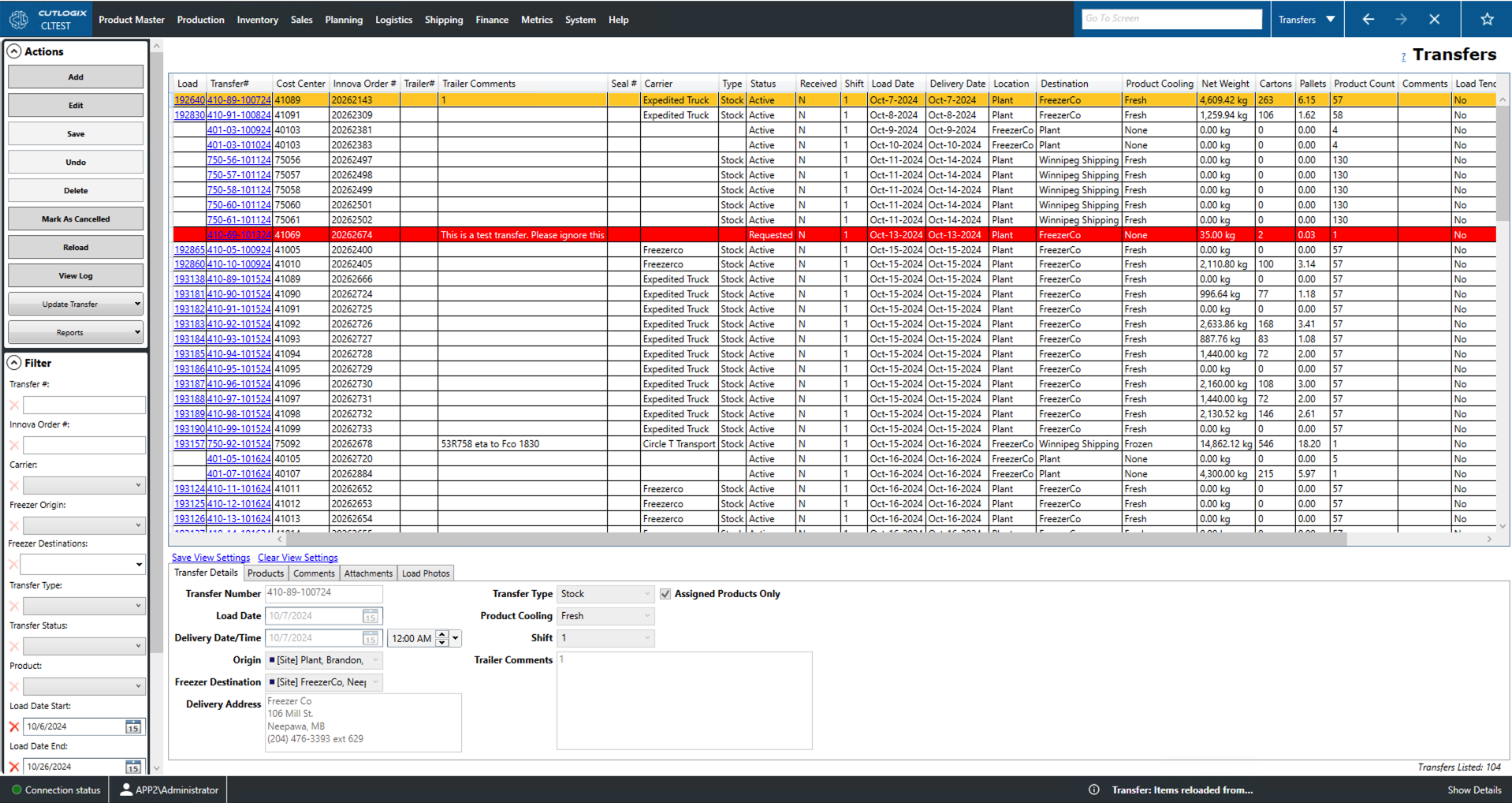
Actions
- Add: Adds a new transfer record. Users can use the tabs at the bottom of the screen for data entry.
- Edit: Edit the currently selected entry (highlighted in yellow). Users can use the tabs at the bottom of the screen for data entry.
- Required fields for adding/editing: Transfer Number, Load Date, Delivery Date/Time, Delivery Address.
- Save/Undo: Save all changes made in the current adding/editing session.
- Delete: Delete the currently selected transfer record. The delete button will be disabled if the transfer is on a scheduled load (i.e. it has a load number).
- Mark As Cancelled: Sets the currently selected record's status field to cancelled. This command will be disabled if the transfer is on an active load (has a load number) or if items have been scanned to the transfer (it is in the process of loading).
- Reload: Reloads the list displaying the most up to date information from the data base.
- View Log: View the change log for the currently selected transfer record. This includes what was changed, by whom and when.
- Update Transfer
- Sync Transfer: Syncs the currently selected records to the manufacturing execution system (MES). Users can select multiple records to sync by shift clicking the records they would like to sync.
- Update Scanning: Query the MES to get the scanning status of the currently selected transfer record.
- Mark As Shipped, Received, Not Received: Use these options to update the transfer record's Status field to the relevant status.
- Add Attachment: Adds an attachment to the currently selected transfer record. These can be viewed and modified in the Attachments tab at the bottom of the screen.
- Add/Remove Product: Brings up a popup window with a dropdown from which the user can select a product to add/remove from the transfer record.
- Send Attachments: Brings up a popup window in which the user can select which file attachments will be sent. Users can also modify the list of recipients. Hitting send will email a copy of the file attachments to all addresses on the list.
- Reports: This dropdown menu contains a list of reports pertaining to the transfer records. These reports are customizable as per customer request.
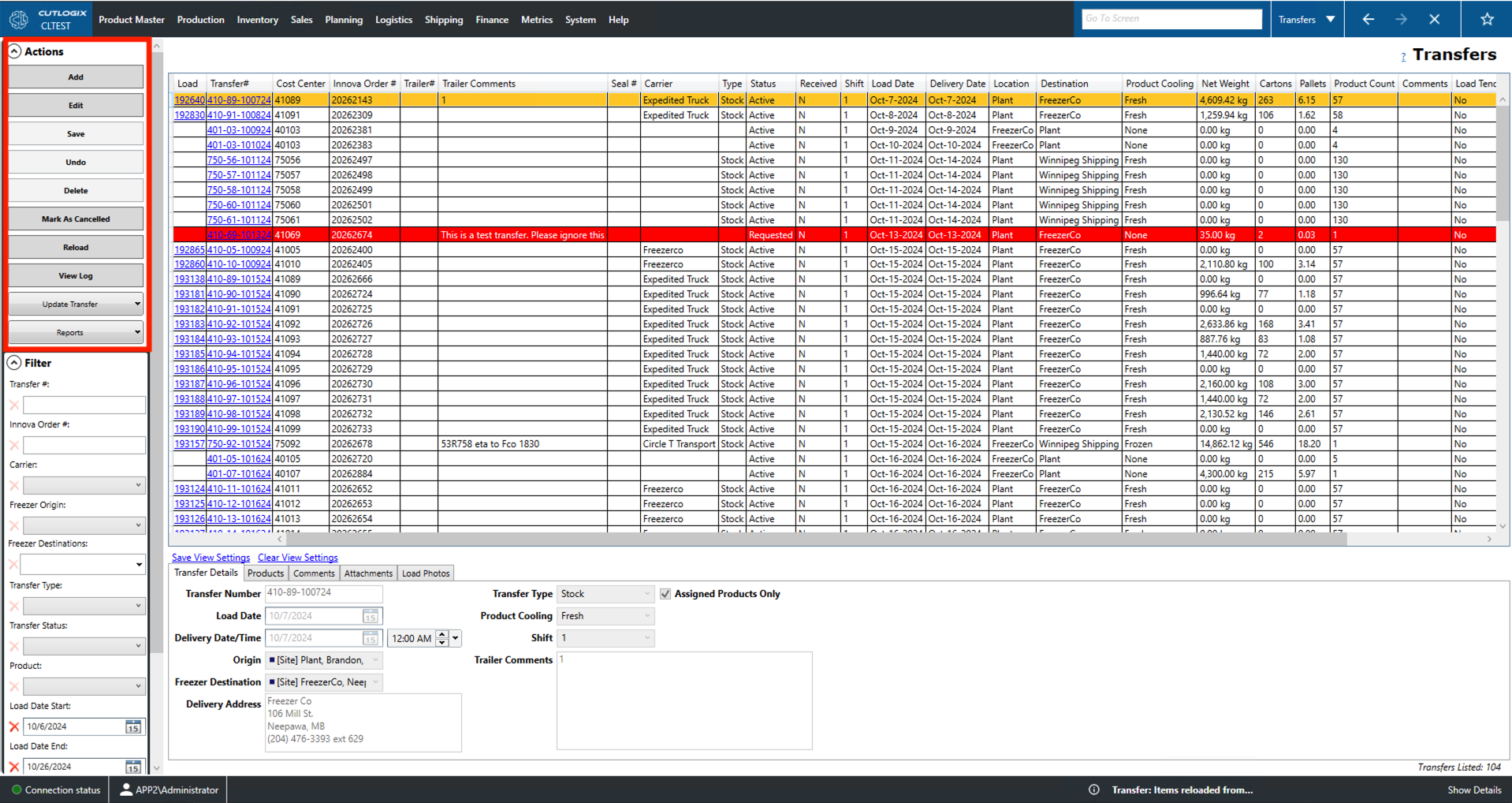
Filter
- Transfer #: Filter by the entered transfer number.
- Innova Order #: Filter by the entered manufacturing execution system (MES)/Innova number.
- Carrier: Filter by the shipping company that is moving the transfer.
- Freezer Origin: Filter by the freezer location the transfer is being shipped from.
- Freezer Destinations: Filter by freezer destination locations.
- Transfer Type: Filter by the type of transfer (Stock or freezer).
- Transfer Status: Filter by the status of the transfer record in the system.
- Active: Transfer is approved to happen on the specified date.
- Cancelled: Transfer has been cancelled and will not be shipped.
- Shipped: Transfer has been loaded and shipped.
- Requested: Transfer has been requested but is awaiting approval.
- Product: Filter by the product being transferred.
- Load Date Start/End: Filter the list to entries that have a load date on or after/before this date.
- Include Shipped/Cancelled: Whether or not to include transfer in the list with a status of shipped/cancelled.
- Received: Filter the list by whether or not a transfer's status is 'Received'. Checked will include only received transfers, empty will include only entries that are not been received and the black square will not filter by received.
- Is Live Load: Filter the list by whether or not a transfer is a 'Live Load'. A live load is one where the semi trailer is loaded/unloaded while the driver waits instead of dropping the trailer off. Checked will include only live loads, empty will include only entries that are not live loads and the black square will not filter by whether a transfer is a live load.
- Apply: This will reload the list with the current filters applied.
- Reset: This will reset the filters and reload the list to an unfiltered state.