About Page
How to Navigate: Start CutLogix
About Page
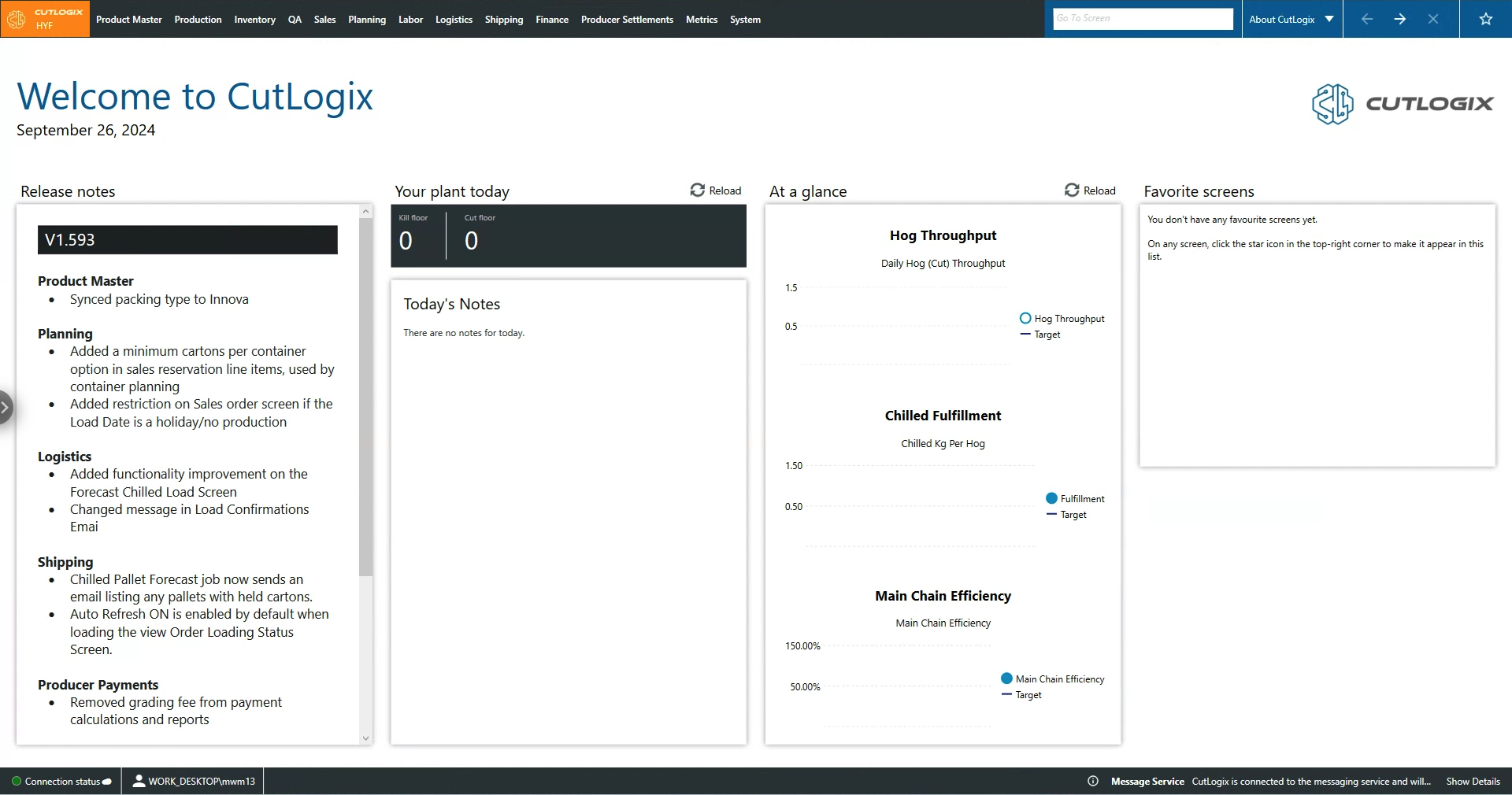
This is the CutLogix 'About Page'. This is the first screen you'll see whenever you open up CutLogix. This page provides a series of summary sections in 'Release notes', 'Your plant today' and 'At a glance'. Any screens added to your favorites, using the star in the top right corner, will also be displayed on this screen. This allows users to quickly and easily navigate to pages they frequently use in a single click.
-
Top Nav Bar
- Navigation Menus: The navigation bar at the top of the screen is persistent regardless of what CutLogix screen the user is viewing. At any time, users can click one of the menus in the nav bar and choose their desired option from the dropdown menu.
- Search Bar: You can use the search bar after the nav menus to search page titles which will tell you whether a page exists and if so how to navigate to it.
- Screen History: Also at the top of the screen, the user can find the screen history dropdown between the nav arrows and the search bar. This can be used to navigate to screens that have already been opened.
- Navigation Arrows: To the right of the screen history dropdown are the nav arrows. These can be used to navigate back and forth through the list of open screens.
- Close Screen: To the right of the nav arrows is the close screen button which has an 'X' icon. Clicking this on various CutLogix screens will close the page completely forcing it to be reloaded the next time a user navigates to it.
- Favorites: On the far right of the top bar is a star icon that can be clicked to designate the current screen as a favorite. This will add them to the 'Favorite Screens' section of the main page on the right. This will allow you to jump to screens you frequently use from the about page in one click. Main Section
- Release Notes: The 'Release notes' section gives the details of the most recent CutLogix release.
- Your plant today: This shows the target kill and cut carcass counts as well as any planning or maintenance notes for the day
- At a glance: This section shows a series of customizable metrics that indicate plant performance at a glance.
- Favorite Screens: Any screens that have been added to the favorites list will show up here. Screens can be added to this list using the star icon in the top right corner. Clicking a list entry will take you to that page. Bottom Bar
- Connection Status: In the bottom left corner of the about page is an indicator that shows the status of the connection to the server.
- Username: On the bottom bar to the right of the connection status will be the username of the user currently logged in.
- Messages: CutLogix will display messages and status updates in the bottom right corner of the screen. Clicking 'Show Details' will bring up a pop up that will display the message again.