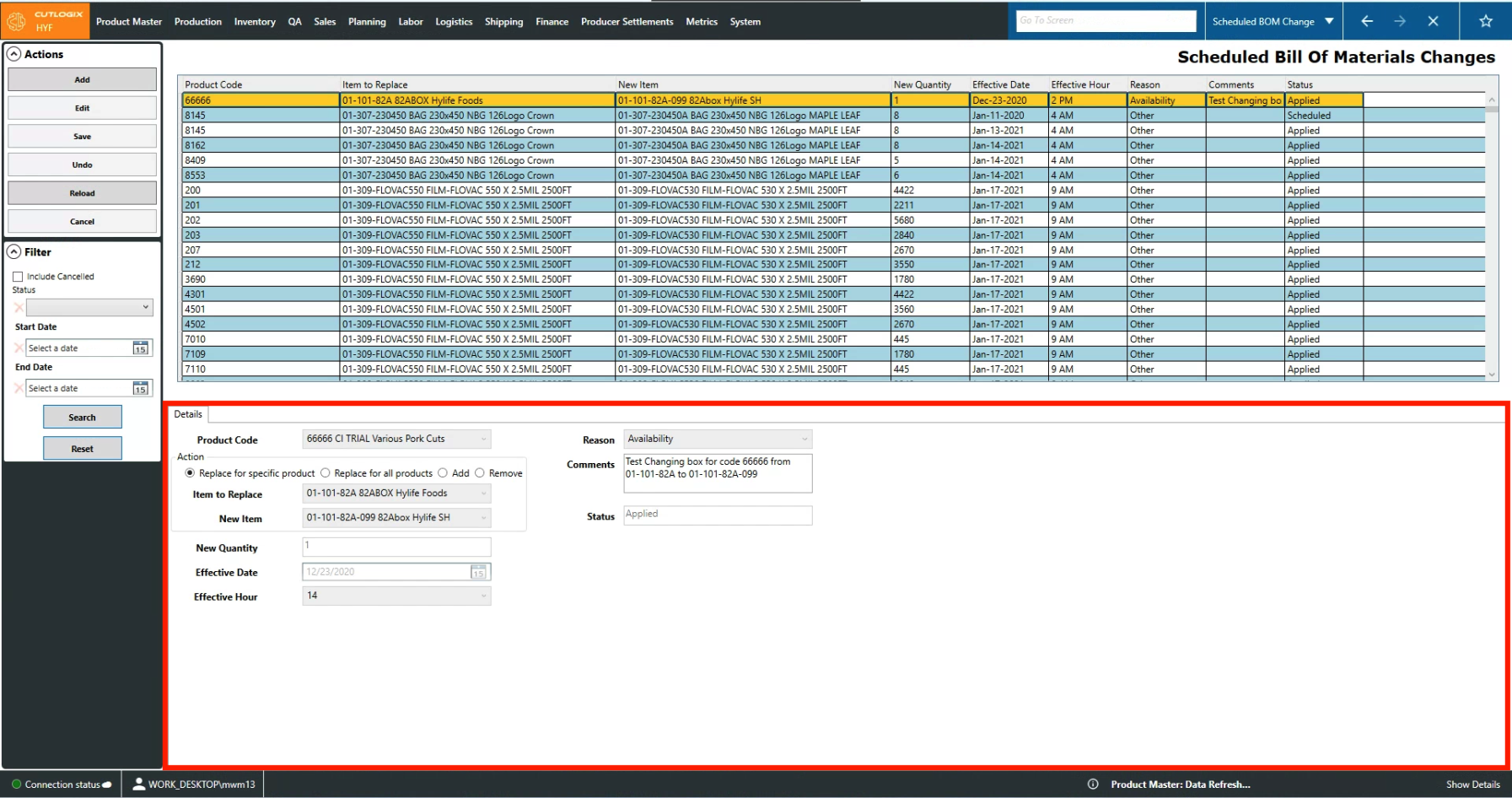
Scheduled BOM Changes Tabs
How to Navigate: Click on Product Master > Scheduled BOM Changes > Tabs
Details Tab
- Product Code: Unique identifier for the product that has its packaging BOM being changed.
- Action: This section indicates what action will take place on the scheduled date and time.
- Replace for specific product: Replace the packaging item with the new item for only the selected product code.
- Replace for all products: Replace the packaging item with the new item for all products that use it.
- Add: Add the new item to the packaging BOM (no replacement).
- Remove: Remove the item to replace from the packaging BOM (no replacement).
- Item to Replace: This is the packaging item that will be replaced if 'Replace for specific product' or 'Replace for all products' are selected. This is also where you specify the item to remove if 'Remove' was selected.
- New Item: This is the item that will be replacing the 'Item to Replace' if 'Replace for specific product' or 'Replace for all products' are selected. Cases where this is the same as the item being replacing indicate a change in quantity. This is also where you specify the item to add if 'Add' was selected.
- New Quantity: Specifies the quantity of the 'New Item' to be used.
- Effective Date/Hour: This is the date/hour on which the change will take effect.
- Comments: A space for comments about the BOM change.
- Status: This indicates the current status of the scheduled change.
- Applied: The change was successfully applied.
- Cancelled: The change was manually cancelled by the 'Cancel' action.
- Scheduled: The change is scheduled to be applied at a later date.
- Not Applied: The change was not applied at its scheduled time.