Manual Production Orders Tabs
How to Navigate: Click on Planning > Planning Rules Config > Manual Production Orders > Tabs
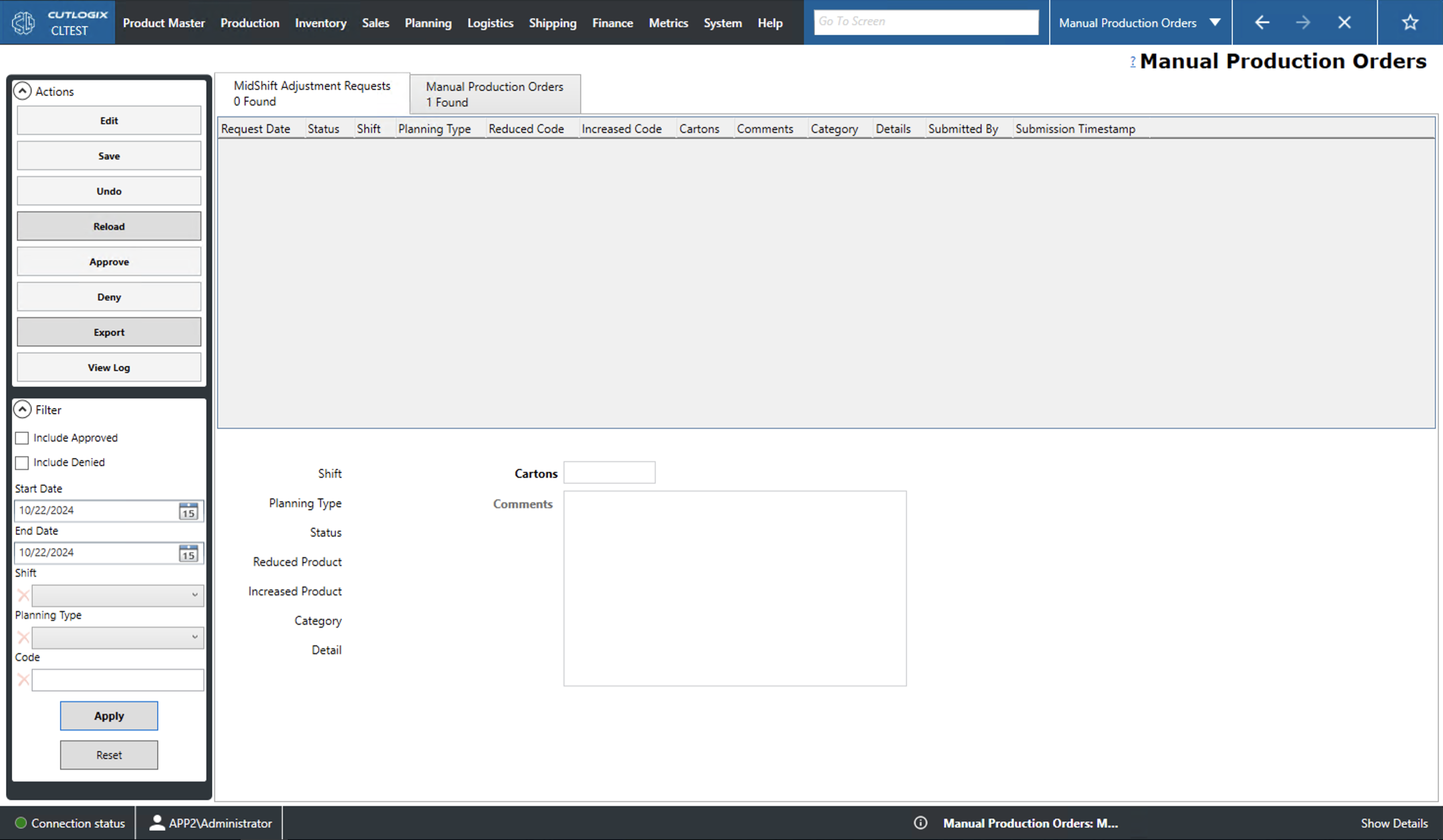
Midshift Adjustment Requests Tab
- Request Date: The date of the requested adjustment.
- Status: The current status of the request. Requests can be either approved, pending, denied or cancelled.
- Shift: The shift on which the adjustment occurred.
- Planning Type: The type assigned to the product in the planning system.
- Reduced/Increased Code: The unique identifier for a product that was reduced/increased.
- Cartons: Number of cartons to adjust by.
- Category: The category of the midshift adjustment (i.e. Labor, Equipment, Quality, etc.).
- Detail: More detail about the adjustment. For instance, a labor type adjustment might have a detail field of 'shortage' while and equipment type adjustment might have 'Packaging'.
- Submitted By: A space for comments on the midshift adjustment.
- Submission Timestamp:
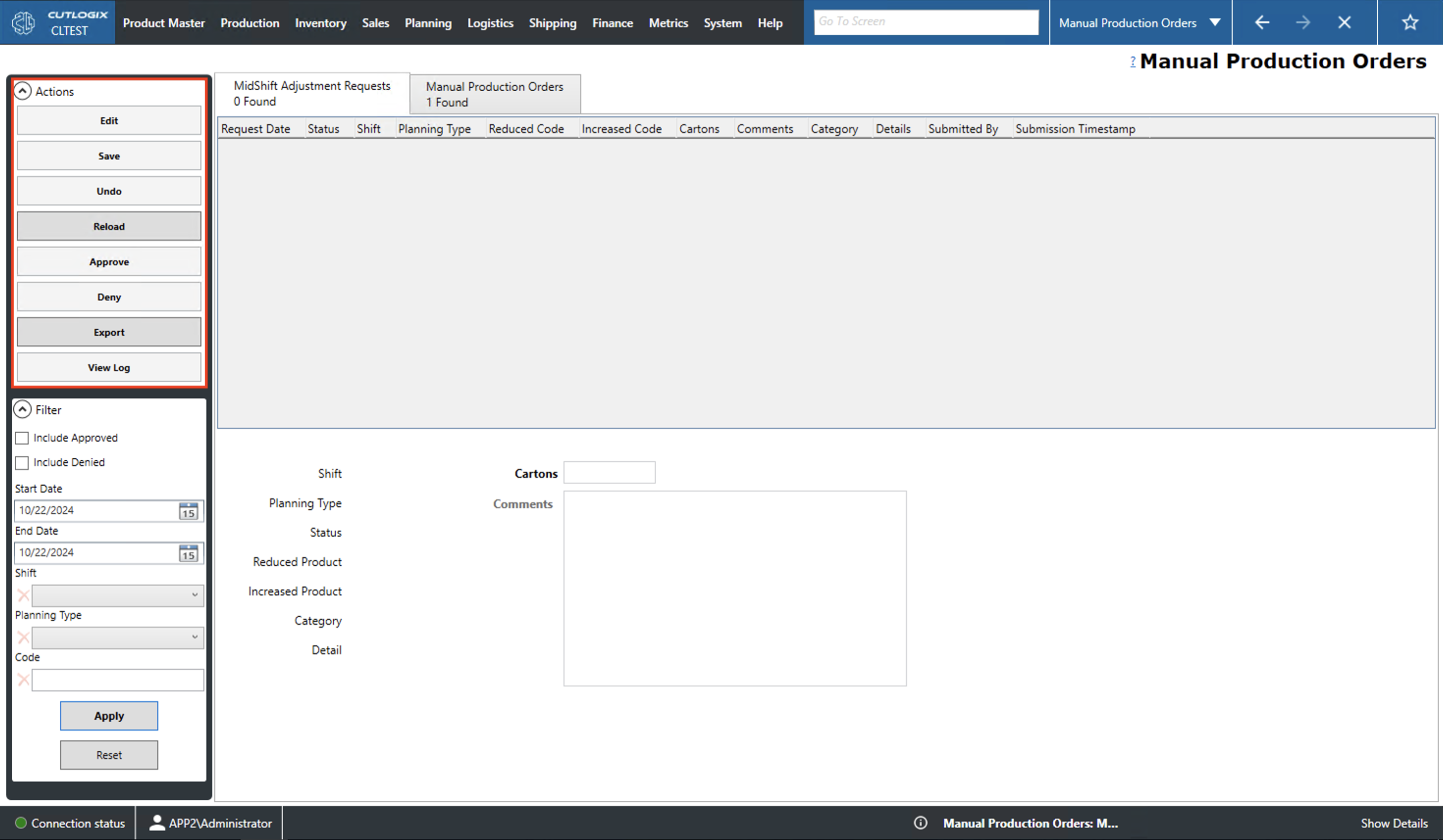
Midshift Adjustment Requests Tab: Actions
- Edit: Edit the currently selected midshift adjustment.
- Save/Undo: Save/undo all changes made in the current editing session.
- Reload: Reloads the list of midshift adjustments and displays the most up to date information from the database.
- Approve: Allows the user to approve the selected midshift adjustment which allows it to modify the relevant production plan.
- Deny: Allows the user to deny the selected midshift adjustment.
- Export: Allows the user to save the midshift adjustment list locally as a .xlsx file (excel).
- View Log: Allows the user to view the change log for the currently selected midshift adjustment. This includes what changes were made, by whom and when.
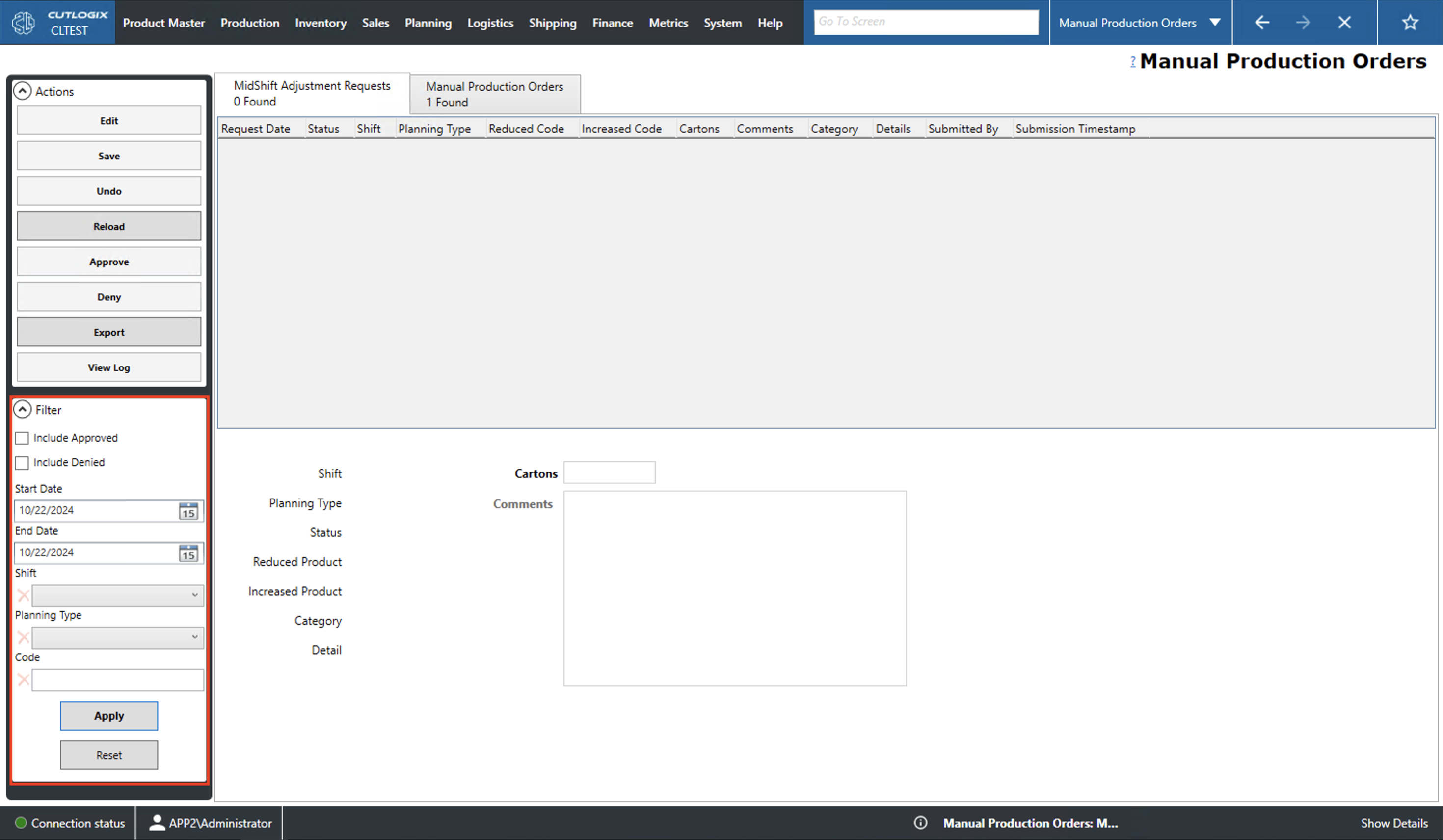
Midshift Adjustment Requests Tab: Filter
- Include Approved/Denied: Check to include approved/denied midshift adjustments in the list.
- Start/End Date: Filter the list to requests that were made on or after/before the selected date.
- Shift: Filter by the shift the change was suggested for.
- Planning Type: Filter by the product's planing type.
- Code: Filter by the product code.
- Apply: Action this to reload the list with the currently set filters applied.
- Reset: Action this to reset all of the filters and reload the list to an unfiltered state.
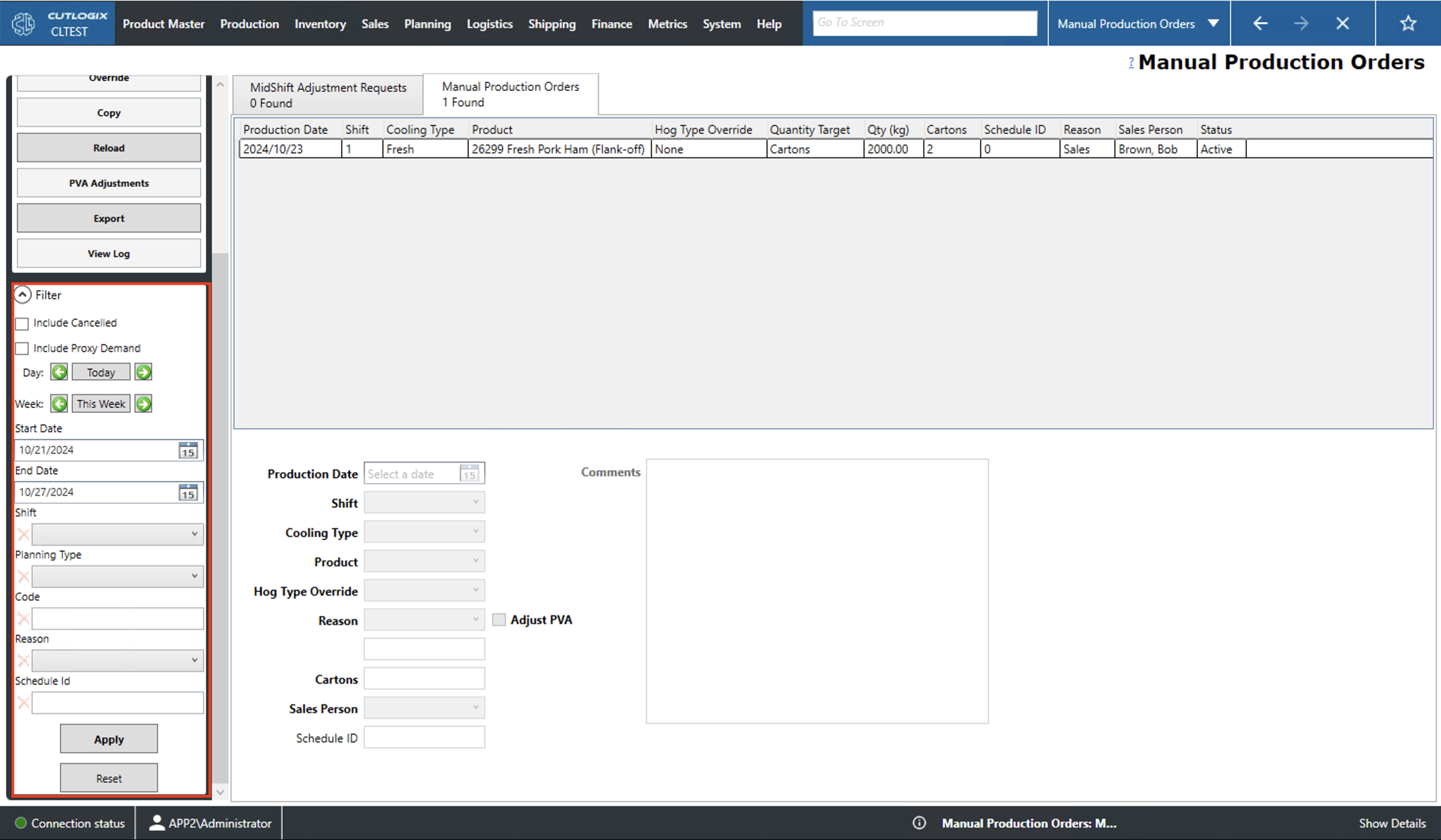
Manual Production Orders Tab
Users can add and edit manual production orders on this screen. A manual production order is a source of demand that the planning system must schedule. In other words, this is a tool that can be used to force production to be added to the schedule for the specified day.
- Production Date: Date for the manual order.
- Shift: Shift to produce the manual order.
- Cooling Type: Cooling type (fresh, frozen or chilled) to produce for the manual order.
- Product: Product for the manual order.
- Hog Type Override: An override for the level of hog used to fill the manual order.
- Reason: Use this dropdown to select a reason for the manual order.
- Adjust PVA: Check this to adjust the planned production vs actual production calculations for the selected day.
- Cartons: Number of cartons of product for the manual order.
- Sales Person: Sales person associate with the manual order.
- Schedule ID: A unique identifier for this order.
- Comments: A space for further comments on the order.
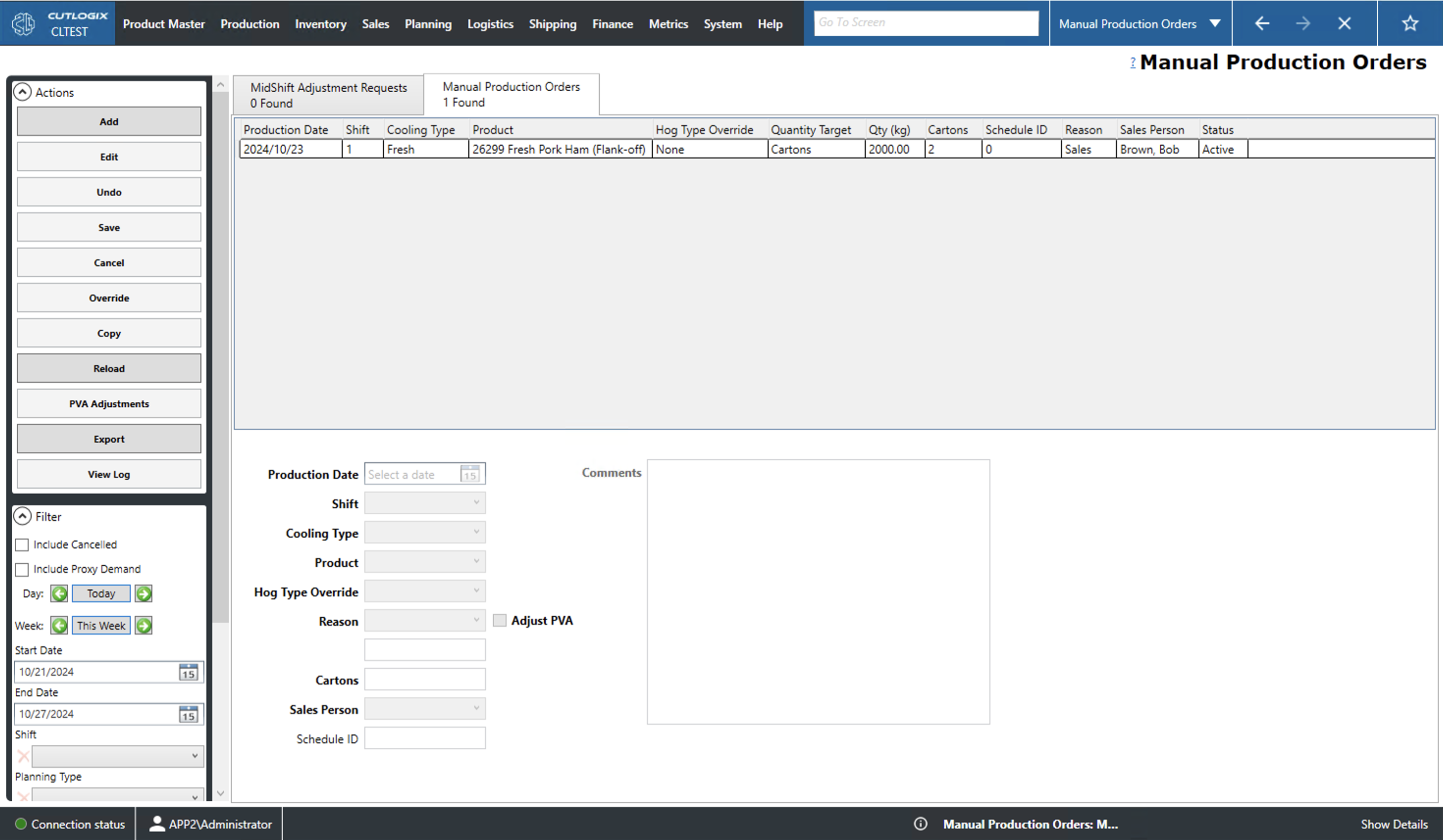
Manual Production Orders Tab: Actions
- Add: Add a manual order to the list.
- Edit: Edit the currently selected manual order.
- Save/Undo: Rollback all changes made in the current editing session.
- Cancel: Cancel the currently selected manual order.
- Override: Sets the reason column of the selected manual production order to 'planning'.
- Copy: Copy the details of currently selected manual order into a new order.
- Reload: Reloads the list of manual order and displays the most up to date information from the database.
- PVA Adjustments: Modify the planned production vs actual production adjustments made by the manual order.
- Export: Allows the user to save the manual order list locally as a .xlsx file (excel).
- View Log: Allows the user to view the change log for the currently selected manual order. This includes what changes were made, by whom and when.
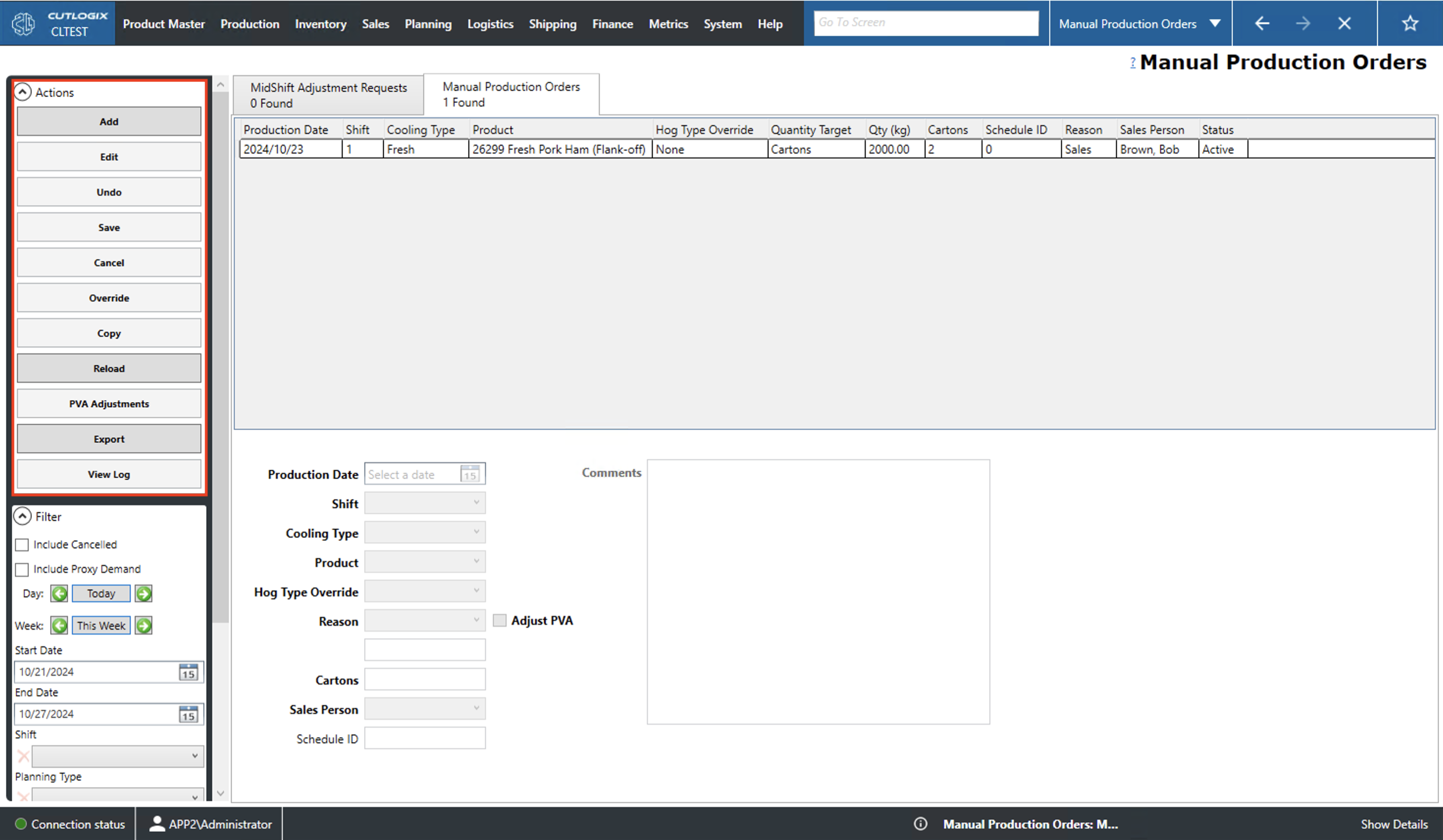
Manual Production Orders Tab: Filter
- Include Cancelled: Check to include cancelled manual orders in the list.
- Include Proxy Demand: Check to include proxy demand. Proxy demand occurs when product is produced that will see other products necessarily produced with it. If there are no orders that this other demand can fulfill then the system will schedule proxy demand that will schedule the production of these extra products to be shipped to a freezer.
- Day/Week: Filter to the selected day/week.
- Start/End Date: Filter to entries that were entered on or after/before this date.
- Shift: Filter by the shift the manual order was entered for.
- Planning Type: Filter by the planning type entered for the manual order.
- Code: Filter by a unique identifier for the product on the manual order.
- Reason: Filter by the reason for the manual order.
- Schedule ID: Filter by the schedule ID of the manual order.
- Apply: Reload the list with the relevant filters applied.
- Reset: Reset the filters and reload the list to an unfiltered state.