Packaging BOM Overview
How to Navigate: Click on Product Master > Packaging BOM
Summary
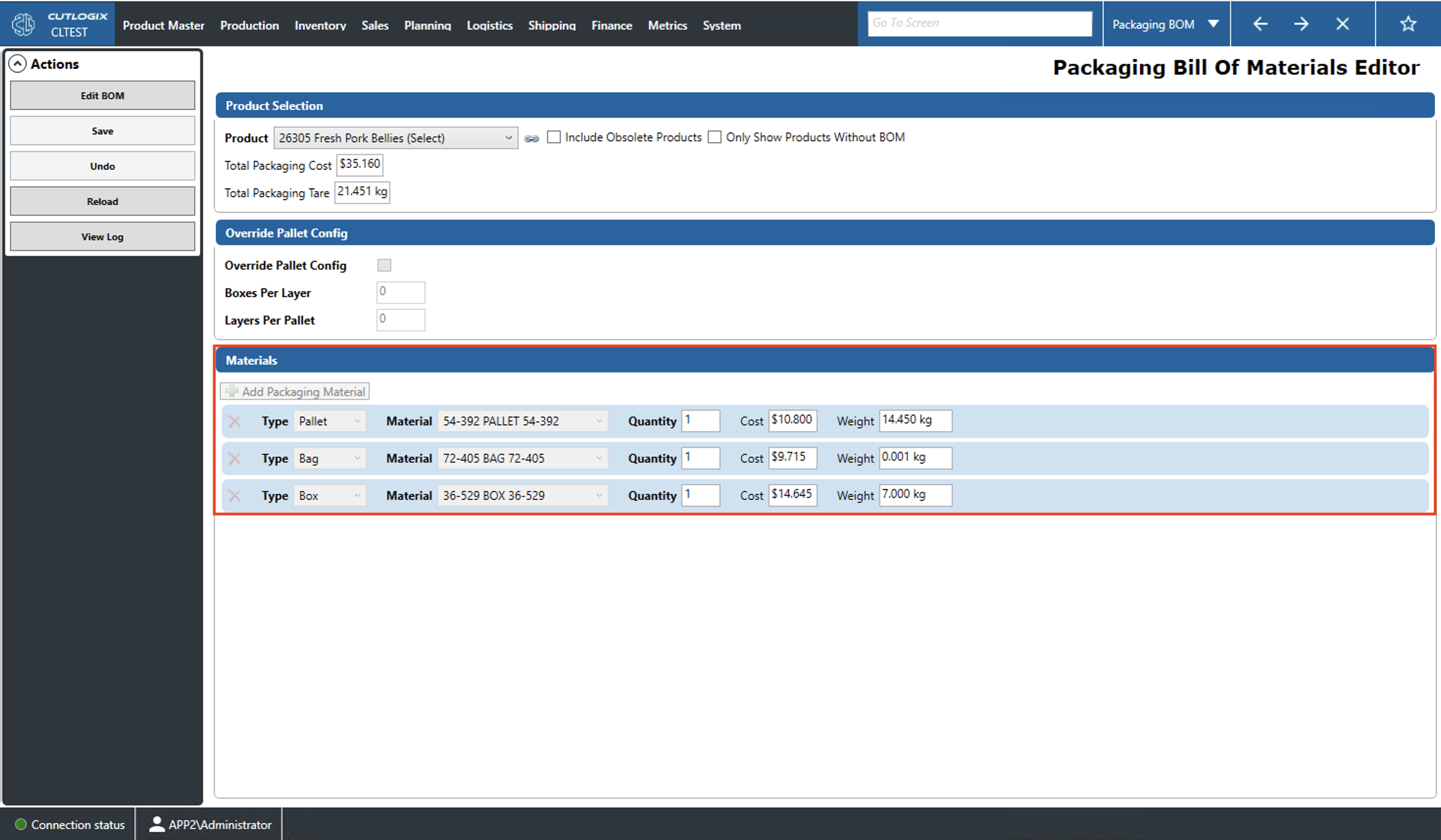
This screen allows users to select a product from the dropdown and edit its packaging bill of materials (BOM). A packaging BOM is a list of all of the packaging materials used to package a product along with their quantities, cost and weight. The information displayed on this screen is read-only until a user clicks 'Edit BOM'. This page can also be reached via the Packaging Tab on the Product Master list page by clicking the 'View Packaging BOM' link. This will bring the user to the Packaging BOM editor with that product's packaging BOM already selected.
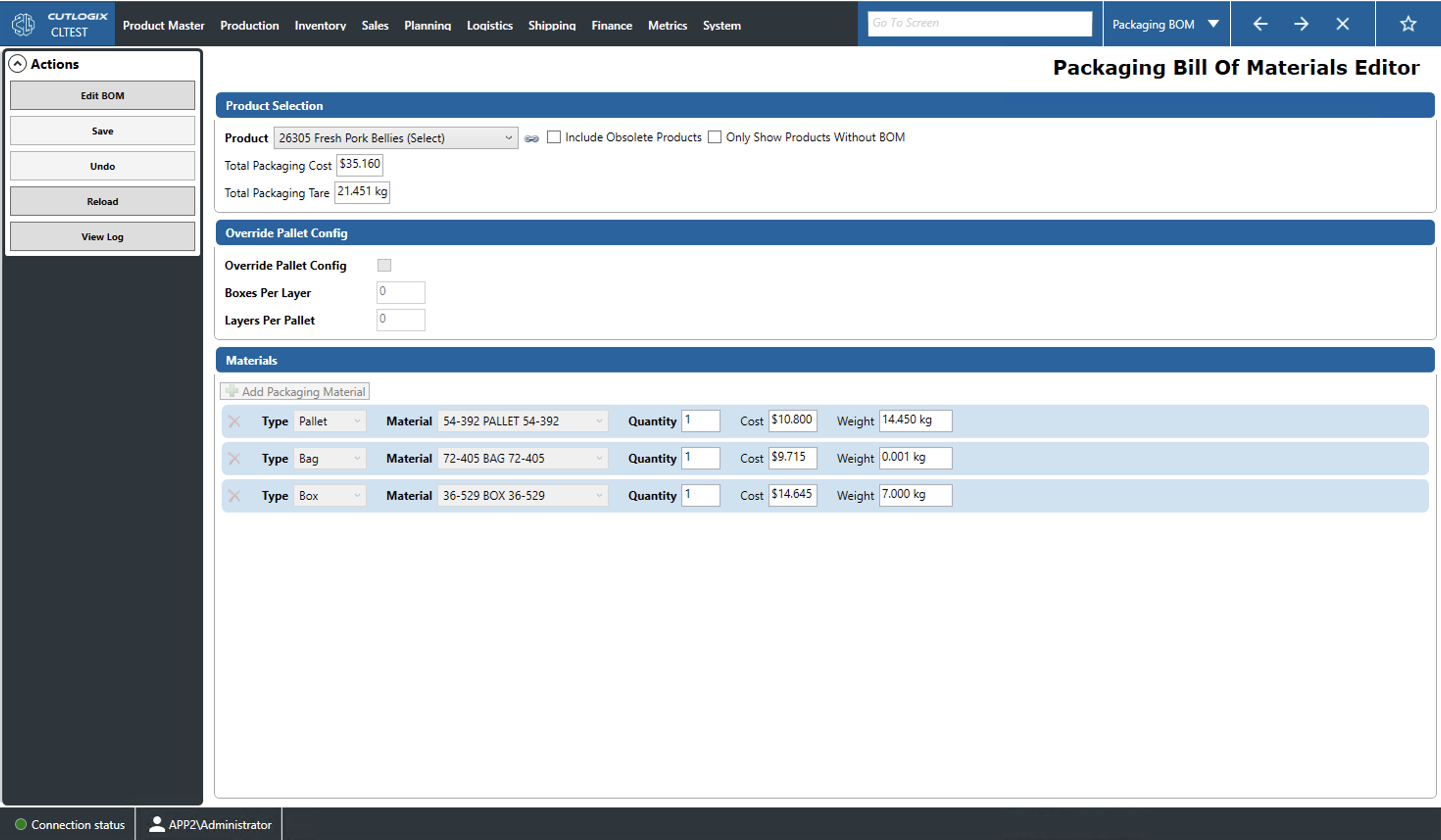
Packaging BOM: Product Selection
- Product: User can select the product they would like to edit from this dropdown.
- Include Obsolete Products: Checking this will include in the dropdown the products that have a status of obsolete.
- Only Show Products Without BOM: Checking this will filter the dropdown to only show products that do not have an attached packaging BOM.
- Total Packaging Cost: The total cost of the packaging materials for the associated product.
- Total Packaging Tare: The total weight of the packaging materials for the associated product.
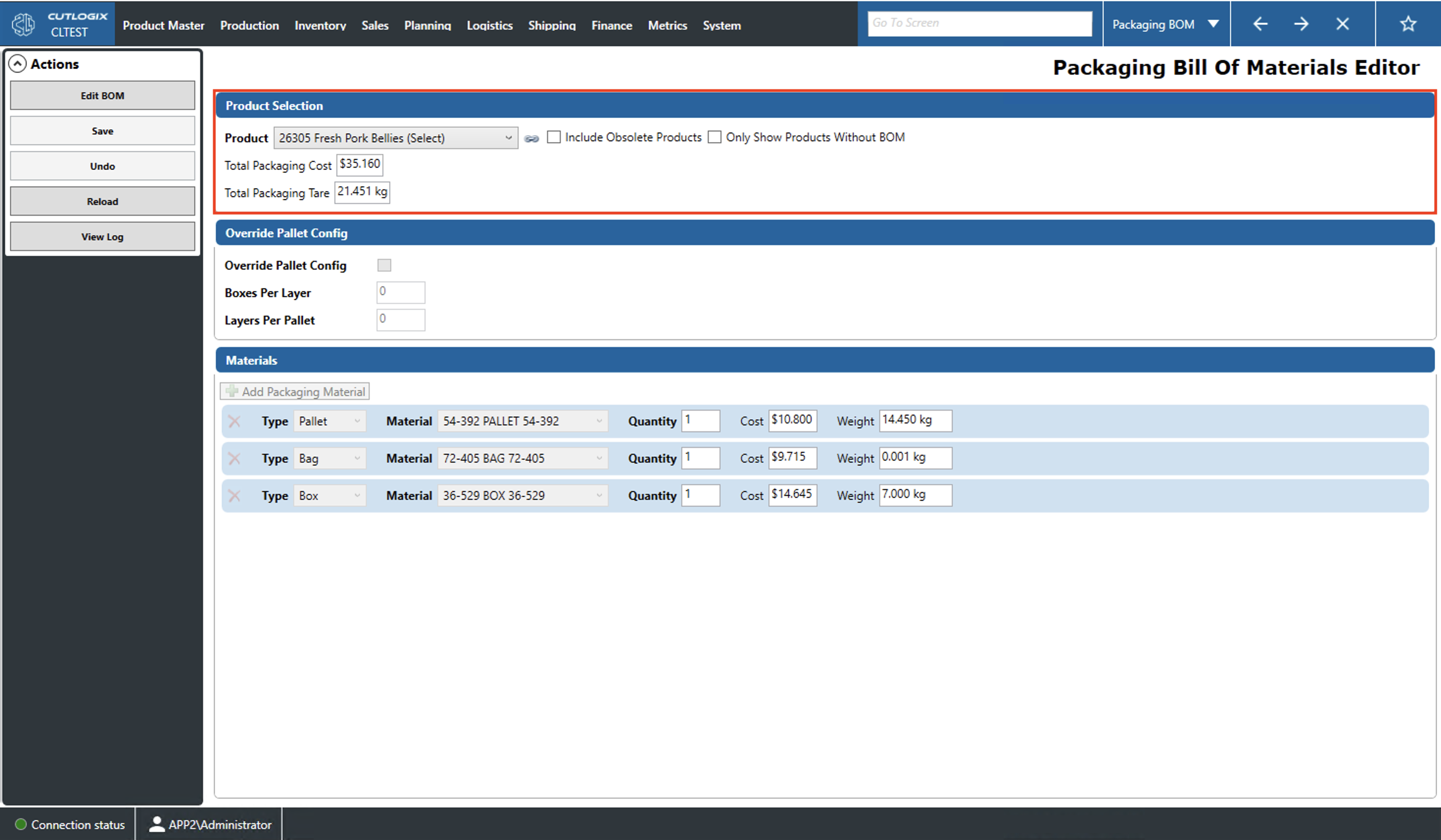
Packaging BOM: Pallet Config
- Override Pallet Config: Checking this will allow the users to override for the pallet configuration for this product and enter one manually.
- Boxes Per Layer: Manually set of the number of boxes per layer when stacking this product on a pallet.
- Layers Per Pallet: Manually set of the number of layers of boxes that should be stacked on a pallet.
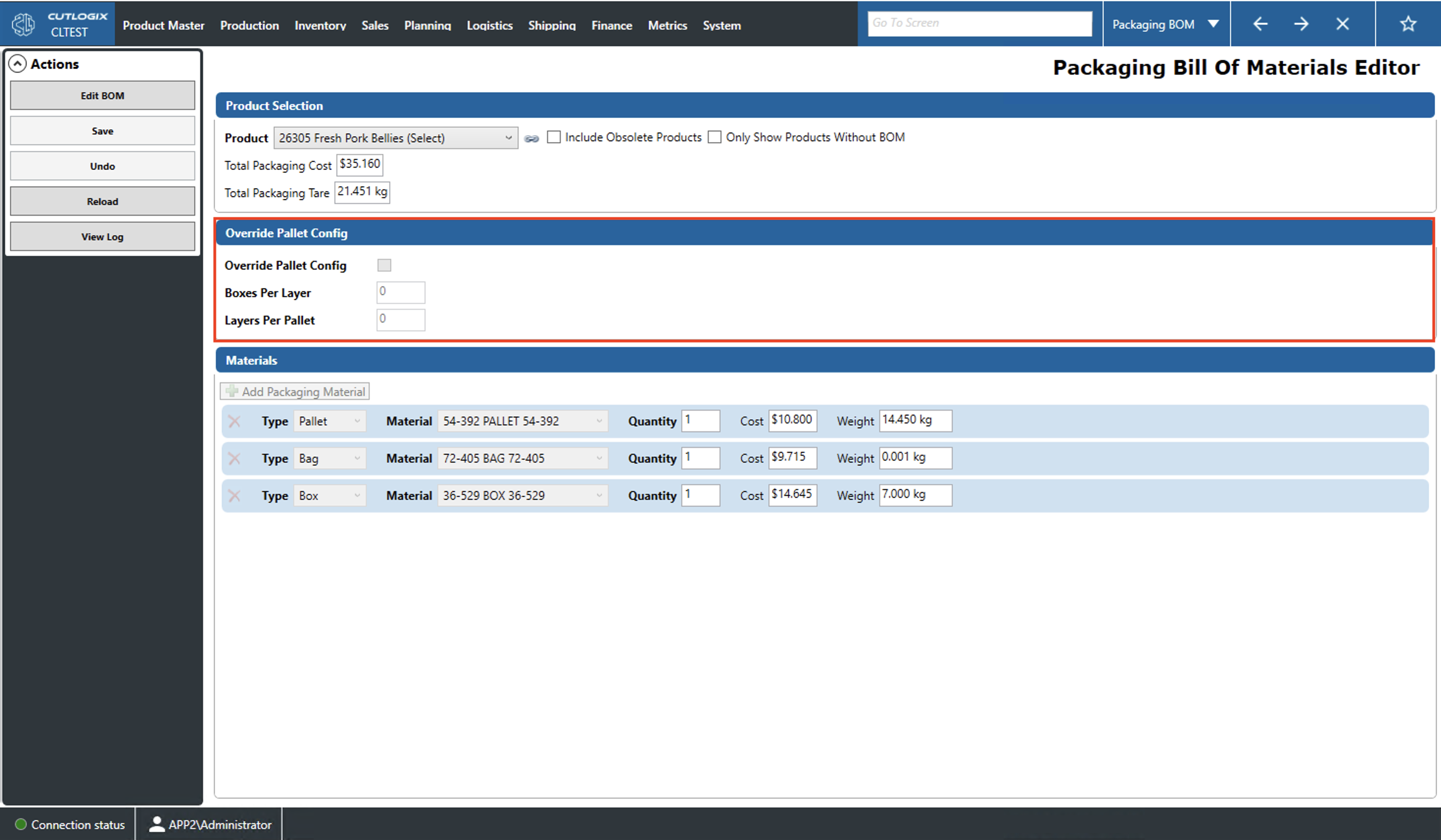
Packaging BOM: Materials
- Rows: Each row (outlined in light blue) is a different packaging material that is a part of the selected product's packaging bom. If there are no rows then this product does not have any associated packaging materials. To delete a packaging material users can click 'Edit BOM' and then the red 'X' on the far left of the row they wish to delete.
- Type: Set the type of the packaging material (i.e. bag, box, tray, soaker, etc.)
- Material: Choose the specific packaging material.
- Quantity: Set the quantity of the packaging material used by this product.
- Cost: The total cost of the packaging materials in this row (quantity * base cost).
- Weight: The weight of the packaging materials in this row.
- Add Packaging Material: This button allows users to add a new packaging material row to the product. This button is enabled after clicking 'Edit BOM'.
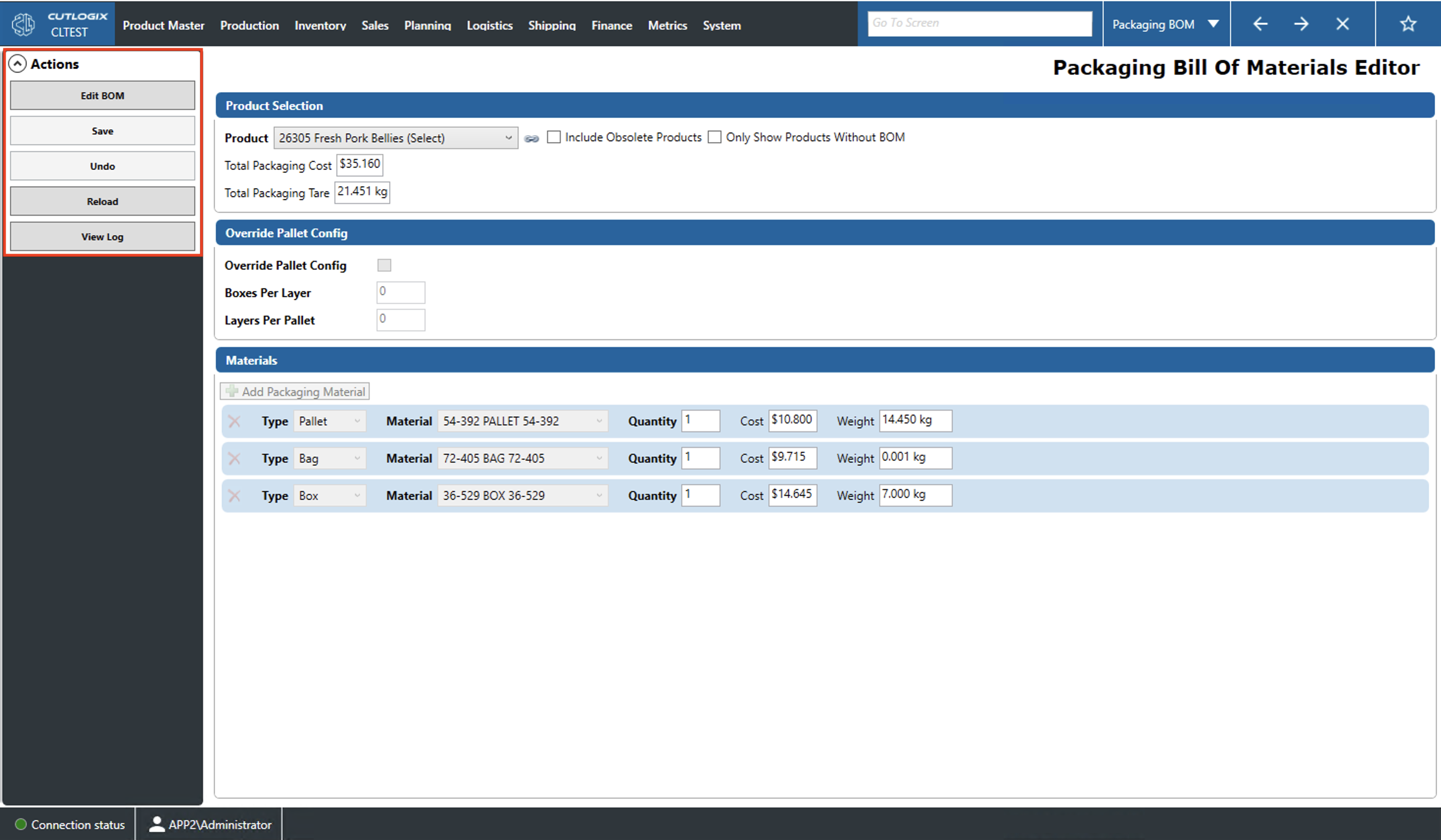
Actions
- Edit BOM: This button will allow you to make changes to the packaging bill of materials (BOM) of the currently selected product. Specifically, it will enable 'Add Packaging Material', the red 'X' in each row for deleting that row and will make the fields in each row editable.
- Save/Undo: This action will save/undo all changes made in the current editing session.
- Reload: This action will reload the list with the most up-to-date version of the packaging BOM for the selected product from the data base.
- View Log: This action allows users to view the change log for the selected product's packaging BOM. This includes what changes were made, by whom, and when.