Tabs
How to Navigate: Click on Logistics > Transfers > Tabs
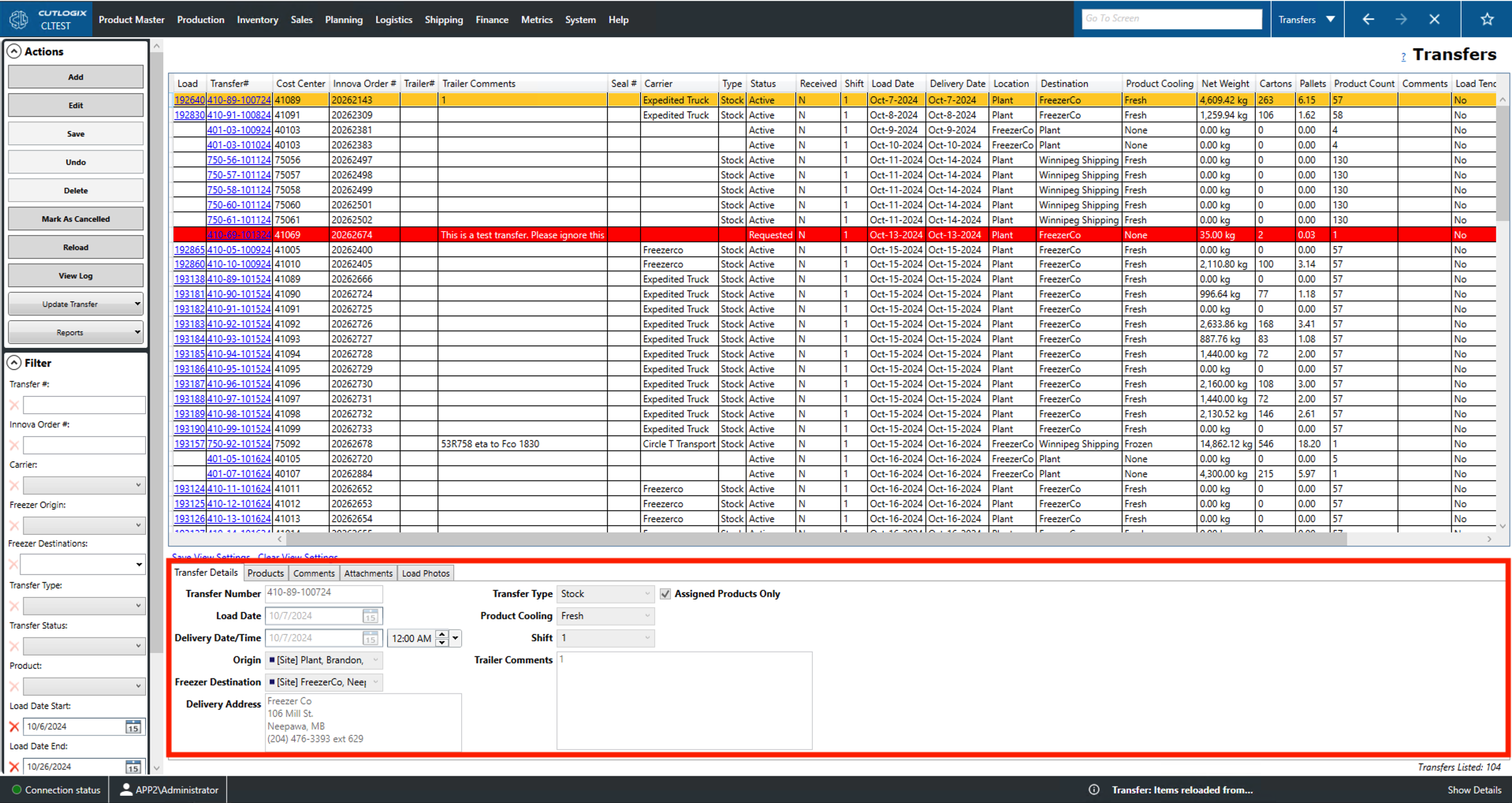
Transfer Details Tab
The fields on this tab will be read-only until a user performs an add/edit action. At that point, the user can use these fields for data entry.
- Transfer Number: Unique identifier for the transfer record.
- Load Date: The date that the freight in the transfer record is to be loaded.
- Delivery Date/Time: The date and time that the freight in the transfer record is to be delivered.
- Origin/Freezer Destination: Where the transfer record's freight is being shipped to/from.
- Delivery Address: The specific address the transfer record's freight is being shipped to.
- Transfer Type: The type of product being transferred (i.e. is it a stock transfer or a freezer transfer for storage).
- Product Cooling: The type of cooling and storage the transferred product will need (fresh, frozen or chilled).
- Shift: The shift on which the transfer is to be loaded and shipped.
- Trailer Comments: A space for comments on the selected trailer.
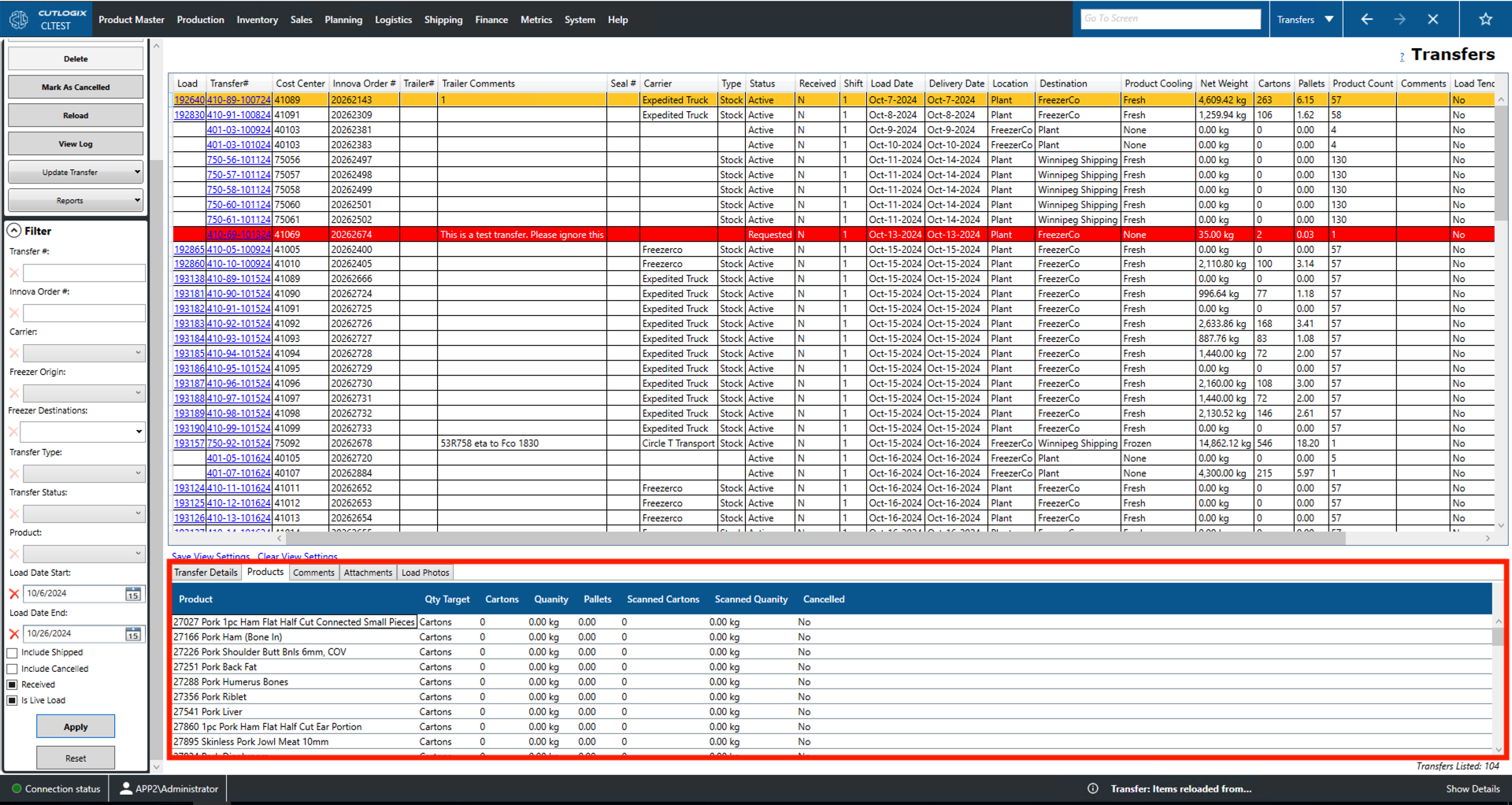
Products
- Product: The product code and name/description of the products added to the transfer record.
- Qty Target: Indicates whether the transfer record is aiming for a specific number of cartons or a specific weight.
- Cartons: The number of cartons requested by the transfer record.
- Quantity: The weight of the product in kilograms (kg) requested by the transfer record.
- Pallets: The number of pallets of product requested by the transfer record.
- Scanned Cartons: The number of cartons of the product that have been scanned into the manufacturing execution system (MES).
- Scanned Quantity: The weight of the product that has been scanned into the MES.
- Cancelled: Indicates whether that product is still required as part of the transfer request.
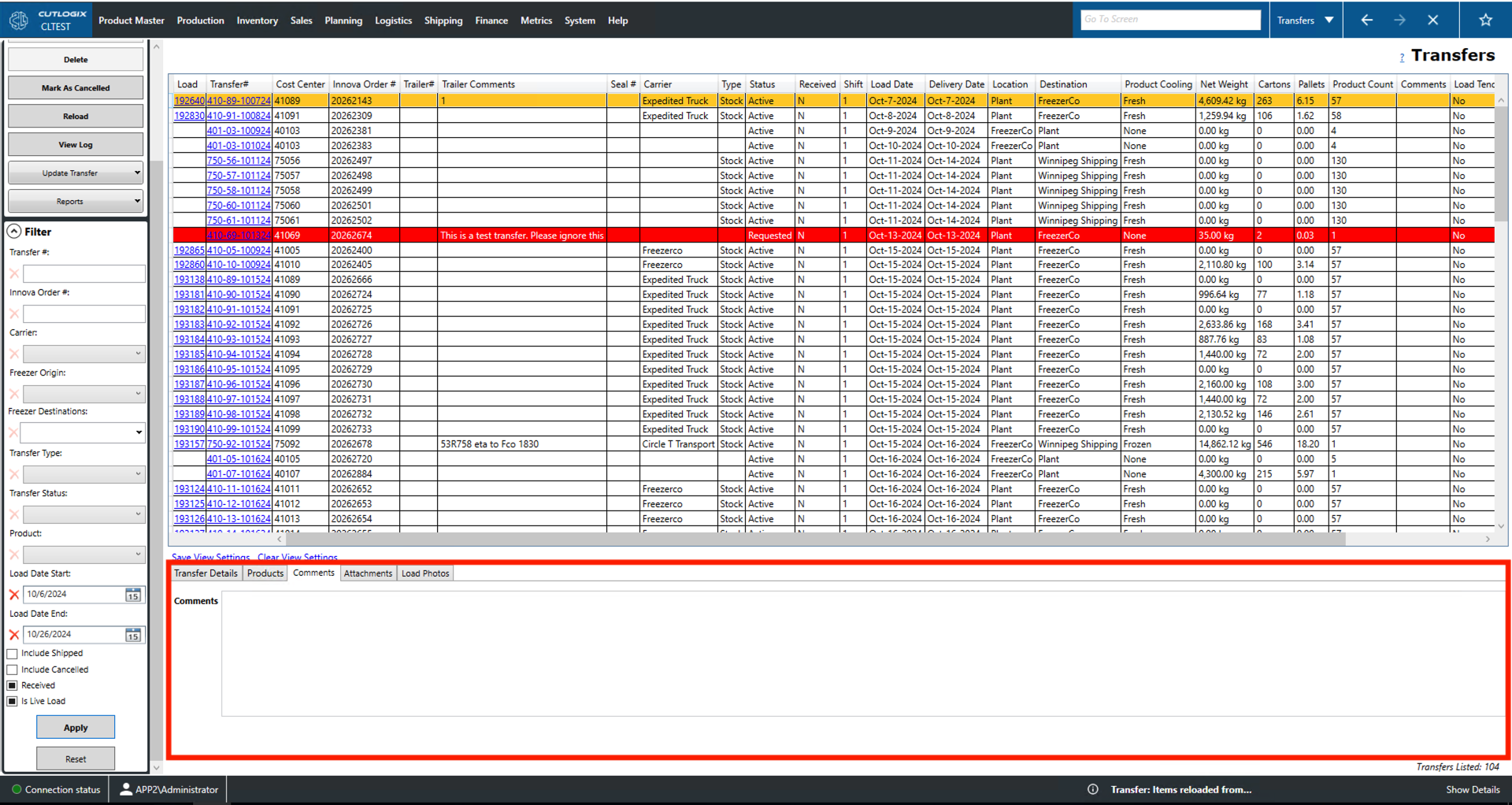
Comments
- Comments: A space for comments about the currently selected transfer record (highlighted in yellow).
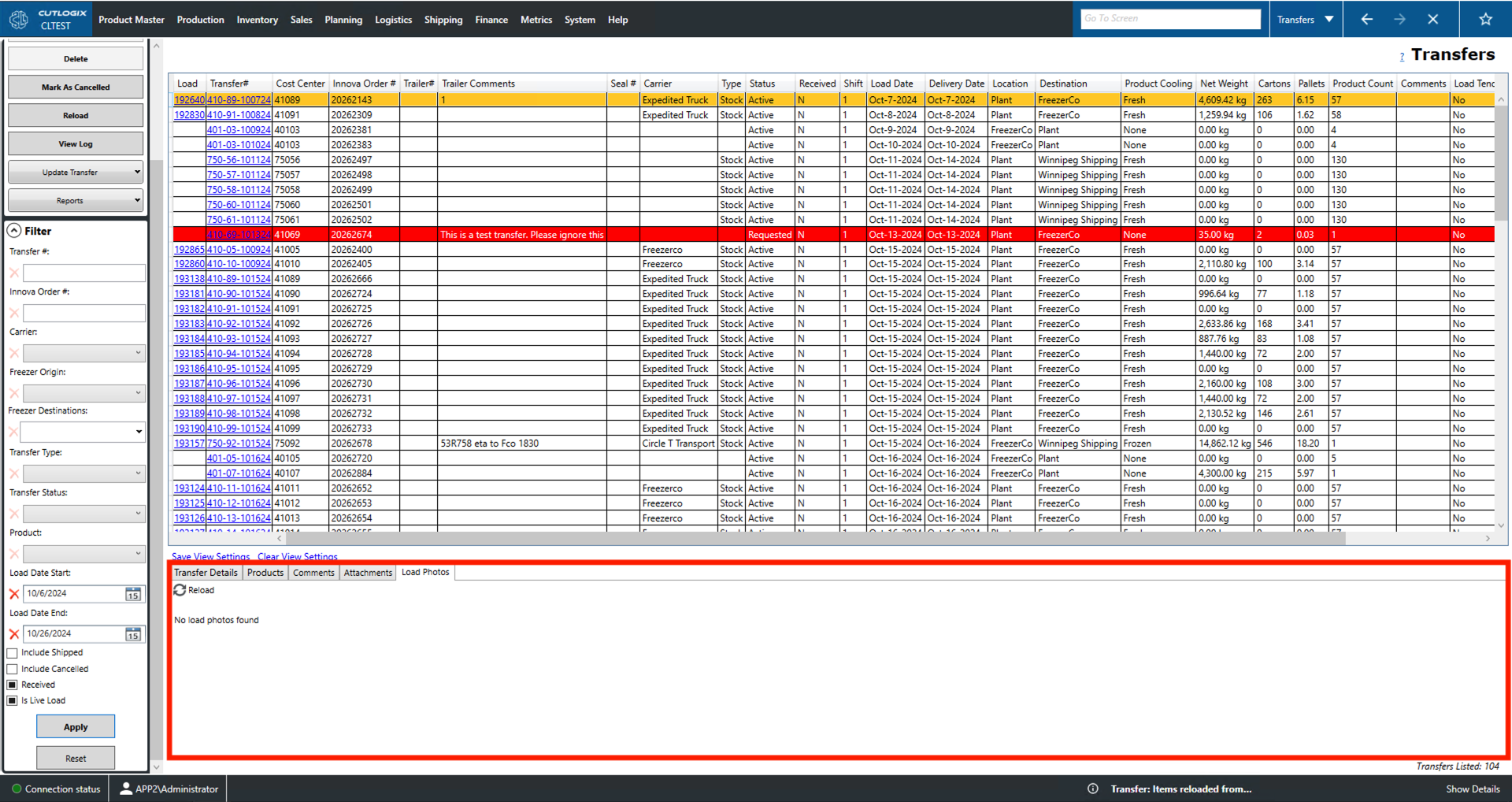
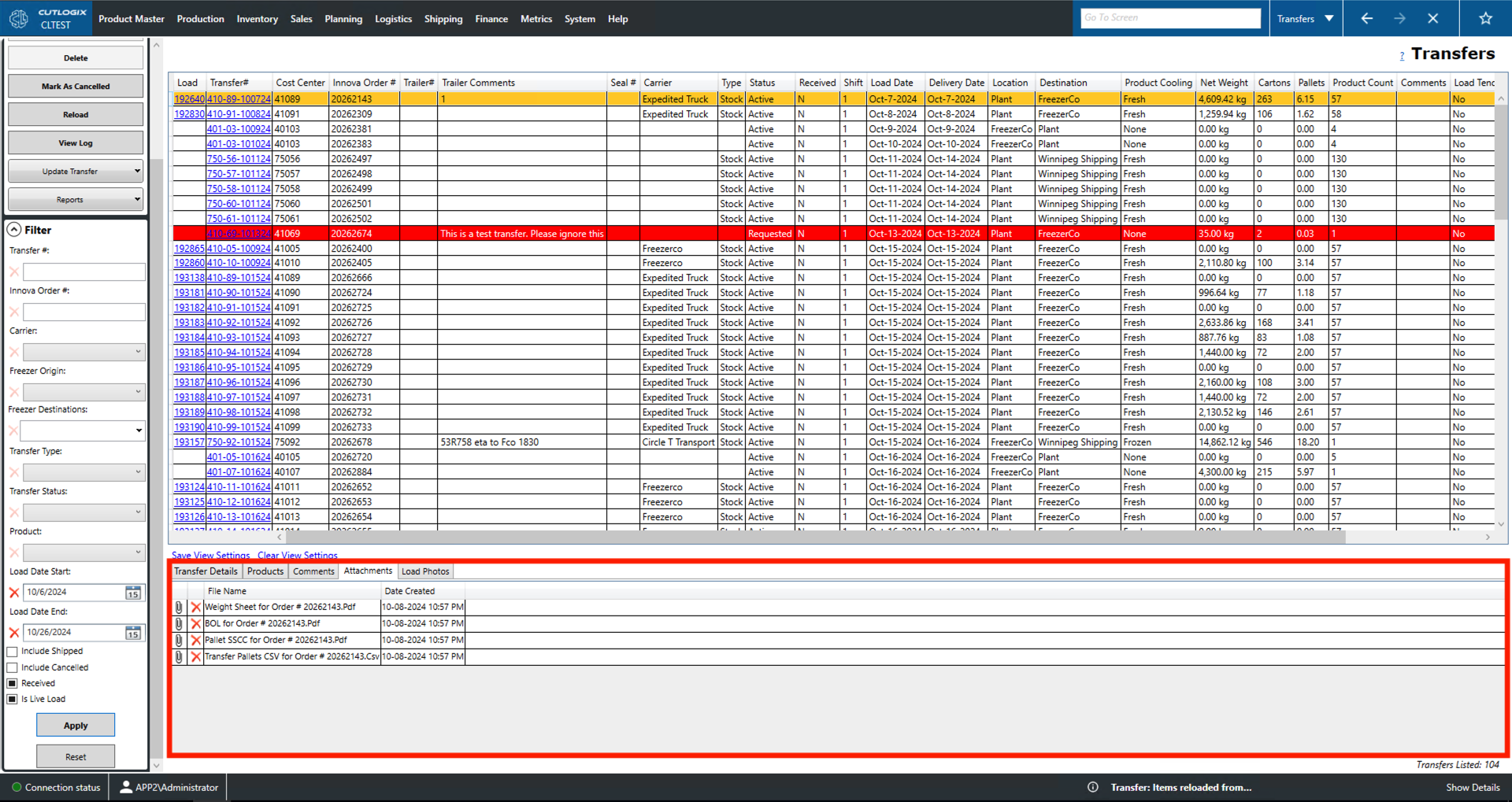
Actions
- View Icon: The icon for this action will change to reflect the type of file attachment. Clicking this will open the file in an appropriate viewer.
- Delete: The icon for this a red 'X'. Clicking this will delete the attachment from the selected transfer.
- File Name: The name of the attached file.
- Date Created: The date and time on which the file attachment was created.
Actions
- Reload: Reloads the list displaying the most up to date version from the data base.