Customer Orders Overview
How to Navigate: Click on Sales > Customer Orders
Summary
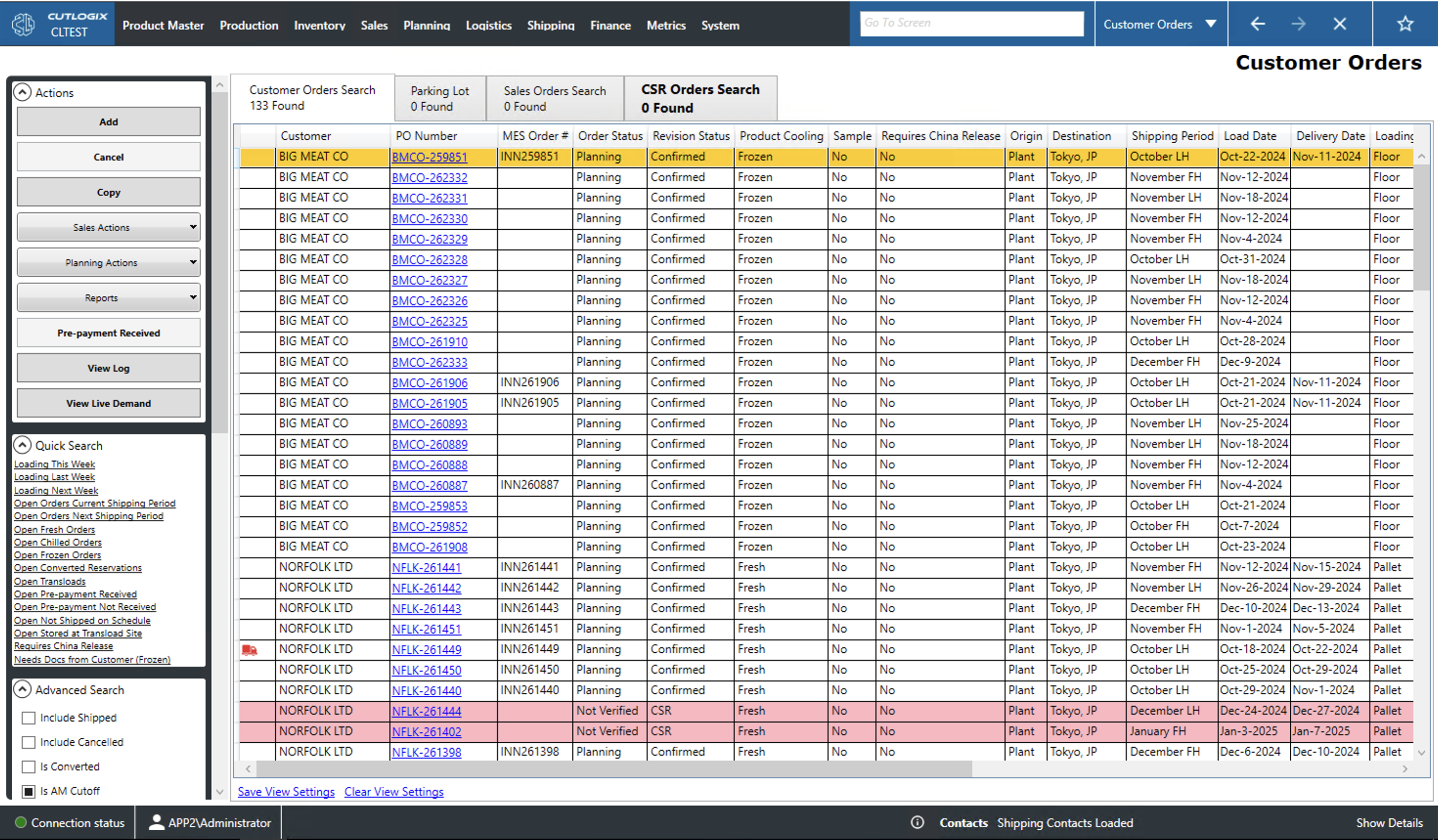
This page allows users view current and historical data about customer orders on the 'Customer Orders Search' tab. Using the actions available in the left sidepod, these orders can be modified and searched. Users can modify existing orders by clicking a link in the purchase order (PO) number column of the 'Customer Orders Search', 'Sales Order Search' or the 'CSR Orders Search' tabs.
Actions
-
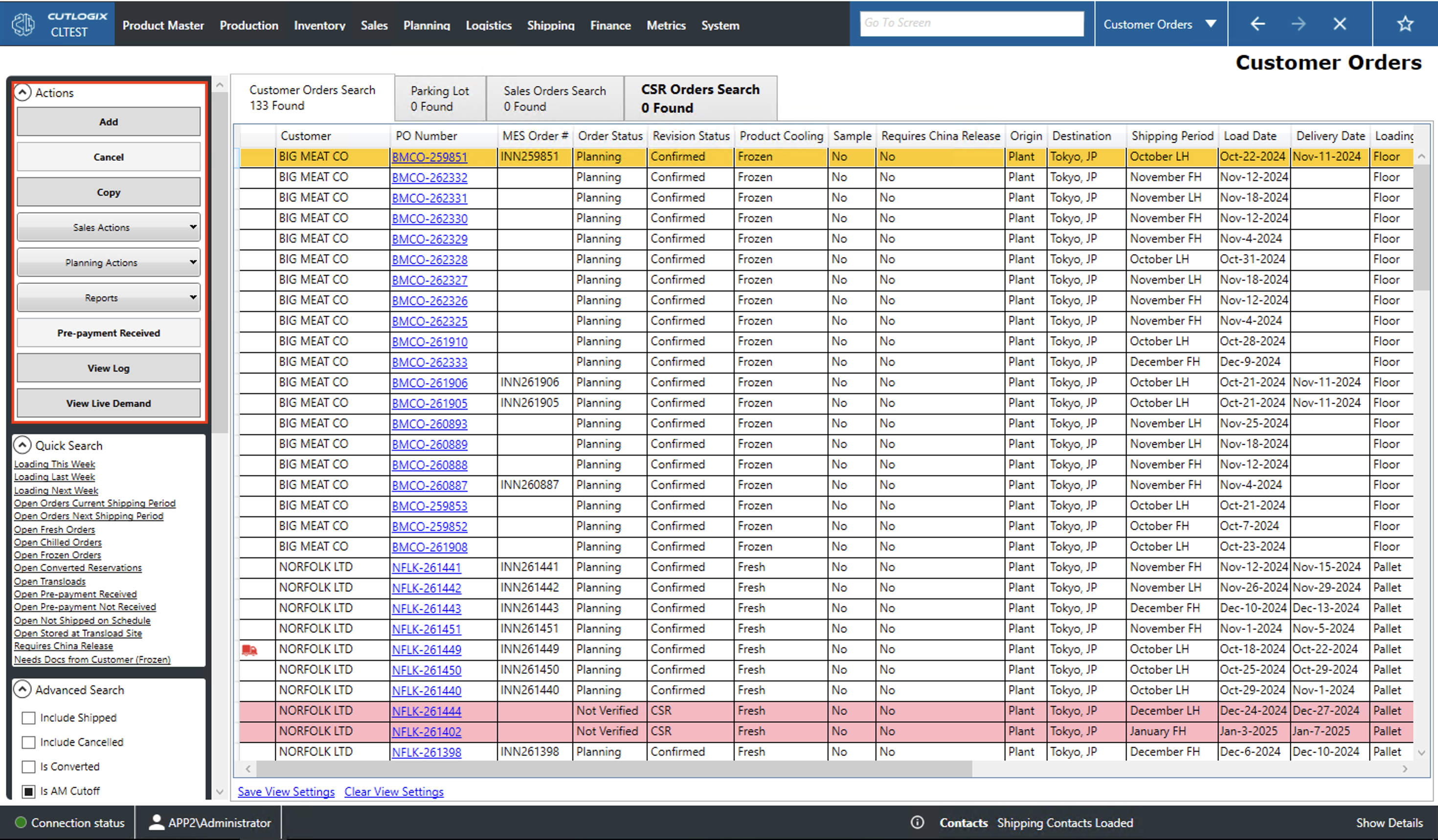
Actions
- Add: Opens a new tab from which users can add a new customer order.
- Cancel: Cancels the selected order (highlighted in yellow). Can only cancel an order with a scanning status of 'Not Started'.
- Copy: Opens a new tab with the selected customer's details copied over. Users will need to add a new purchase order (PO) number and load date.
- Unique Sales Actions
- Mark as Revised: Sets the Revision status field to Revised.
- Update Pricing: Allows a user to modify the order pricing.
- Edit Attachments: Allows a user to edit the order's file attachments.
- Remove Requires China Release: Sets the 'Requires China Release' field to No.
- Unique Planning Actions
- Needs Revision: Sets the Revision status field to Needs Revision.
- Confirm: Sets the Revision status field to Confirmed.
- Actions in both Planning and Sales actions
- Confirm SI: Adds information from the currently selected order to the associated shipping file. A user can only confirm shipping information when the order contains a item that has a status of 'Need shipping instructions from customer FOB' or 'Need shipping instructions from Customer CNF'.
- Request Booking: Allows the user to request a ship booking for this order.
- Sync To MES: Saves the order to a Manufacturing Execution System (MES) like Innova.
- Reset Order: Resets the order back to a new order state.
- Mark Not Shipped: Marks the currently selected order as not shipped.
- Reports: This dropdown gives access to a number of reports on customer orders. These reports are customizable as per customer request.
- Pre-Payment Received: Sets the selected order as pre-paid.
- View Log: Allows the user to view the change log for the selected order. This includes what was changed, by whom and when.
- View Live Demand: This will open up a page in the user's default browser that shows the Live Demand (the current amount of various products that have been ordered or reserved).
Add/Edit Tab Actions
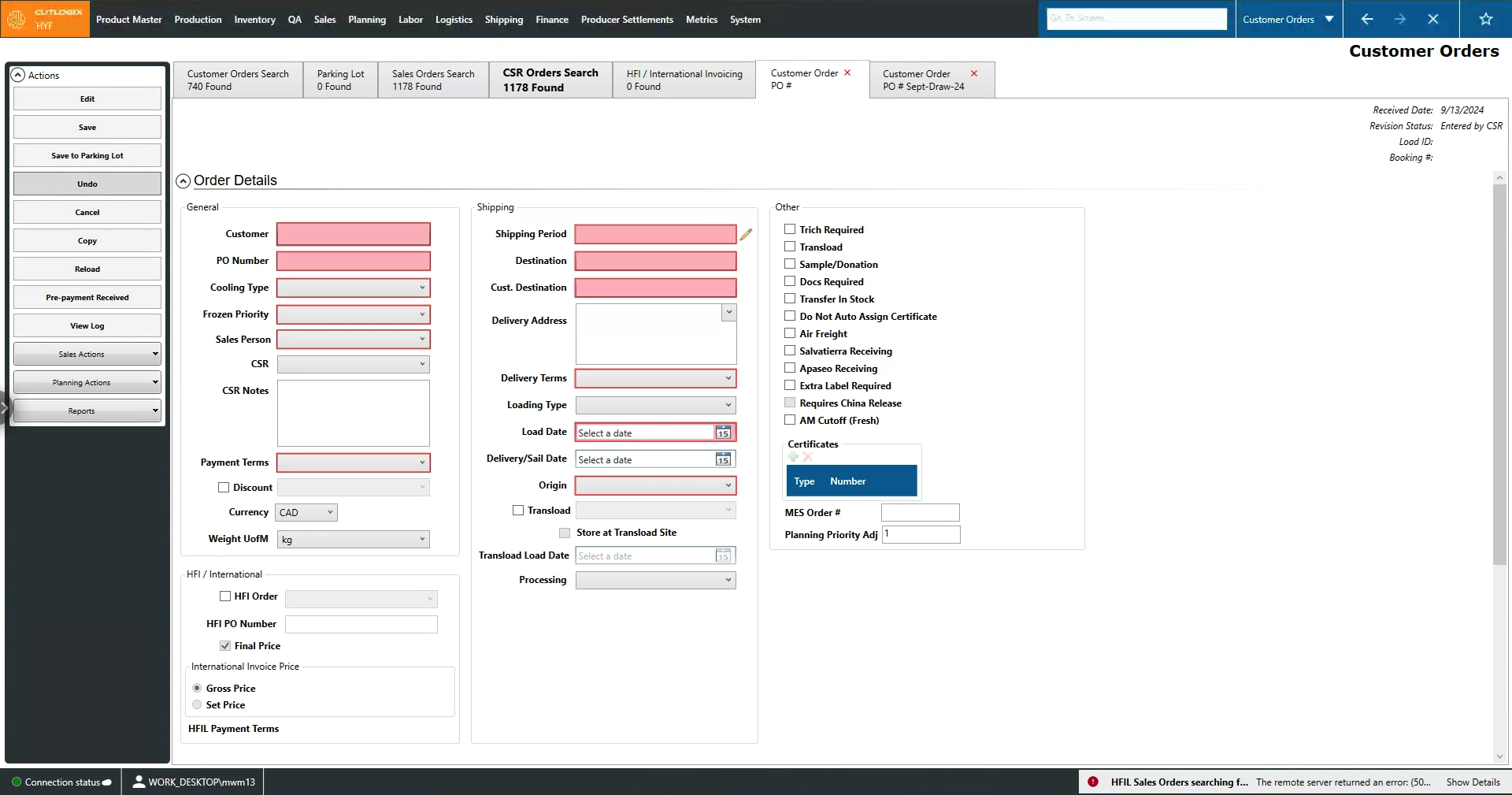
These are temporary tabs that are opened when clicking 'Add' on the 'Customer Orders Search' tab or a link in the purchase order (PO) number column of either the 'Customer Orders Search', 'Sales Orders Search' or the 'CSR Orders Search' tabs.
- Edit: Enables data entry when viewing a currently existing record. This is enabled when following a link in the PO number column of either the 'Customer Orders Search', 'Sales Orders Search' or the 'CSR Orders Search' tabs.
- Required Fields when adding/editing/copying: Customer, PO Number, Cooling Type, Frozen Priority, Sales Person, Payment Terms, Shipping Period, Destination, Cust. Destination, Delivery Terms, Load Date, Origin.
- Save: Saves all changes in the current add/edit/copy session.
- Save to Parking Lot: Allows users to save unfinished new customer orders to the parking lot page.
- Undo: Undoes all changes made in the current add/edit/copy session.
- Cancel: Cancels the order currently being added/edited/copied. Can only cancel an order with a scanning status of 'Not Started'.
- Copy: Creates a new customer order with the details of the selected customer order copied over.
- Reload: Reloads the current order to display the most up to date info from the data base. Reload will be disabled while users are adding/editing/copying records.
- Pre-payment Received: Marks the order as pre-paid.
- View Log: Allows the user to view the change log for the selected order. This includes what was changed, by whom and when.
- Sales Actions
- Confirm SI: Confirms the Shipping Information (SI). In other words, adds information from the currently selected order to the associated shipping file. A user can only confirm shipping information when the order contains a line item (a product listed in the order) has a status of 'Need shipping instructions from customer FOB' or 'Need shipping instructions from Customer CNF'.
- Mark as Revised: Sets the Revision status field to Revised.
- Update Pricing: Allows a user to modify the order pricing.
- Edit Attachments: Allows a user to edit the order's file attachments.
- Request Booking: Request a booking for transportation by ship.
- Sync To MES: Saves the order to a Manufacturing Execution System (MES) like Innova.
- Reset Order: Resets the order back to a new order state.
- Mark Not Shipped: Marks the currently selected order as not shipped.
- Remove Requires China Release: Sets the 'Requires China Release' field to No.
- Planning Actions
- Needs Revision: Sets the Revision status field to Needs Revision.
- Confirm: Sets the Revision status field to Confirmed.
- Confirm SI: Confirms the Shipping Information (SI). In other words, adds information from the currently selected order to the associated shipping file. A user can only confirm shipping information when the order contains a line item (a product listed in the order) has a status of 'Need shipping instructions from customer FOB' or 'Need shipping instructions from Customer CNF'.
- Sync to MES: Saves the order to a Manufacturing Execution System (MES) like Innova.
- Reset Order: Resets the order back to a new order state.
- Mark Not Shipped: Marks the currently selected order as not shipped.
- Request Booking: Request a booking for transportation by ship.
- Reports: This dropdown gives access to a number of reports on customer orders. These reports are customizable as per customer request.
Searching: Quick Search
This section provides users with quick filters options that are frequently used. Clicking one of these options will apply the relevant filters in the 'Advanced Search' section of the sidepod on the left and reload the page with those filters applied.
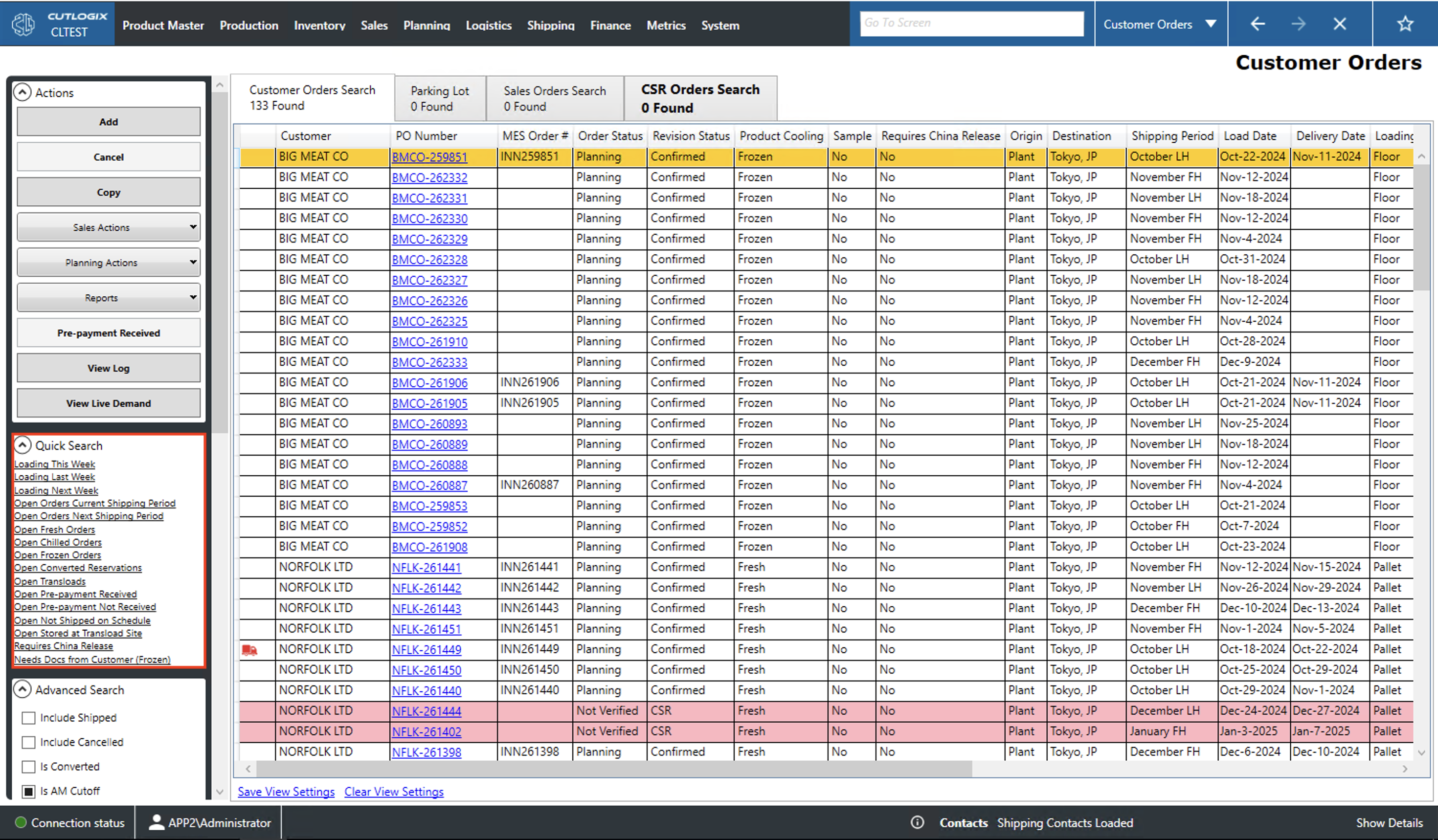
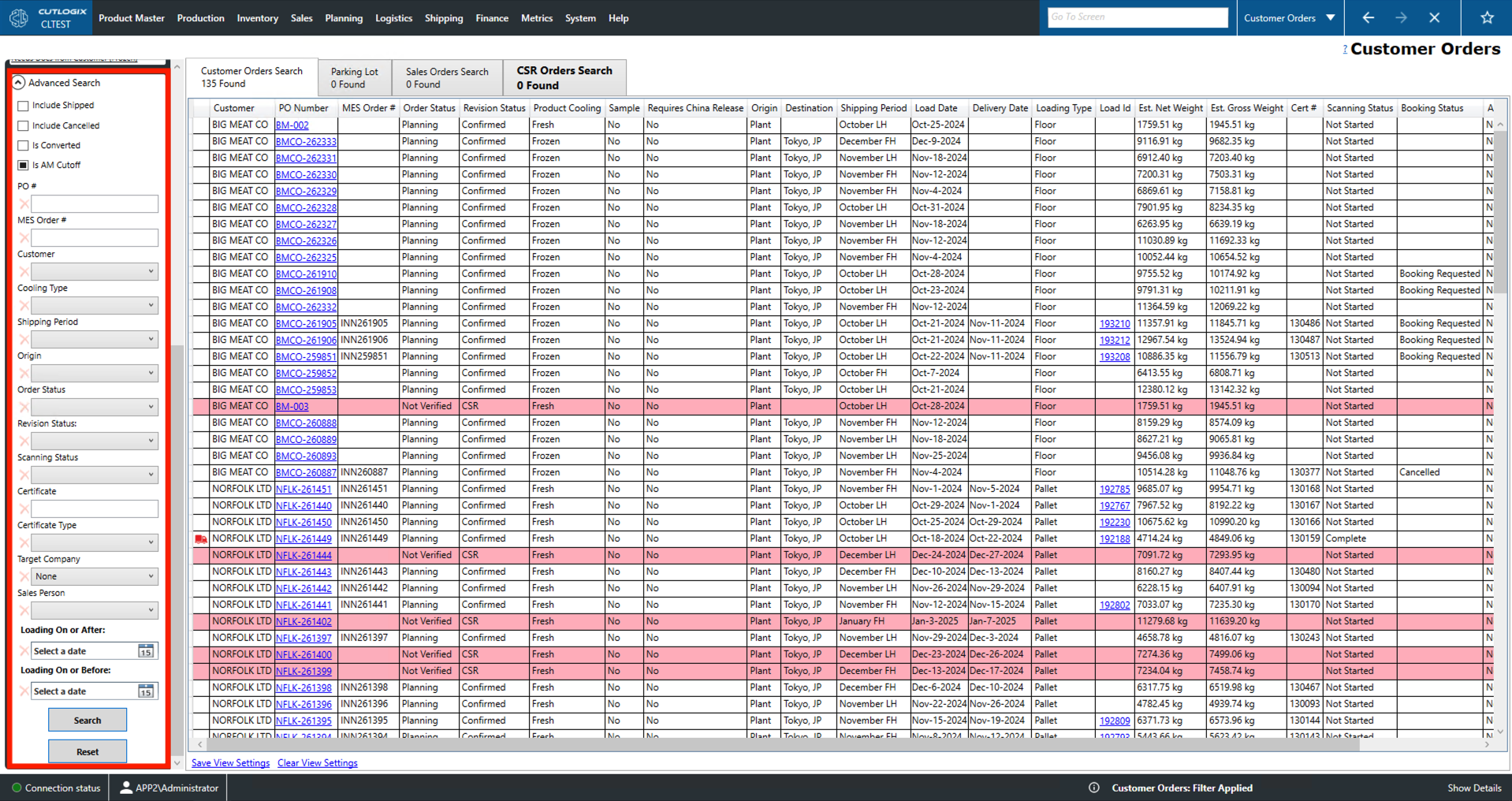
Searching: Advanced Search
- Include Shipped: Check to include orders that have 'Shipped' as their order status.
- Include Cancelled: Check to include orders that have 'Cancelled' as their order status.
- Is Converted: Filters the list to orders that were converted from customer reservations.
- Is AM Cutoff: Filters the list to orders that must be made in the morning on their production date.
- PO #: The purchase order number (PO#). A unique identifier for a customer order.
- MES Order #: This is the order number that appears in the manufacturing execution system (MES) like Innova.
- Customer: Filter to the customer selected from the drop down.
- Cooling Type: Filter to orders containing fresh, frozen or chilled. Orders reflect a single load or shipping container and thus must have a single cooling type.
- Shipping Period: Filter by the half of the month this order is slated to ship (FH for first half and LH for last half).
- Origin: Filters by where the order is shipped from.
- Order Status: Filters by the status of the order.
- Not Verified: A new order that has not passed review.
- Planning: The order is in the planning system to be produced.
- Shipped: The order has been planned, loaded and shipped to the customer.
- SNB: The order has been shipped but not billed.
- Cancelled: The order will no longer be produced for the customer.
- Revision Status: Filters by the revision status of the order.
- CSR: The order has been entered by the customer service representative (CSR) but not yet reviewed.
- Revision Requested: The order has been reviewed and requires changes.
- Revised: The CSR has revised the order according to feedback and re-submitted it for review.
- Confirmed: The order has passed review and can now be planned by the planning system.
- Scanning Status: Filters by the scanning status of the order.
- Not Started: Scanning the order into the MES has not started.
- In Progress: Scanning the order into the MES is underway.
- Complete: Scanning the order into the MES is complete.
- Complete - Short: Scanning the order into the MES is complete but the order has been shorted (not all ordered product is available to ship).
- Certificate: Filter by the shipping certificate identifier.
- Certificate Type: Filter by the certificate type (CFIA 1454, CFIA 5555, etc.).
- Target Company: The company of the consignee.
- Sales Person: Filter by the sales person associated with the order.
- Loading On or After: Filter to records with load dates on or after the selected date.
- Loading On or Before: Filter to records with load dates on or before the selected date.
- Search: Actioning this will reload the list with the appropriate filters applied.
- Reset: Actioning this will reset all of the filters and will reload the list to an unfiltered state.