Daily Cut Report Tabs
How to Navigate: Click on Production > Cut Floor > Daily Cut Floor Report > Tabs
Shift Tabs
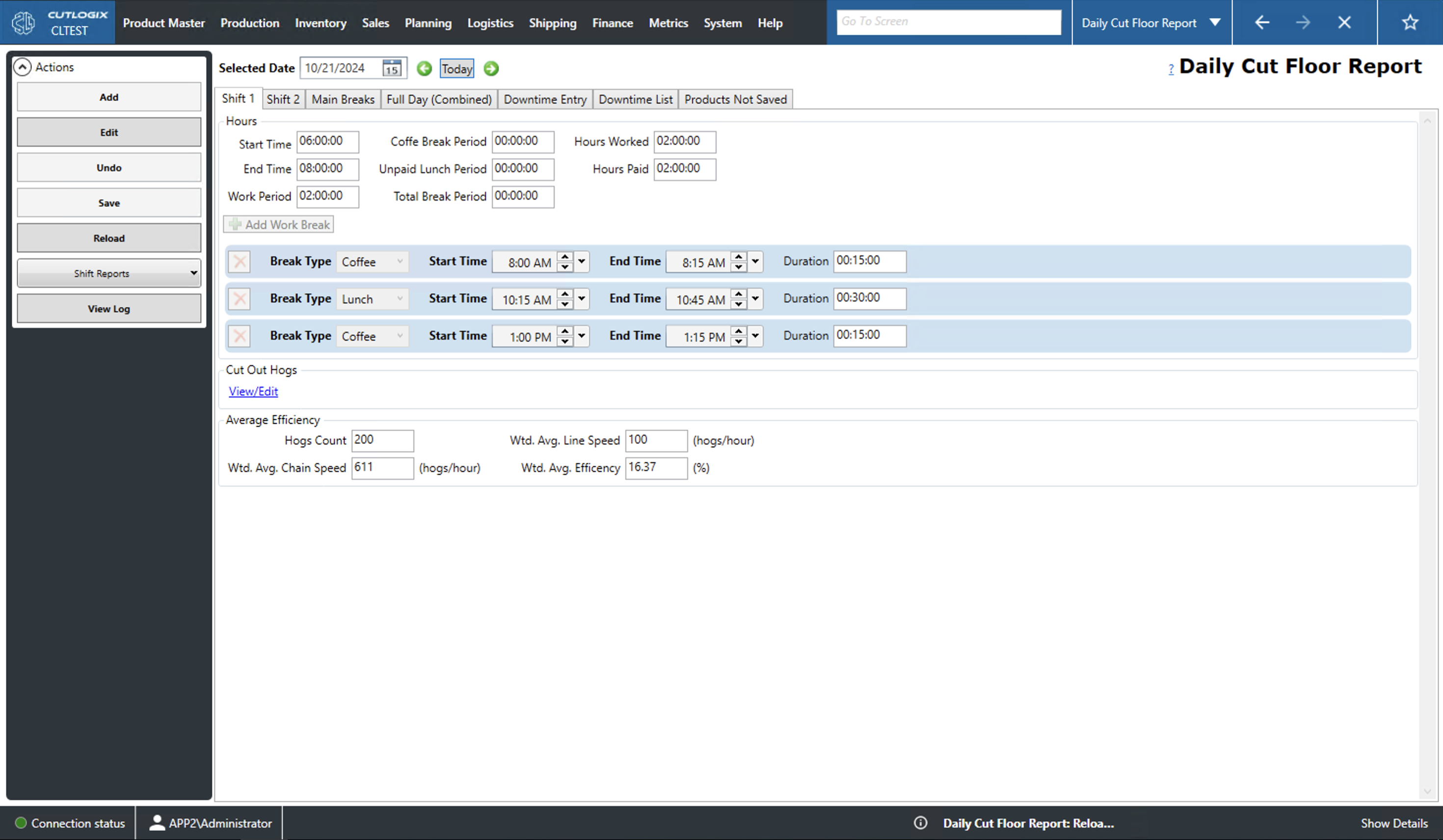
The Shift 1 and Shift 2 tabs display cut information specific for the selected shift on the selected day.
- Hours
- Start/End Time: The time of day that the shift started.
- Work Period: The duration of the shift calculated from the start and end times.
- Coffee / Lunch Break Period: These fields specify the total amount of time allocated for coffee and lunch break on the shift.
- Hours Worked: The number of hours worked on the selected shift. This amount is calculated based on the total work period minus the coffee and lunch break duration.
- Hours Paid: The number of hours paid for staff. This is calculated based on the total work period minus lunch break.
- Breaks: Users can view the breaks for the current shift on the selected day. Each break is rendered as a blue bar. Users can hit add/edit to enable to the 'Add Work Break' and 'X' buttons in this section. The 'Add Work Break' button can be used to add a new work break to the current day and shift while the red 'X' will the delete the associated break.
- Break Type: The type of break (i.e. coffee or lunch).
- Start/End Time: The start and end times of the break.
- Duration: The length of the break in. Calculated from the start/end times input.
Main Breaks Tab
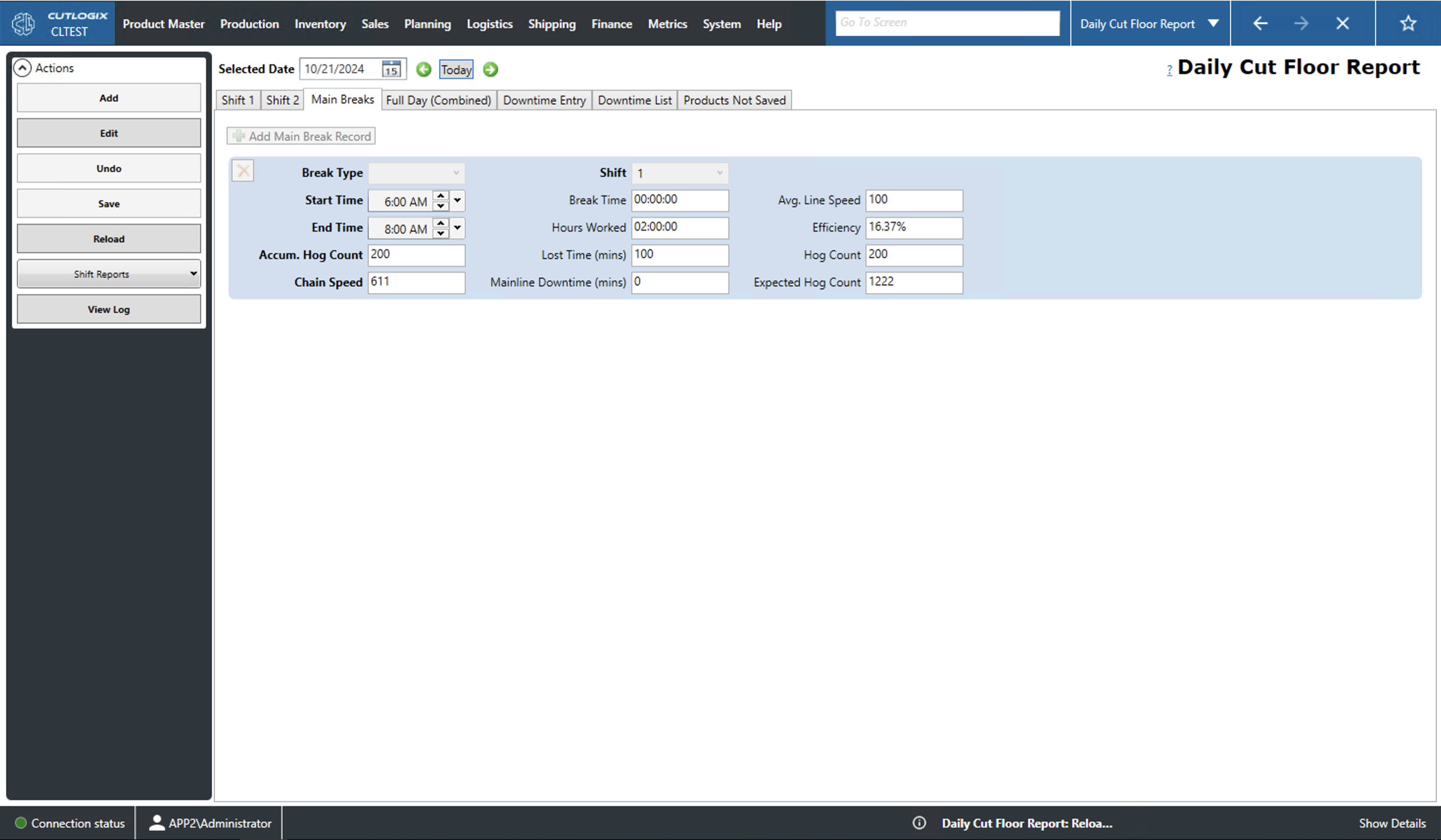
- Time Blocks: Each time block is a blue rectangle. The number of rectangles shows how many time blocks the shift has been broken up into. Clicking 'Add' or 'Edit' will enable to 'Add Main Break Record' which will allow the user to add a new time block to this shift/day. 'Add' or 'Edit' will also enable to red 'X' in the top left corner of each time block. Clicking this will delete the associated block.
- Break Type: Indicates the type of break that overlaps with this time block (i.e. coffee or lunch).
- Start/End Time: The start/end time of the time block.
- Accum. Hog Count: The cumulative number of hogs processed over all time blocks up to this point.
- Chain Speed: The number of hogs per hour that can be processed.
- Shift: The shift to which this time block applies
- Break Time: The amount of break time that overlaps with this block.
- Hours Worked: The total number of hours spent working on this block (duration minus breaks).
- Lost Time (mins): The amount of downtime during this block.
- Mainline Downtime (mins): The amount of time the mainline was down during this block.
- Average Line Speed: The average number of hogs processed during this time block.
- Efficiency: The calculated efficiency of the selected block. This is calculated as the average line speed (ALS) divided by the chain speed (CS).
- Hog Count: The number of hogs processed in this time block.
- Expected Hog Count: The expected number of hogs to be processed in this time block.
CS = 18, ALS = 14, 14/18=0.78 or 78% efficiency
Full Day Combined Tab
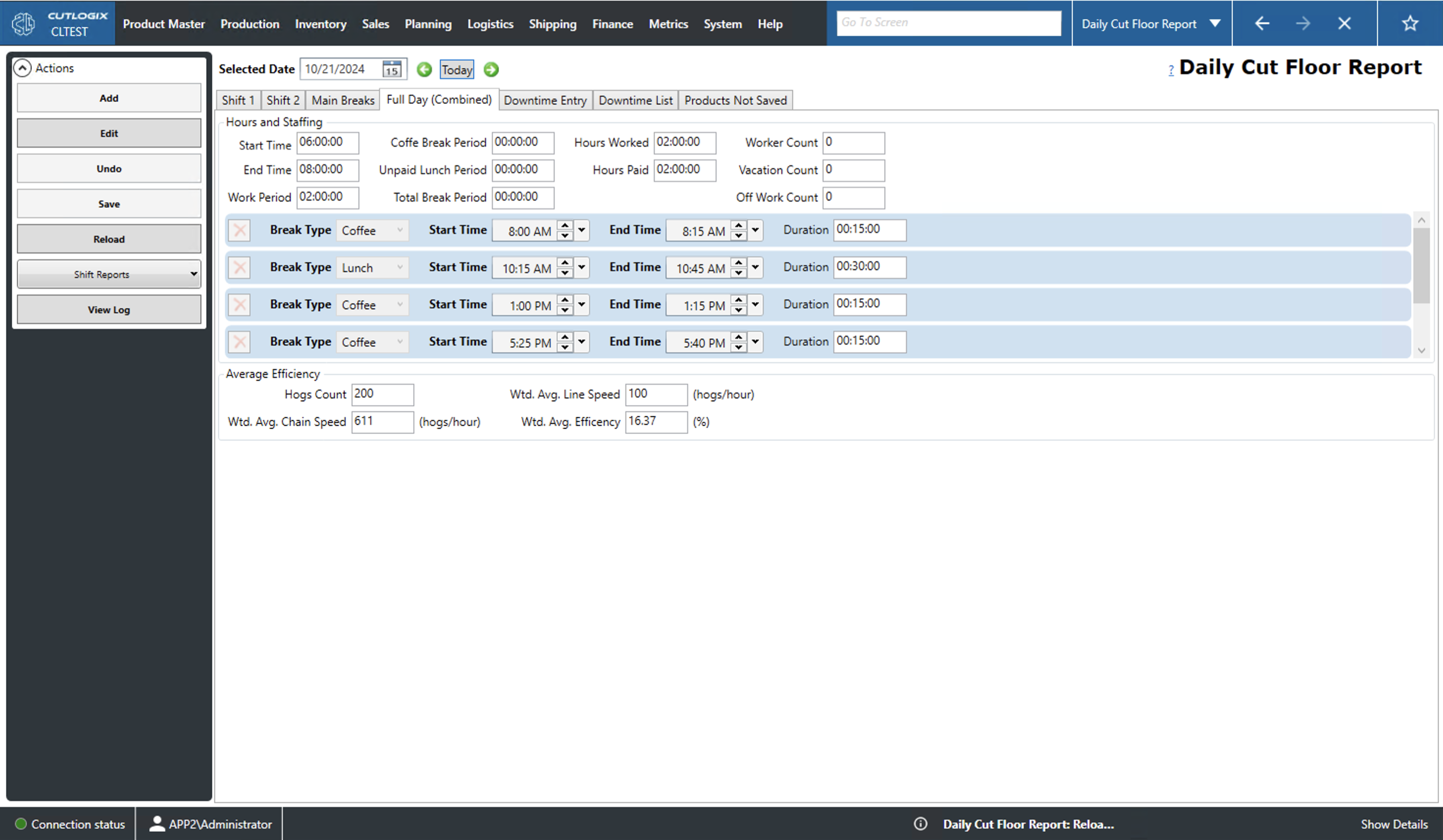
This tab displays data for all shifts combined.
- Hours and Staffing:
- Start/End Time: The time of day that the day started/ended.
- Work Period: The calculated work period duration of the day (this is calculated based on the start and end times on the first and last shifts).
- Coffee / Unpaid Lunch Break Period: The duration of all coffee and lunch breaks over all shifts throughout the day.
- Total Break Period: Total duration of all breaks taken during this day.
- Hours Worked: The number of hours worked over all shifts throughout the day.
- Hours Paid: The number of hours paid to staff throughout the day. This is calculated based on the total work period minus lunch break.
- Breaks: Users can view the breaks for the current shift on the selected day. Each break is rendered as a blue bar. Users can hit add/edit to enable to the 'Add Work Break' and 'X' buttons in this section. The 'Add Work Break' button can be used to add a new work break to the current day while the red 'X' will the delete the associated break.
- Break Type: The type of break (i.e. coffee or lunch).
- Start/End Time: The start and end times of the break.
- Duration: The length of the break in. Calculated from the start/end times input.
- Average Efficiency: CS - Chain Speed, LS - Line Speed, E - Efficiency MBH - Main Break Hours, WPH - Work Period Hours, WH - Worked Hours in a time block, TWH - Total Worked Hours for the day.
- Hogs Count: The total number of hogs processed over all shifts throughout the day.
- Wtd. Avg. Chain Speed: This calculates the weighted average of the chain speed for the day weighted by the main break hours (i.e. Wtd. Avg. CS = (Sum of CS * MBH for all time blocks)/WPH).
- Wtd. Avg. Line Speed: This calculates the weighted average of the line speed for the day weighted by the worked hours for the time block (i.e. Wtd. Avg. LS = (Sum of LS * WH)/TWH).
- Wtd. Avg. Efficiency: This calculates the weighted average of the efficiency for the day weighted by the worked hours for the time block (i.e. Wtd. Avg. E = (Sum of E * WH)/TWH).
Downtime Entry Tab
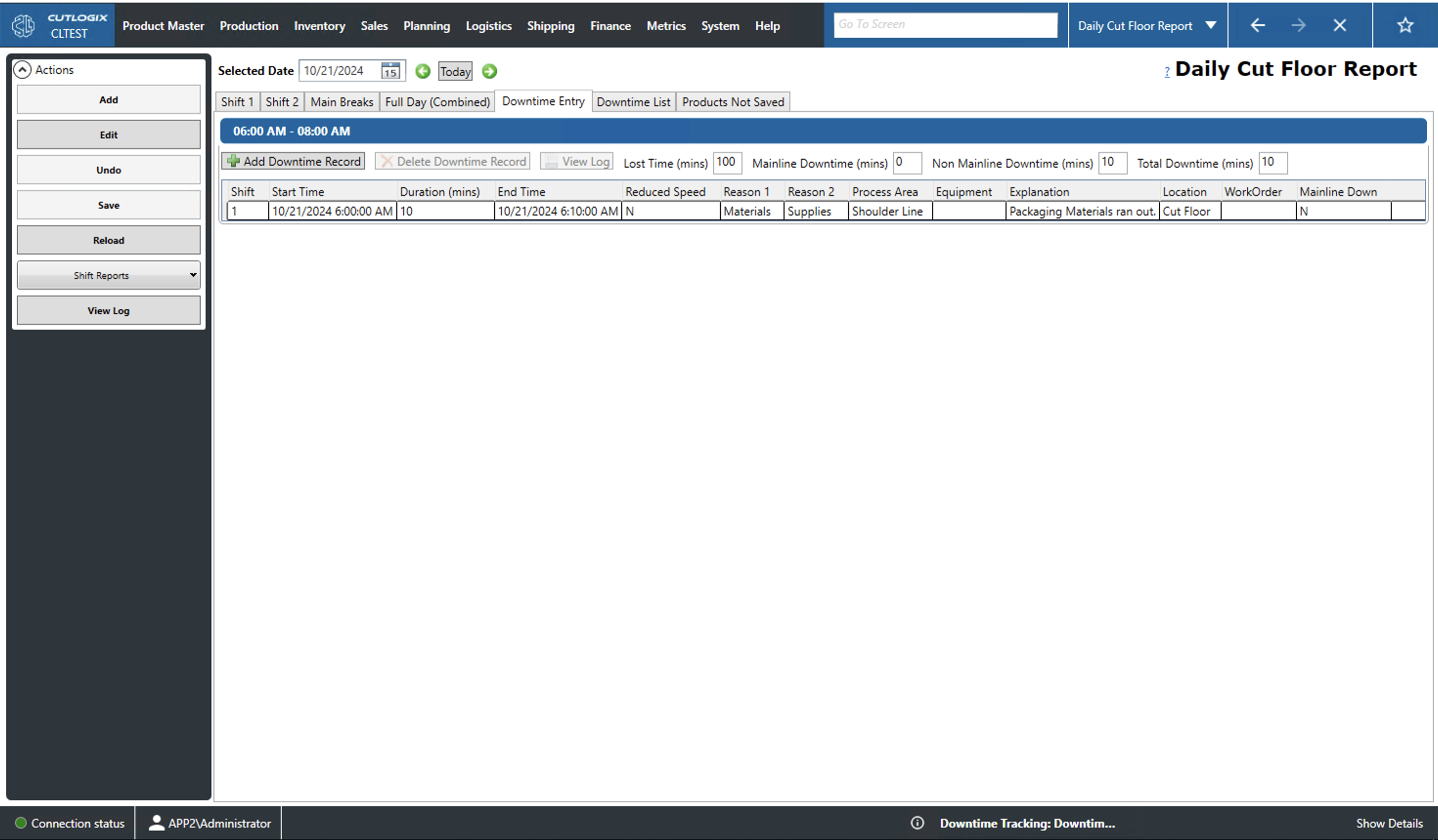
This tab shows information about all downtime that took place during the time blocks defined in the Main Breaks tab.
- Add/Delete Downtime Record: Add/Delete a new downtime record from this time block.
- View Log: View the change log for the currently selected downtime record. This includes what was changed, by whom and when.
- Lost Time (mins): The amount of production time lost, in mins, in the event of a work slow down rather than a complete work stoppage.
- Mainline Down (mins): The duration, in mins, that the main production line was down.
- Non Mainline Down (mins): The down time, in mins, of non-mainline production.
- Total Downtime (mins): The total duration, in mins, of the downtime in this time block.
- Shift: The shift on which the down time occurred.
- Start/End Time: The start/end time of the downtime.
- Duration: The duration, in mins, that the downtime lasted.
- Reduced Speed: Whether or not the downtime resulted in reduced production speed.
- Reason 1, 2: The primary and secondary reasons for the downtime.
- Process Area: The process area of the cut floor where the downtime occurred.
- Equipment: Which equipment on the cut floor experienced downtime.
- Explanation: An explanation/comment to explain the downtime.
- Location: The location that the downtime occurred. This will automatically be set to Cut Floor.
- Mainline Down: This indicates if the mainline was down during this downtime.
Downtime List Tab
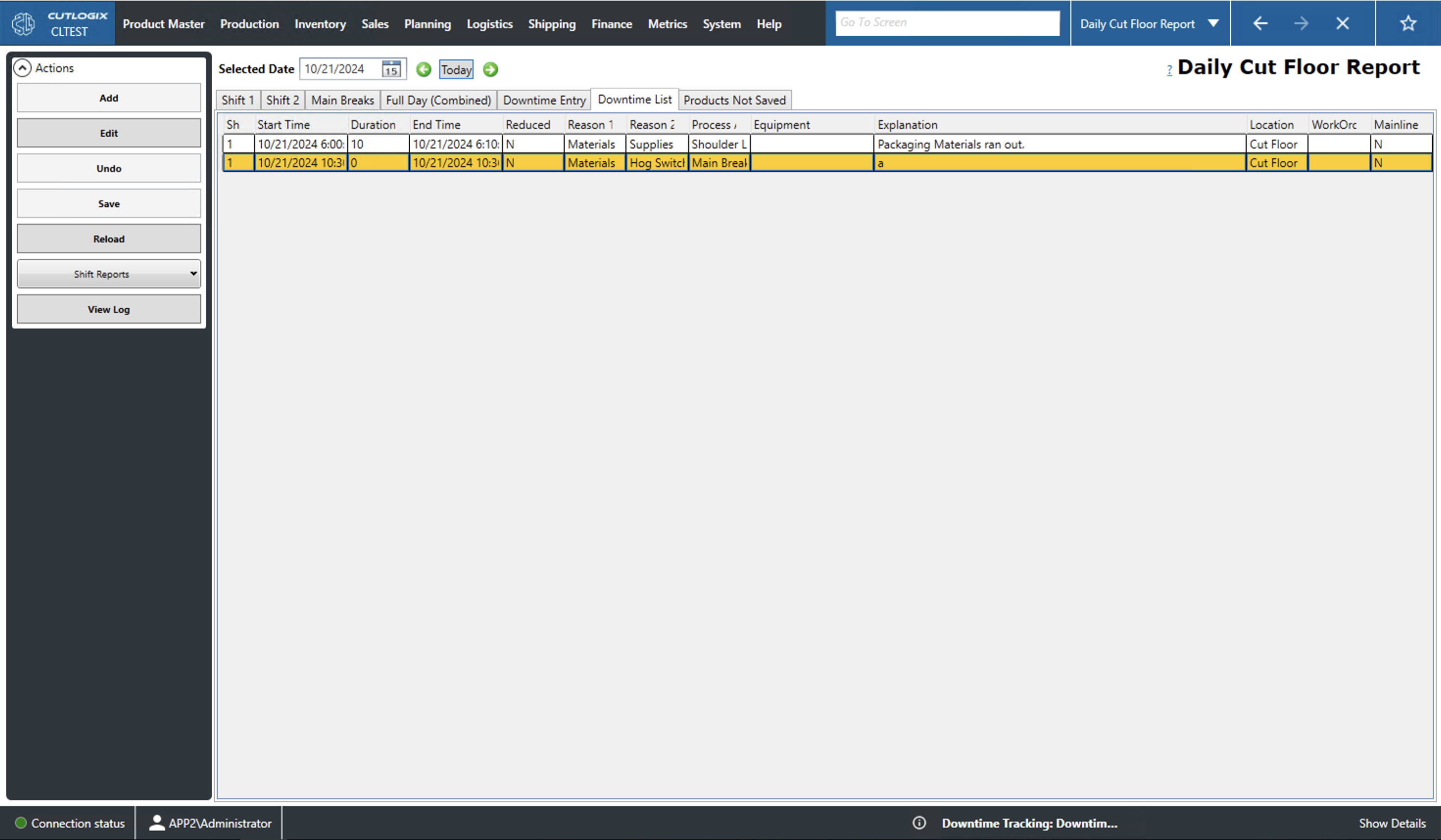
- Shift: The shift that the downtime occurred on.
- Start/End Time: The start/end time of the downtime.
- Duration: The duration, in mins, that the downtime lasted.
- Reduced Speed: This indicates if production speed was reduced during this downtime.
- Reason 1, 2: The primary and secondary reasons for the downtime.
- Process Area: The process area on the cut floor where the downtime occurred.
- Equipment: The equipment that was associated with the downtime.
- Explanation: An explanation of the downtime.
- Location: The location of the plant in which the downtime occurred.
- Mainline Down: This indicates if the mainline was down during this downtime.
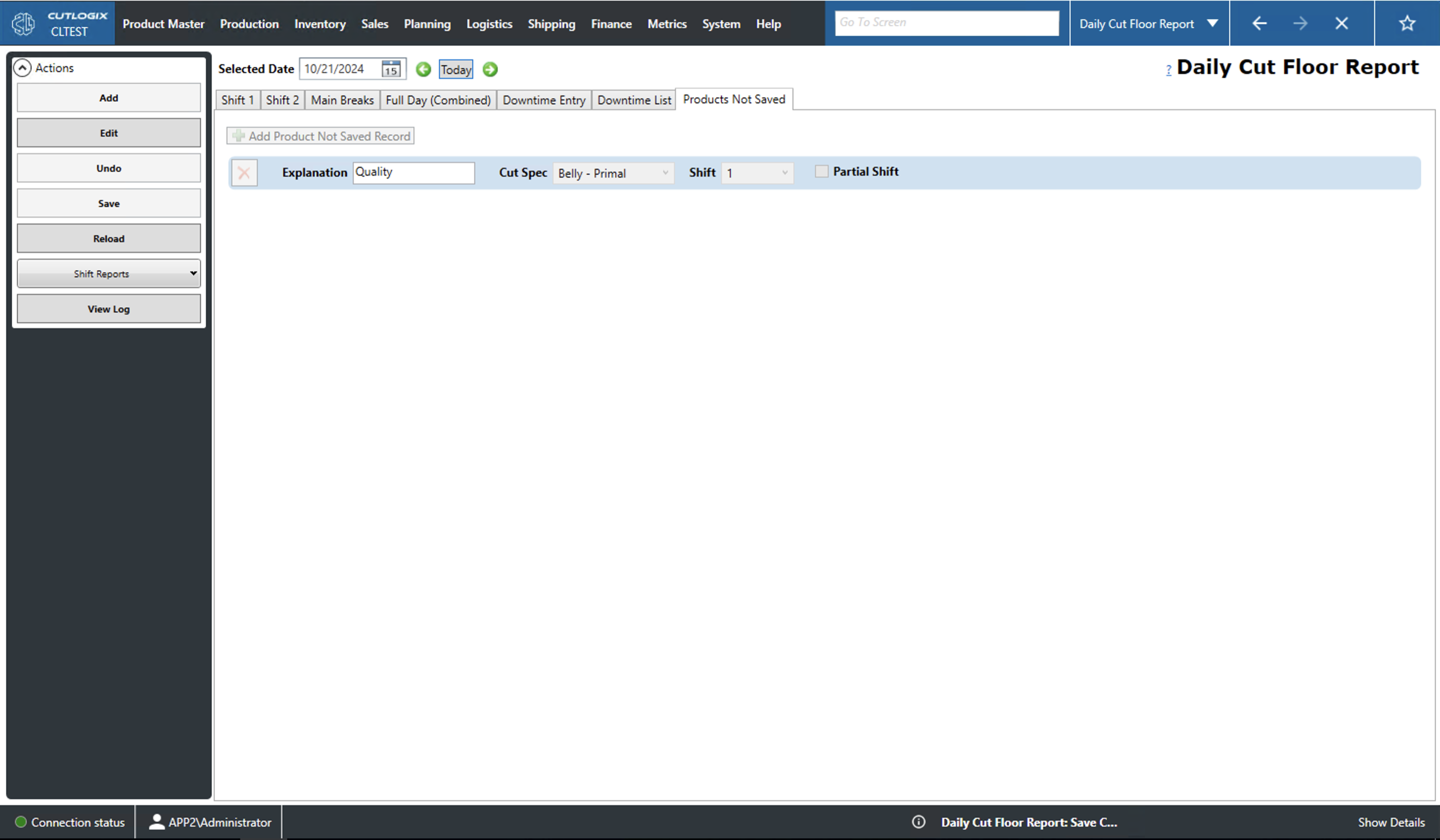
Products Not Saved Tab
- Explanation: The explanation/comment for why the product was not saved.
- Cut Spec: The cut spec of the product that was not saved. This must be selected from the dropdown list of cut specs.
- Shift: The shift that the product was not saved on.
- Partial Shift: This checkbox indicates if the product was not saved for only part of the selected shift.