Cut Tree Tasks
How to Add to the Cut Tree Explorer
Demo
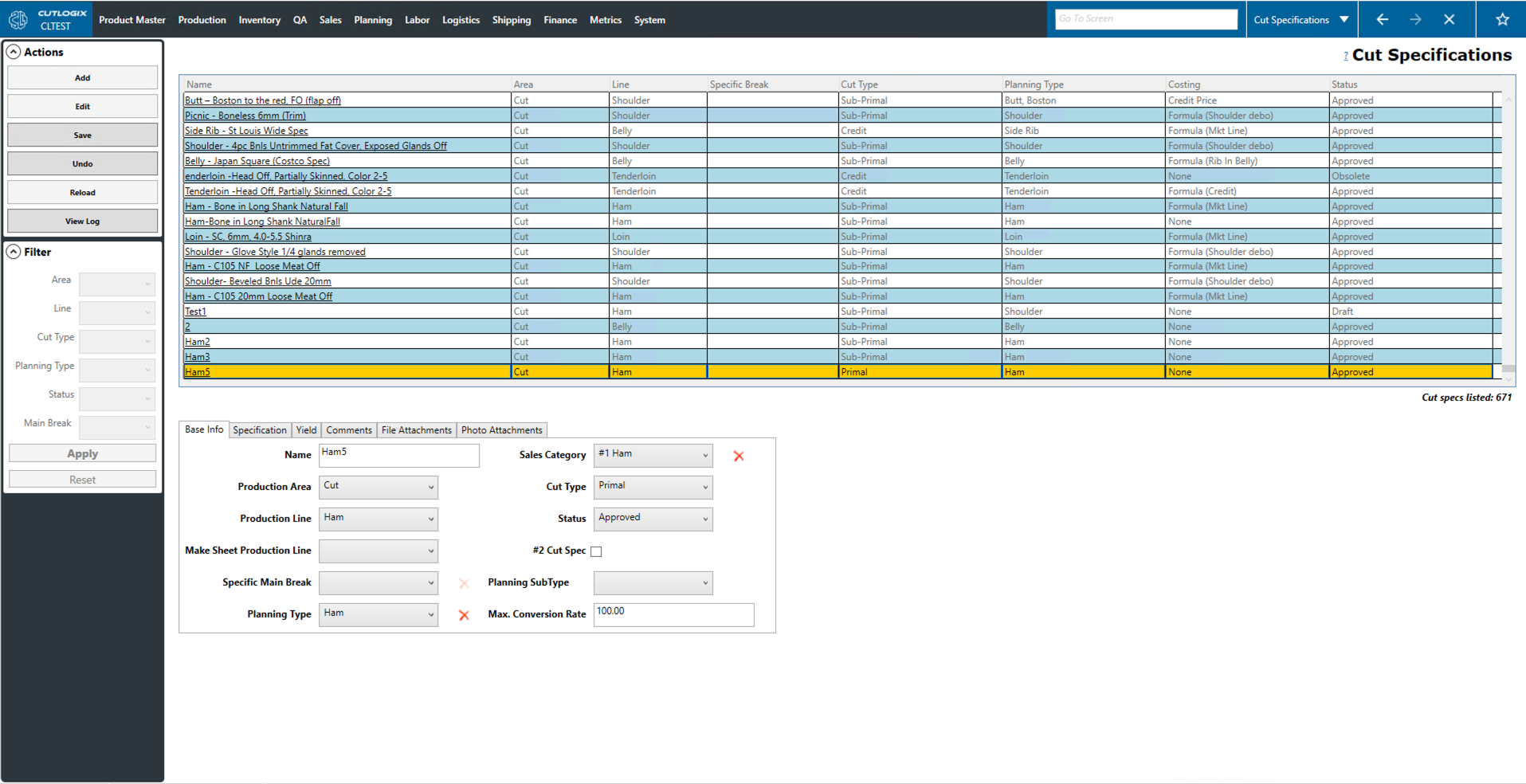
Step 1: Create a new cut spec from the "Cut Specifications" page. (See How to Add a Cut Specification)
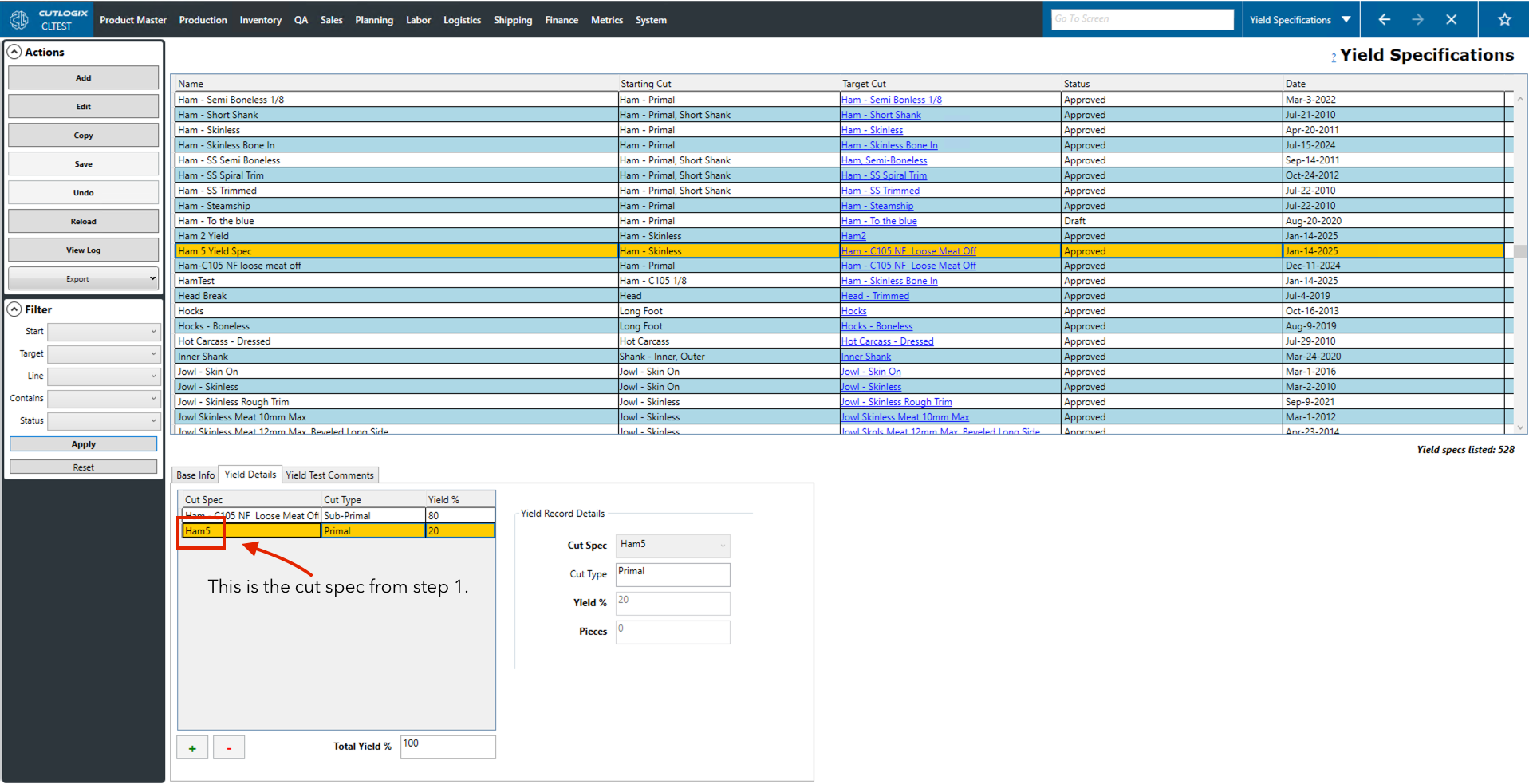
Step 2: Create a yield spec that yields the cut spec that you just created above. (See How to Add/Edit/Copy a Yield Specification )
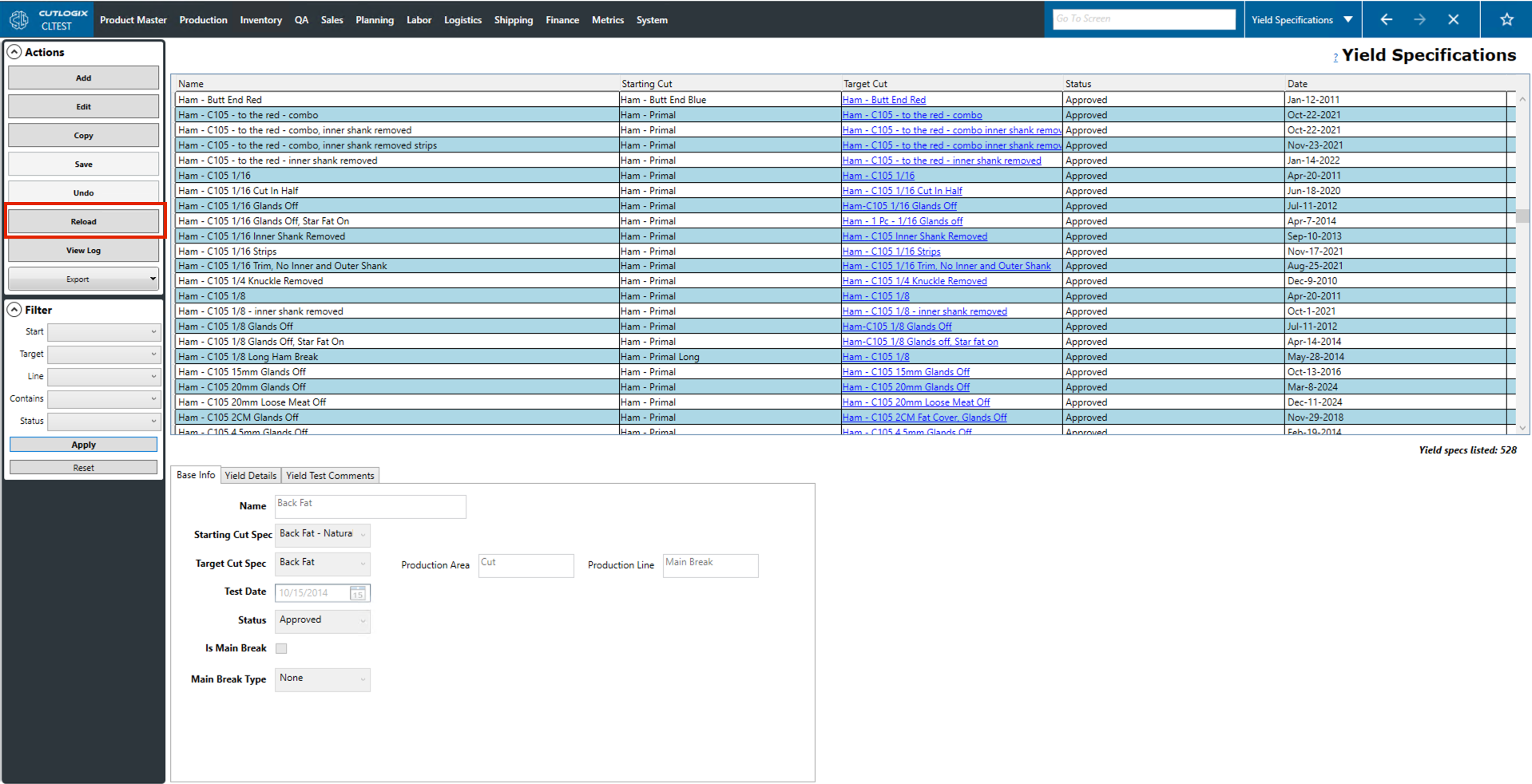
Step 3: Click the "Reload" button in the Actions panel to reload the Yield Specs screen.
Step 4: Navigate to the "Cut Tree" screen (Product Master → Cut Tree Explorer)
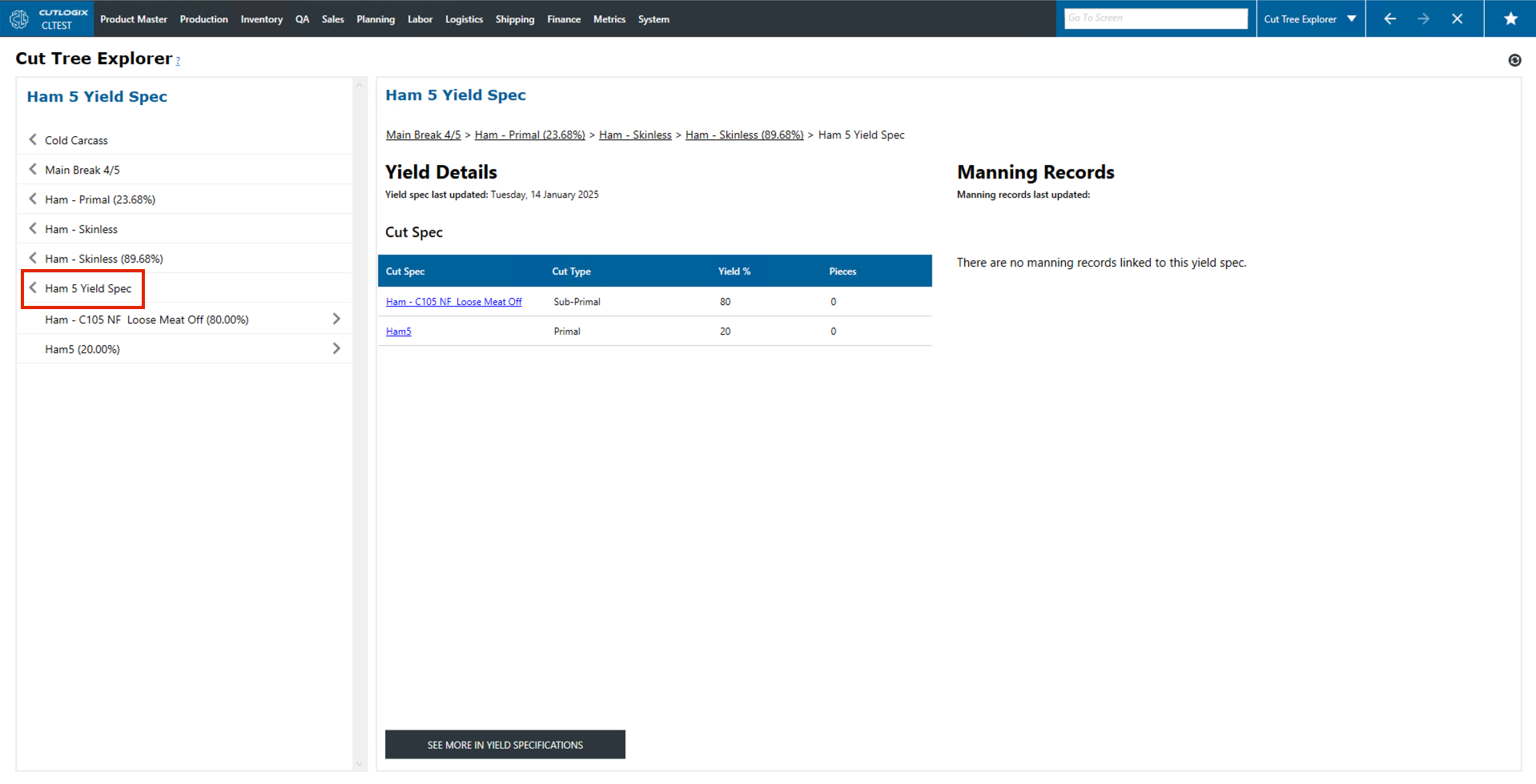
How to View Associated Products/Cut Specs from the Cut Tree
Demo
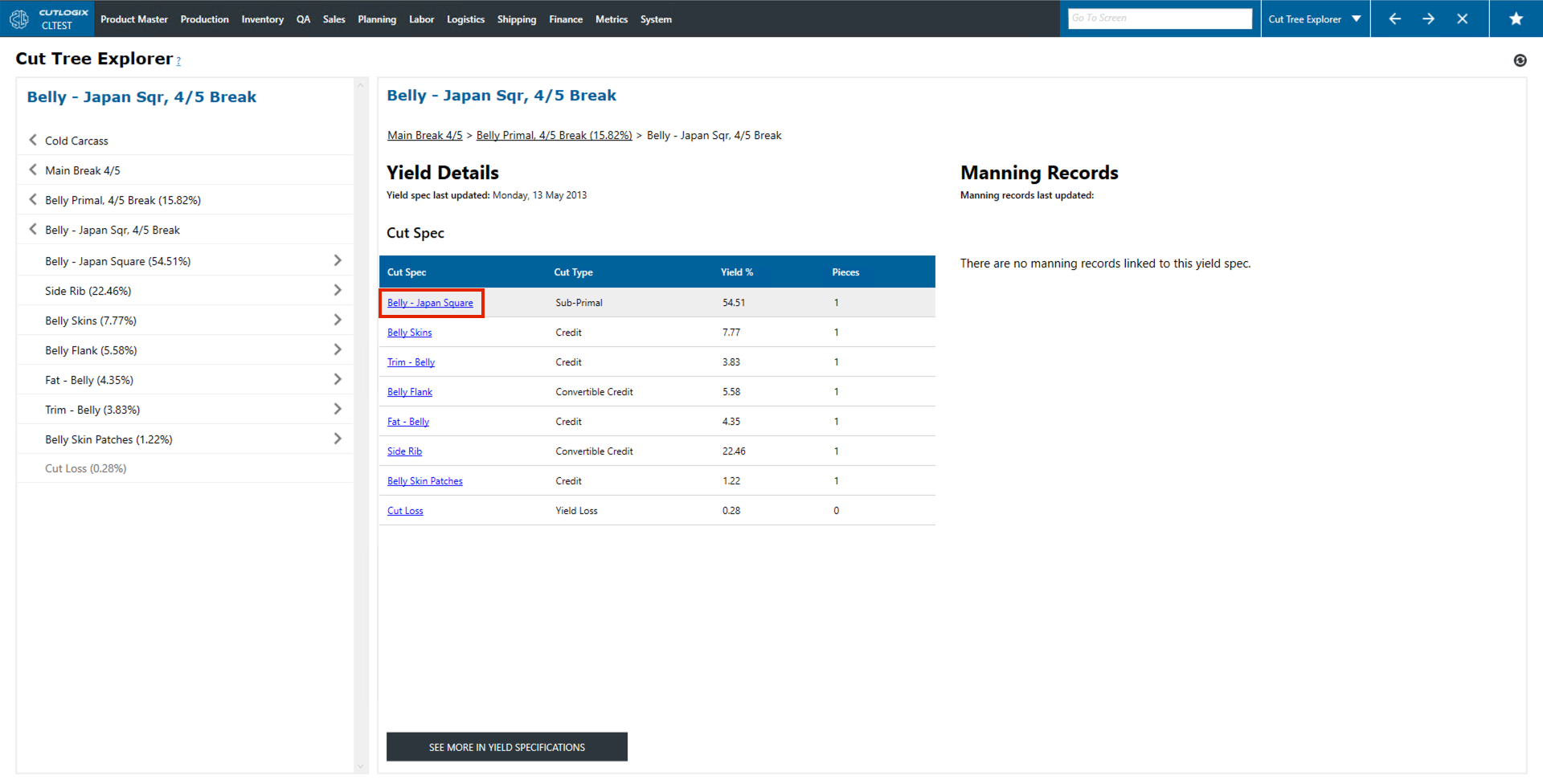
Step 1: Click on the cut spec name in the Cut Tree Explorer.
Step 2: You will be redirected to the Cut Specs screen with the previously selected cut spec highlighted. Click on the cut spec name.
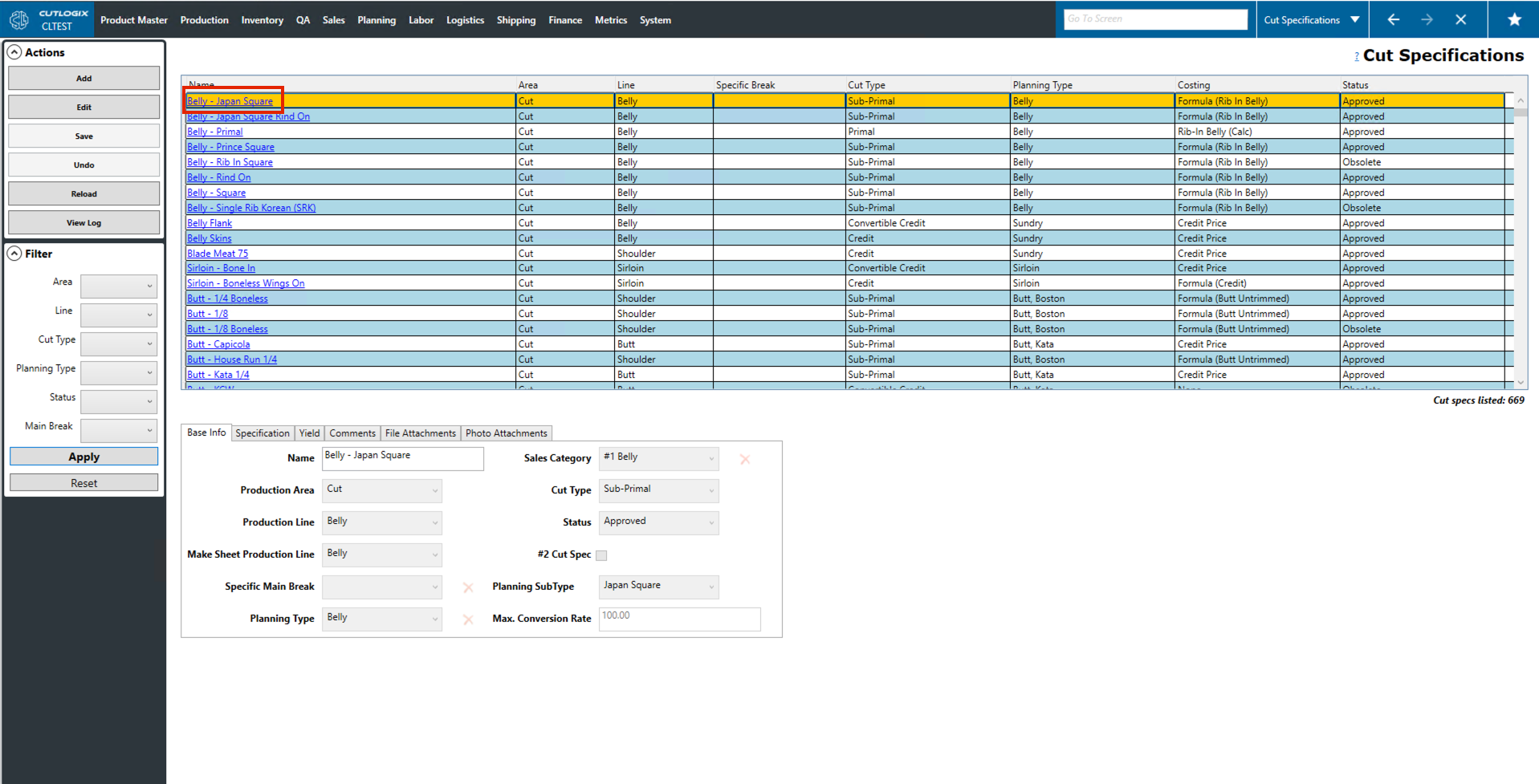
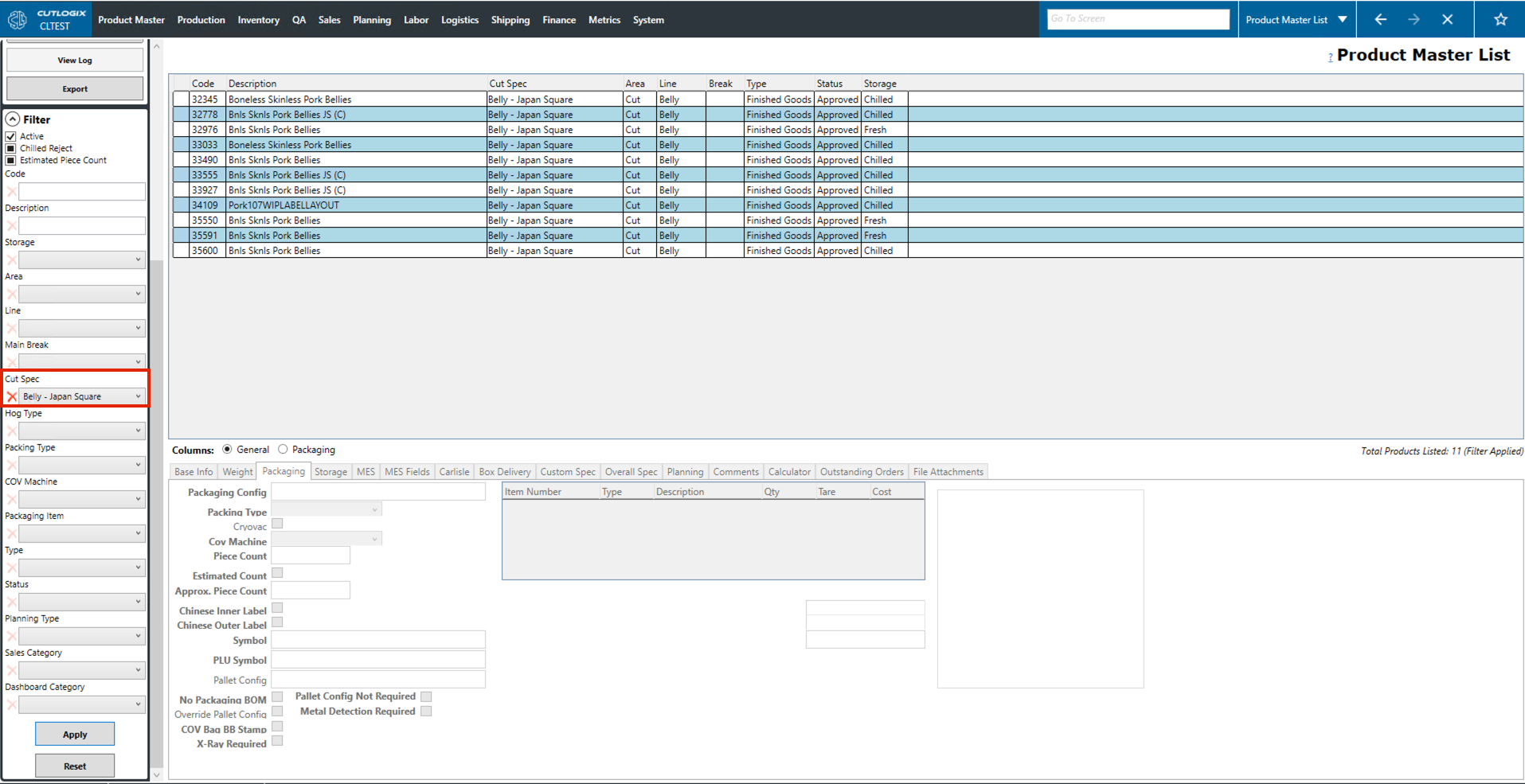
Step 3: You will then be taken to the product master list page. The page will be filtered by the cut spec that you selected previously, only showing products that use that cut spec.