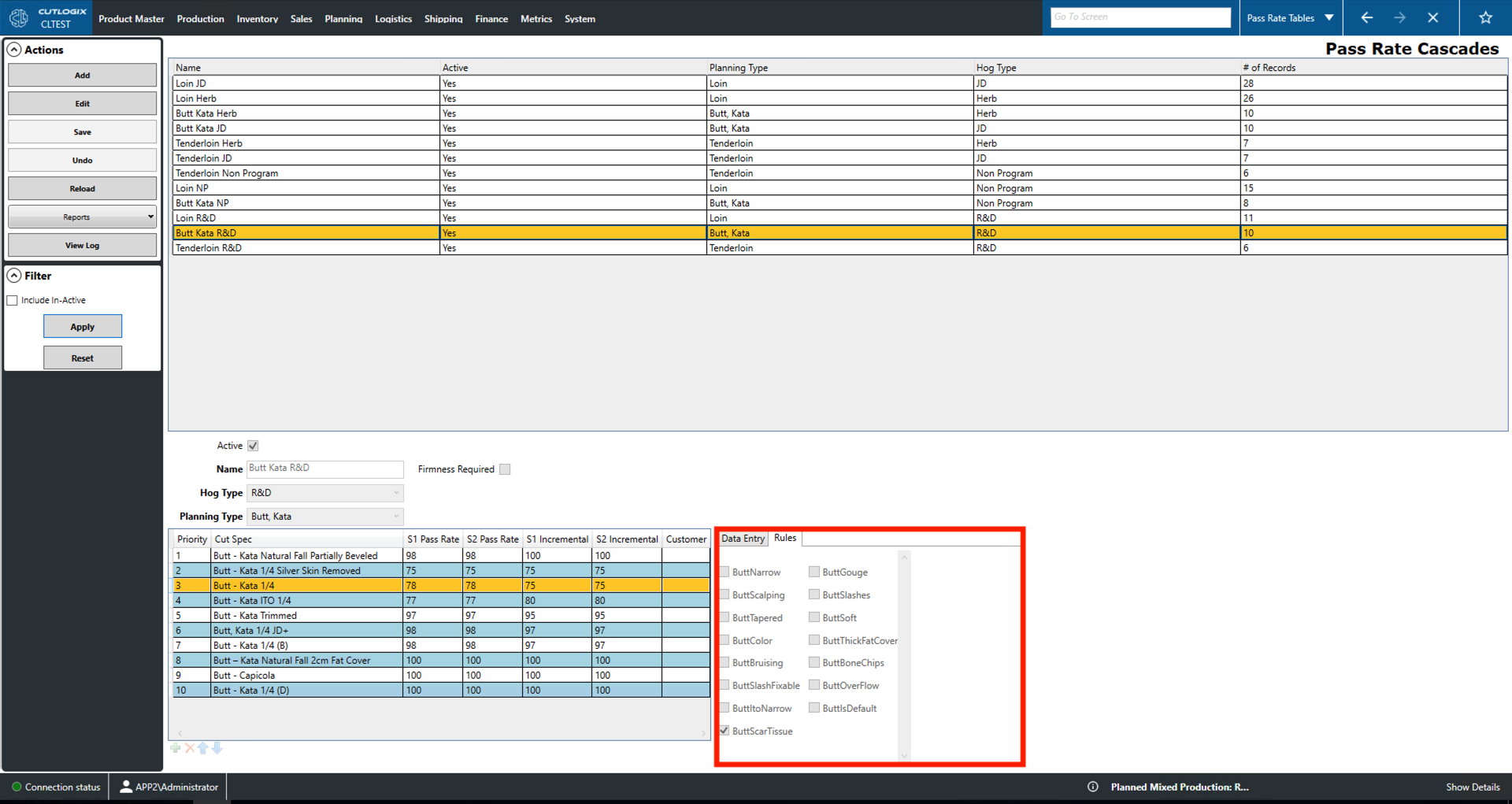
Pass Rate Cascades Tabs
How to Navigate: Click on Planning > Planning Rules Config > Pass Rate Cascades > Tabs
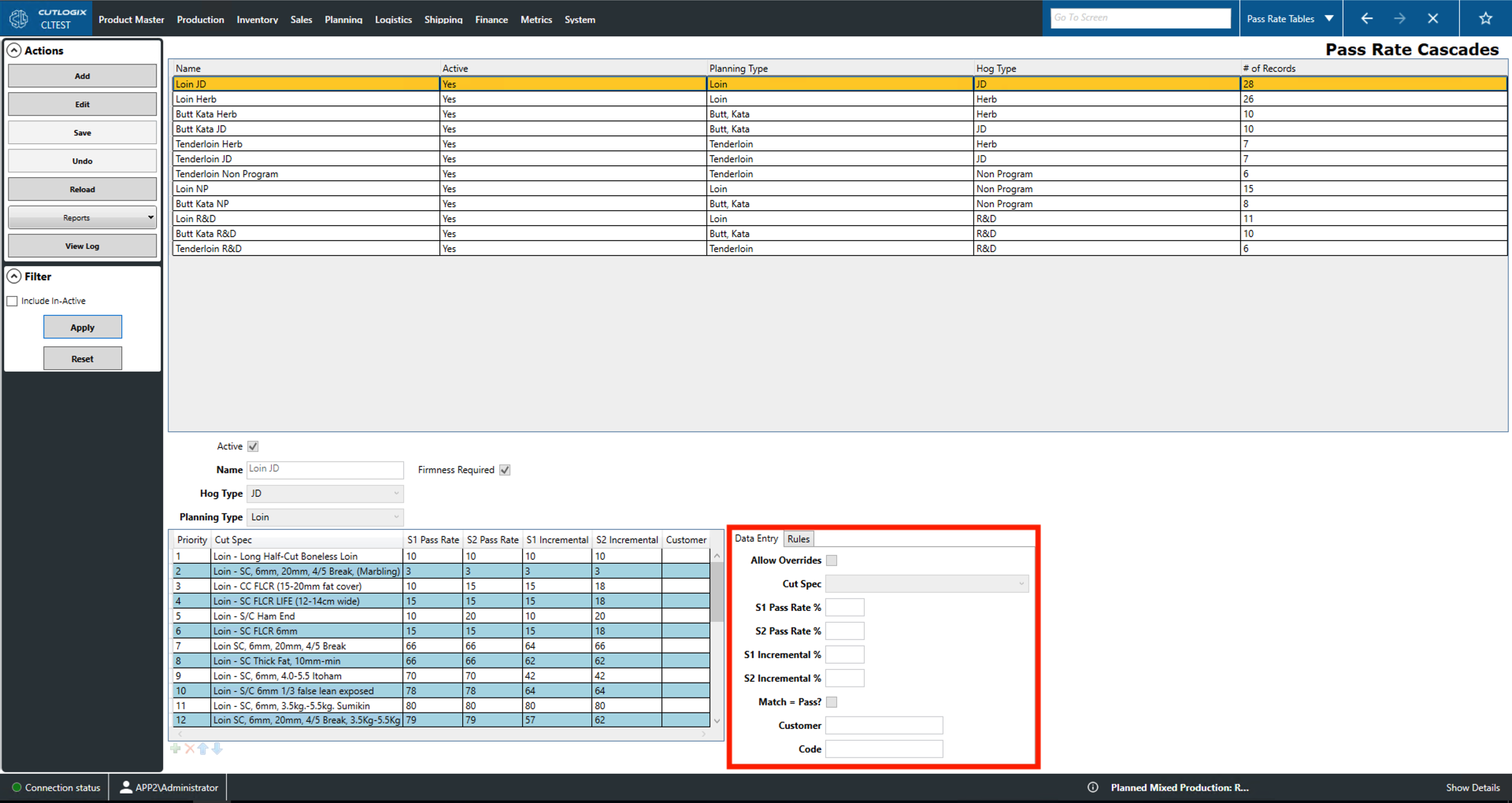
Data Entry Tab
- Active: Indicates whether the cascade record is active or not.
- Name: The name of the currently selected cascade record (highlighted in yellow) in the top table.
- Firmness Required: Indicates whether or not product firmness is required for a product to pass.
- Hog Type: The hog type (genetics, diet, etc.) of the currently selected cascade record.
- Planning Type: The planning type of the currently selected cascade record.
- Priority: This indicates the priority of the product in the pass rate table. This can be set when in editing mode which is entered by actioning 'Edit' in the left sidepod. indicates when to try converting a product into it if the cut of meat fails to pass for the higher priority product.
- Table Action Icons
- Up/Down Arrows: A product can be moved to a higher or lower priority using the green arrows underneath the table.
- Add New Row: Rows can be added using the plus icon and the data entry tab to enter new data.
- Delete Row: Rows can be deleted by selecting them and clicking the red 'X'.
- Allow Overrides: Checking this will allow manual overrides to the currently selected pass rate record.
- Cut Spec: Use this to select a cut specification to add to the currently selected pass rate record.
- S1, S2 Pass Rate %: Indicates the cut specification's pass rate in shift 1,2 as a percentage.
- Customer: The customer for which this product is made.
- Code: Unique identifier for the product
Rules Tab
This tab contains a series of rules that can be checked/unchecked to indicate that if the product breaks that rule (i.e. has that kind of damage) then it will not pass quality inspection.