Customer Contacts Overview
How to Navigate: Click on Sales > Contacts
Summary
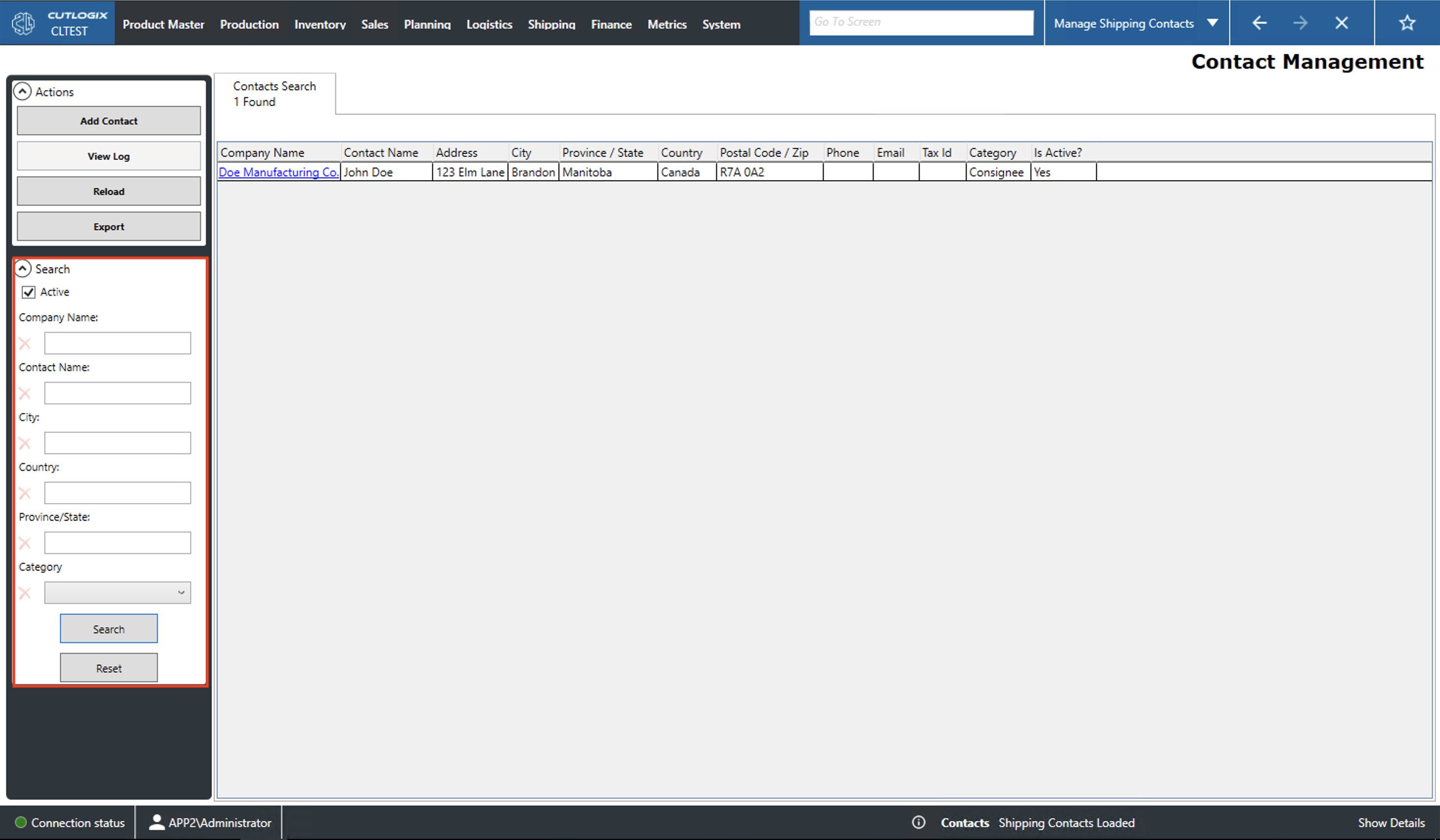
This page contains a list of customers and, if available, their associated contact personnel and information. From this screen users can visually scan the list and filter it using the 'Search' sidepod on the left. Users can also add new contacts records using 'Add Contact' in the actions menu. Lastly, users can edit existing entries by clicking the appropriate linked name in the 'Company Name' column.
- Company Name: The name of the customer.
- Contact Name: The name of the customer's contact person.
- Address: The address of the customer.
- City: The city out of which the customer operates.
- Province/State: The province or state in which the customer operates.
- Country: The country in which the customer operates.
- Postal Code/Zip: The postal code or zip code of the customer's physical location.
- Phone: The phone number of the customer's physical location.
- Email: The email contact for the customer.
- Tax ID: The tax ID of the customer.
- Category: The customer's type (i.e. consignee, delivery address, shipper, inspection facility, etc.).
- Is Active?: Indicates if the customer is actively being sold to.
Actions
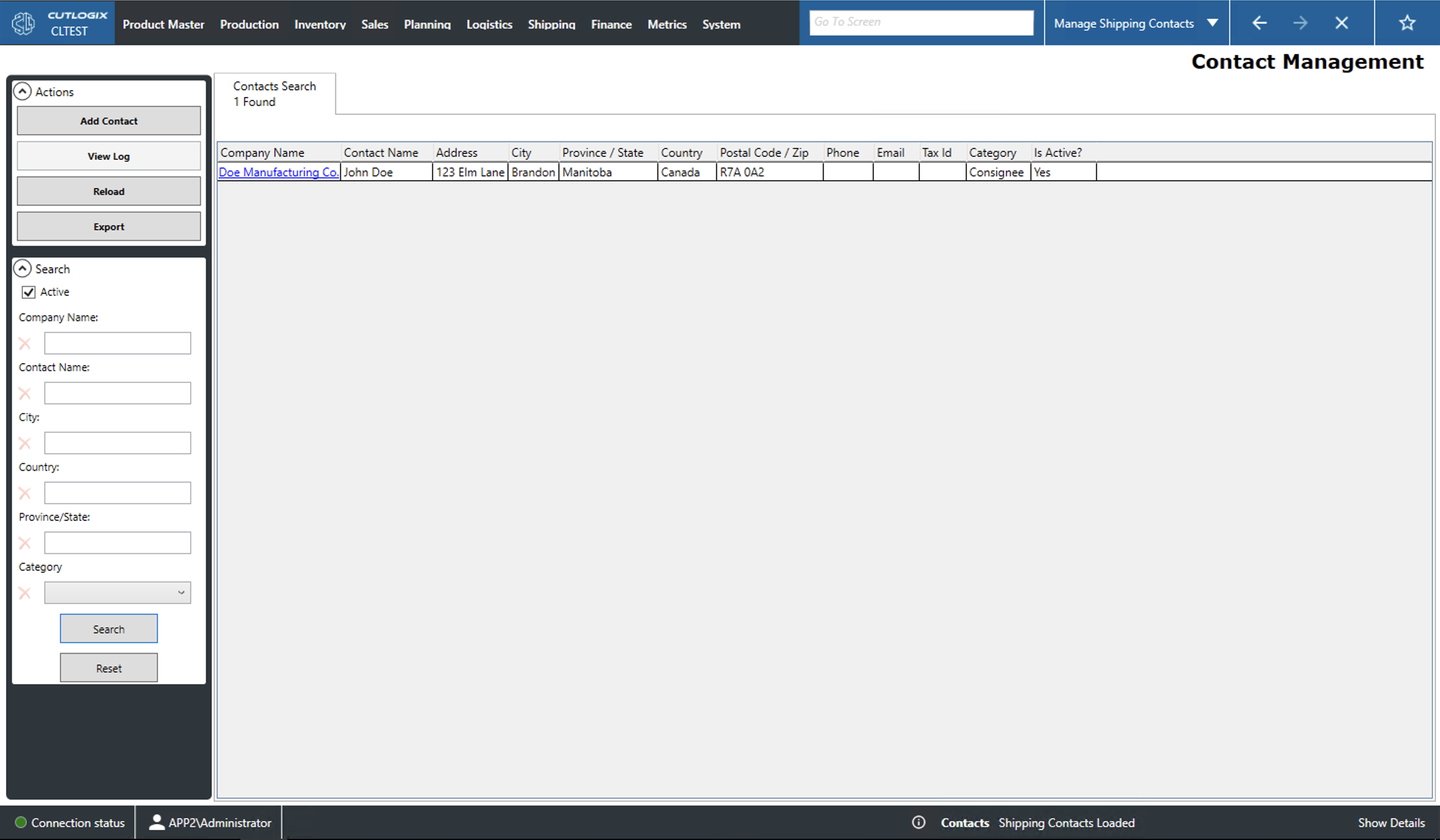
- Add Contact: This action will bring up a tempory tab from which the user can create a new customer contact entry.
- Edit: Clicking on one of the blue underlined entries in the 'Company Names' columns will bring up a tempory tab that displays the details of that customer. The edit button will appear on the left sidepod and, when actioned, will allow modification of a customer contact's details.
- Save/Undo: This saves/reverts all changes made in the current editing session.
- View Log: This will allow you to view the change logs for the selected customer. This includes what was changed, when and by whom.
- Reload: This will reload the page displaying the most up to date information from the database.
- Export: This will allow you to save the list of customer contacts locally as a .xlsx file (excel format).
Search
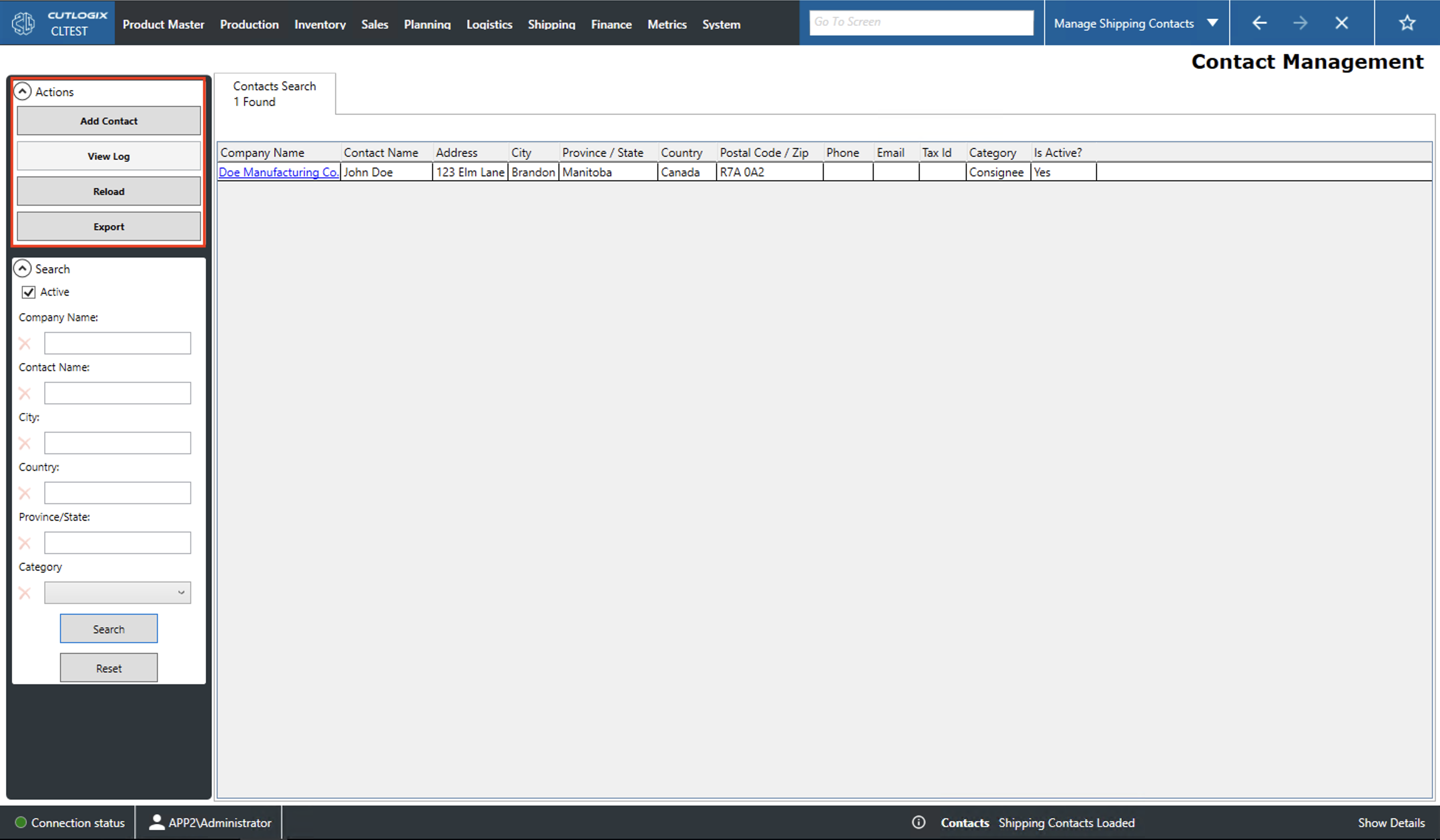
The search fields on this page search for exact matchs to the input. For example, if searching for 'John' in the contact name field, then all entries with a 'Contact Name' of 'John' will show up but those with 'John Smith' or 'John Doe' will not.
- Active: This is a tri-state checkbox that allows users to filter by whether the customer is active. Checked will show only active customers. Empty will show only inactive customers. A black square will not filter by 'active'.
- Company/Contact Name: Searches for entries with a contact/customer name field that exactly matches the search term.
- City/Country: Searches for entries with a city/country field that exactly matches the search term.
- Province/State: Searches for entries with a 'Province/State' field that exactly matches the search term.
- Category: Filter entries based on their type (i.e. delivery address, shipper, consignee, etc.).
- Search: Actioning this will reload the list with the appropriate filters applied.
- Reset: Actioning this will reset all of the filters and reload the list to an unfiltered state.