Master Production Schedule Overview
How to Navigate: Click on Planning > Master Production Schedule
Summary
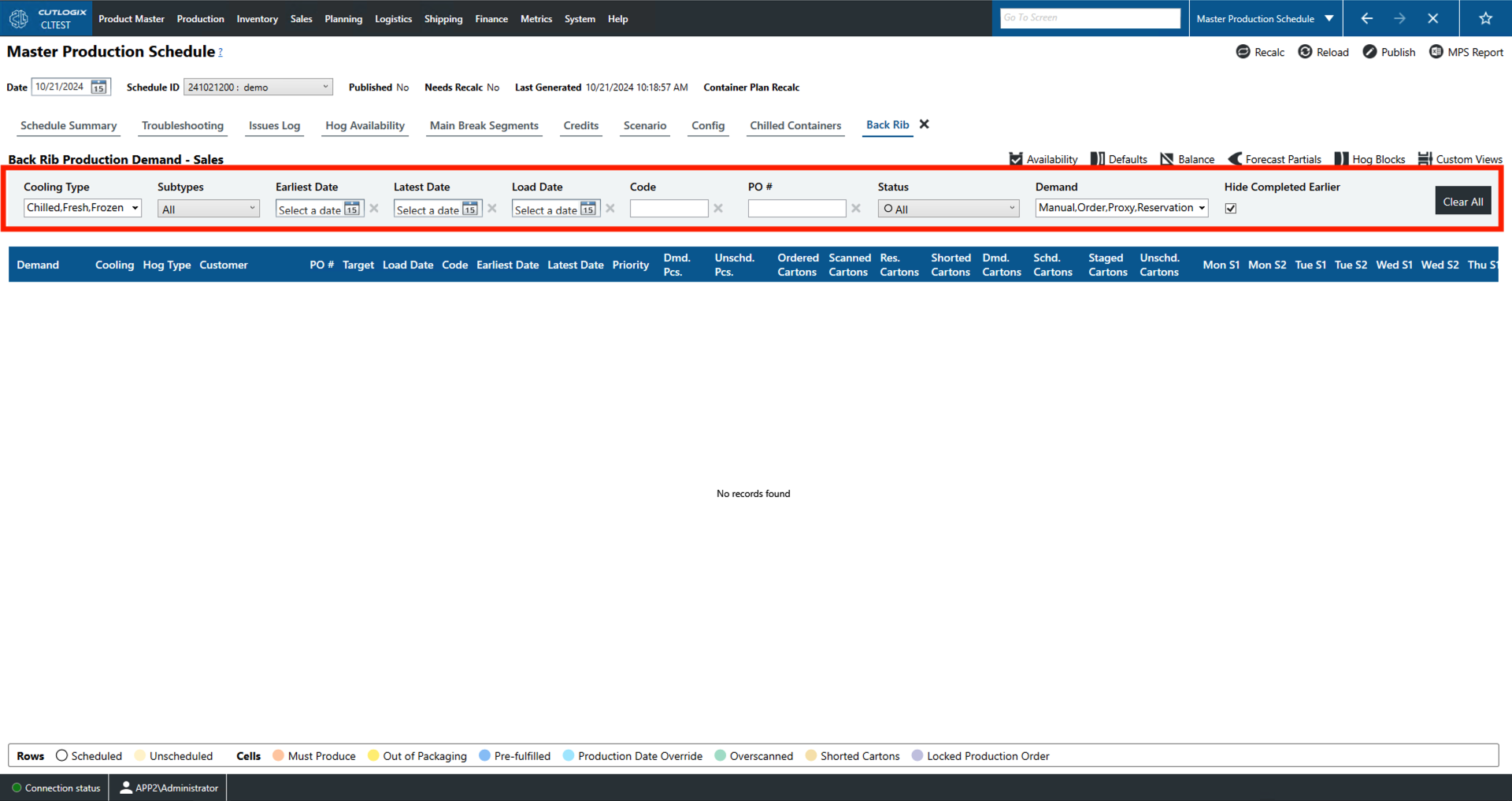
This page gives a breakdown by time block of how many hogs of each type will be processed on each shift of the current week.
- Date: Users can set this to set the current week.
- Schedule ID: Choose a schedule by their unique identifier in the system.
- Published: Indicates whether the current schedule has been published.
- Needs Recalc: Indicates whether the current schedule requires a recalculation (recalc). This is marked 'Yes' when the data used to calculate the schedule has been changed necessitating a recalc in order to reflect the changes.
- Last Generated: Indicates the last date and time at which the current schedule was generated.
- Container Plan Recalc: The most recent date and time that the current plan was recalculated.
Actions
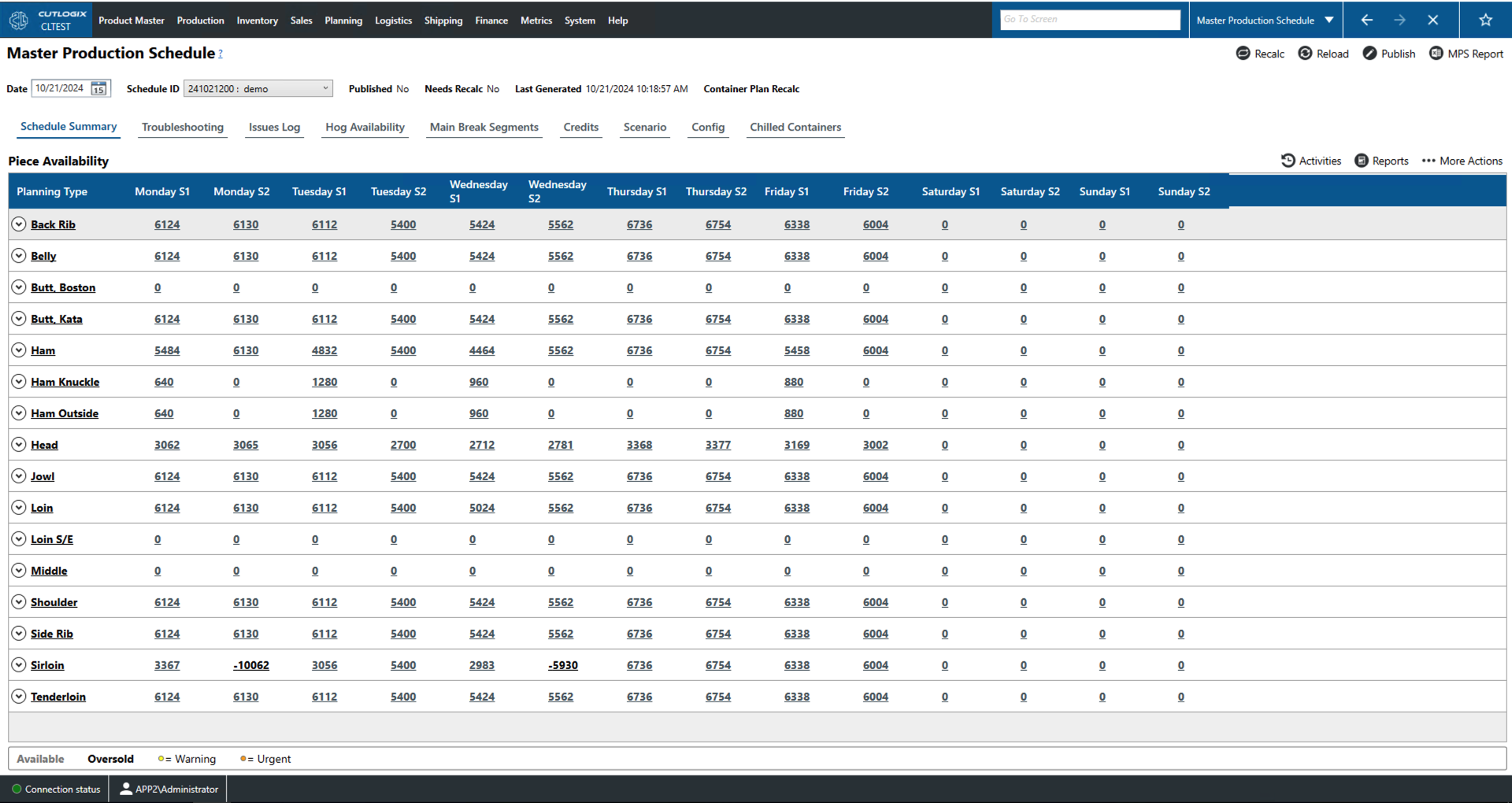
- Recalc: This will ask the planning system to recalculate the current schedule using the newest available information.
- Reload: This will reload the list from the data base which will cause it to reflect any changes that may have been made by other users.
- Publish: This will make the current schedule available for viewing by other users.
- MPS Report: This will allow the user to locally save the current schedule to a .xlsx file (excel format).
- Activities: Shows a list of activities (publish, recalc, etc.) that have been carried out on this schedule. This list also shows the date and time of the change, what user made the change and a short description of the change.
- Reports: This will open a dropdown that will allow the user to generate and save a number of reports based on the current schedule. The reports available are customizable by customer request.
- More Actions:
- Generate From Copy: Allows the user to generate a new schedule for the current week that is a copy of an earlier schedule.
- Generate New: This will ask the planning system to generate a new schedule for the current week.
- New MPS Window: This will open the master planning system (MPS) in a new window.
Filter
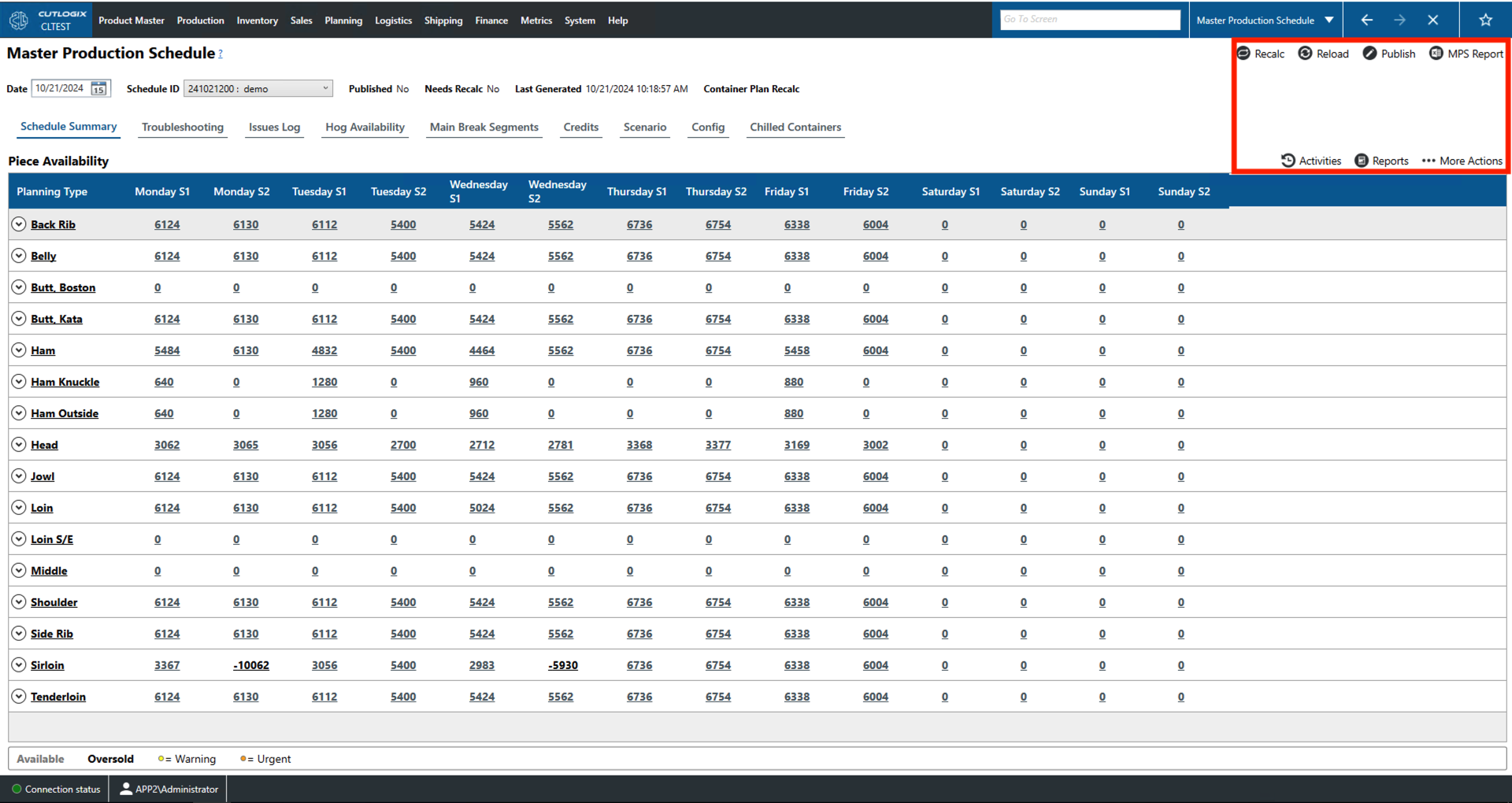
The 'Troubleshooting', 'Issues Log', 'Credits', and schedule summary planning type demand tabs all have a just above the data table. Not all of them have the same options displayed. However, below you can find explanations for all filter fields that appear on any of these pages.
- Cooling Type: Select what cooling types to display in the list.
- Scheduled: Filter the list by whether or not the production is scheduled.
- Subtypes: Filters the list by the planning subtypes (i.e. for shoulder you can choose Shoulder Ude, Shoulder Picnic, etc.).
- Earliest/Latest Date: Filter by the earliest/latest date that this product can be shipped.
- Load Date: Filter by the date that the production is to be loaded.
- Code: Filters by the product code.
- PO #: Filters by the purchase order number (PO#) for the production.
- Status: Filters to production entries that have a particular status. The statuses that users can filter by are listed at the bottom of the page. The following are brief explanations of each:
- Must Produce: Orange must be produced that day.
- Out of Packaging: Yellow is out of packaging materials.
- Pre-fulfilled: Dark blue means that the demand was pre-fulfilled.
- Production Date Override: Light blue means that the production date has been overridden.
- Overscanned: Green means that too many cartons have been scanned onto the load.
- Shorted Cartons: Darker yellow indicates cartons that have been shorted.
- Locked Production Order: Purple means a production order that cannot be changed.
- Demand: Filter to orders with a certain type of demand. The following are explanations of the types of demand:
- Reservation: A reservation is reserved production for an order that the customer has not finalized yet.
- Order: A customer order.
- Manual: A manual production entry.
- Proxy: This is demanded generated when there is an order for a cut that cannot be produced without producing other cuts. For example, orders for shoulders will also generate picnics and feet because these are generated from the same primal. The planning system will first try to assign these extra cuts to existing orders. If there are not enough existing orders to absorb the extra production then the planning system schedules the extra product as proxy demand that will be made and shipped to a freezer.
- Hide Completed Earlier: Whether or not to hide production records that were previously completed.
- Clear All: Clears the current filters.