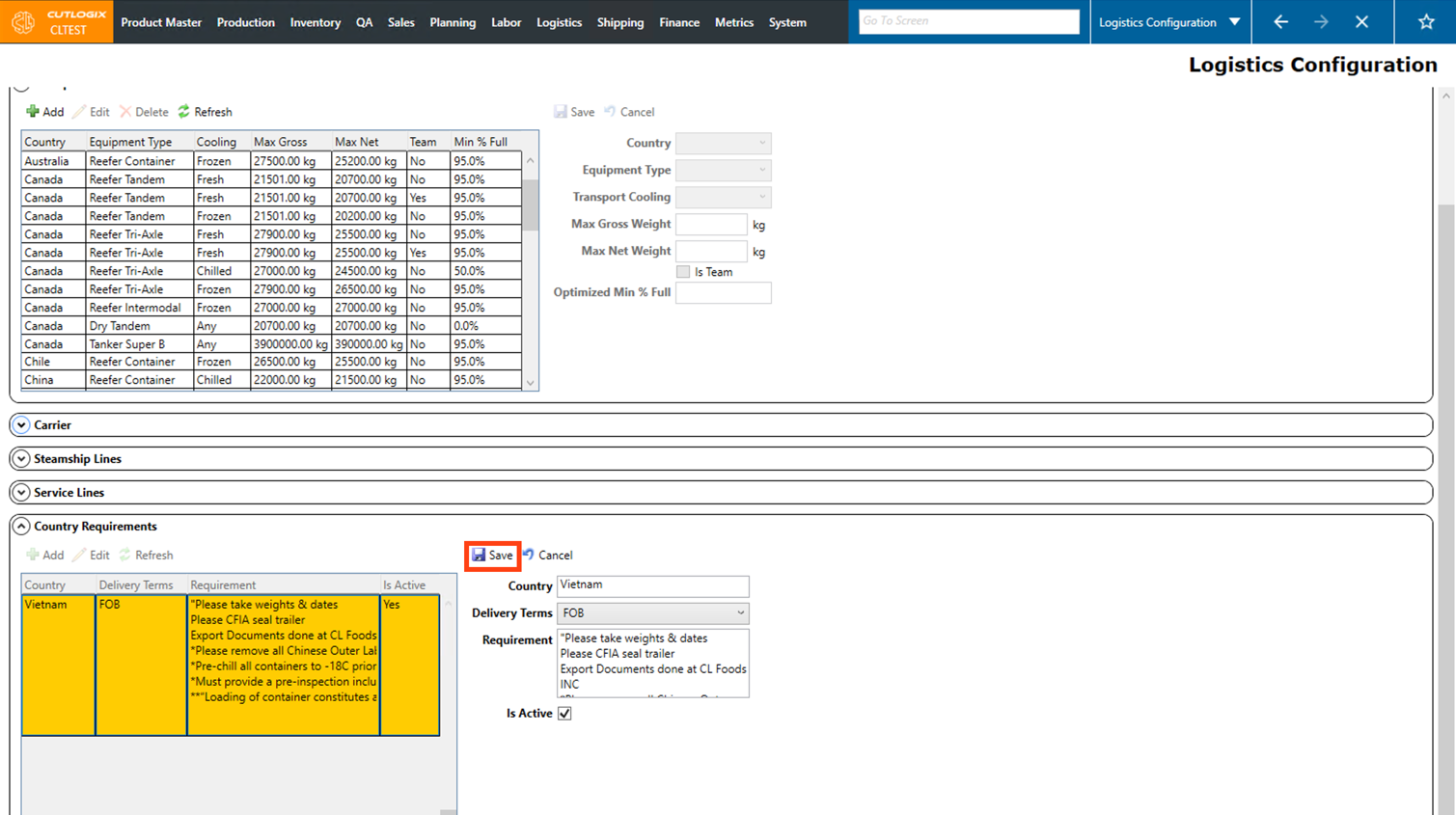
Logistics Configuration Tasks
How to Add a Transport Method
Demo
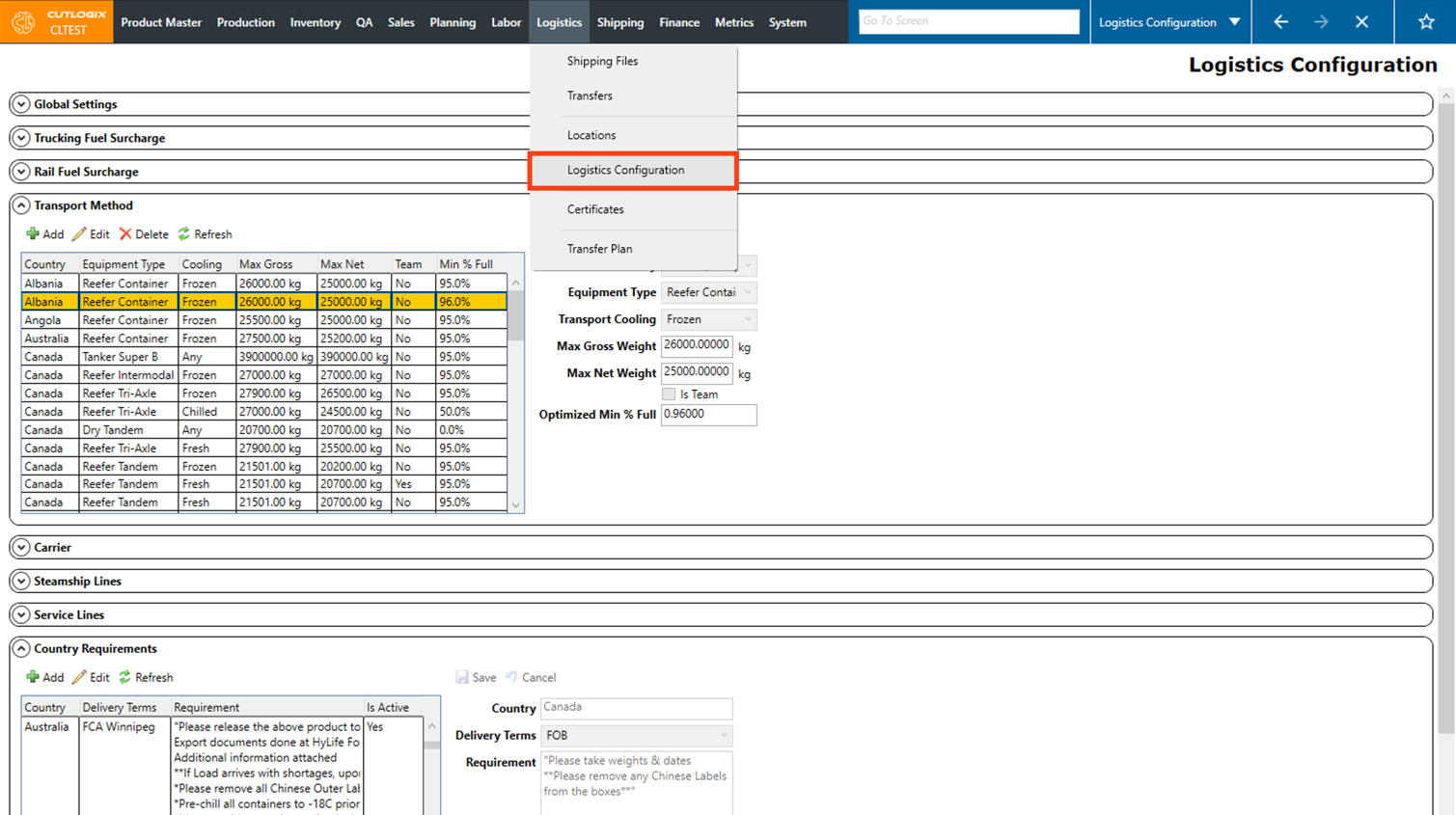
Step 1: Navigate to the "Logistics Configuration" page (Under the Logistics menu → Logistics Configuration).
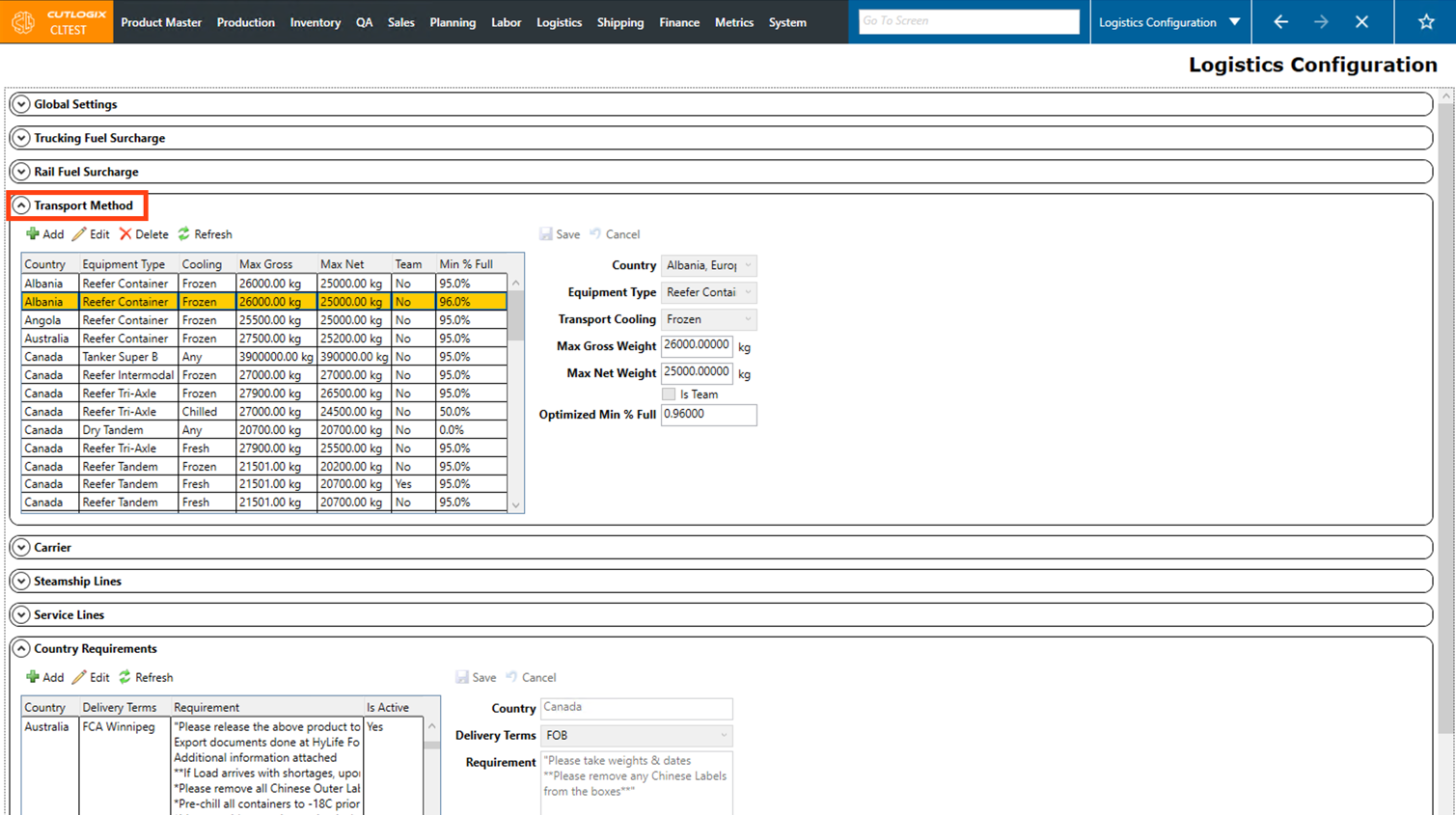
Step 2: Scroll down the page to the "Transport Method" section.
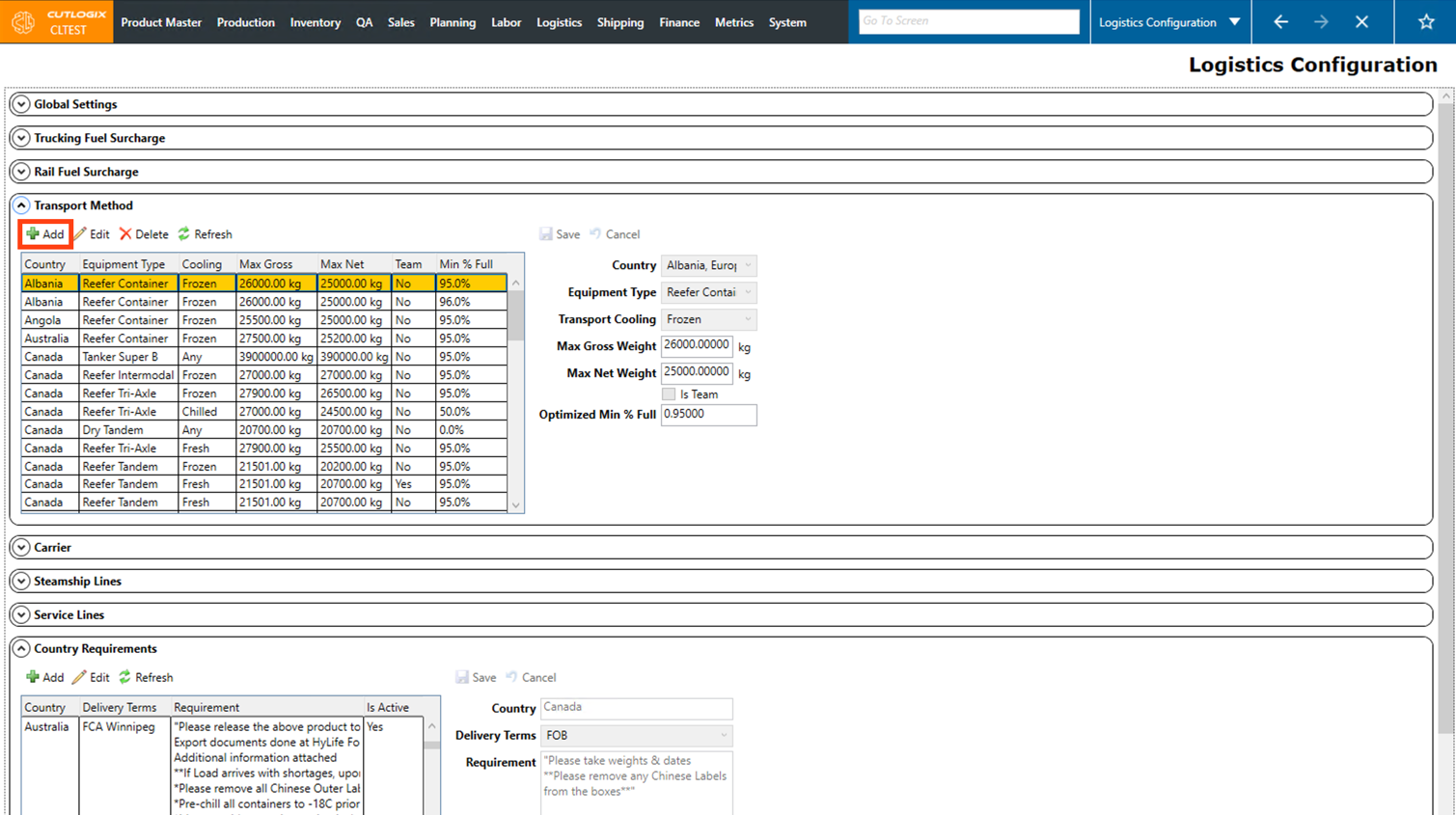
Step 3: Click the green "+" button.
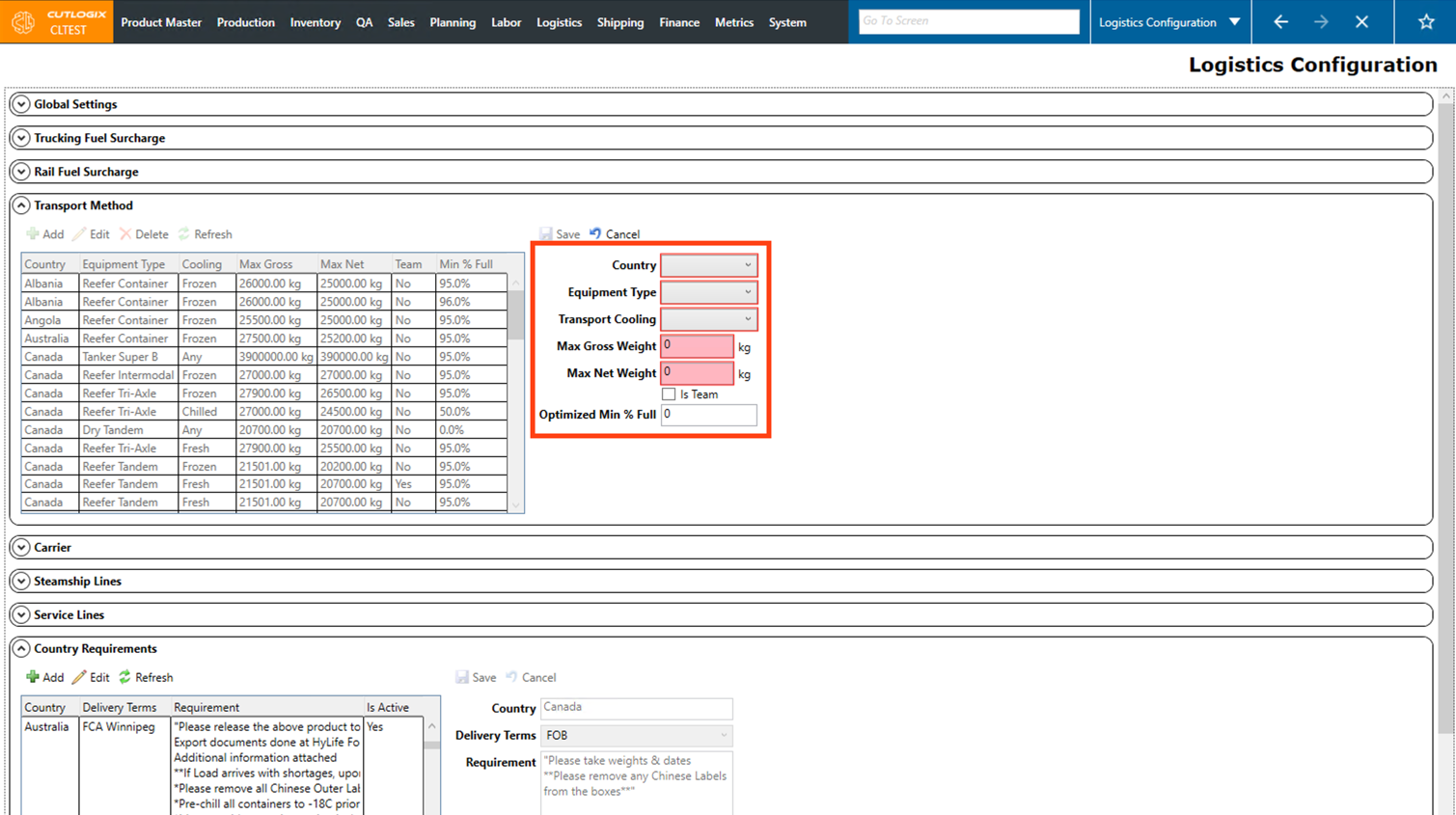
Step 4: Several input fields will appear on the right side of the page for you to enter the details for the new transport method. Fields that are highlighted in red are required and must be entered before the new transport method can be saved. These fields are as follows:
• Country: Choose the country that the transport method you're adding is for.
• Equipment Type: Choose the equipment type for the transport method from the drop-down list.
• Transport Cooling: Choose the type of cooling that this transport method is for, from the dropdown list. (Any, Fresh, Frozen, Chilled).
• Max Gross Weight: Enter the maximum gross weight for this transport method in kilograms.
• Max Net Weight: Enter the maximum net weight for this transport method, in kilograms.
• Country: Choose the country that the transport method you're adding is for.
• Equipment Type: Choose the equipment type for the transport method from the drop-down list.
• Transport Cooling: Choose the type of cooling that this transport method is for, from the dropdown list. (Any, Fresh, Frozen, Chilled).
• Max Gross Weight: Enter the maximum gross weight for this transport method in kilograms.
• Max Net Weight: Enter the maximum net weight for this transport method, in kilograms.
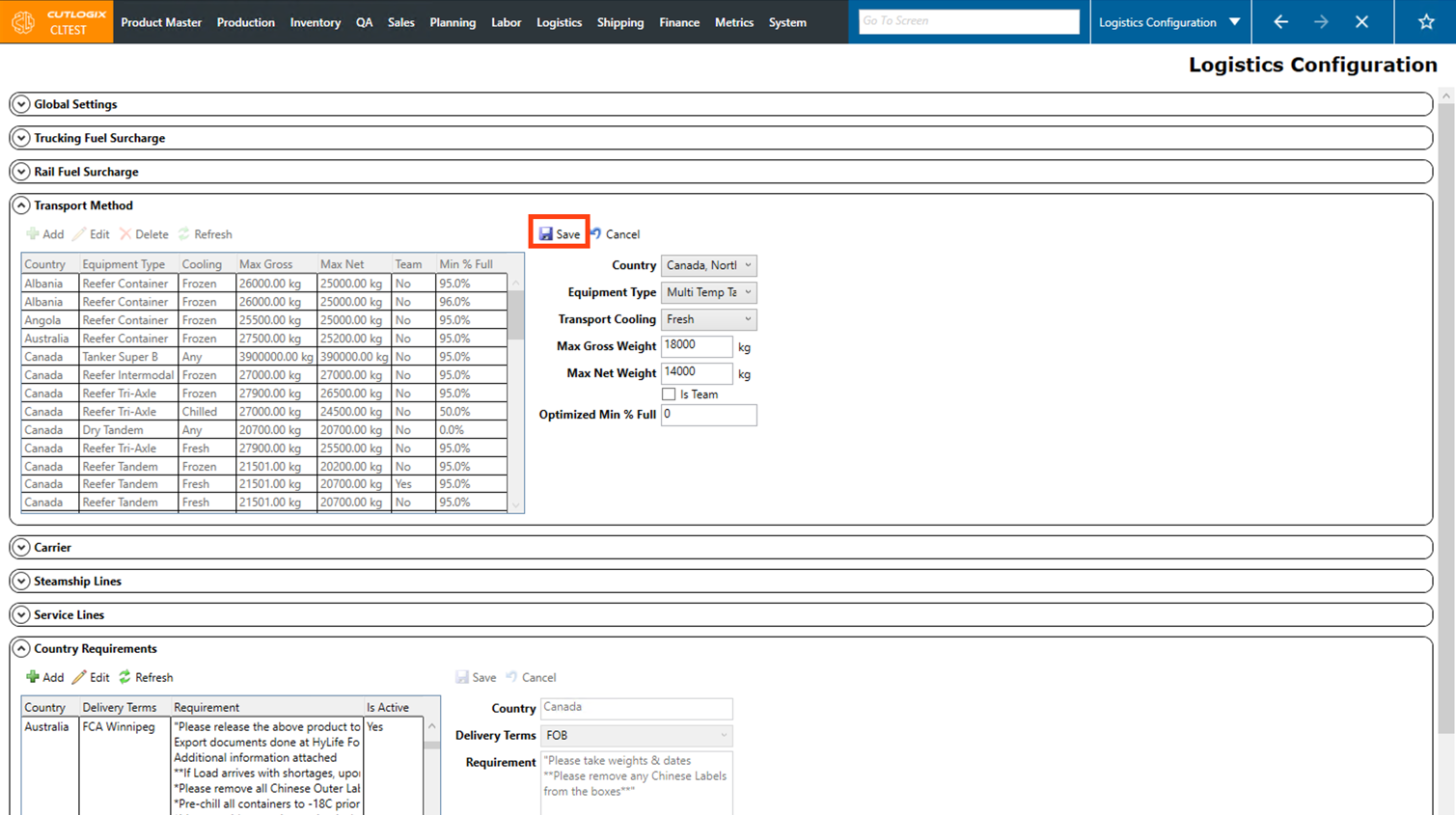
Step 5: Once all the required information has been filled out, click the "Save" button at the top of the input fields.
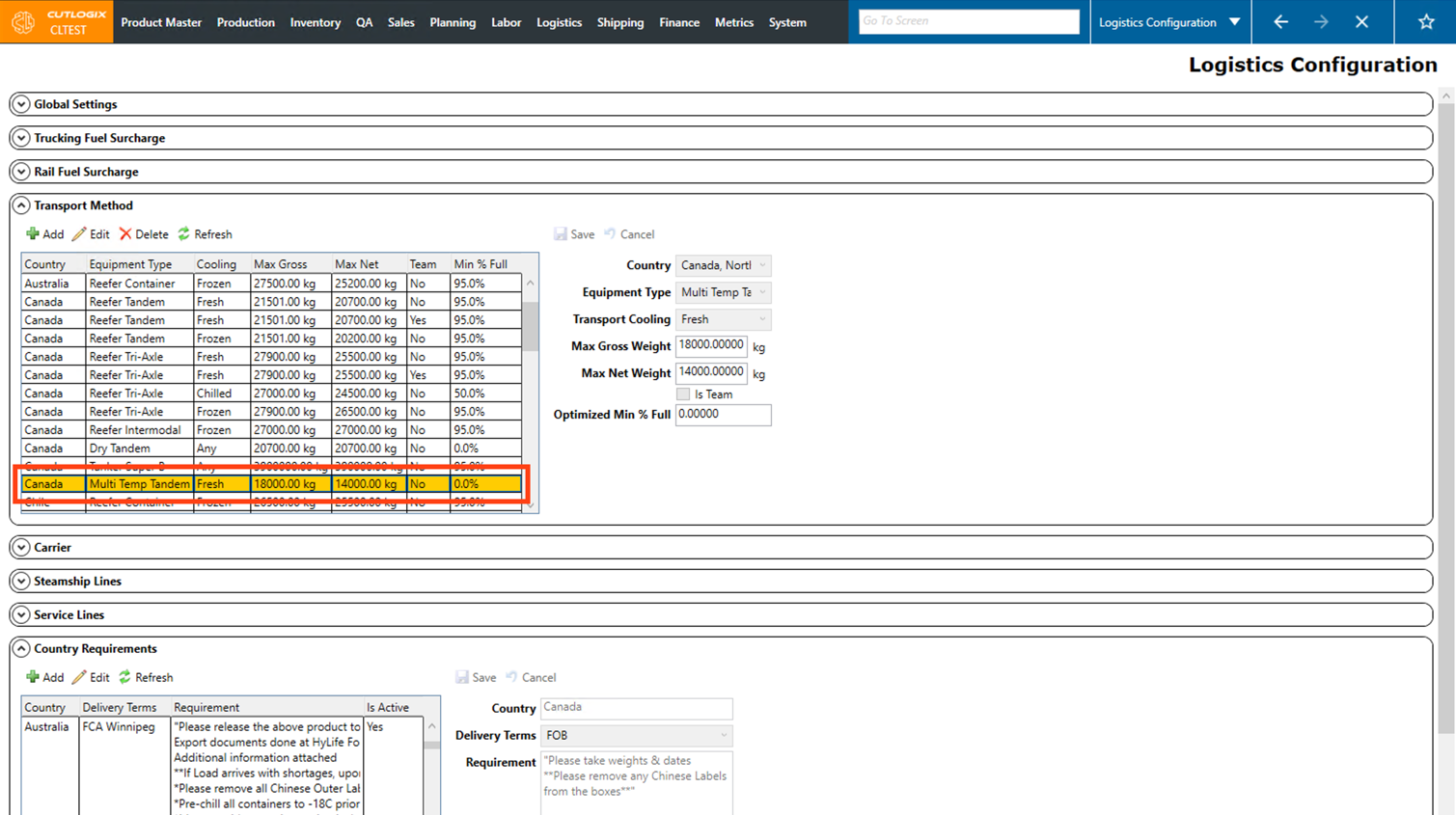
Step 6: The new transport method will now be shown in the list of transport methods.
How to Edit a Transport Method
Demo
Step 1: Navigate to the "Logistics Configuration" page (Under the Logistics menu → Logistics Configuration).
Step 2: Scroll down the page to the "Transport Method" section.
Step 3: Click on the transport method that you want to edit. Once selected it will be highlighted in orange.
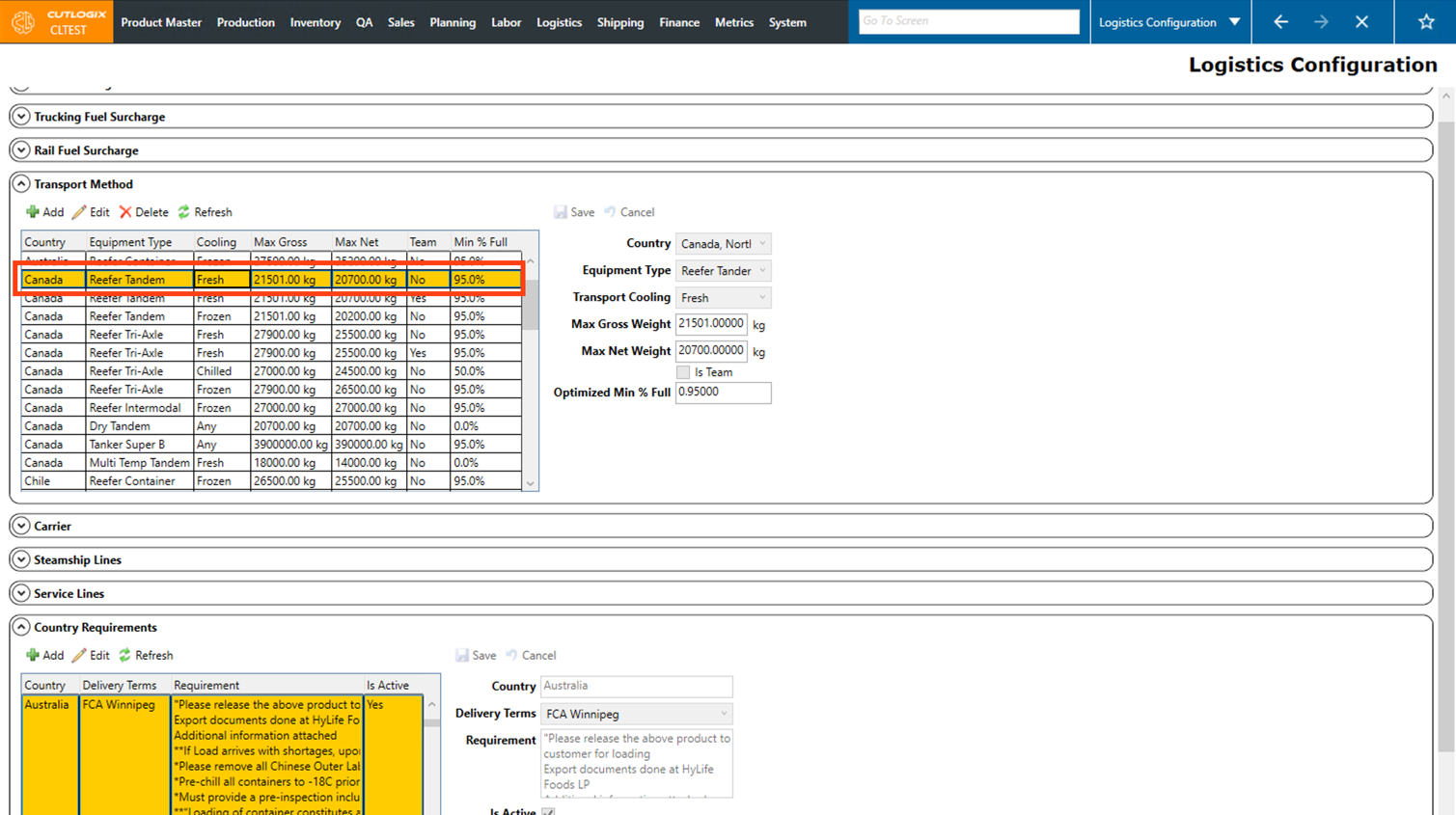
Step 4: Then, click the "Edit" button.
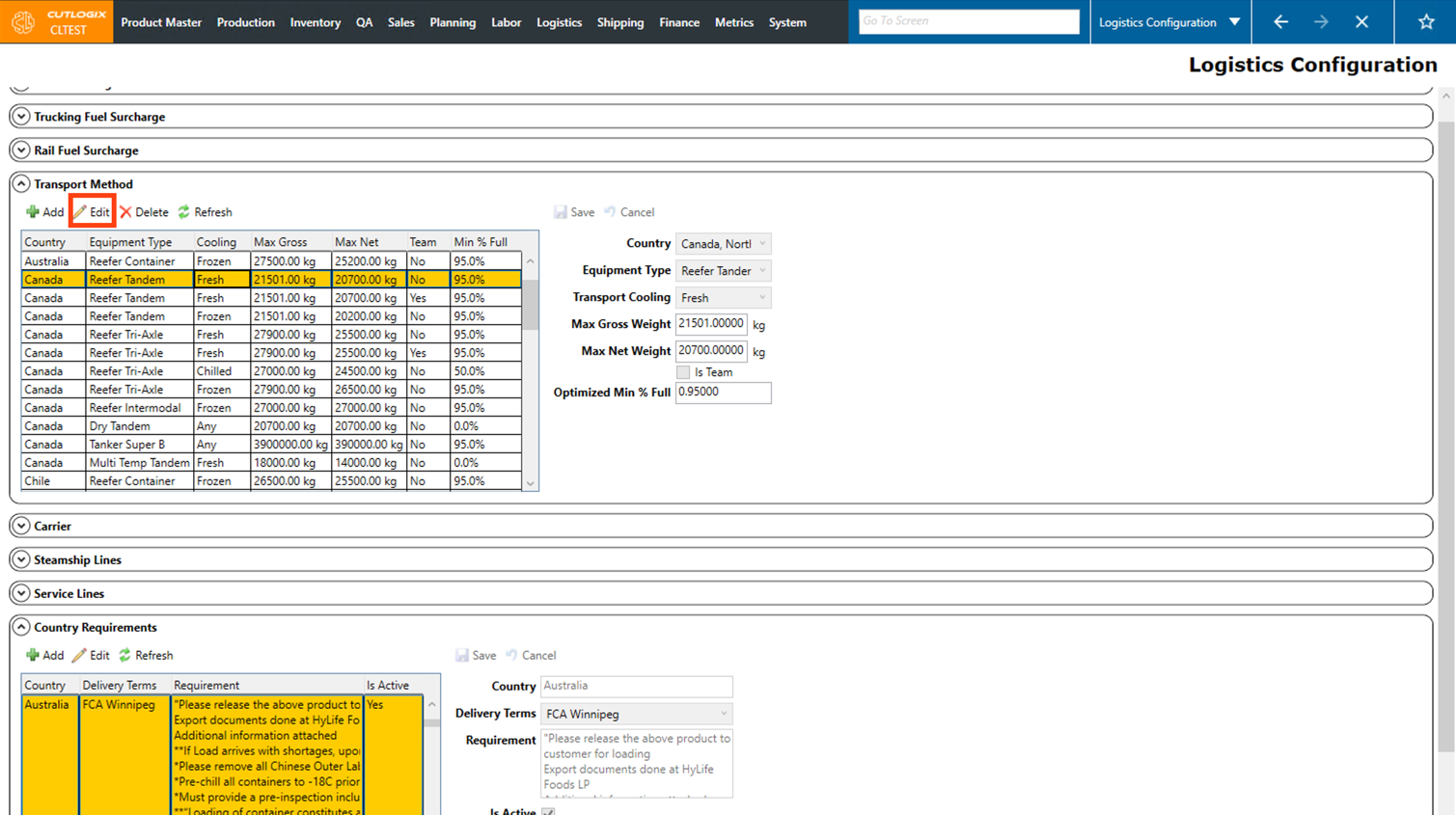
Step 5: The fields on the right side of the page will be enabled for editing the attributes of the transport method. Make any necessary changes to the transport method here.
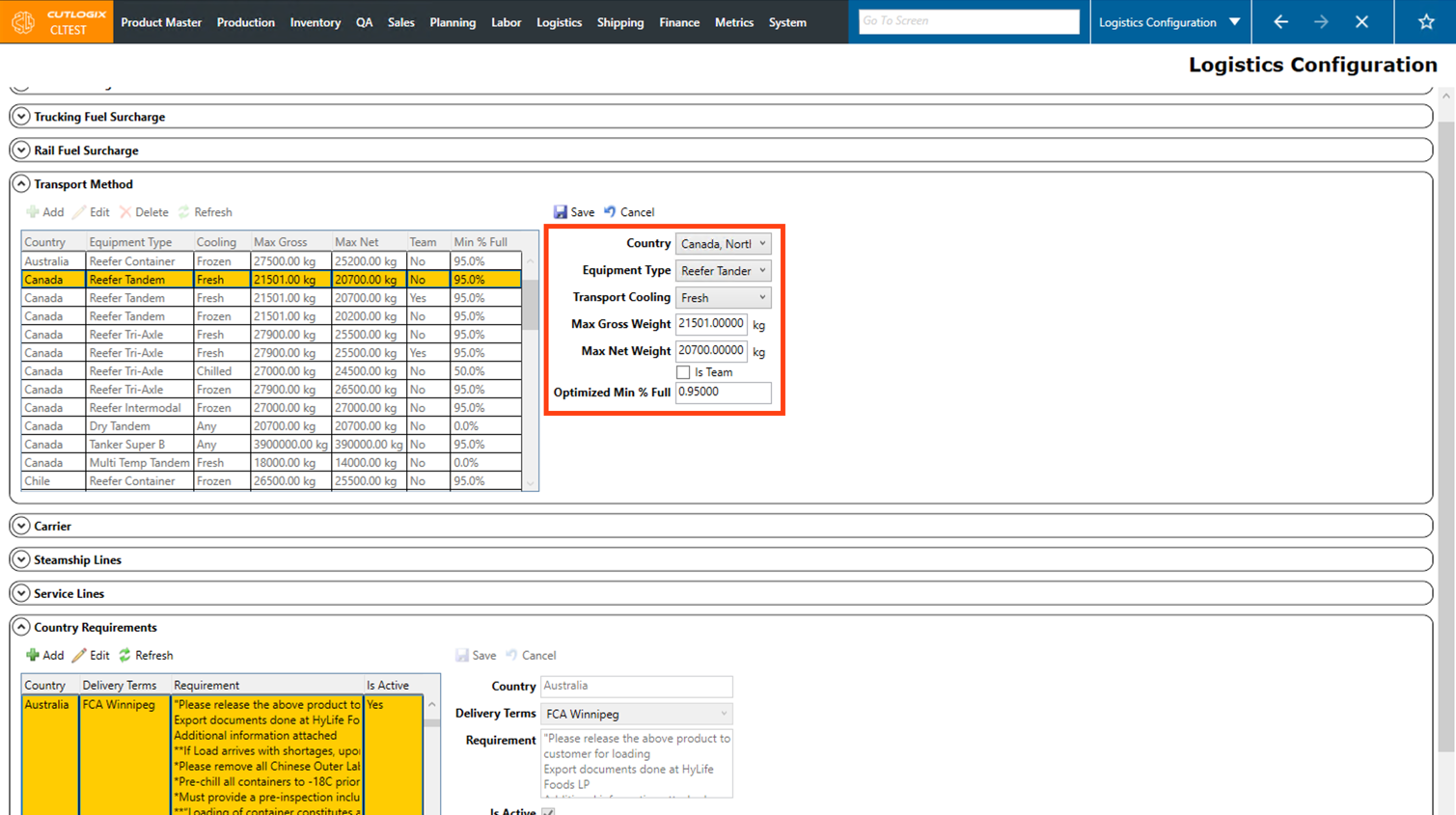
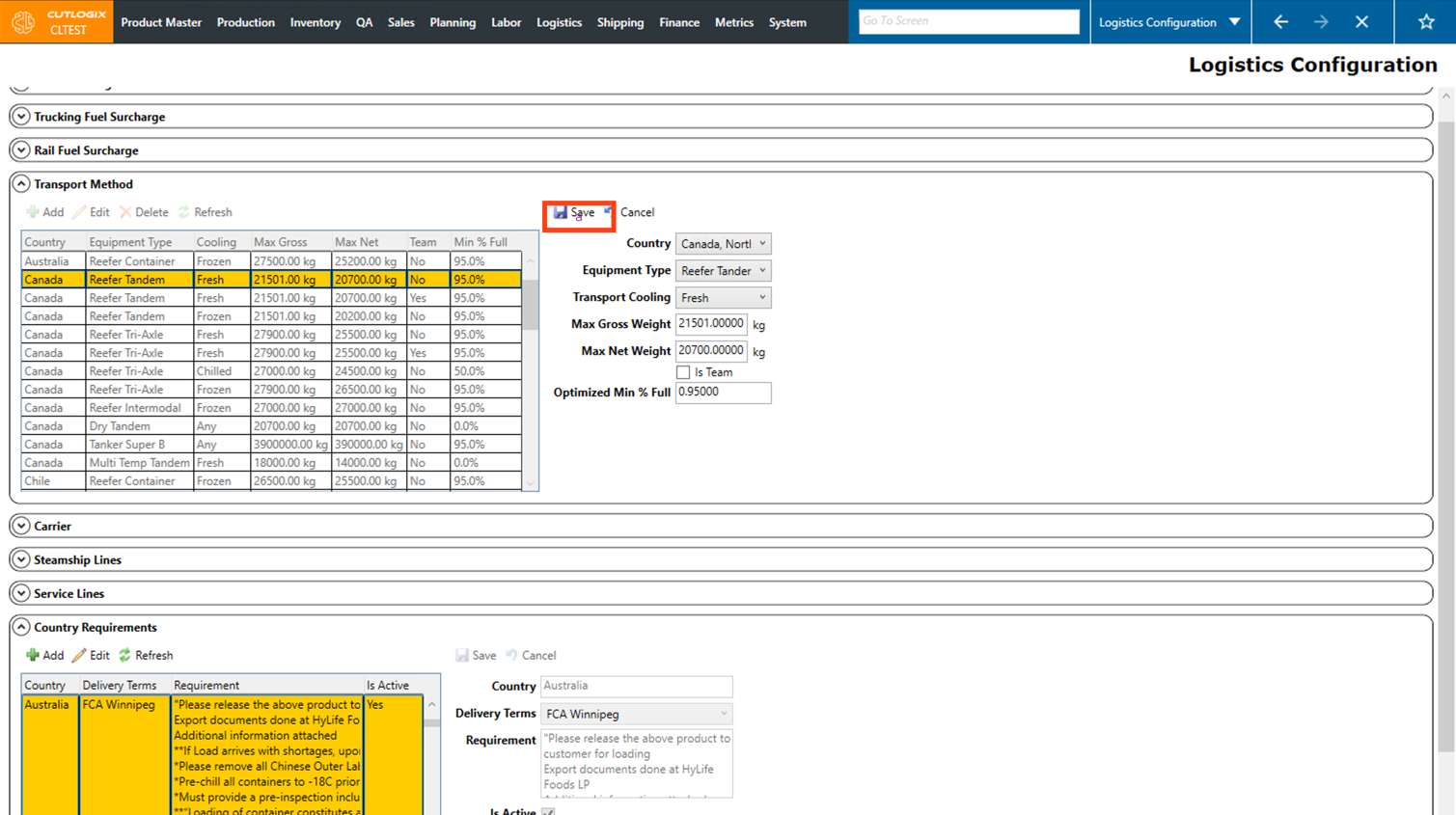
Step 6: Once you're finished making edits, click the "Save" button to save the edits on the transport method. If you don't want to save the edits, clicking "Cancel" will discard your changes.
How to Delete a Transport Method
Demo
Step 1: Navigate to the "Logistics Configuration" page (Under the Logistics menu → Logistics Configuration).
Step 2: Scroll down the page to the "Transport Method" section.
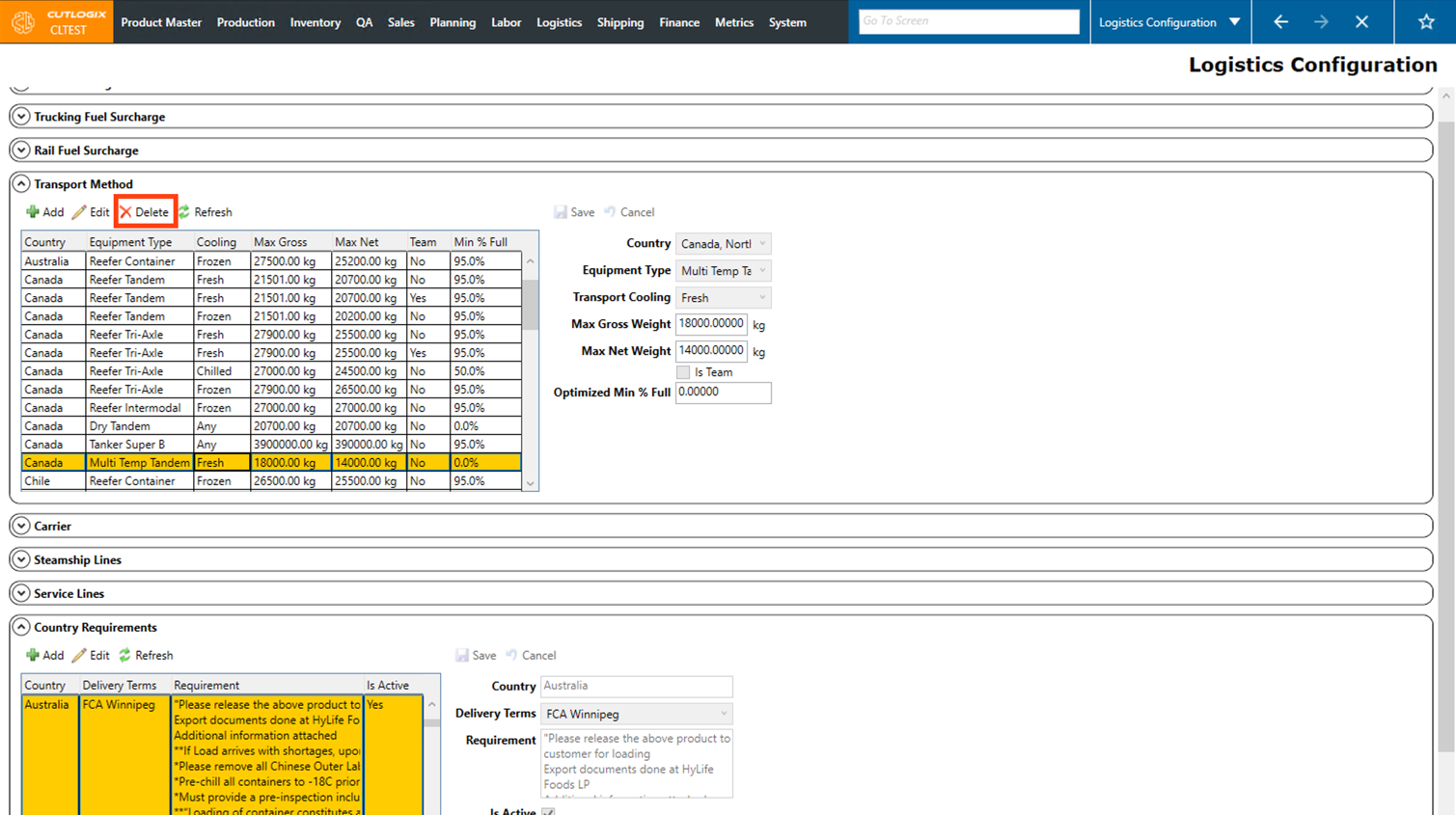
Step 3: Click on the transport method that you want to delete. Once selected, it will be highlighted in orange.
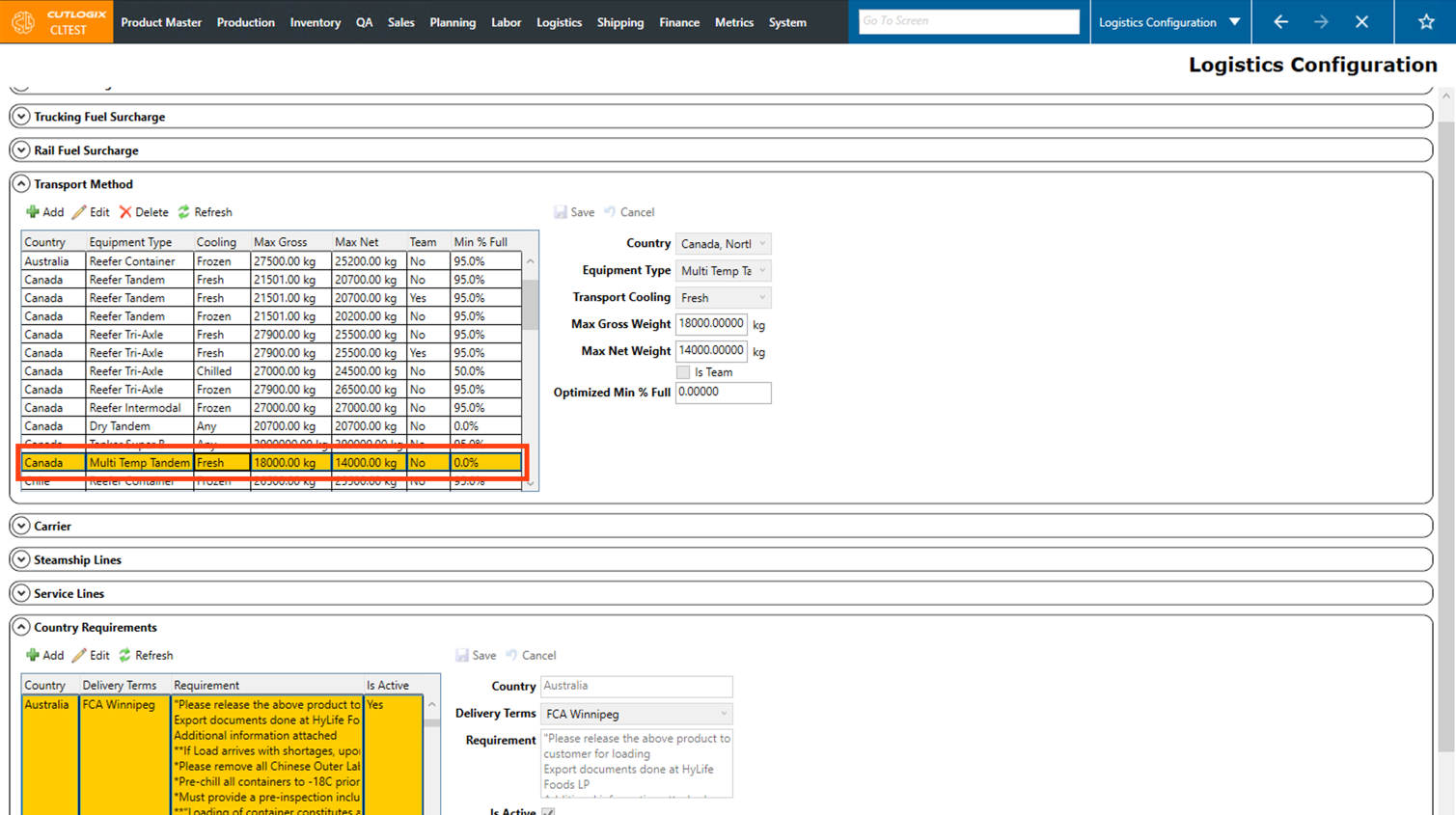
Step 4: Click the "Delete" button.
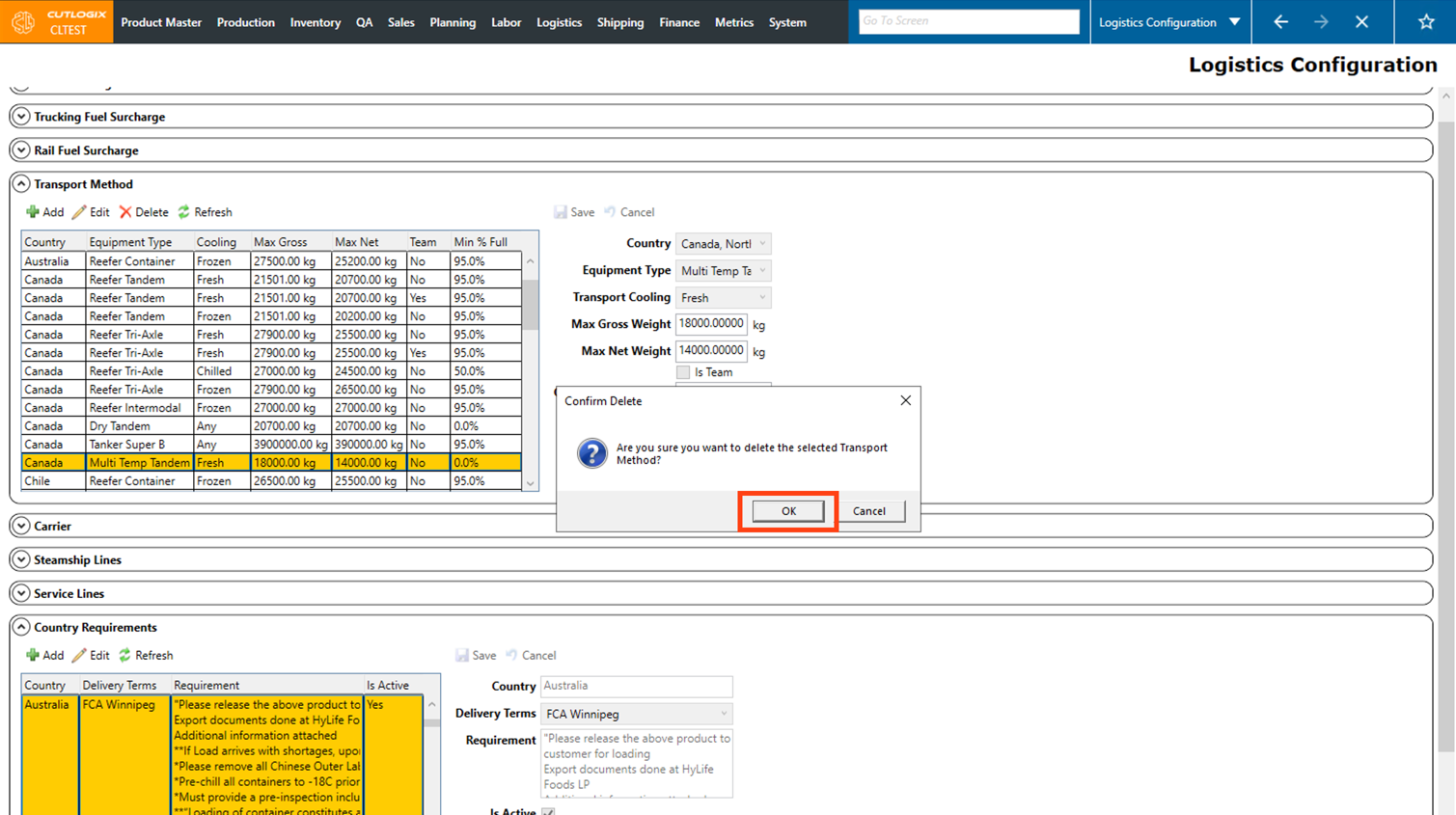
Step 5: A confirmation dialog will appear, asking if you're sure that you want to delete the transport method. Click "OK" to proceed with deleting it. The transport method will then be deleted & removed from the list.
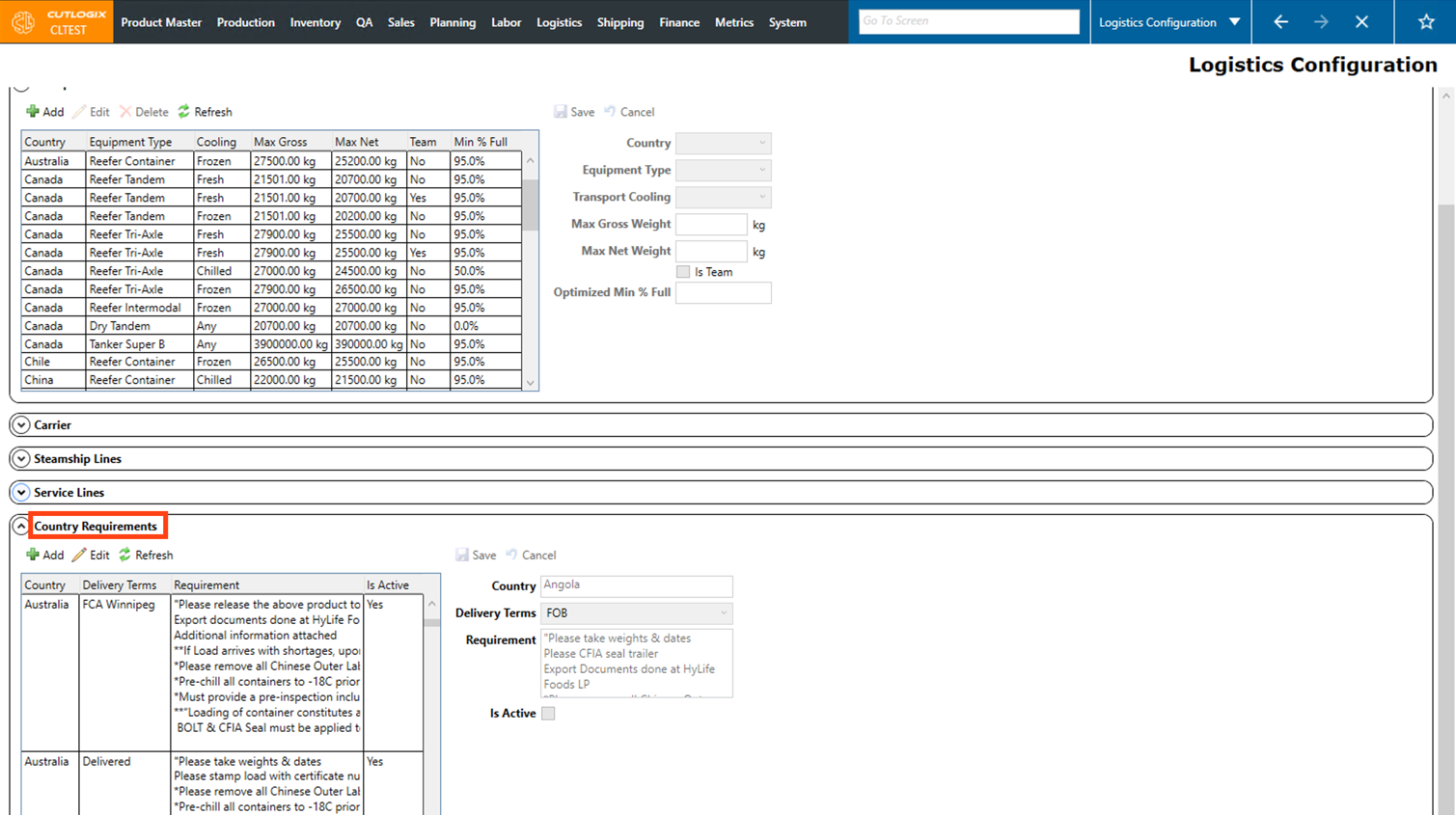
How to Add a Country Requirement
Demo
Step 1: Navigate to the "Logistics Configuration" page (Under the Logistics menu → Logistics Configuration).
Step 2: Scroll down the page to the "Country Requirement" section.
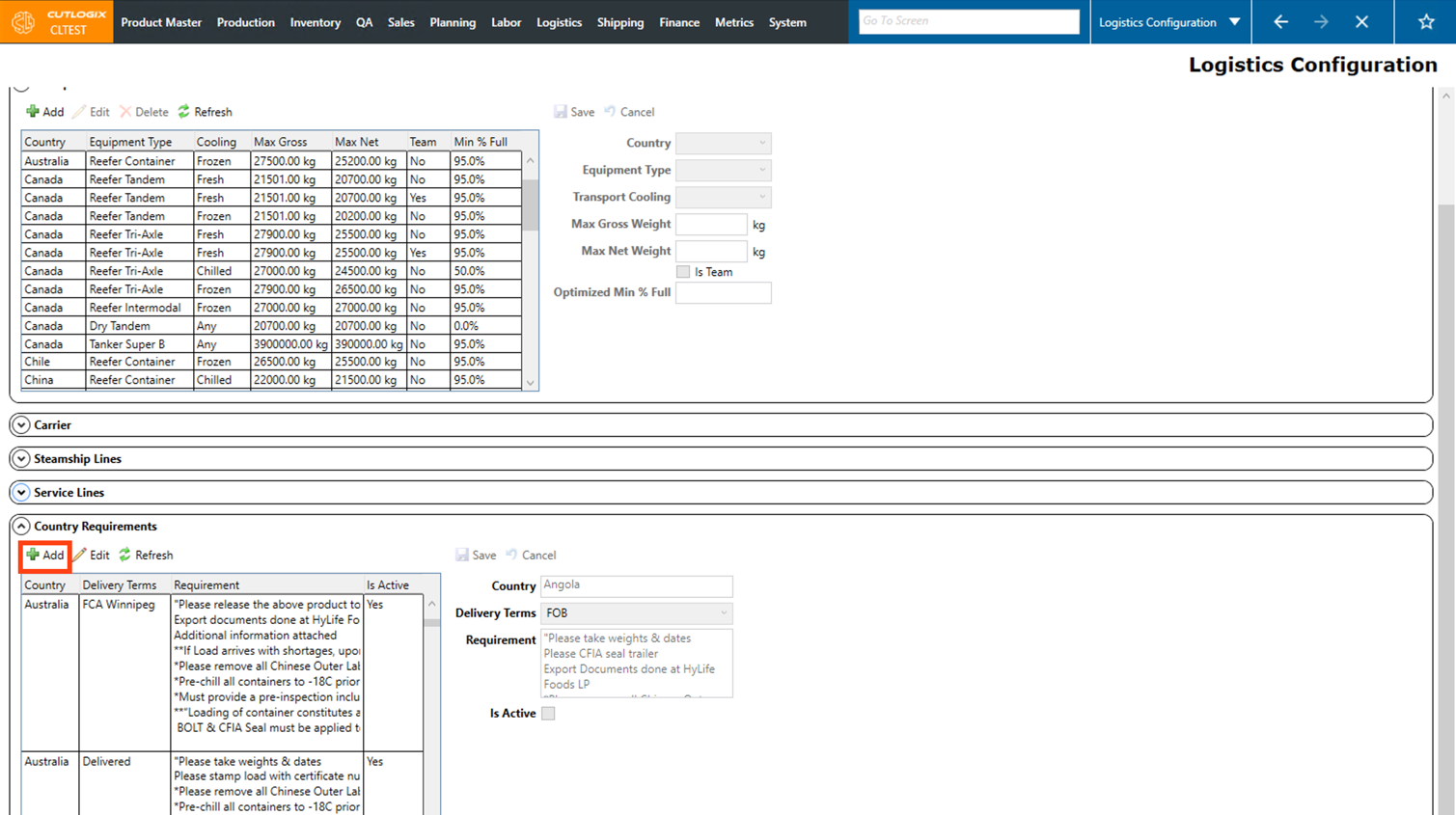
Step 3: Click the green "+" button.
Step 4: Several input fields will appear on the right side of the page for you to enter the details for the country requirement. Fields that are highlighted in red are required and must be entered before the new country requirement can be saved. These fields are as follows:
• Country: Enter the name of the country that the requirement is for.
• Delivery Terms: Choose the delivery terms that the requirement is for, from the dropdown list.
• Requirement: Enter the requirement details in this field.
If the country requirement is in effect, check the "Is Active" checkbox also.
• Country: Enter the name of the country that the requirement is for.
• Delivery Terms: Choose the delivery terms that the requirement is for, from the dropdown list.
• Requirement: Enter the requirement details in this field.
If the country requirement is in effect, check the "Is Active" checkbox also.
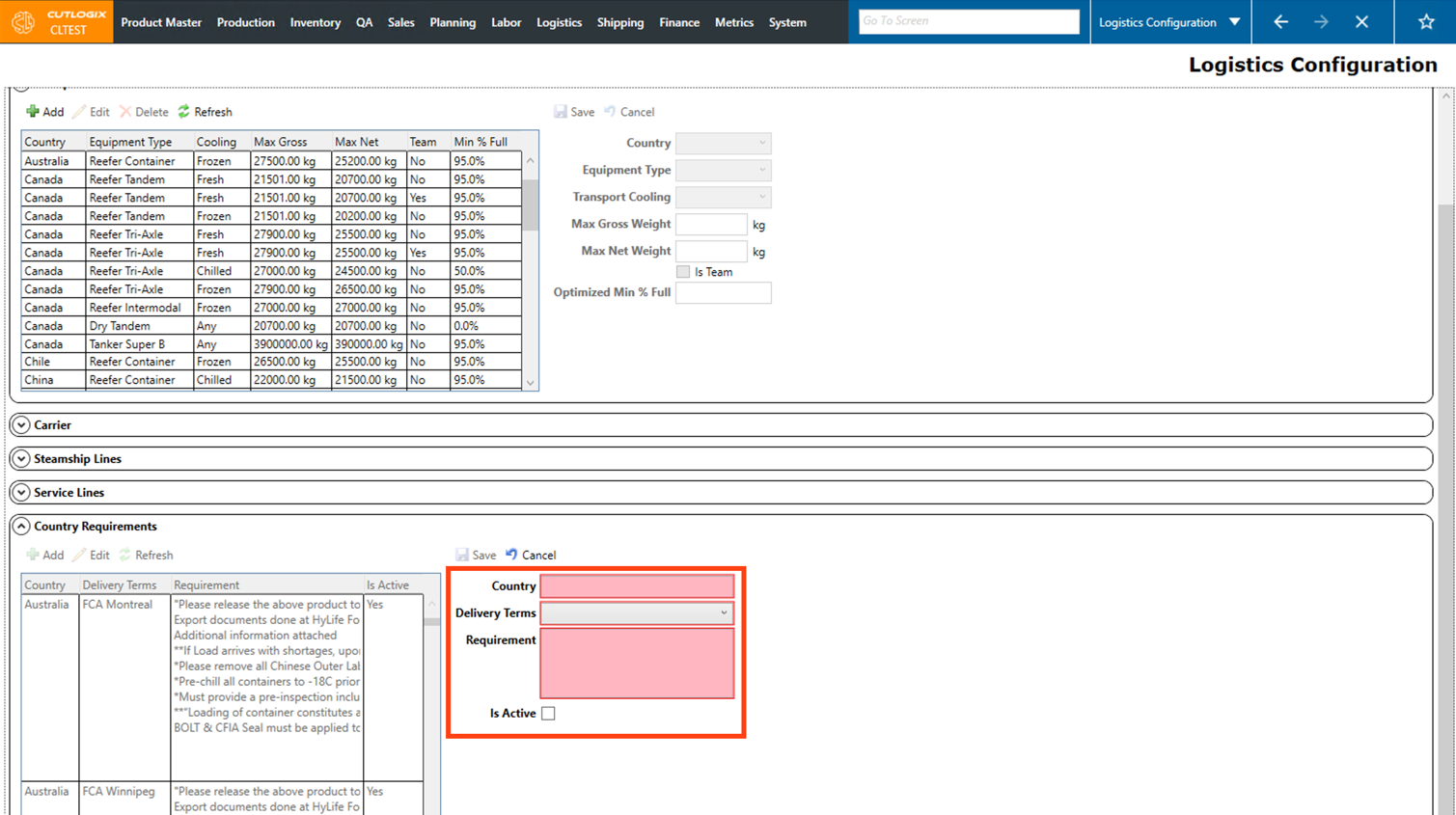
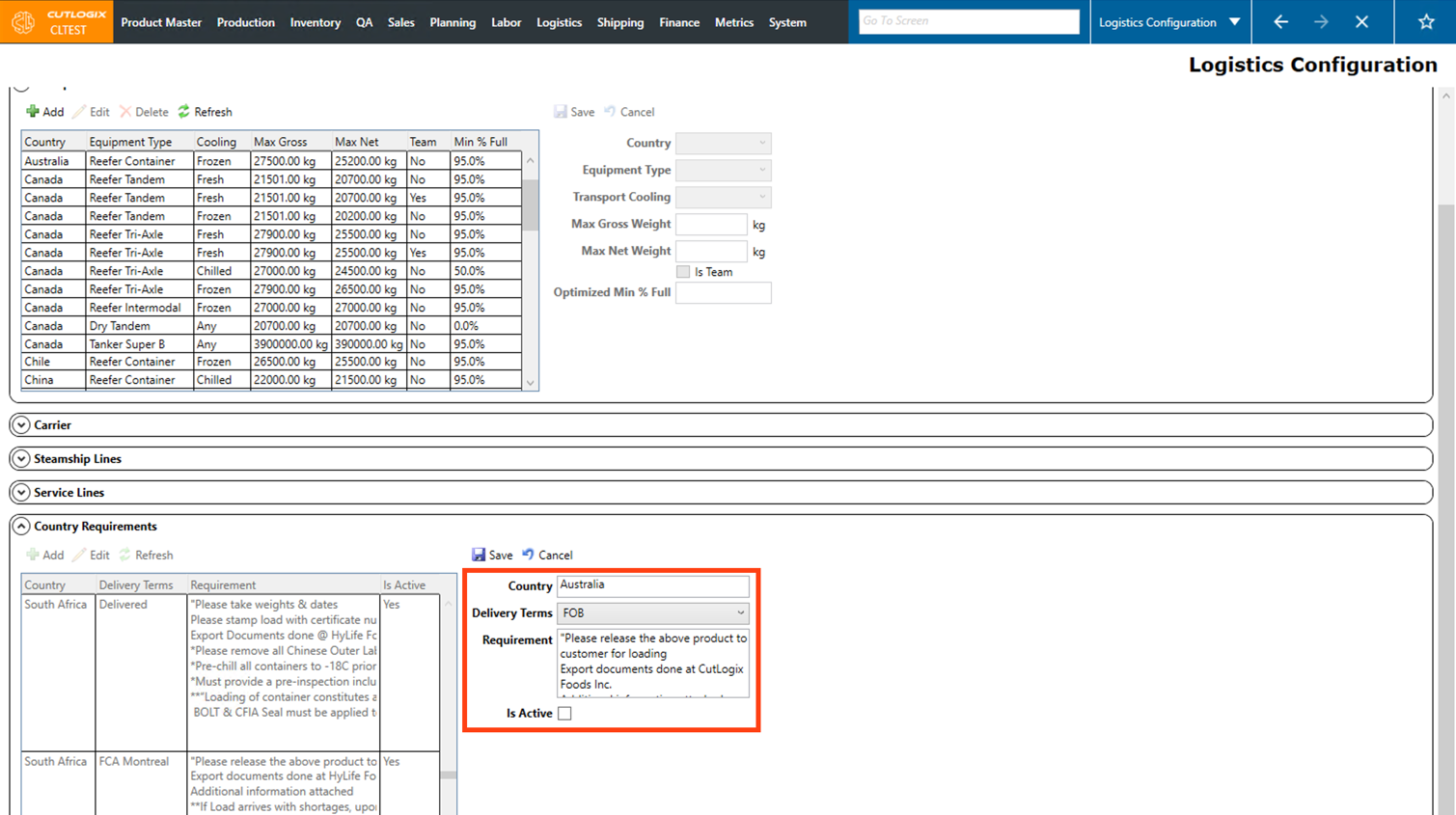
Step 5: Once all the required information has been filled out, click the "Save" button at the top of the input fields. The new country requirement will now appear in the country requirement list.
How to Edit a Country Requirement
Demo
Step 1: Navigate to the "Logistics Configuration" page (Under the Logistics menu → Logistics Configuration).
Step 2: Scroll down the page to the "Country Requirement" section.
Step 3: Click on the country requirement that you want to edit. Once selected it will be highlighted in orange.
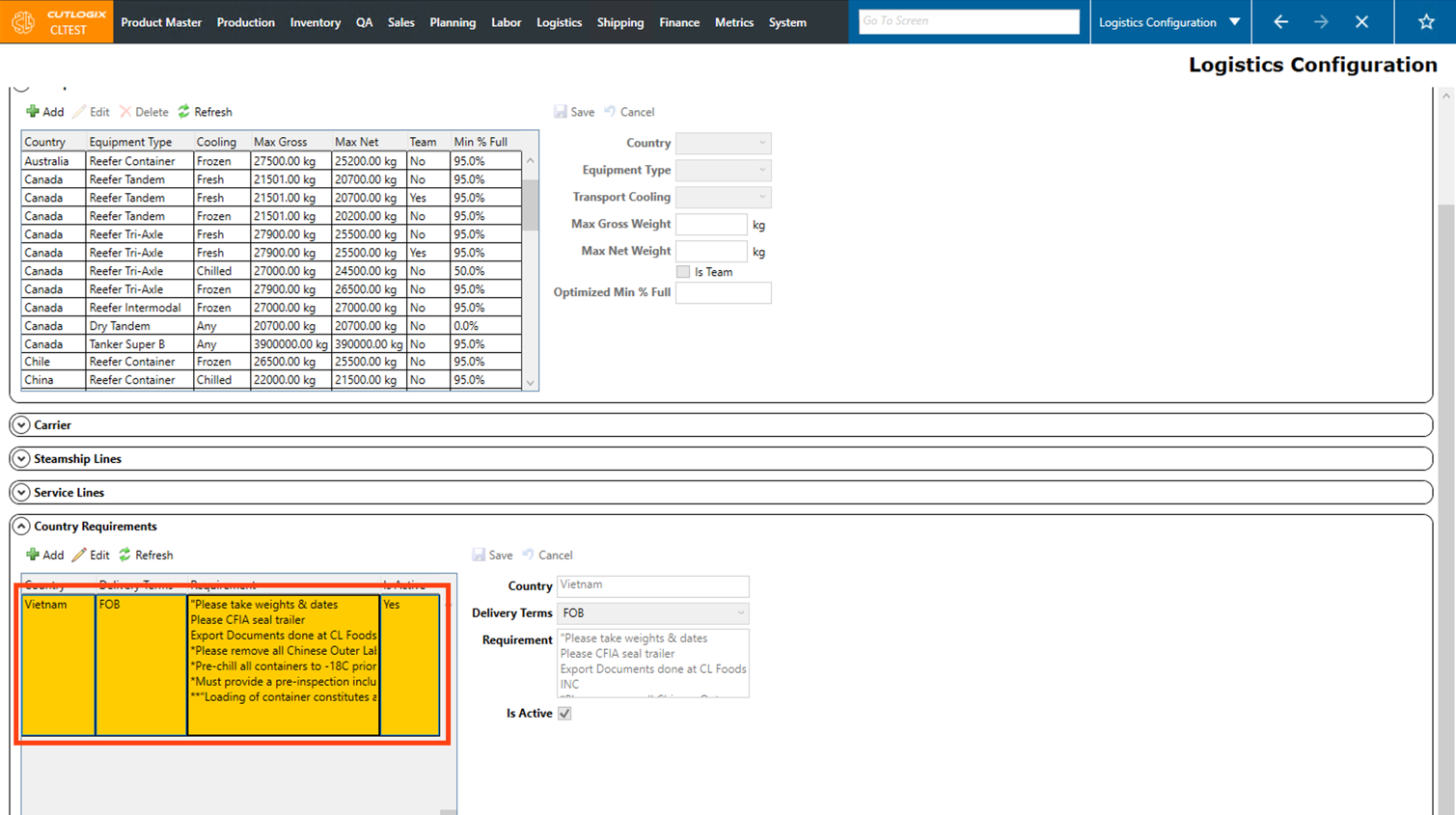
Step 4: Then, click the "Edit" button.
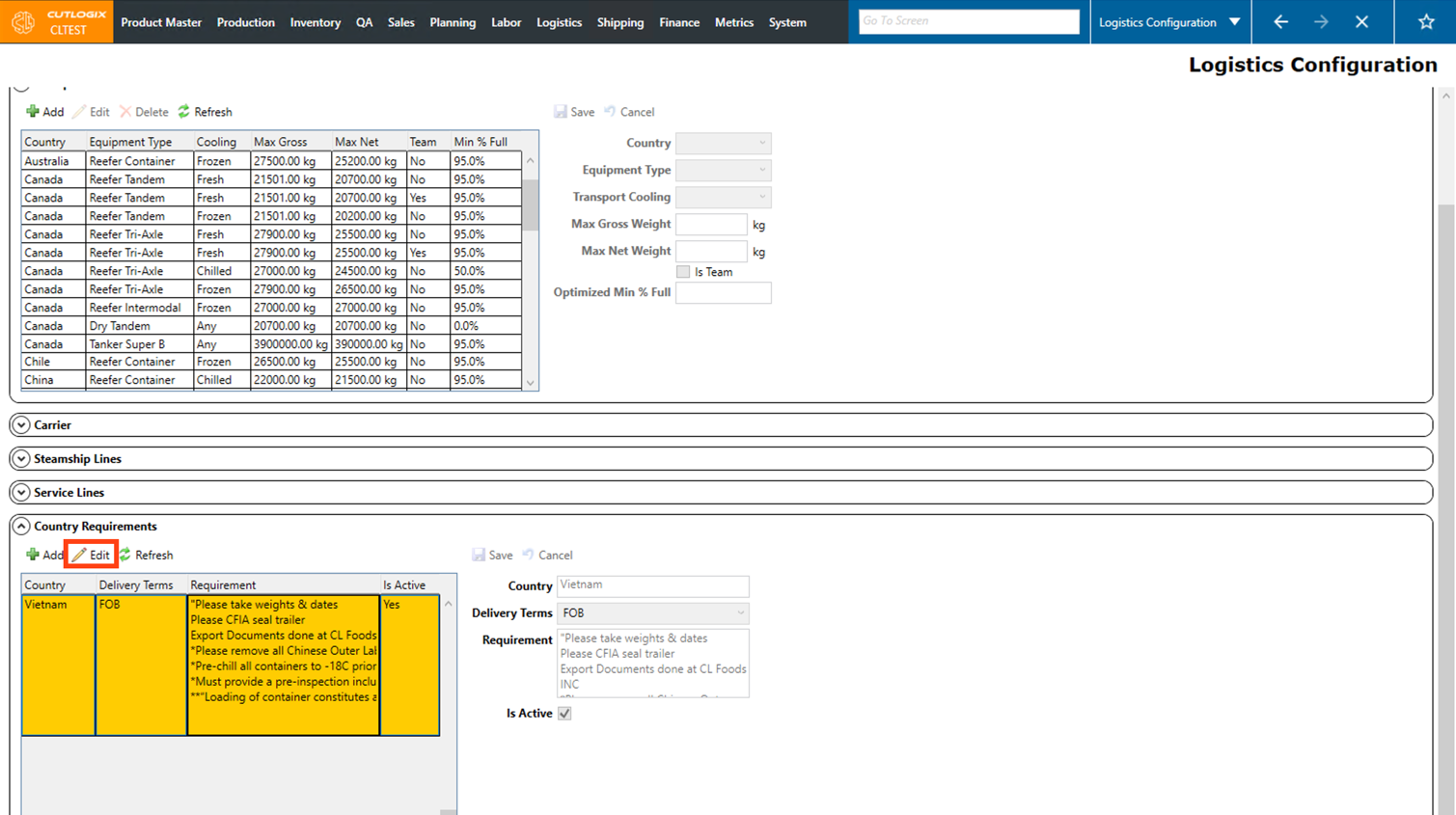
Step 5: The fields on the right side of the page will be enabled for editing the attributes of the country requirement. Make any necessary changes to the requirement here.
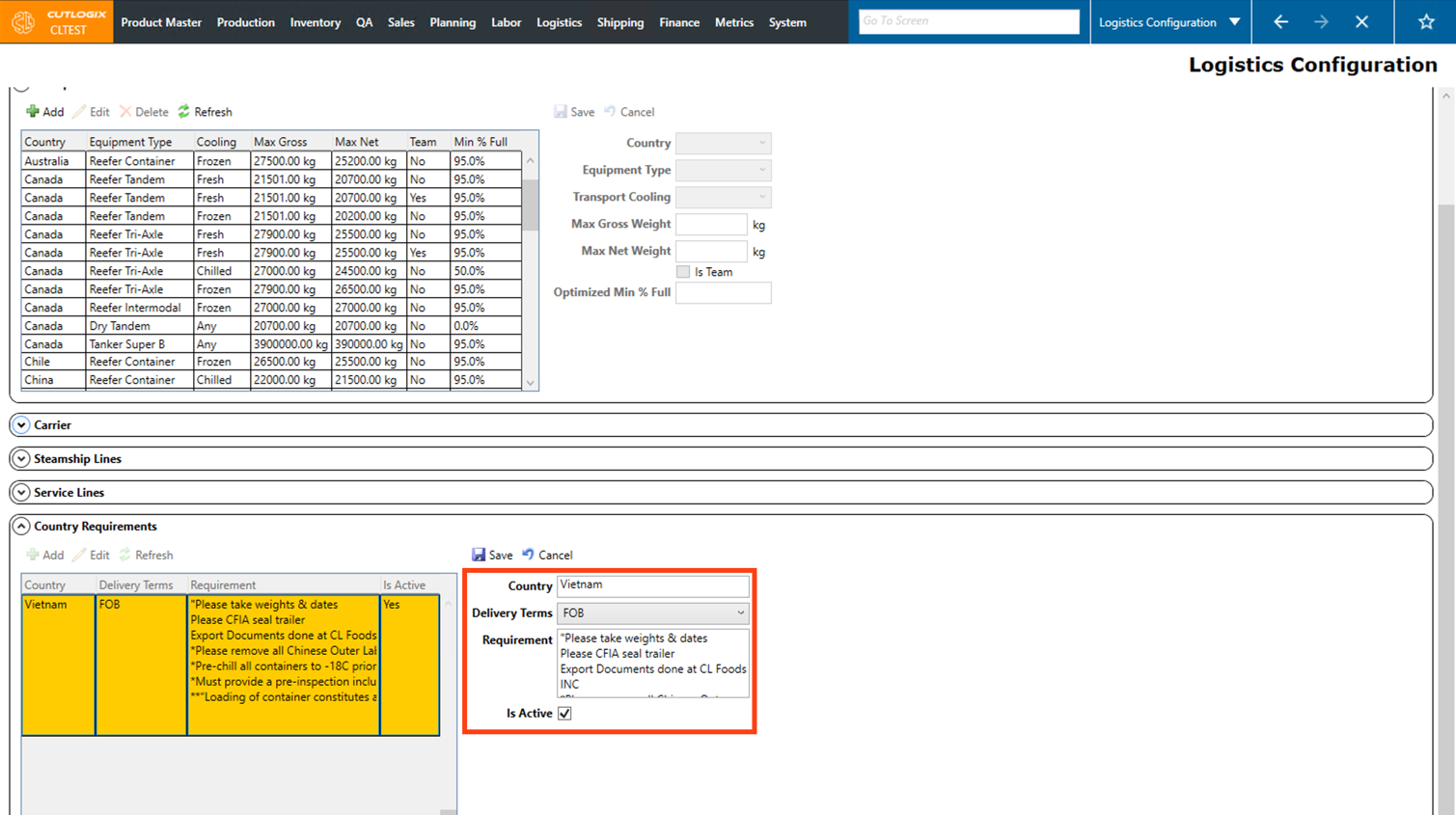
Step 6: Once you're finished making edits, click the "Save" button to save the edits on the country requirement. If you don't want to save the edits, clicking "Cancel" will discard your changes.