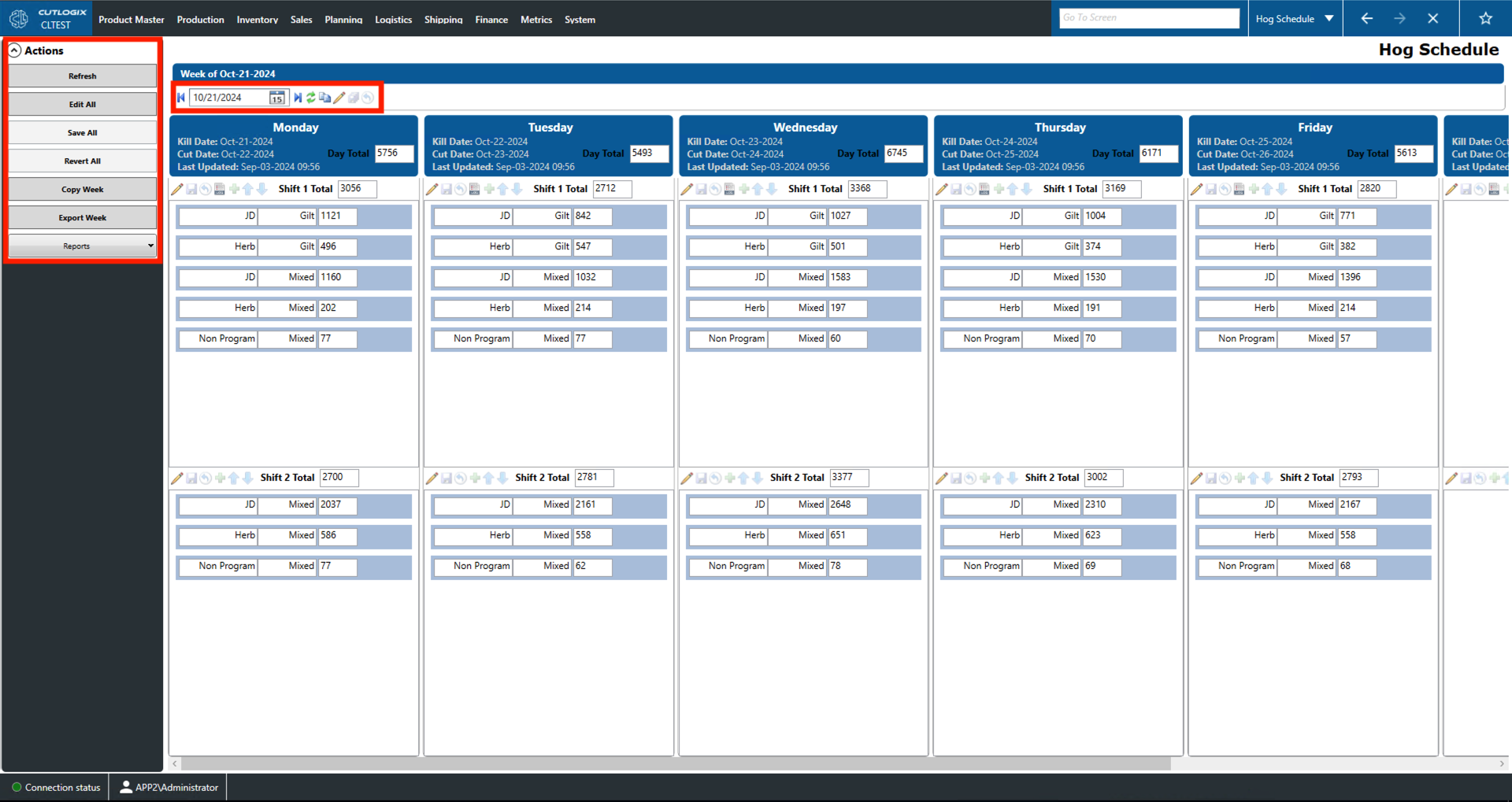
Hog Schedule Overview
How to Navigate: Click on Planning > Hog Schedule
Summary
This page gives a detailed break down of the hog processing schedule for the selected week.
- Kill Date: This is the kill date of the hogs that will be processed on the kill floor on this day.
- Cut Date: This gives the cut date of the hogs that will be processed on the kill floor on this day.
- Day Total: This is the total number of hogs that were processed on that day.
- Last Updated: Indicates the last date and time that this plan was calculated.
- Shift 1,2 Total: Gives the total number of hogs planned to be processed during shift 1 or 2 on that day.
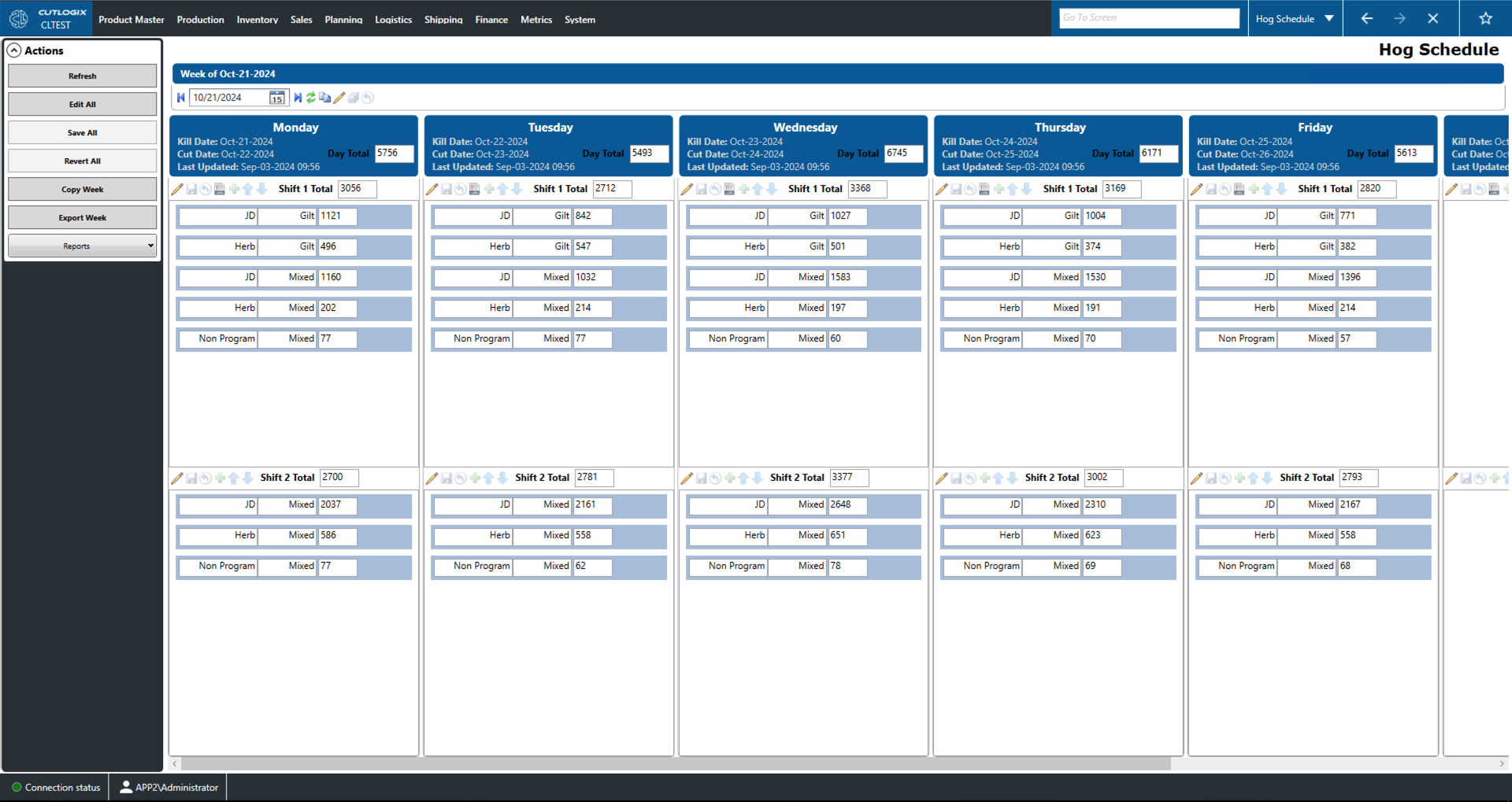
Actions
- Refresh: This will reload the Hog Schedule pulling the most recent version from the database. This can also be down by the two circular green arrows icon next to the date.
- Edit All: This enables certain editing buttons for each shift of each day of the current week. This can also be down by the pencil icon by the date.
- Buttons Enabled by Edit All: These buttons are beneath the blue box for each day that contains the kill date, cut date, etc. From left to right the functions of the buttons are:
- Pencil: This allows you to edit the selected schedule item.
- Save Icon: This will save all of the changes made to the records for this day.
- Curved Arrow: This will undo all of the unsaved changes made to the records for this day.
- Green Plus: This will allow you to add a new item to the schedule.
- Up/Down Arrow: Moves the selected item up/down one space in the list.
- **Buttons Enabled While Not Editing**:
- Pencil: This allows you to edit the selected schedule item.
- PDF: This allows you to view the change log for the relevant day.
- Save All: This will save all changes made to all days and shifts during the current editing session. This can also be down by the stacked floppy disk icon by the date.
- Revert All: This will roll back all unsaved changes made to all days and shifts during the current editing session. This can also be down by the green arrow in a circle icon by the date.
- Copy Week: This will allow you to copy the schedule of the current week to be employed on a different week. This can also be down by the two pieces of paper icon by the date.
- Export Week: This will allow you to locally save the contents of the current week to a .xlsx file (excel) format.
- Reports: This dropdown will contain a number of reports related to the hog schedule. These reports are customizable by customer request.