Plant Calendar Tasks
How to Navigate Dates on the Plant Calendar
Demo
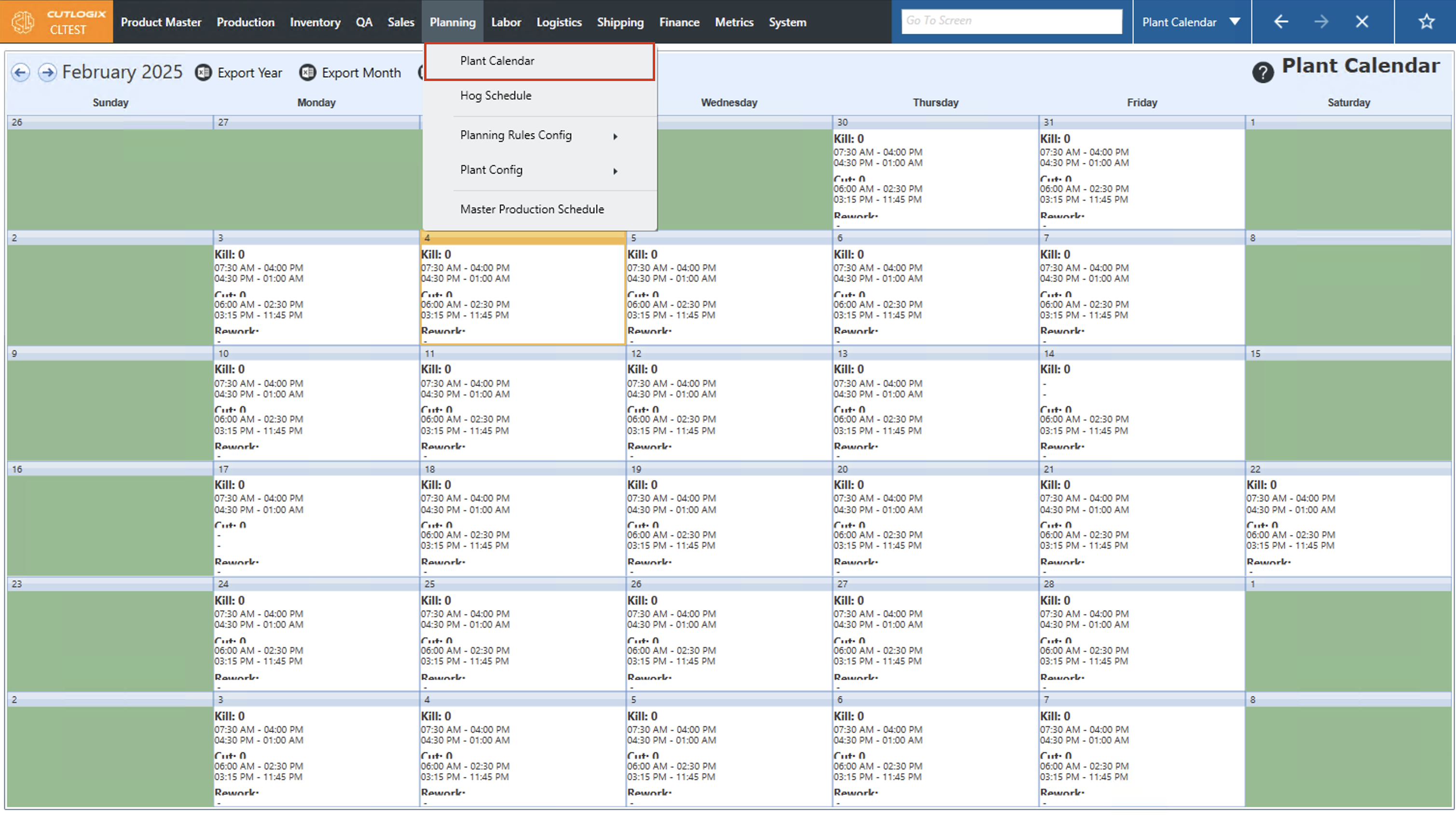
Step 1: Navigate to the "Plant Calendar" page (Under the Planning menu → Plant Calendar)
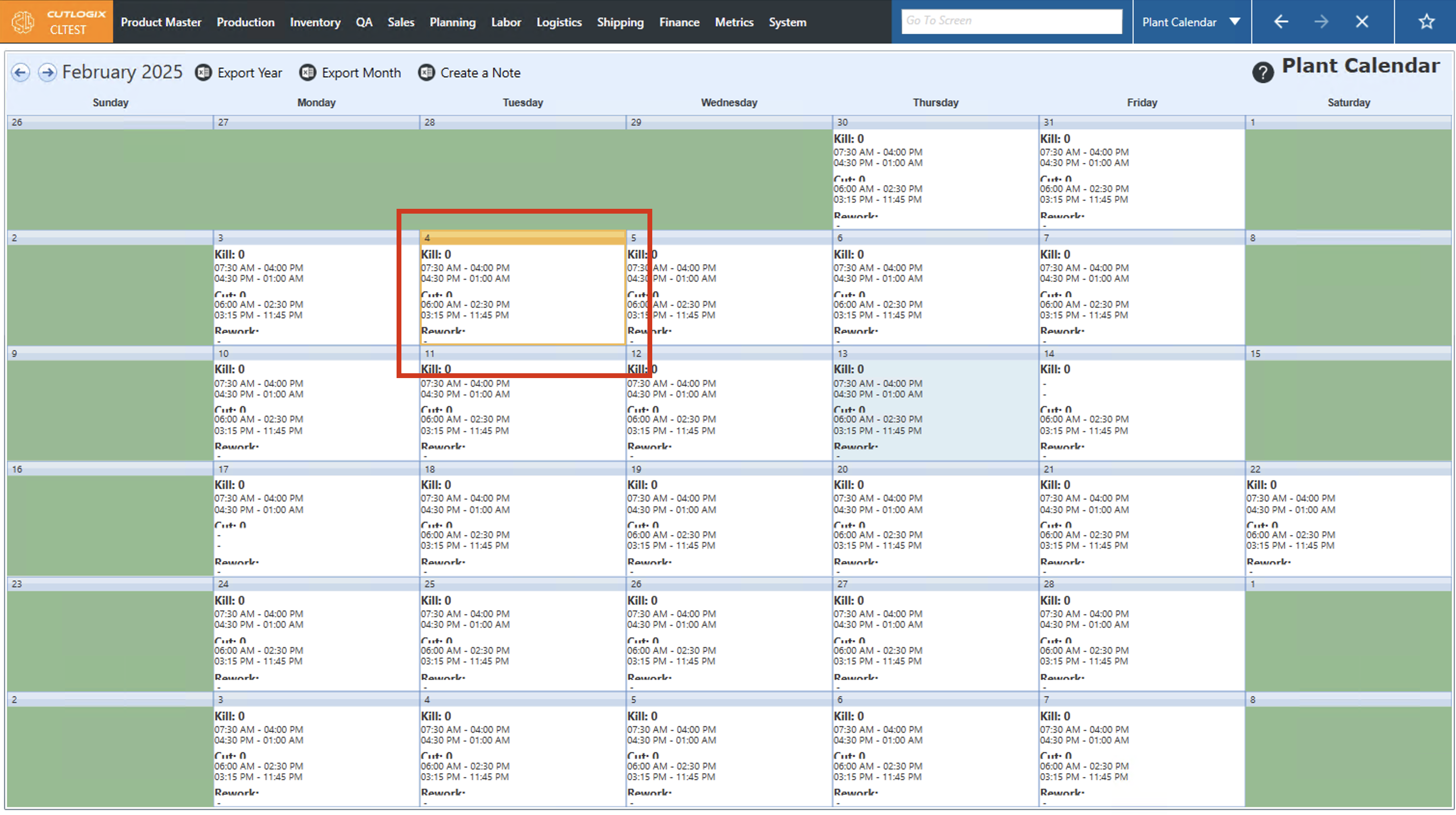
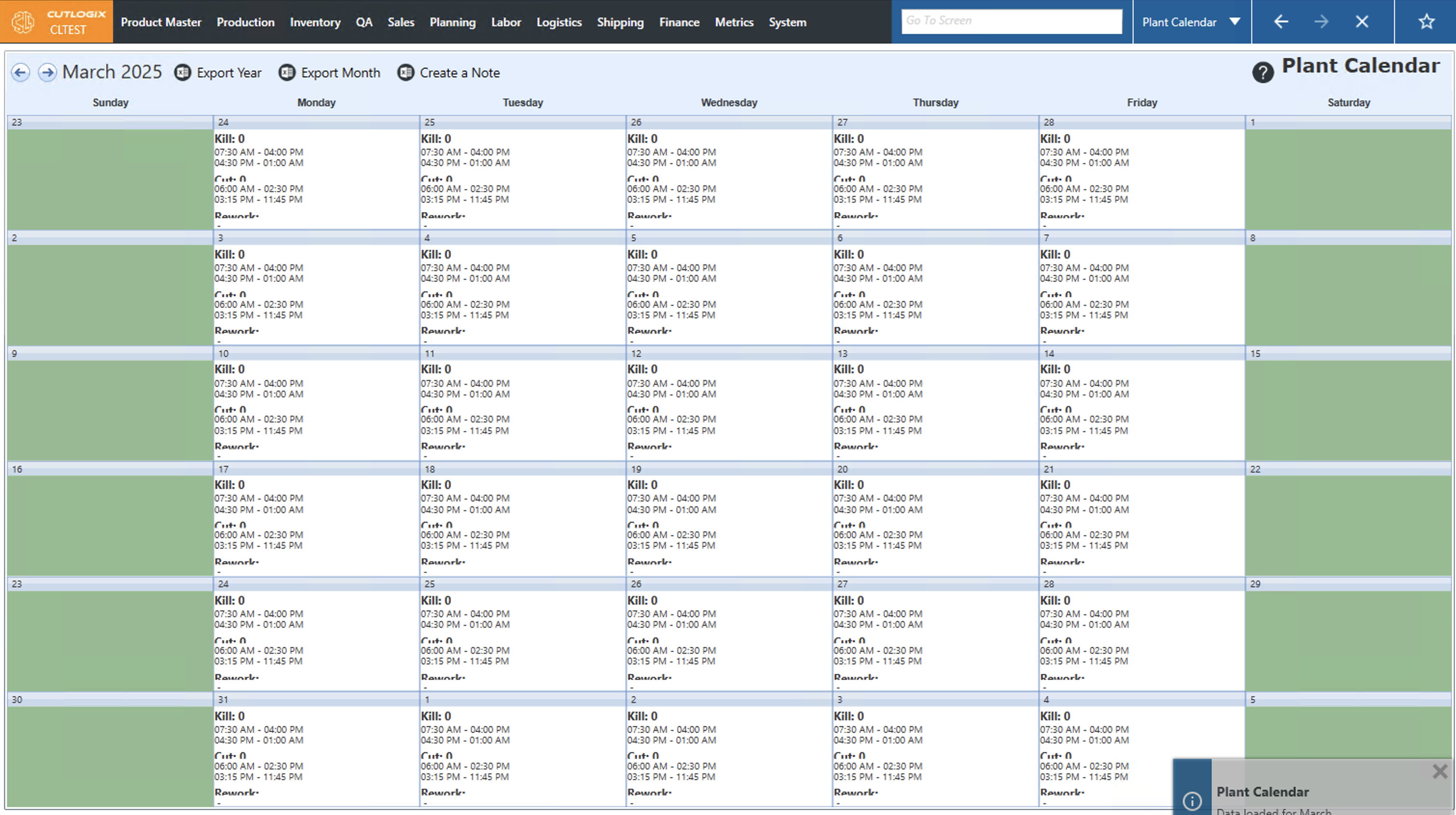
Step 2: By default, the calendar will open to the current month, with the current day highlighted in orange.
Step 3: To view past or future dates on the calendar, use the arrow buttons in the top left corner to either move to the next month (→) or to the previous month (←).
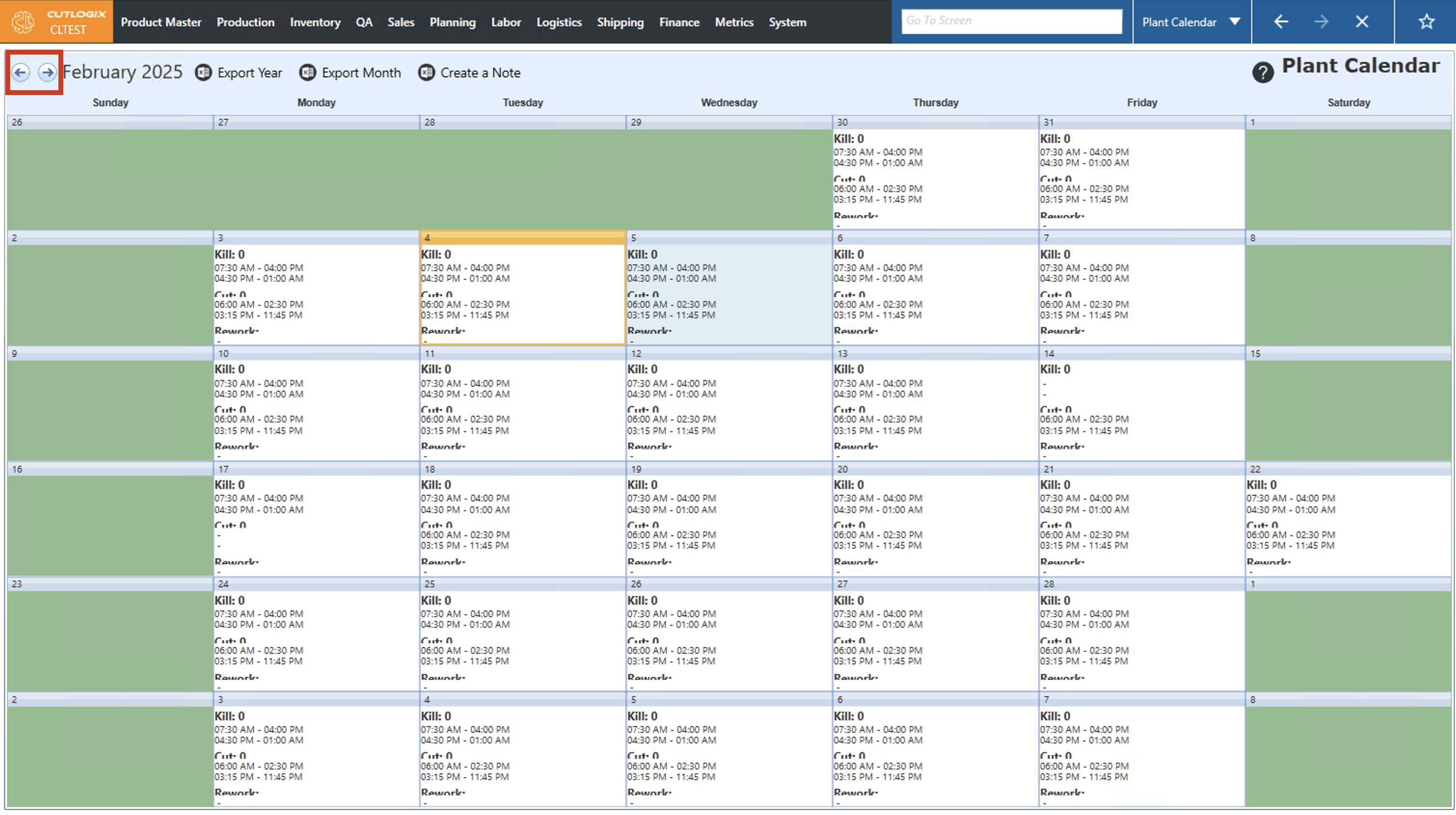
Step 4: The calendar view will then change to the newly selected month.
How to Add Notes to Specific Days on the Plant Calendar
Demo
Step 1: Navigate to the "Plant Calendar" page (Under the Planning menu → Plant Calendar)
Step 2: Click on the "Create a Note" button.
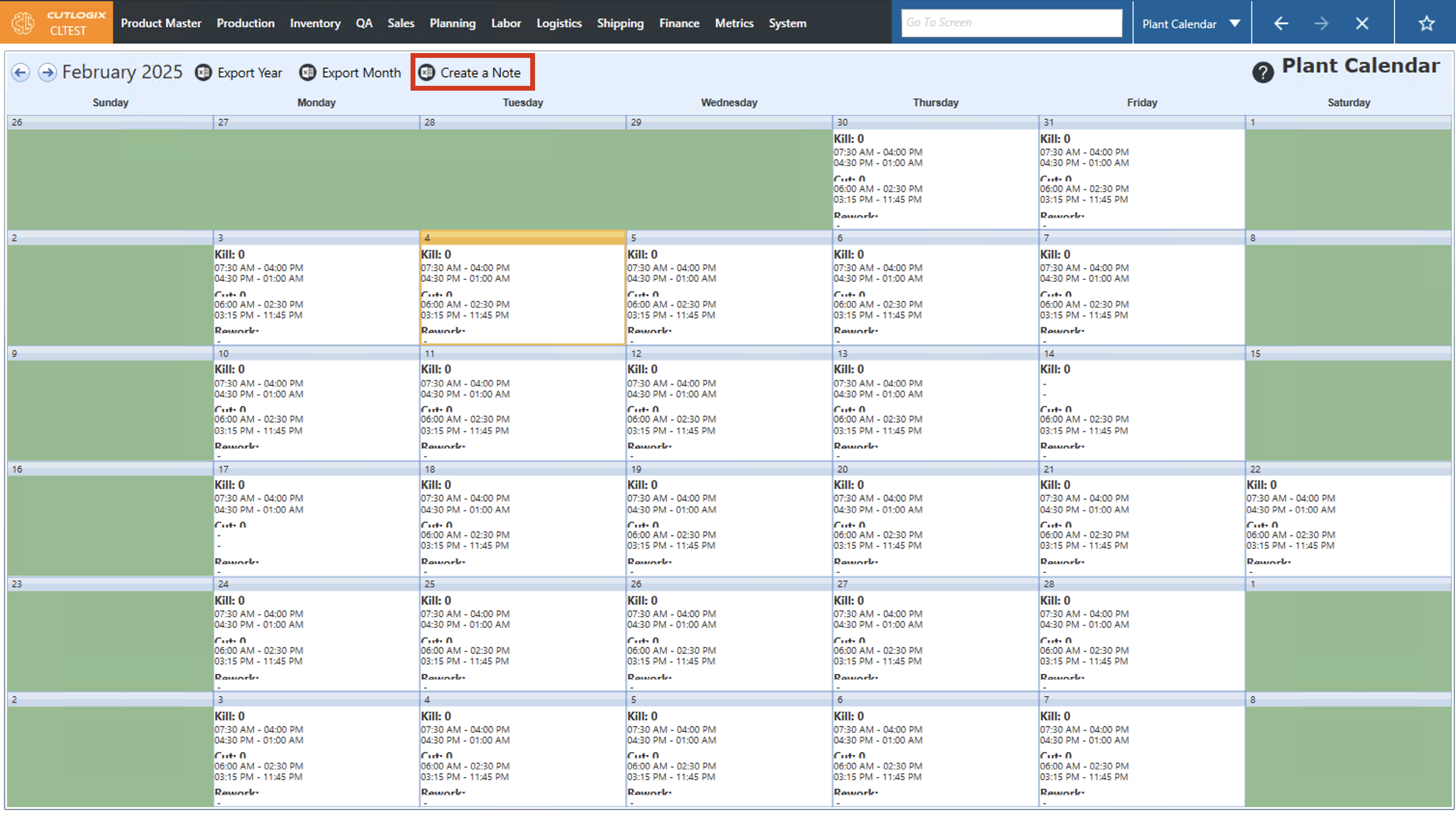
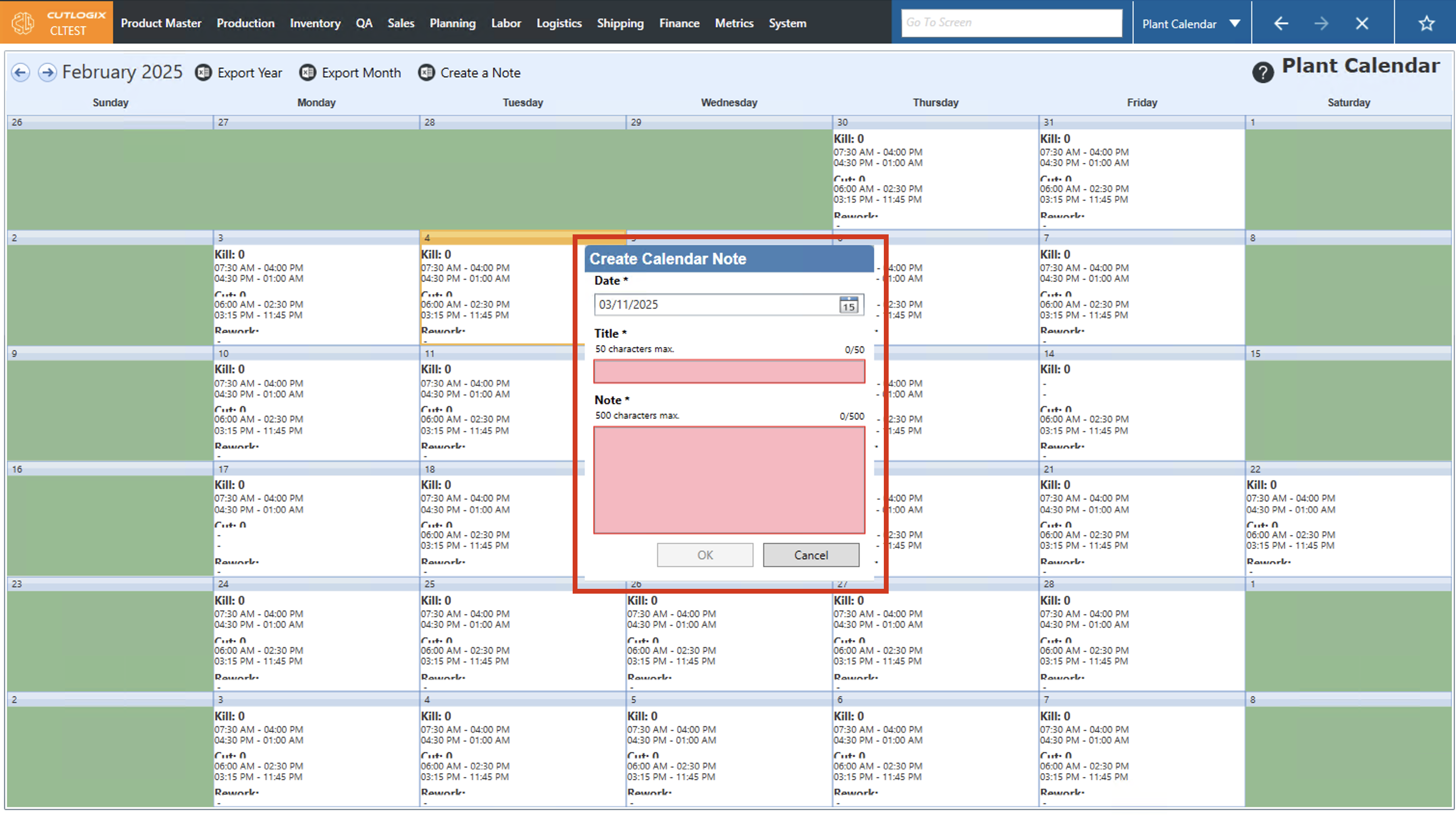
Step 3: A "Create Calendar Note" dialog will appear where you can enter information about the note. Notes require a date (this gets set automatically based on the date you previously clicked on in the calendar), a title for the note and the note itself.
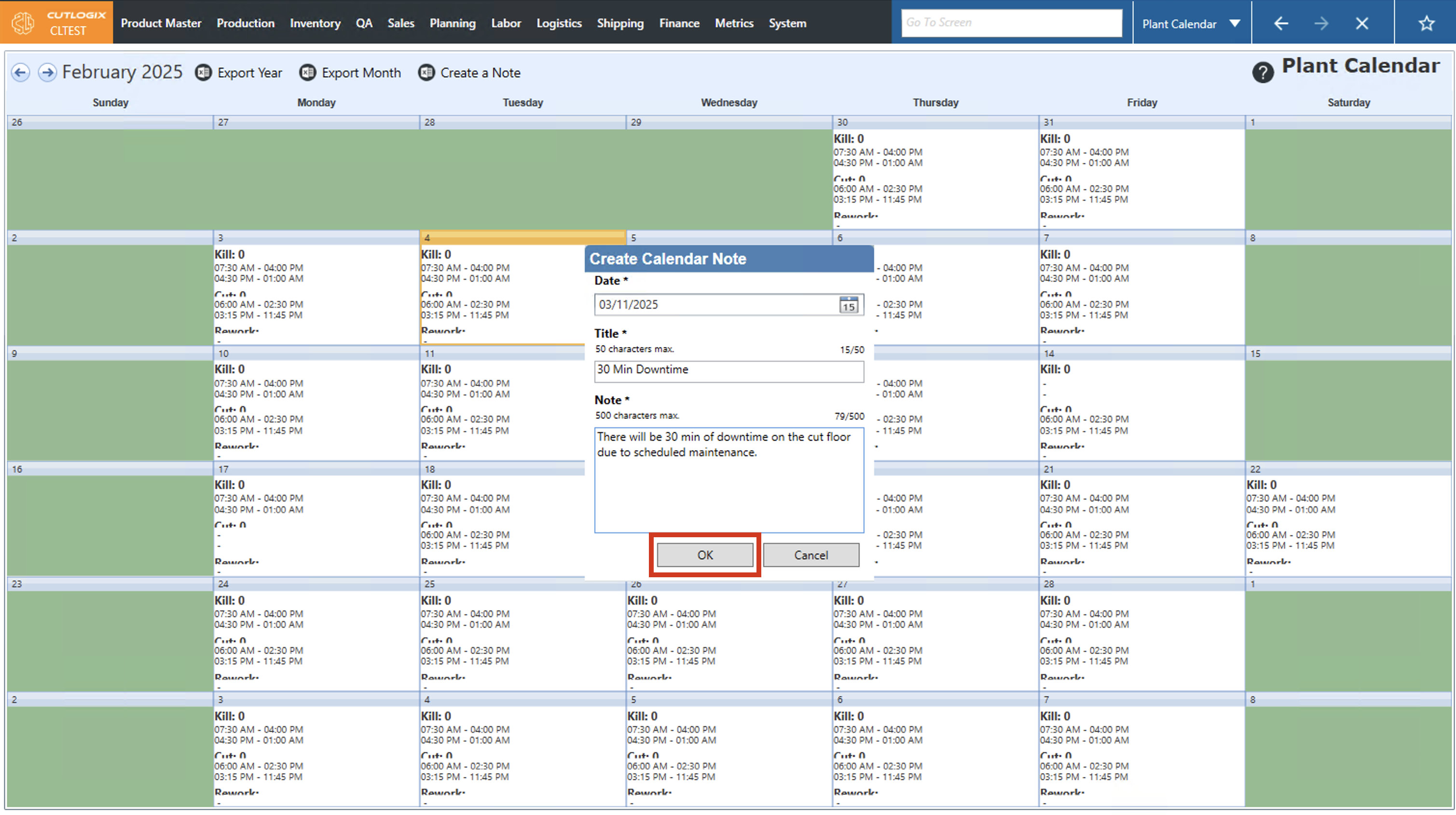
Step 4: Once you've filled out all the required information (highlighted in red on the dialog), click "OK" to save the note on the calendar. If you don't want to save the note, clicking "Cancel" will discard the note, and it will not be saved.
Step 5: Once saved, the note itself will appear under the "Notes" title on the day it was added to on the calendar. More information on the note can also be viewed on the details view which it outlined in the next section.
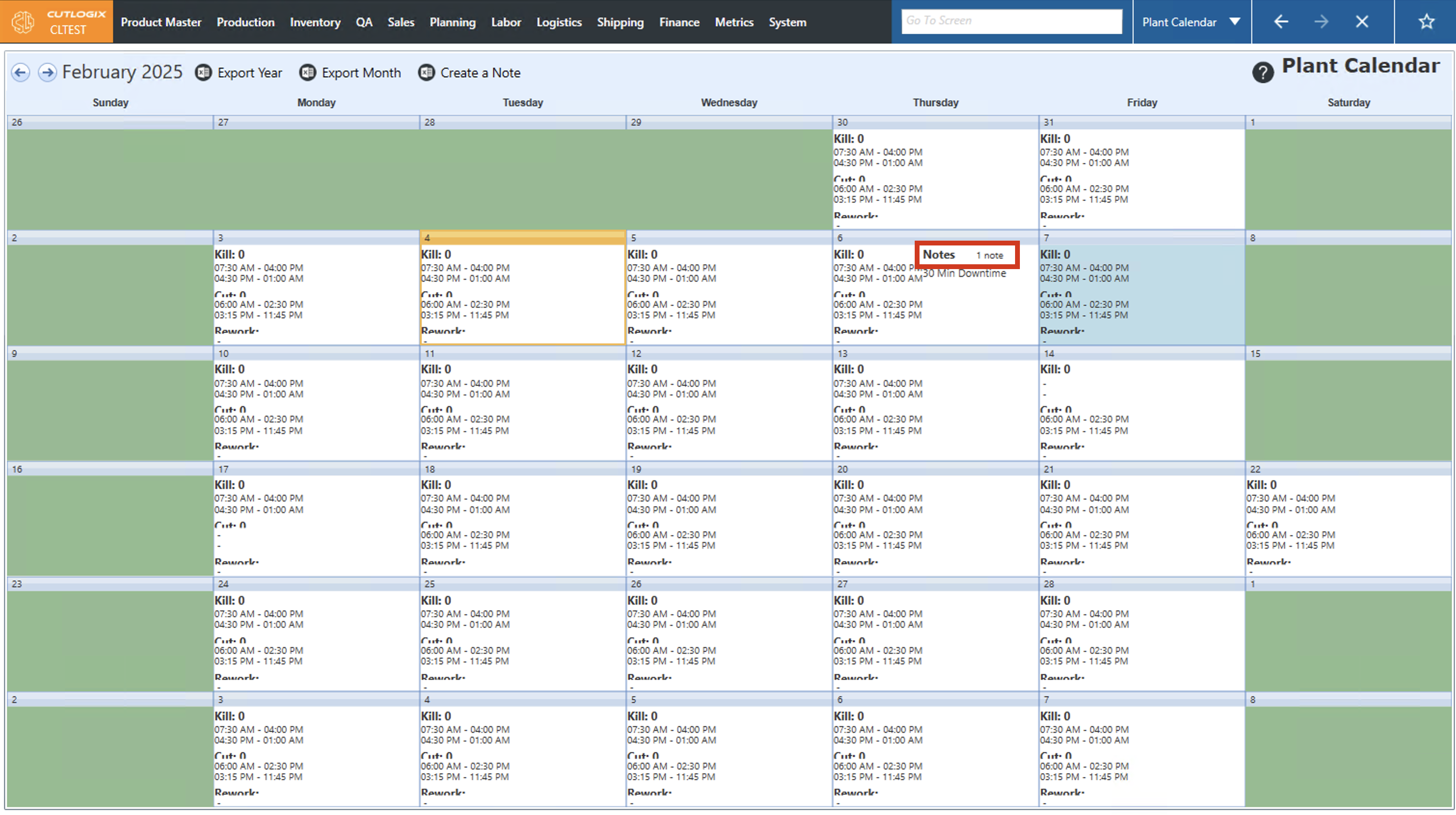
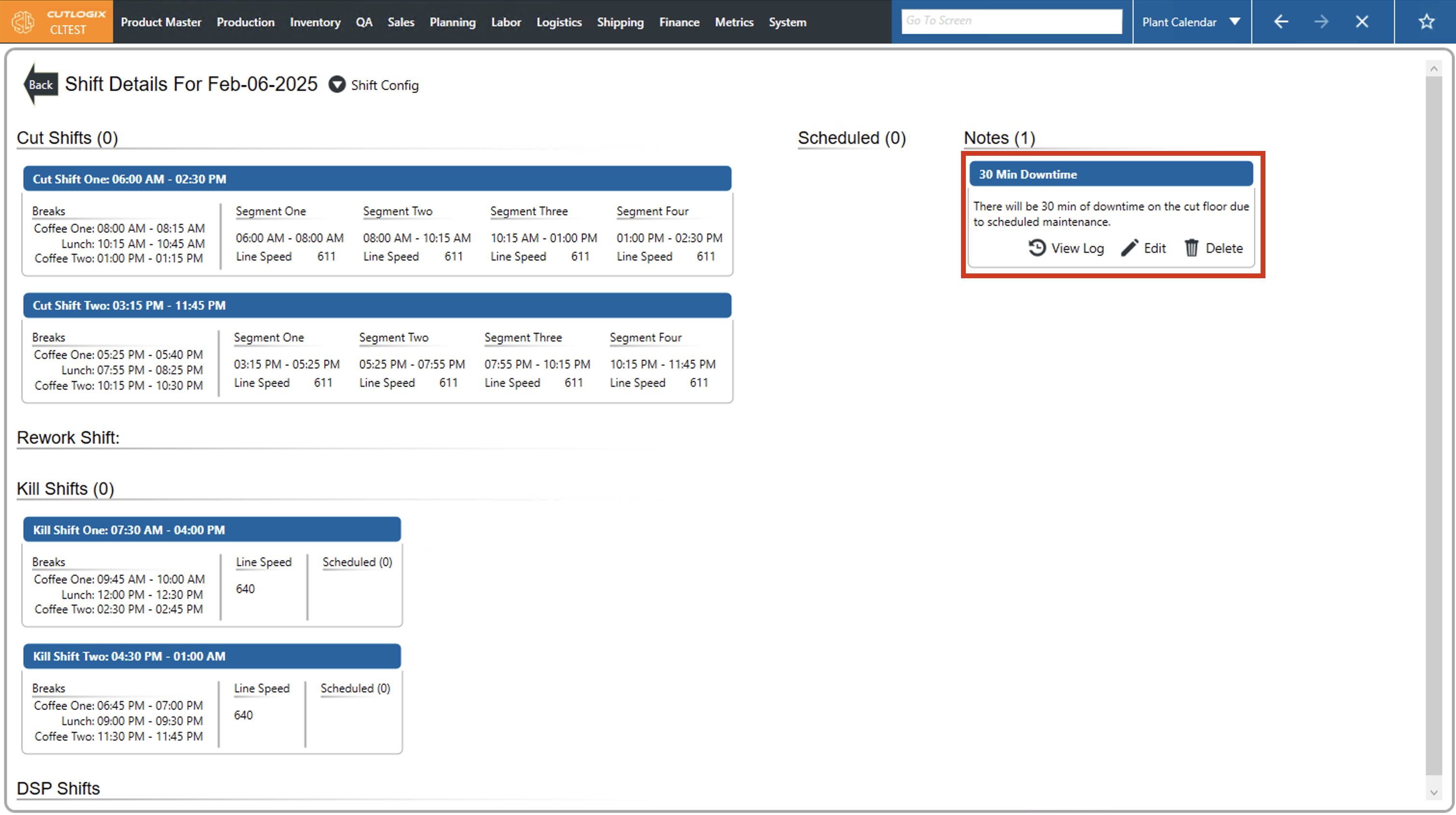
Step 6: To view more information about the note, you can double-click on the day that contains the note. This will bring up a details page where you can view the title and content of the note, view its history (log), edit it or delete it.
How to View a Day's Shift Config
Demo
Step 1: Navigate to the "Plant Calendar" page (Under the Planning menu → Plant Calendar).
Step 2: Double-click on the day that you want to view more information about.
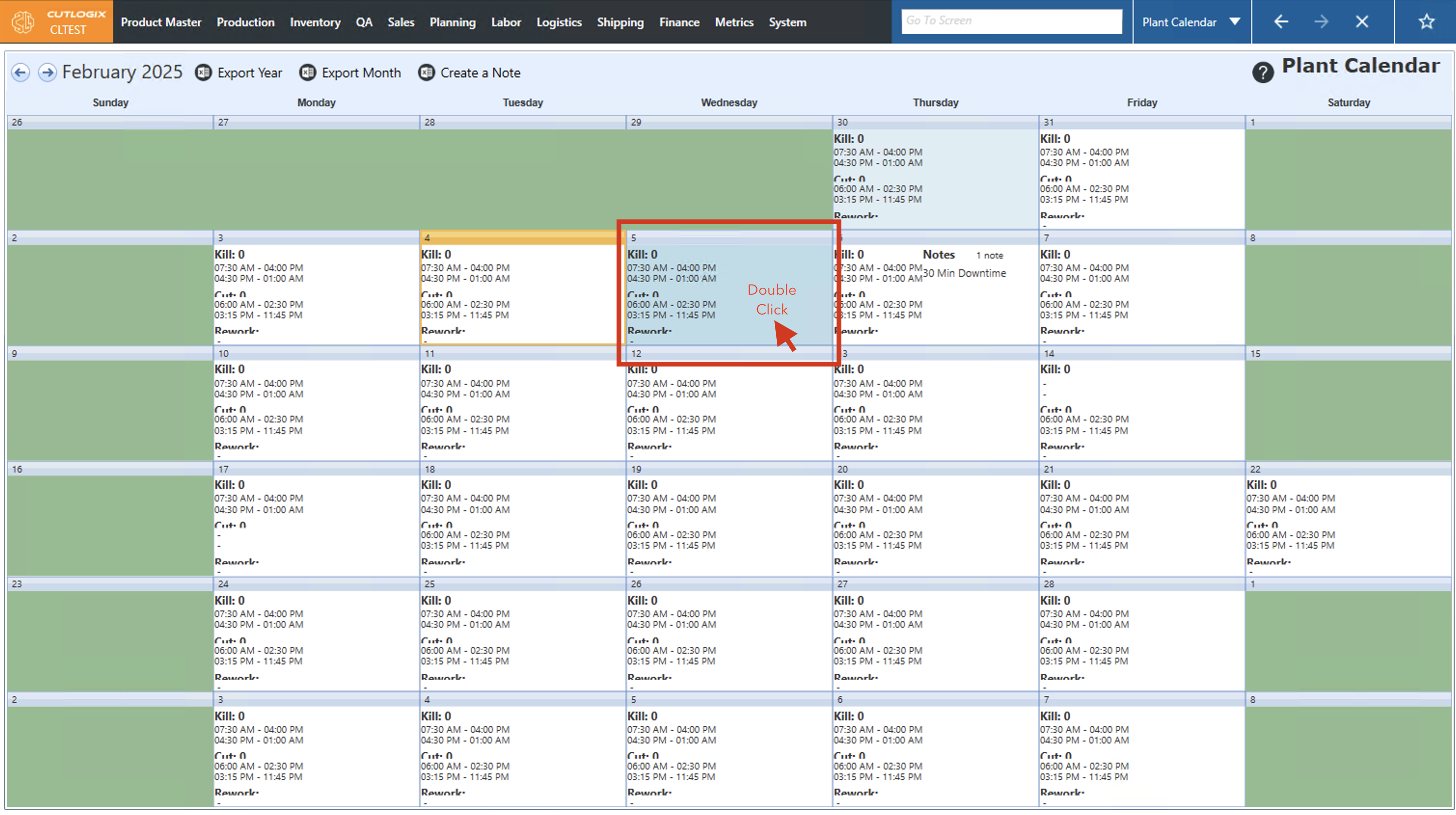
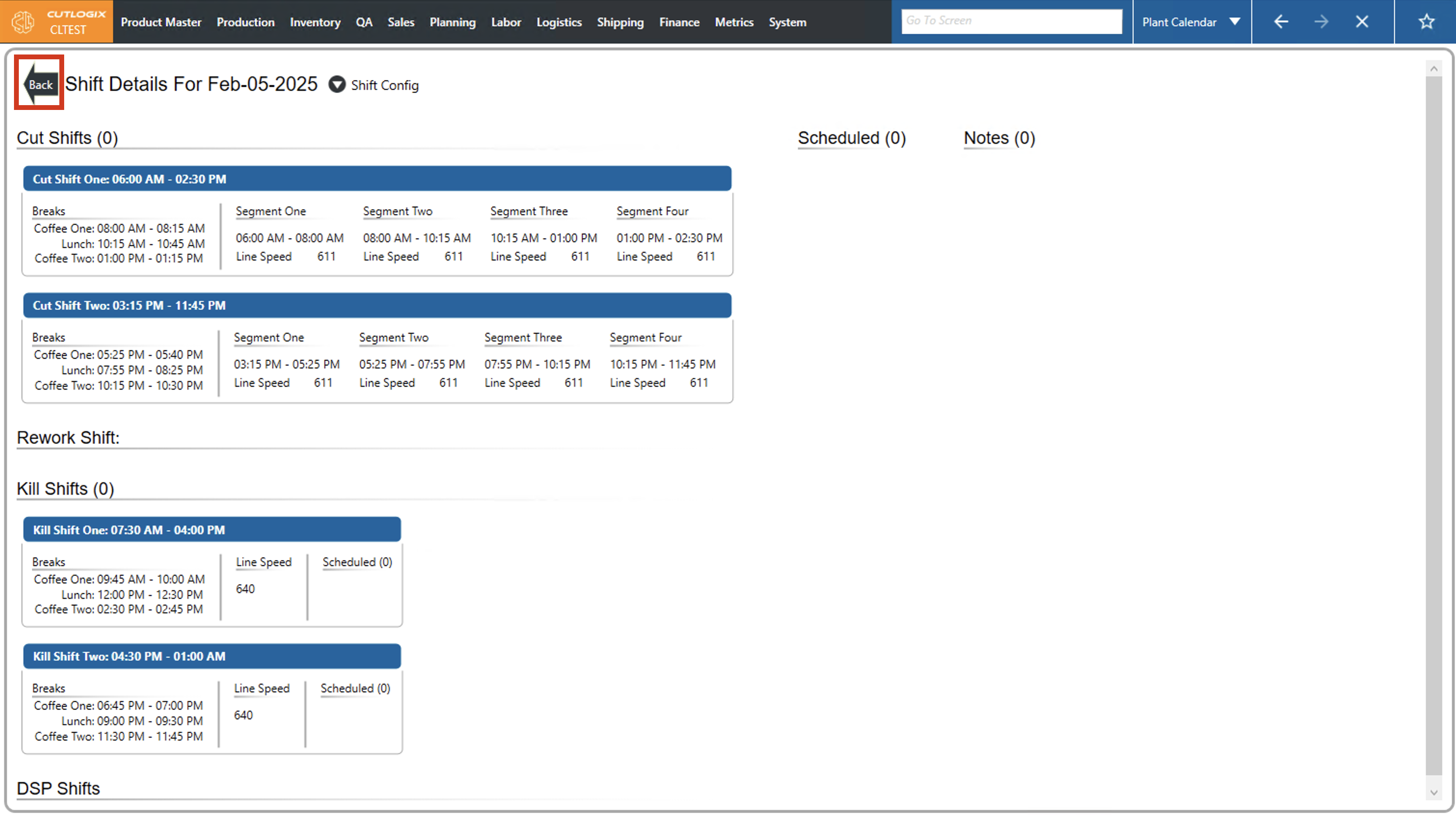
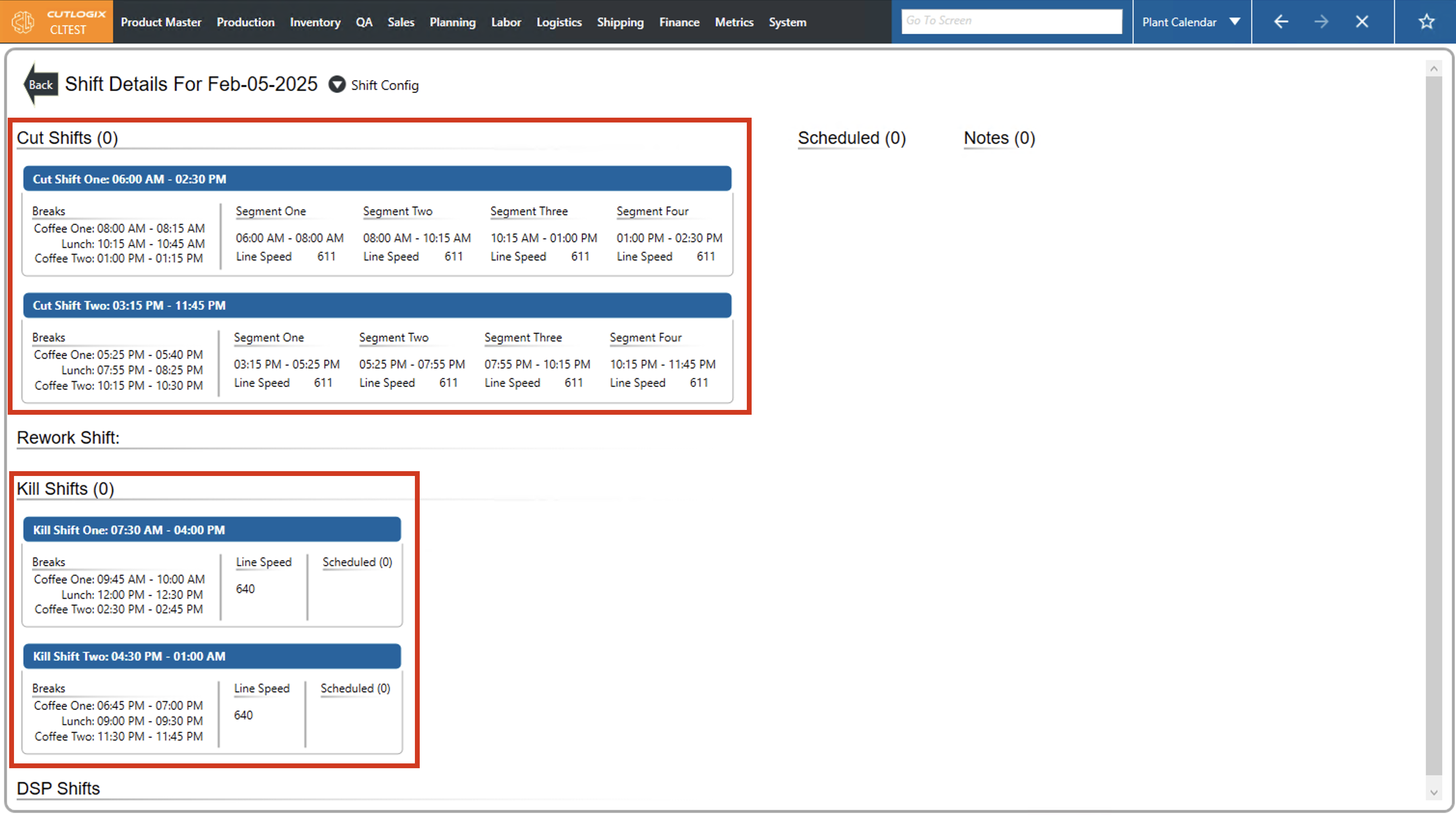
Step 3: This will open a details page with more information about the selected day. In here you can view more information about Kill and Cut Shifts, hogs scheduled for the day as well as notes (the previous section outlines how to add them).
Step 4: Clicking the "Back" button in the top left corner will return you to the calendar view.