Location Tasks
How to Add Locations
Demo
Note: Locations cannot be added to the "World" level, they can only be added to continents or lower.
Step 1: Navigate to the "Locations" page (Under the Logistics menu → Locations).
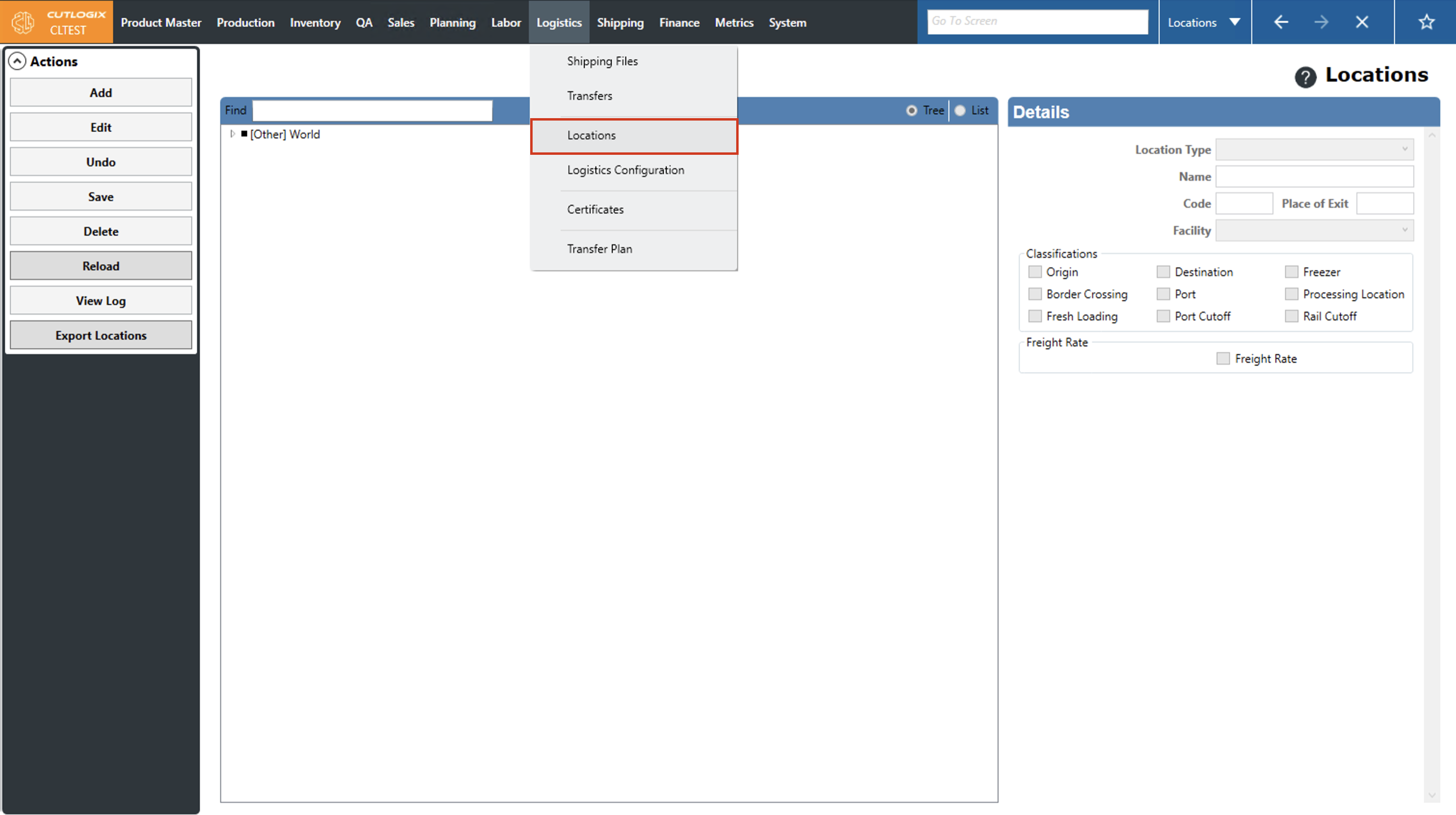
Note: To expand the tree view, you can do this by double-clicking on an entry or clicking the arrow located on the left side of it.
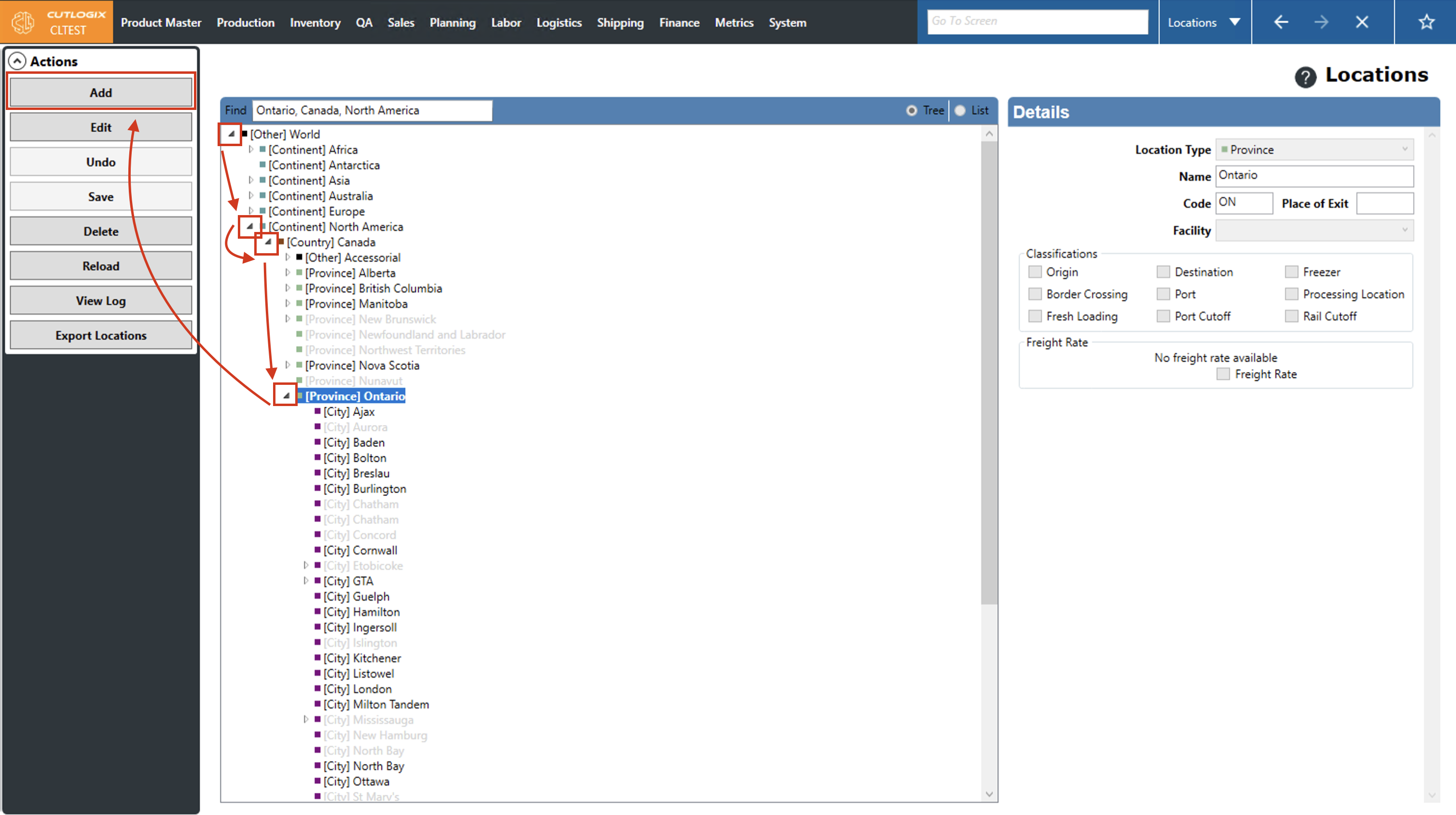
Step 2: Start by double-clicking on "World" (or clicking the arrow on the left side of it), then choose the continent that you want to add a location to. Once you've selected a continent, the "Add" button in the Actions Panel will be clickable. Keep navigating down the location tree until you get to where you want to add the location. (Ex. If you want to add a city in Ontario, Canada, you'd go to "World" → "North America" → "Canada" → "Ontario" and then click the "Add" button)
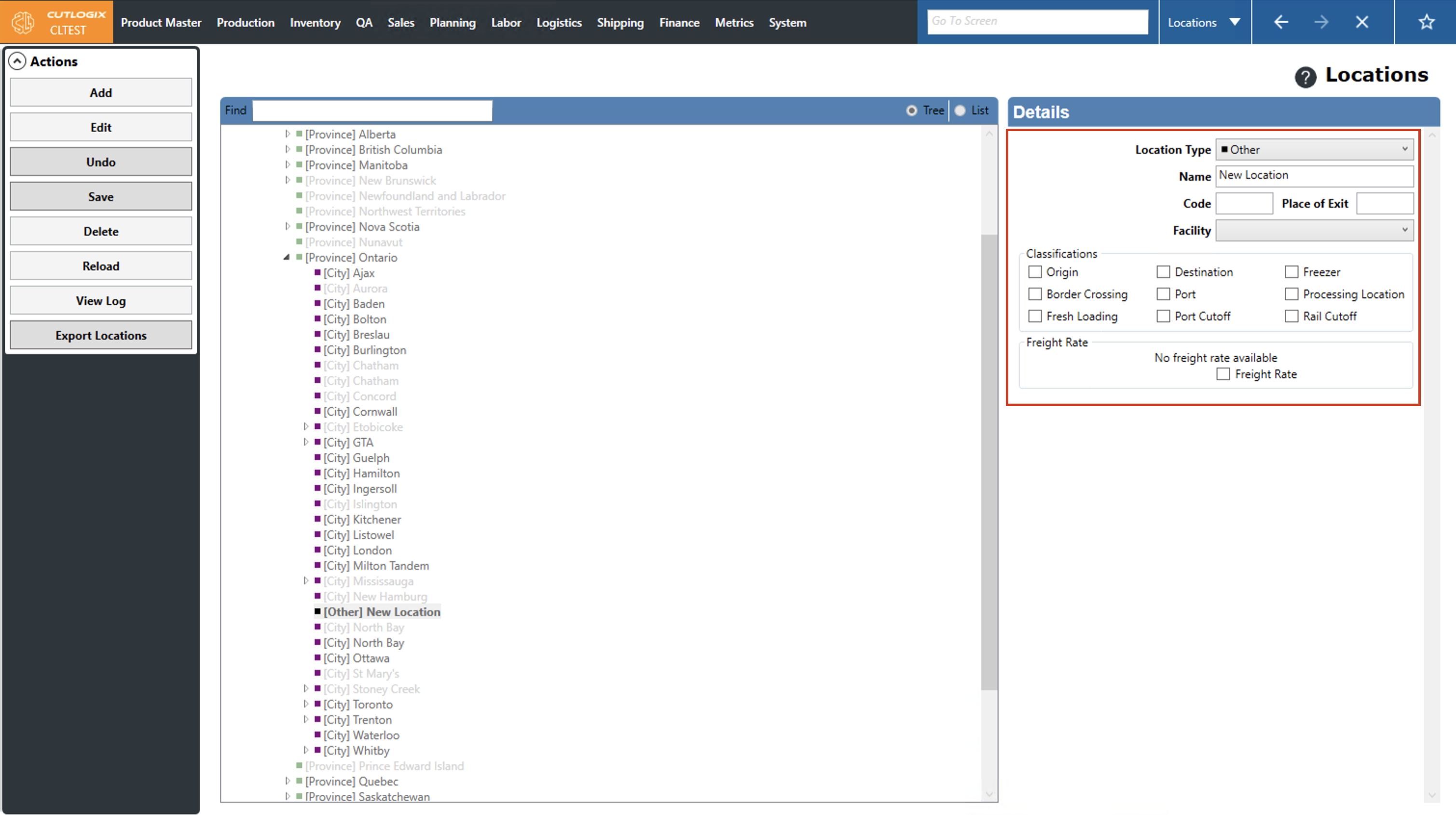
Step 3: Once you've clicked the "Add" button, a new entry in the tree view list will appear (saying "New Location"). A details panel will open on the right side of the page for you to enter details about the new location.
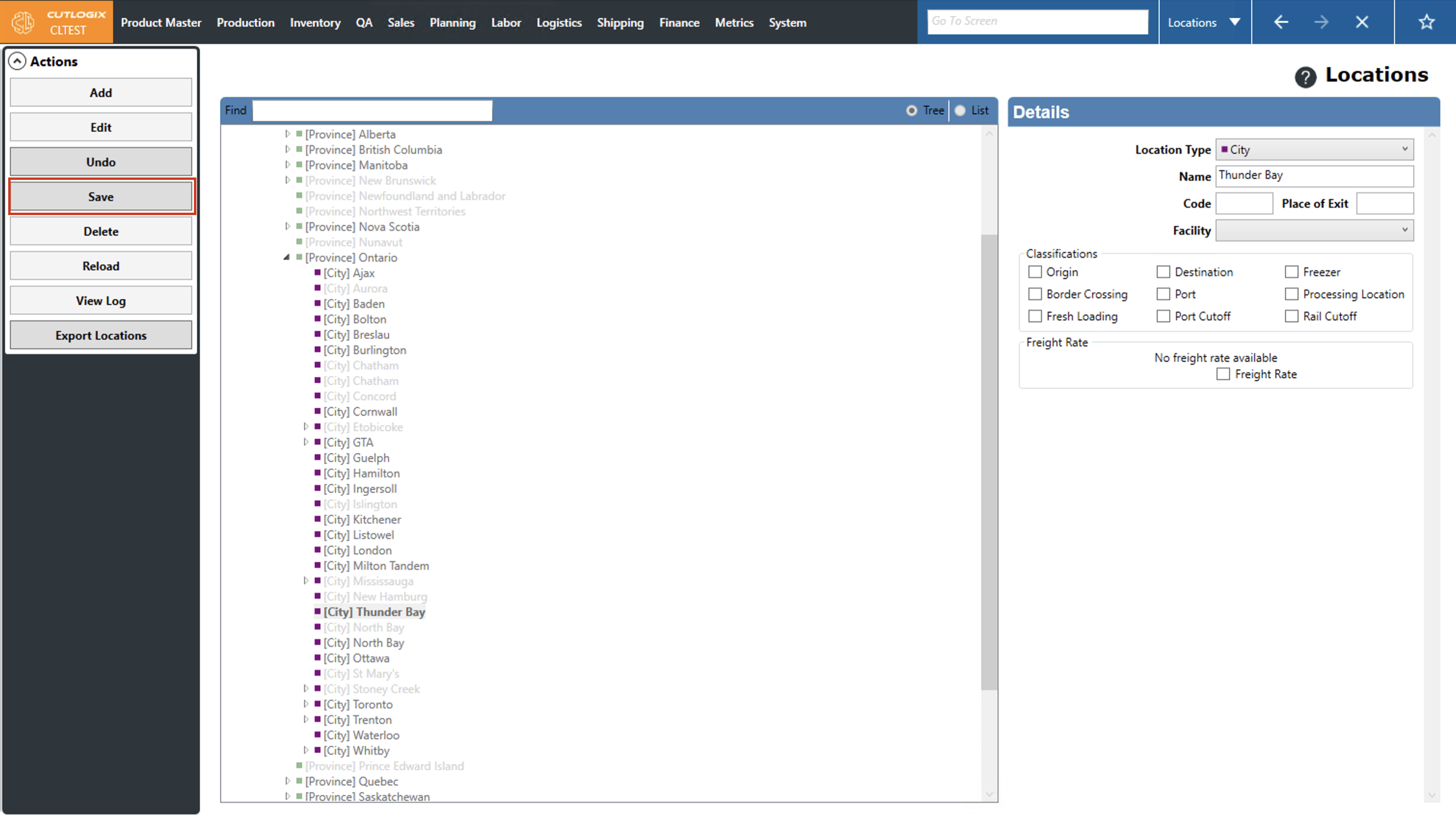
You can set the type, name, code, facility, classifications and freight rates for the location. As you specify classifications, additional fields will appear that may be required (highlighted in red). These fields must be entered before the location can be saved.
Step 4: Once you've filled out all the necessary information for the location, click "Save" in the Actions Panel to save it. If you don't want to save the new location, clicking "Undo" in the Actions Panel will revert your changes and the location will not be saved.
How to Edit Locations
Demo
Note: Locations at the continent and world level cannot be edited.
Step 1: Navigate to the "Locations" page (Under the Logistics menu → Locations).
Step 2: Using the arrows beside the locations, double-clicking on them or using the "Find" bar at the top of the list, navigate to the location that you want to modify and click on it.
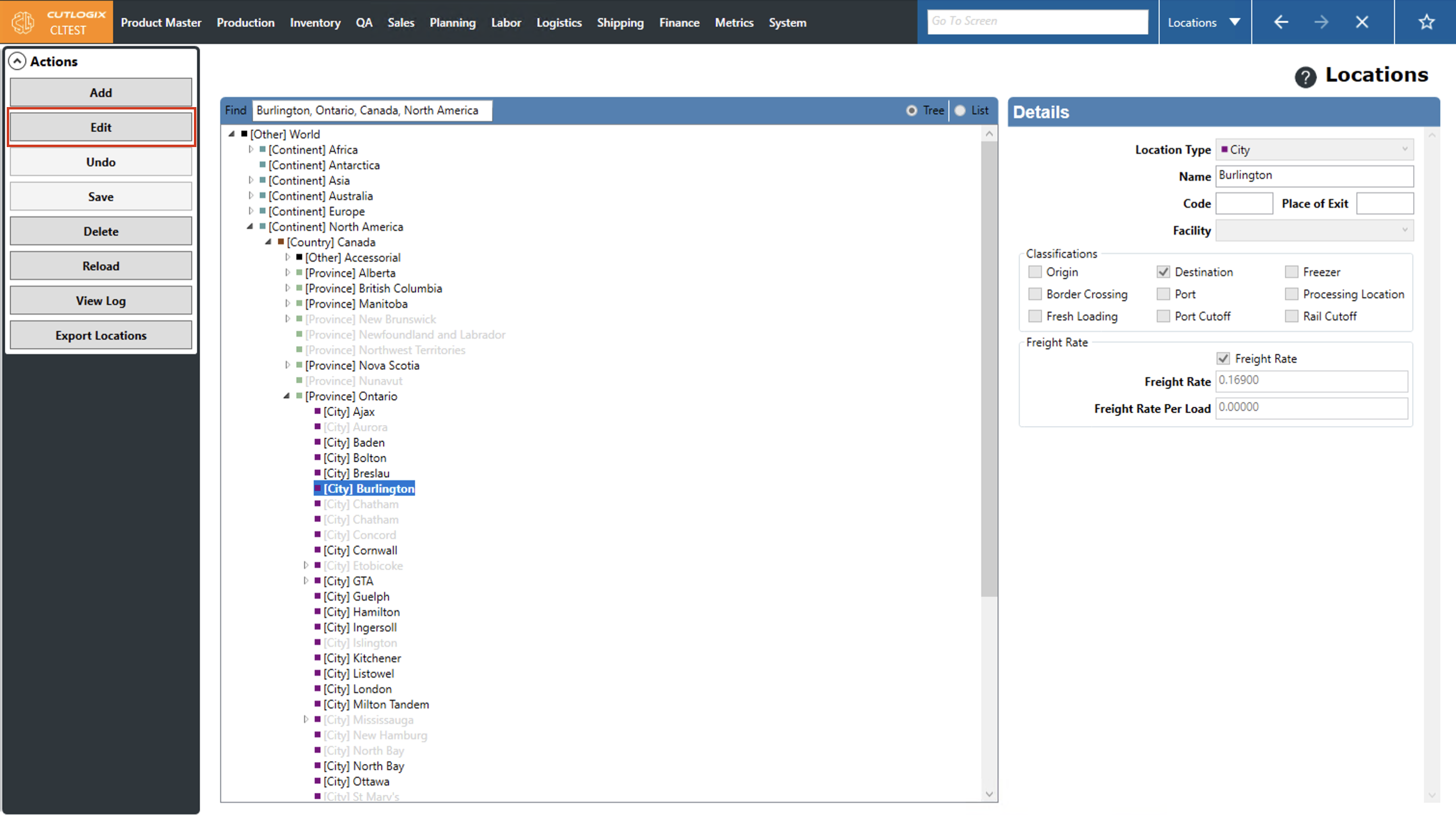
Step 3: Click the "Edit" button in the Actions Panel.
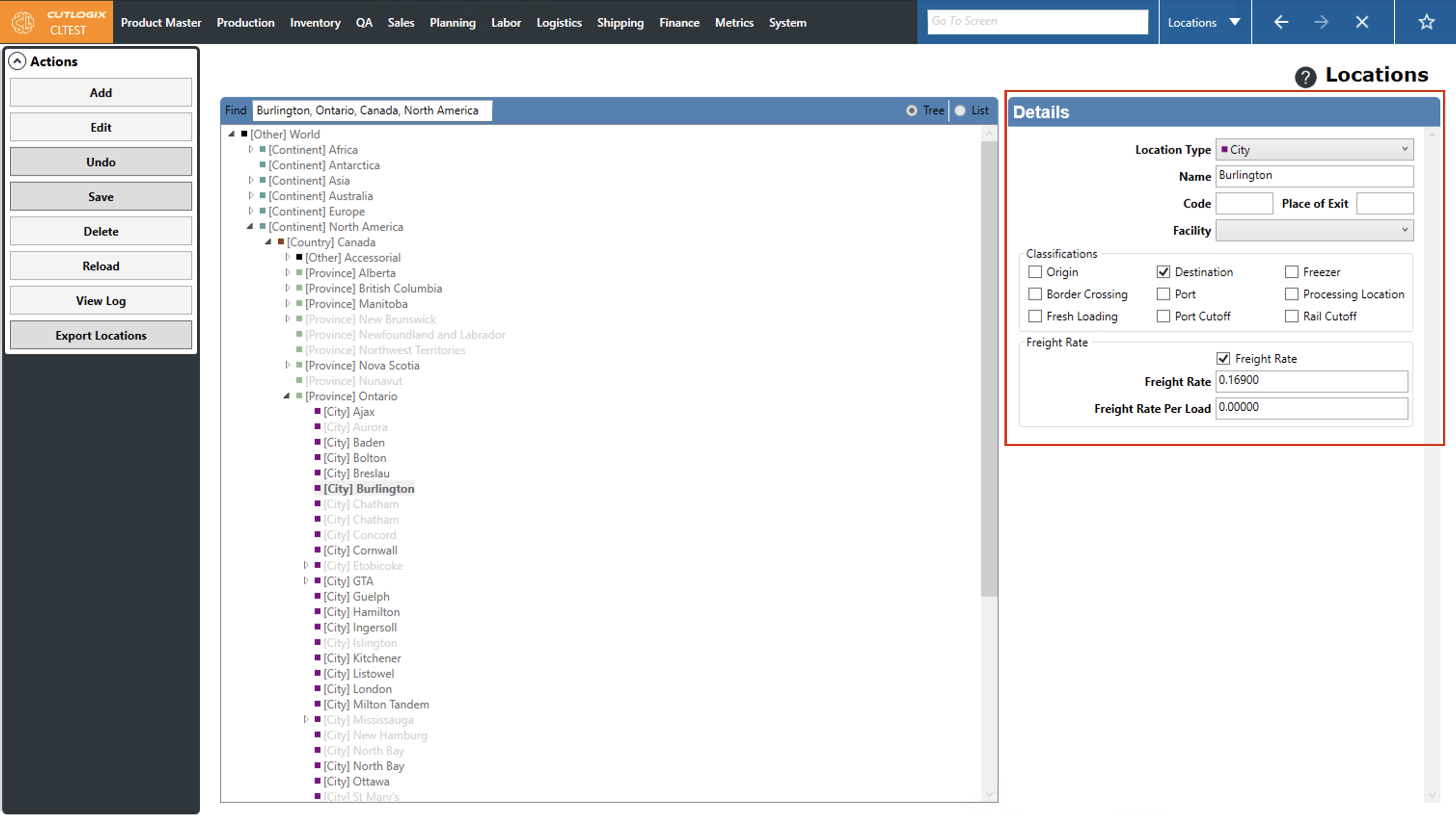
Step 4: A details tab will open on the right side of the page, containing all the information for that location. Here you can make any necessary changes to the location.
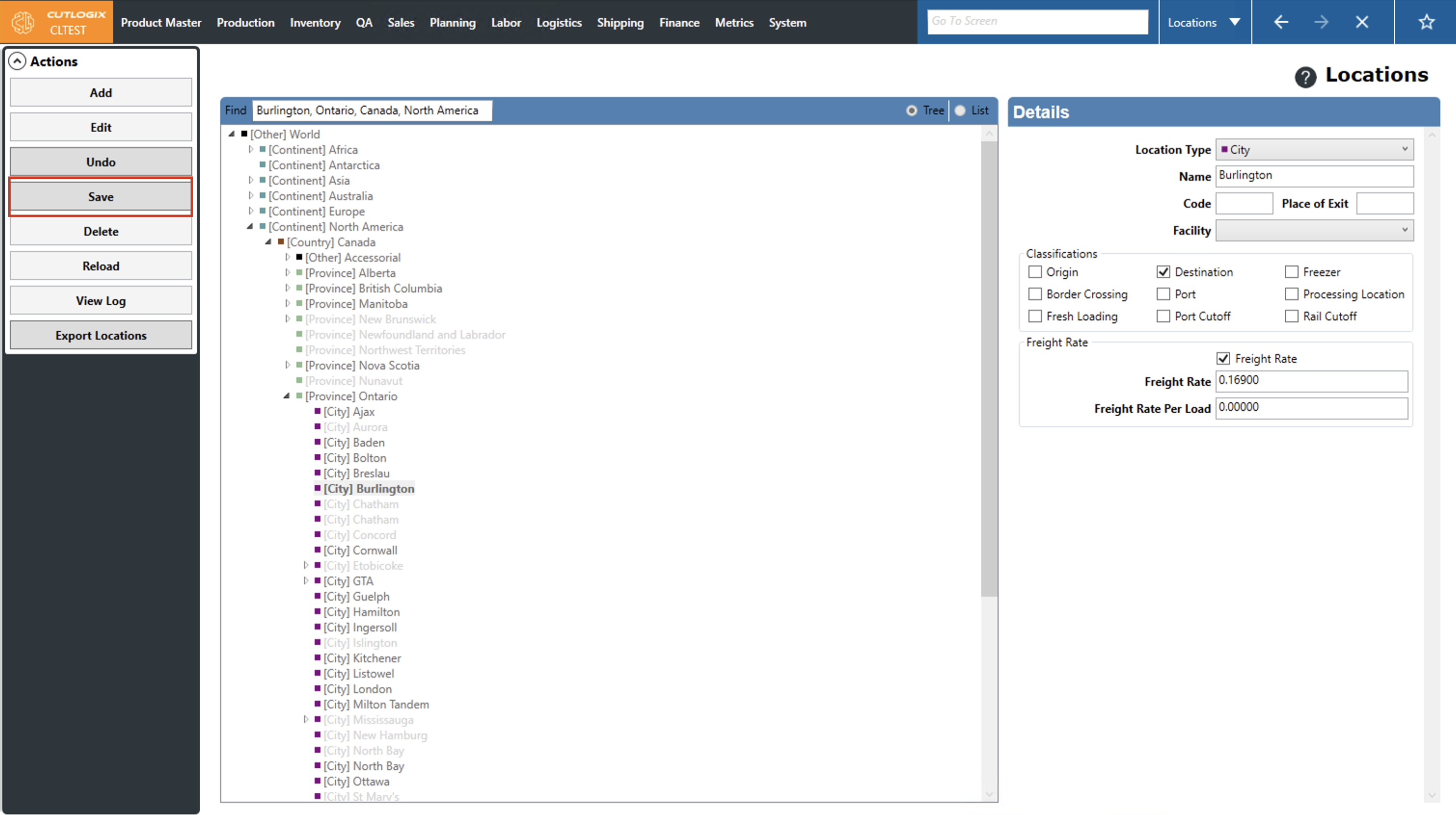
Step 5: Once all the changes have been made for the location, click "Save" in the Actions Panel to save them. If you don't want to save your changes, clicking "Undo" in the Actions Panel will revert your changes and they will not be saved.
How to Delete Locations
Demo
Note: Locations at the continent and world level cannot be edited or deleted.
Step 1: Navigate to the "Locations" page (Under the Logistics menu → Locations).
Step 2: Using the arrows beside the locations, double-clicking on them or using the "Find" bar at the top of the list, navigate to the location that you want to delete and then click on it.
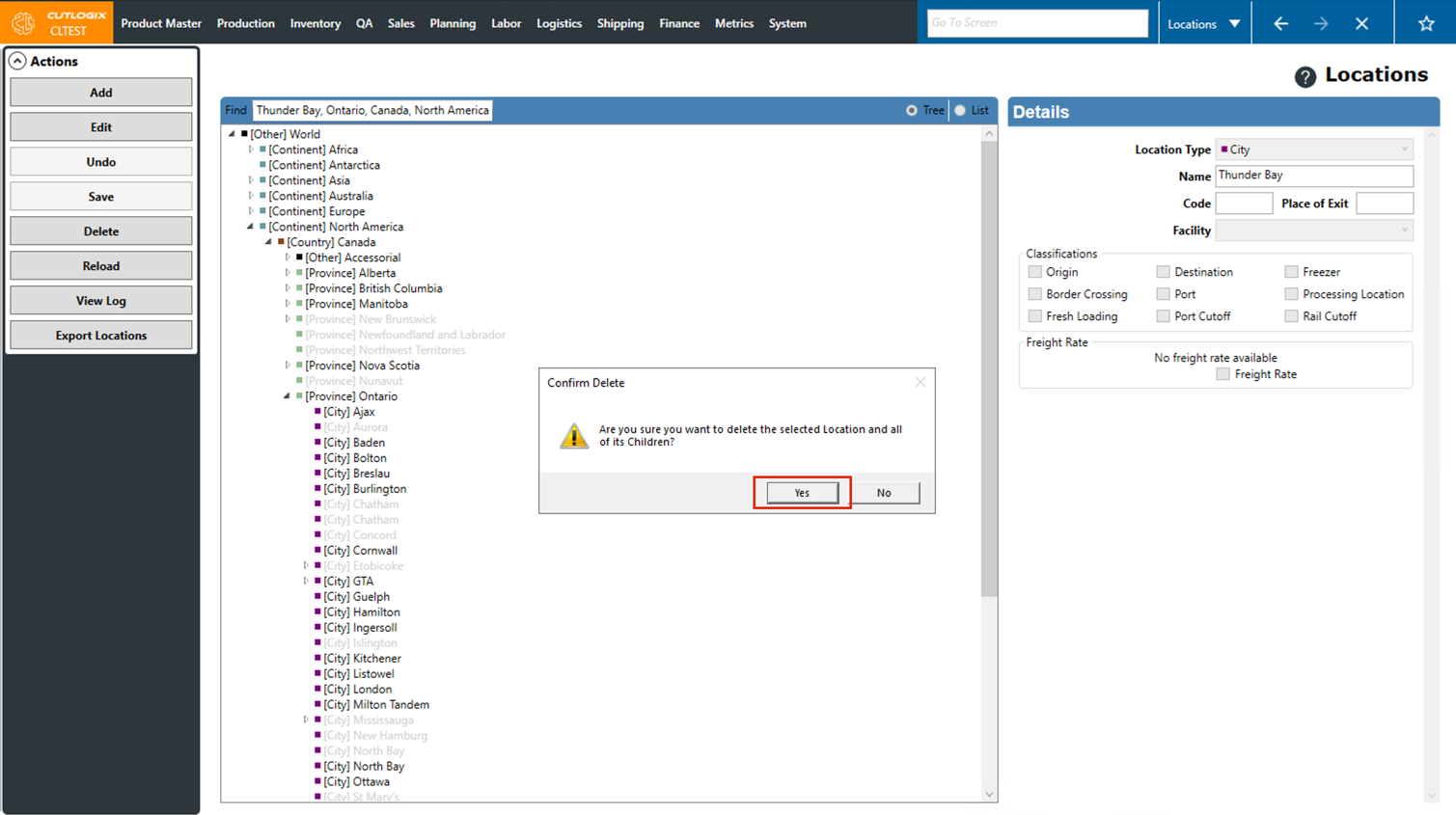
Step 3: Click the "Delete" button in the Actions Panel.
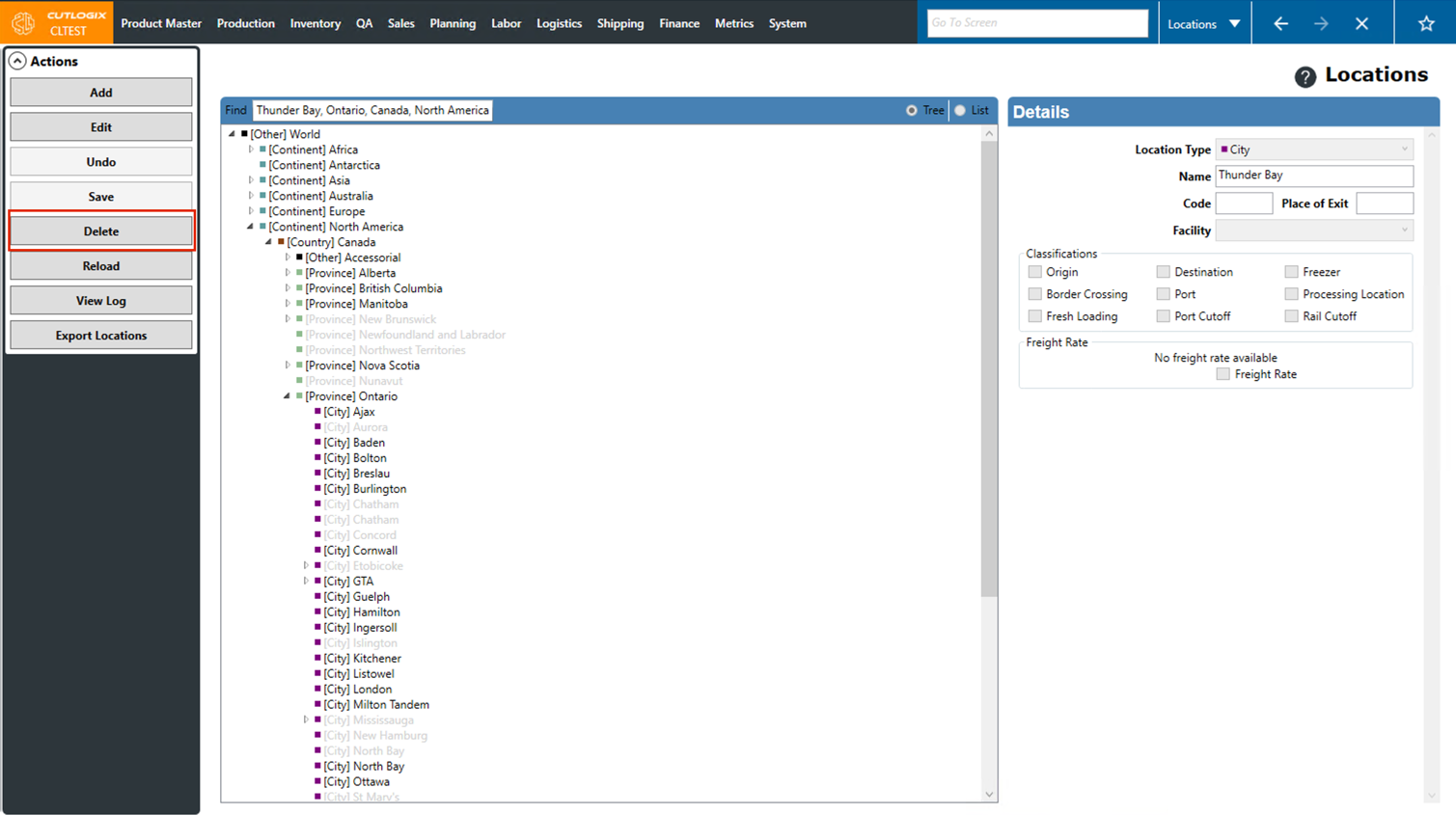
Step 4: A confirmation dialog will appear, asking if you're sure that you want to delete the selected location along with all of its children (locations beneath it). Click "Yes" if you want to proceed with the deletion, if you don't want to proceed, click "No". If you clicked "Yes", the location will then be deleted.