Shift Configuration Tasks
How to edit a Default Shift Configuration
Demo
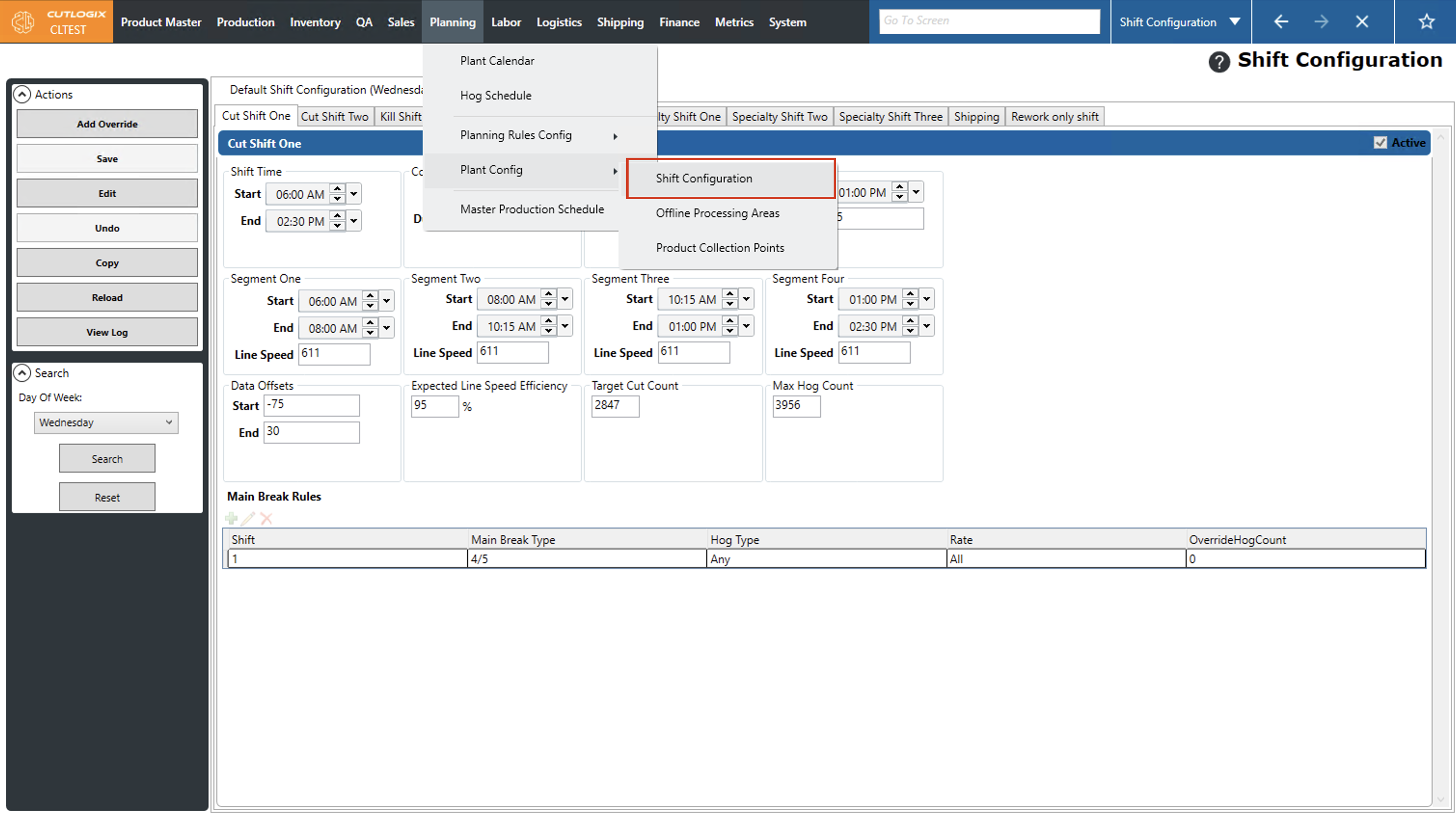
Step 1: Navigate to the "Shift Configuration" page (Under the Planning menu → Plant Config → Shift Config)
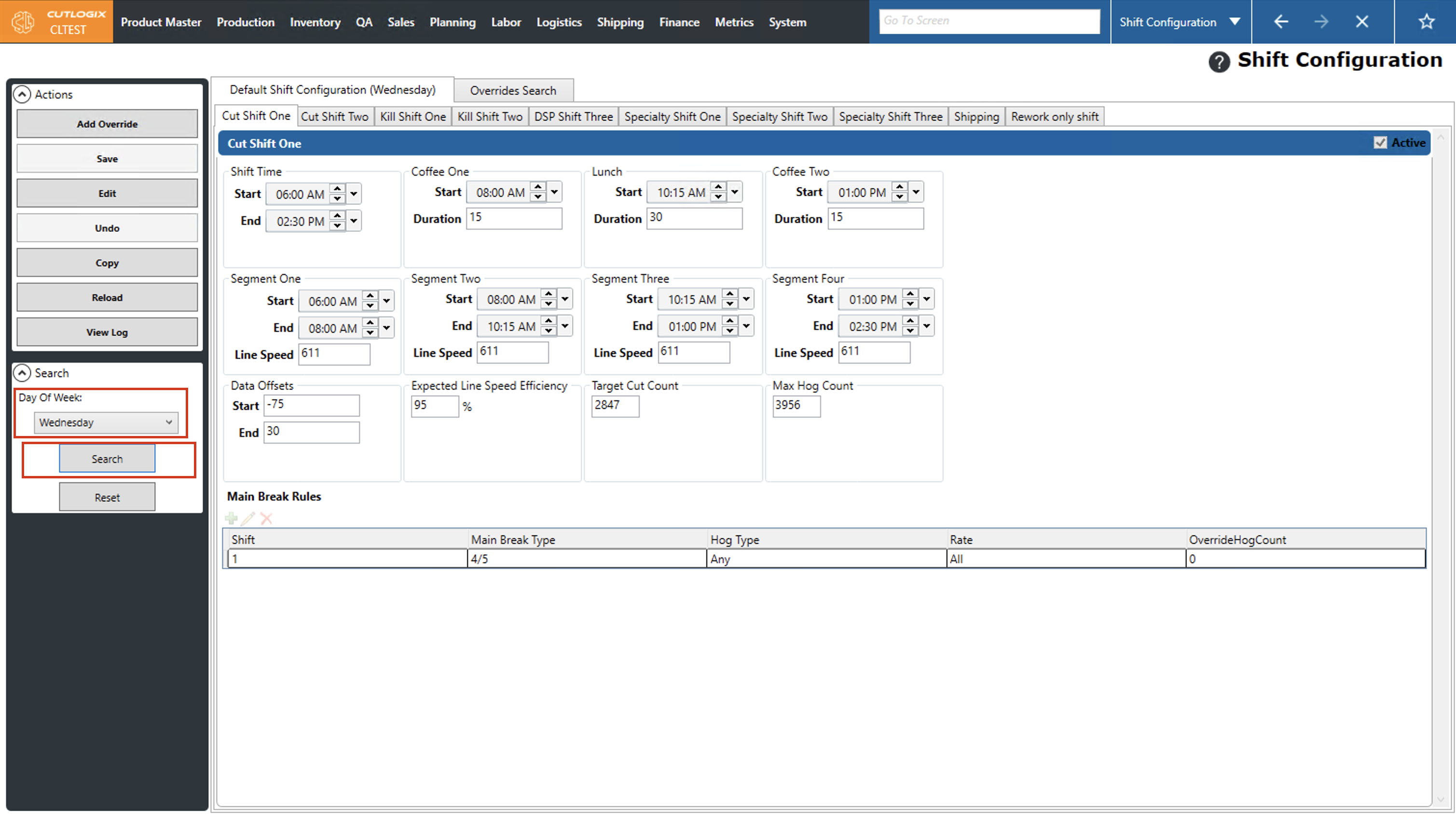
Step 2: In the Search panel on the left side of the page, select the day of week from the dropdown list that you want to modify the default shift configuration for, then click "Search."
Step 3: Using the tabs at the top of the page, click on the shift that you want to modify (Ex. "Cut Shift Two"), then click "Edit" in the Actions Panel.
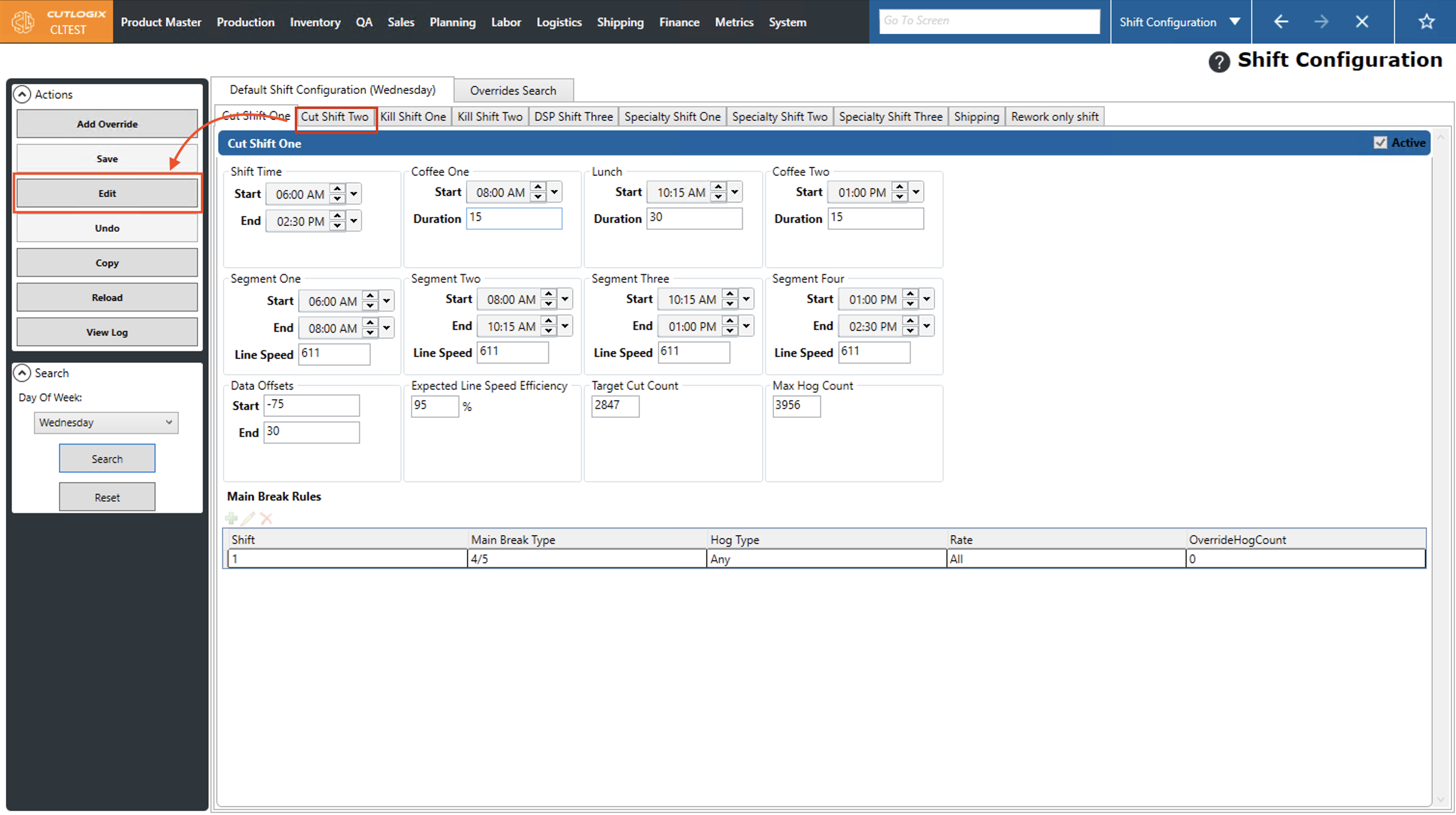
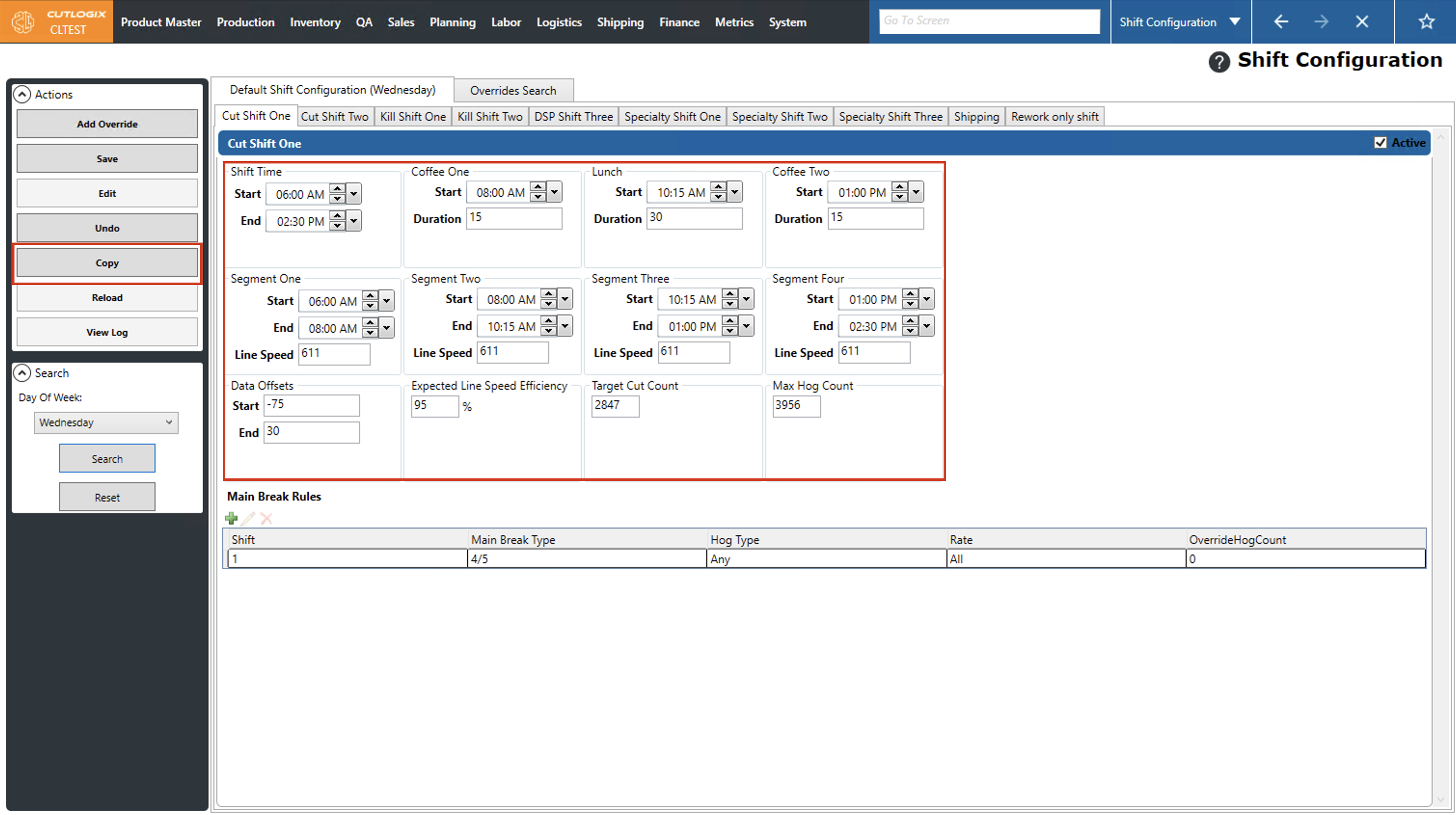
Step 4: Now, editing will be enabled for the selected shift. In this example we'll look at "Cut Shift Two". Here you can edit the start and end time for the shift, coffee break timings/duration, lunch break timing/duration as well as the shift segments (segments of work between outlined breaks) and the line speed during those segments. You also have the option to copy the current shift configuration to one or more days by using the "Copy" button in the Actions panel.
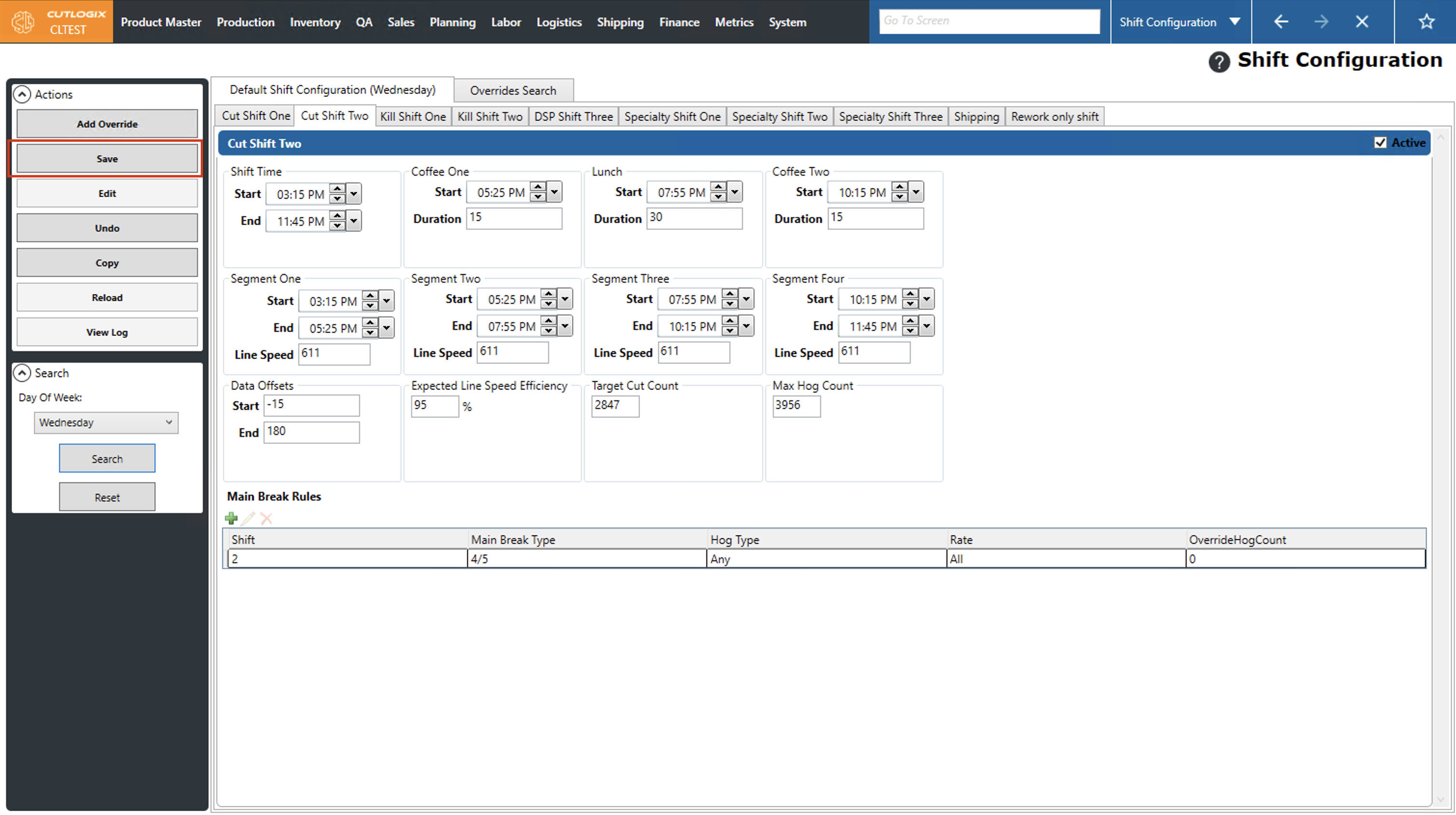
Step 5: After making the necessary changes, click "Save" in the Actions panel on the left side of the page. If you've made changes that you don't want to save, click the "Undo" button and all unsaved changes will be reverted to what they were prior to clicking the edit button.
How to Configure a Shift Configuration Override
Demo
Step 1: Navigate to the "Shift Configuration" page (Under the Planning menu → Plant Config → Shift Config).
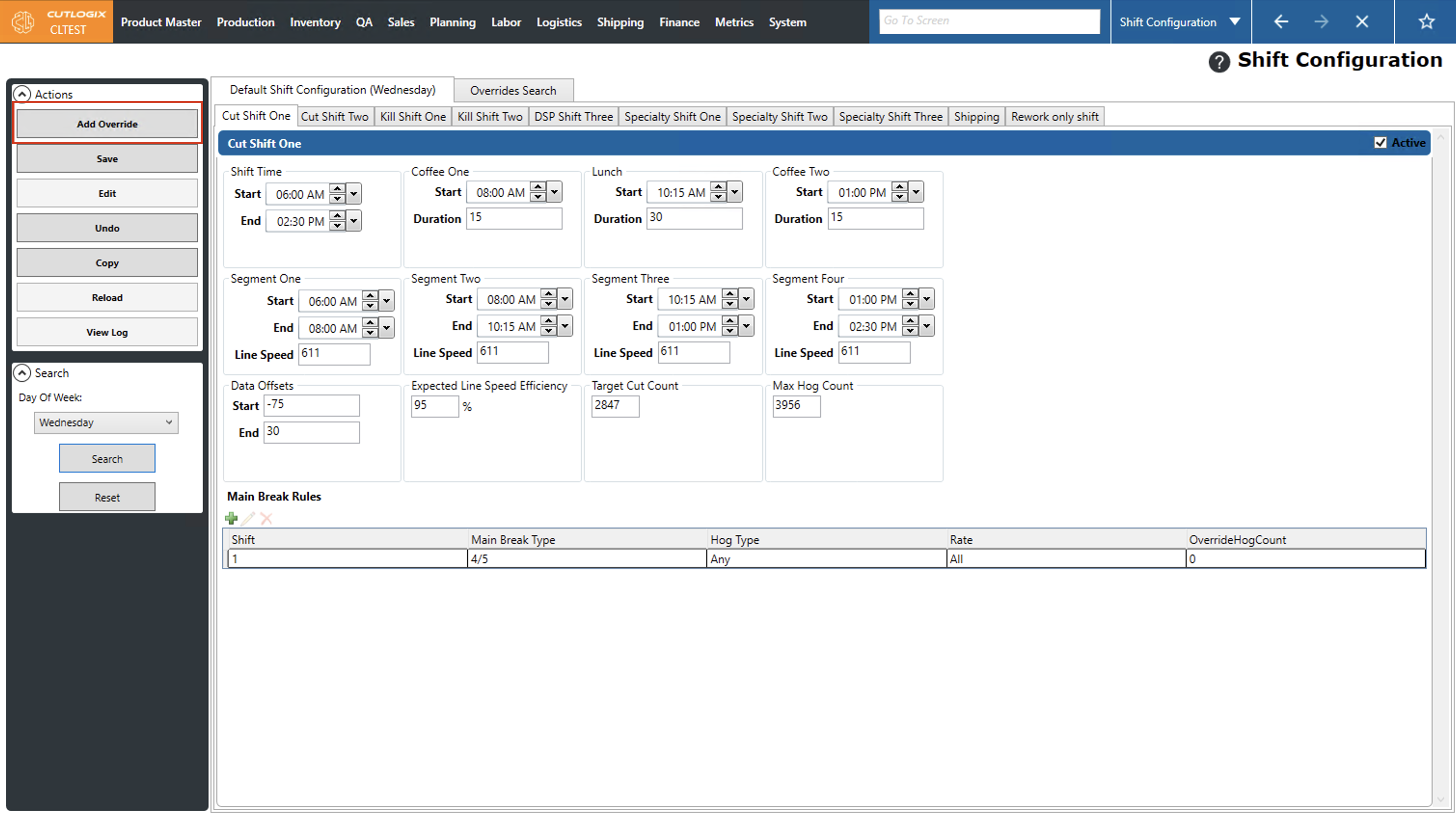
Step 2: Click on the "Add Override" button in the actions panel.
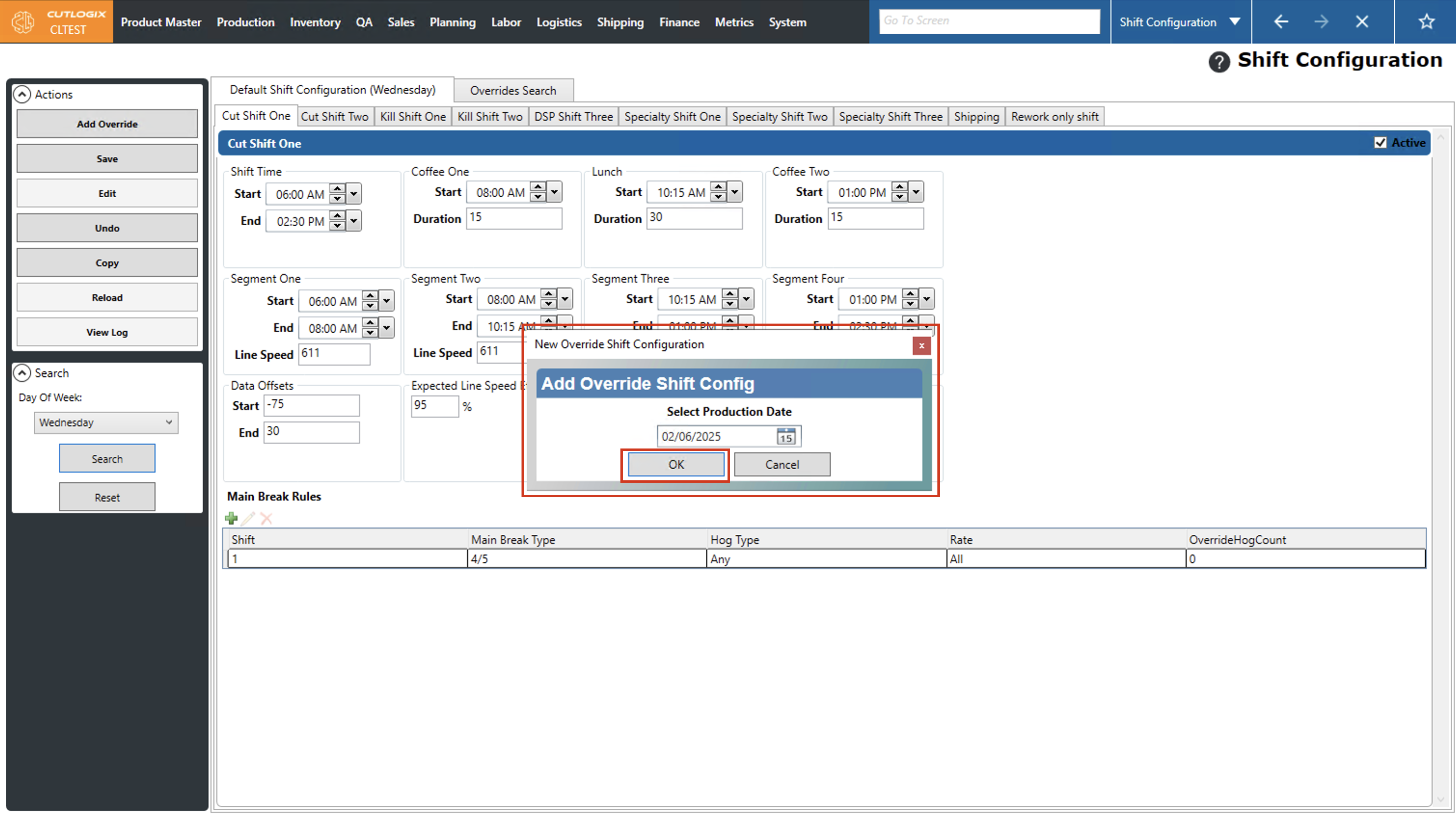
Step 3: A dialog will appear, asking you which day you would like to add an override for. Use the date picker (click on the calendar icon) to choose a date to create an override for, then click "OK". Clicking "Cancel" will exit the dialog without creating an override.
Step 4: A new tab will open for the override date. Here you can make any changes applicable to that day for one or more shifts. In each shift tab you can make changes to the shift start & end times, coffee/lunch break times or duration, line speed and more.
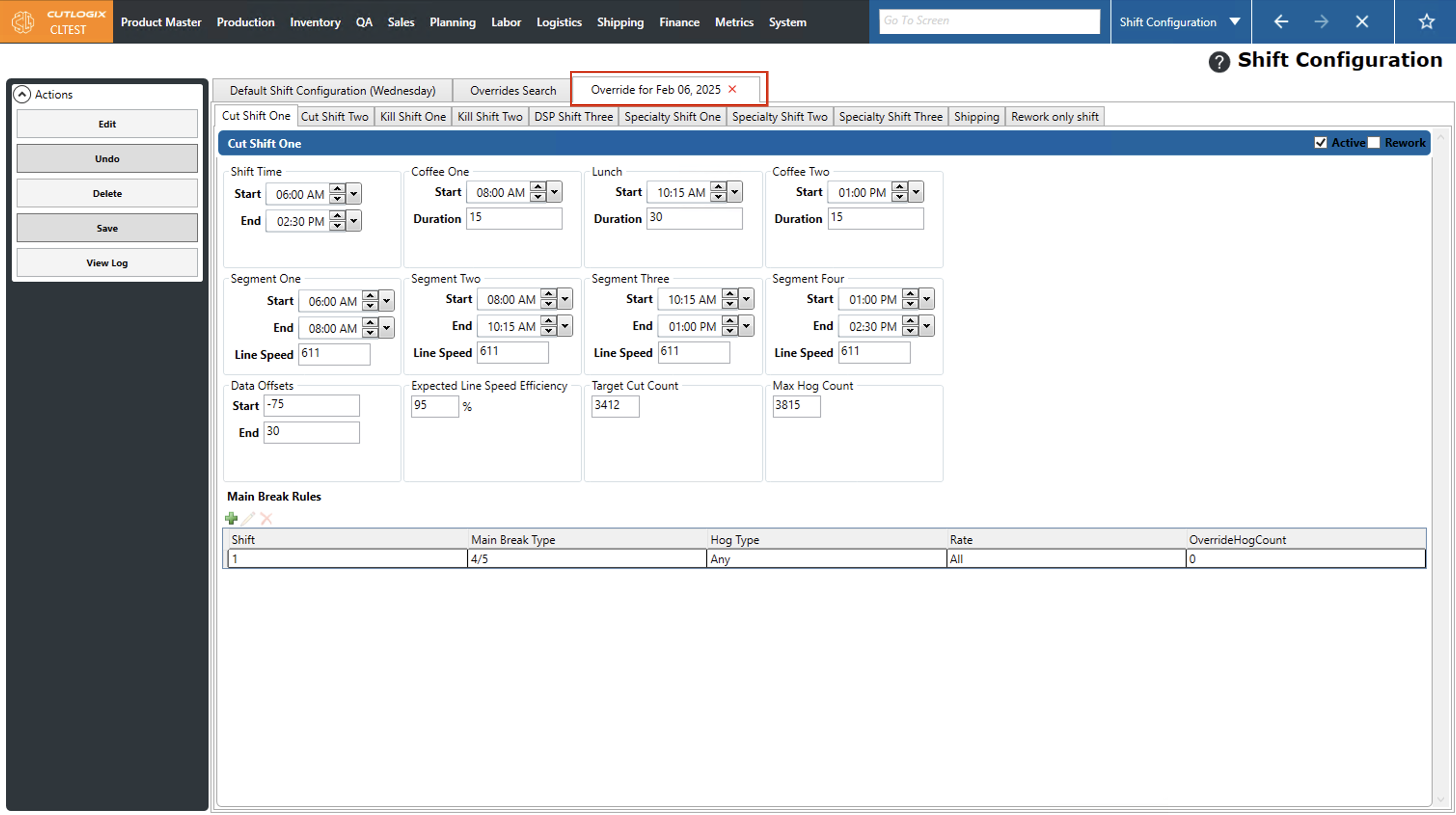
Step 5: Once you've made all the necessary changes for the override, click the "Save" button in the actions panel. Clicking "Undo" will revert all changes and cancel the override for the selected date.
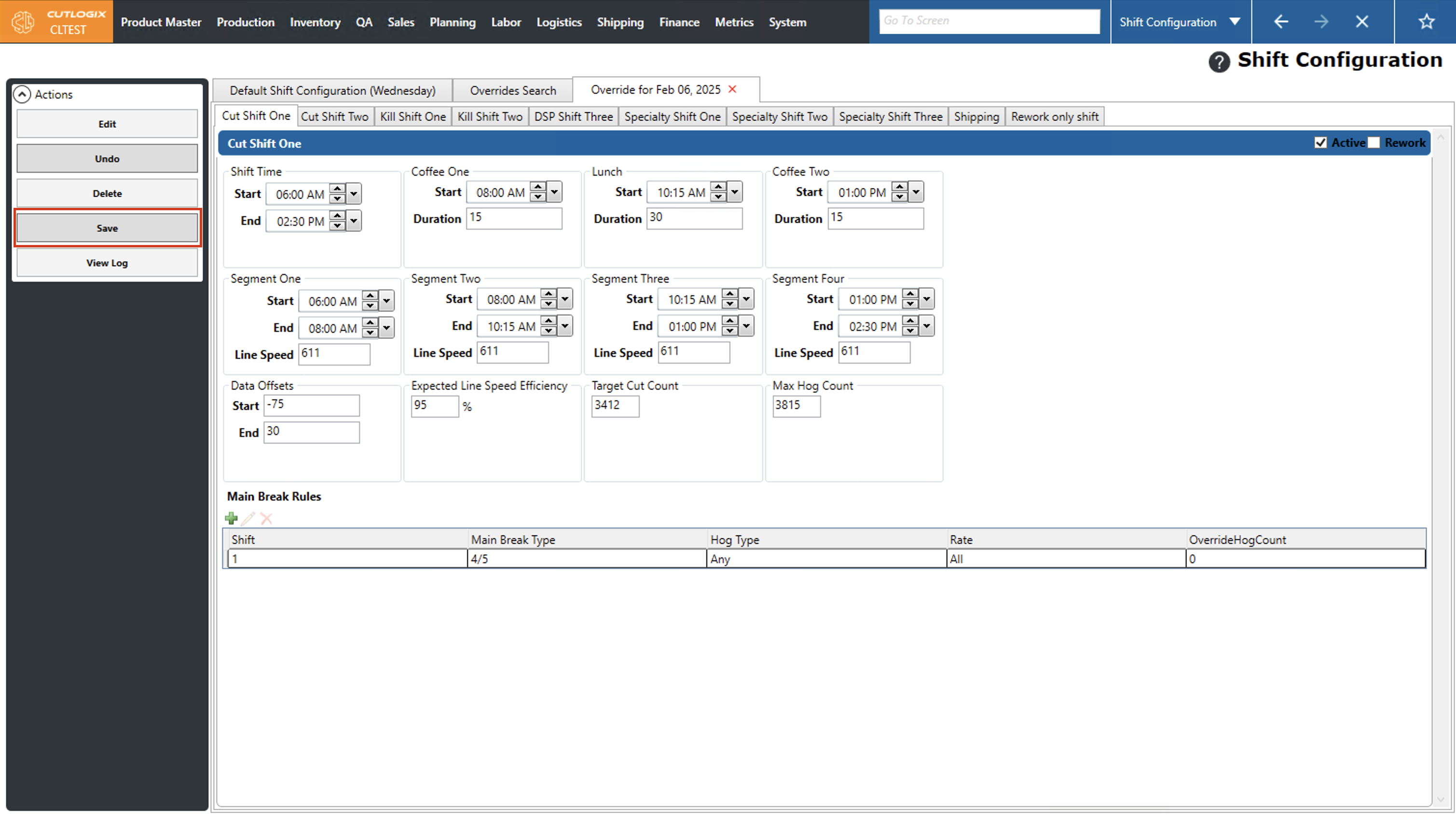
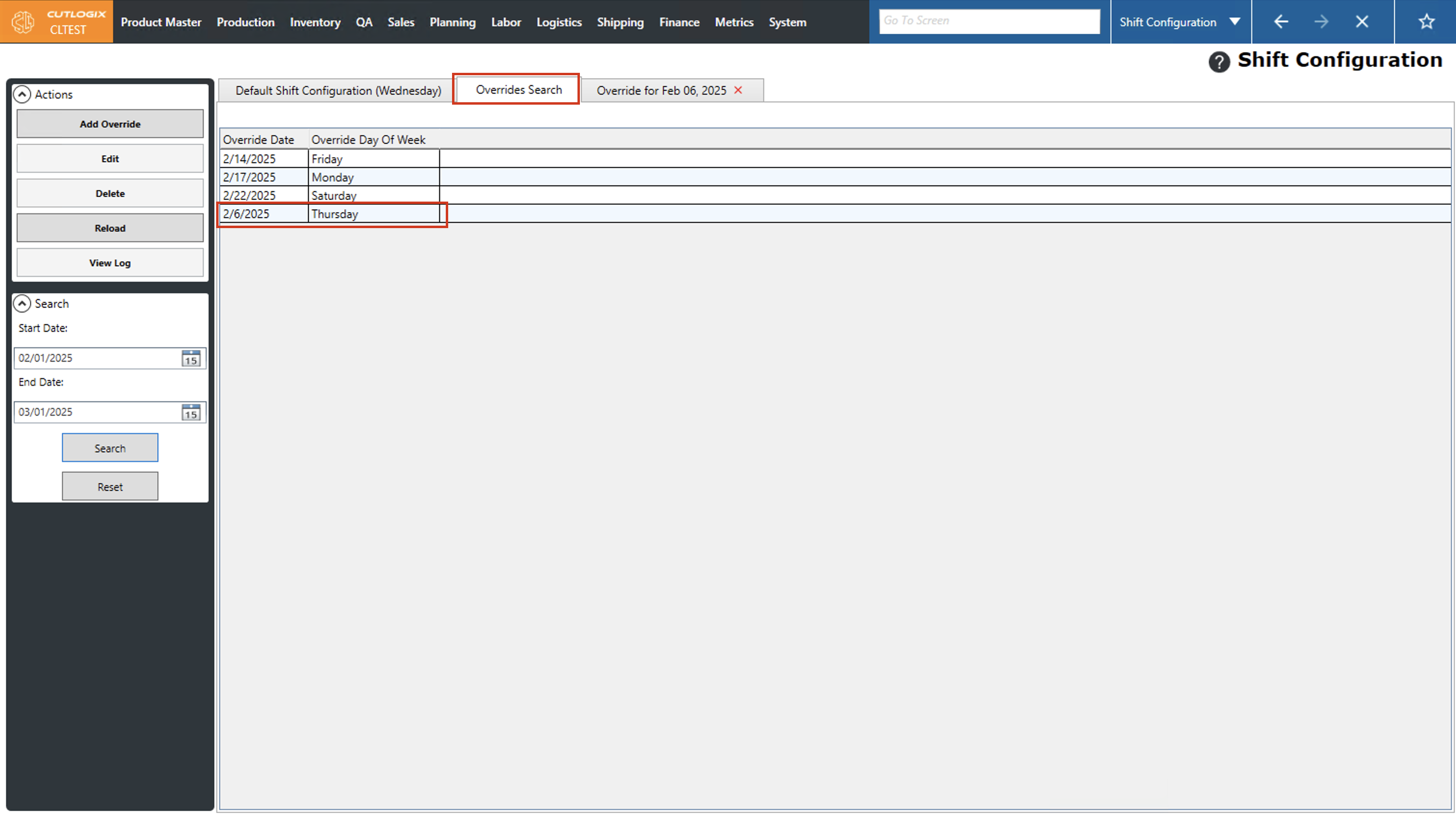
Step 6: Now that the override is saved, it can be found in the "Overrides Search" tab on the "Shift Configuration" page. The override can be edited or deleted by clicking on it (it'll be highlighted in orange once selected), and then clicking "Edit" to make changes to it or "Delete" to delete it.