Hog Schedule Tasks
How to Select a Week on the Hog Schedule
Demo
Step 1: Navigate to the "Hog Schedule" page (Under the Planning menu → Hog Schedule).
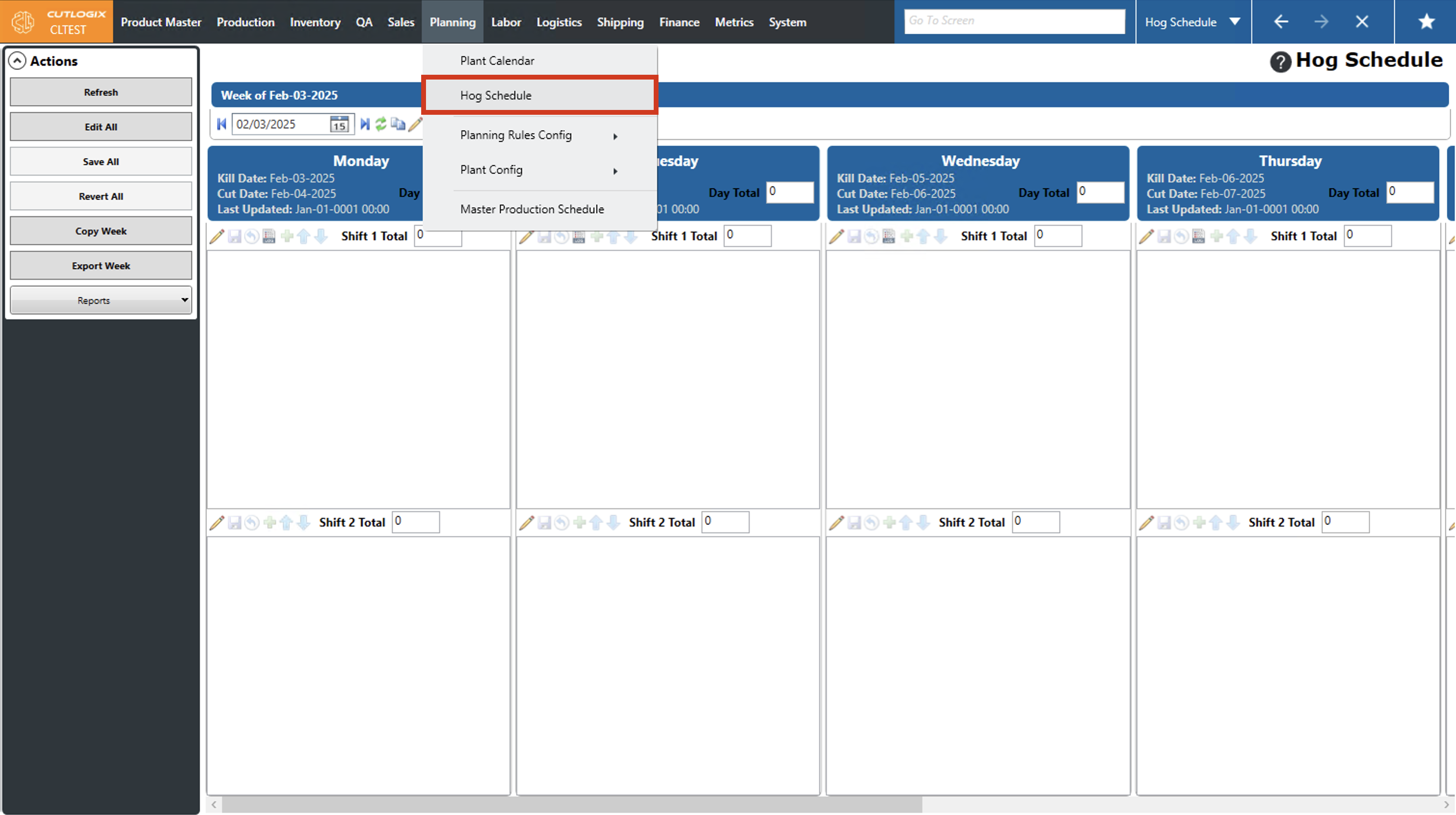
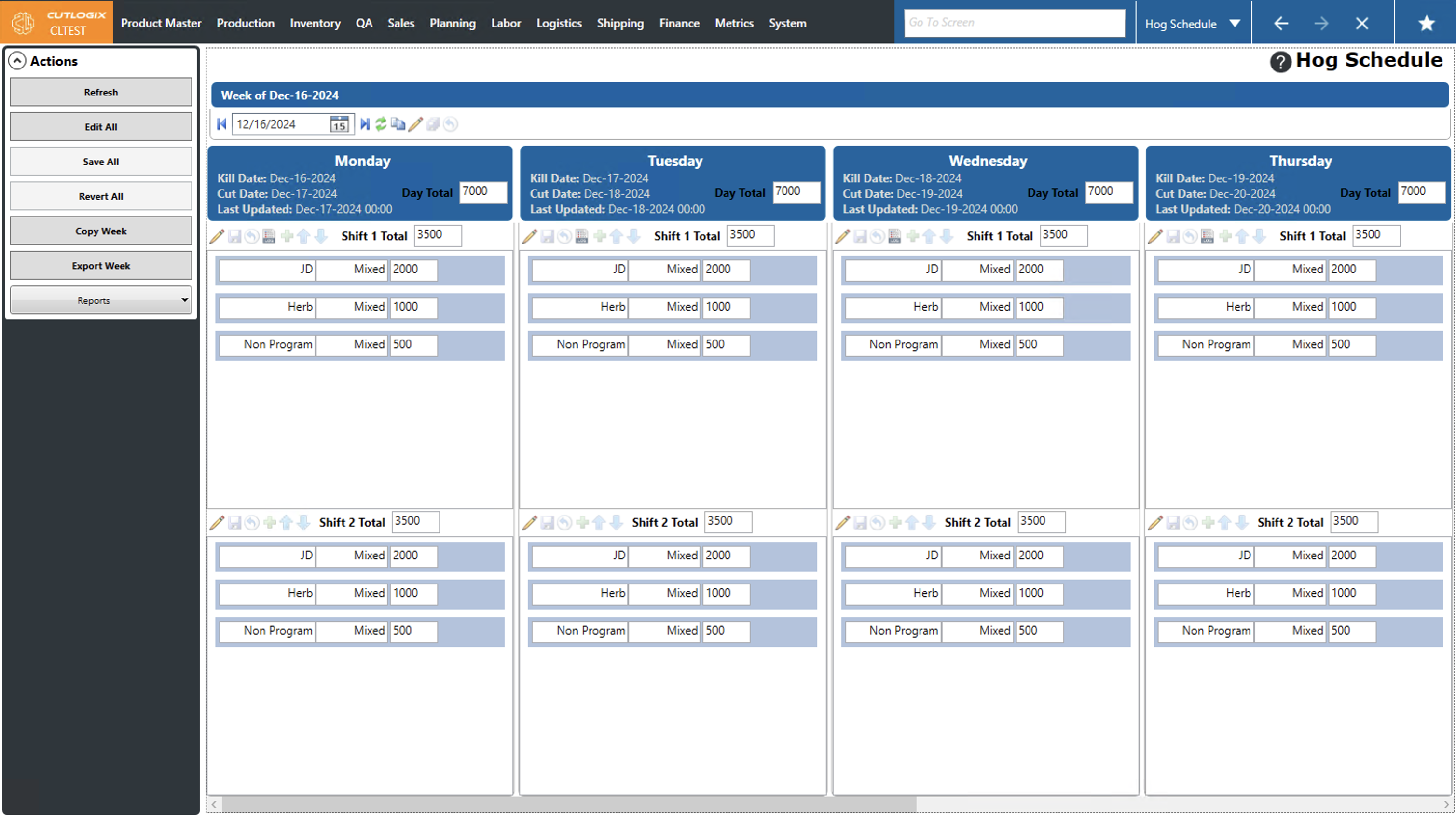
Step 2: This will open the hog schedule for the current week. The page is scrollable both horizontally and vertically.
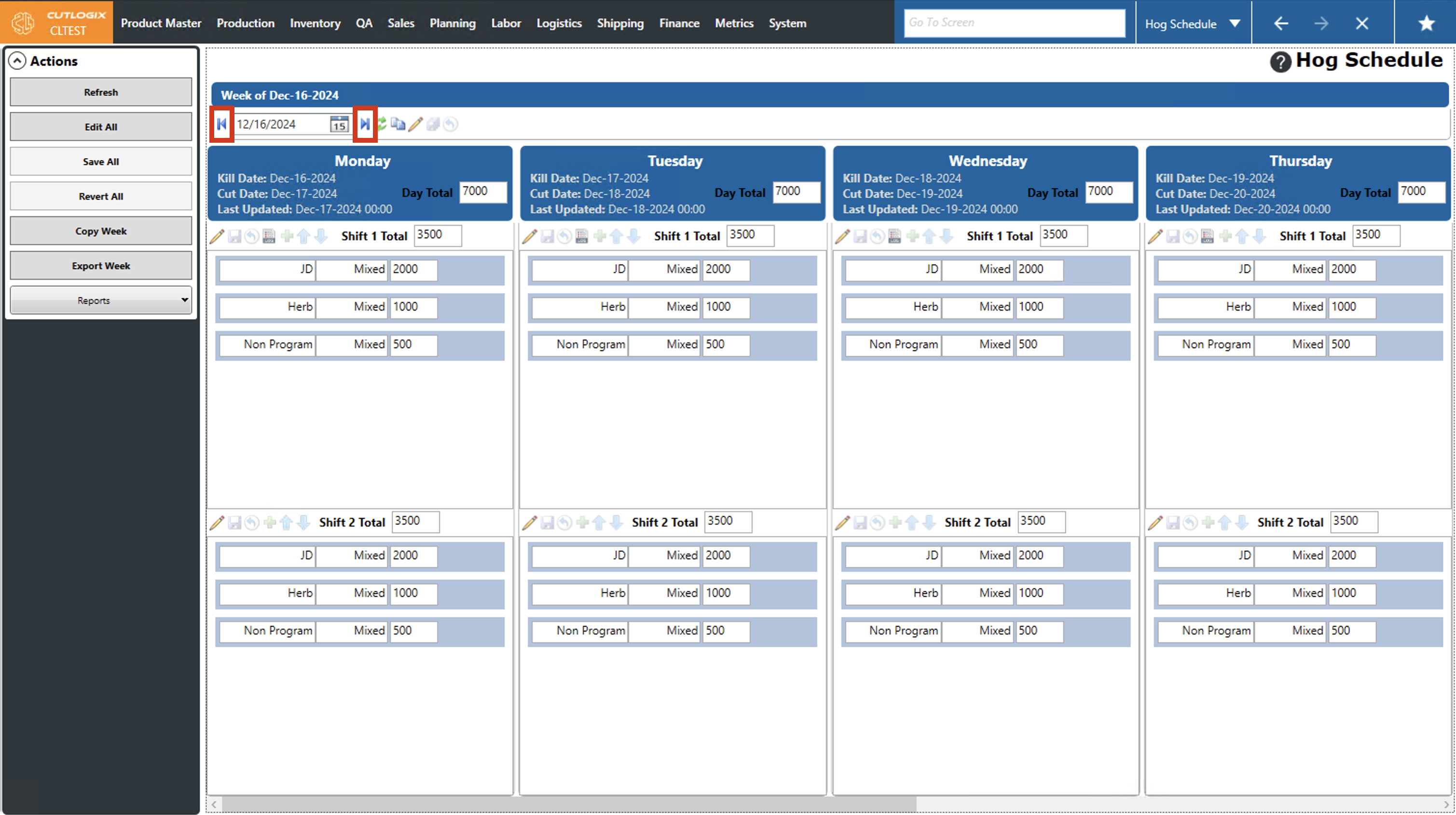
Step 3: To view the schedule for the past week, or the next week (upcoming), use the arrow buttons in the top right corner of the page. Clicking the forward arrow will navigate to the next week's schedule (from the week that is currently shown) and clicking the backwards arrow will navigate to the previous week's schedule (from the week that is currently selected).
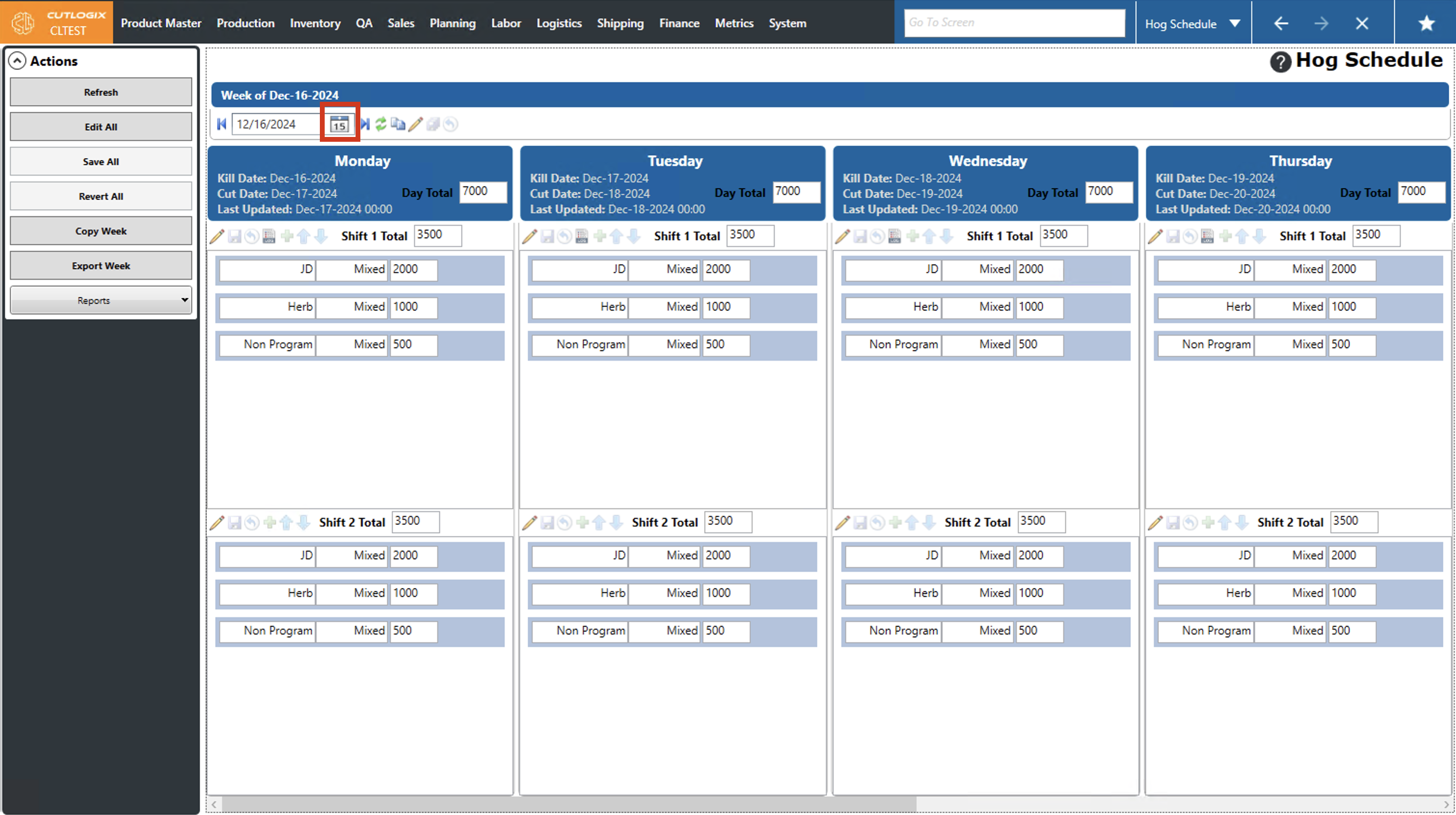
Step 4: You can also manually select a week on a calendar to view the schedule for. This is done by clicking on the calendar icon in the top right corner and then choosing a date. After clicking on a date, the system will display the hog schedule for the week that includes the date that you selected.
How to Edit Specific Days on the Hog Schedule
Demo
Step 1: Navigate to the "Hog Schedule" page (Under the Planning menu → Hog Schedule).
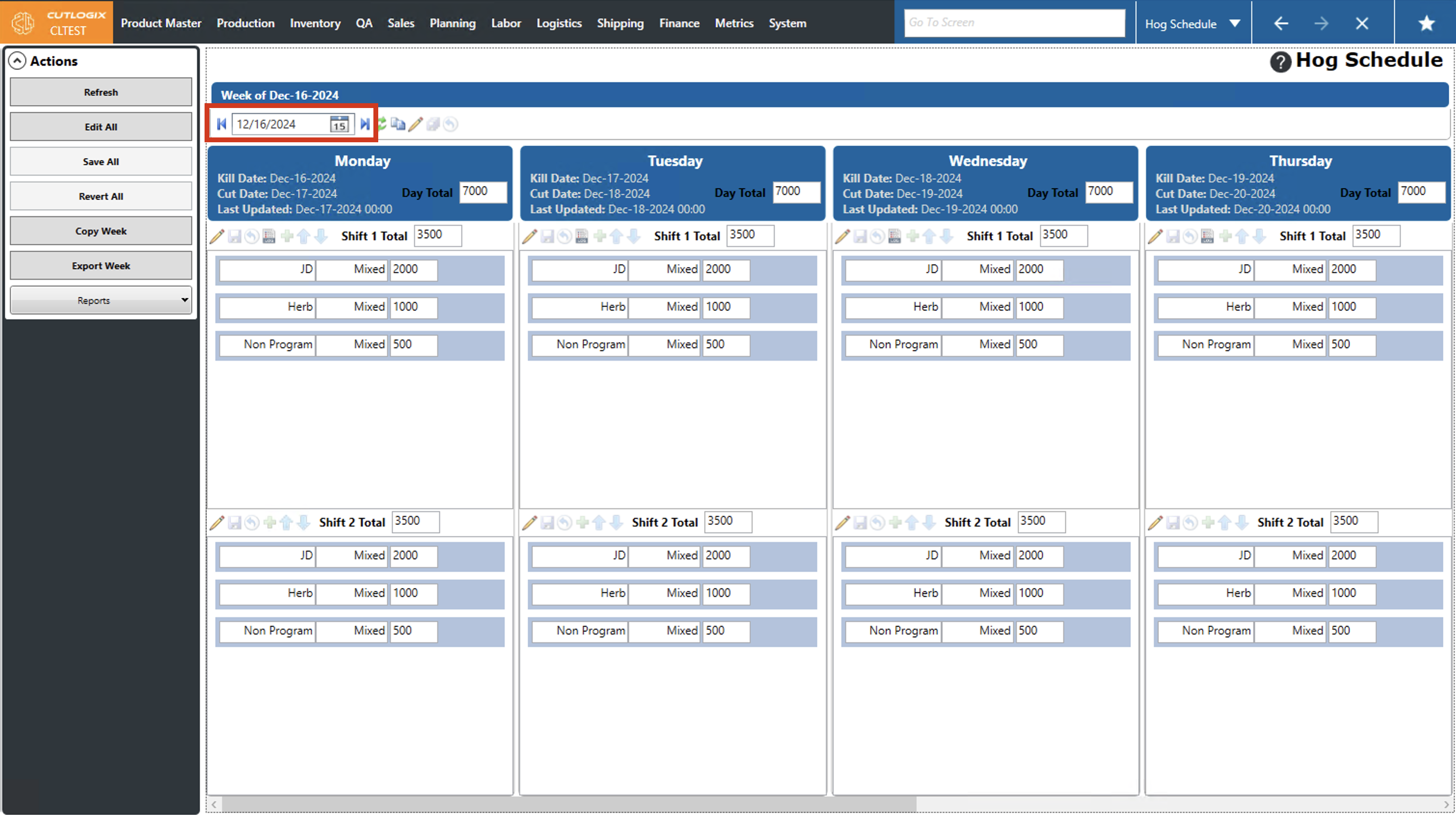
Step 2: Use the datepicker and arrow buttons beside the datepicker to navigate to the week that contains the day you want to modify (See steps above to navigate).
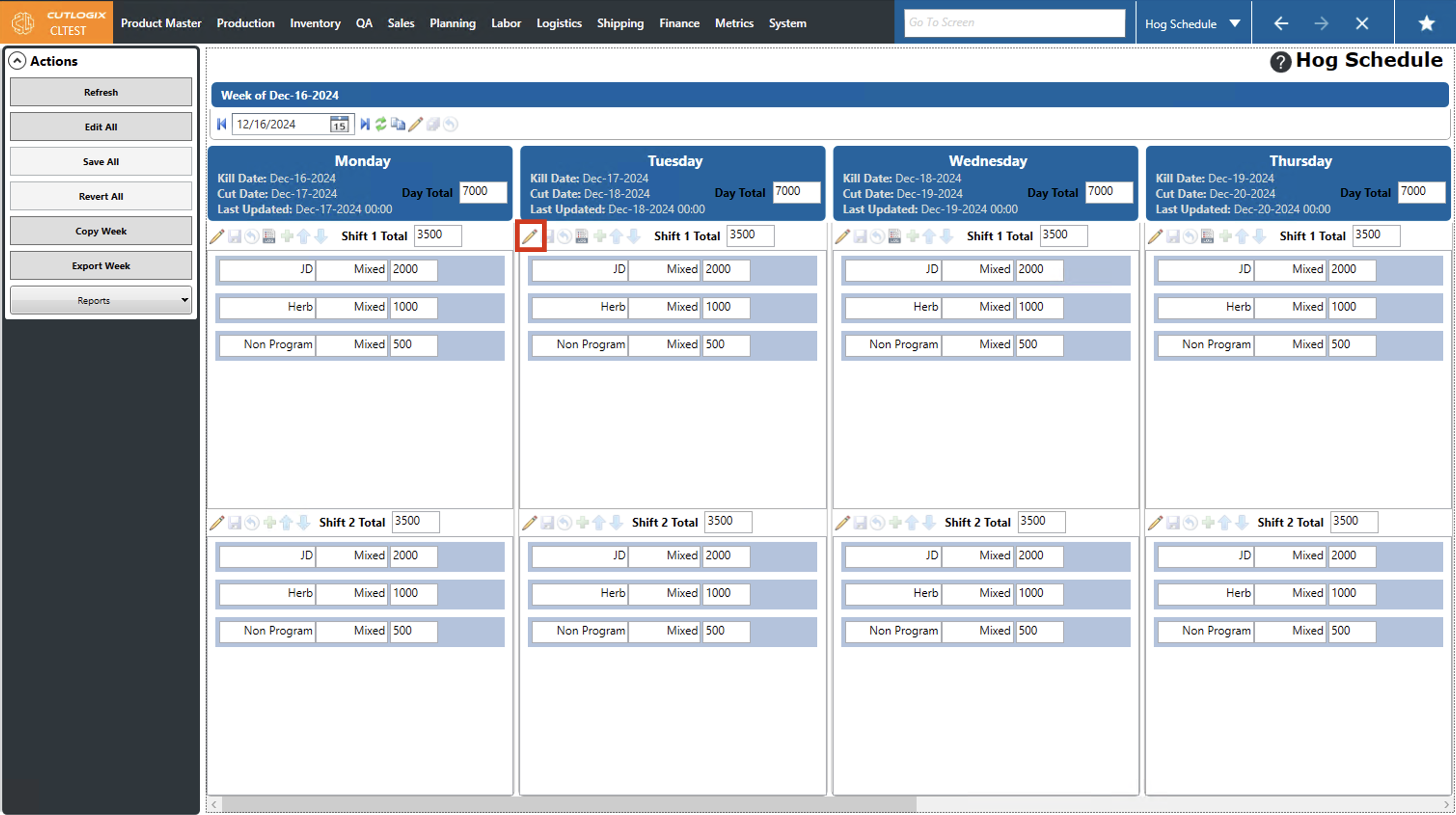
Step 3: On the day that you want to modify, click on the "Edit records for this day" button (pencil icon).
Step 4: Editing for the selected day is now enabled. Fields you can edit are, Hog Type (dropdown list), Gender (dropdown list), and quantity.
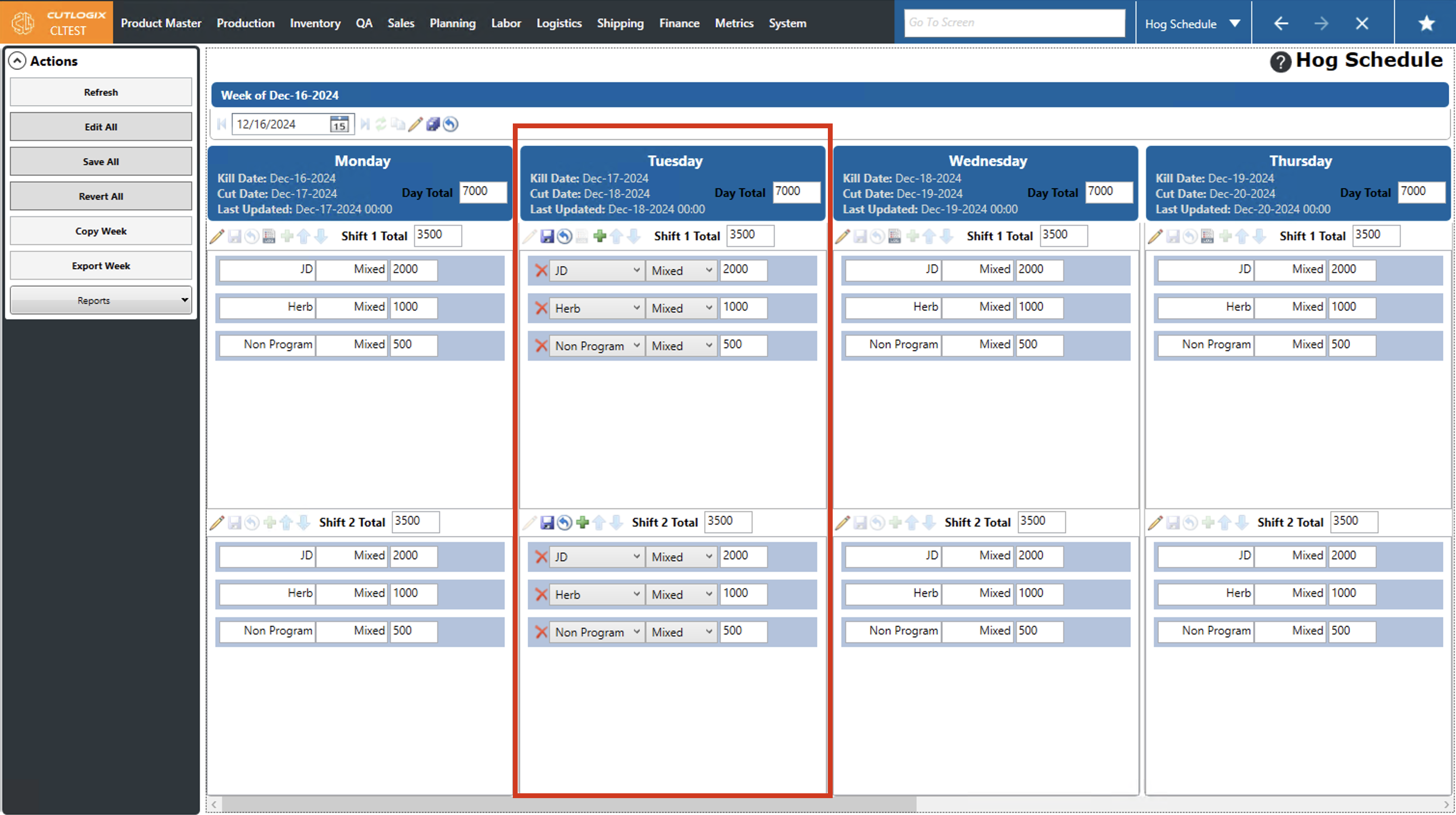
Step 5: Once you're done making changes, click the save icon for the selected day. The changes will be saved and reflected on that day. If you modified any of the quantity amounts, the shift total and day total values will be updated to reflect your changes.
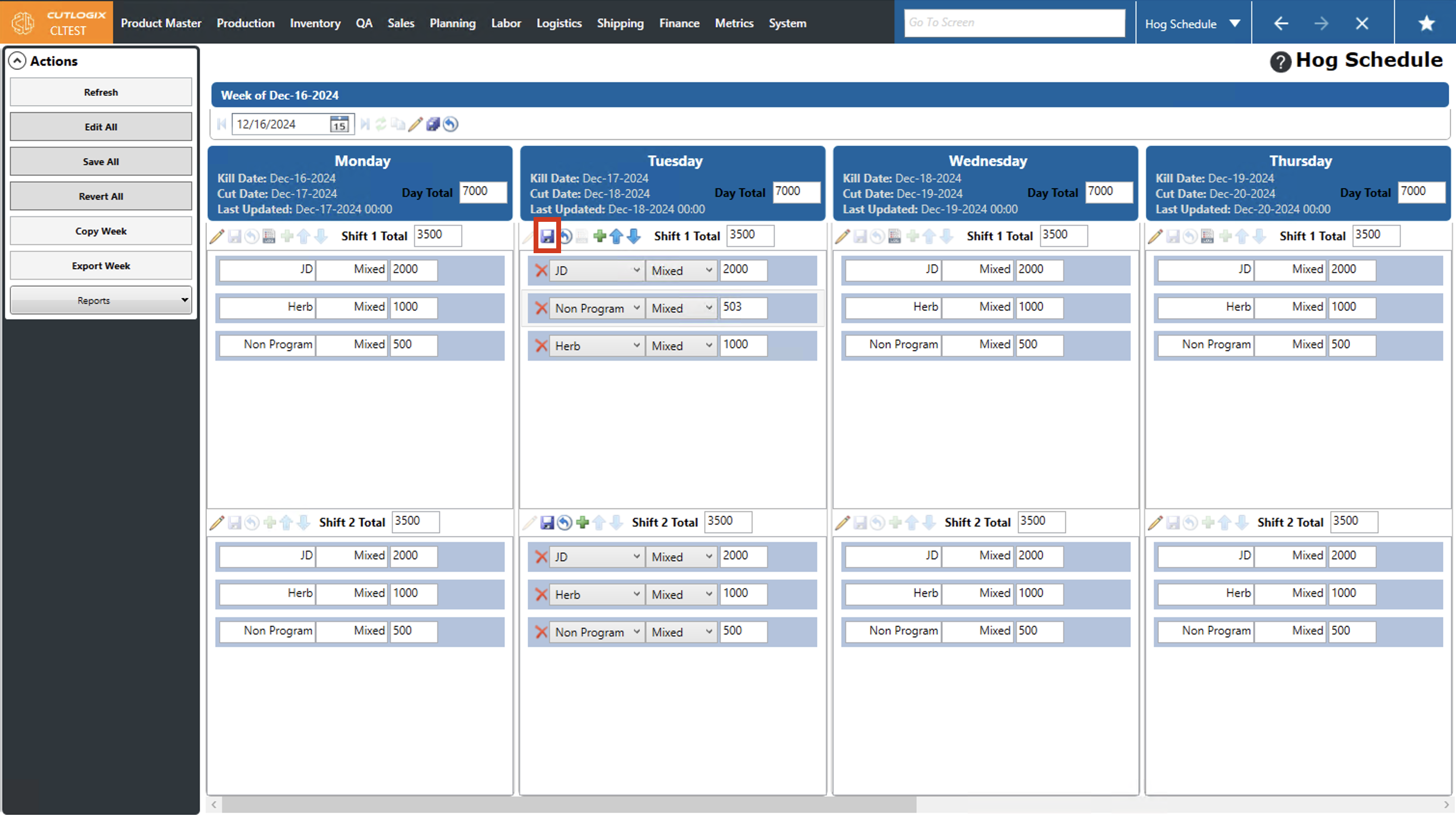
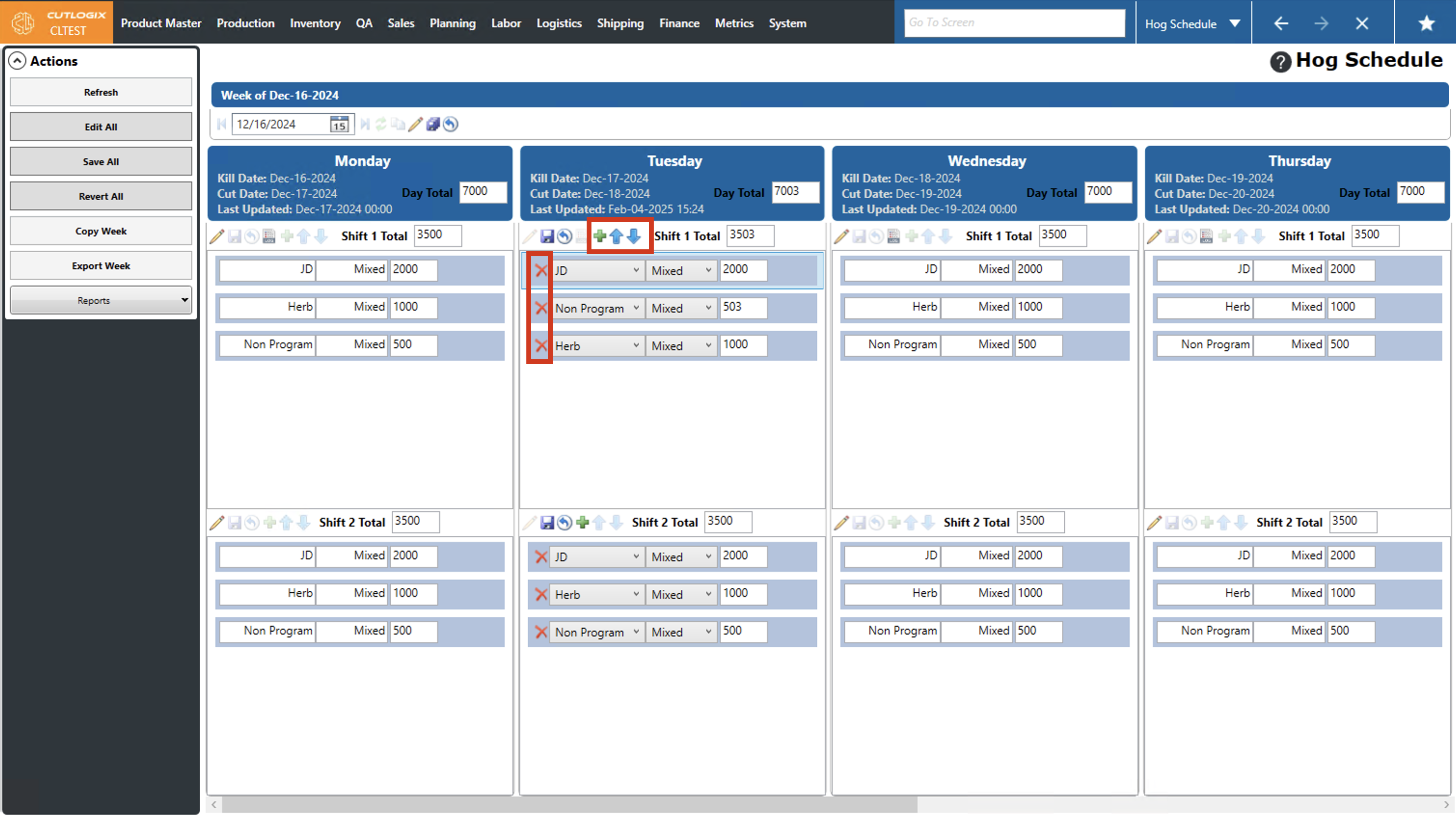
Step 6: Other modifying actions that you can perform are adding hog records (green + button), deleting hog records (red x button), moving hog records up or down on the list and undoing all unsaved changes (with the revert changes icon).