Selection Tables Overview
How to Navigate: Click on Planning > Planning Rules Config > Selection Tables
Summary
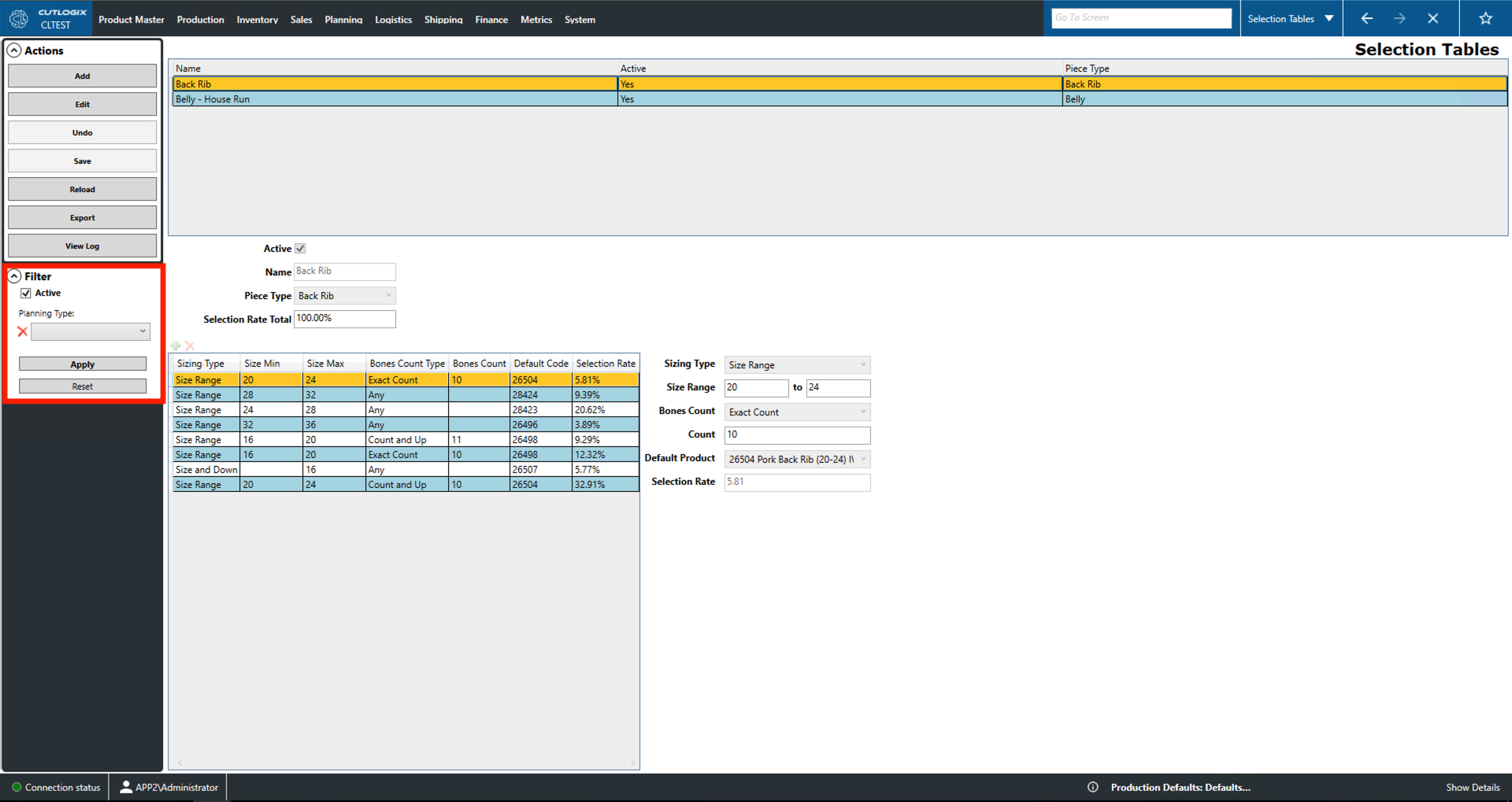
Selection tables can be created and modified on this page. A selection table provides a set of sizing and bone count specifications for a particular. The table also indicates, as a percentage, how many of the product produced fall into each category. Selecting an entry in the upper table will populate the lower table with its data. When performing an 'Add' or 'Edit' action the fields on the bottom half of the screen with become editable and can be used for data entry.
- Name: Name of the product type.
- Active: Set whether the selection table is active.
- Name: Name/description of the entry.
- Selection Rate Total: The sum of the 'Selection Rate' column in the lower table. This could be less than 100% percent if there were a product not accounted for in the table.
- Sizing Type: Indication of sizing parameters (i.e. a size range or the specified size and down/up).
- Size Range or Size Min/Max: Minimum/maximum acceptable size.
- Bones Count Type: Indicates the type of bone count used for this selection table (i.e. an exact count, any number are allow, the count an up/down, etc.).
- Count: The bone count to be used if an exact count is required.
- Default Code/Default Product: Unique identifier for the product that requires these selection criteria.
- Selection Rate: The rate at which a relevant cut of meet falls into this category.
Actions
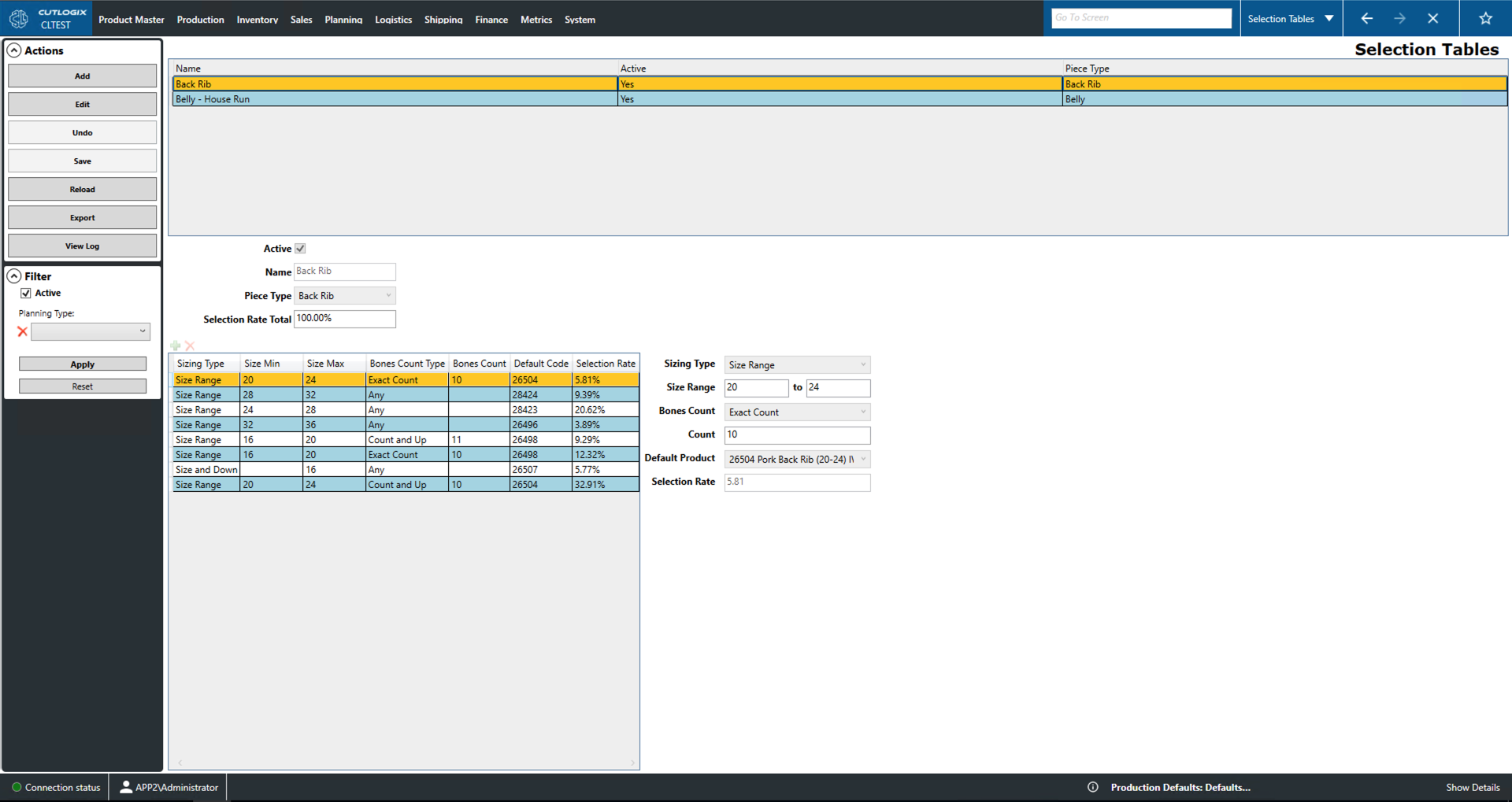
- Add: Adds a new selection table to the list.
- Edit: Edit the currently selected selection table.
- Save/Undo: Saves/undoes all changes made in the current add/edit session.
- Reload: Reload the list to display the most up to date version of the available selection tables.
- Export: Allows the user to save the selection table list locally as a .xlsx file (excel) format.
- View Log: View the change log for the currently selected selection table. This includes what was changed, by whom and when.
Filter
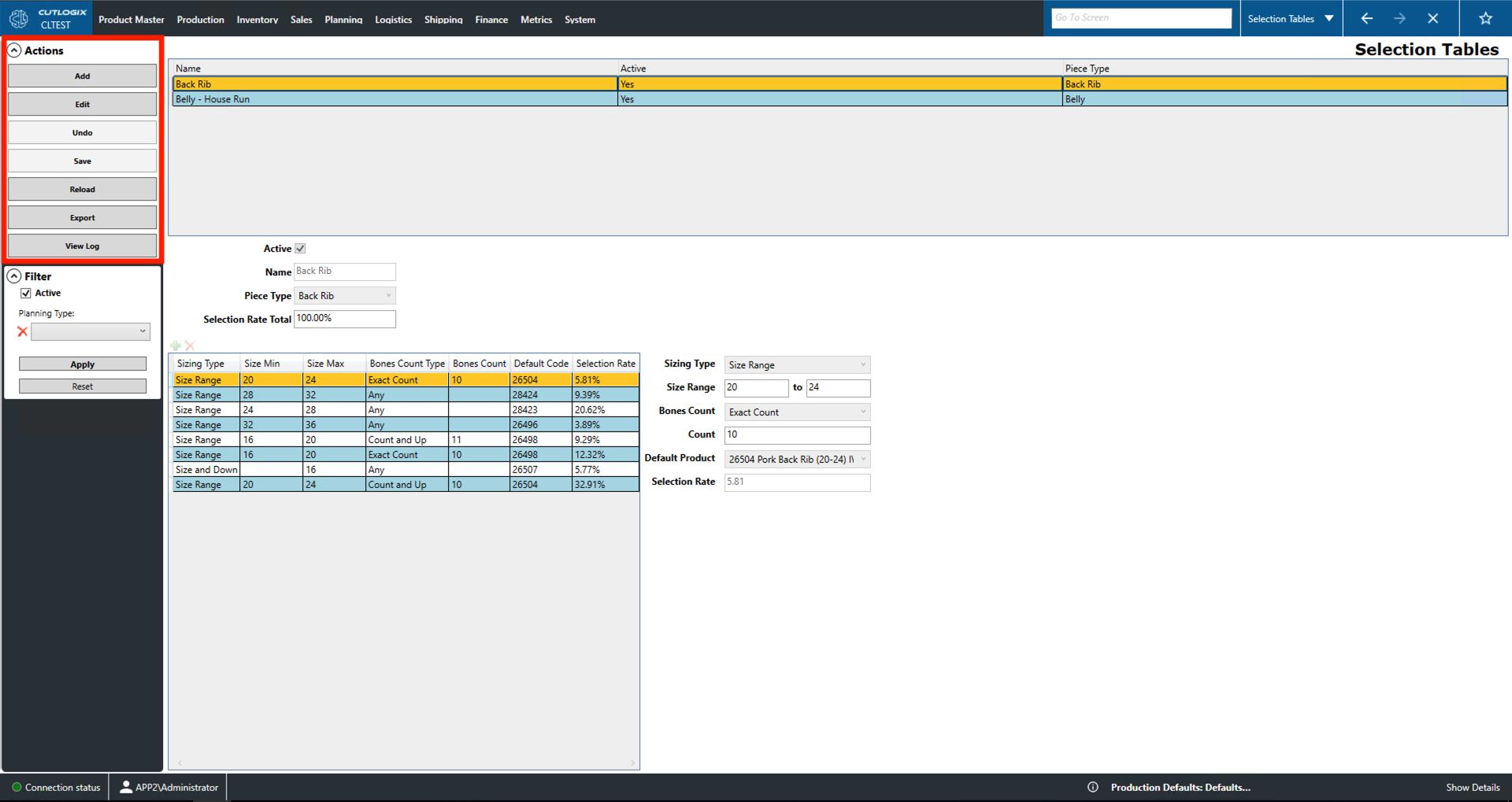
- Active: Whether or not the list should include only active entries or both inactive and active entries.
- Planning Type: Filter by planning type.
- Apply: Reload the list with the current filters applied.
- Reset: This will reset all filters and reload the list to an unfiltered state.