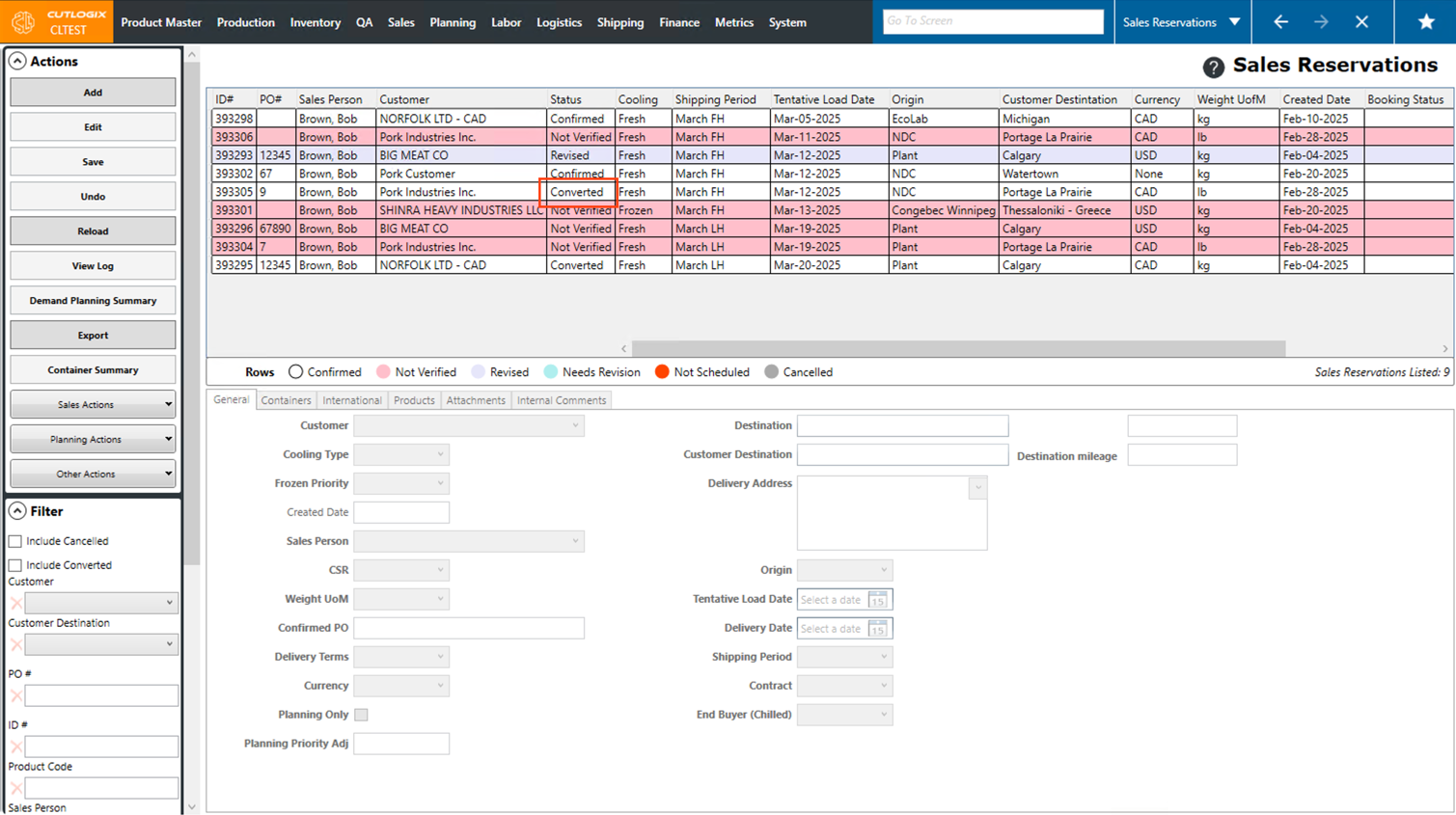
Sales Reservation Tasks
Sales Reservations can be used for several tasks. First being a customer order that the customer has not yet confirmed, but you want to ensure the products for the reservation get added to the production schedule. Another use for sales reservations is a planning reservation, this means that the planning team wants to enter a demand record to ensure a product will be produced but it's not necessarily associated with a customer order.
How to Add Sales Reservations
Demo
Step 1: Navigate to the "Sales Reservations" page. (Located under the "Sales" menu option)
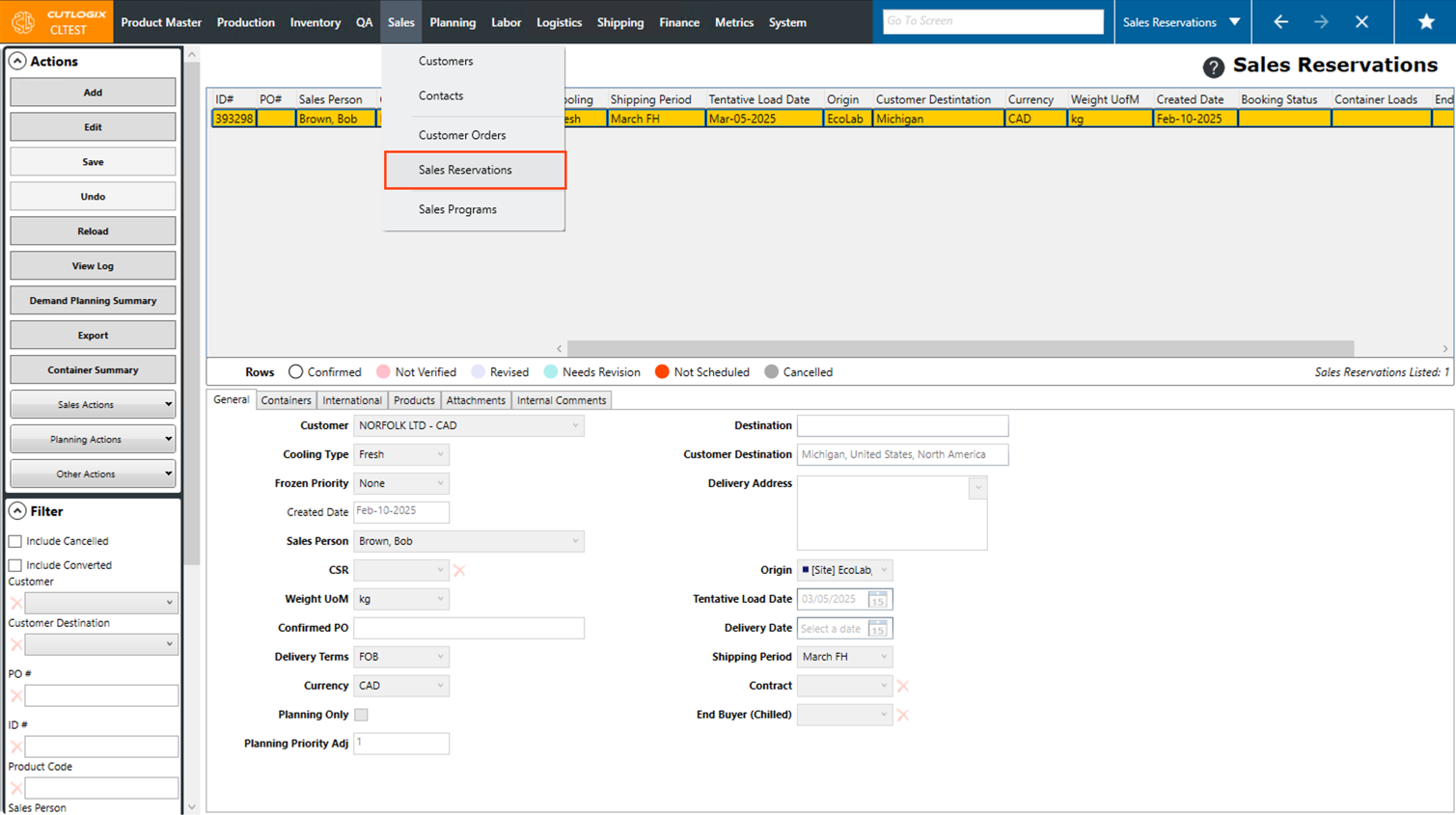
Step 2: Click on the "Add" button in the actions panel located on the left side of the page.
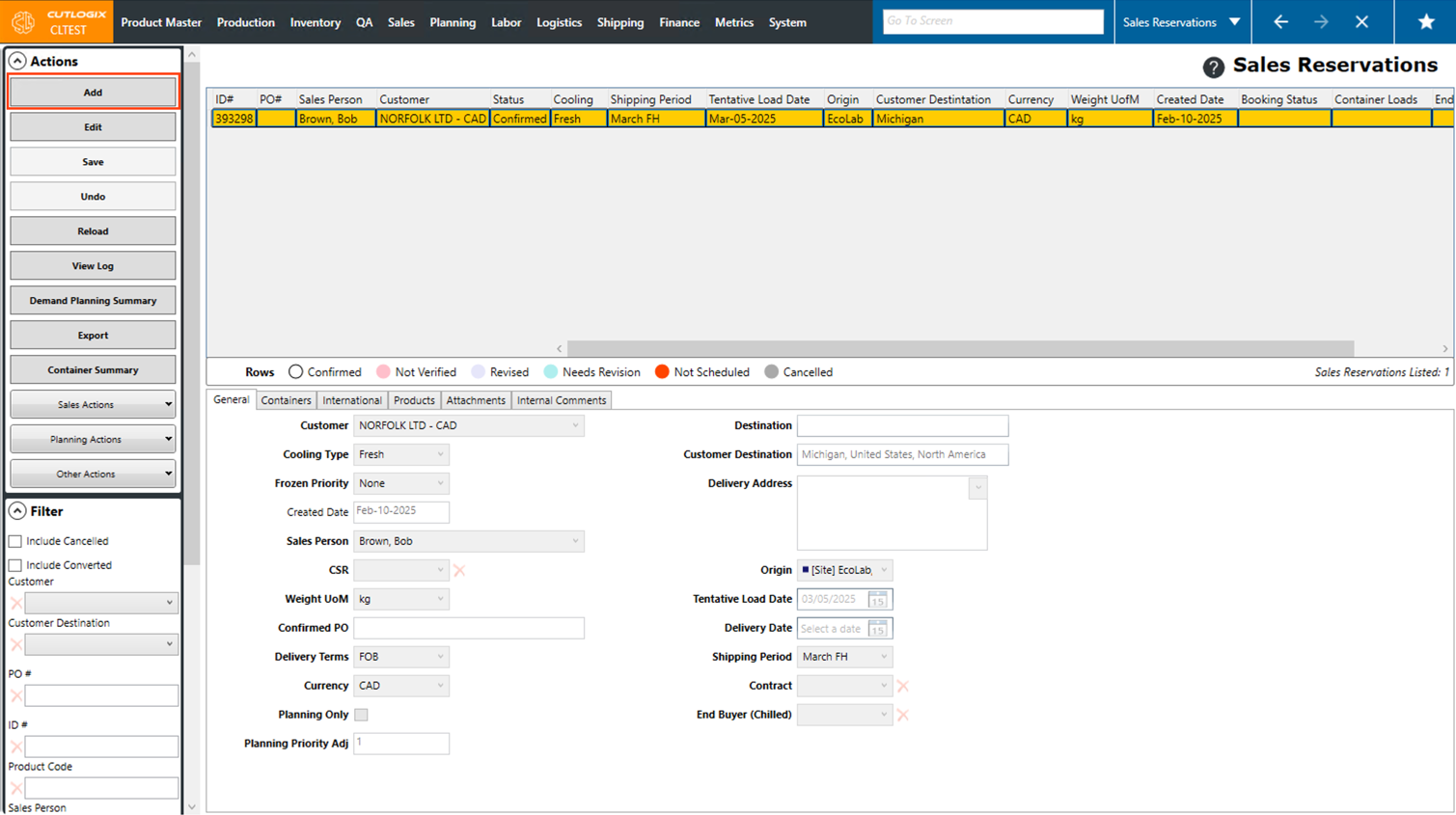
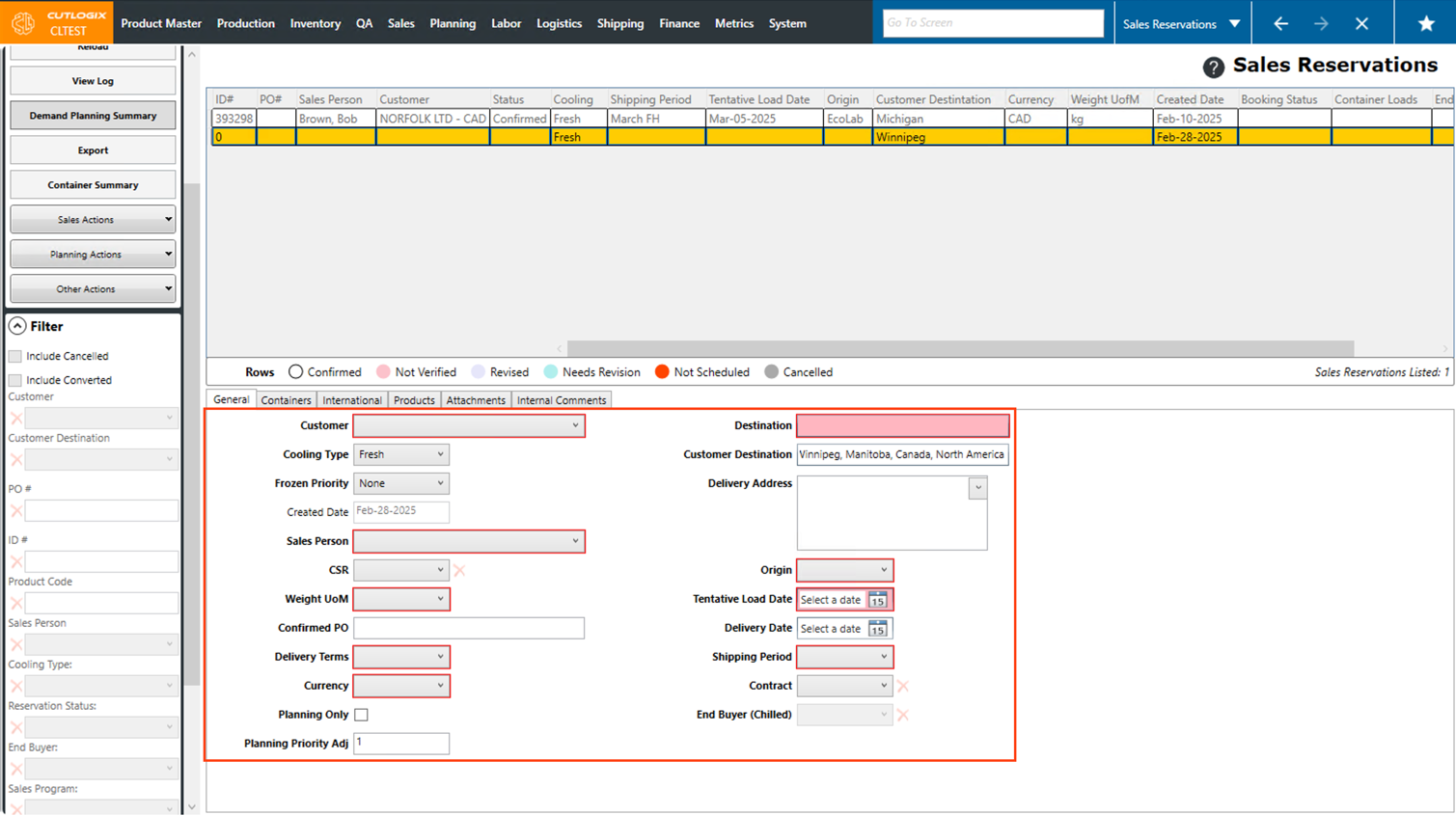
Step 3: Near the bottom of the page, a "General" tab will open where you can begin entering details about the sales reservation.
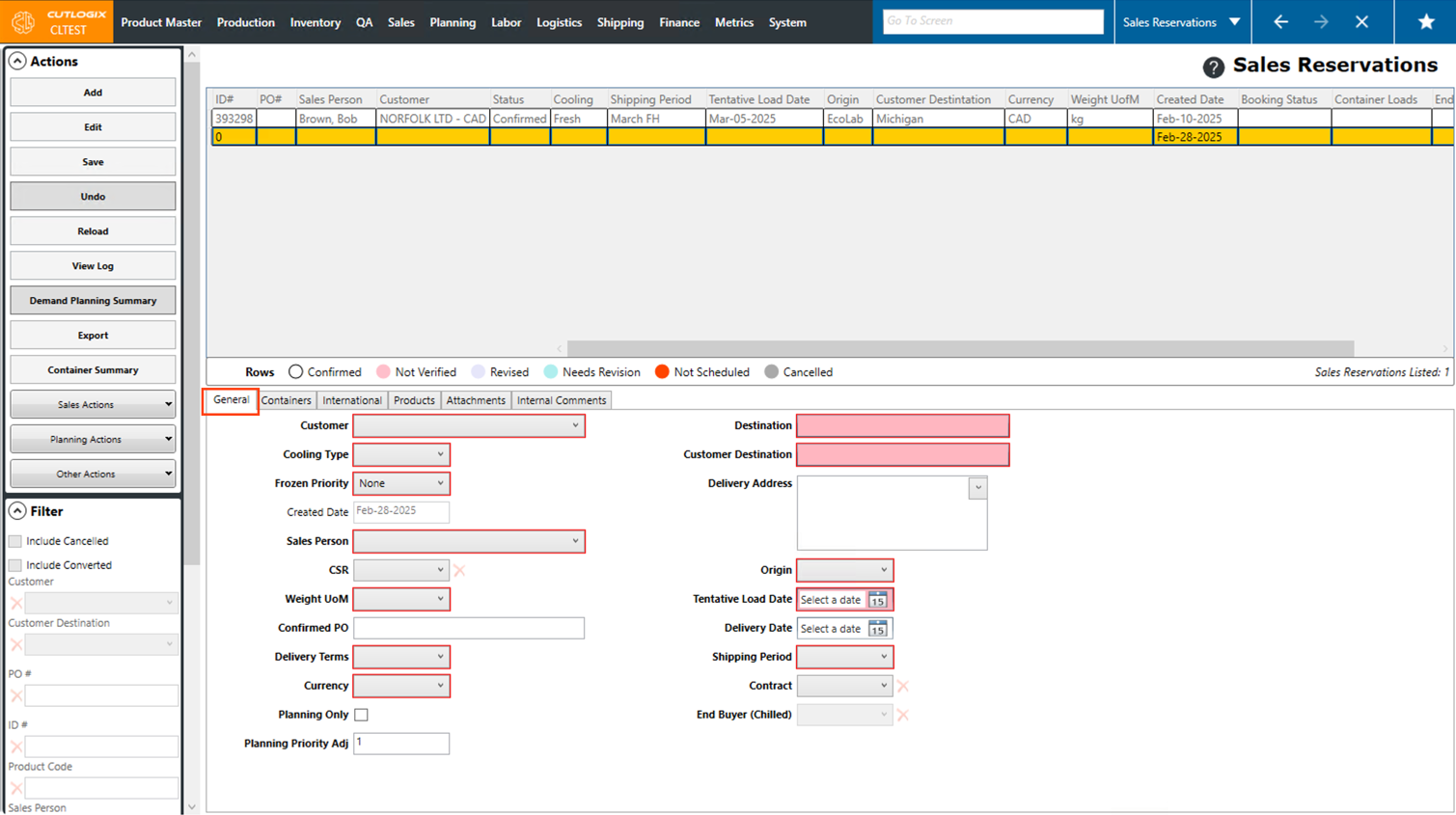
Step 4: All required fields are highlighted in red and must be entered to be able to save the sales reservation. The following are the required fields:
• Customer: The name of the customer that the reservation is for.
• Cooling Type: Fresh, Frozen or Chilled.
• Frozen Priority: None, Must Reschedule or Can Reschedule. Only required if the order cooling type is set to frozen.
• Sales Person: The salesperson for the reservation.
• Weight UoM: Choose the unit of measure that the product on the reservation will be weighed in.
• Delivery Terms: The delivery terms for the load.
• Currency The currency that the currency that the customer on the reservation will use to pay.
• Destination: Where the reservation will be shipped to, if it gets converted into an order.
• Cust. Destination: The final destination of the order, regardless of where your company has to ship it to.
• Origin: The facility that the load (if the reservation is converted to an order) will originate from.
• Tentative Load Date: The approximate date that the product may be loaded.
• Shipping Period: When the order will be shipped. (FH is first half, LH is last half of the selected month.)
• Customer: The name of the customer that the reservation is for.
• Cooling Type: Fresh, Frozen or Chilled.
• Frozen Priority: None, Must Reschedule or Can Reschedule. Only required if the order cooling type is set to frozen.
• Sales Person: The salesperson for the reservation.
• Weight UoM: Choose the unit of measure that the product on the reservation will be weighed in.
• Delivery Terms: The delivery terms for the load.
• Currency The currency that the currency that the customer on the reservation will use to pay.
• Destination: Where the reservation will be shipped to, if it gets converted into an order.
• Cust. Destination: The final destination of the order, regardless of where your company has to ship it to.
• Origin: The facility that the load (if the reservation is converted to an order) will originate from.
• Tentative Load Date: The approximate date that the product may be loaded.
• Shipping Period: When the order will be shipped. (FH is first half, LH is last half of the selected month.)
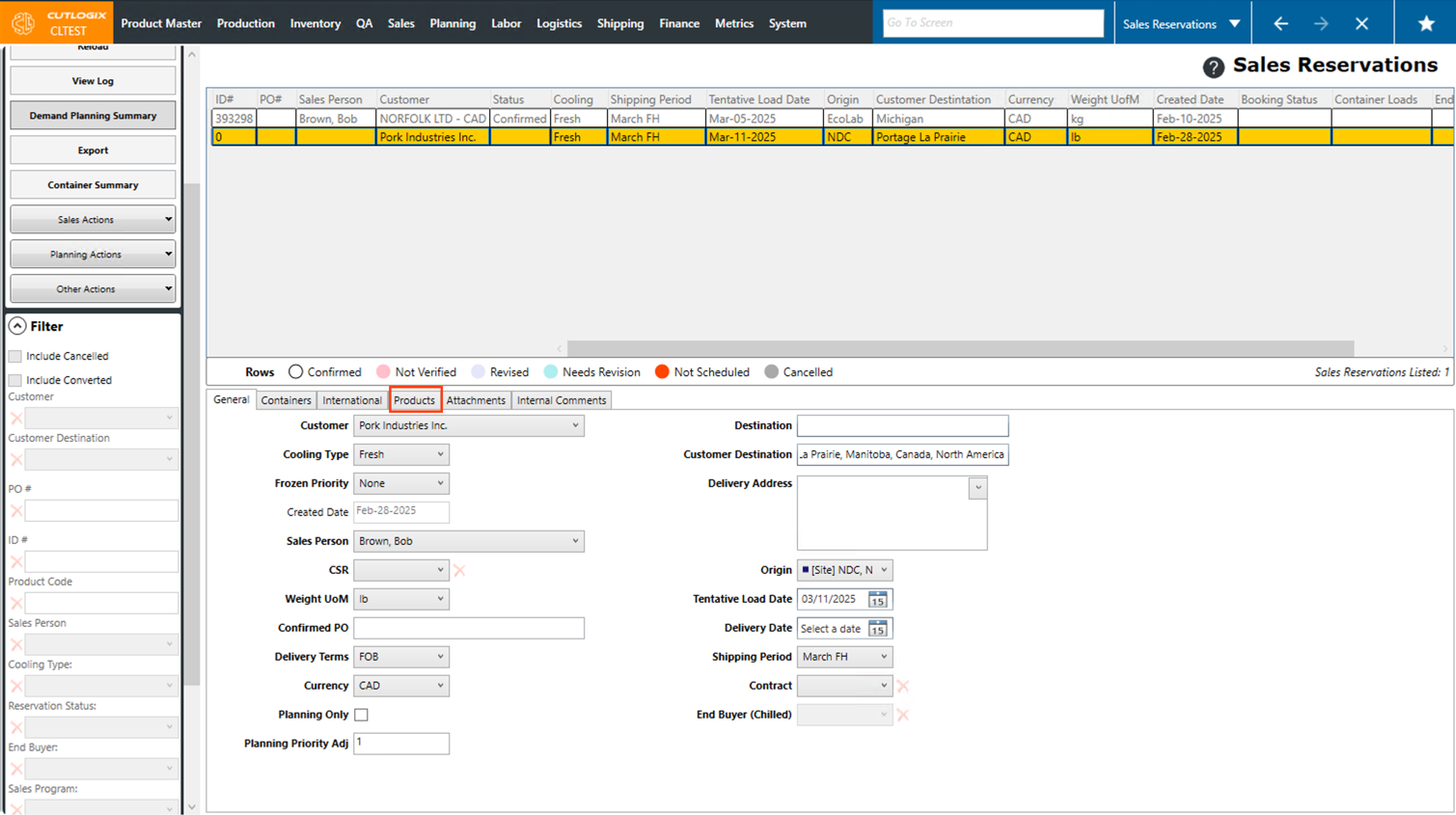
Step 5: Next, one or more products need to be added to the reservation before it can be saved. To do that, open the "Products" tab.
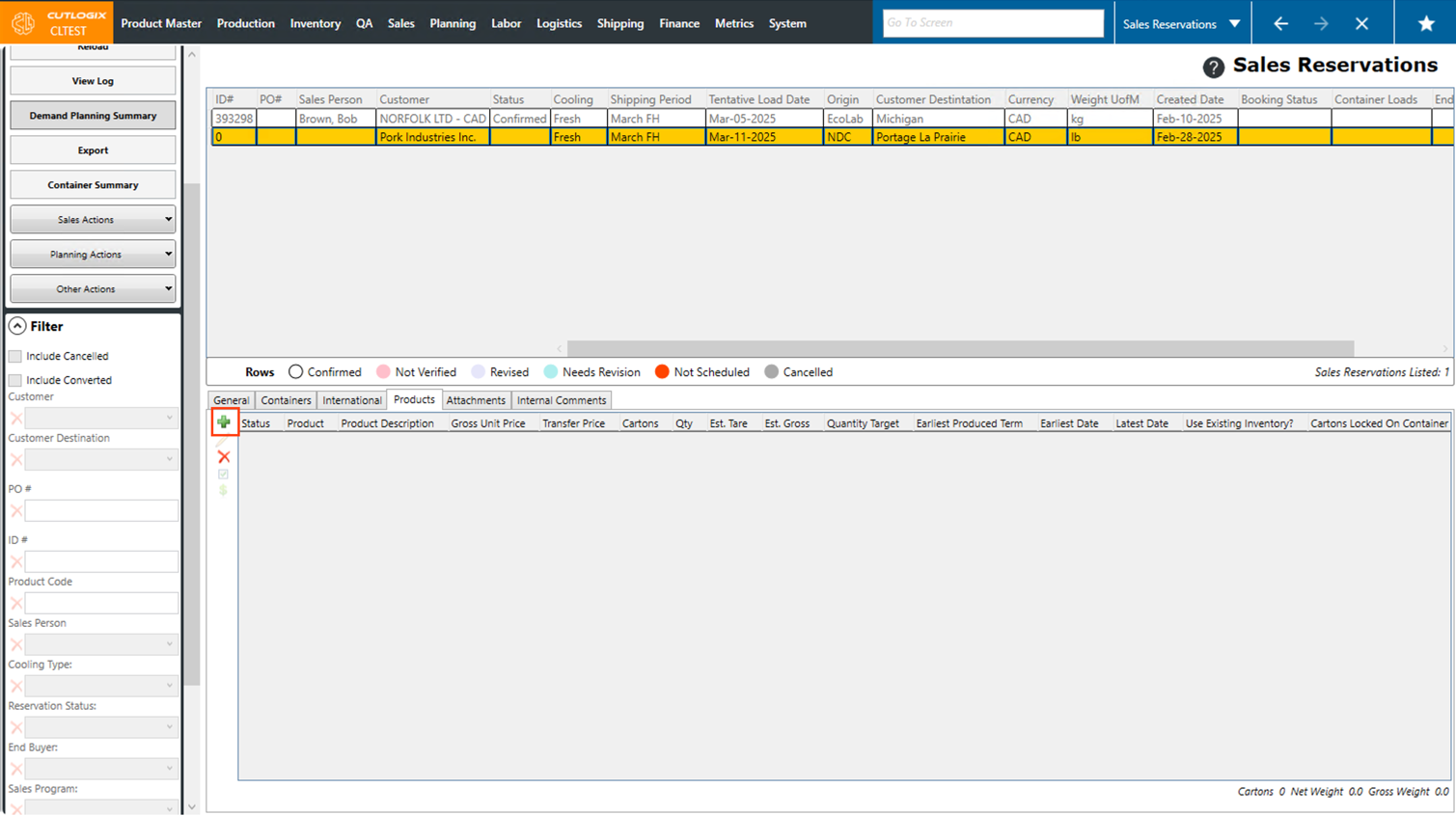
Step 6: Click the green "+" button to add a product to the reservation.
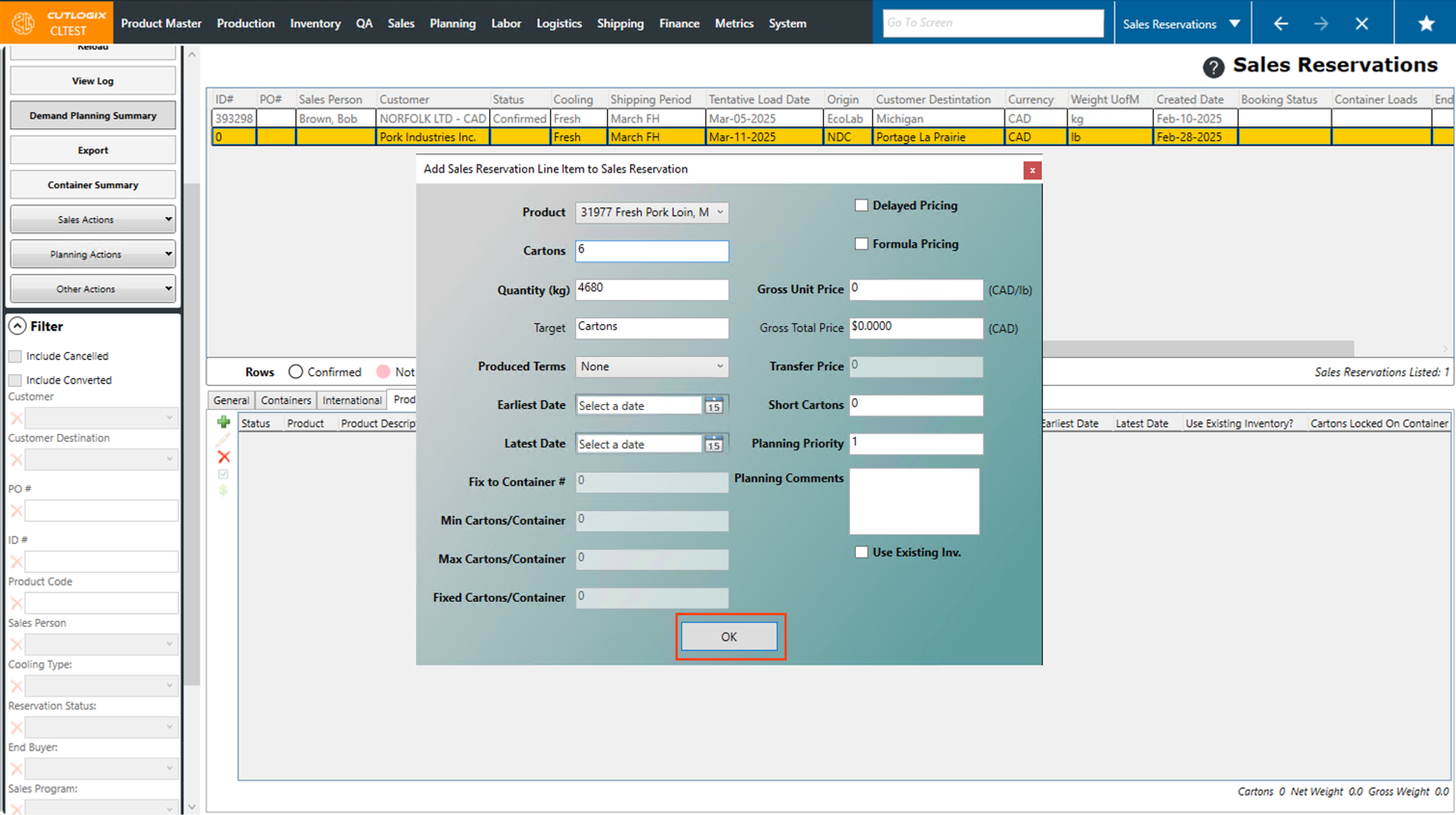
Step 7: A dialog will appear where you can enter information about the product to be added to the reservation. All required fields are highlighted in red and must be entered to be able to save the sales reservation. They are as follows:
• Product: Choose the product that you want to add to the reservation from the drop-down list.
• Cartons: Enter the number of cartons to add to the reservation.
• Quantity (kg): Enter the quantity of product to add to the reservation in Kgs.
Note: The cartons and quantity fields are connected. After entering one, the other will automatically calculate based on the selected product.
• Product: Choose the product that you want to add to the reservation from the drop-down list.
• Cartons: Enter the number of cartons to add to the reservation.
• Quantity (kg): Enter the quantity of product to add to the reservation in Kgs.
Note: The cartons and quantity fields are connected. After entering one, the other will automatically calculate based on the selected product.
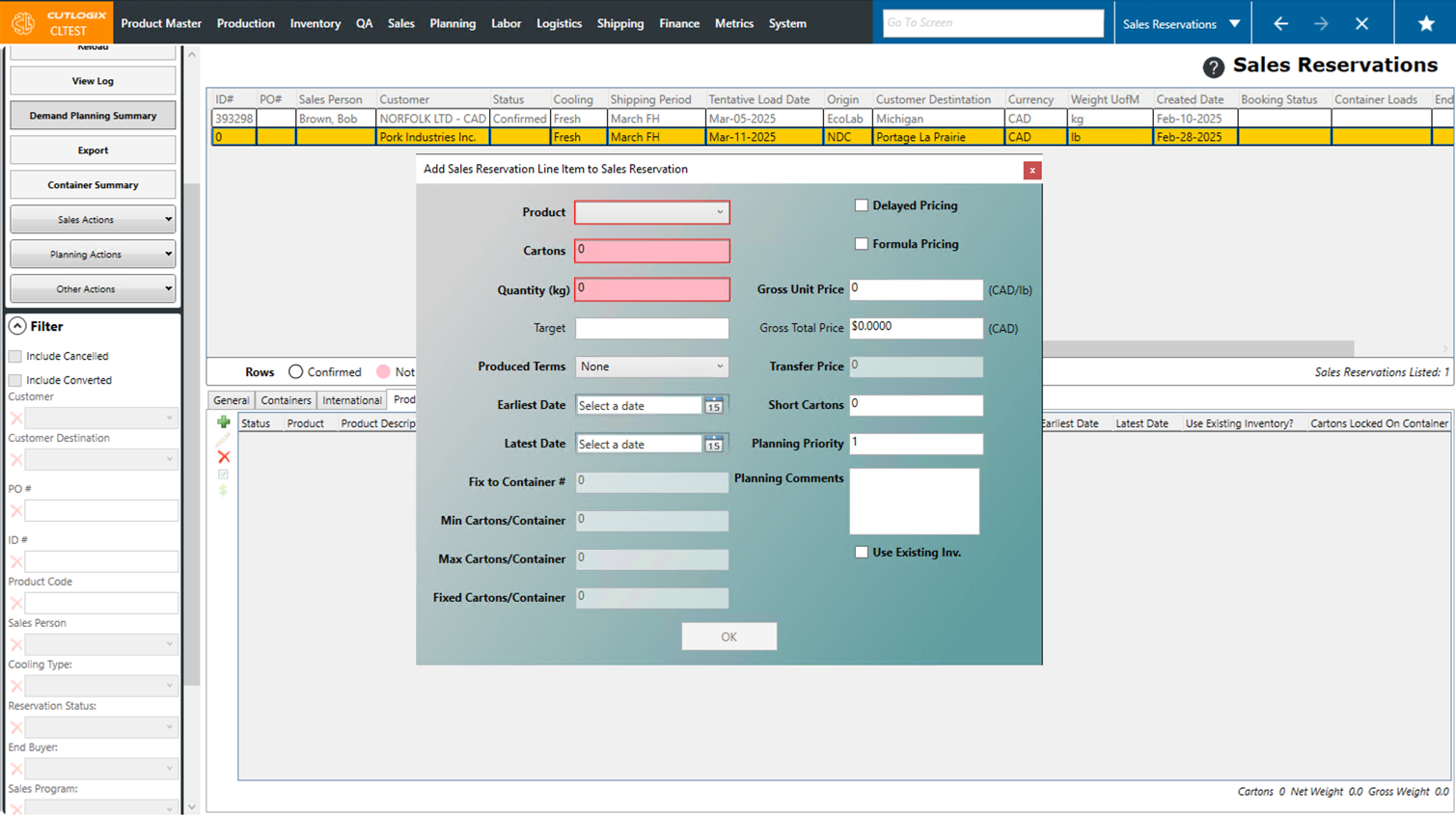
Step 8: Click the "OK" button after you've entered all the necessary information about the product.
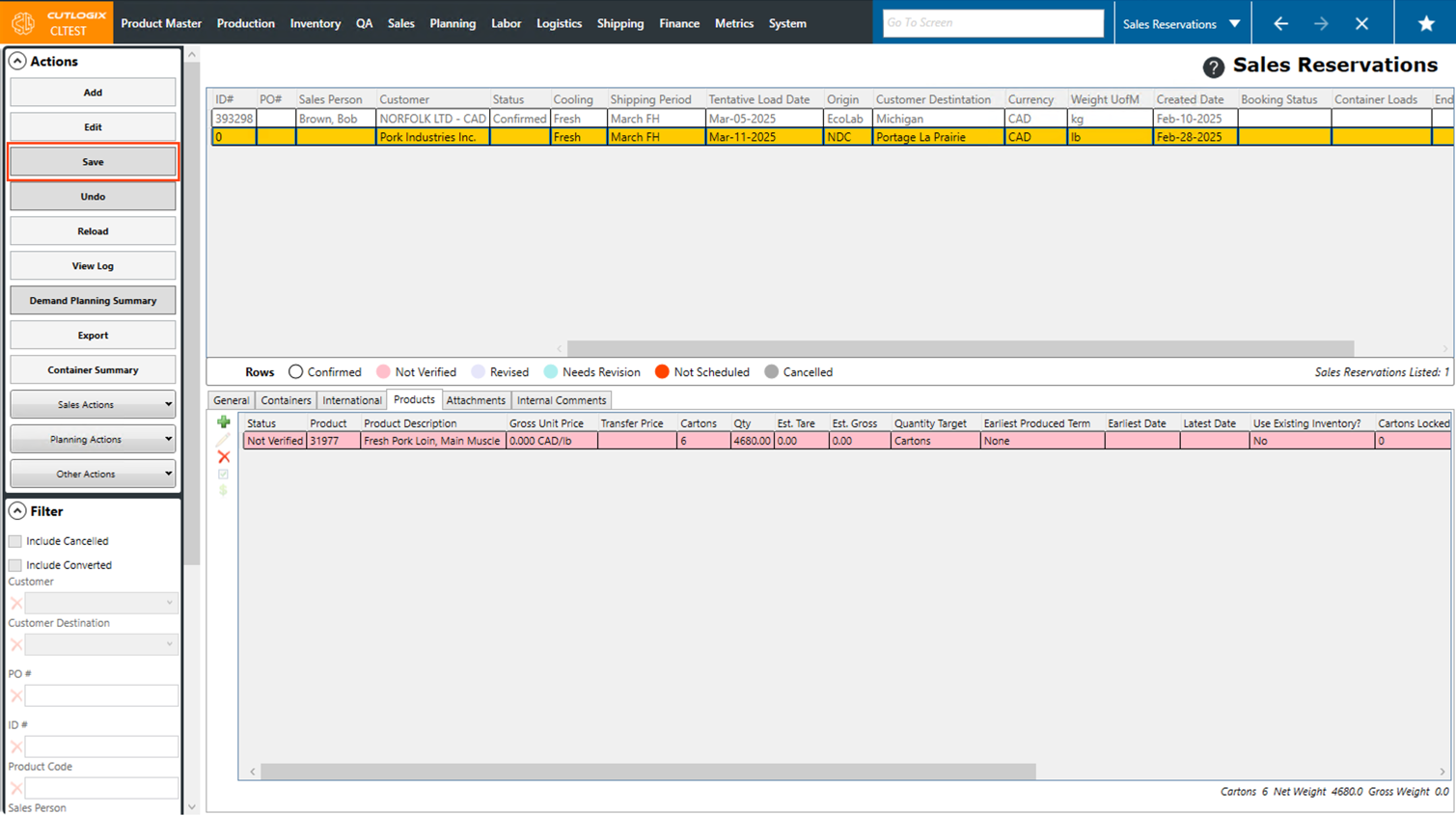
Step 9: Now that there is a product on the reservation, it can be saved by clicking the "Save" button in the Actions Panel. Once saved, it will appear in the list of sales reservations.
How to Edit Sales Reservations
Demo
Step 1: Navigate to the "Sales Reservations" page. (Located under the "Sales" menu option)
Step 2: Click on the sales reservation that you want to edit, in the list of sales reservations. (Once selected it will be highlighted in orange.) Then, click the "Edit" button in the Actions Panel.
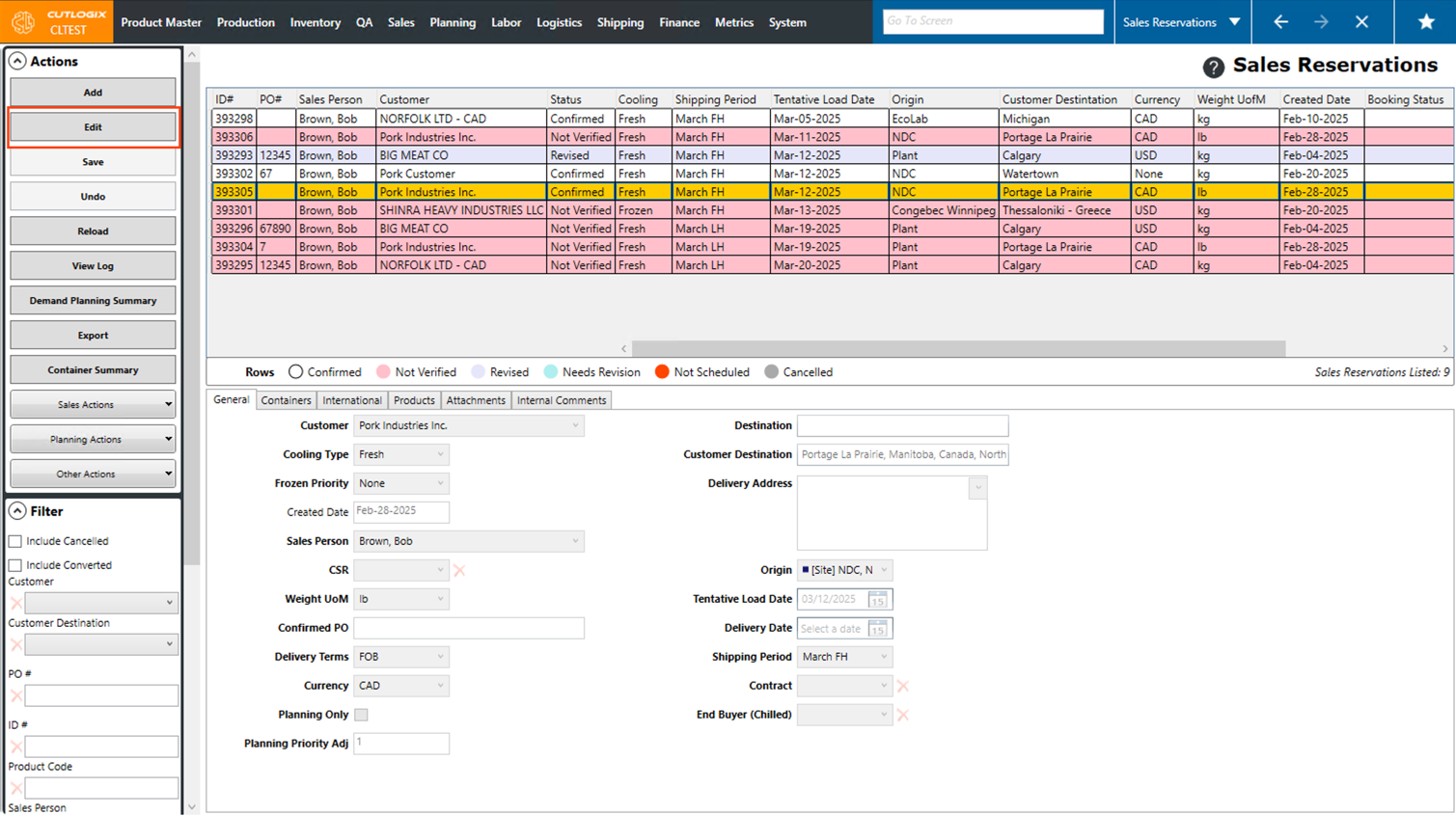
Step 3: The tabs at the bottom of the page for the sales reservation (General, Containers, International, Products, Attachments, Internal Comments) will now be enabled for editing. You can make the necessary changes to the reservation in these tabs.
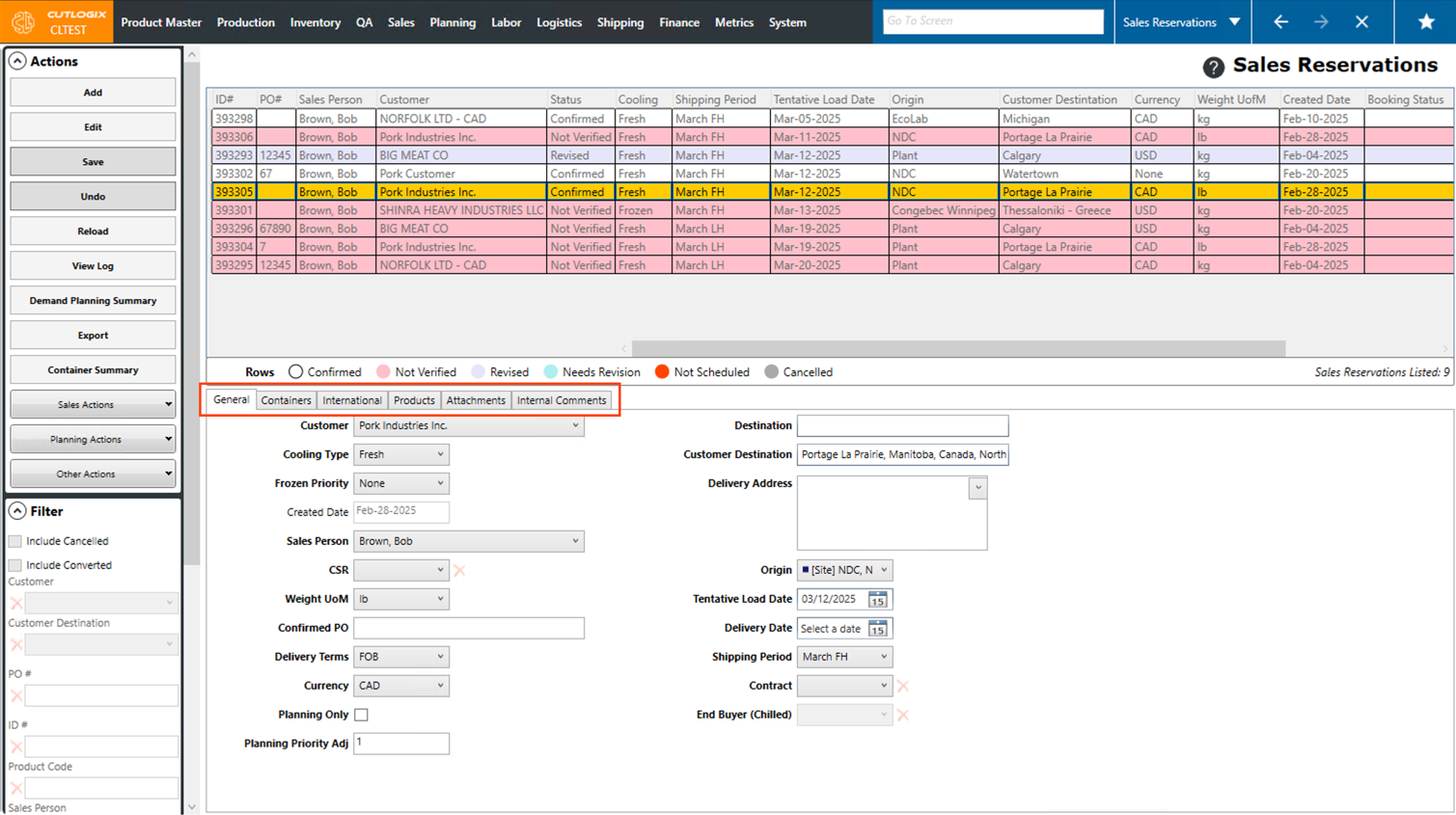
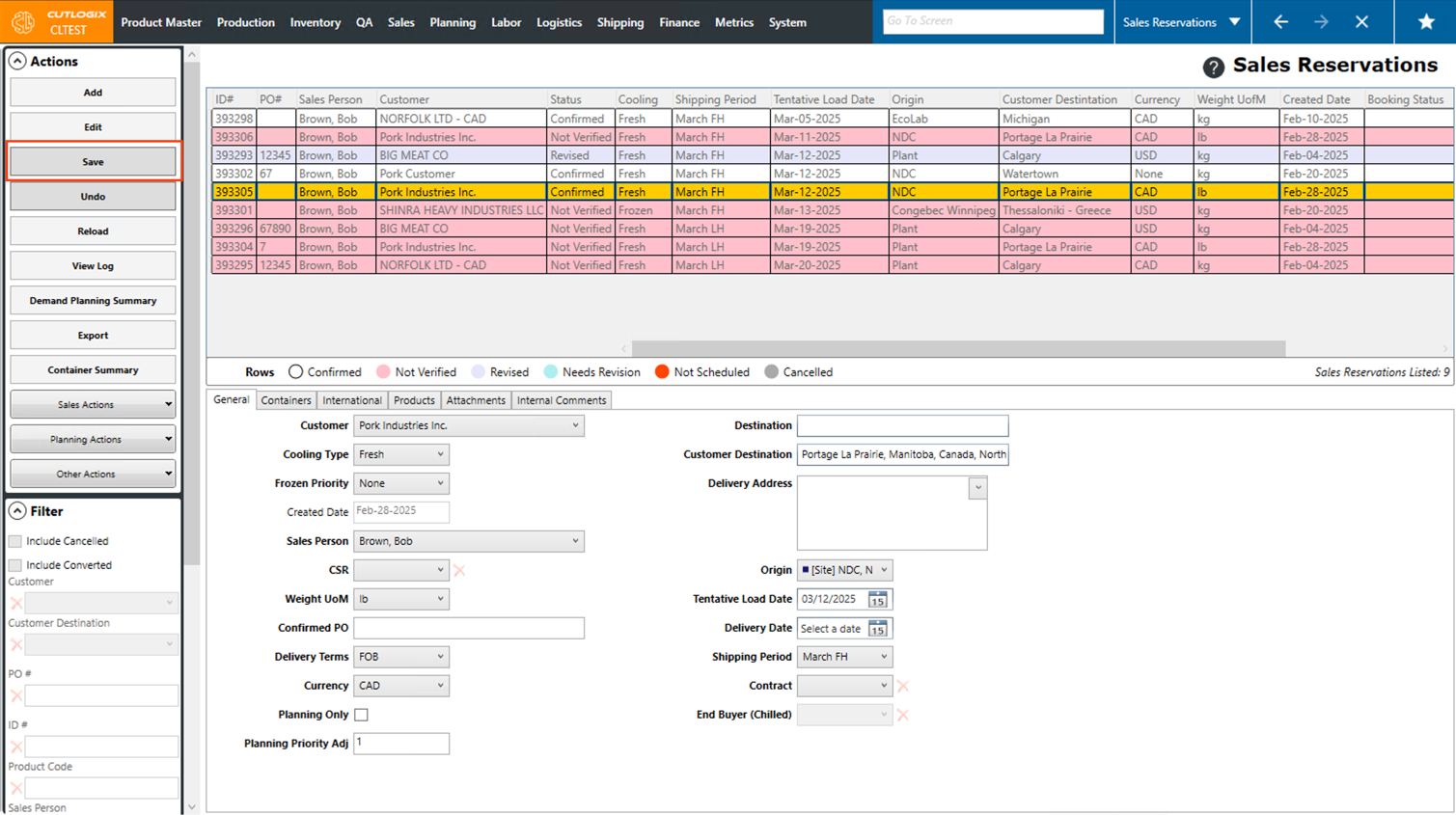
Step 4: Once you've made all the necessary edits to the sales reservation, click the "Save" button in the Actions Panel to save your changes. If you don't want to save the changes, clicking the "Undo" button will revert them without saving.
How to Copy a Sales Reservation
Demo
Copying a Sales Reservation allows you to quickly duplicate a reservation while making necessary modifications. Follow the steps below to copy a Sales Reservation.
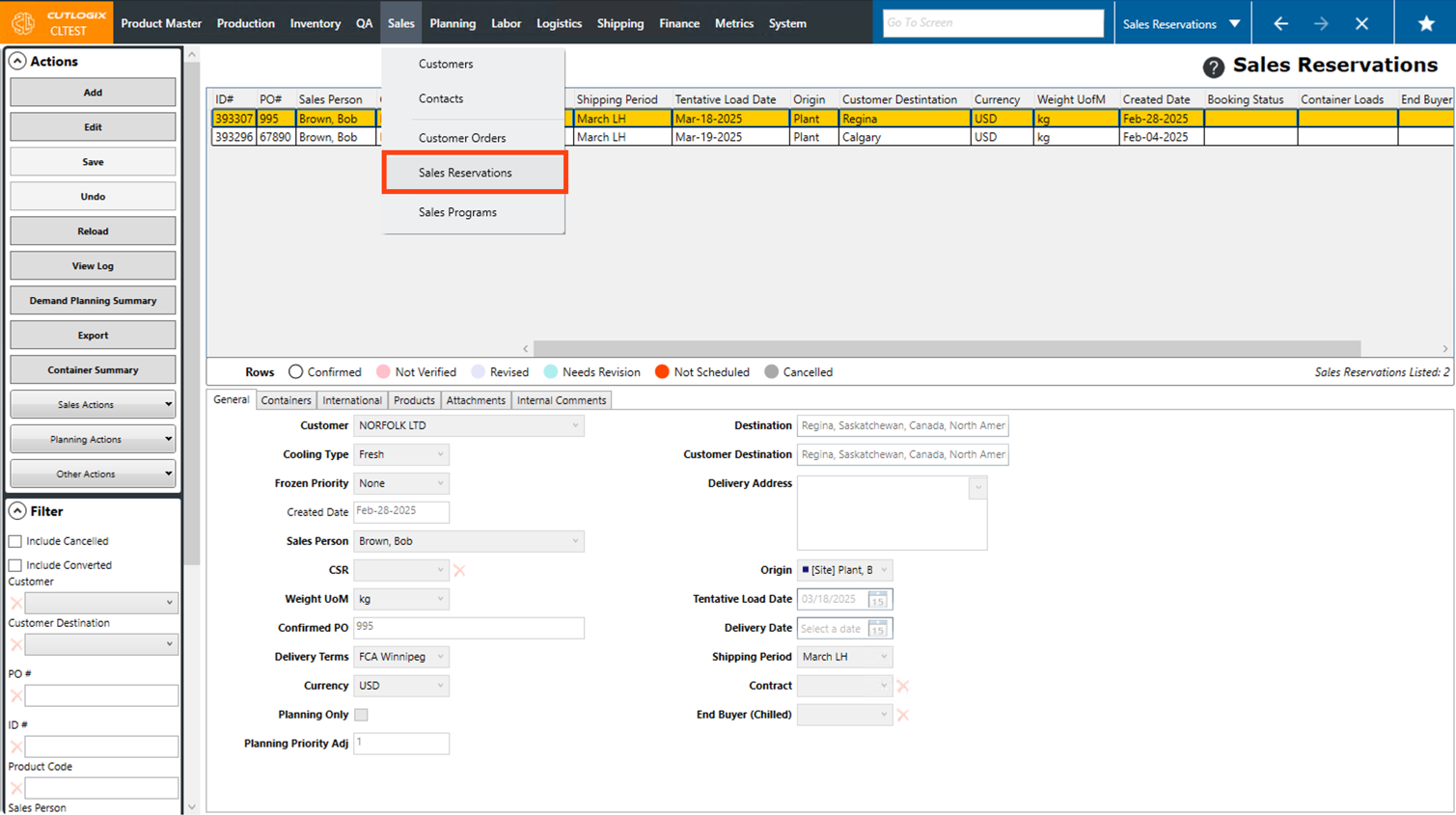
Step 1: Navigate to the "Sales Reservations" page. (Located under the "Sales" menu option).
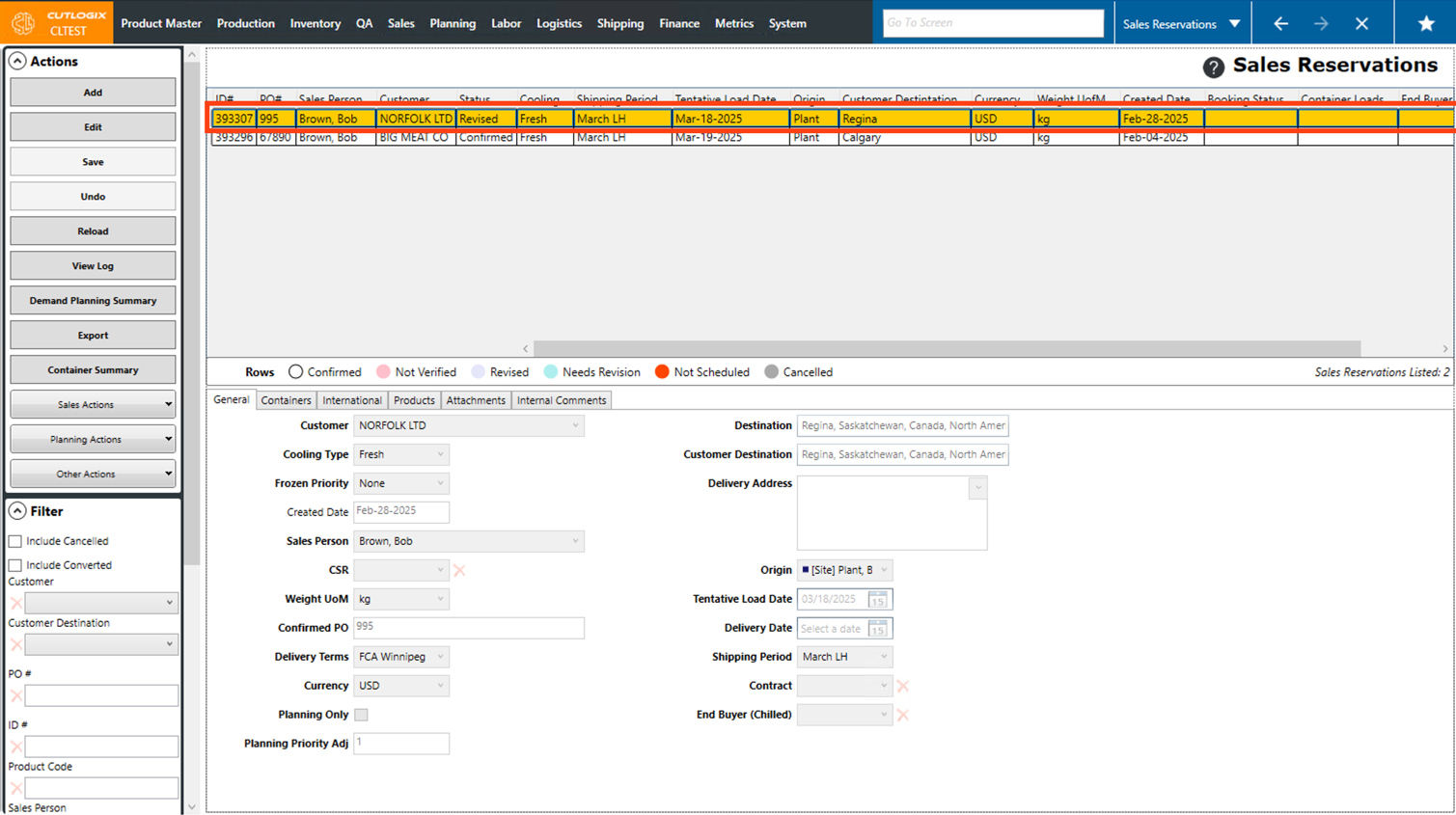
Step 2: Click on the Sales Reservation you want to copy. The selected reservation will be highlighted in orange.
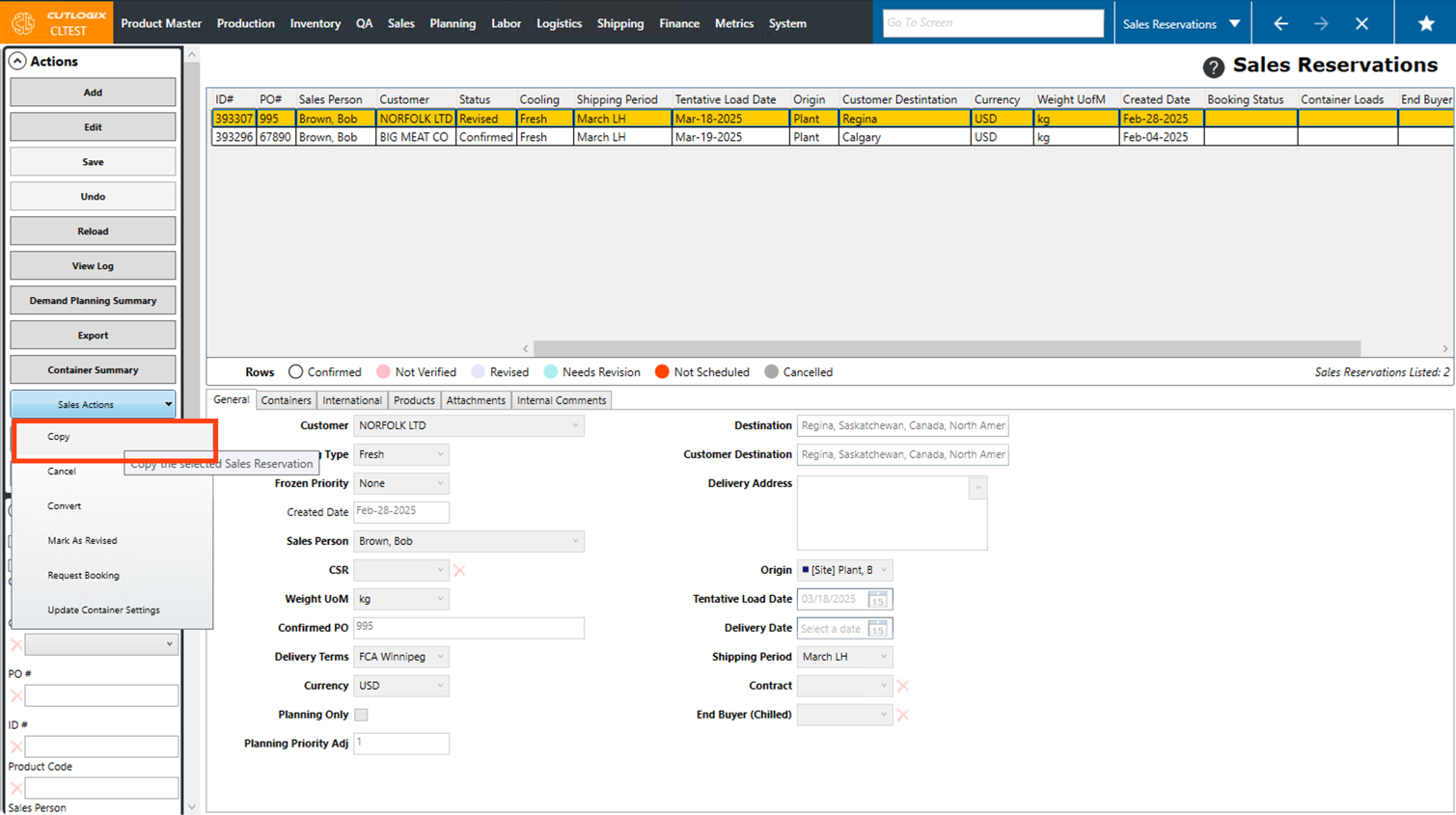
Step 3: In the Actions sidepod, click on "Sales Actions," then choose "Copy" from the dropdown list that appears.
Step 4: A new temporary Sales Reservation will appear in the data grid with all the information from the original reservation copied over, except for the "PO (Confirmed PO)" and the "Contract." (If the order cooling type is chilled.)
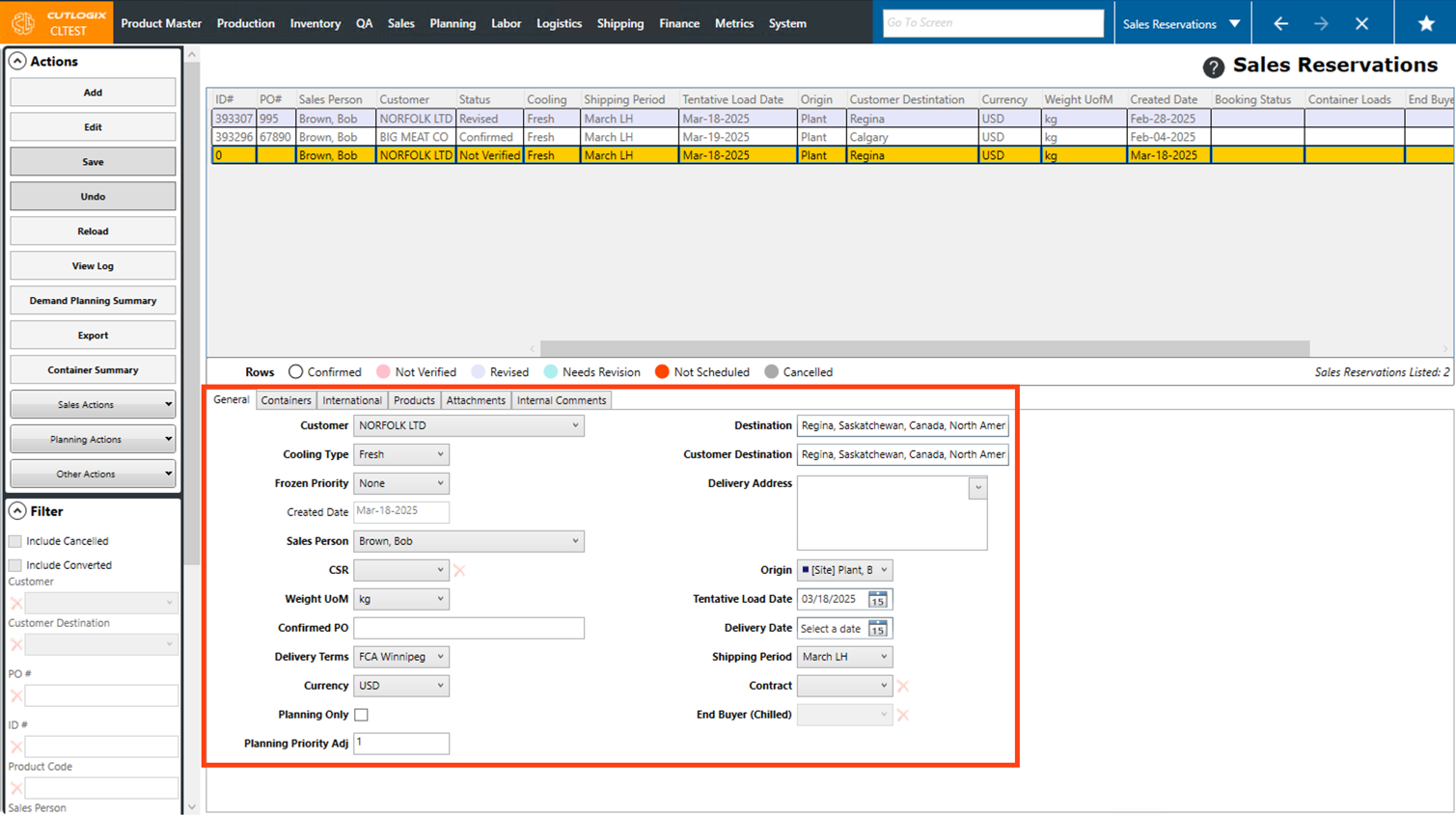
Step 5: Fill out the two required fields ("PO" and "Contract") and make any necessary changes to the copied reservation.
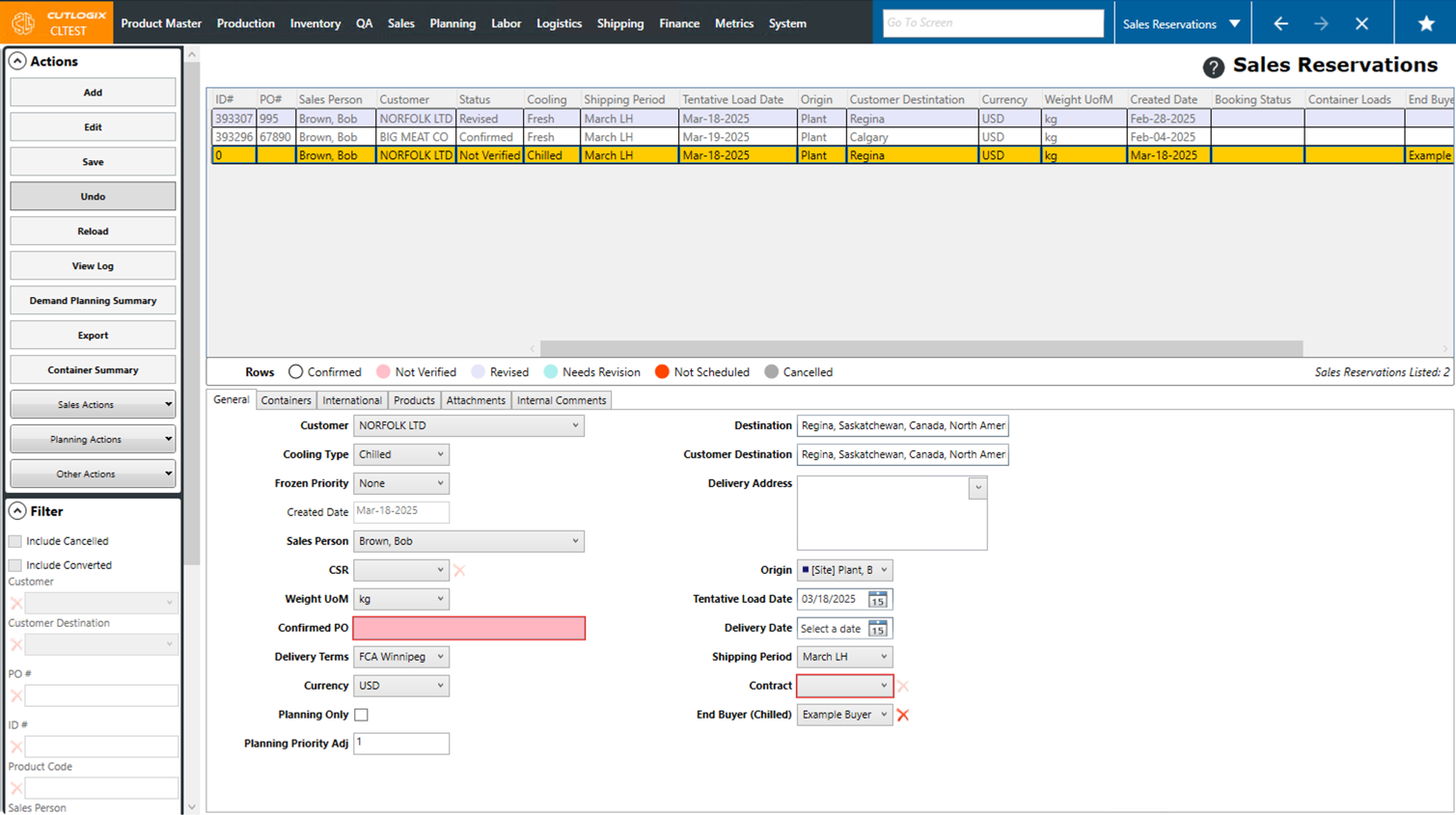
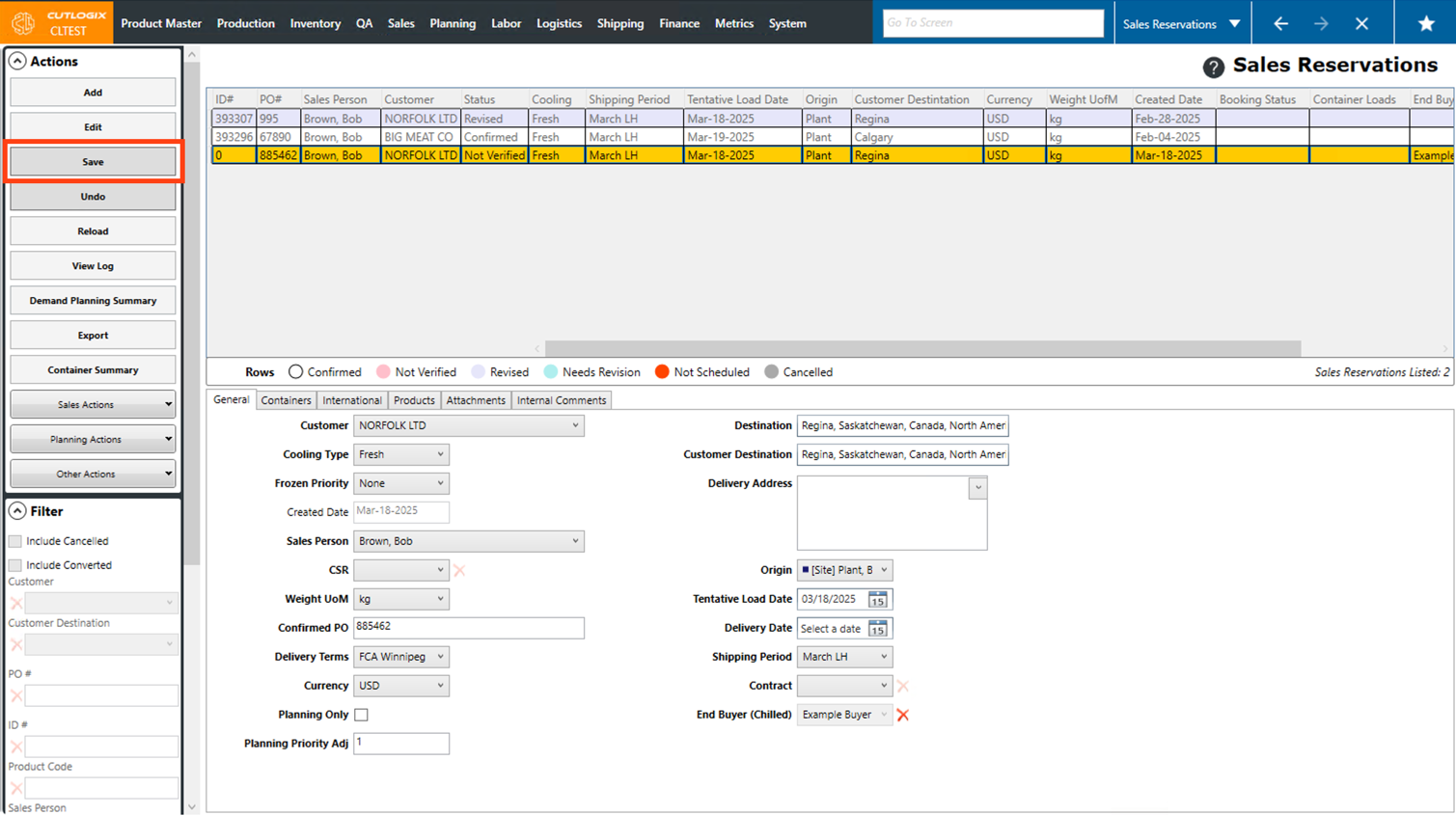
Step 6: Ensure that all required fields are completed to enable the "Save" button. If you wish to delete the copied reservation, click the "Undo" button.
How to Convert Sales Reservations to Customer Orders
Demo
Note: Before a sales reservation can be converted to a customer order, it must have a "Confirmed PO" set on it. This can be added by editing the sales reservation and adding a confirmed PO to it.
Step 1: Navigate to the "Sales Reservations" page. (Located under the "Sales" menu option)
Step 2: Click on the sales reservation that you want to edit, in the list of sales reservations. (Once selected it will be highlighted in orange.) Then, click the "Sales Actions" drop-down in the Actions panel, and click "Convert".
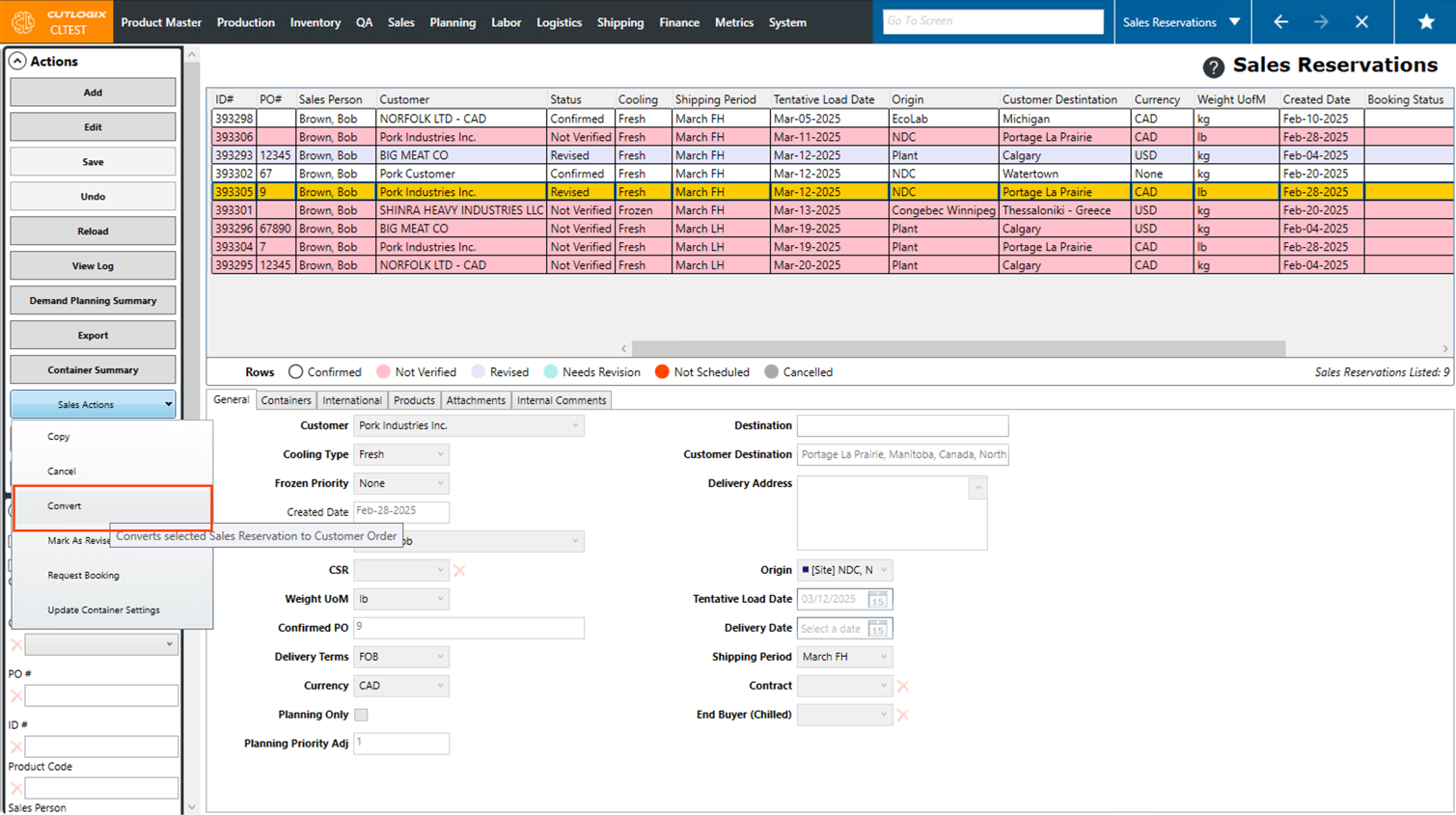
Step 3 The reservation will now have a "Converted" status, and it will be visible on the "Customer Orders" screen as a customer order.