Certificates
How to Navigate: Click on Logistics > Certificates
Summary
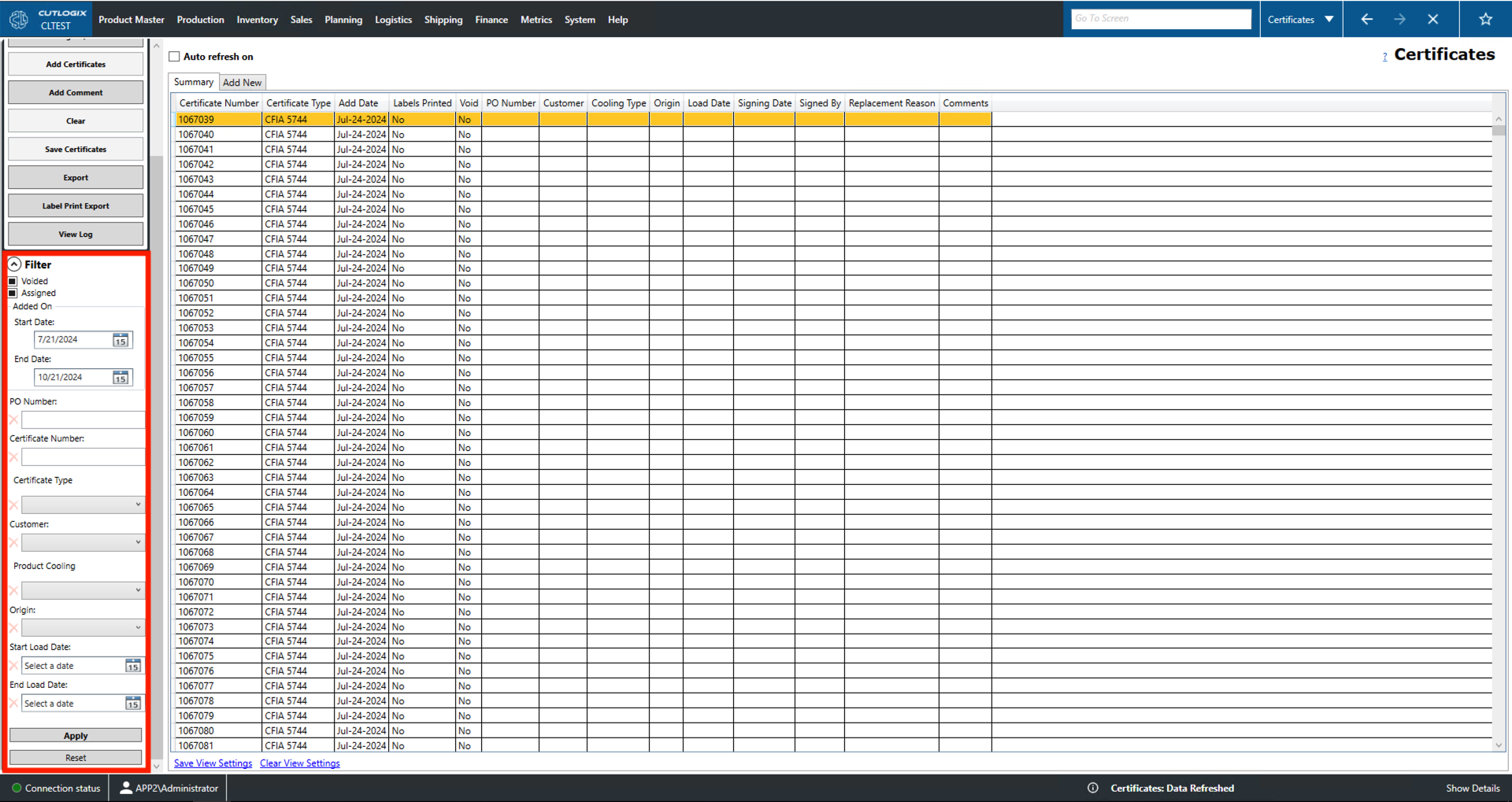
This page shows users current and historical data about the Canadian Food Inspection Agency (CIFA) certificates that have been entered into the system. The summary tab provides a list of the certificates in the system that shows the certificates' numbers, types, void status, etc. The 'Add New' tab can be used to add new certificate ranges of the specified type.
- Auto refresh on: If this is checked the list will automatically refresh every ten mins.
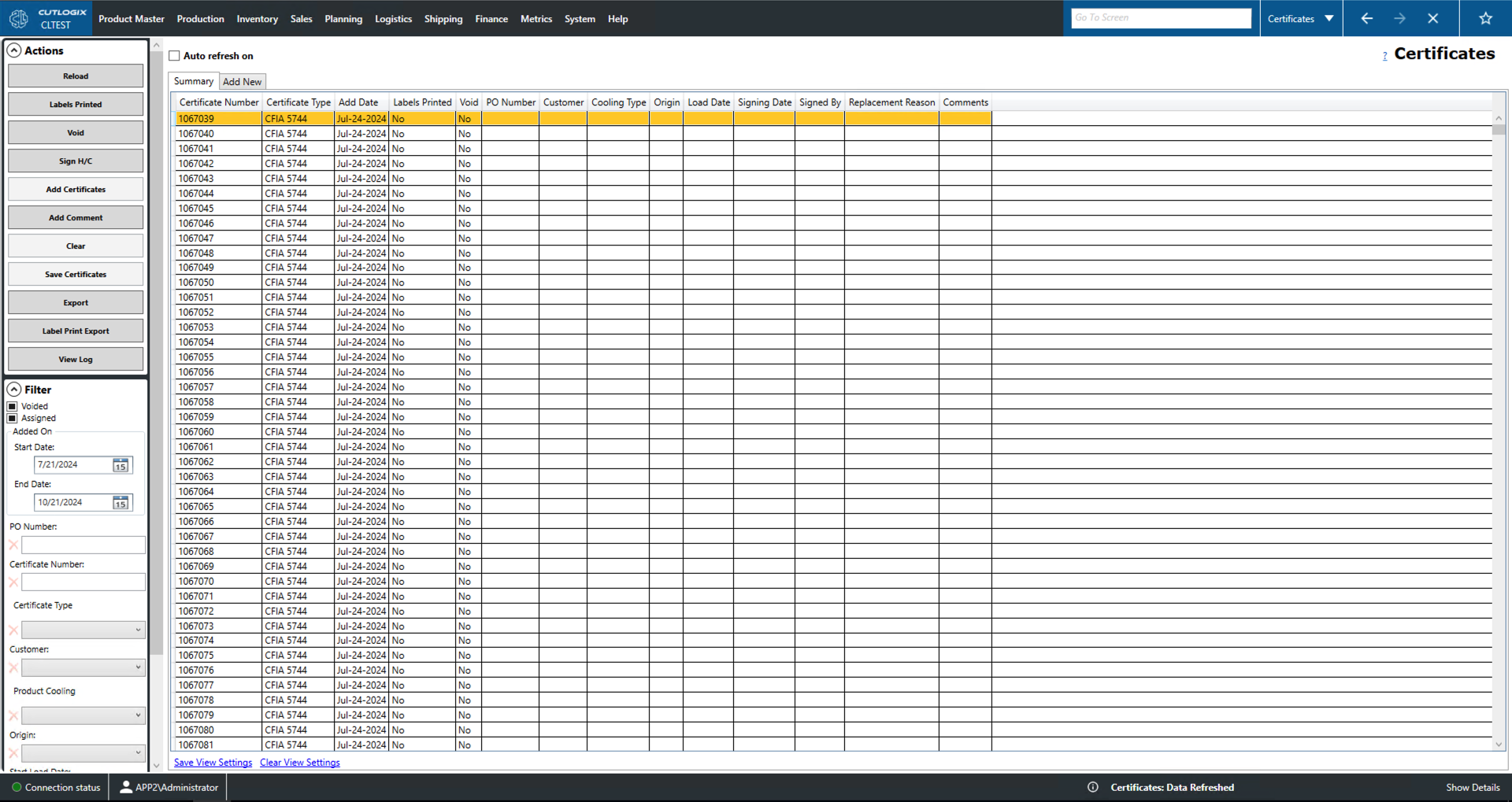
Actions
- Reload: Reload the list of certificates displaying the most up to date version of the data from the data base.
- Labels Printed: Marks the certificate record has having its associated labels printed. This is reflected in the Labels Printed field.
- Void: Void the currently selected certificate. A voided ticket is considered by the system to no longer be legally valid. If the currently selected ticket is voided then this action will change into 'Revert Void'. This action will un-void the certificate.
- Sign H/C: Brings up a pop window that allows the user to mark the certificate associated as signed. Users must provide a name and a signing date.
- Add Certificates: Allows the user to add a new certificate range for the specified type. This button can be used by navigating to the 'Add New' tab and selecting a certificate type.
- Add Comment: Allows the user to add a comment to the comments field of the currently selected certificate.
- Clear: Clears a newly added certificate range that has been added via the 'Add New' tab.
- Save Certificates: Saves a new certificate range that has been added via the 'Add New' tab.
- Export: Allows the user to locally save the list of certificates in a .xlsx file (excel format).
- Label Print Export: Allows the user to locally save a certificate report for the date they may select.
- View Log: View the change log for the currently selected certificate record. This includes what was changed, by whom and when.
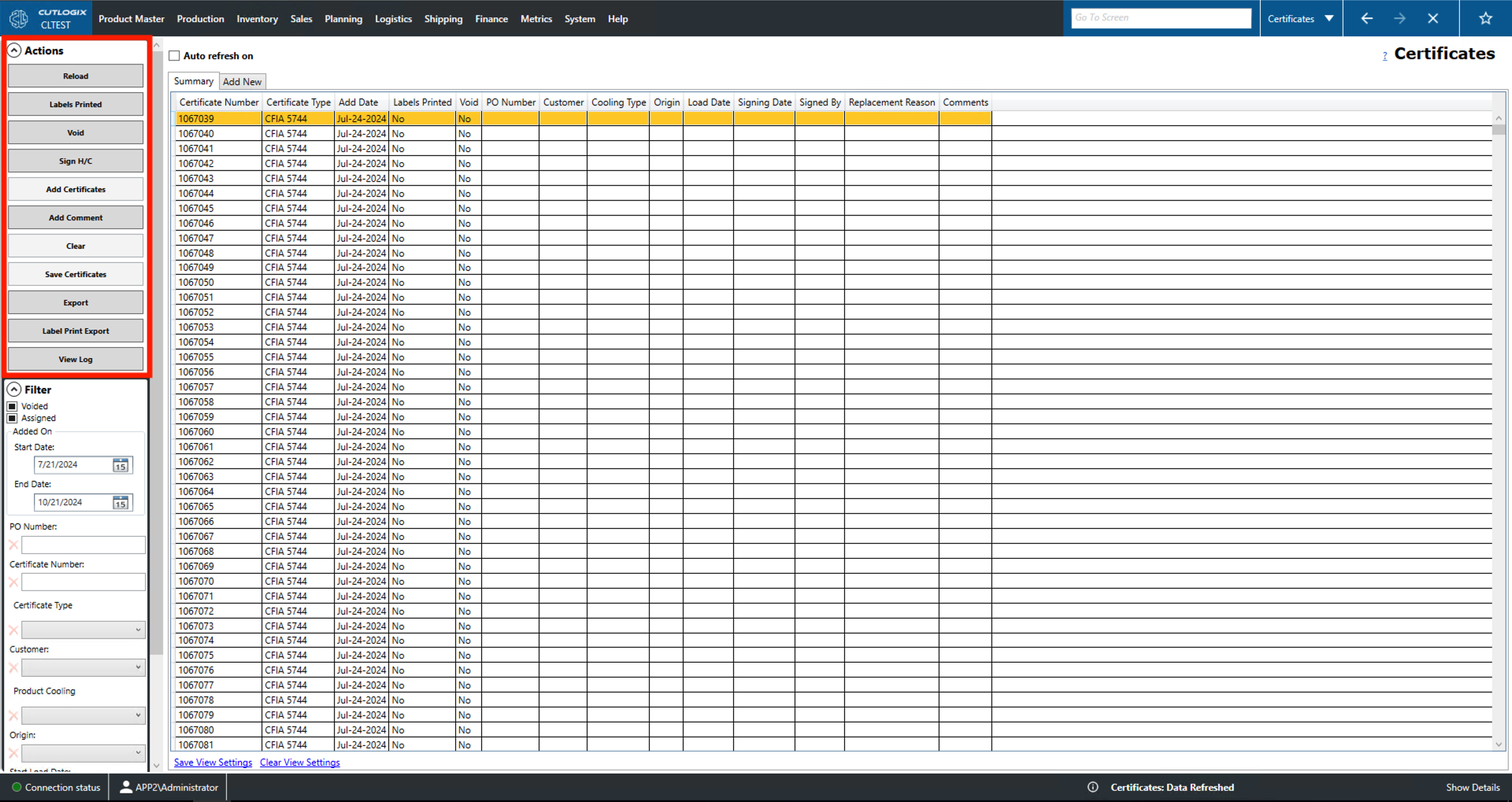
Filter
- Voided/Assigned: Filters by whether or not a certificate is voided/assigned. Checked means only show voided/assigned, empty means only show non-voided/non-assigned and the black square means don't filter by voided/assigned.
- Added On: Users can use these two date fields to set a date range to filter the entries by the add date field. Entries shown will be those with an Add Date on or after the start date and on or before the end date.
- PO Number: Filter by the purchase order (PO) number. This is a unique identifier given to customer orders.
- Certificate Number: Filter by the certificate's id number.
- Certificate Type: Filter by the type of certificate. The Canadian Food Inspection Agency (CFIA) issues certificates to producers whose goods are in line with government regulations. The options in this drop down are different types of certificates that indicate adherence to various sets regulatory requirements.
- Customer: Filter to certificates assigned to specific customers.
- Product Cooling: Filter by the cooling type field (fresh, frozen or chilled) on the certificate record.
- Origin: Filter by where the order this certificate is attached to is shipping from.
- Start/End Load Date: Filter the list by load date using these two fields. Setting just the start/end date will show records on or after/before the specified date. Setting both will filter to all entries with load dates that fall into the range. The range is inclusive of the start and end date.
- Apply: This will reload the list with the relevant filters applied.
- Reset: This will reset all filters and reload the list to an unfiltered state.