Shipping Files Overview
How to Navigate: Click on Logistics > Shipping Files
Summary
On this page, users can search and view historical and recent shipping file data and sales orders. Users can also update a shipping file's status and use this screen to track and provide updates on the progress of an order that has left the plant.
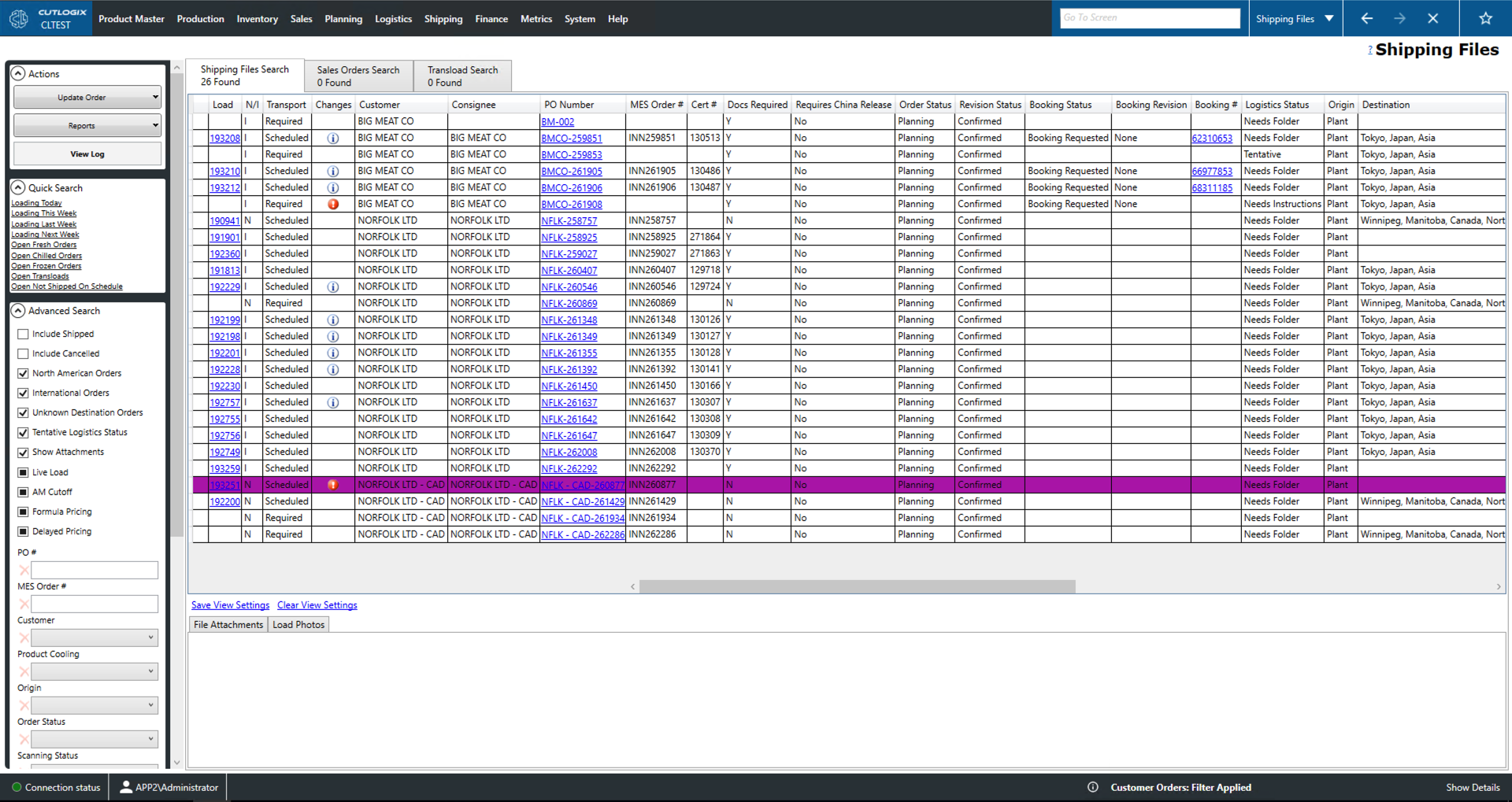
Actions
- Update Order
- Mark As Shipped: Set the currently selected order (highlighted in yellow) to shipped.
- Mark As SNB: Set the currently selected order to shipped but not billed (SNB).
- Sync To MES: Sends the current list of shipping files to the manufacturing execution system (MES).
- Folder Created: Sets the shipping file as folder created as part of the doc review process.
- Edit Attachments: Opens a dialogue window that allows users to add or delete file attachments for the currently selected shipping file. This can also be managed in the 'File Attachments' tab at the bottom of the screen.
- Update Scanning: Manually reload the list with the most up to date information.
- Set Not Shipped On Schedule: Marks the load as having left late.
- Reports: This dropdown contains a number of reports specific to shipping files. These reports are customizable by customer request.
- View Log: View the change log for the currently selected shipping file. This includes what was changed, by whom and when.
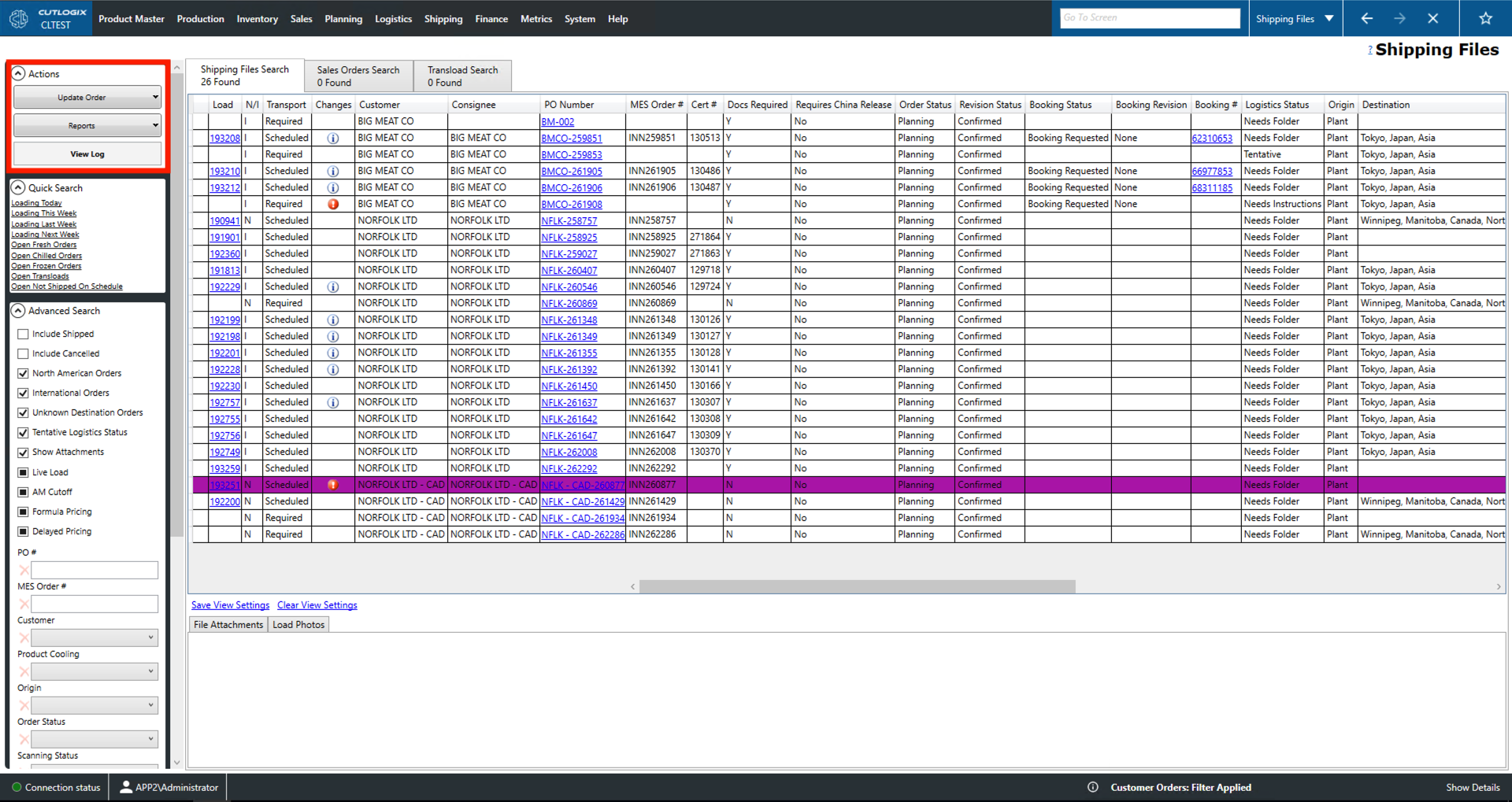
Quick Search
- Quick Search: Includes a series of quick filter options that are commonly used on this page.
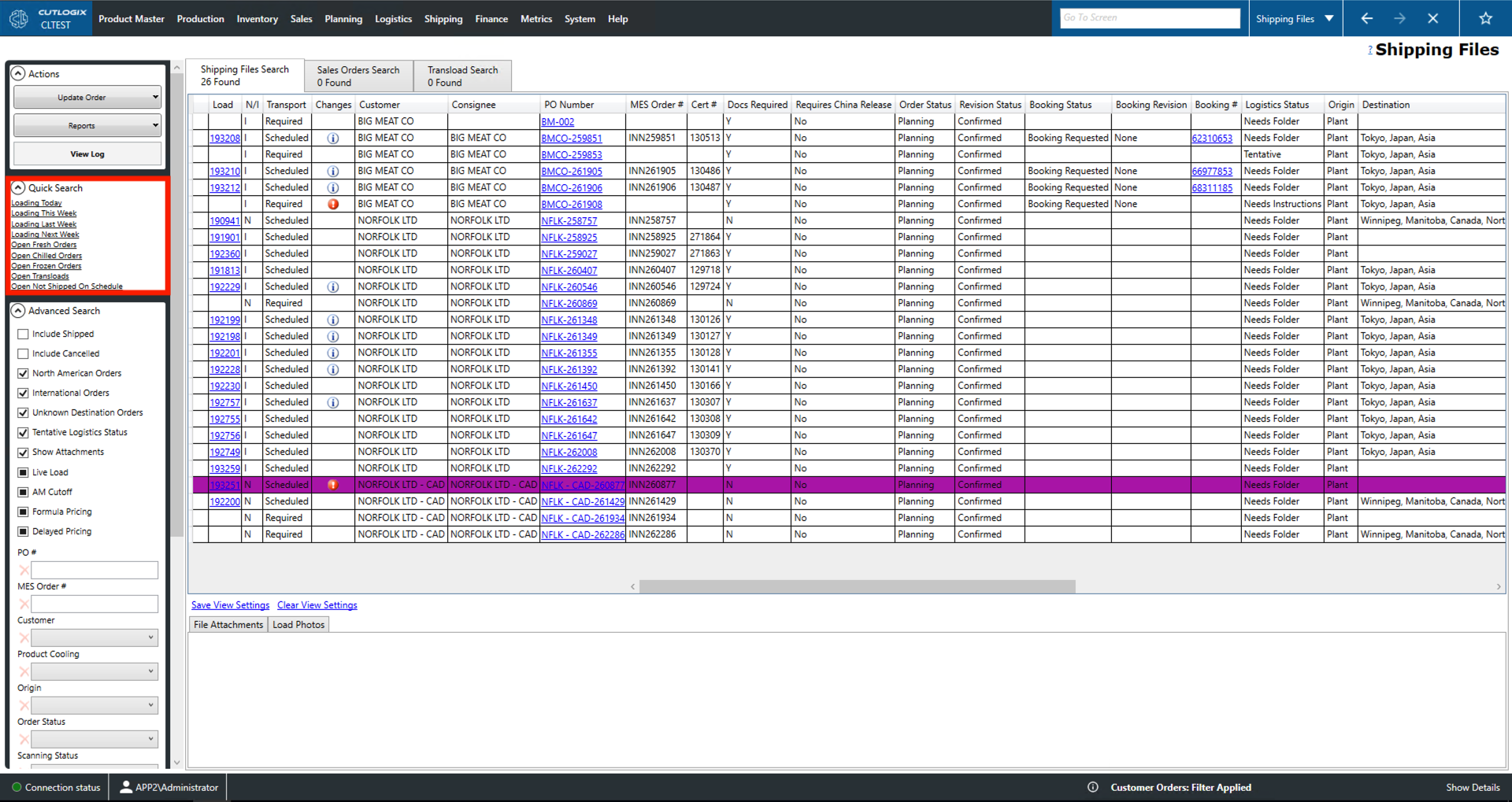
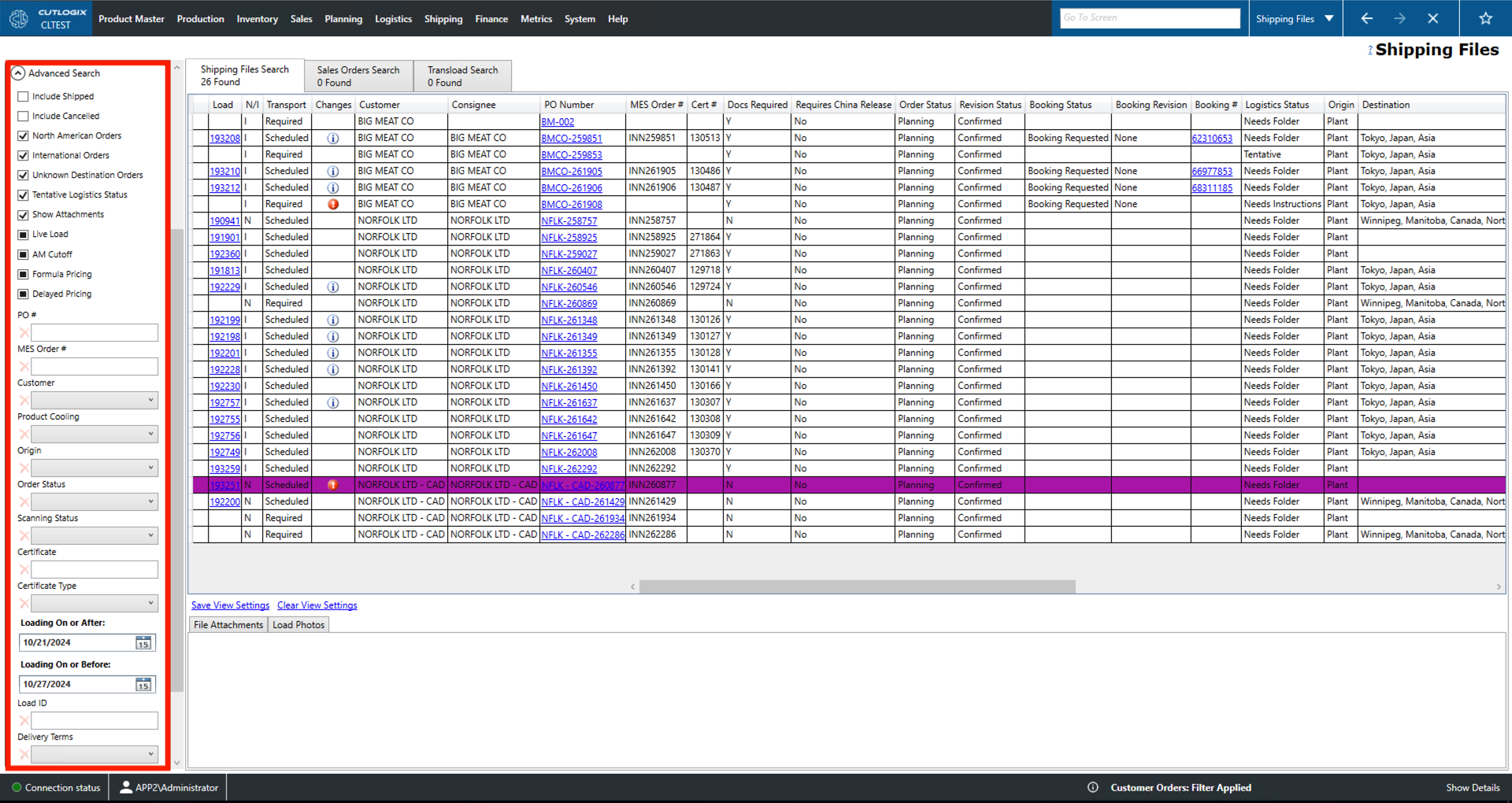
Advanced Search
This sidepod has a number of options that will be shown or hidden depending on the current tab. You can find explanations of all of these options on this page.
- Quick Search: Includes a series of quick filter options that are commonly used on this page.
- Include Shipped/Cancelled: Whether or not to include shipping files with an order status of shipped/cancelled.
- North American/International/Unknown Destination Orders: Whether or not to include North American/International/Unknown Destination shipping files in the list.
- Tentative Logistics Status: Whether or not to include shipping files with the Tentative Logistics status.
- Show Attachments: Shows or hides the file and photo attachments tabs at the bottom of the screen.
- Live Load: Indicates that for this shipping file the truck driver waits for the load to be loaded/unloaded instead of picking up or dropping off their trailer.
- AM Cutoff: Marks this order as being needing to be completed on the morning shift (i.e. because it needs to cross the border, etc.).
- Formula Pricing: Filter to entries with prices taken from the United States Department of Agriculture (USDA) formulas.
- Delayed Pricing: Filter to entries with prices that are not taken from USDA formula pricing and that haven't been determined yet.
- PO #: Filter by the purchase order number (PO#).
- MES Order #: Filter by the order number assigned to the order by the manufacturing execution system (MES).
- Customer: Filter by orders being sold to a particular customer.
- Product Cooling: Filter by product cooling (fresh, frozen or chilled.)
- Origin: Filter by the location from which the load will be shipped.
- Order Status: Filter by the status of the order (i.e. planning, cancelled, shipped, etc.).
- Scanning Status: Filter by the loads scanning status (i.e. In Progress, Not Started, Complete, etc.).
- Certificate: Filter by the shipping certificate.
- Certificate Type: Filter by the type of shipping certificate.
- Loading On or Before/After: Filter to entries that are dated as loaded on or before/after this date.
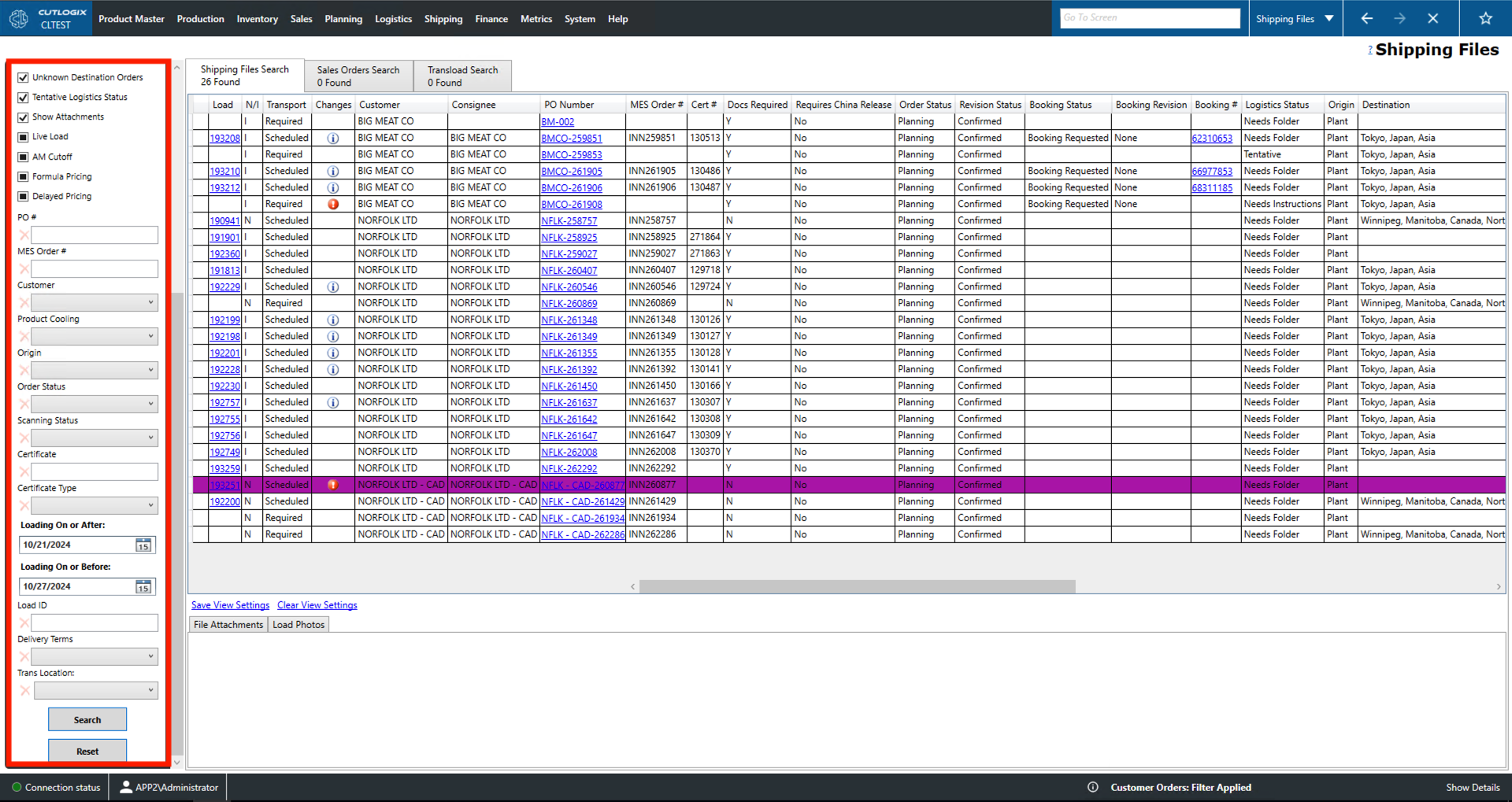
- Transload On or Before/After: Filters entries on the 'Transload Search' tab to those that are dated as being transloaded on or before/after this date.
- Load ID: Filter by the unique identifier for the load.
- Delivery Terms: Filter by the terms that define the responsibilities of the shipper and the receiver (also known as 'incoterms').
- Trans Location: Indicates the location where this load will be moved from one mode of transportation to another.
- Search: This will reload the list with the current filters applied.
- Reset: This will reset the filters and reload the list to an unfiltered state.