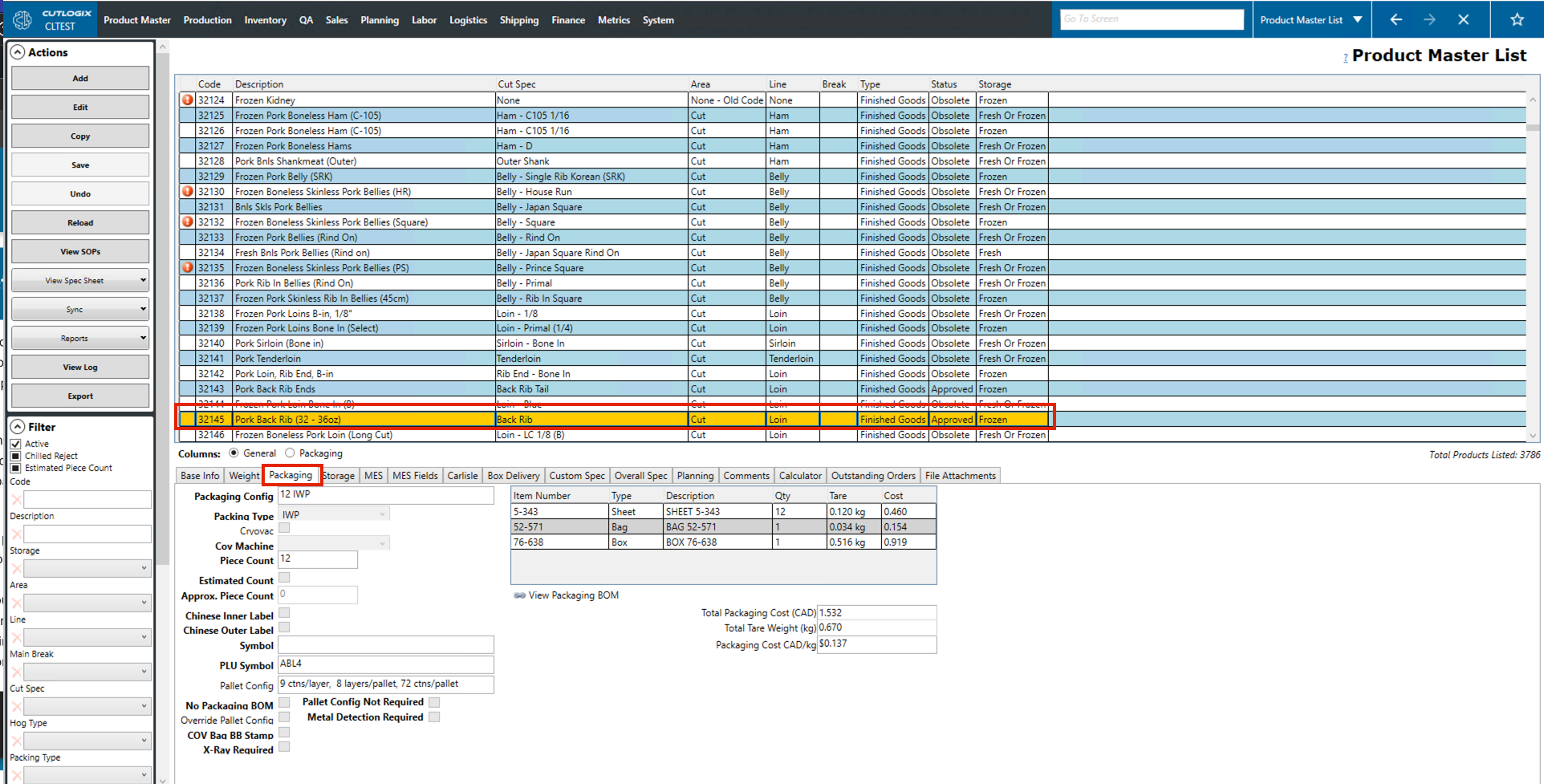
Packaging BOM Tasks
How to Edit a Packaging BOM
Demo
Note: There is no option to "Add" a Packaging BOM from this page in the actions panel. This is because a packaging bom is like an attribute of a product. The product is required to be selected first, then "Editing" the bom for the selected product allows you to add or remove materials to its packaging bom.
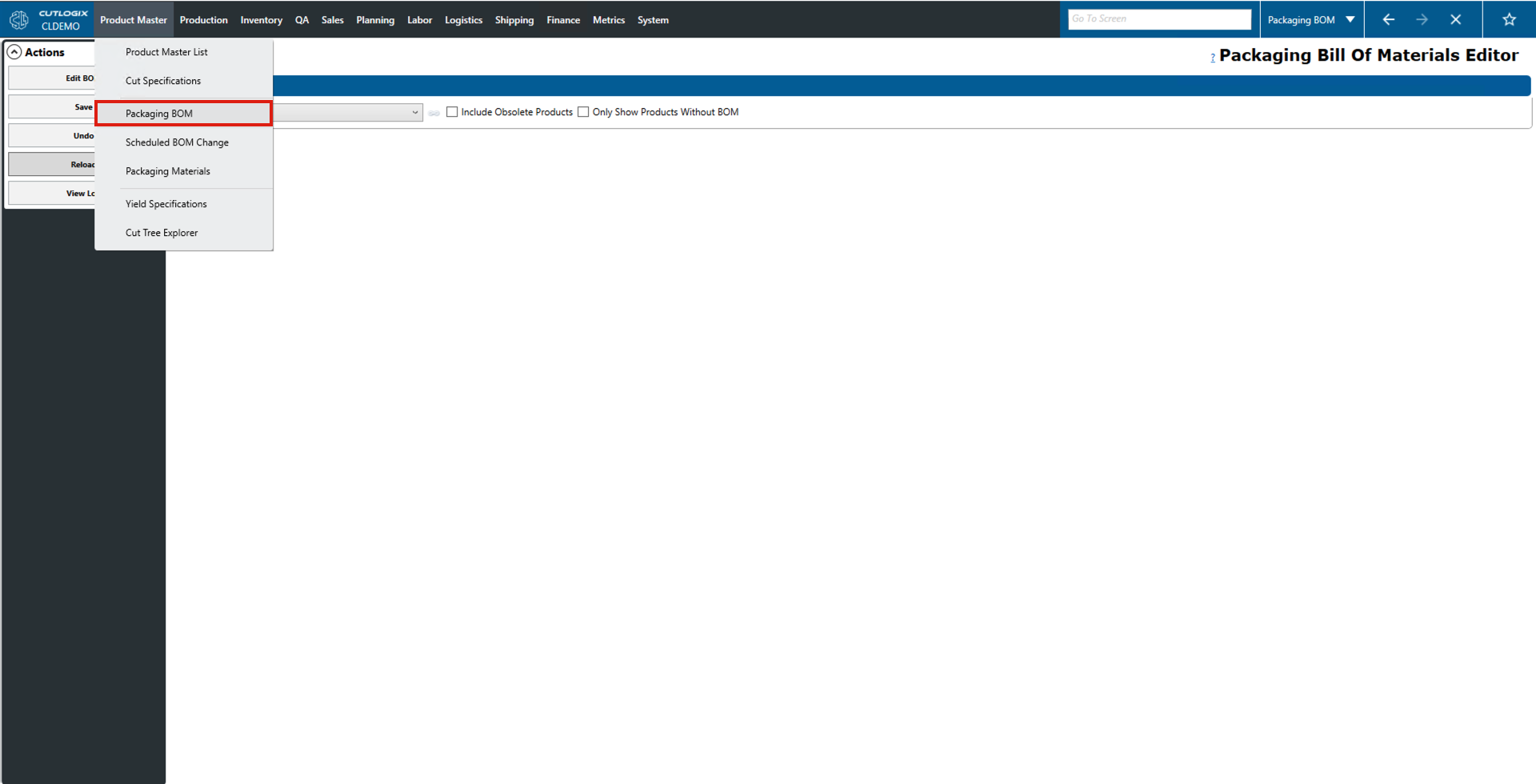
Step 1: Navigate to the "Product Master" menu, then choose the "Packaging BOM" option to go to the Packaging BOM page.
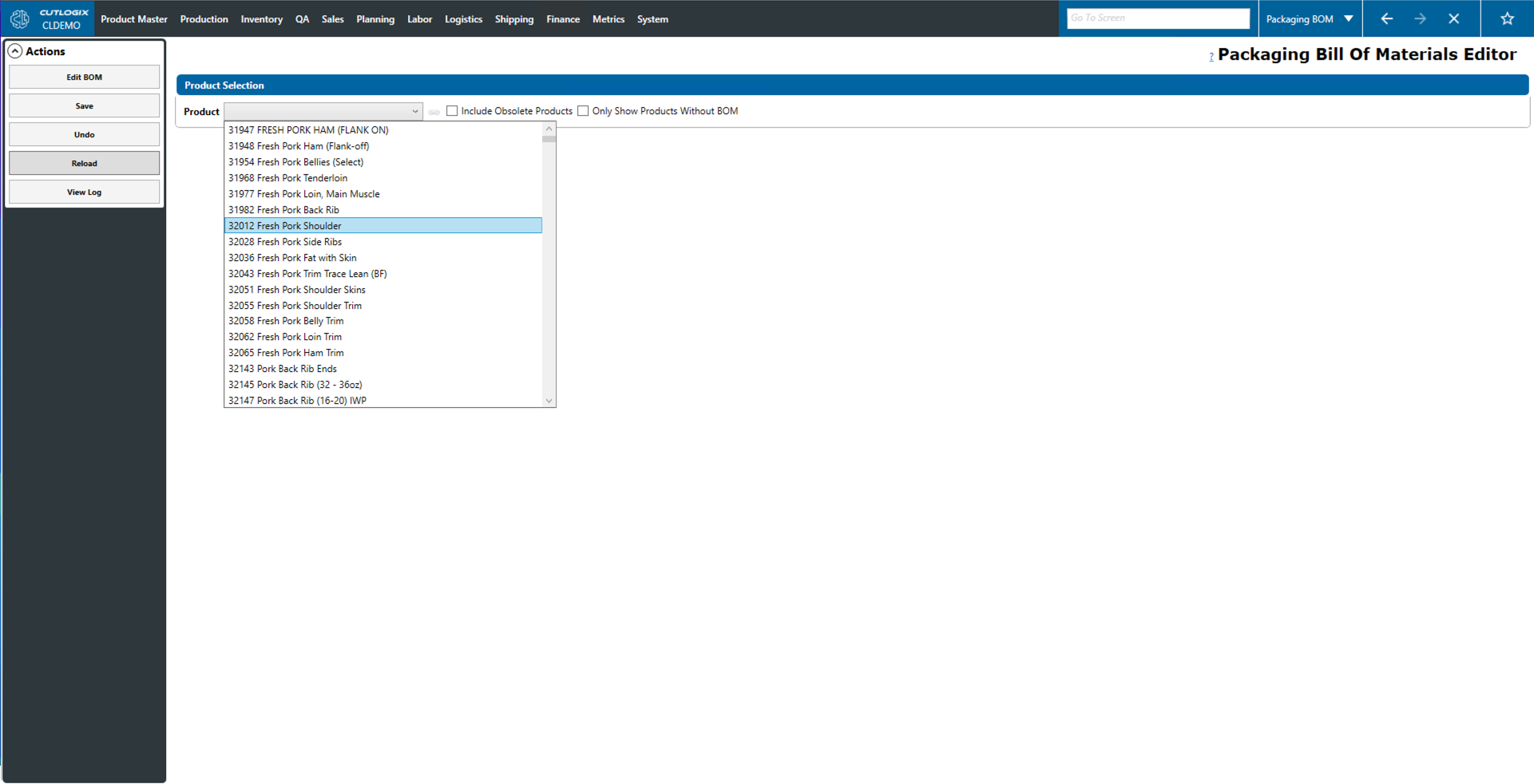
Step 2: Select a product from the "Product" drop down list that you want to modify the packaging BOM for.
Step 3: Click on the "Edit BOM" button in the actions panel.
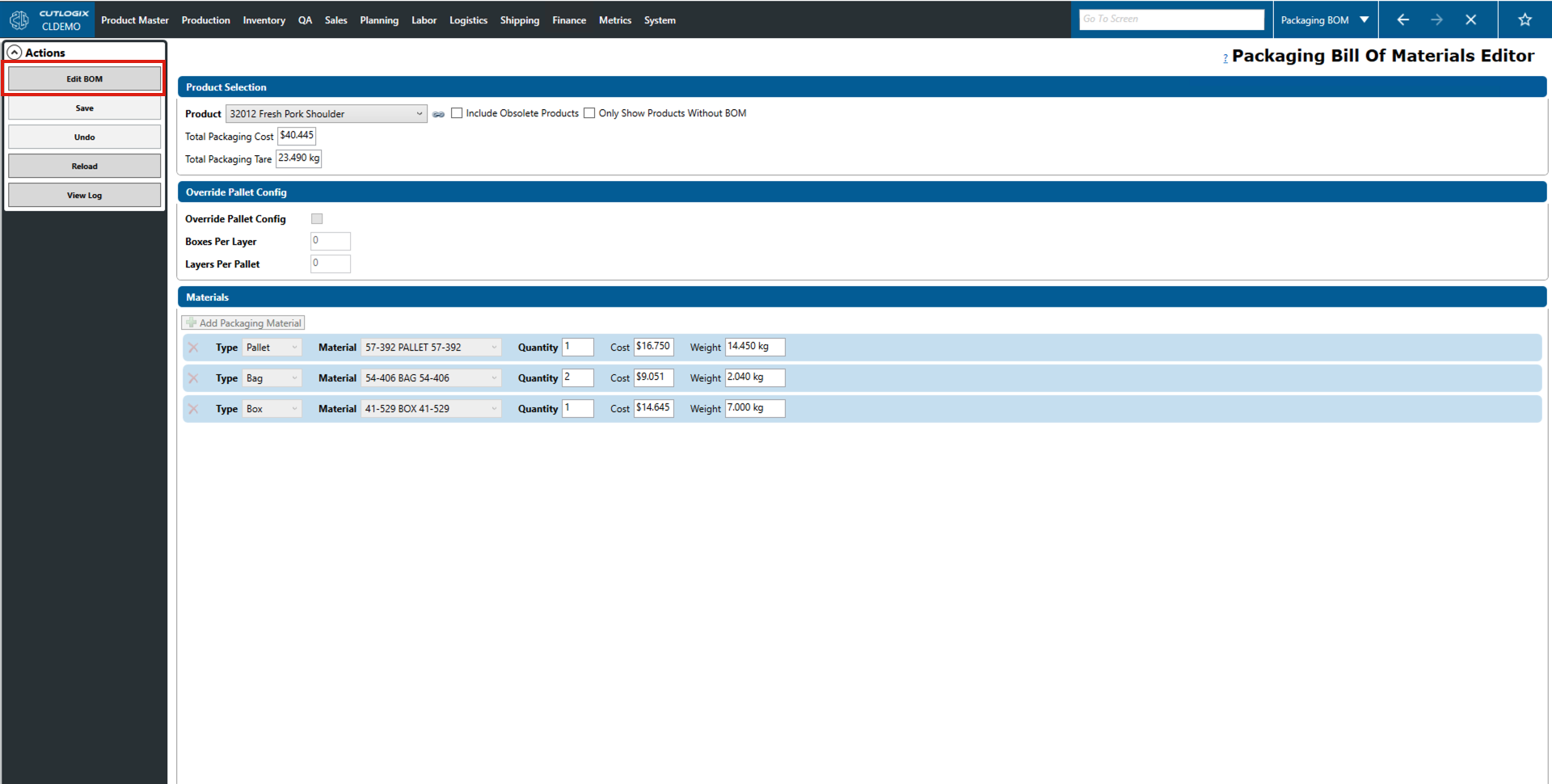
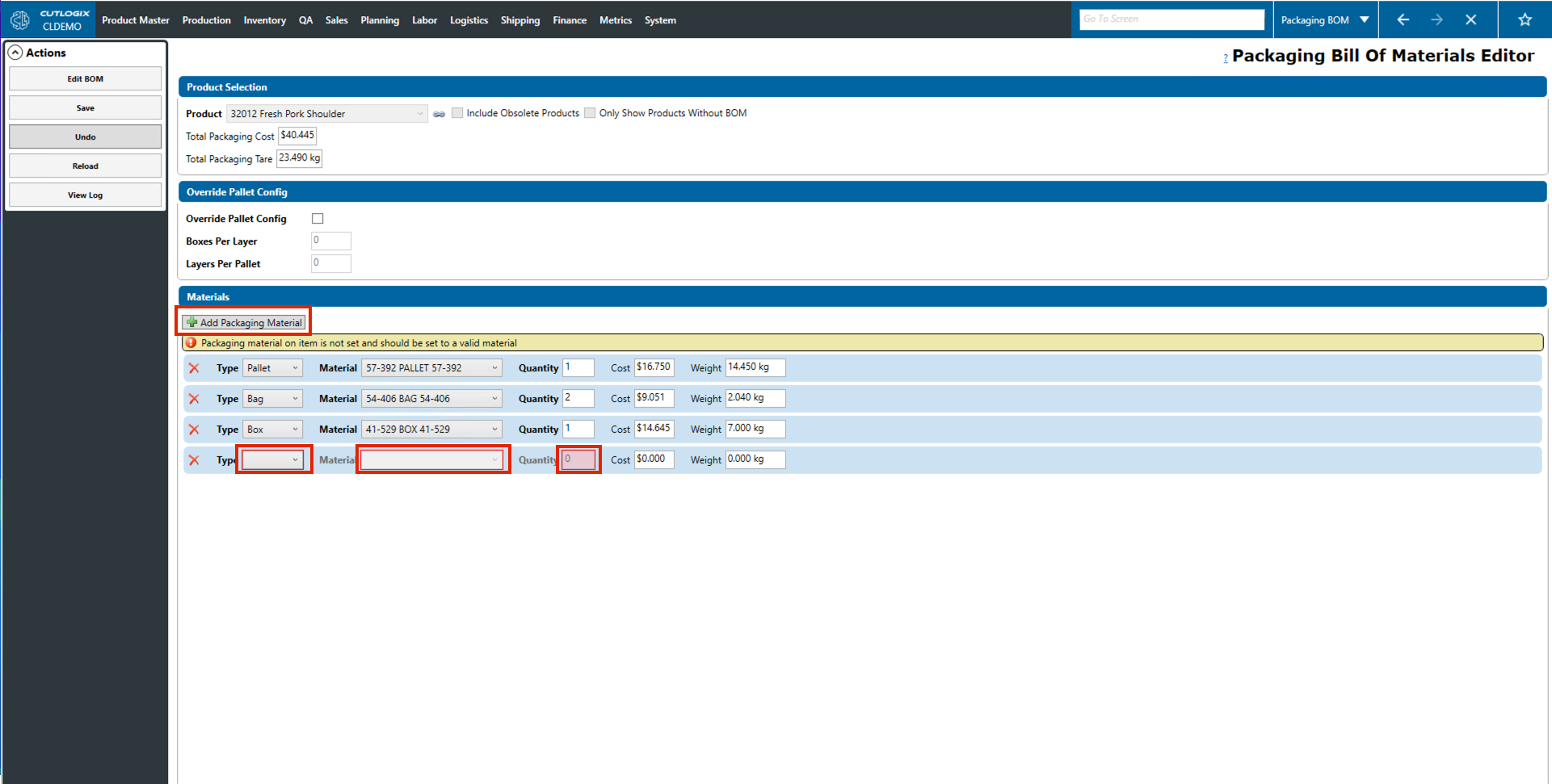
Step 4: The BOM details will be shown for the product. Here you can add a new packaging material to the BOM and edit the fields of existing materials on the BOM such as the type, material, quantity or cost. You can also override pallet configuration by clicking on the "Override Pallet Config" checkbox, then changing the box per layer and layers per pallet configuration.
How to View the Product with this BOM attached
Demo
The following steps outline how to view the product details for a specific BOM. This is useful if you're viewing a product BOM and want more information about the product.
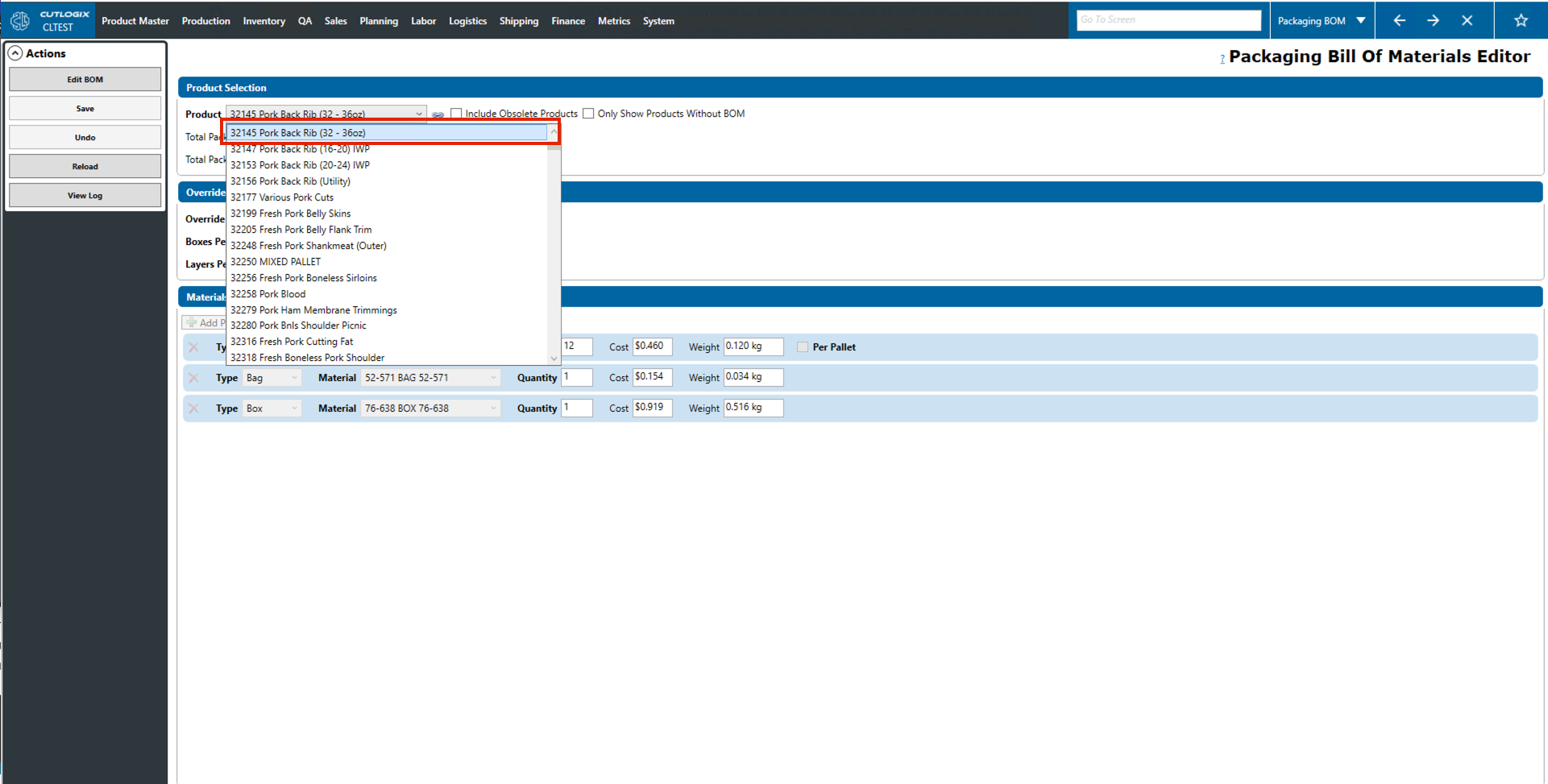
Step 1: Select a product from the "Product" dropdown menu on the "Packaging Bill Of Materials Editor" page. Once selected, the BOM for that product will appear.
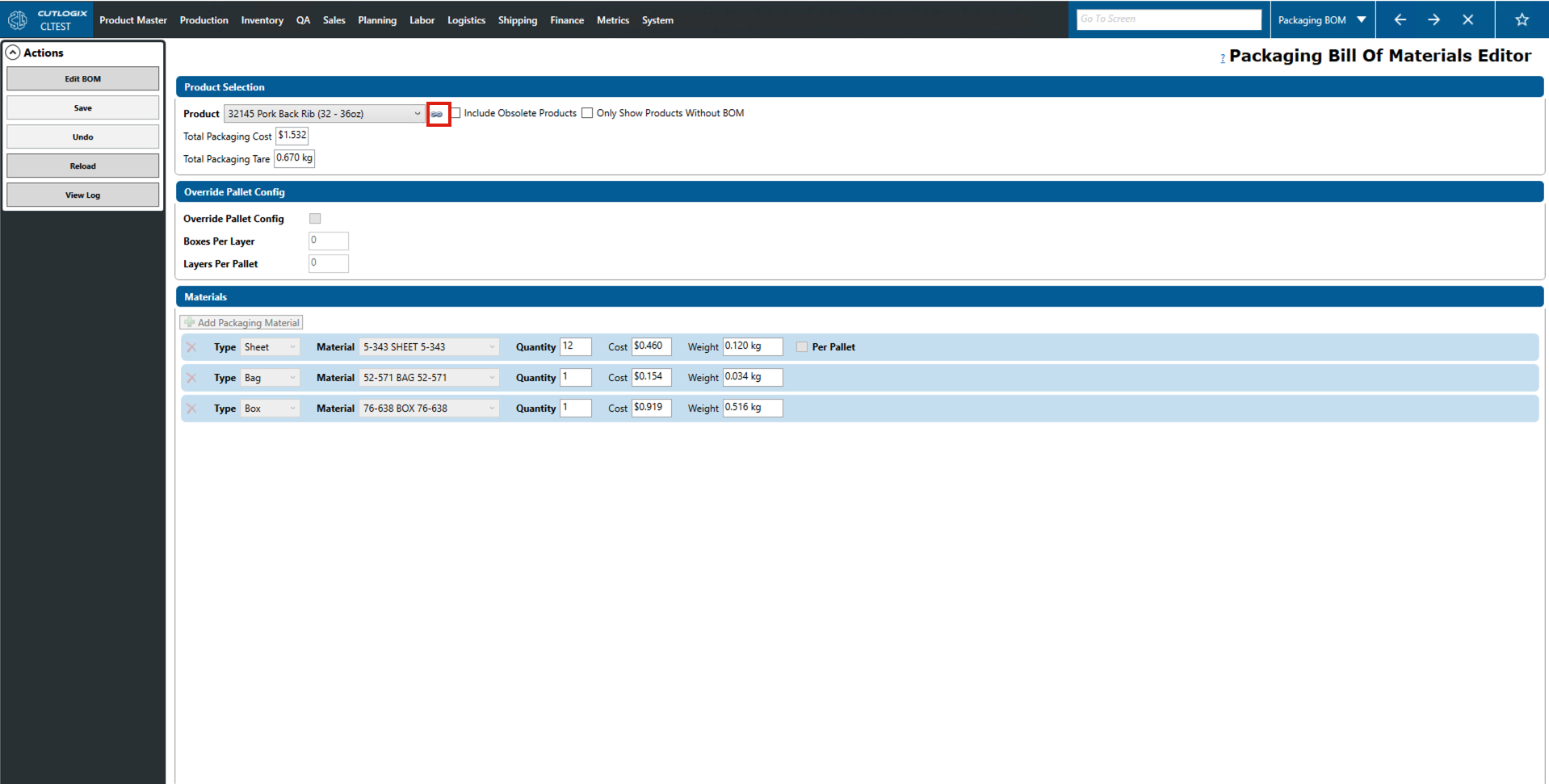
Step 2: Click the link icon beside the product dropdown list.
Step 3: You will be redirected to the product master list where the product you had selected on the packaging bill of materials page is pre-selected and the packaging tab is open for it. You can also navigate to other tabs for the product to view other information on it.