Chilled Container Loading
How to Navigate: Click on Shipping > Chilled Container Loading
Summary
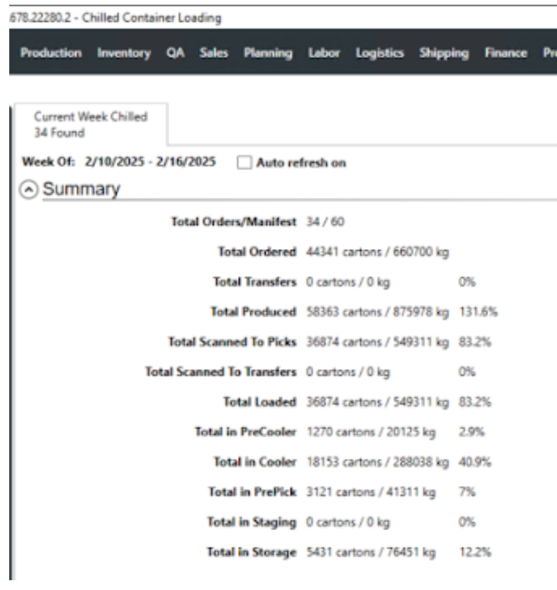
This section aggregates the production and loading data from the current week’s chilled production into useful totals. The numbers in the center provide two overall totals for the week: the Total Orders/Manifest and the Total Ordered.
Below these, are more specific totals for the week like the total cartons/kilograms produced, the total scanned, the total loaded, etc. These two sets of metrics are compared to calculate the percentages displayed on the right. This contextualizes the specific totals into measures of the week’s progress that can be gauged at a glance.
Below these, are more specific totals for the week like the total cartons/kilograms produced, the total scanned, the total loaded, etc. These two sets of metrics are compared to calculate the percentages displayed on the right. This contextualizes the specific totals into measures of the week’s progress that can be gauged at a glance.
Actions
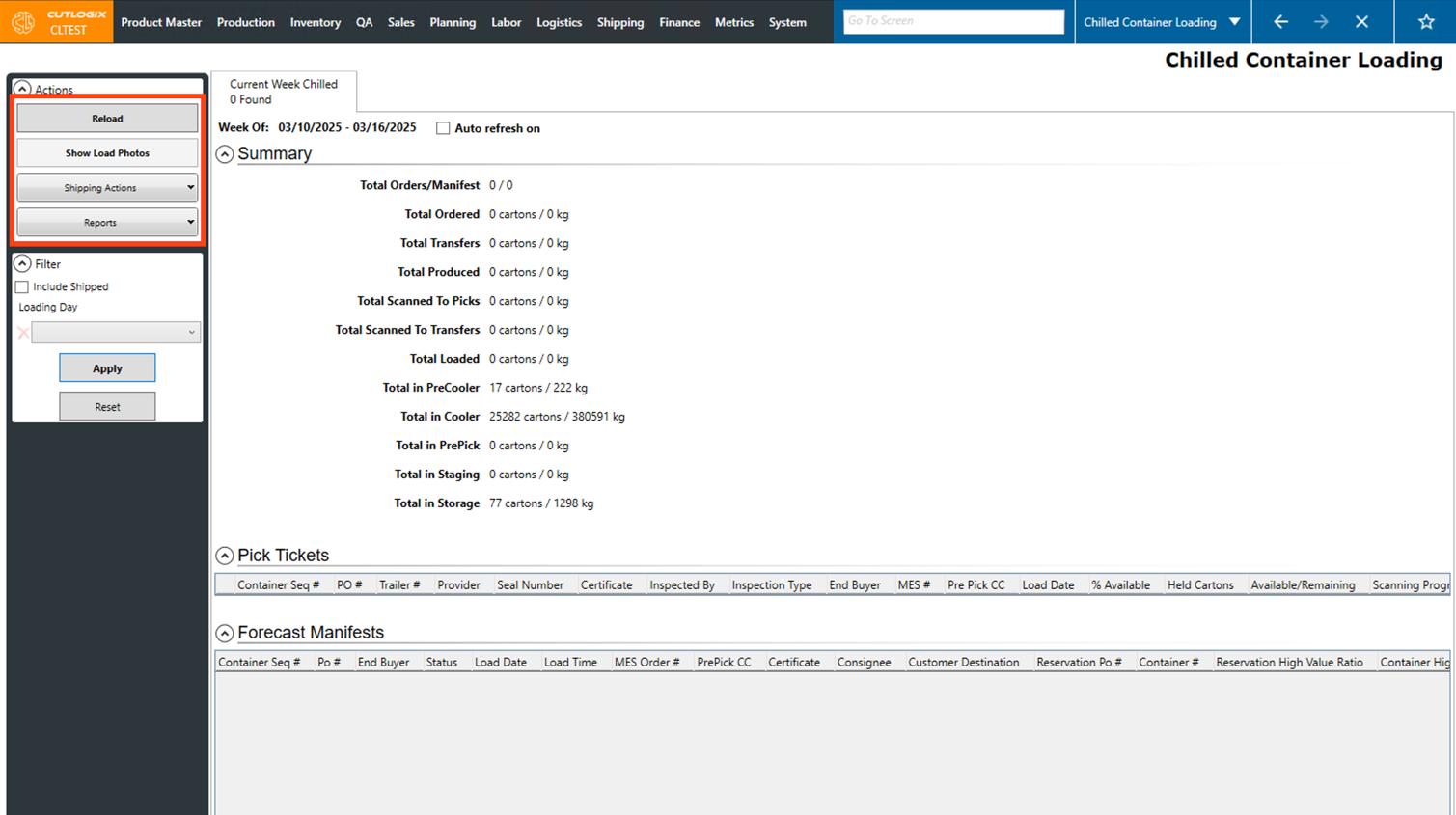
- Reload: Reload the data on the page, showing the most up-to-date version of the data from the database.
- Show Load Photos: Show the load photos for the selected pick ticket.
- Shipping Actions: Open a list of various shipping actions that are available for the selected record:
- Assign Container: Assign a container to the selected forecast manifest.
- Assign Seal Number Assign a seal number to the selected pick ticket.
- Reports: Open a list of all the available reports to download on this screen.
Filter
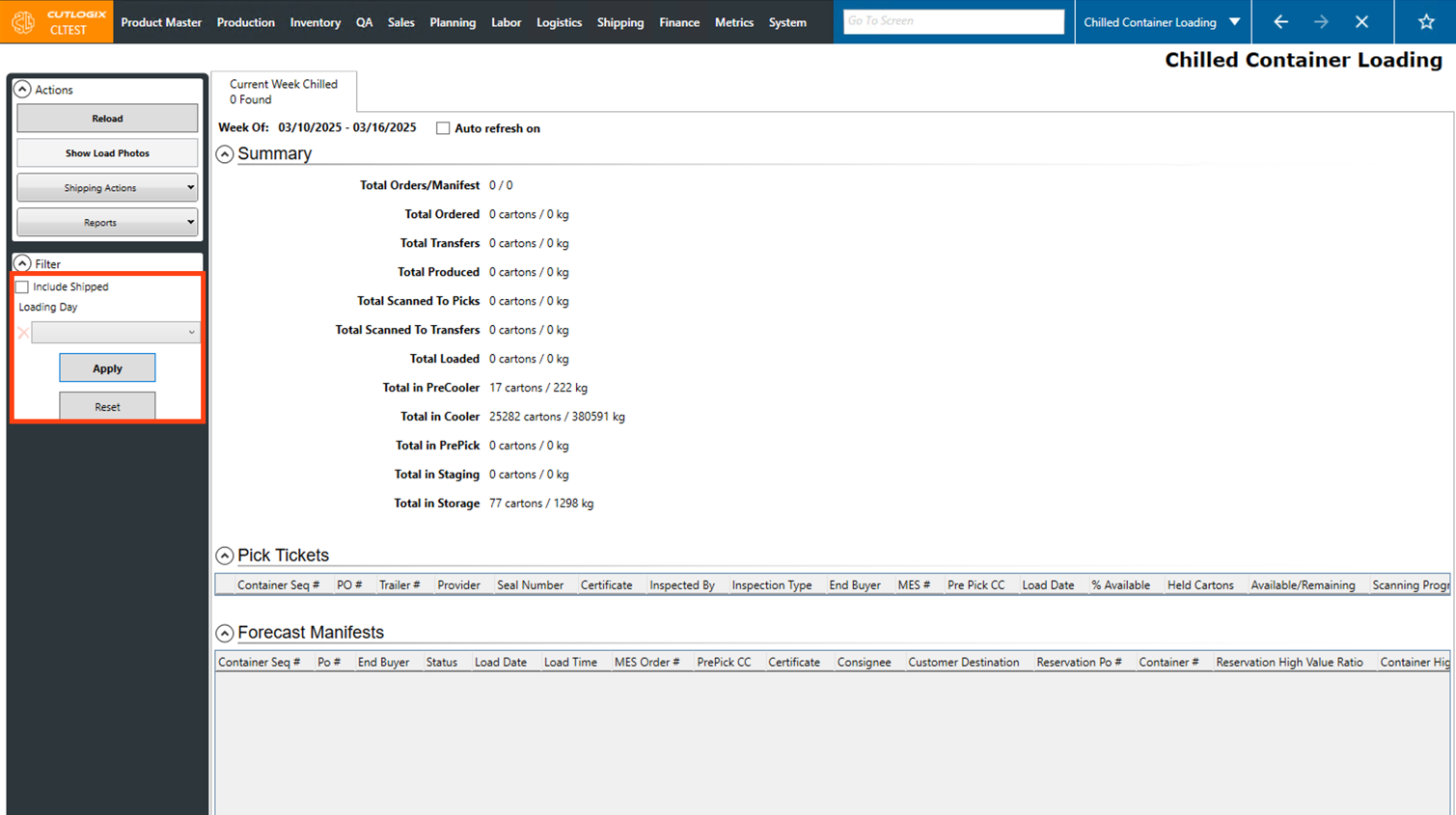
- Include Shipped: If selected, shipped orders will be displayed as part of the data on the page.
- Loading Day: Choose a day from the dropdown list, once selected and applied only orders that will be loaded on that day will be shown.
- Apply: This will reload the list with the current filters applied.
- Reset This will reset the filters and reload the list to an unfiltered state.